

Perform mass operations on multiple shifts at once — move them to open, edit properties, or delete them — without touching each shift individually.
What Is This?
Bulk Shift Actions is a panel accessible from the Actions dropdown on the Schedule page. It lets you select a large group of shifts by period, day of week, employee, or shift template, and then apply one of three operations to all of them at once:
Prerequisites
| # | Prerequisite | Details |
|---|---|---|
| 1 | Access to the Schedule page | At least one project with a schedule |
| 2 | Admin, Owner, or Manager role | Employees cannot use Bulk Actions |
| 3 | Existing shifts on the schedule | There must be shifts to act upon |
Opening Bulk Shift Actions
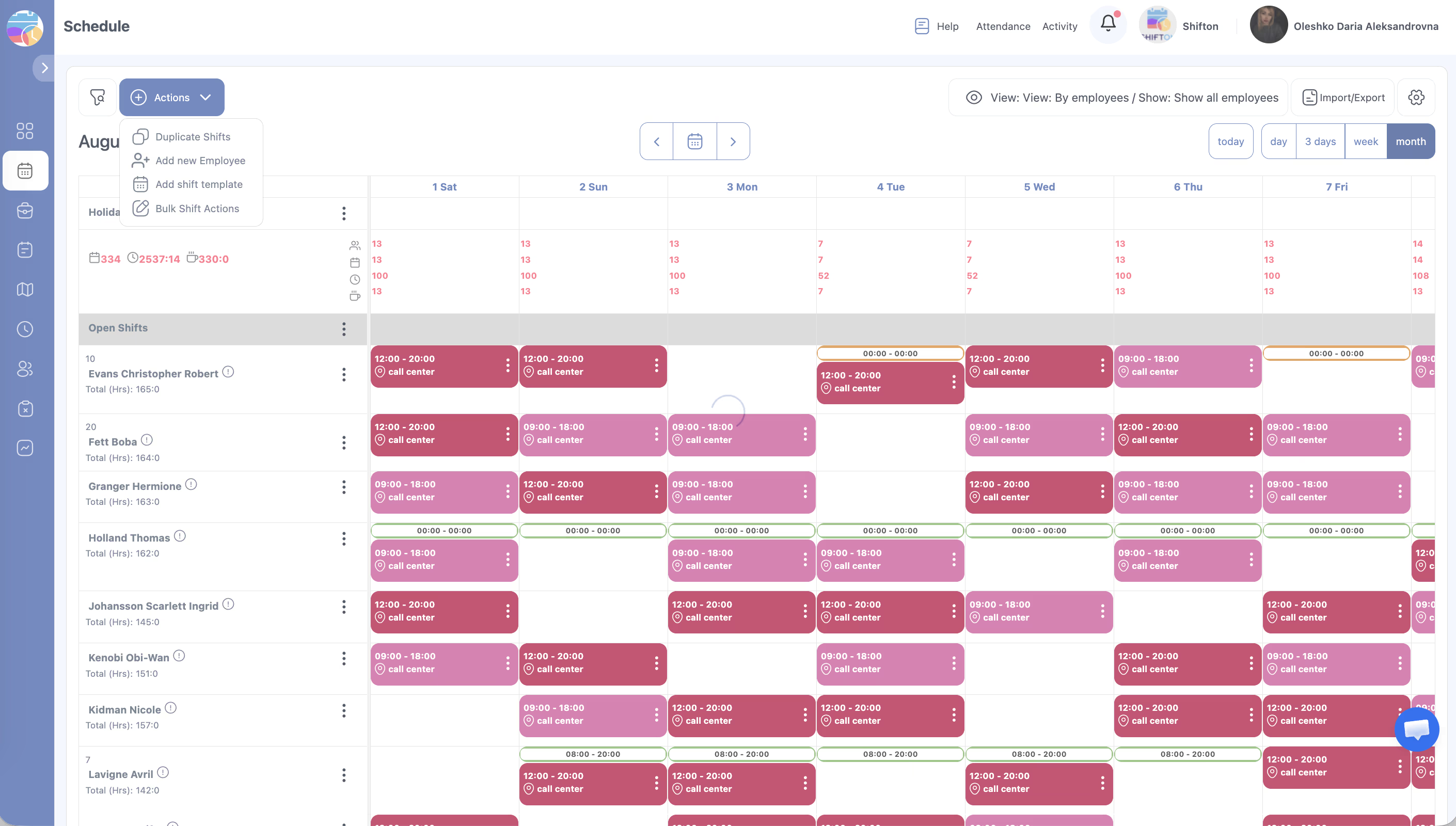
Selecting Which Shifts to Affect
The panel has two tabs for defining the scope:
Period Tab
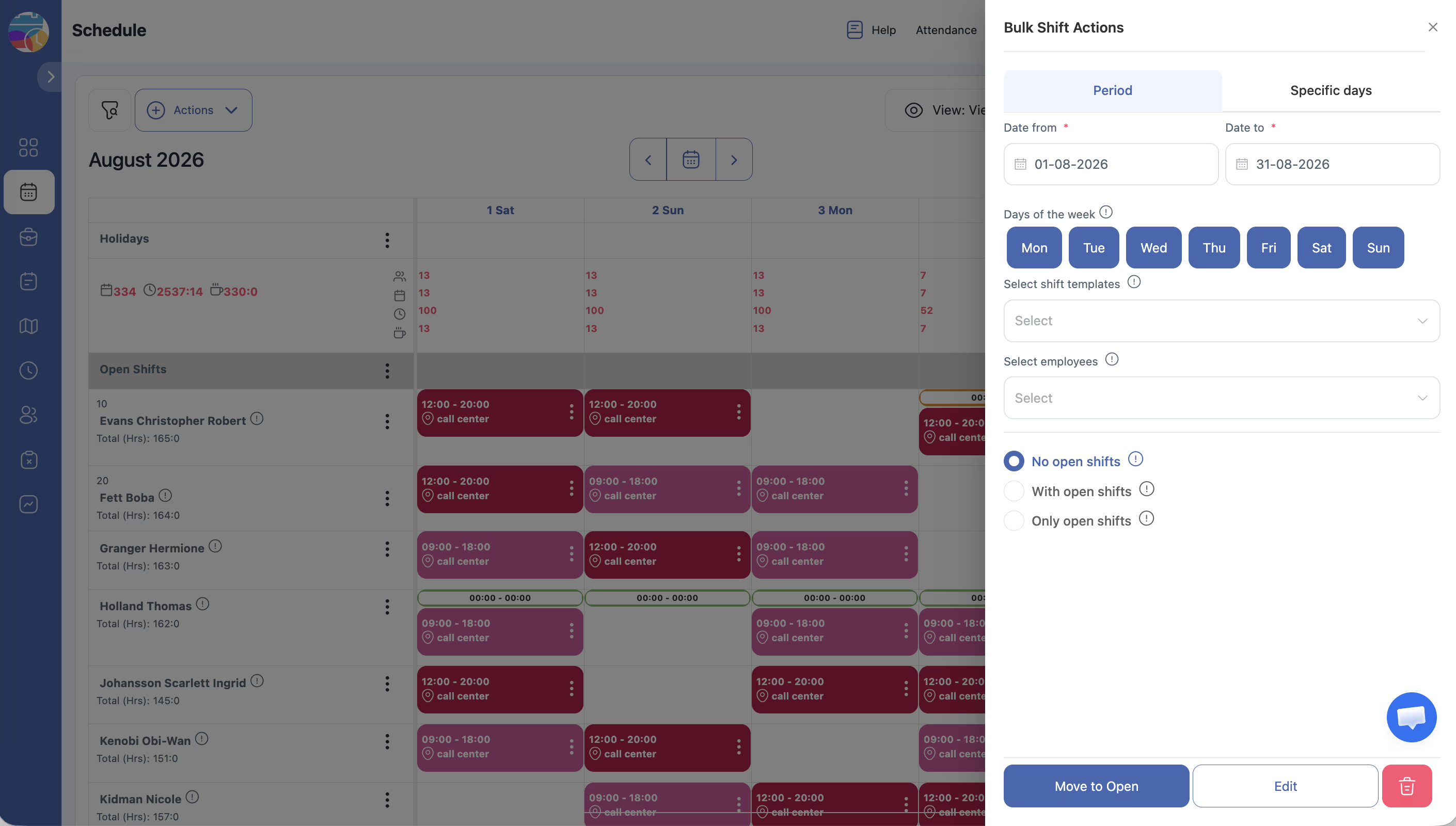
Use this to select all shifts within a date range.
| Field | Description |
|---|---|
| Date from / Date to | The date range to include |
| Days of week | Toggle individual days (Mon–Sun) to include only specific weekdays |
| Select shift templates | Filter by one or more shift templates (optional) |
| Select employees | Filter by specific employees (optional; leave empty = all) |
| Open shifts | Radio filter: No (exclude open shifts) / With (include open shifts) / Only (open shifts only) |
Specific Days Tab
Use this to hand-pick individual calendar dates instead of a continuous range.
Applying an Action
After configuring the scope, click one of the three action buttons at the bottom:
Move to Open
Removes the employee assignment from all selected shifts. Shifts remain on the schedule as open (unassigned) — any qualified employee can pick them up.
Edit
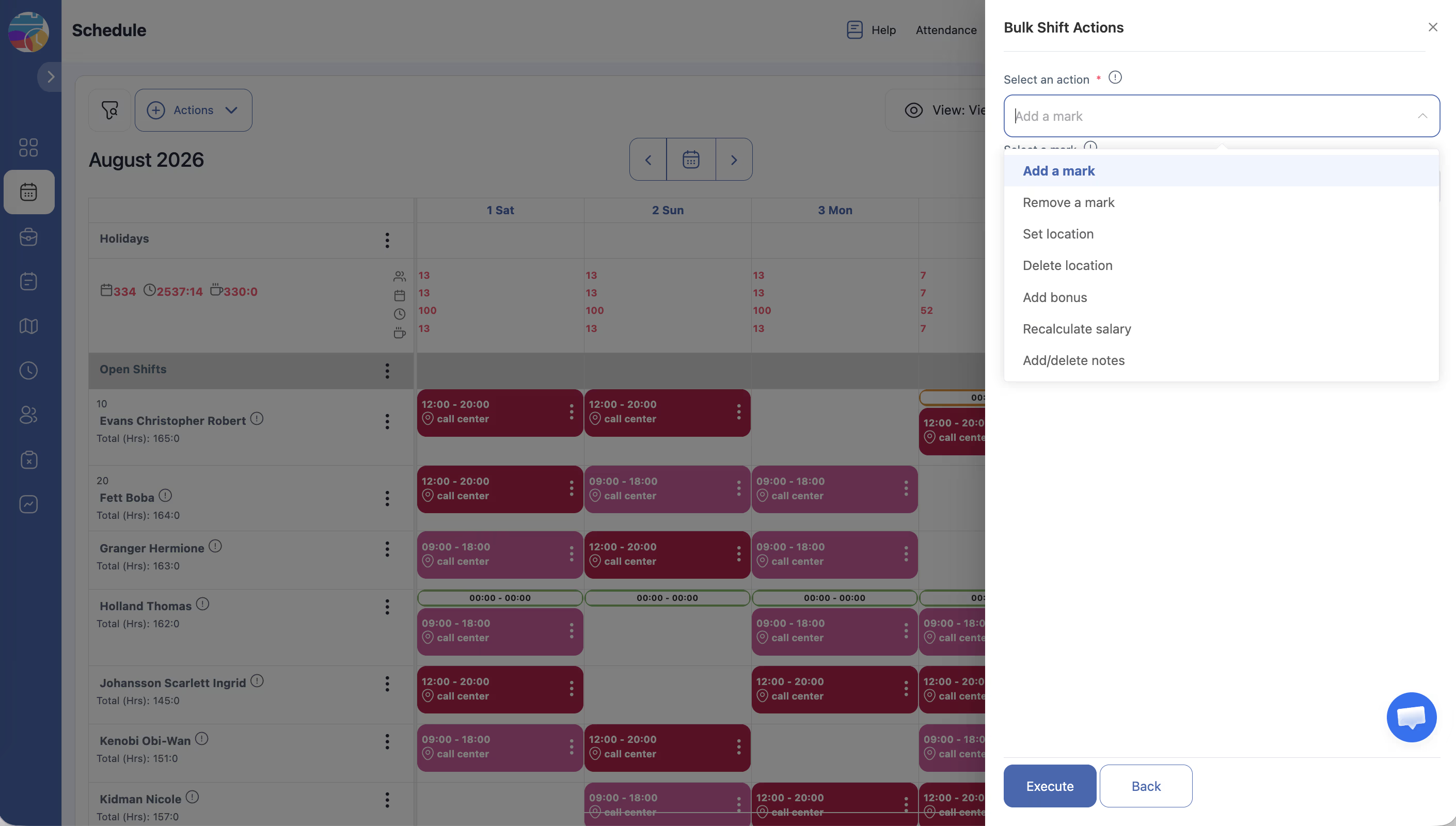
Opens a dropdown to select what to edit on all selected shifts:
| Sub-action | What It Does |
|---|---|
| Add a mark | Applies a shift mark/tag to all selected shifts |
| Remove a mark | Removes an existing mark from all selected shifts |
| Set location | Assigns a location to all selected shifts |
| Delete location | Removes the location from all selected shifts |
| Add bonus | Adds a monetary bonus to all selected shifts |
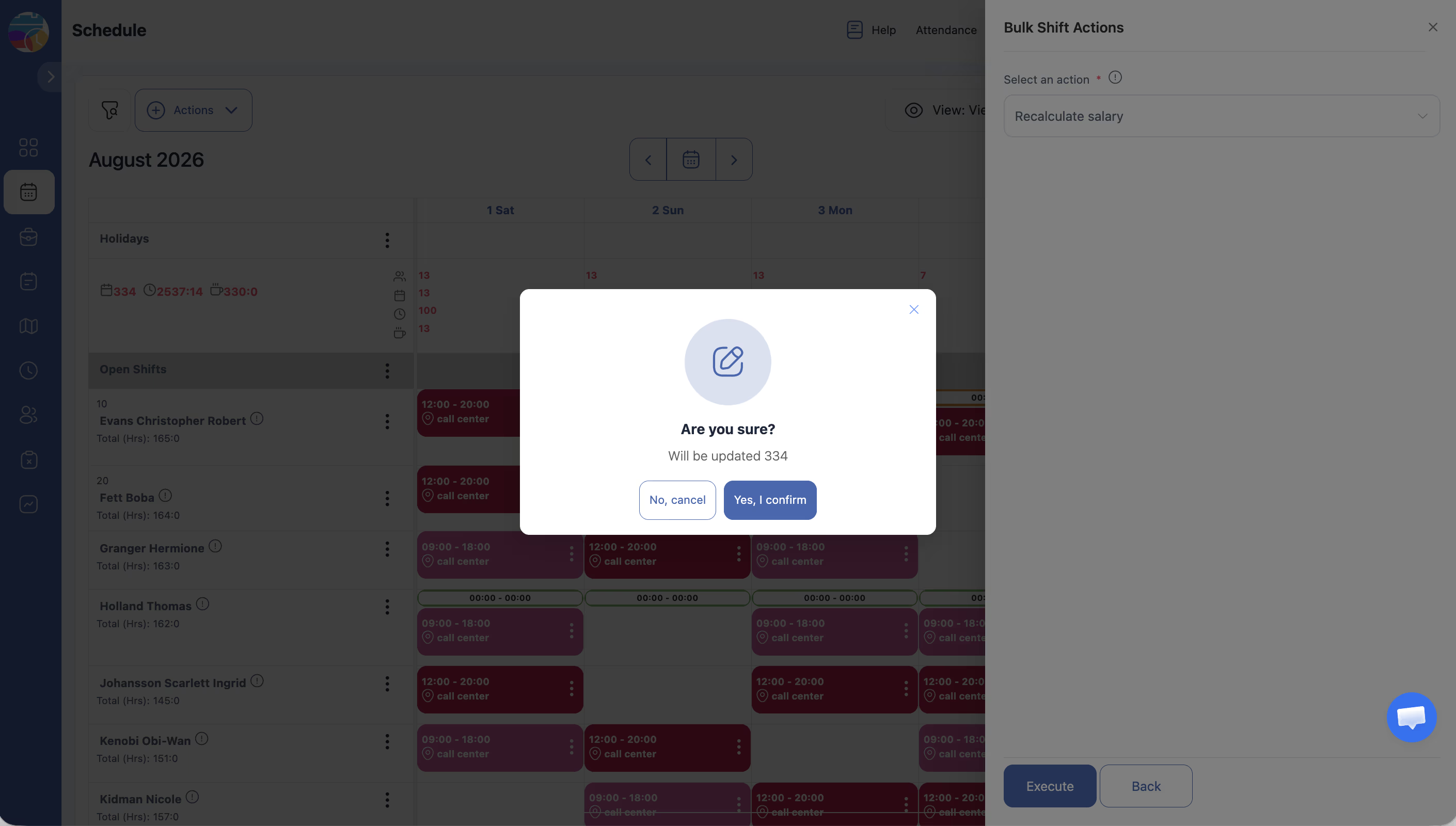
| Recalculate salary | Re-applies the current pay rate settings to all selected shifts (useful after changing rates) |
| Add/delete notes | Adds or removes a note on all selected shifts |
After selecting a sub-action, fill in the required value (e.g., which mark, which location, bonus amount) and confirm.
Delete
Permanently removes all shifts matching the scope criteria. This action cannot be undone.
Access Permissions
| Role | Can Use Bulk Shift Actions |
|---|---|
| Owner | Yes — all projects |
| Admin | Yes — all projects |
| Manager | Yes — assigned projects only |
| Employee | No |
FAQ
Q: Can I undo a bulk action?
A: No. Bulk actions are applied immediately and cannot be reversed. Always review your scope carefully — especially the date range and employee filters — before clicking.
Q: What does “Recalculate salary” actually do?
A: It re-evaluates the pay rate for each selected shift based on the current Salary Settings (company rate, position rate, or location rate). Use this after you’ve changed pay rates so that existing shifts reflect the updated amounts.
Q: Can I use Bulk Actions to reassign shifts to a different employee?
A: Not directly. Use “Move to Open” to unassign shifts first, then assign them manually or let employees claim them.
Q: Will employees receive notifications after bulk changes?
A: No automatic notifications are sent. After completing a bulk action, go to the Schedule page and click Publish & notify employees to inform your team.
Q: Is there a limit to how many shifts I can modify at once?
A: No strict limit, but very large operations may take a moment to process. Do not refresh the page while the action is running.
Possible Issues and Solutions
| Issue | Cause | Solution |
|---|---|---|
| Bulk Shift Actions not in the Actions dropdown | Insufficient role | Confirm you have Manager, Admin, or Owner access |
| More shifts affected than intended | Scope was too broad (date range too wide, no employee filter) | Use narrower date range or filter by specific employees/templates |
| Deleted shifts cannot be recovered | No undo for bulk delete | Recreate the shifts manually or use Duplicate Shifts to restore from another period |
| Recalculate salary shows no change | Pay rates in Salary Settings haven’t been updated yet | First update the rate (Company Settings → Salary or Positions → rate field), then run Recalculate salary |
| Changes not visible on grid after action | Browser cache | Refresh the page |