

Change a schedule’s end date after it has been created — extend it to add more weeks, or shorten it to cut off days you no longer need.
What Is This?
After a schedule is created, its date range (From / To) is fixed — but you can resize it at any time using the Reduce/extend schedule tab in the Edit schedule panel.
Prerequisites
| # | Prerequisite | Details |
|---|---|---|
| 1 | Active schedule | The schedule must already exist |
| 2 | Admin, Owner, or Manager role | You need permission to modify the schedule |
How to Access
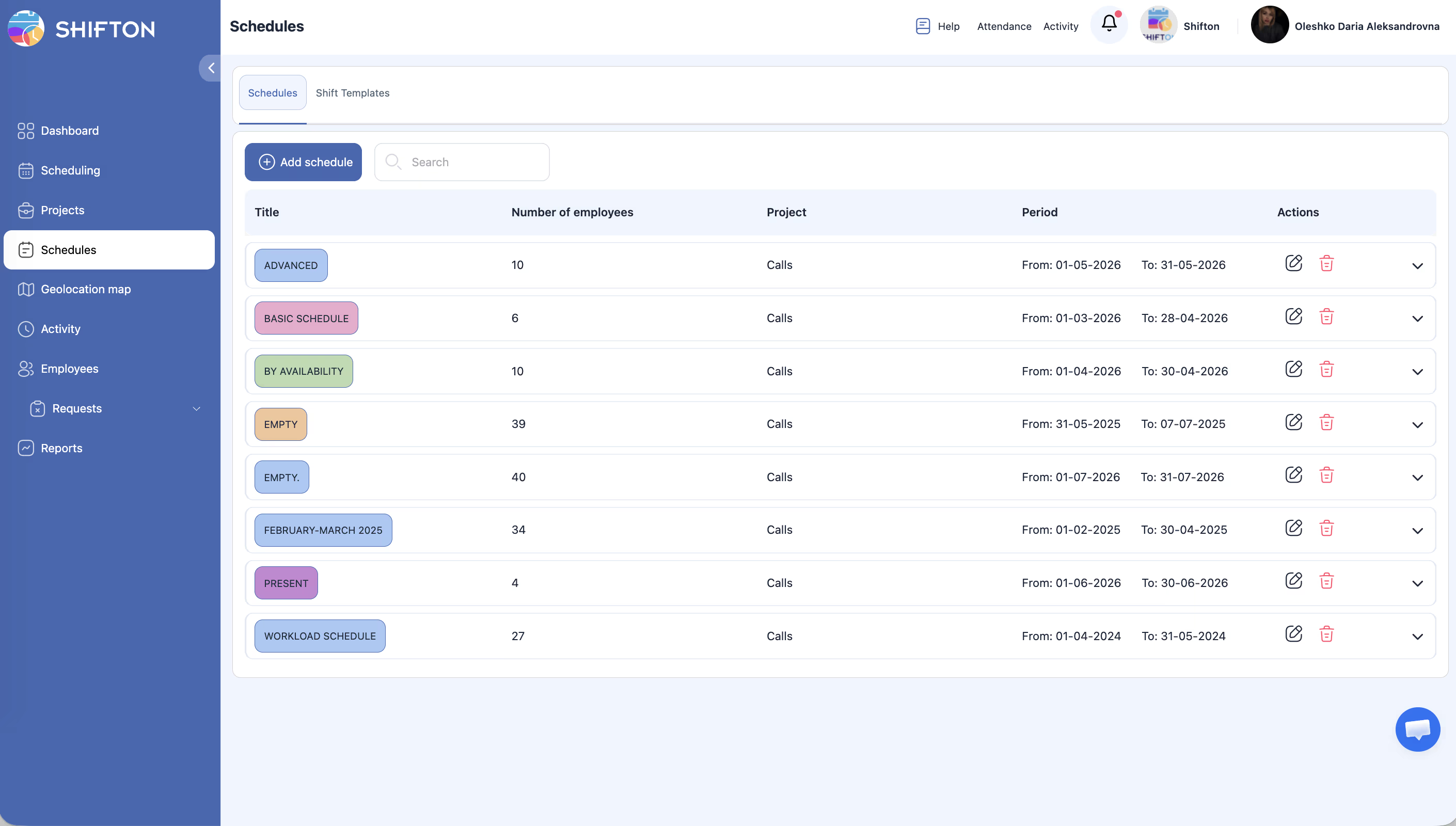
The panel has six tabs total: Main information, Add employees, Remove employees, Reduce/extend schedule, Load demand, Scheduled team members.
Extending a Schedule
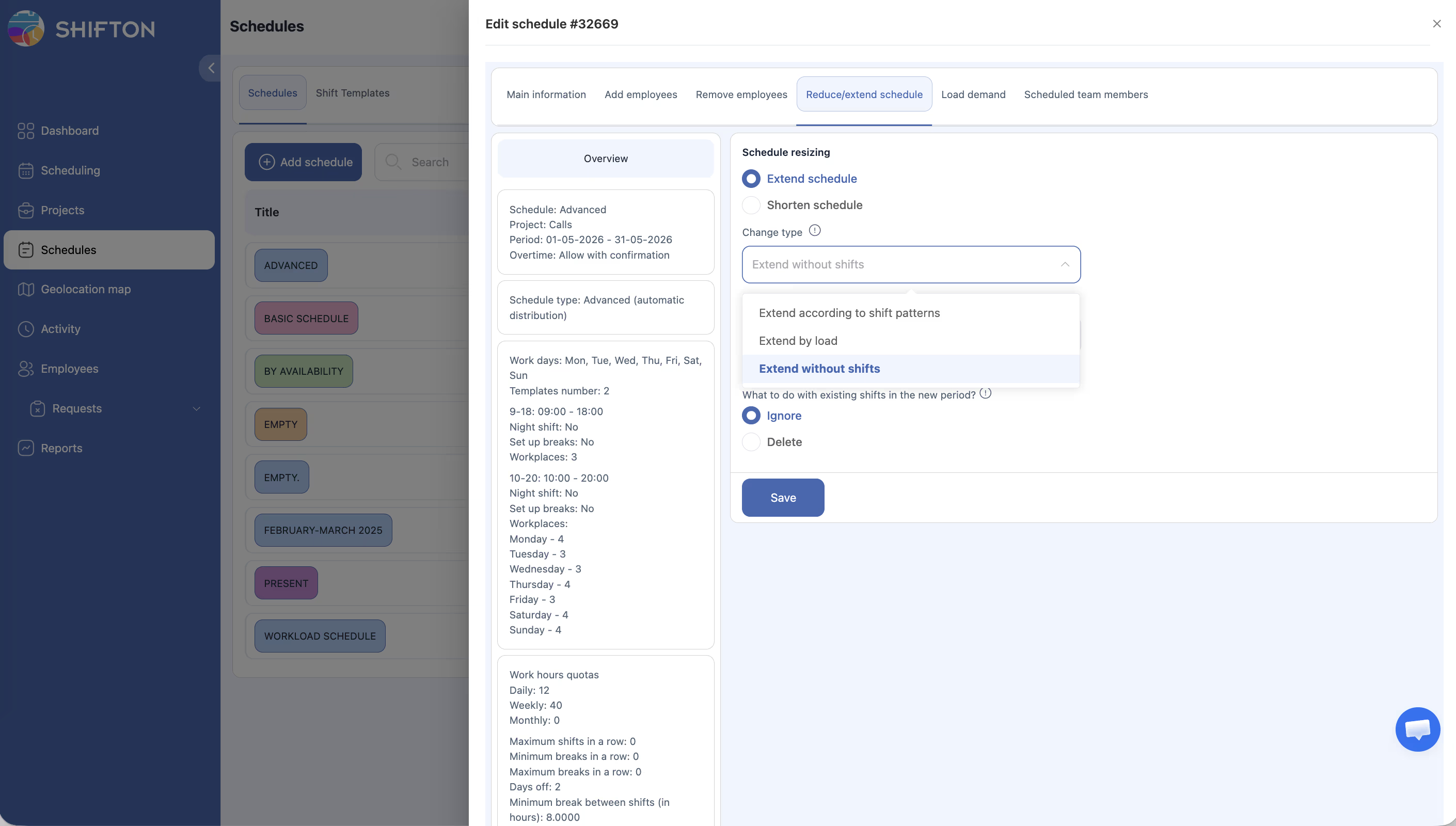
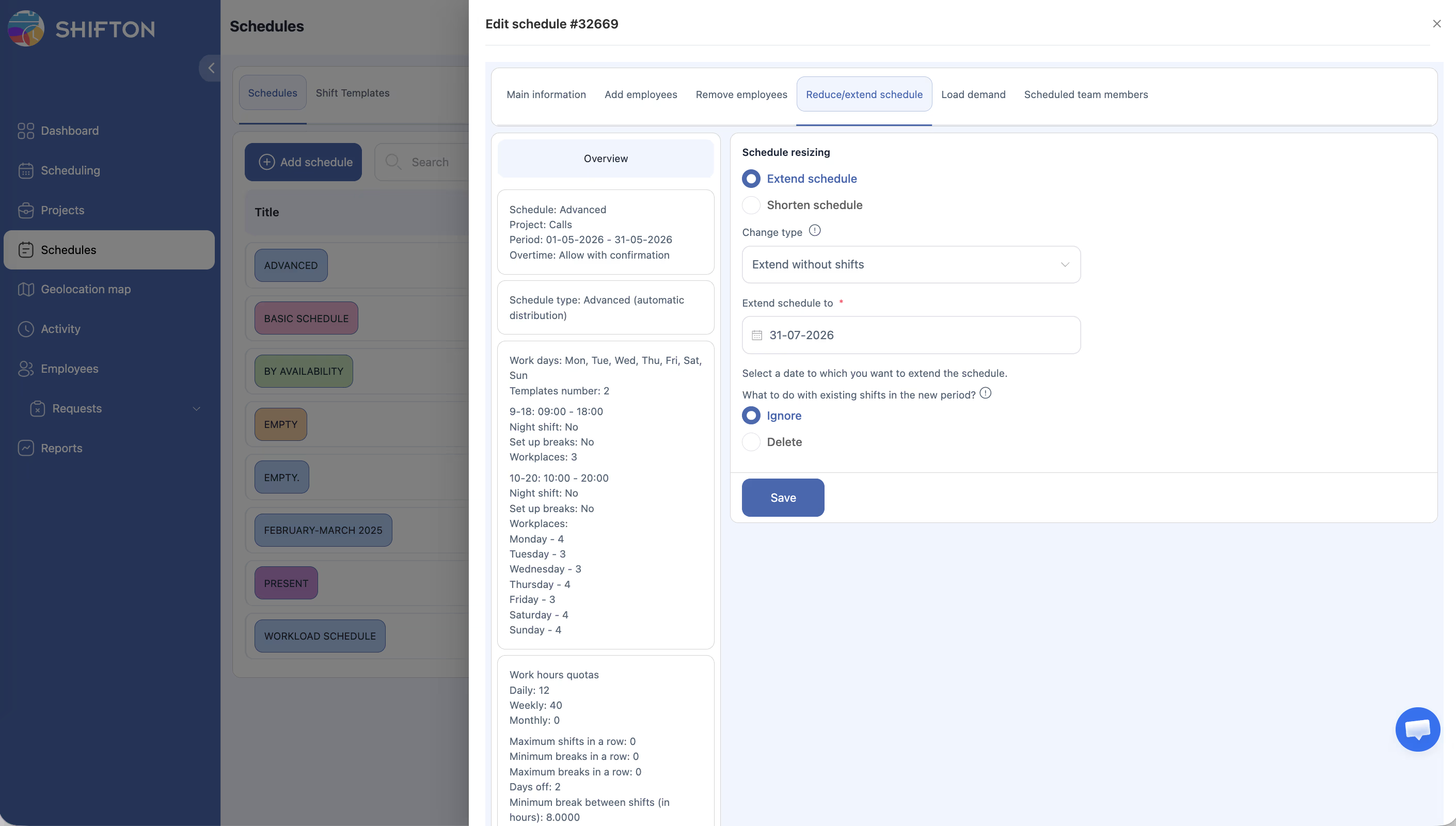
| Change Type | Description |
|---|---|
| Extend according to shift patterns | Extends the schedule and auto-generates shifts following the existing shift patterns/templates |
| Extend by load | Extends using the Load Demand data to generate shifts based on staffing requirements |
| Extend without shifts | Extends the date range only — no shifts are created; you add them manually later |
Shortening a Schedule
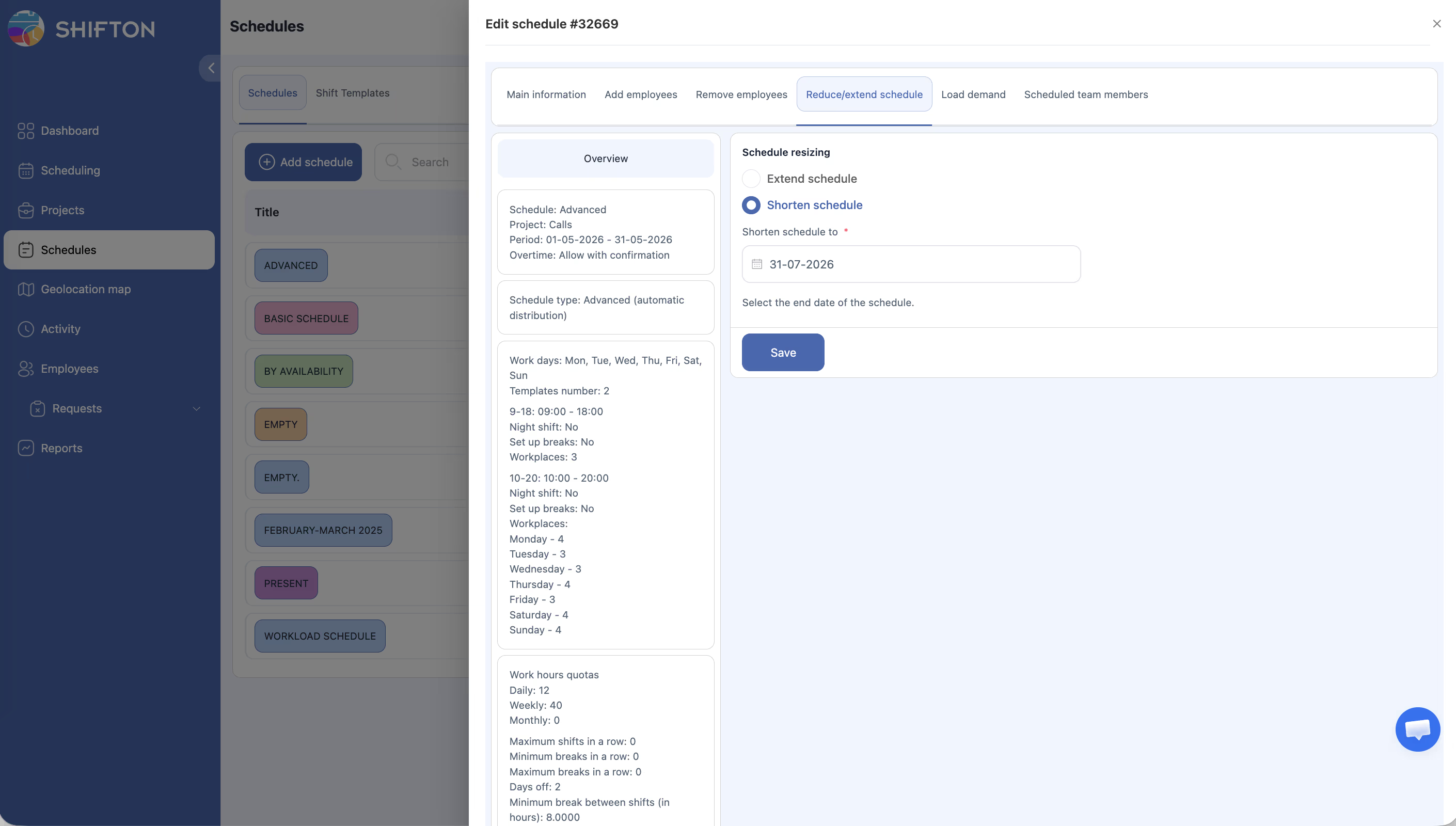
Note: Shifts that fall after the new end date are removed. This cannot be undone.
Expired Schedule Indicator
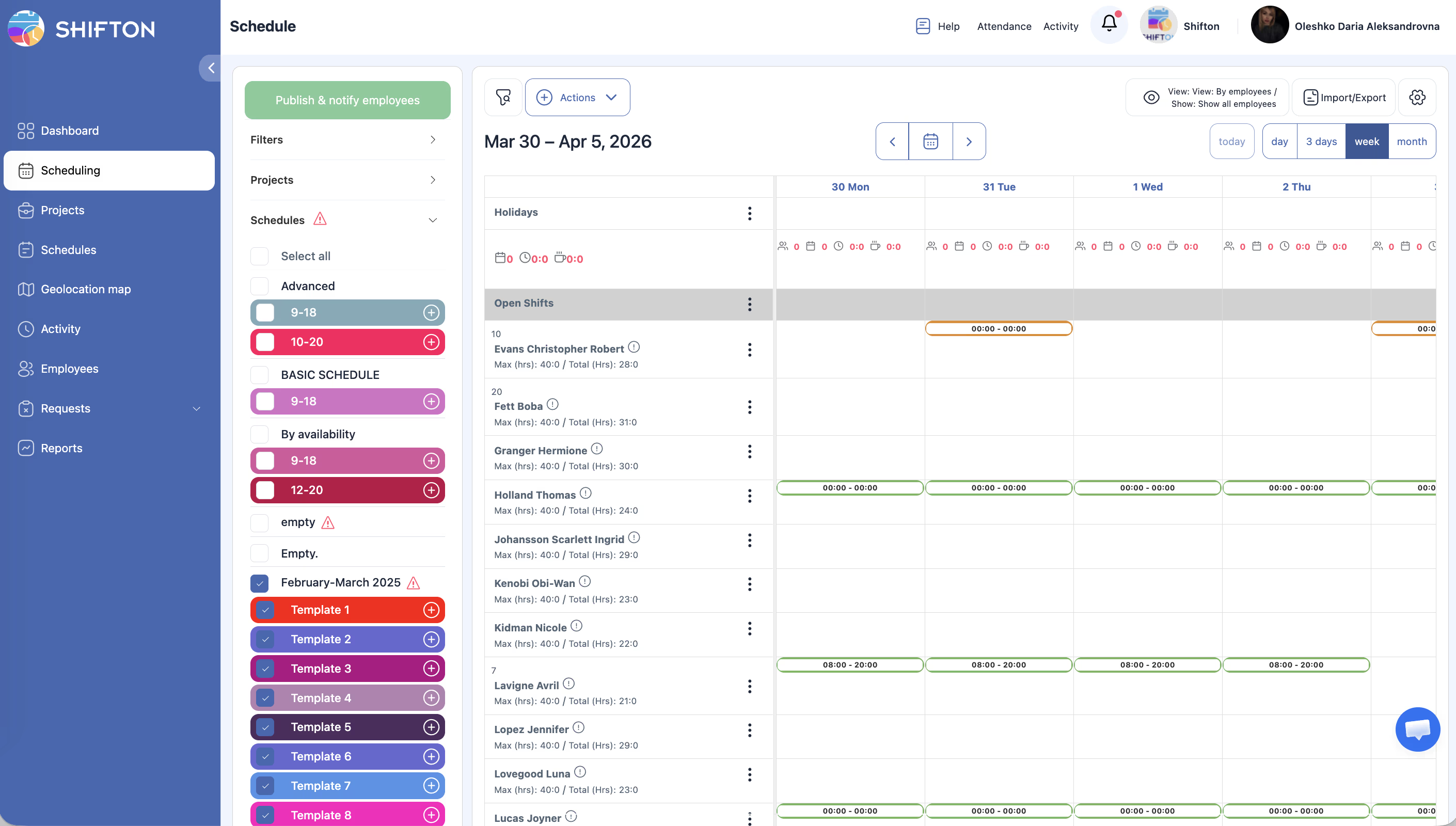
When a schedule’s end date has passed, a warning icon (⚠️ triangle) appears next to the “Schedules” label in the left sidebar panel on the Schedule page. This signals that at least one schedule in the current project has expired and may need to be extended.
To resolve: extend the schedule to a future date, or create a new schedule for the next period.
Access Permissions
| Role | Extend | Shorten |
|---|---|---|
| Owner | Yes | Yes |
| Admin | Yes | Yes |
| Manager | Yes (assigned projects) | Yes (assigned projects) |
| Employee | No | No |
FAQ
Q: Where is the “Extend schedule” option?
A: It’s not a standalone button. Go to the Schedules list → click the Edit (pencil) icon on the schedule → switch to the Reduce/extend schedule tab.
Q: What’s the difference between the three extend types?
A:
– According to shift patterns — repeats your existing shift template pattern into the new period (best for recurring schedules)
– By load — uses Load Demand data to determine how many shifts to create per hour (requires Forecasting module)
– Without shifts — just extends the date range; no shifts are generated
Q: Is there a maximum schedule length?
A: The total date range of a schedule cannot exceed approximately 3 months. To cover a longer period, create a new schedule.
Q: What happens to shifts after shortening?
A: Shifts after the new end date are permanently deleted. Attendance data and payroll records for already-processed shifts are not affected.
Q: Do I need to republish after extending?
A: Yes. After extending, click Publish & notify employees on the Schedule page to inform your team about new shifts.
Possible Issues and Solutions
| Issue | Cause | Solution |
|---|---|---|
| “Reduce/extend schedule” tab not visible | You opened the wrong panel or lack permissions | Use the Edit (pencil) icon on the Schedules list page; confirm Admin/Owner/Manager role |
| No shifts generated after extending | Change type was “Extend without shifts” | Switch to “Extend according to shift patterns” or manually add shifts |
| Cannot extend beyond a certain date | 3-month maximum limit | Create a new schedule for the next period |
| Extended period has wrong shift pattern | Change type doesn’t match your needs | Try “By load” if you have demand data, or “Without shifts” to add manually |
| Warning icon still shows after extending | The new end date is still in the past | Extend to a future date |