

A detailed guide to Step 1 of the schedule creation wizard, covering week control, employee visibility, and the eight employee action permissions that control what your team can do with their shifts.
What Is This?
When you create a new schedule, Step 1 asks you to configure basic information as well as important settings that define how the schedule behaves. Two of the most critical settings are:
Getting these settings right is essential for balancing employee flexibility with managerial control.
Prerequisites
| # | Prerequisite | Details |
|---|---|---|
| 1 | Active Shifton account | You must have a registered company account |
| 2 | Admin, Owner, or Manager role | You need permissions to create or edit schedules |
| 3 | A project created | The schedule must be linked to a project |
Step-by-Step Instructions
Accessing Schedule Settings
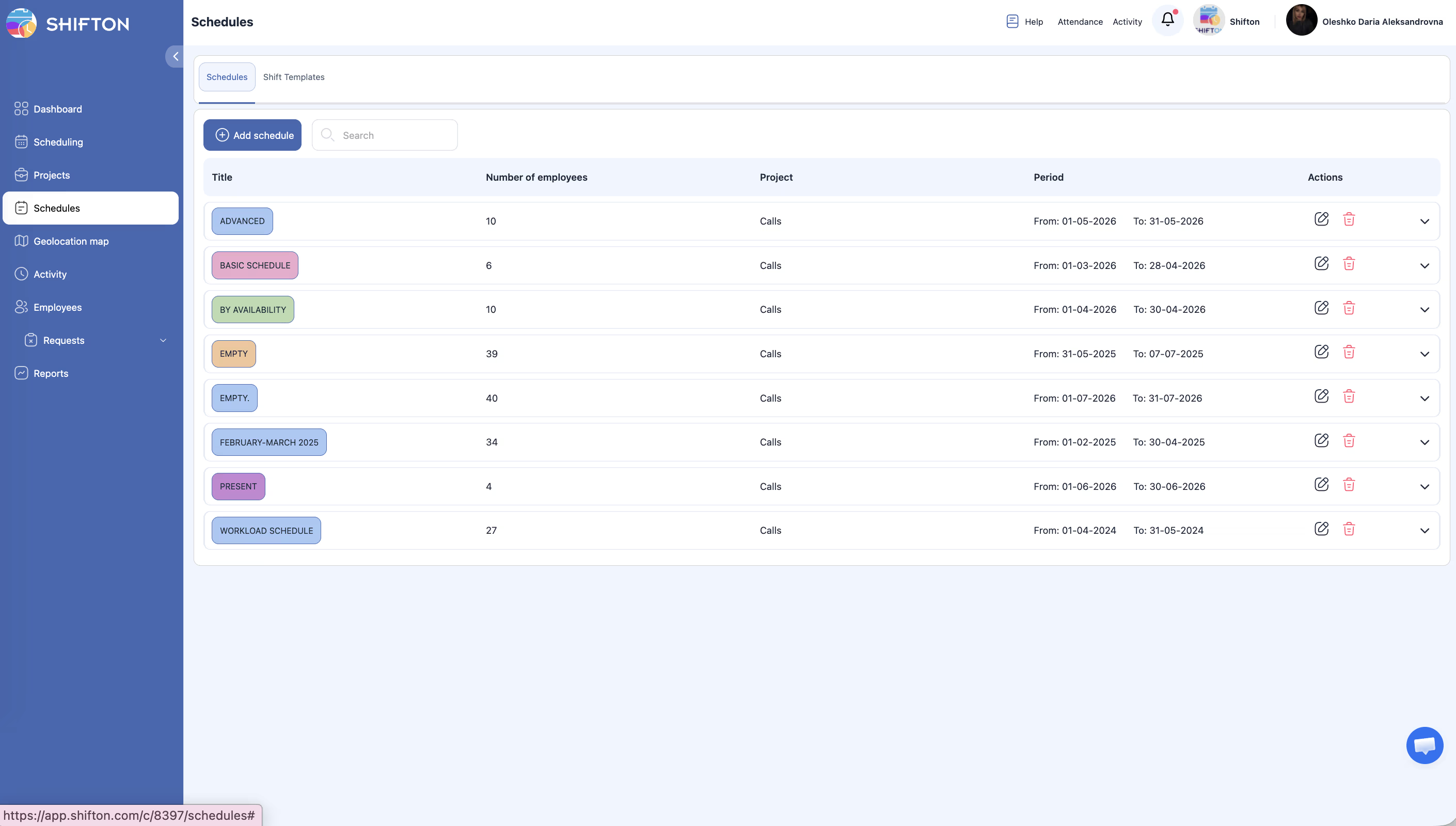
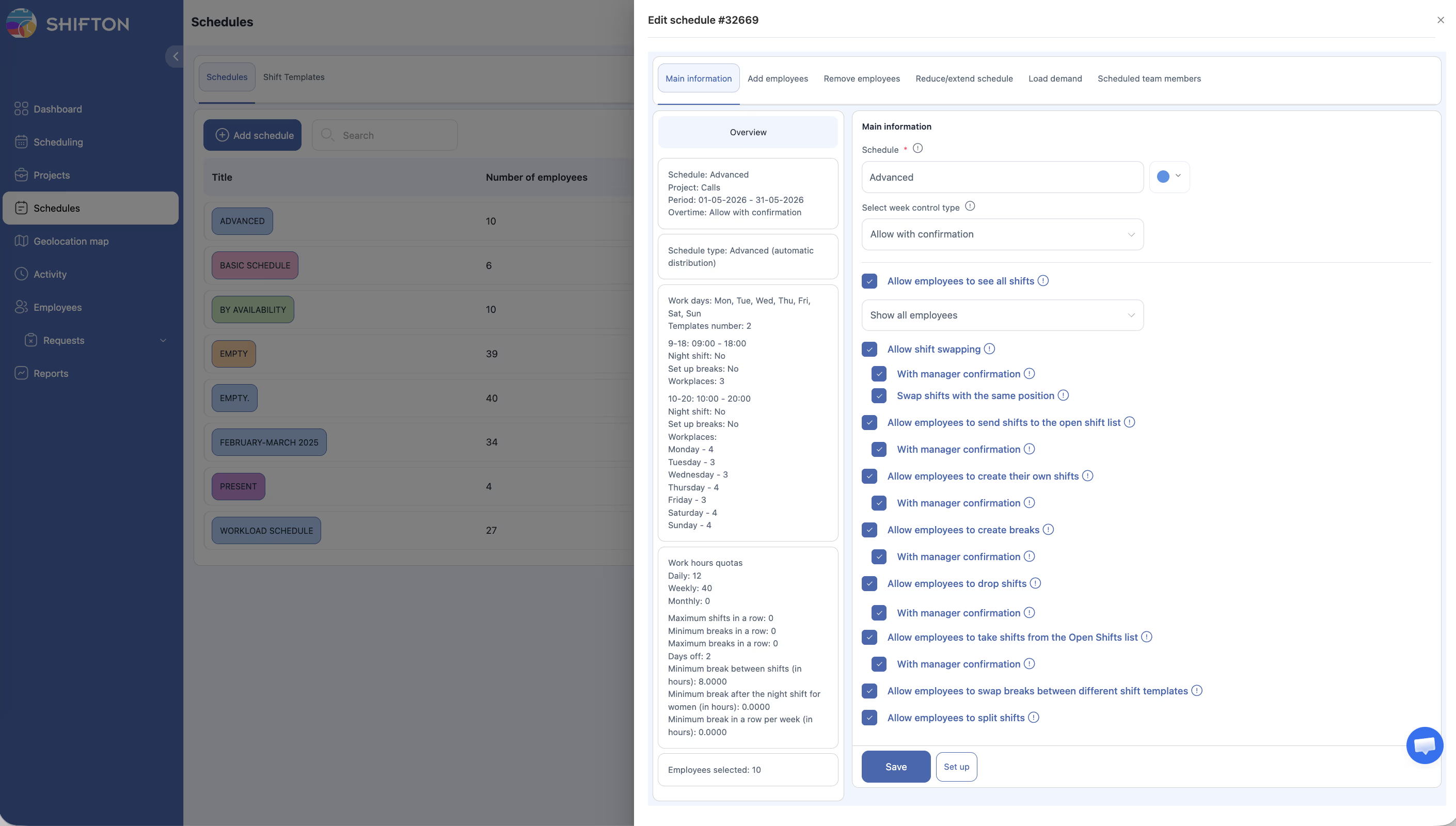
Schedule permissions are configured in Step 1 of the schedule creation wizard, and can also be edited later:
Select Week Control Type
This required dropdown controls how the system handles overtime in this schedule. Default: Allow with confirmation.
| Option | Description |
|---|---|
| Allow with confirmation | Overtime is permitted but flagged for manager confirmation (default) |
| Allow | Overtime is permitted without confirmation |
| Disallow | Overtime shifts are flagged as problematic (shown with a red indicator) — shifts are not blocked from creation but are marked |
This setting appears as “Overtime” in the schedule Overview block.
Allow Employees to See All Shifts
When this checkbox is enabled, employees can see their colleagues’ shifts — not just their own.
A nested radio-button option appears when enabled:
| Option | Description |
|---|---|
| Show all employees | Employee sees shifts of all colleagues in the schedule |
| Show employees with the same position | Employee sees only shifts of colleagues with the same position |
Default: disabled (employees see only their own shifts).
Employee Action Permissions
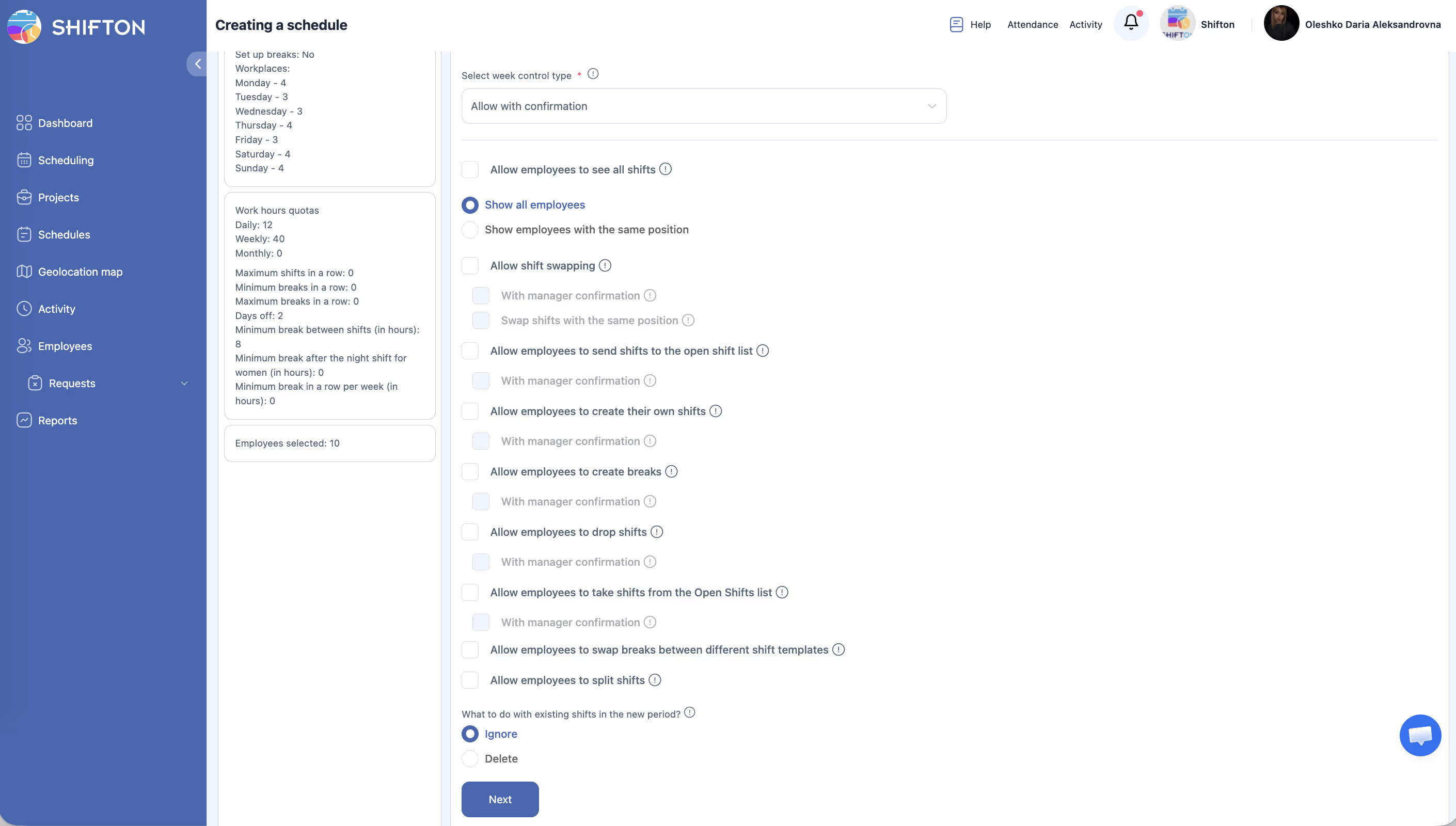
Step 1 includes eight permission toggles that control what employees can do with shifts. Each permission can be turned on or off, and most have an additional sub-option: With manager confirmation (requires a manager to approve the action before it takes effect).
| # | Permission | Default | Description |
|---|---|---|---|
| 1 | Allow shift swapping | On | Employees can request to swap their shift with a colleague. Sub-option: “With manager confirmation” (on by default); “Swap shifts with the same position only” (off by default) |
| 2 | Allow employees to send shifts to the open shift list | Off | Employee can release their shift into the open shifts pool. Sub-option: “With manager confirmation” (on by default) |
| 3 | Allow employees to create their own shifts | Off | Employee can request to create a new shift for themselves. Sub-option: “With manager confirmation” (off by default) |
| 4 | Allow employees to create breaks | Off | Employee can add breaks within their shifts. Requires the Breaks module. Sub-option: “With manager confirmation” (off by default) |
| 5 | Allow employees to drop shifts | Off | Employee can give up an assigned shift. Sub-option: “With manager confirmation” (off by default) |
| 6 | Allow employees to take shifts from the Open Shifts list | On | Employee can claim an unassigned open shift. Sub-option: “With manager confirmation” (on by default) |
| 7 | Allow employees to swap breaks between different shift templates | Off | Employees can exchange break times across different shift templates. Requires the Breaks module. |
| 8 | Allow employees to split shifts | Off | Employee can divide a single shift into two separate time blocks. |
Additional Schedule Settings
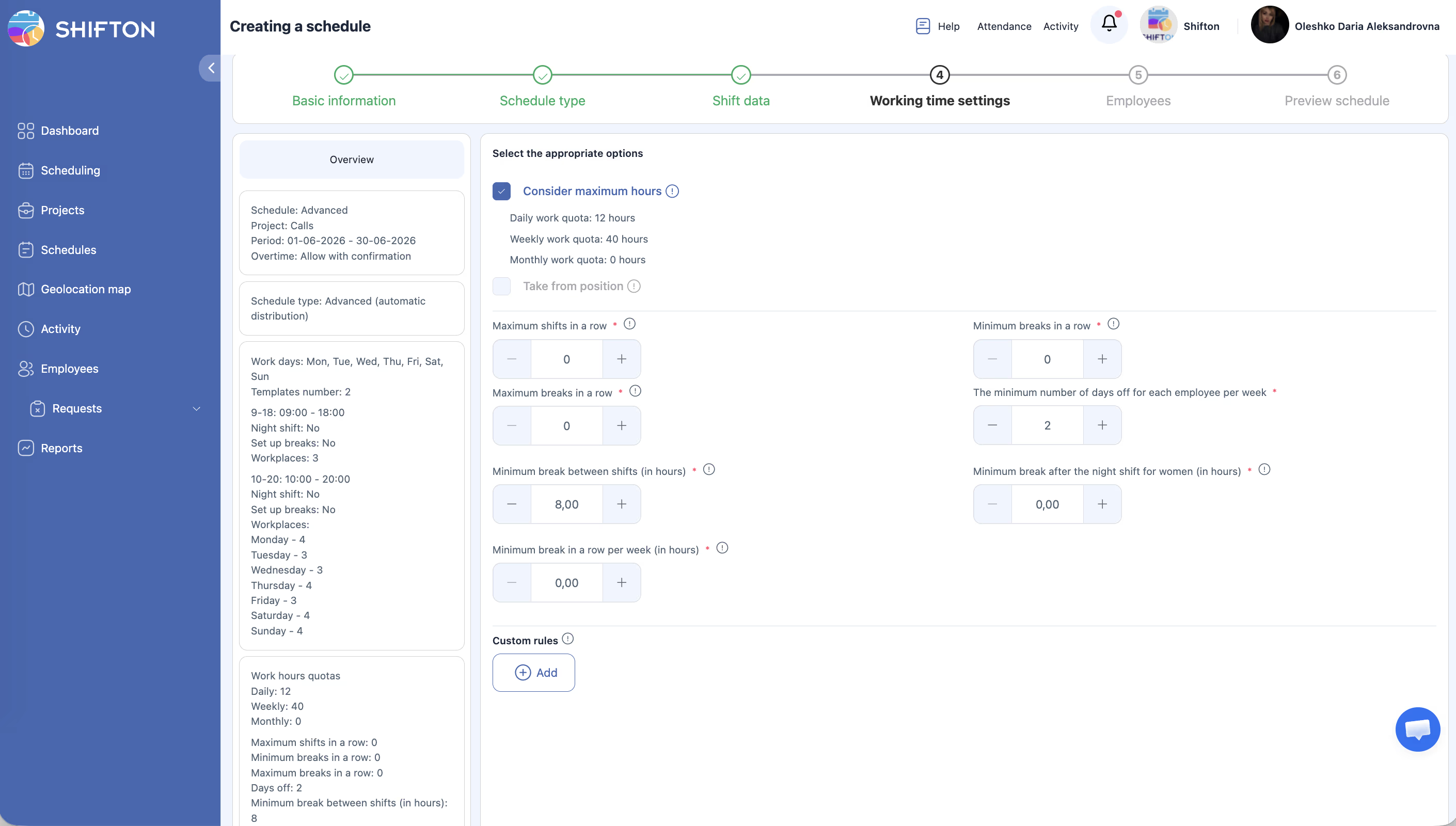
Two additional numeric fields appear in the schedule settings (below the permission toggles):
| Field | Default | Description |
|---|---|---|
| Maximum shifts in a row | 0 | Maximum consecutive shifts an employee can be assigned. 0 = no limit. The system shows a warning if this limit would be exceeded. |
| Minimum break between shifts (in hours) | 0.0000 | Minimum required rest time between two shifts. 0 = no limit. |
How to Configure Permissions
Recommended Permission Configurations
| Team Type | Suggested Settings |
|---|---|
| Small trusted team | Enable most permissions without manager confirmation for maximum flexibility |
| Medium team | Enable permissions with manager confirmation for swap, drop, and open shifts |
| Large or regulated team | Enable only essential permissions, all with manager confirmation |
| Fully managed | Disable all employee permissions — managers control everything |
Which Employee Request Types Each Permission Activates
When a permission is enabled, employees see the corresponding request type in their Requests page and mobile app:
| Permission | Request type |
|---|---|
| Allow shift swapping | Shift Swap request |
| Allow employees to send shifts to the open shift list | Send to Open List request |
| Allow employees to create their own shifts | Create Shift request |
| Allow employees to create breaks | Create Break request |
| Allow employees to drop shifts | Drop Shift request |
| Allow employees to take shifts from the Open Shifts list | Take from Open List request |
| Allow employees to swap breaks | Break Swap request |
| Allow employees to split shifts | Split Shift request |
Access Permissions
| Role | View Settings | Configure Settings | Approve Employee Requests |
|---|---|---|---|
| Owner | Yes | Yes | Yes |
| Admin | Yes | Yes | Yes |
| Manager | Yes (assigned schedules) | Yes (assigned schedules) | Yes (assigned employees) |
| Employee | No | No | No |
FAQ
Q: Can I change permissions after the schedule is created?
A: Yes. Click the edit (pencil) icon on the schedule in the Schedules list. The same settings dialog opens and all changes take effect immediately after saving.
Q: What happens to pending requests if I disable a permission?
A: Pending requests for a disabled permission will need to be manually resolved. It is good practice to handle all pending requests before changing permission settings.
Q: Does “with manager confirmation” notify the manager automatically?
A: Yes. When an employee takes an action that requires confirmation, the assigned manager receives a notification and can approve or reject the request.
Q: Can I set different permissions for different employees within the same schedule?
A: No. Permissions apply to all employees in the schedule equally. If you need different permission levels, create separate schedules with different settings.
Q: What is the “Split shifts” permission used for?
A: Splitting a shift allows an employee to divide a single long shift into two shorter ones — for example, converting an 8-hour shift into a 4-hour morning block and a 4-hour afternoon block.
Q: I enabled a permission but the employee doesn’t see the option — why?
A: Check that: (1) the setting was saved, (2) the employee is assigned to this specific schedule, and (3) the required module is active (Breaks module for break-related permissions).
Possible Issues and Solutions
| Issue | Possible Cause | Solution |
|---|---|---|
| Employees cannot swap shifts even though the permission is enabled | The “with manager confirmation” sub-option is on and no manager has approved | Check the pending requests queue and approve or reject swap requests |
| Manager is not receiving confirmation requests | Notification settings are misconfigured | Verify that the manager’s notification preferences include schedule actions |
| Employees see too many colleagues on the schedule | Employee visibility is set to “All employees” | Switch to “Same position” to limit visibility |
| Permission changes are not taking effect | Browser cache is serving old settings | Ask employees to refresh their browser or clear cache |
| Cannot find the permissions section | Scrolled past it in the Step 1 form | Scroll down in the Step 1 form — permissions are typically at the bottom |