

Create a blank schedule and add every shift by hand. The Empty schedule type gives you complete control over when and where each employee works.
What Is This?
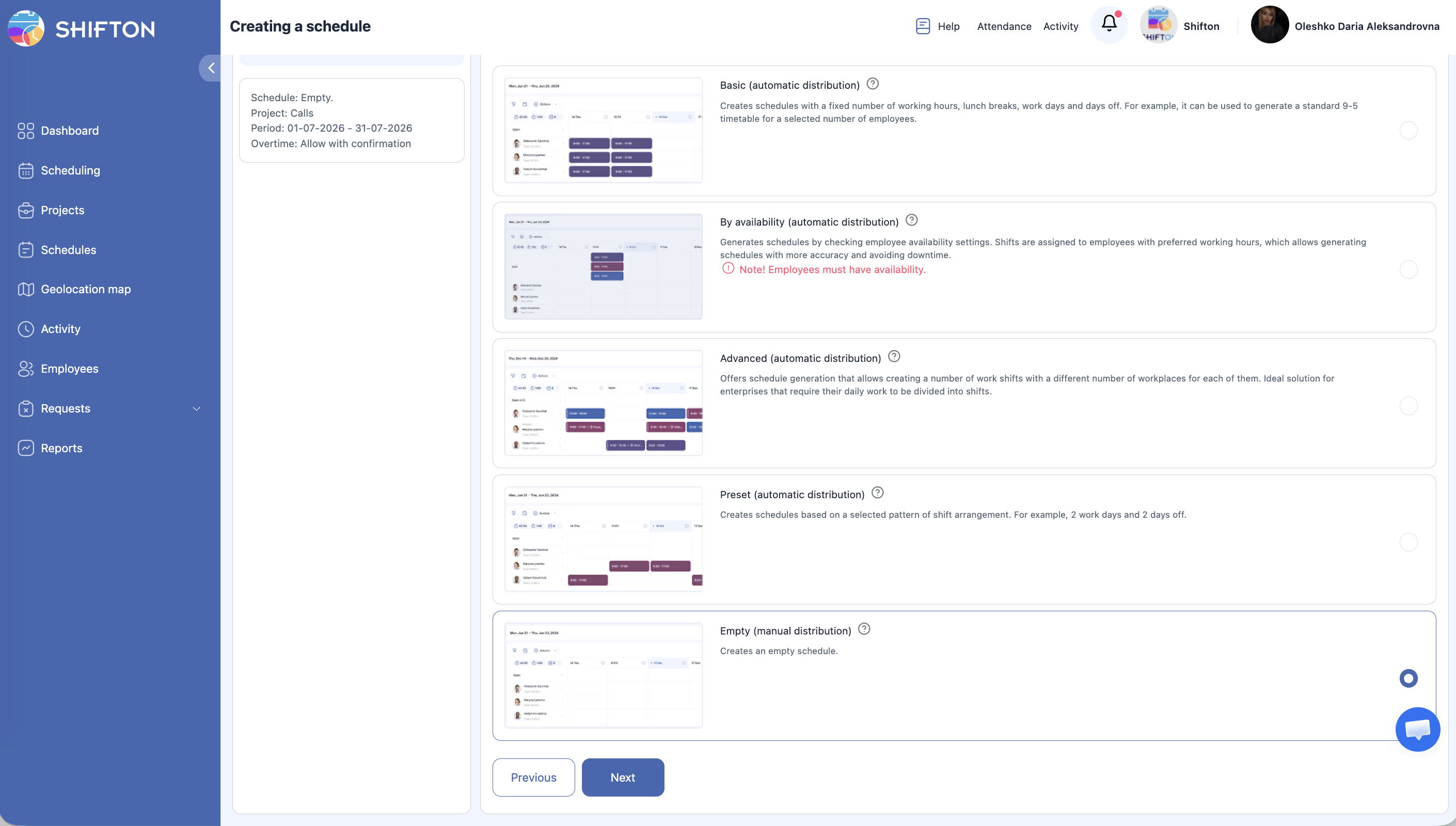
The Empty schedule type creates a schedule with no pre-generated shifts. Instead of automatically distributing shifts, it gives you a blank canvas. You then manually add each shift for each employee, choosing the exact dates, times, and settings for every entry.
This type is ideal when your scheduling needs are highly irregular, when shift requirements change frequently, or when you simply prefer to build the schedule yourself from scratch.
Prerequisites
| # | Prerequisite | Details |
|---|---|---|
| 1 | Active Shifton account | You must have a registered company account |
| 2 | Admin, Owner, or Manager role | You need permissions to create schedules |
| 3 | A project with assigned employees | The schedule must be linked to a project that has employees |
| 4 | Shift templates (recommended) | Pre-defined shift configurations make manual entry faster |
Step-by-Step Instructions
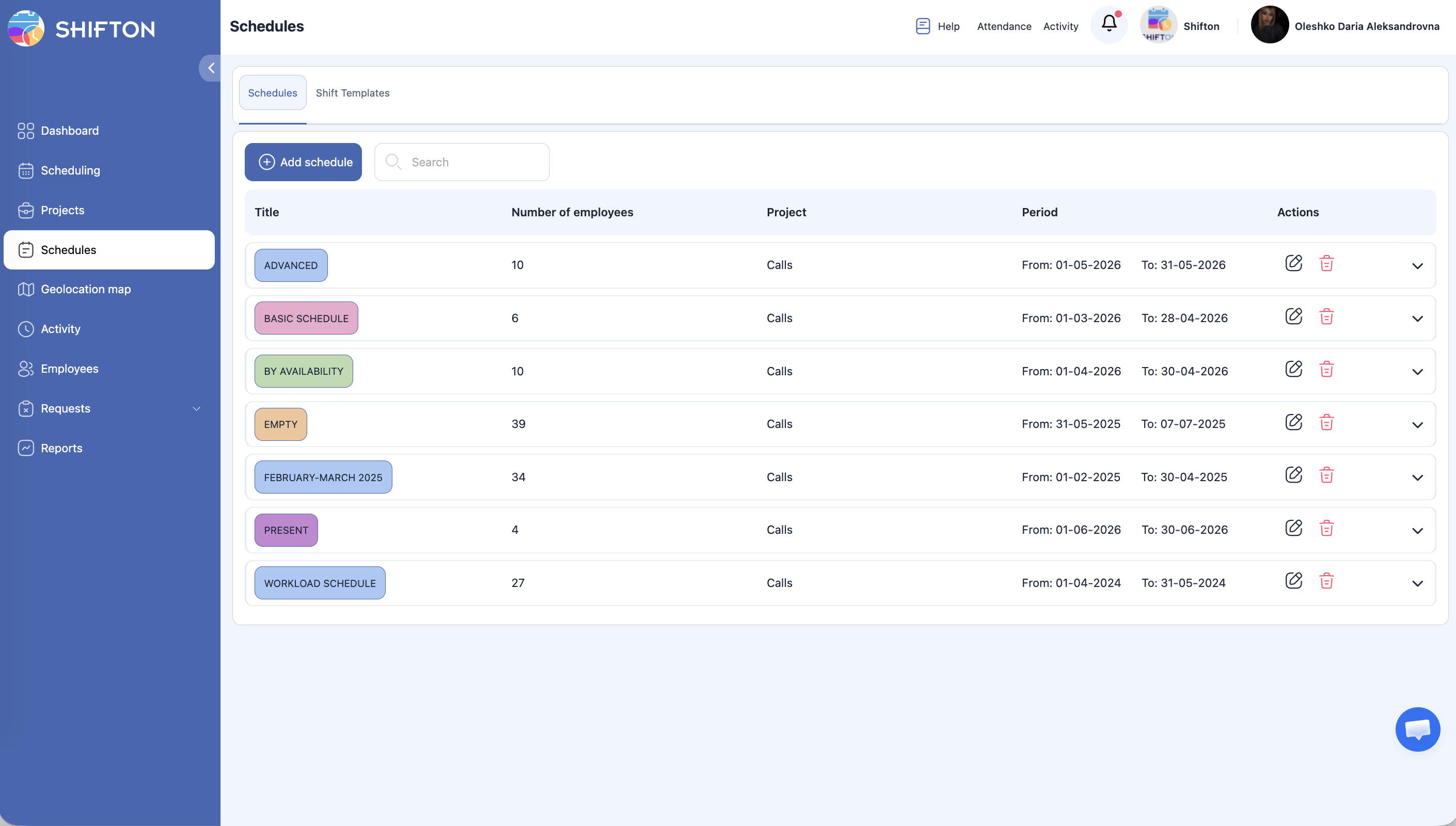
Step 1: Basic Information
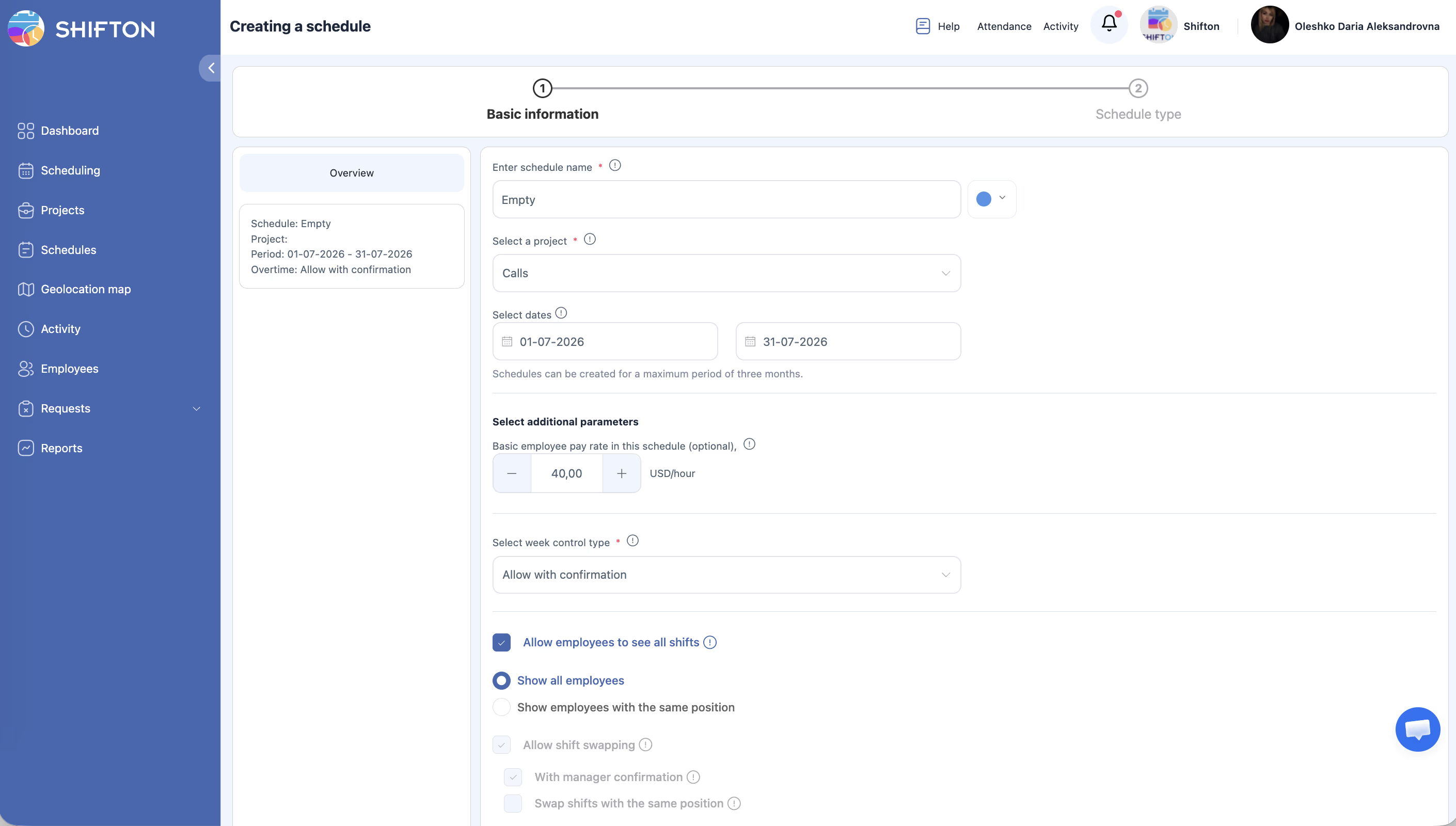
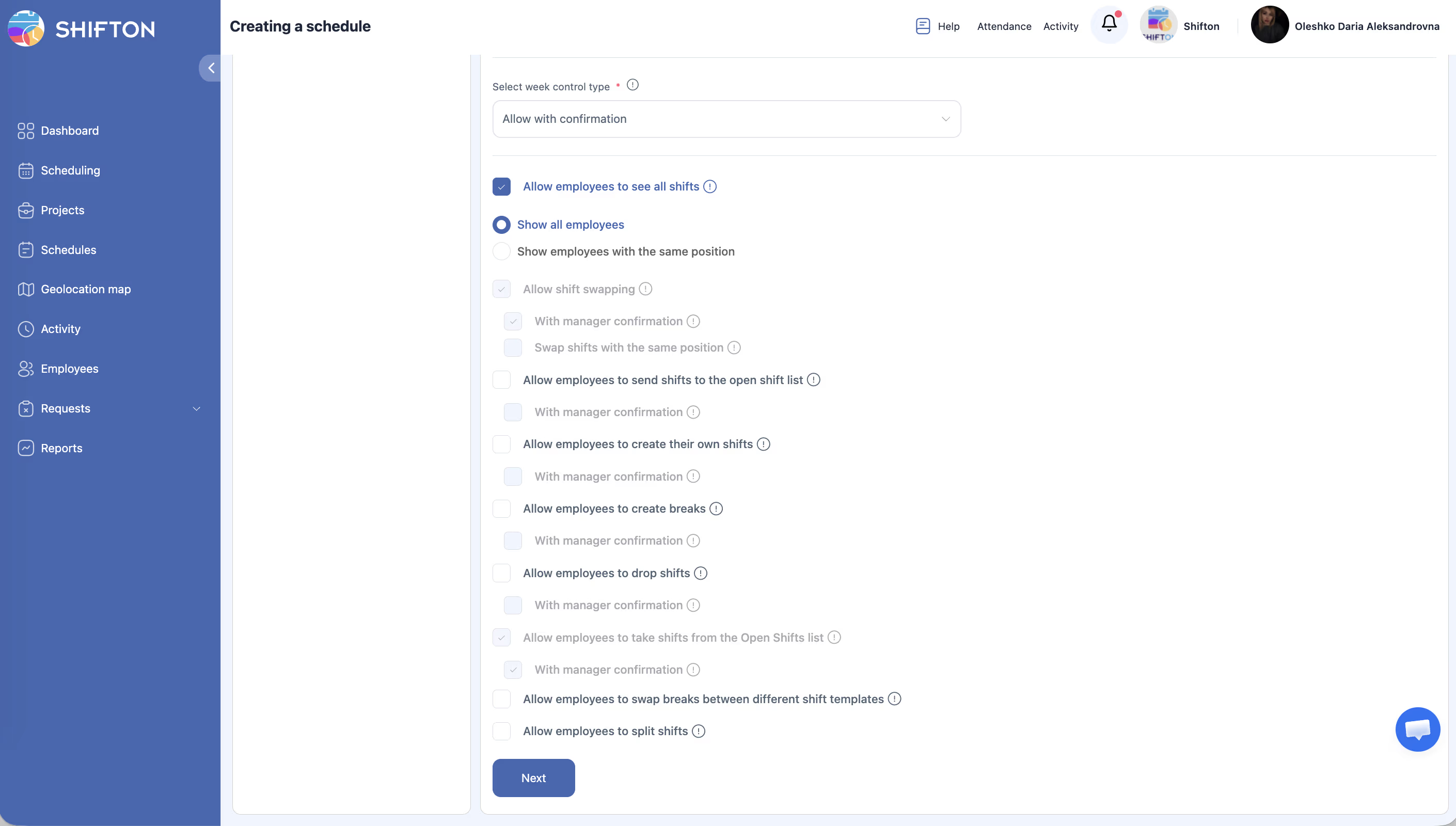
| Field | Description |
|---|---|
| Schedule name | A descriptive title (e.g., “Event Staff — Custom”) |
| Color | Choose a color to identify this schedule |
| Project | Select the project this schedule belongs to |
| Date range (From / To) | Set the start and end dates (max 3 months) |
| Pay rate | Configure the pay rate for shifts in this schedule |
| Permissions | Set what employees can do (swap shifts, drop shifts, etc.) |
Step 2: Select Empty Type
Step 3: Manually Add Shifts
| Field | Description |
|---|---|
| Date | The date for the shift |
| Shift template | Optionally select a pre-defined template to auto-fill times |
| From / To time | The start and end time of the shift |
| Break | Break duration in minutes |
| Location | Optionally assign a work location |
| Note | Add any relevant comments |
Tips for Efficient Manual Scheduling
Access Permissions
| Role | View Schedule | Create Empty Schedule | Add Shifts Manually | Delete Schedule |
|---|---|---|---|---|
| Owner | Yes | Yes | Yes | Yes |
| Admin | Yes | Yes | Yes | Yes |
| Manager | Yes (assigned projects) | Yes (assigned projects) | Yes (assigned projects) | Yes (assigned projects) |
| Employee | Yes (own shifts only) | No | No (unless permitted) | No |
FAQ
Q: Why would I choose an Empty schedule over an automatic type?
A: Choose Empty when your scheduling needs are unpredictable, when each employee has unique hours, or when you want full manual control over every shift assignment.
Q: Is there a faster way to populate an Empty schedule?
A: Yes. Use shift templates to pre-fill common time settings, Duplicate Shifts to copy patterns, and Bulk Shift Actions to edit multiple shifts at once.
Q: Can I convert an Empty schedule to an automatic type later?
A: No. The schedule type is set at creation and cannot be changed. You would need to create a new schedule with the desired automatic type.
Q: Can employees add their own shifts to an Empty schedule?
A: Only if the “Create own shifts” permission is enabled in the schedule settings. See the article on schedule settings and permissions for details.
Possible Issues and Solutions
| Issue | Possible Cause | Solution |
|---|---|---|
| Adding shifts is slow and tedious | Adding each shift individually without templates | Create shift templates for your most common shift configurations |
| Forgot to add shifts for some employees | Manual process is prone to human error | Review the schedule grid carefully and use filters to check each employee |
| Cannot add a shift to an employee | The employee is not assigned to the project | Assign the employee to the project first |
| Shifts disappear after page refresh | The shift was not saved before navigating away | Always click “Add a shift” to save before leaving the form |
| Too many shifts to manage manually | Large team with many employees | Consider using an automatic schedule type (Basic, Preset, etc.) for bulk generation |