

Build a repeating rotation schedule based on a defined pattern, such as 2 work days followed by 2 days off. The Preset type is perfect for teams that follow a cyclical work pattern.
What Is This?
The Preset schedule type uses automatic distribution to create shifts based on a repeating pattern. You define a cycle — for example, 2 work days then 2 days off, or 4 on / 2 off — and Shifton applies that pattern across the entire schedule date range for every assigned employee.
This schedule type is commonly used in security, healthcare, logistics, and manufacturing where rotating shifts ensure continuous coverage.
Prerequisites
| # | Prerequisite | Details |
|---|---|---|
| 1 | Active Shifton account | You must have a registered company account |
| 2 | Admin, Owner, or Manager role | You need permissions to create schedules |
| 3 | A project with assigned employees | The schedule must be linked to a project that has employees |
Step-by-Step Instructions
Step 1: Basic Information
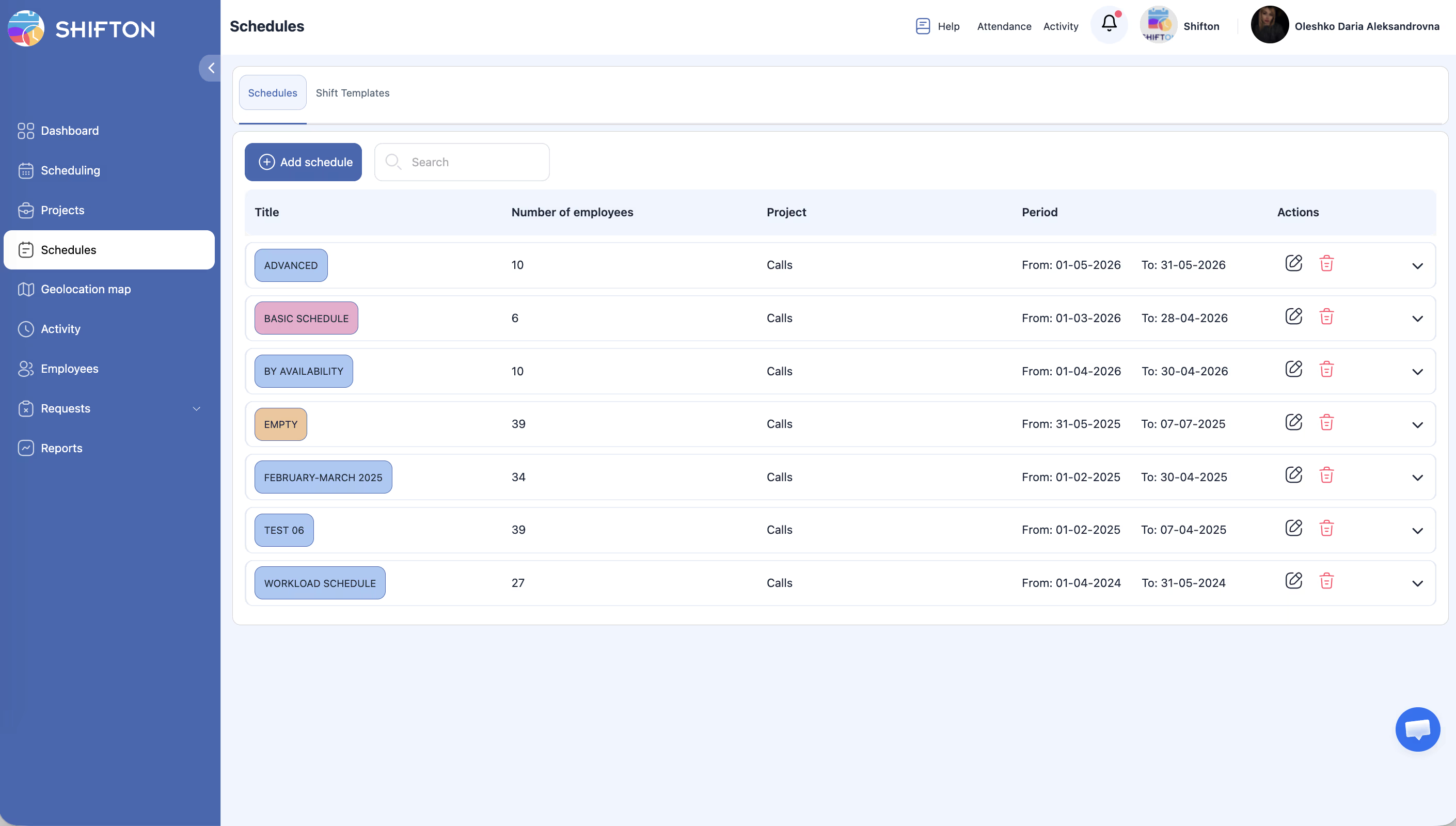
| Field | Required | Description |
|---|---|---|
| Enter schedule name | Yes | A descriptive title (e.g., “Security — 2 on / 2 off”) |
| Color | No | Choose a color to identify this schedule |
| Select a project | Yes | Select the project this schedule belongs to |
| Select dates | Yes | Set the start and end dates — maximum 3 months |
| Basic employee pay rate | No | Base pay rate per hour for shifts in this schedule |
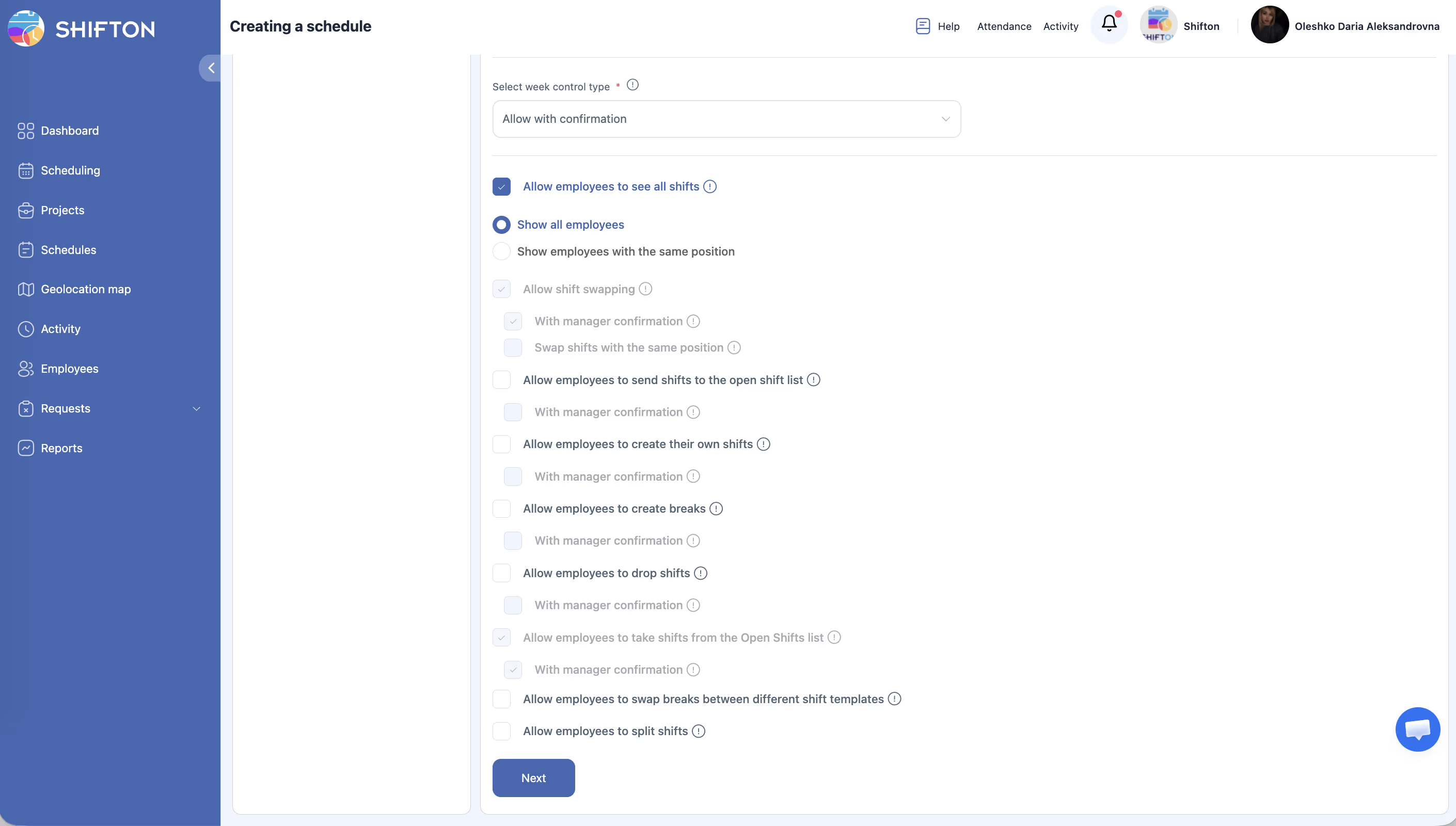
| Select week control type | Yes | How overtime is handled: Allow with confirmation (default) / Allow / Disallow |
Below these fields is a section with employee action permissions (checkboxes). See the Schedule Settings and Permissions article.
Step 2: Select Schedule Type
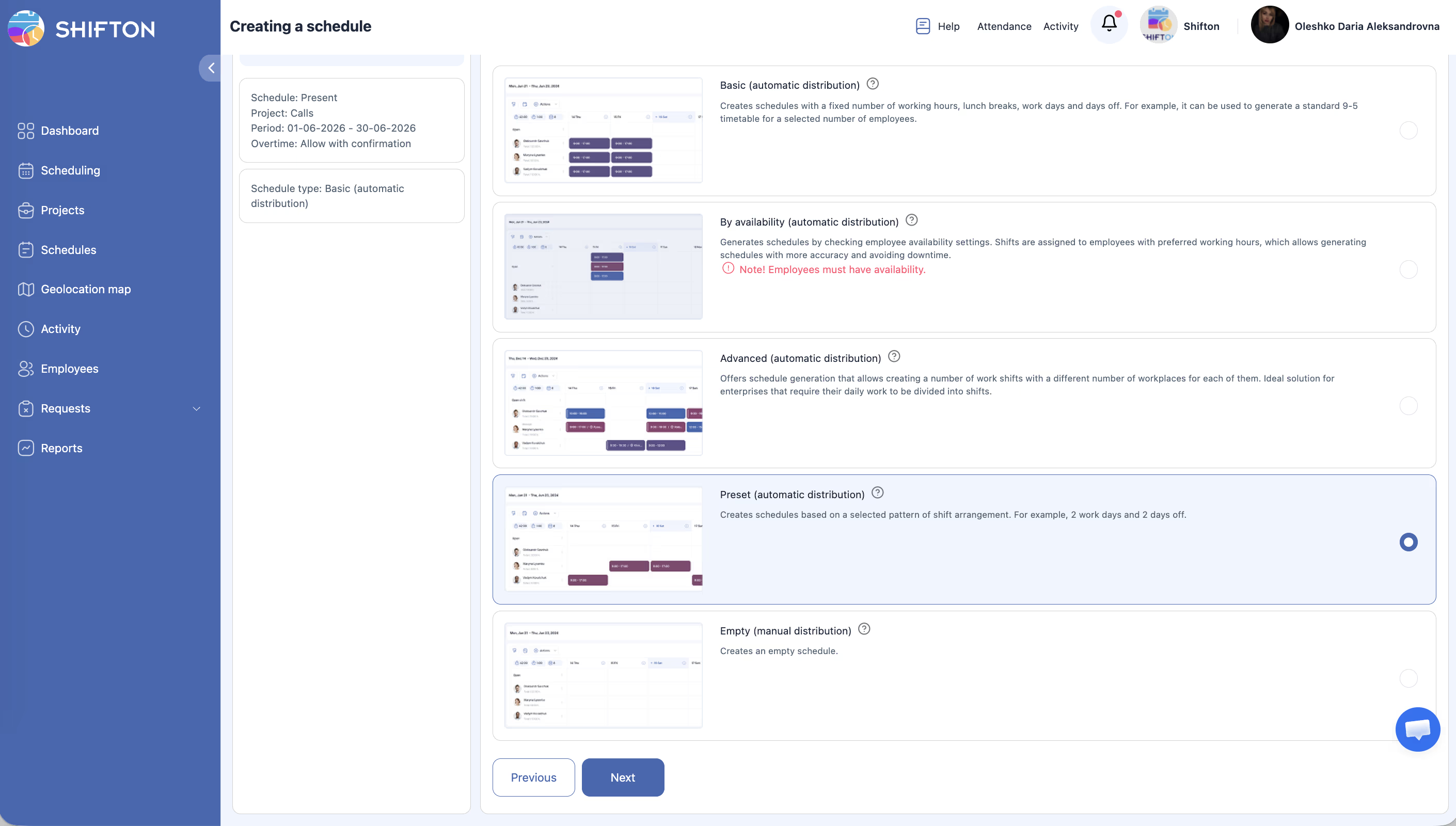
“Creates schedules based on a selected pattern of shift arrangement. For example, 2 work days and 2 days off.”
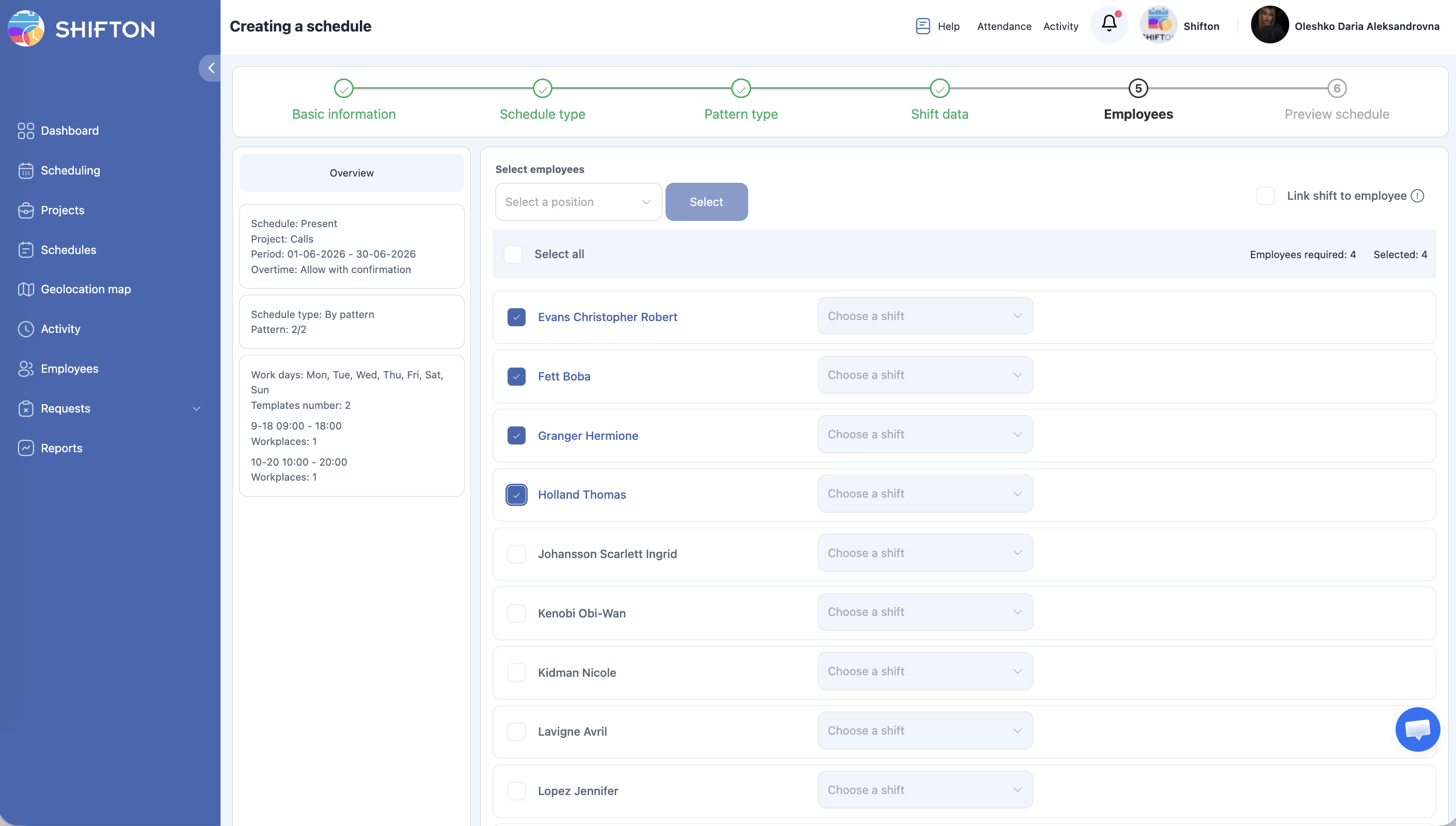
After Creation: Add Employees and Configure Pattern
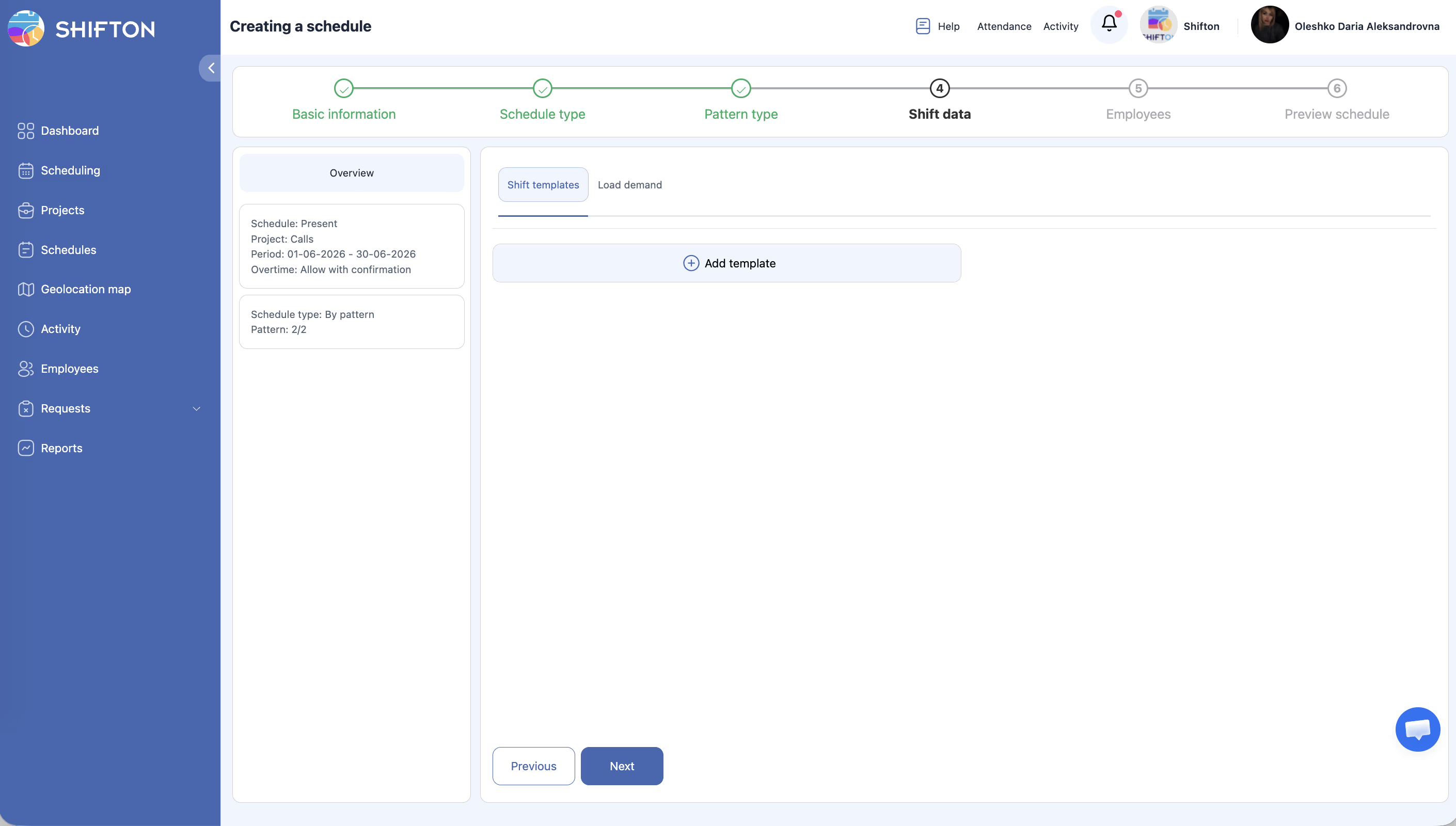
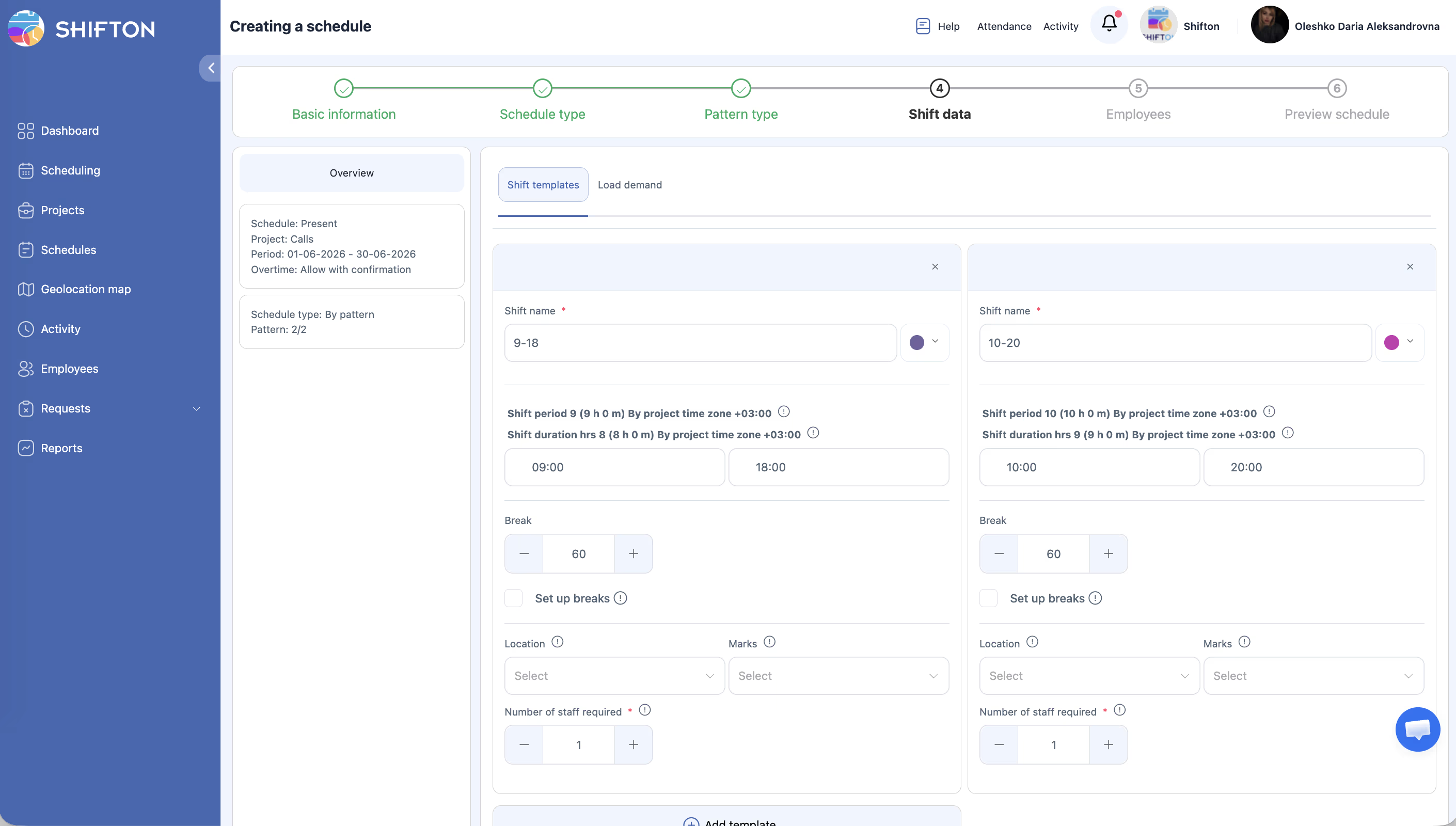
After Creation: Add Shifts and Publish
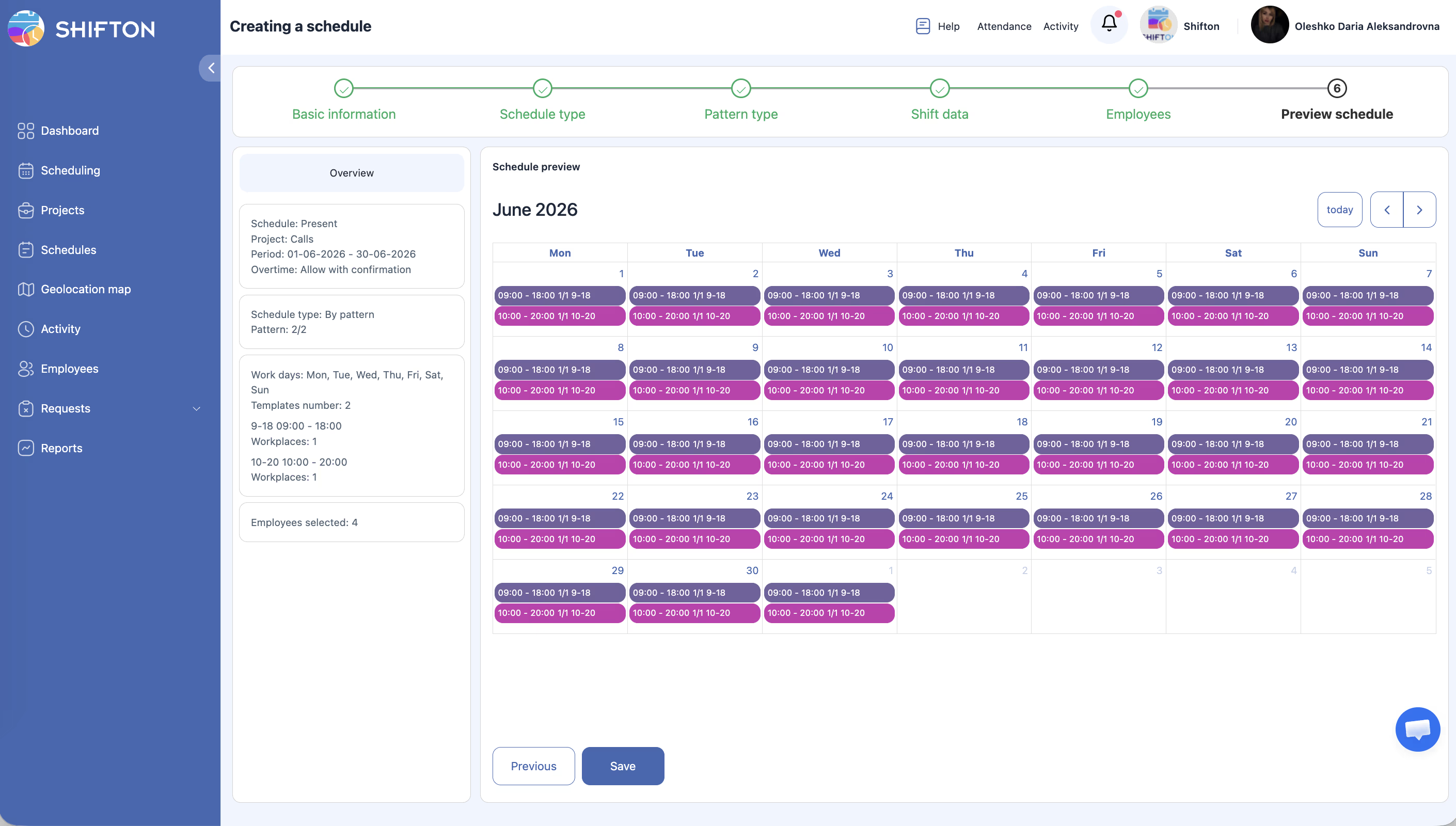
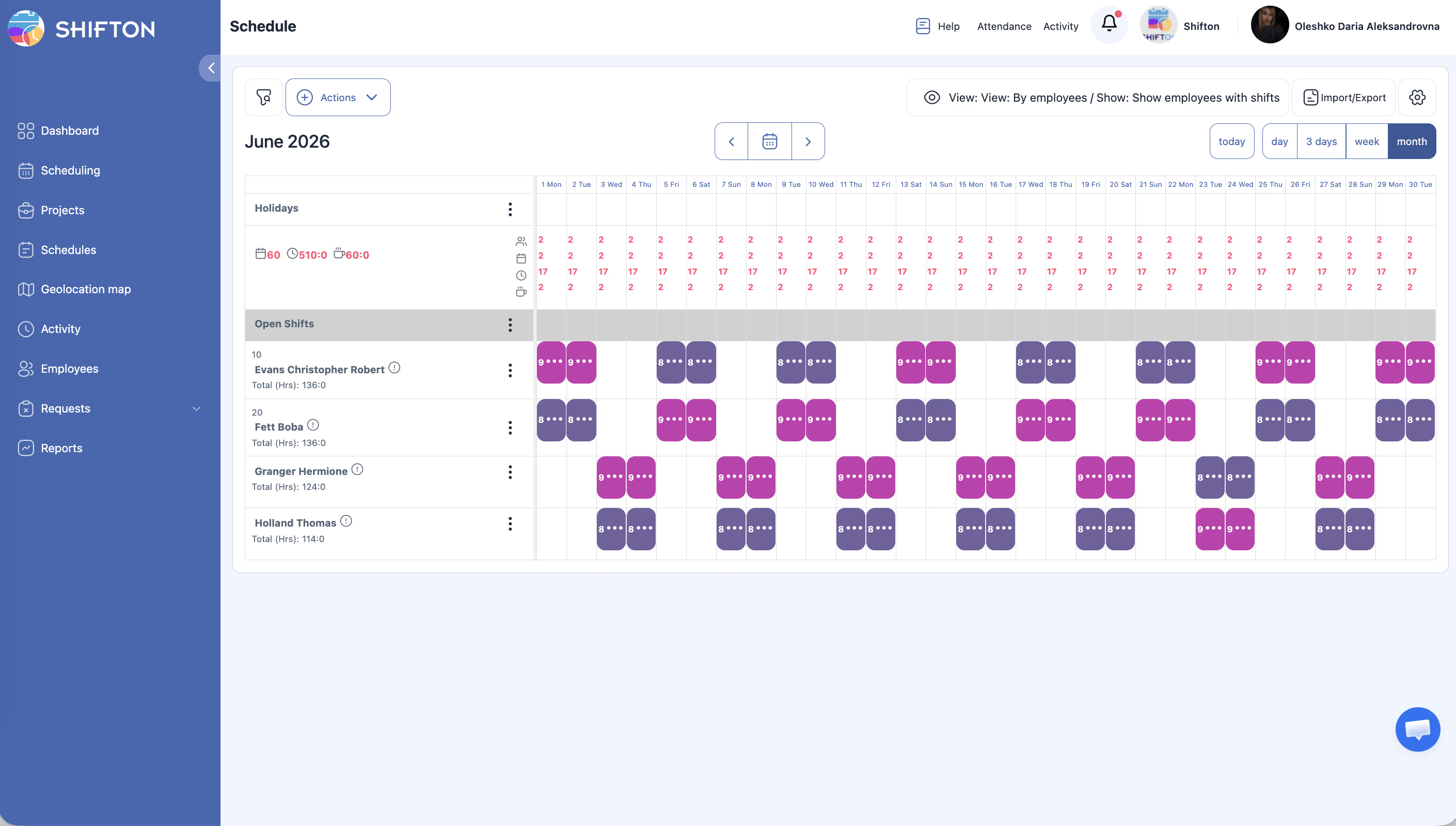
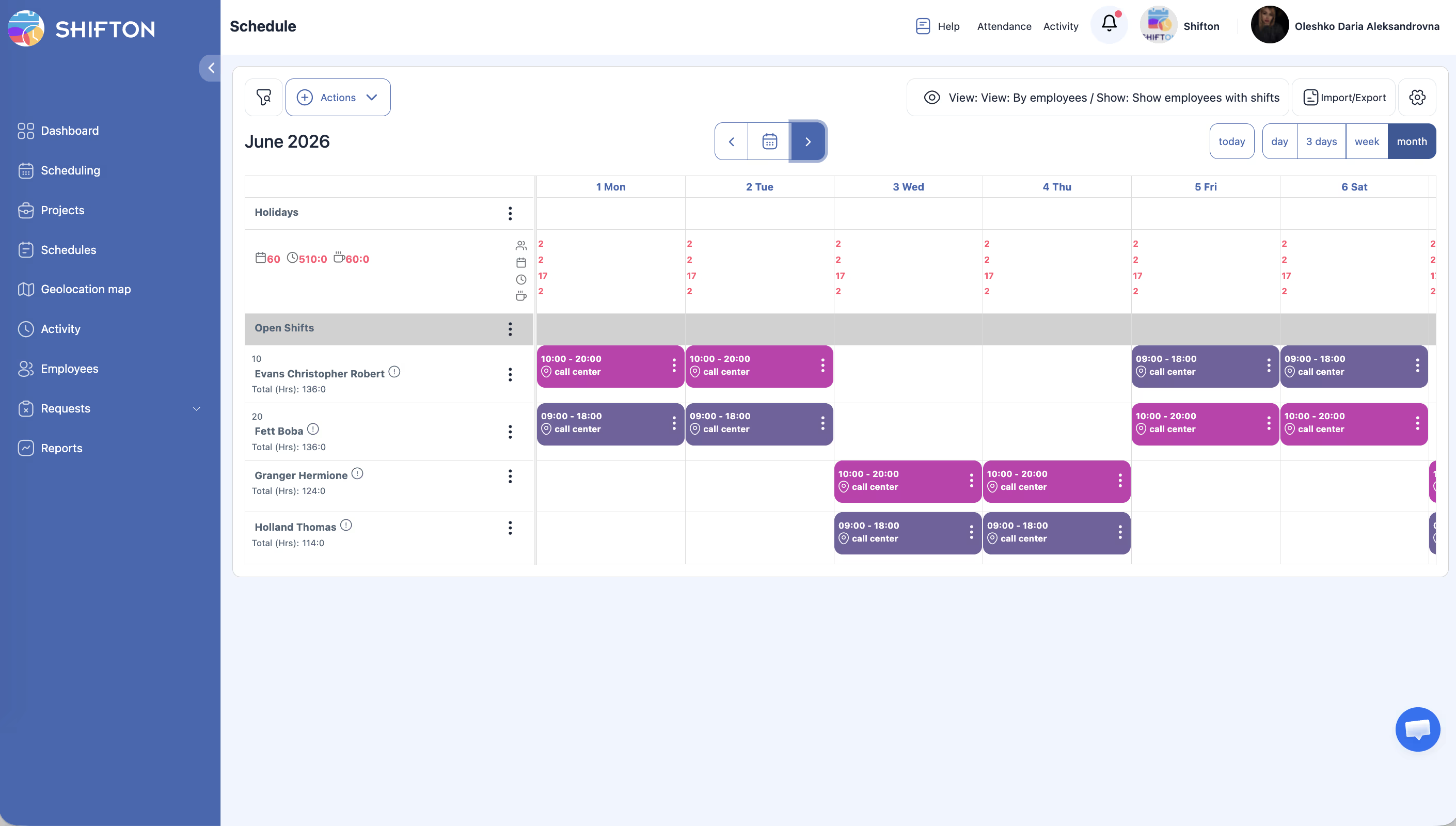
Available Preset Patterns
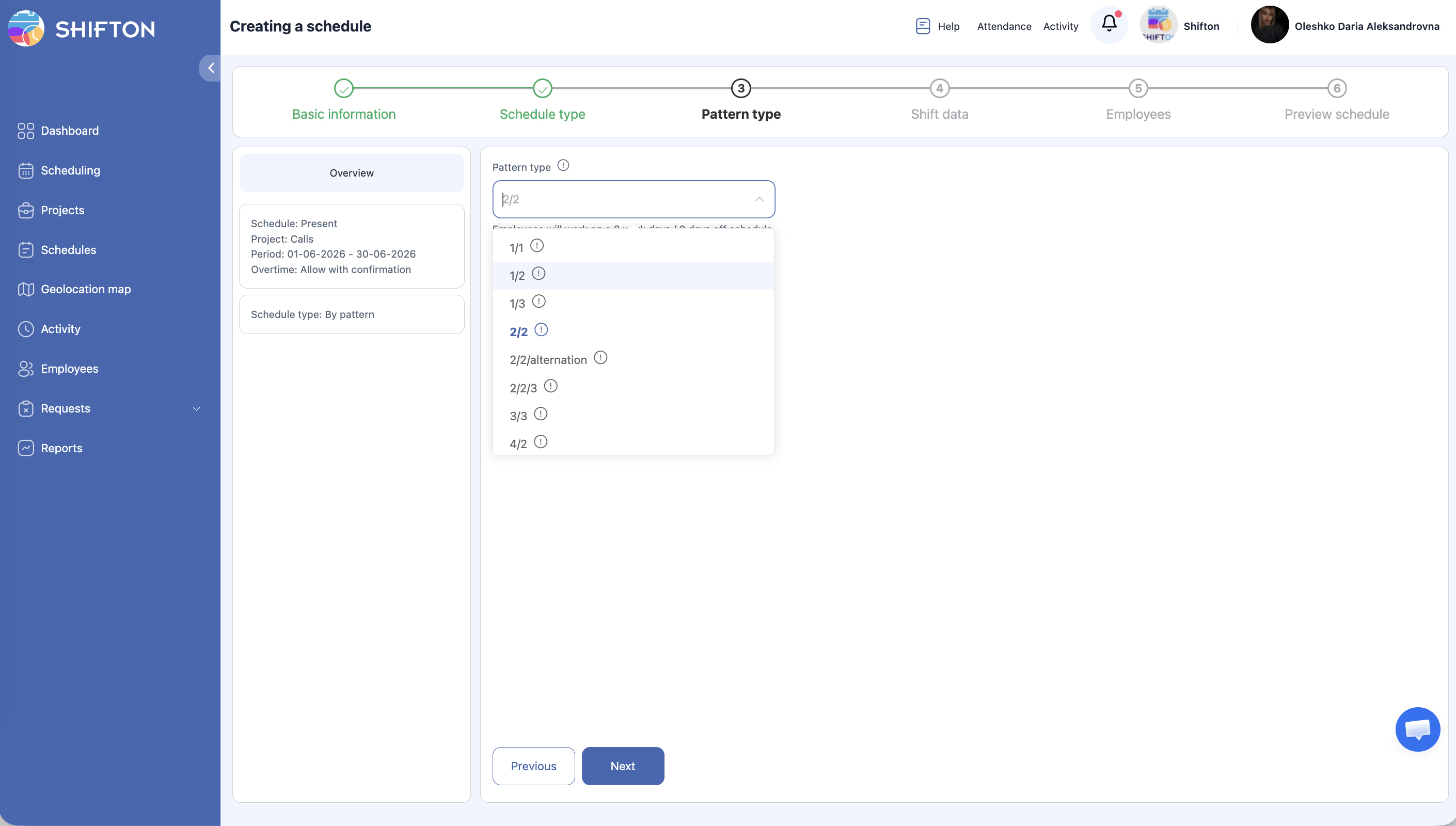
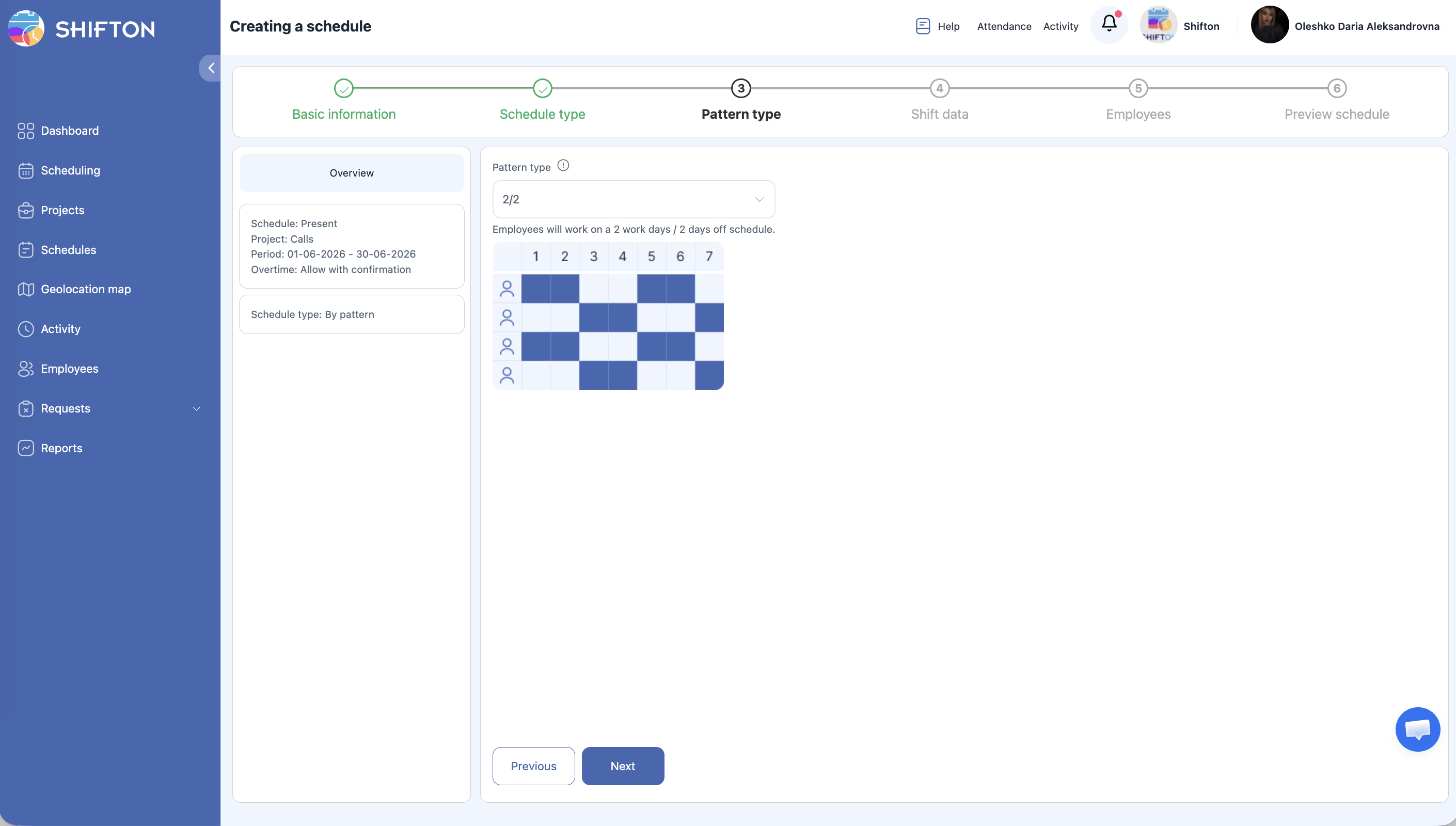
Shifton includes 11 built-in preset patterns. You select one when configuring the schedule:
| # | Pattern | Description |
|---|---|---|
| 1 | 1/1 | 1 work day / 1 day off |
| 2 | 1/2 | 1 work day / 2 days off |
| 3 | 1/3 | 1 work day / 3 days off |
| 4 | 2/2 | 2 work days / 2 days off (most common default) |
| 5 | 2/2/alternation | Alternating 2/2 pattern |
| 6 | 2/2/3 | Complex rotation: 2 on / 2 off / 3 on |
| 7 | 3/3 | 3 work days / 3 days off |
| 8 | 4/2 | 4 work days / 2 days off |
| 9 | 5/2 | 5 work days / 2 days off (standard work week) |
| 10 | 5/2/6/1 | Complex rotation |
| 11 | day/night/48 | Day shift / night shift / 48 hours rest |
Access Permissions
| Role | View Schedule | Create Preset Schedule | Edit Shifts | Delete Schedule |
|---|---|---|---|---|
| Owner | Yes | Yes | Yes | Yes |
| Admin | Yes | Yes | Yes | Yes |
| Manager | Yes (assigned projects) | Yes (assigned projects) | Yes (assigned projects) | Yes (assigned projects) |
| Employee | Yes (own shifts only) | No | No | No |
FAQ
Q: How many preset patterns are available?
A: Shifton includes 11 built-in preset patterns, from simple 1/1 cycles to complex day/night/48-hour rest patterns. See the Available Preset Patterns section above.
Q: Can I change the pattern after the schedule is created?
A: No. The pattern is fixed at creation time. To use a different pattern, delete the schedule and create a new one. You can also manually adjust individual shifts.
Q: How does the system handle employees who join mid-cycle?
A: Employees added after the schedule is created will not automatically receive shifts. You will need to manually add shifts for them or recreate the schedule.
Q: Can different employees have different patterns in the same schedule?
A: No. All employees in a Preset schedule follow the same rotation pattern. If you need different patterns, create separate schedules.
Q: Shifts are not visible to employees — why?
A: Shifts must be published. Click Publish & notify employees on the schedule page. Until published, only managers can see the shifts.
Possible Issues and Solutions
| Issue | Possible Cause | Solution |
|---|---|---|
| All employees have the same days off | Stagger start was not enabled | Delete and recreate the schedule with the stagger start option turned on |
| Pattern does not align with the calendar as expected | The start date causes the pattern to begin mid-cycle | Adjust the schedule start date to align with your desired pattern start |
| Some employees have no shifts | They were added to the project after the schedule was created | Manually add shifts for those employees or recreate the schedule |
| Shifts extend past the schedule end date | The pattern cycle does not divide evenly into the date range | This is normal — the pattern is cut off at the schedule end date |
| Night shifts show on the wrong day | Shifts crossing midnight display on the start date | This is expected behavior — the shift is shown on the day it begins |