

Build schedules with different numbers of workplaces for each shift. The Advanced schedule type is designed for enterprises where daily operations are divided into multiple shifts with varying staffing needs.
What Is This?
The Advanced schedule type uses automatic distribution to create shifts where each time slot can have a different number of required employees (workplaces). Unlike the Basic type, which assigns the same hours to everyone, the Advanced type lets you define how many people are needed during each shift period.
This is ideal for manufacturing plants, hospitals, call centers, or any operation that runs multiple shifts per day with varying coverage requirements.
Prerequisites
| # | Prerequisite | Details |
|---|---|---|
| 1 | Active Shifton account | You must have a registered company account |
| 2 | Admin, Owner, or Manager role | You need permissions to create schedules |
| 3 | A project with enough assigned employees | You need sufficient staff to cover all defined workplace slots |
Step-by-Step Instructions
Step 1: Basic Information
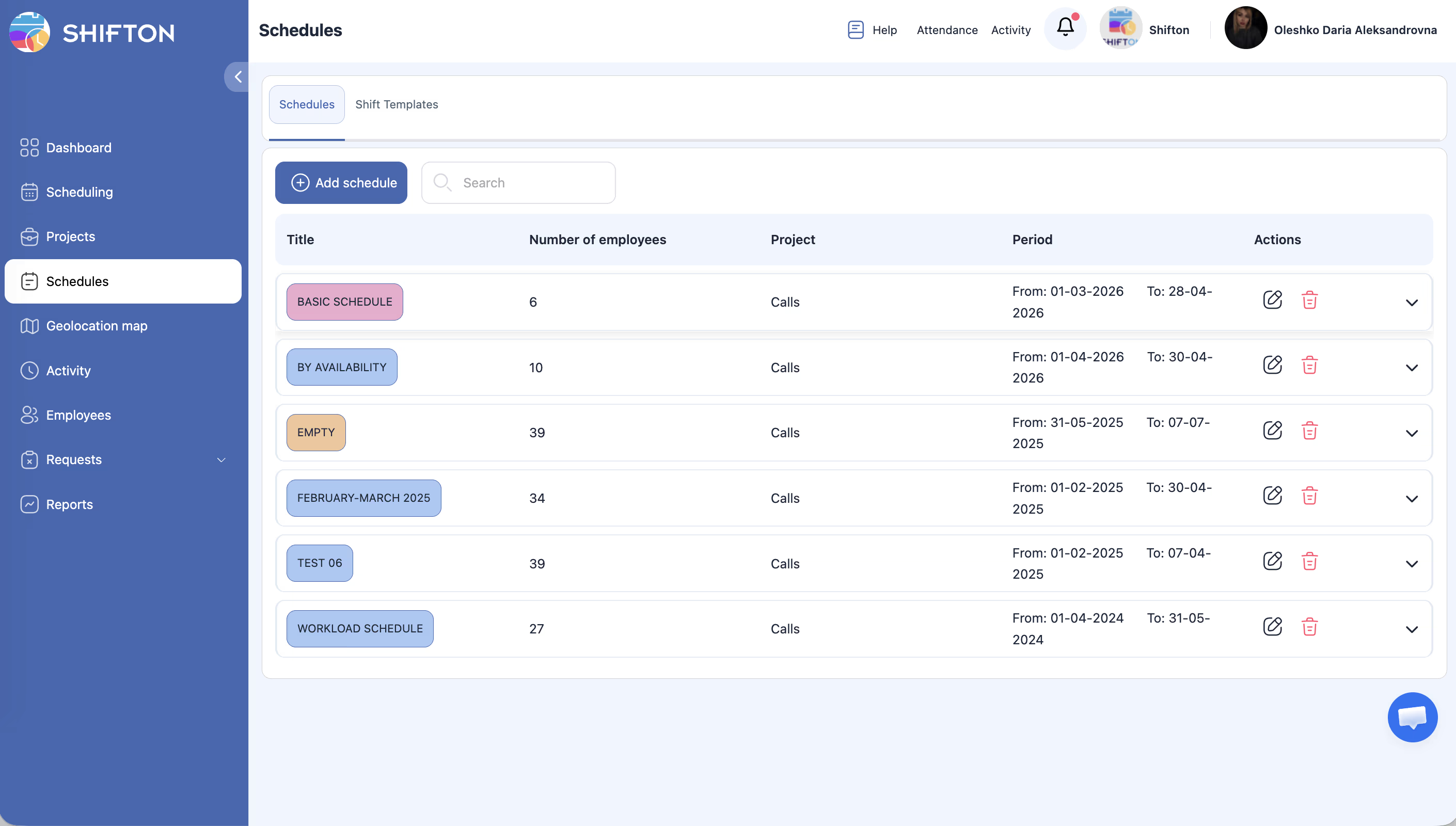
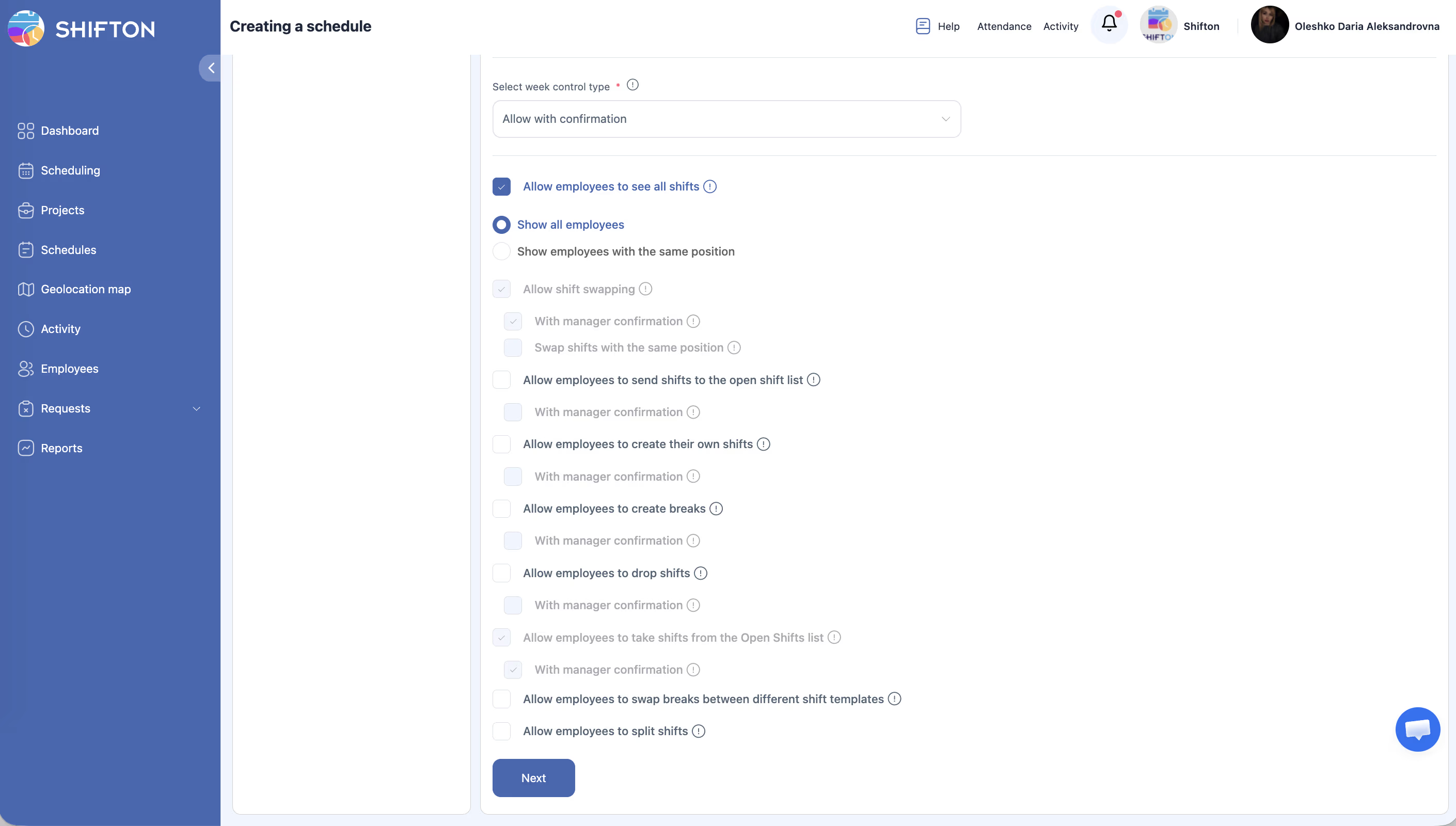
| Field | Required | Description |
|---|---|---|
| Enter schedule name | Yes | A descriptive title (e.g., “Warehouse — 3 Shift Rotation”) |
| Color | No | Choose a color to identify this schedule |
| Select a project | Yes | Select the project this schedule belongs to |
| Select dates | Yes | Set the start and end dates — maximum 3 months |
| Basic employee pay rate | No | Base pay rate per hour for shifts in this schedule |
| Select week control type | Yes | How overtime is handled: Allow with confirmation (default) / Allow / Disallow |
Below these fields is a section with employee action permissions (checkboxes). See the Schedule Settings and Permissions article.
Step 2: Select Schedule Type
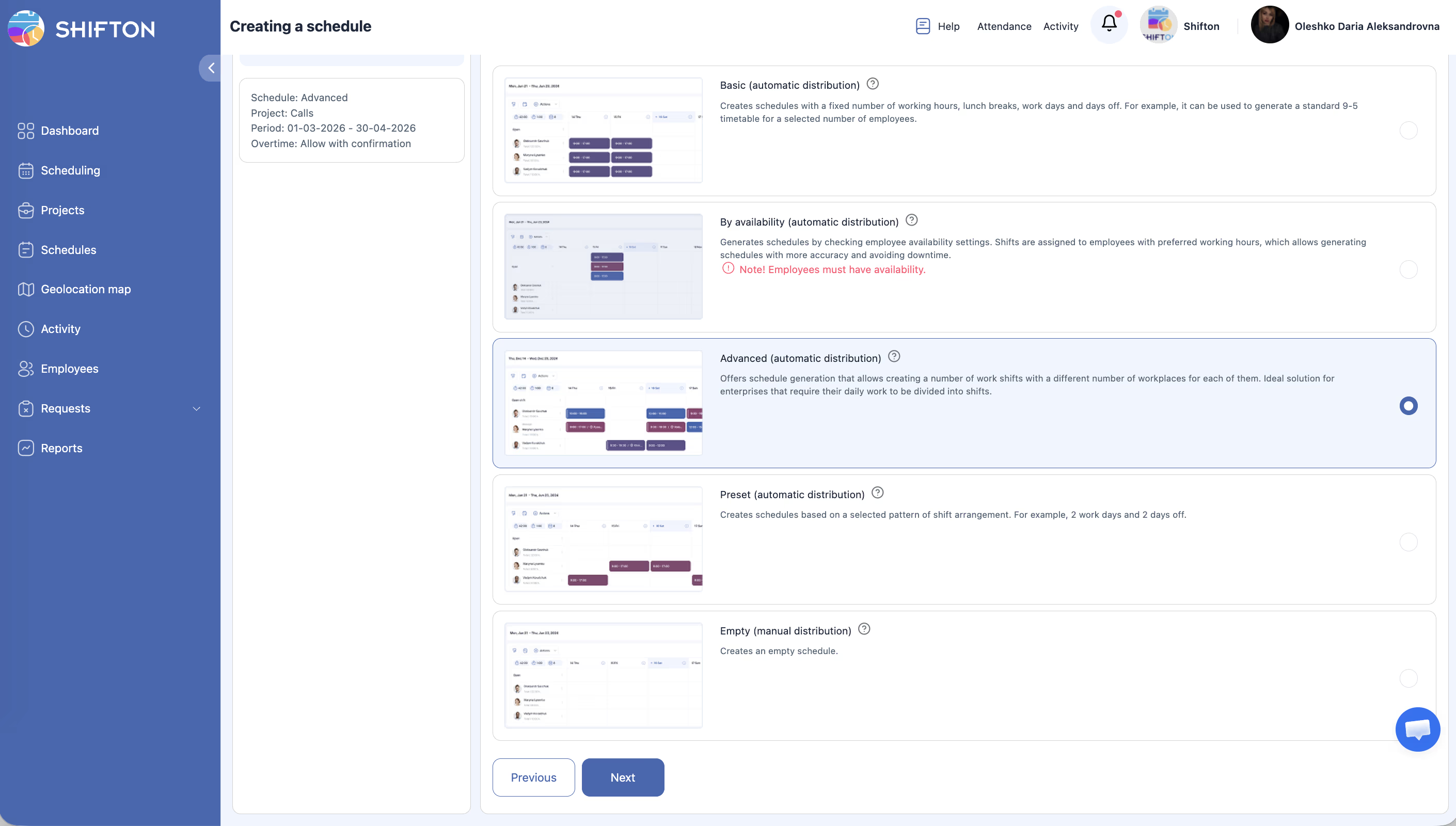
“Offers schedule generation that allows creating a number of work shifts with a different number of workplaces for each of them. Ideal solution for enterprises that require their daily work to be divided into shifts.”
After Creation: Configure Shift Templates
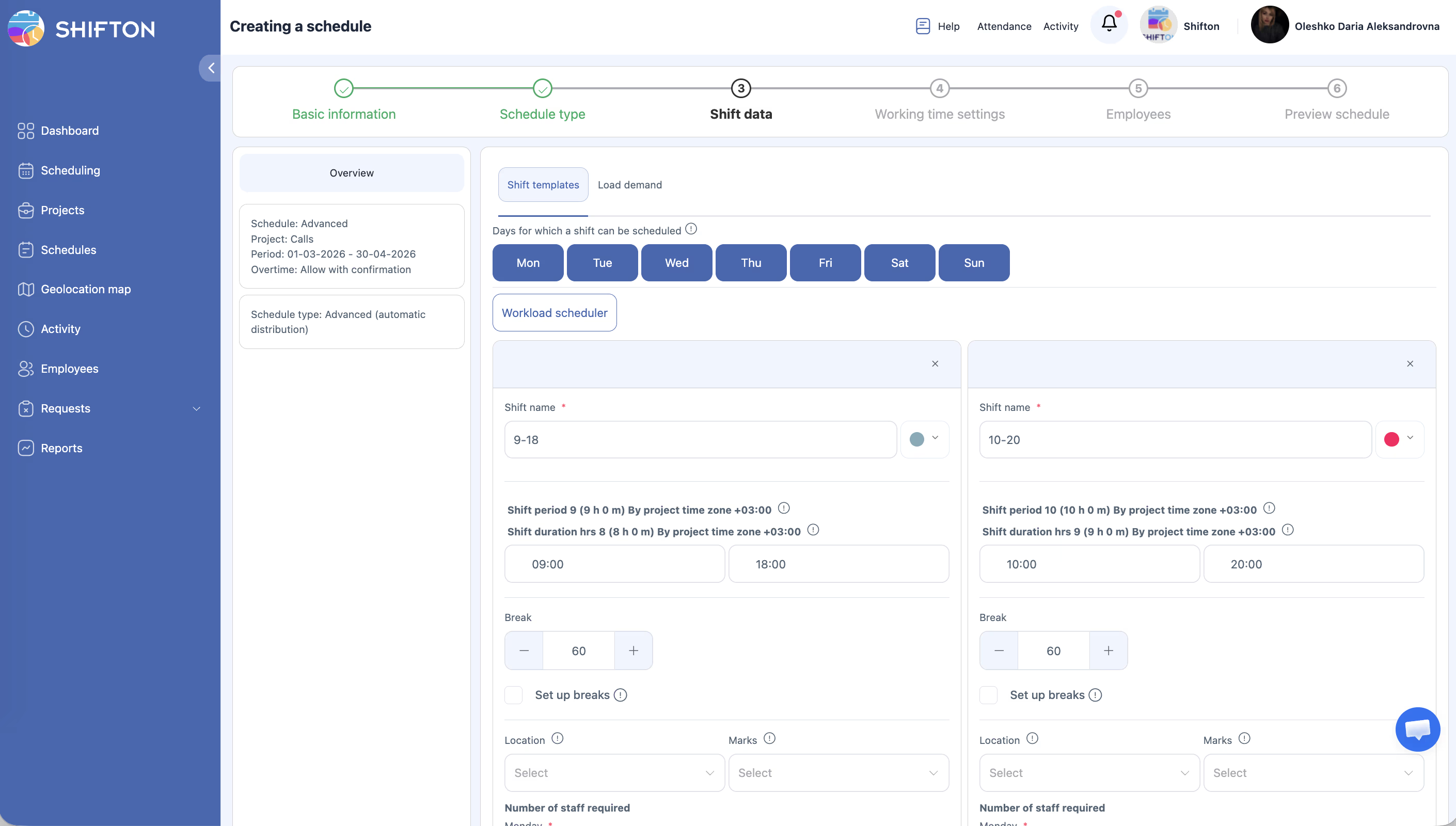
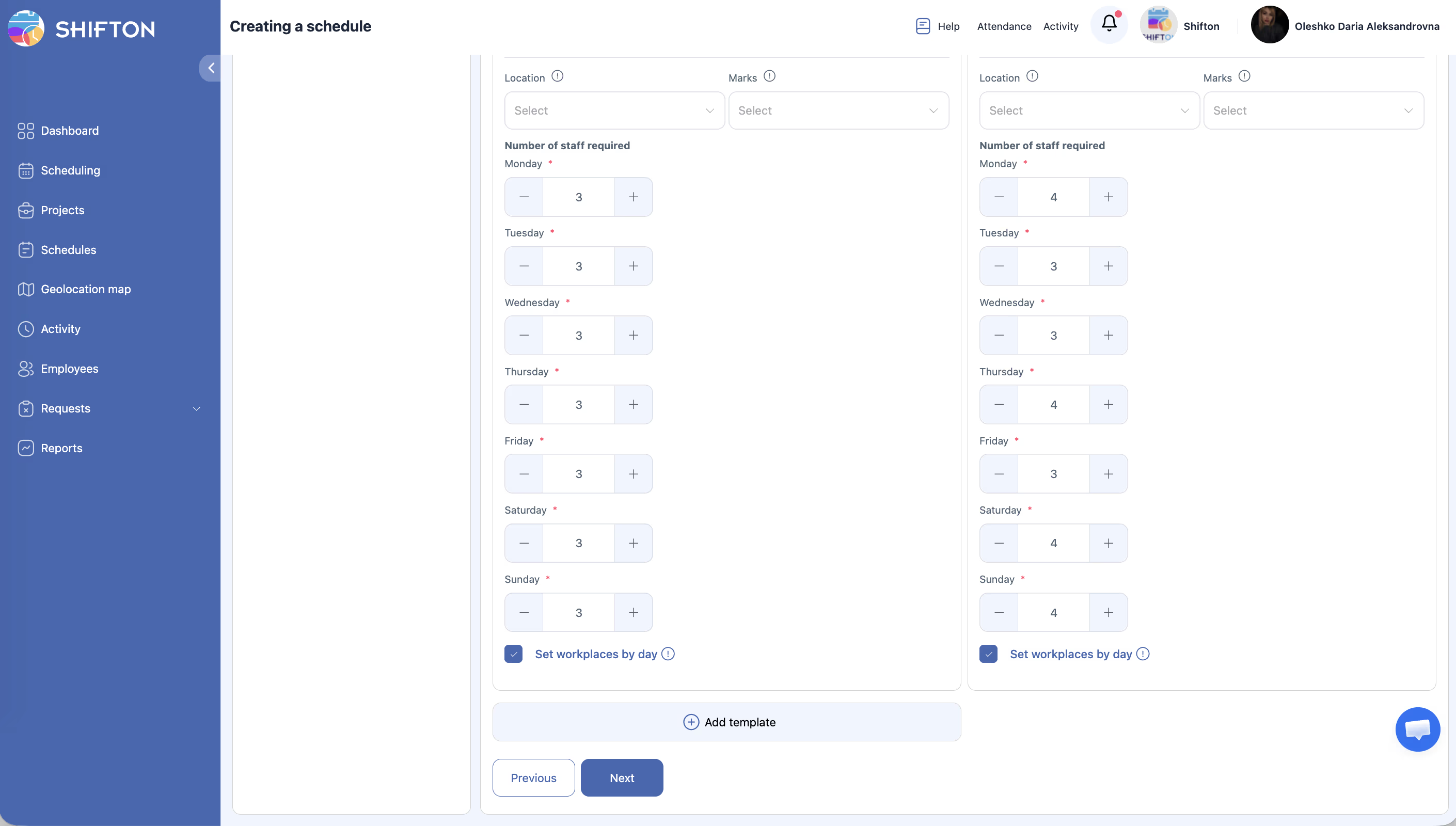
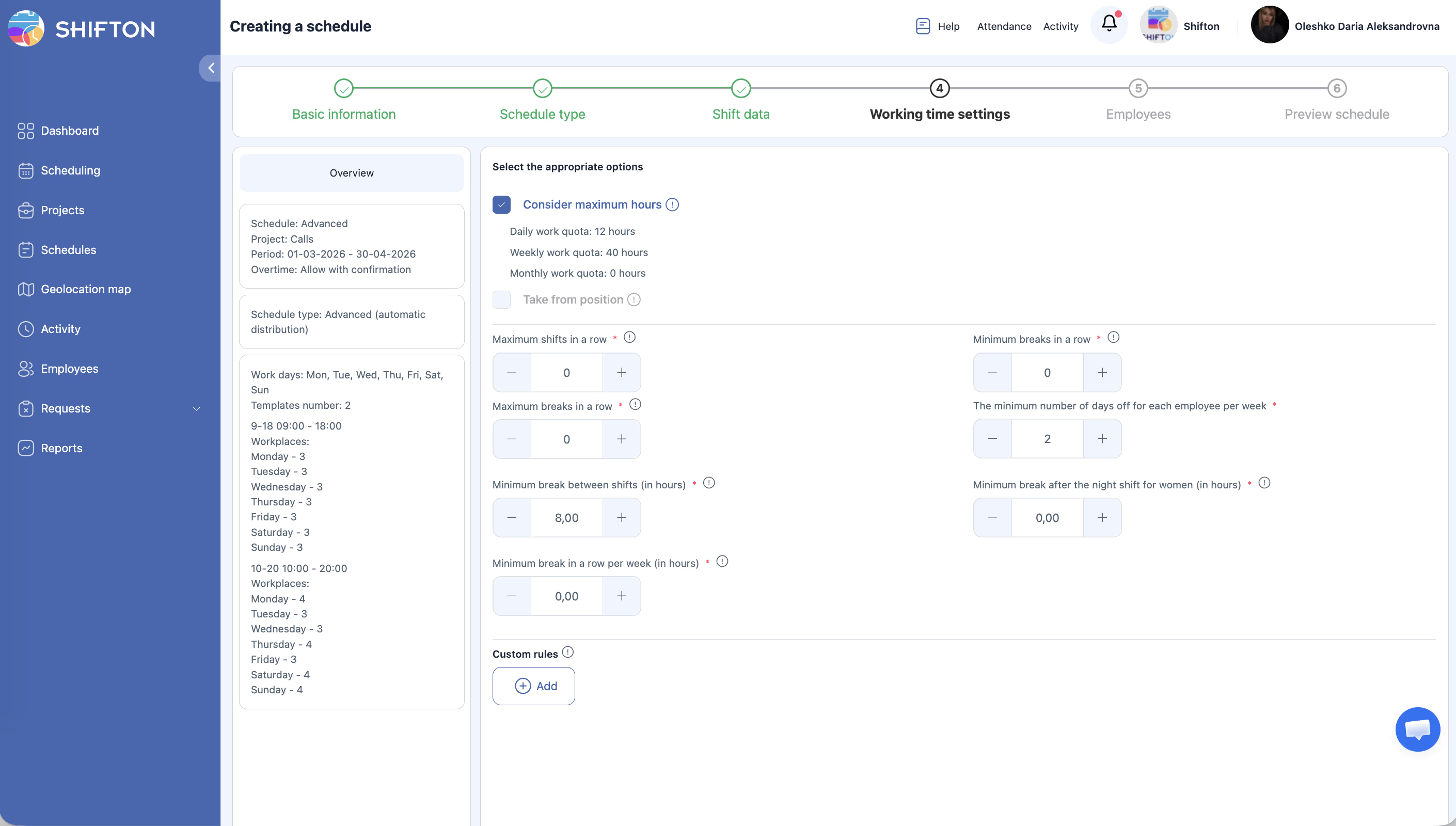
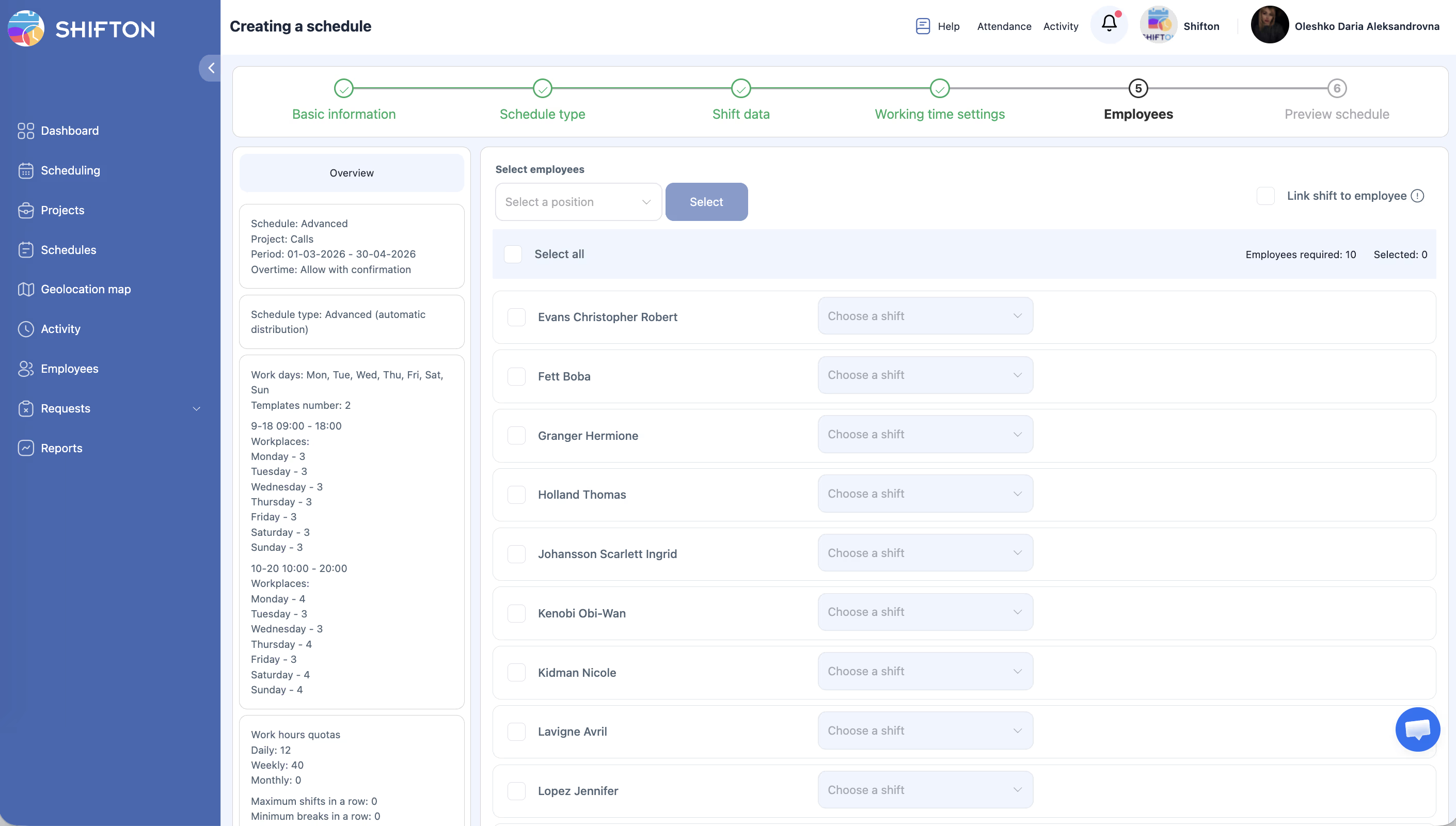
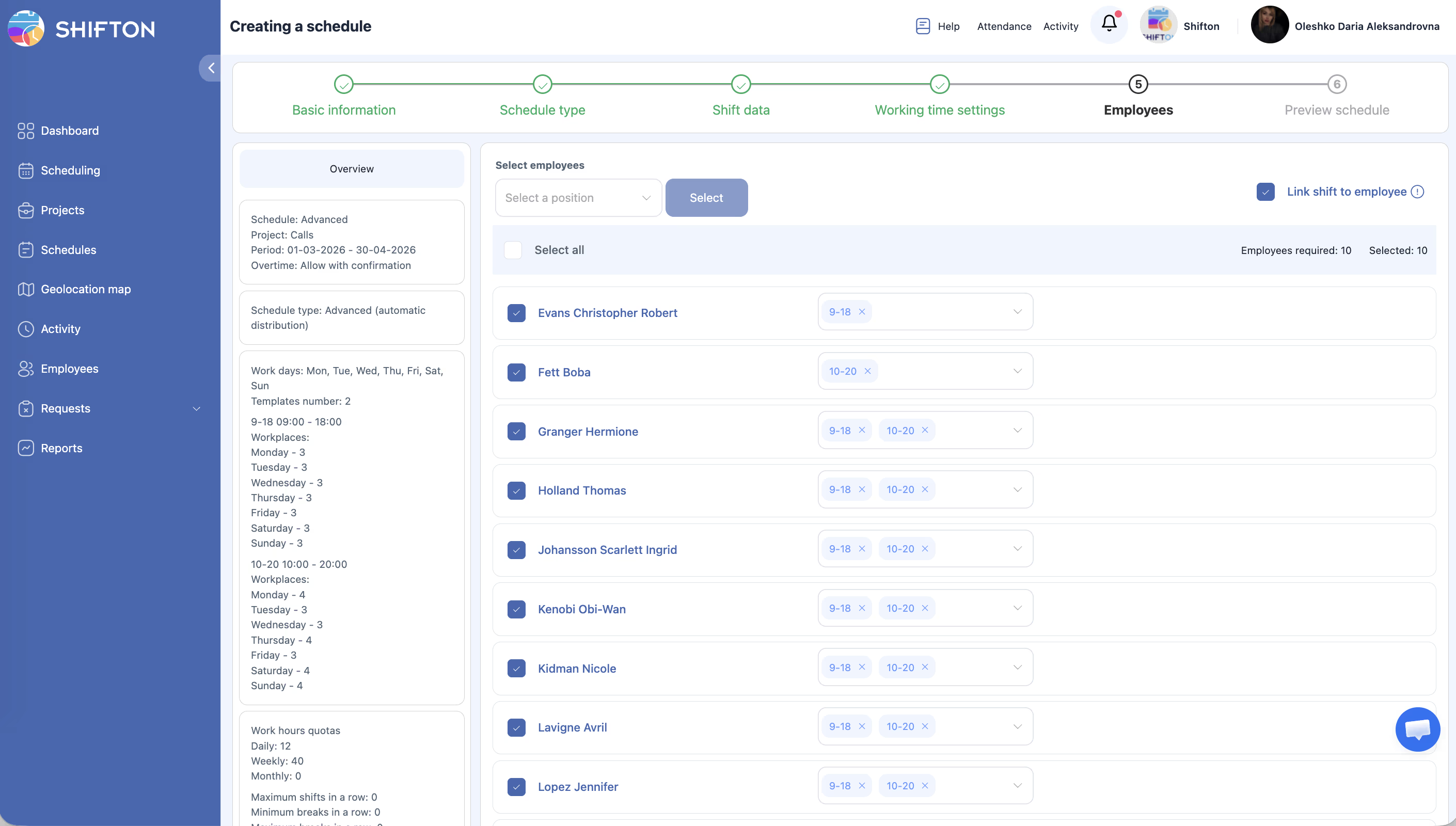
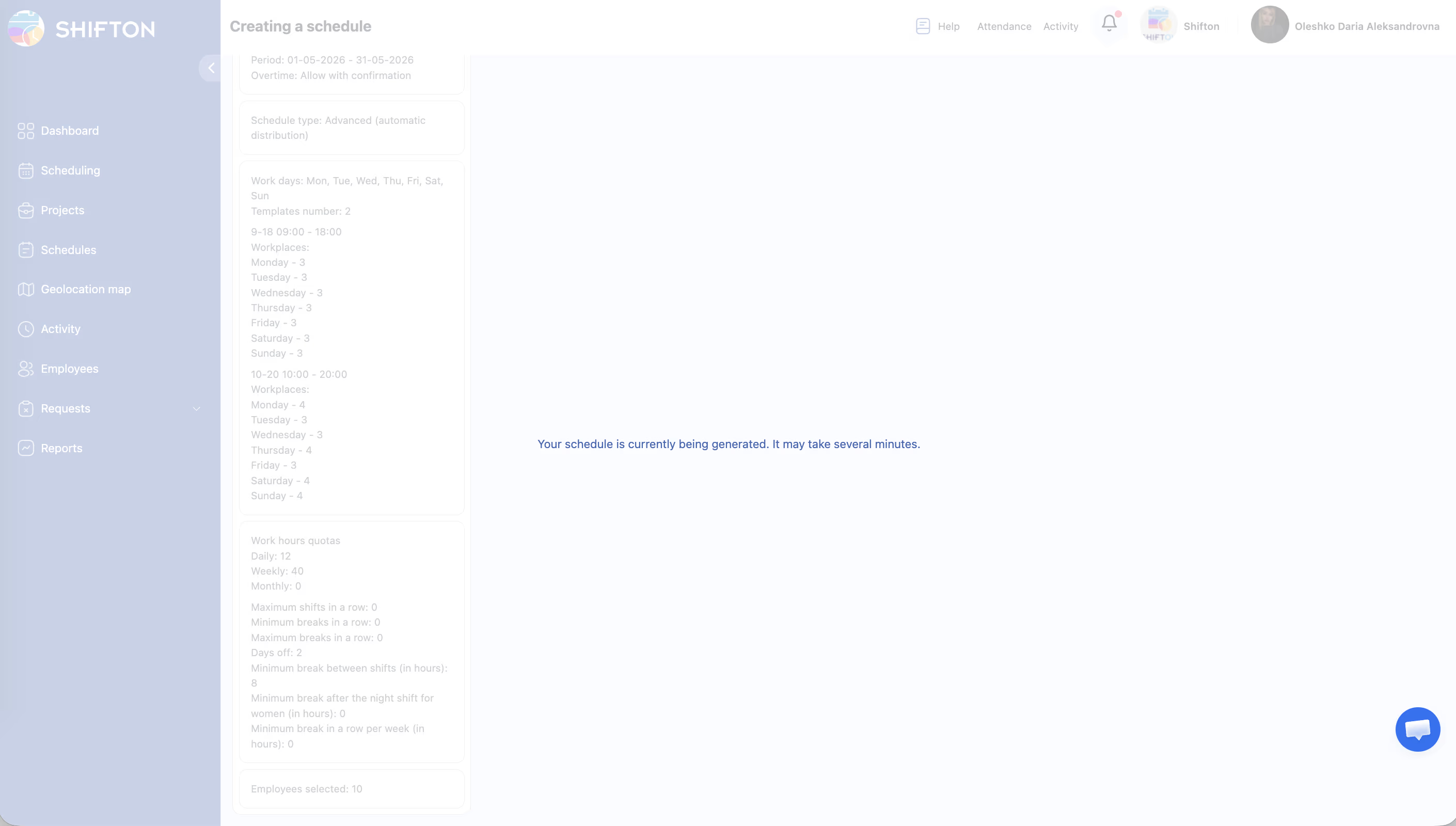
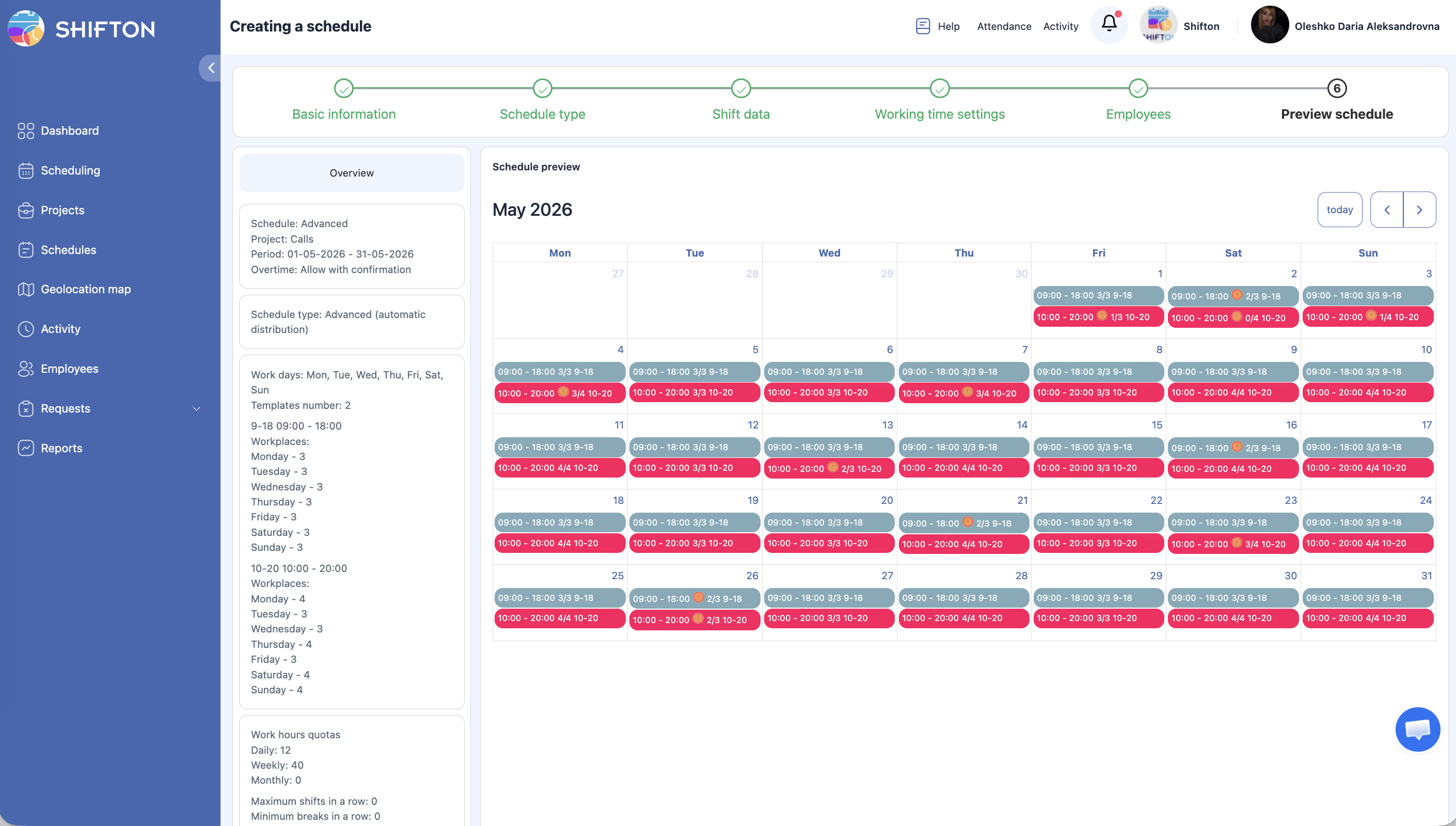
The Advanced type is designed to support multiple shift templates, each with a different number of required workplaces per shift. After creation:
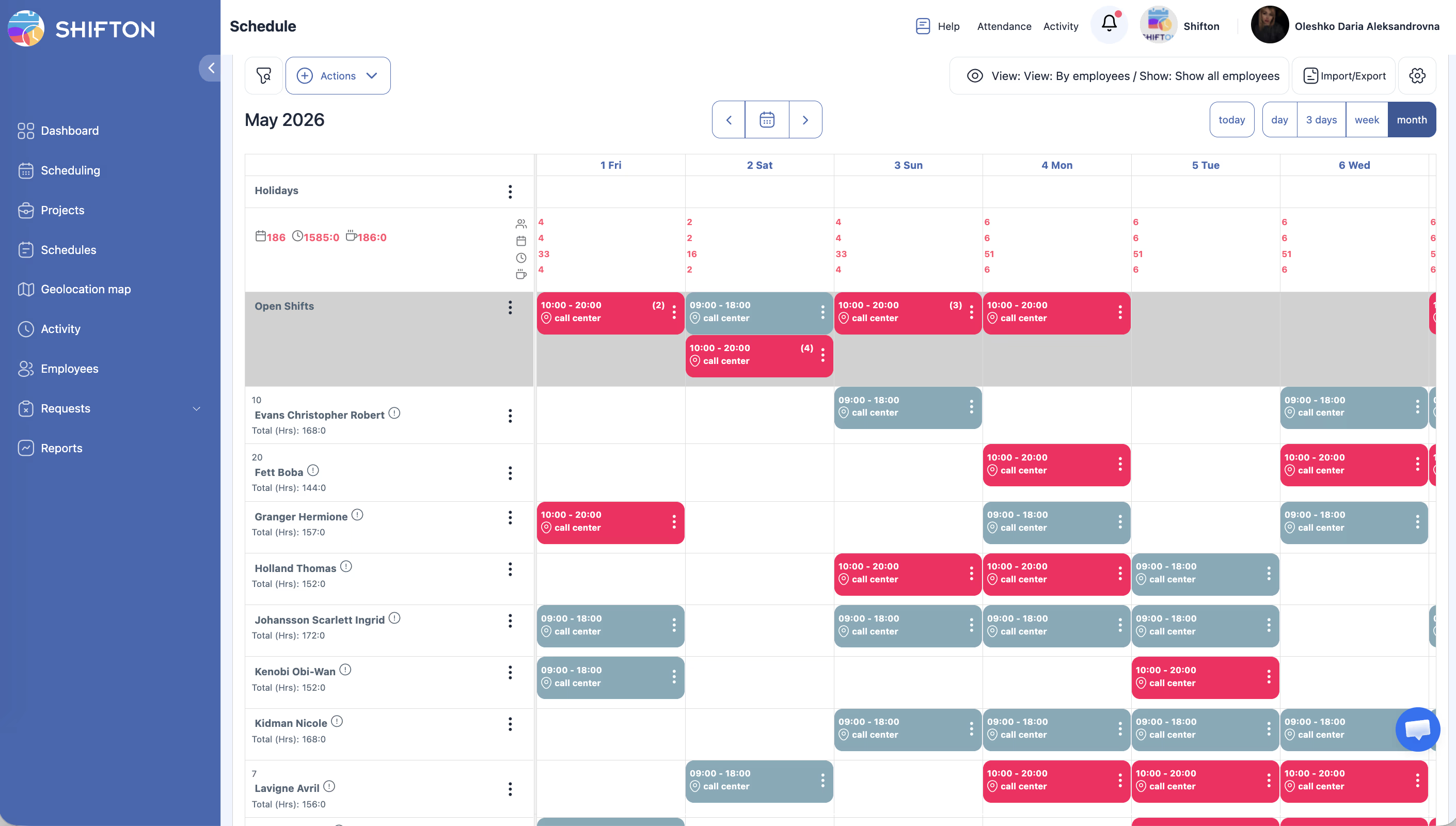
After Creation: Add Shifts and Publish
Access Permissions
| Role | View Schedule | Create Advanced Schedule | Edit Shifts | Delete Schedule |
|---|---|---|---|---|
| Owner | Yes | Yes | Yes | Yes |
| Admin | Yes | Yes | Yes | Yes |
| Manager | Yes (assigned projects) | Yes (assigned projects) | Yes (assigned projects) | Yes (assigned projects) |
| Employee | Yes (own shifts only) | No | No | No |
FAQ
Q: When should I use Advanced instead of Basic?
A: Use Advanced when your operation requires different numbers of employees at different times of day. For example, if you need 5 people in the morning, 8 in the afternoon, and 3 at night, Advanced is the right choice. If everyone works the same hours, Basic is simpler.
Q: Can I set different workplace counts for different days of the week?
A: The Advanced schedule applies the same shift structure to all selected work days. If you need different staffing levels on different days, consider creating separate schedules for those day groups.
Q: How does Shifton decide which employees get which shifts?
A: The system distributes employees automatically to balance workload. You can make manual adjustments after the schedule is generated.
Q: What happens if I do not have enough employees to fill all workplaces?
A: Shifton will fill as many slots as possible with available employees. Unfilled workplace slots will appear as open shifts that you can assign later or that employees can claim.
Q: Can I have shifts of different durations within the same schedule?
A: Yes. Each shift period can have its own start time, end time, and break settings, so shifts do not need to be the same length.
Possible Issues and Solutions
| Issue | Possible Cause | Solution |
|---|---|---|
| Not enough employees assigned to shifts | Fewer employees in the project than total workplaces defined | Add more employees to the project or reduce the number of workplaces |
| Shifts overlap in time | Shift time ranges are not properly sequenced | Adjust start and end times so shifts do not overlap |
| Employees assigned to back-to-back shifts | The system may assign consecutive shifts if availability allows | Manually adjust assignments to ensure adequate rest periods |
| Cannot set more than a certain number of shifts per day | System configuration limitation | Check if your plan supports the number of shifts you need |
| Schedule shows uneven distribution | Unequal number of employees per position or availability constraints | Review employee assignments and availability, then manually rebalance |