

Generate shifts automatically based on when your employees have indicated they are available to work. This schedule type ensures that only available employees are assigned to shifts.
What Is This?
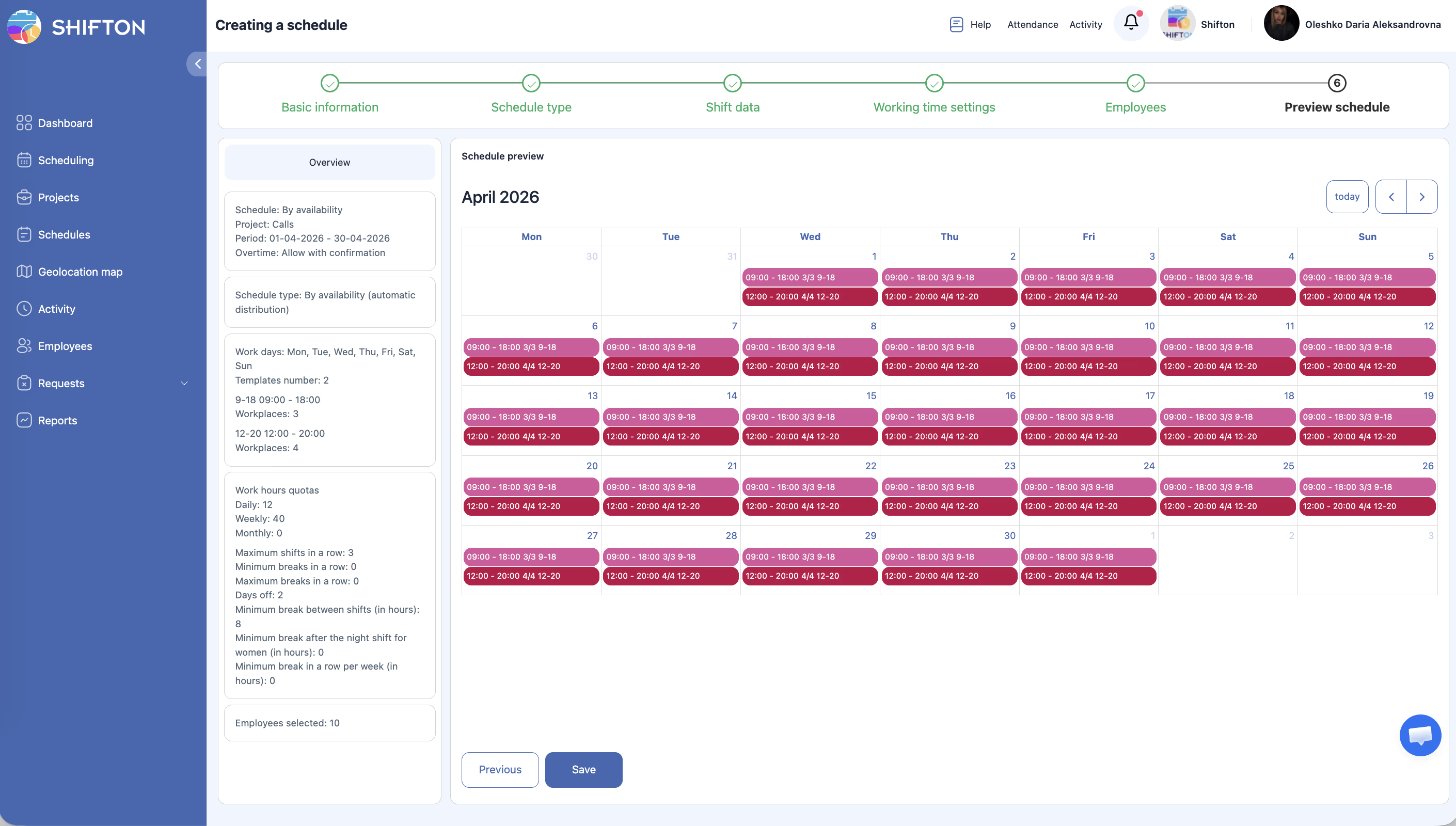
The By Availability schedule type uses automatic distribution to build shifts by checking each employee’s availability settings. Instead of assigning fixed hours to everyone, this type respects the days and times each team member has marked as available in their profile.
This is especially useful for part-time teams, retail businesses, or any organization where employees have varying schedules and preferences.
Note: Employees must have their availability configured in advance. If an employee has no availability set, they will not receive any shifts from this schedule type.
Prerequisites
| # | Prerequisite | Details |
|---|---|---|
| 1 | Active Shifton account | You must have a registered company account |
| 2 | Admin, Owner, or Manager role | You need permissions to create schedules |
| 3 | A project with assigned employees | The schedule must be linked to a project that has employees |
| 4 | Employee availability configured | Each employee must have their availability set in their profile before schedule creation |
Step-by-Step Instructions
Before You Begin: Verify Employee Availability
Step 1: Basic Information
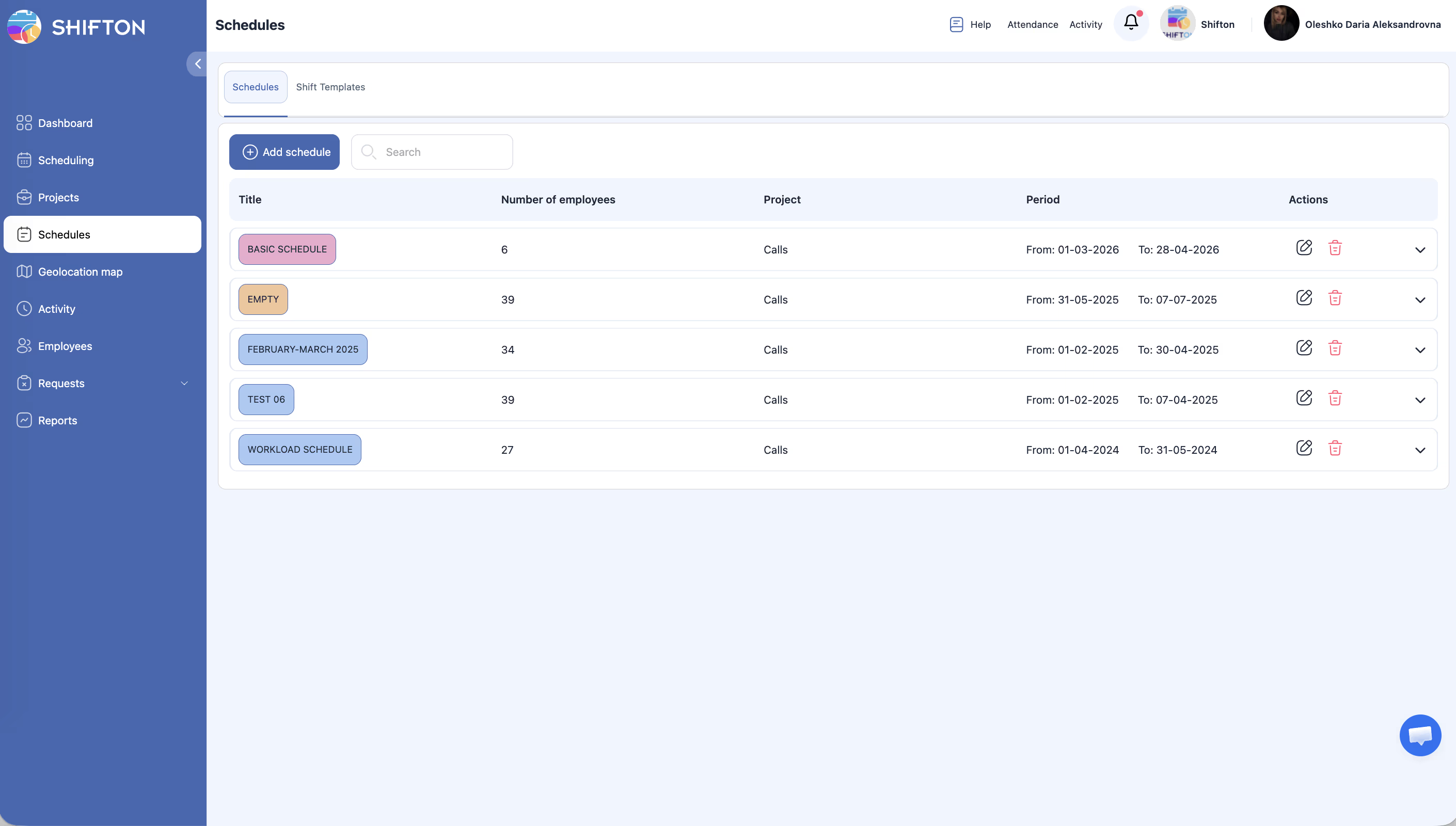
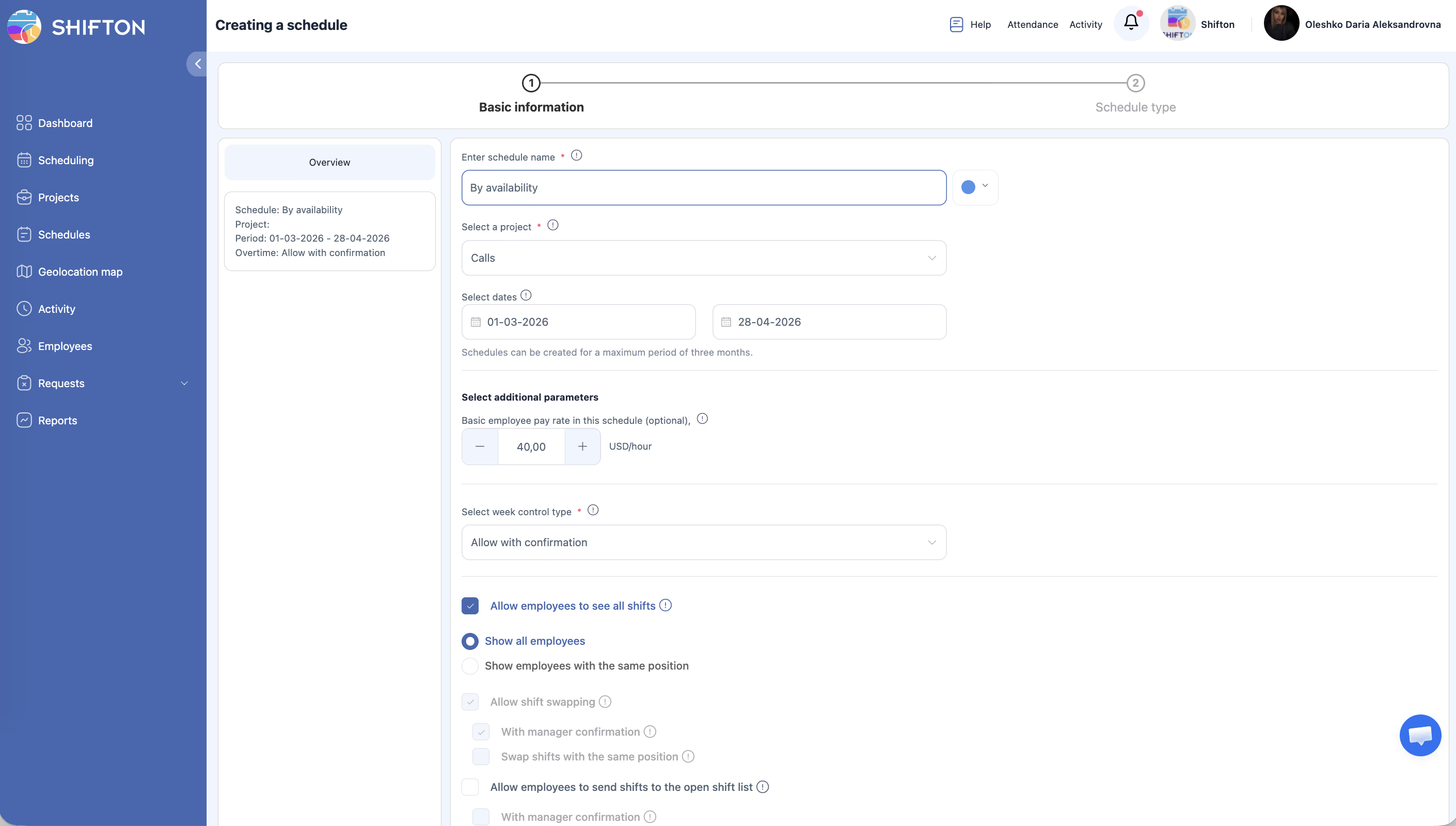
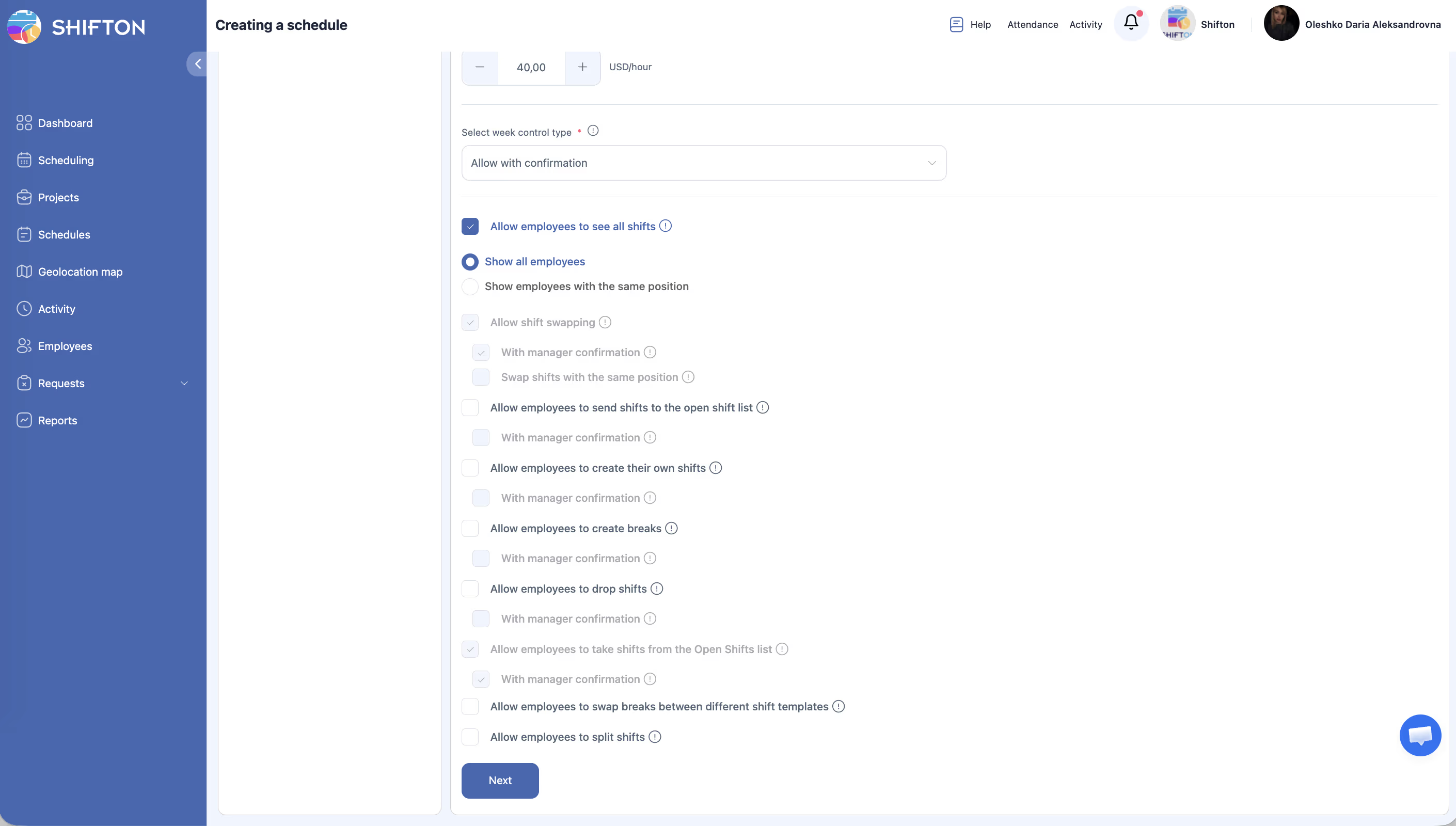
| Field | Required | Description |
|---|---|---|
| Enter schedule name | Yes | A descriptive title (e.g., “Retail Team — April Availability”) |
| Color | No | Choose a color to identify this schedule |
| Select a project | Yes | Select the project this schedule belongs to |
| Select dates | Yes | Set the start and end dates — maximum 3 months |
| Basic employee pay rate | No | Base pay rate per hour for shifts in this schedule |
| Select week control type | Yes | How overtime is handled: Allow with confirmation (default) / Allow / Disallow |
Below these fields is a section with employee action permissions (checkboxes). See the Schedule Settings and Permissions article.
Step 2: Select Schedule Type
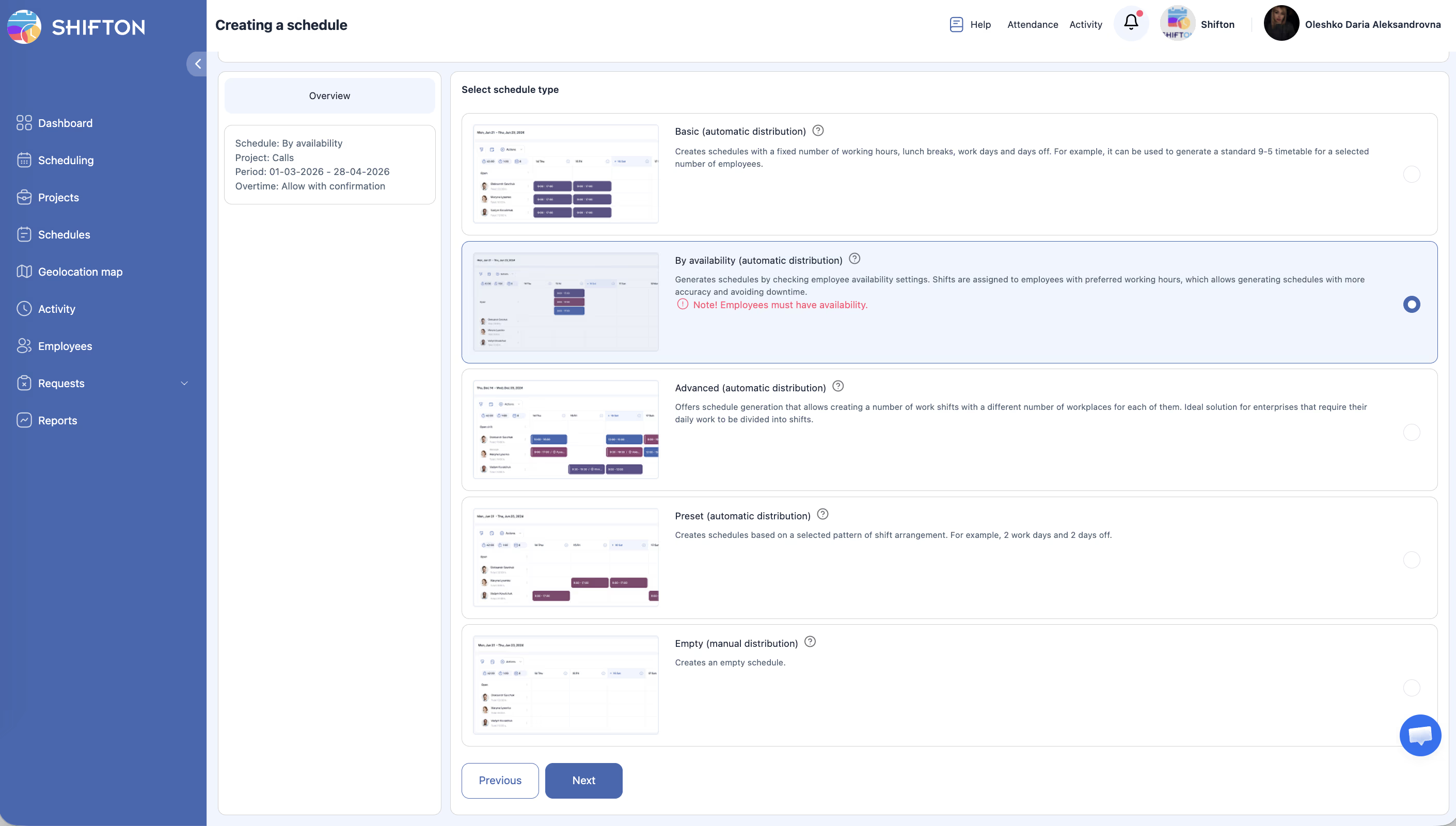
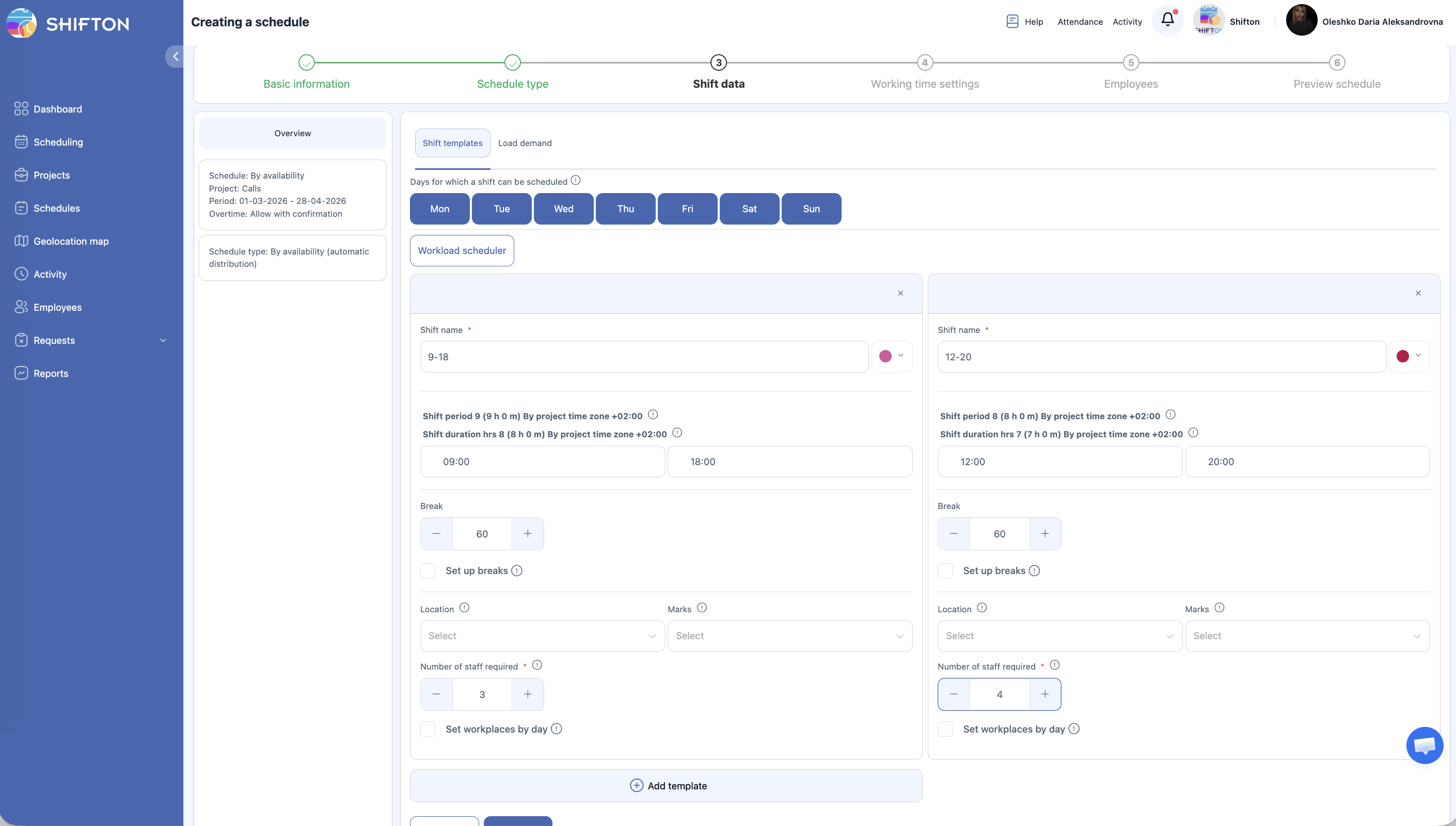
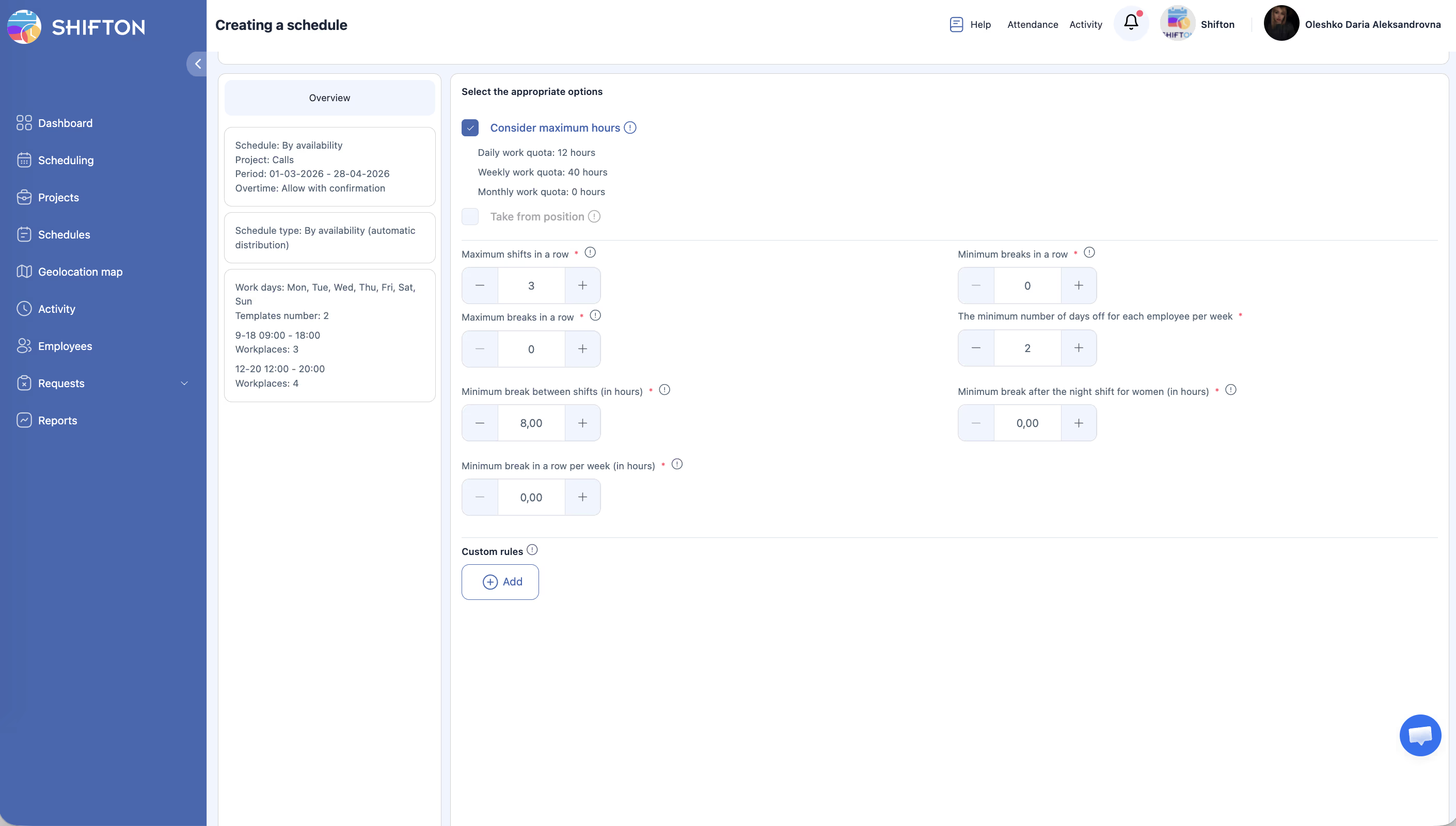
“Generates schedules by checking employee availability settings. Shifts are assigned to employees with preferred working hours, which allows generating schedules with more accuracy and avoiding downtime.”
Note: Employees must have availability configured.
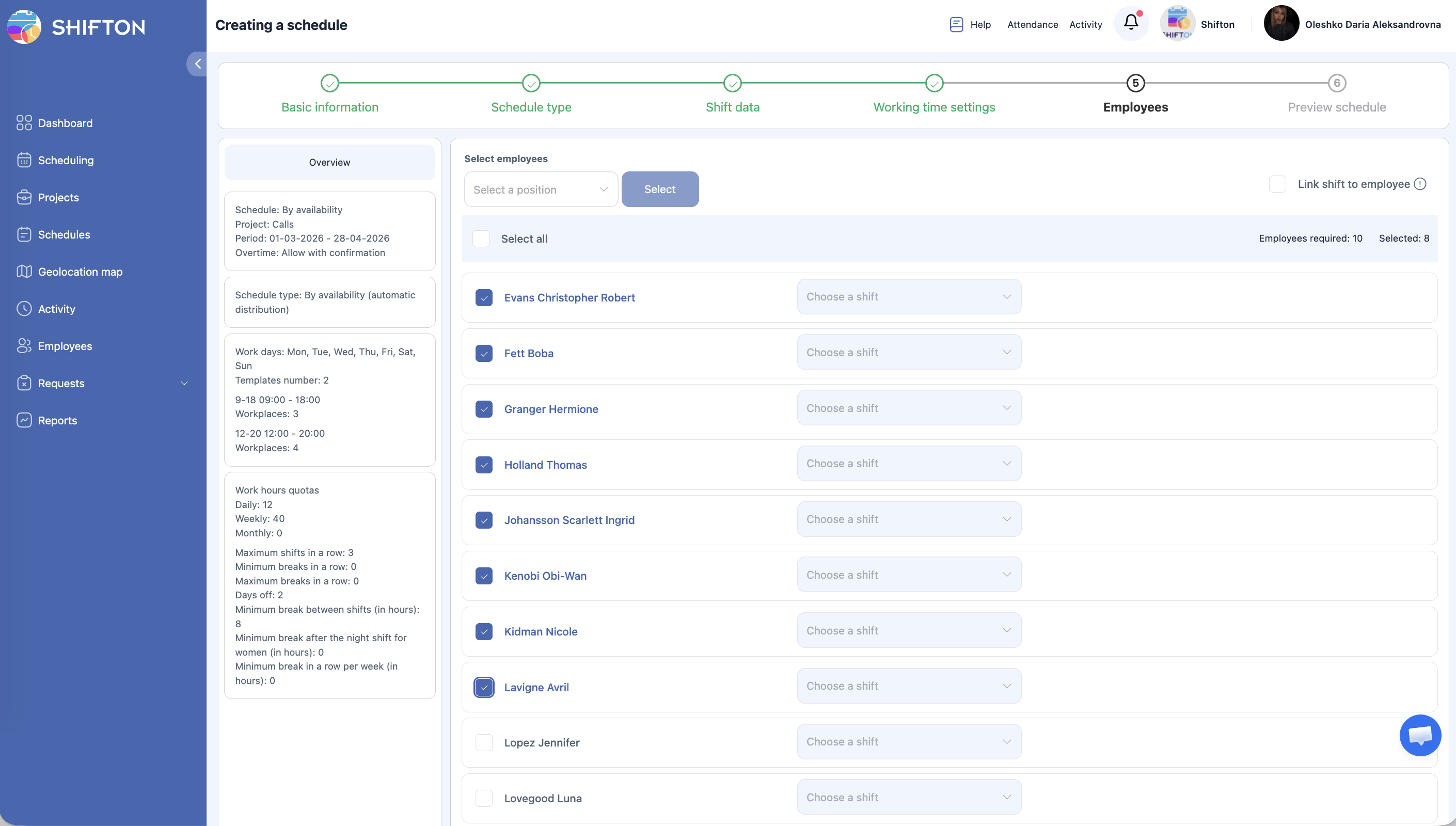
After Creation: Add Employees
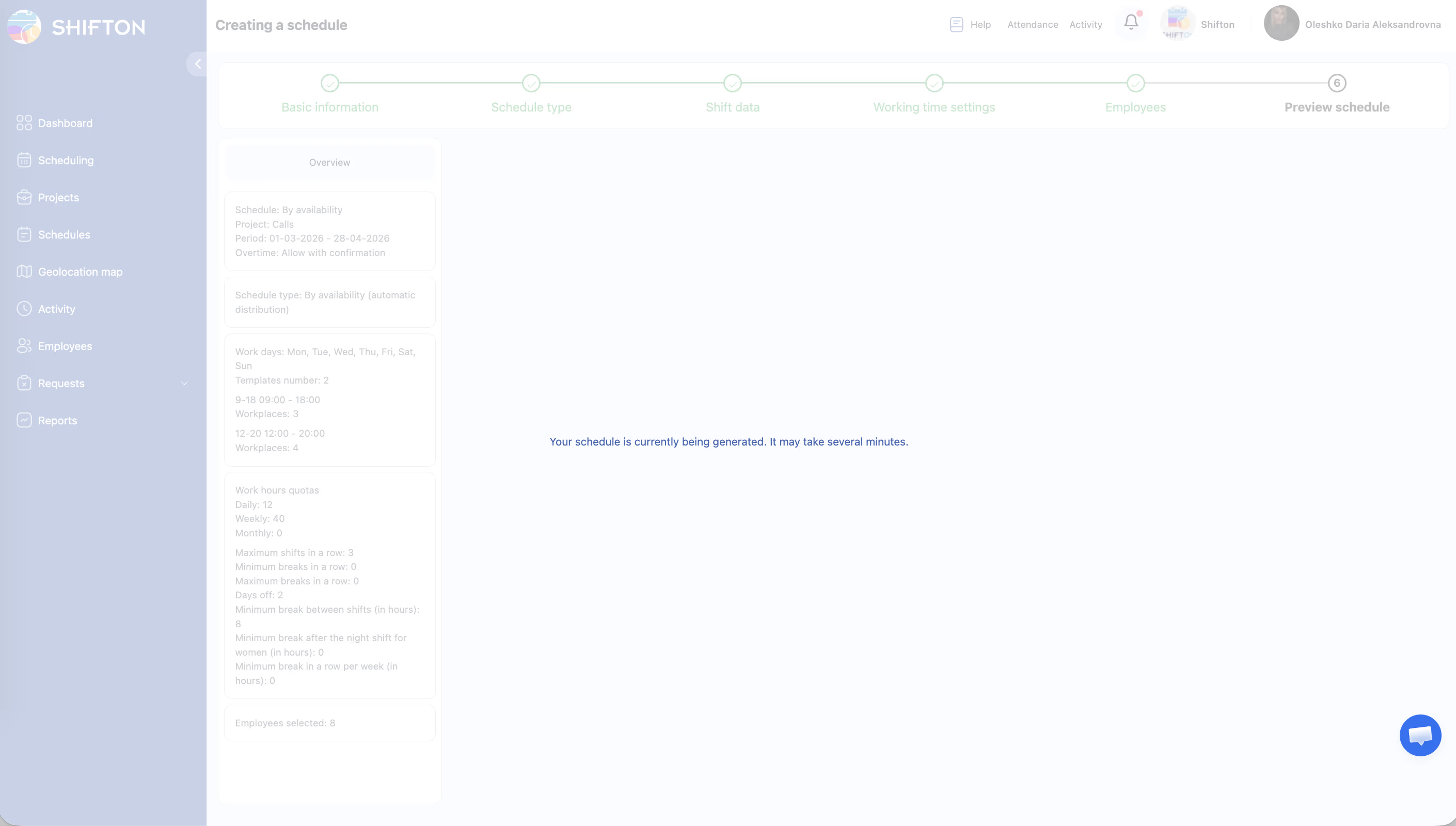
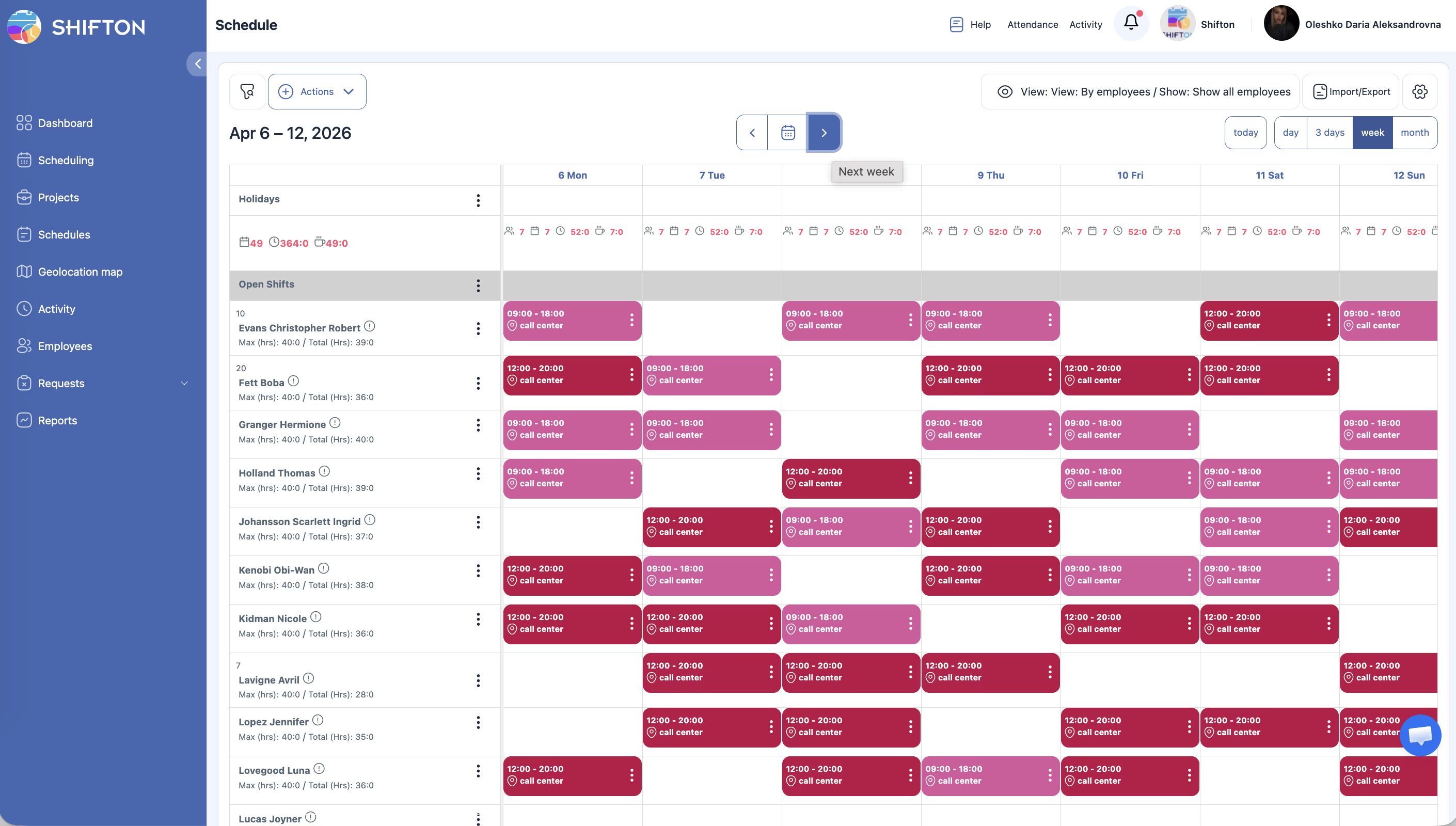
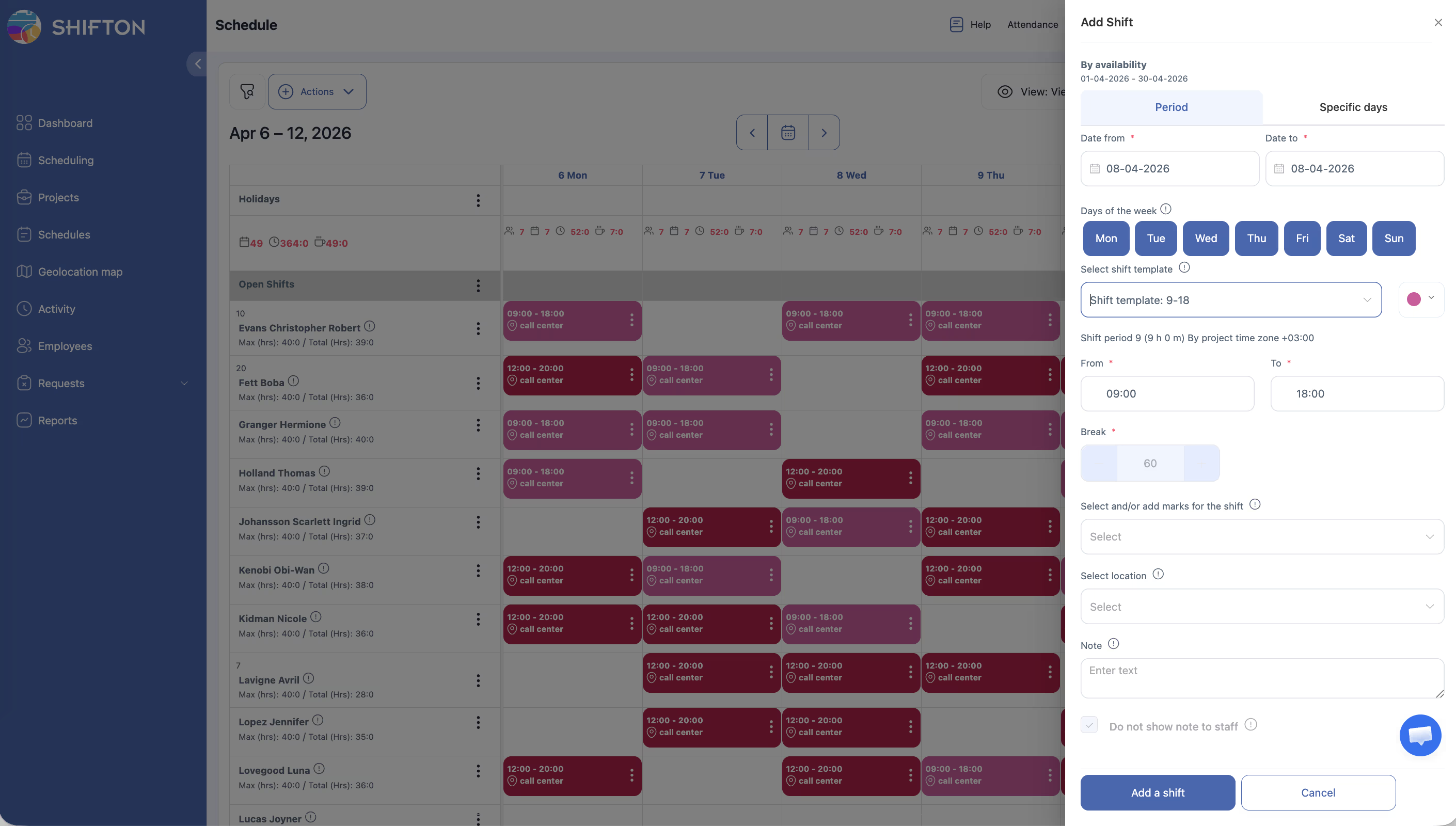
After Creation: Add Shifts and Publish
Access Permissions
| Role | View Schedule | Create Schedule | Edit Shifts | Set Employee Availability |
|---|---|---|---|---|
| Owner | Yes | Yes | Yes | Yes (all employees) |
| Admin | Yes | Yes | Yes | Yes (all employees) |
| Manager | Yes (assigned projects) | Yes (assigned projects) | Yes (assigned projects) | Yes (assigned employees) |
| Employee | Yes (own shifts only) | No | No | Yes (own availability only) |
FAQ
Q: What happens if an employee has not set their availability?
A: The system will not apply availability restrictions for that employee — they can be assigned to any shift. Make sure all employees update their availability before you create the schedule.
Q: Can employees update their availability after the schedule is created?
A: Yes, employees can update their availability at any time. However, changes to availability do not automatically update an existing schedule. You would need to manually adjust shifts or recreate the schedule.
Q: How does the system handle overlapping availability between employees?
A: When multiple employees are available for the same time slot, Shifton distributes shifts to balance the workload across all available team members.
Q: What if no employees are available for a specific day?
A: That day will have no shifts assigned. You will need to either manually add a shift or ask employees to update their availability to cover that day.
Q: Shifts are not visible to employees — why?
A: Shifts must be published. Click Publish & notify employees on the schedule page. Until published, only managers can see the shifts.
Possible Issues and Solutions
| Issue | Possible Cause | Solution |
|---|---|---|
| No shifts generated for any employees | No employees have availability configured | Verify that employees have set their availability in their profiles |
| Some employees received no shifts | Those employees have not set their availability or have very limited hours | Ask them to update their availability settings |
| Too many shifts assigned to one employee | Other employees have limited availability, causing uneven distribution | Review and balance availability across the team, or set maximum shift limits |
| Schedule does not reflect recent availability changes | The schedule was created before the availability was updated | Regenerate the schedule or manually add the missing shifts |
| Shifts overlap with employee time-off requests | Availability and time-off are managed separately | Review time-off requests and adjust shifts accordingly after schedule creation |