

Service areas are geographic regions where your employees are authorized to perform tasks.
They are a required part of company configuration.
Without service areas, tasks cannot be assigned.
What Service Areas Are Used For
Service areas allow you to:
- Define exact boundaries of where your services are available on the map
- Assign employees who can work within each service area
- Control which users can create and approve task requests
- Minimize assignment errors and optimize logistics
When a client’s address is entered into a task, the system automatically:
This ensures tasks are assigned only to employees who operate in that location.
Roles in Service Areas
Each user can have one or multiple roles within a service area:
| Role | Description | Capabilities |
| Technician | Responsible for task execution | Sees and performs tasks inside assigned areas |
| Task Requester | Creates task requests | Can initiate tasks within the area |
| Task Approver | Manages approval workflow | Approves or rejects requests for new tasks |
Roles are assigned individually for each area and may differ between them.
Where to Manage Service Areas
Go to:
Task Settings → Service Areas
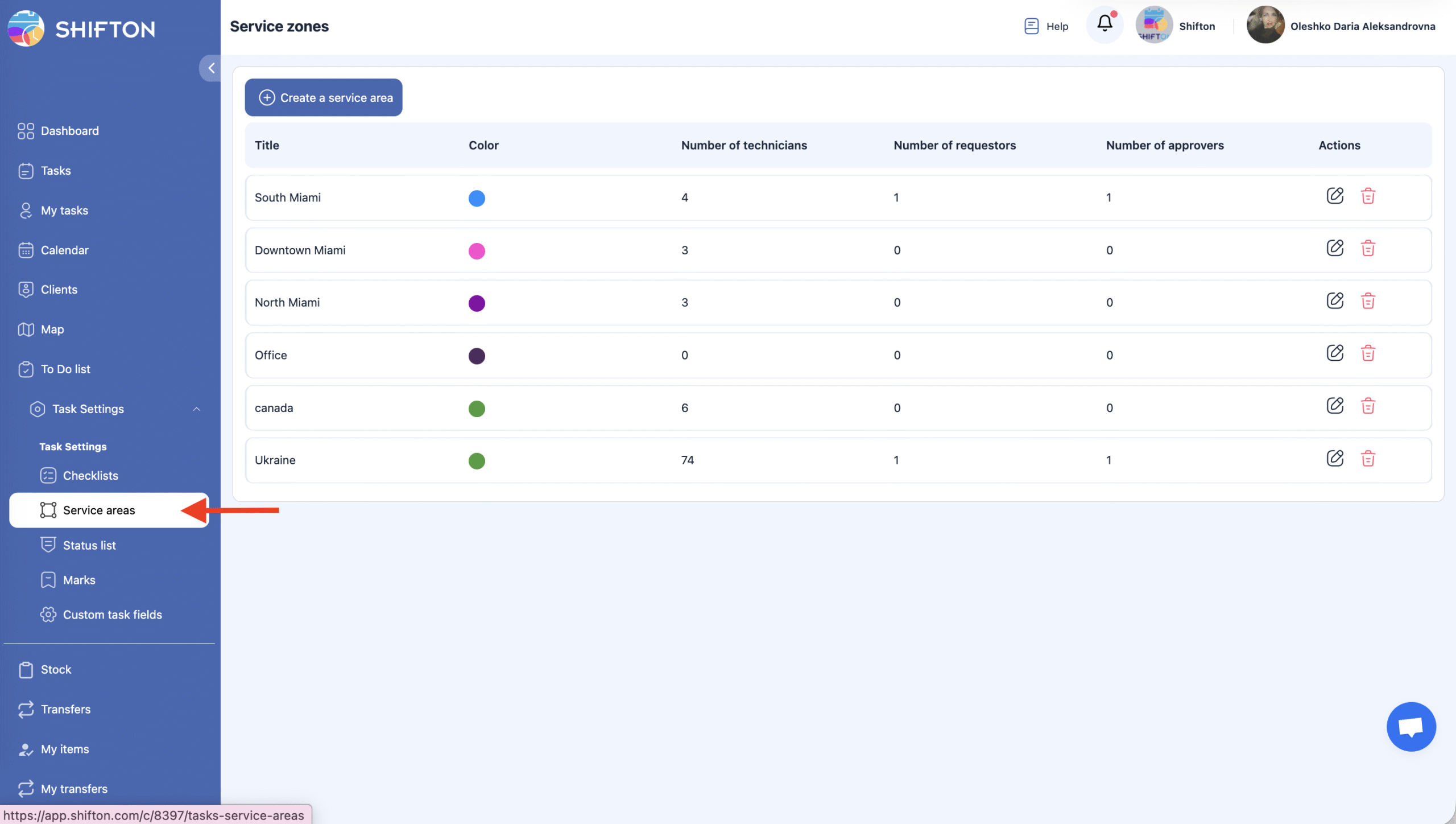
Here you can:
- Create new service areas
- Edit existing boundaries
- Add or remove employees
- Change user roles within the area
- Delete areas no longer in use
Creating a Service Area
To create a new service area:
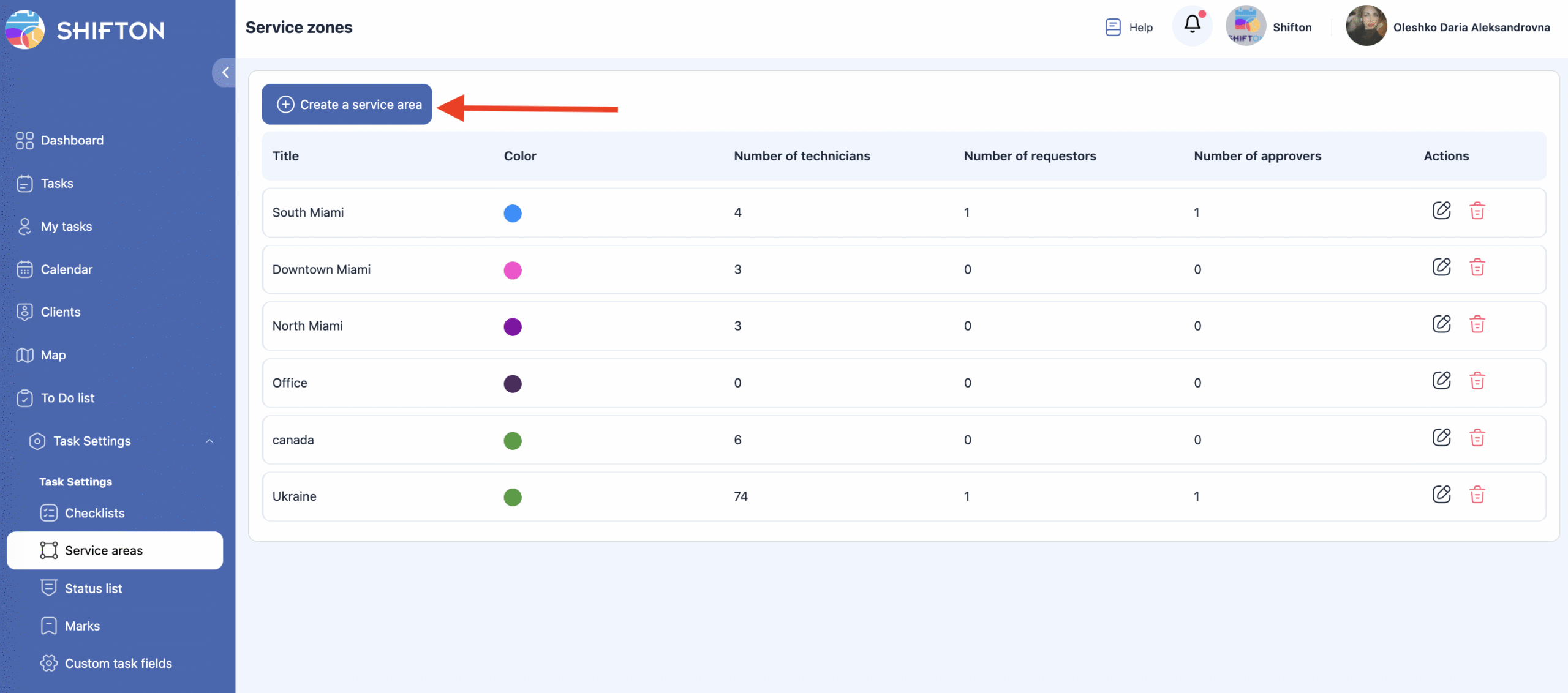
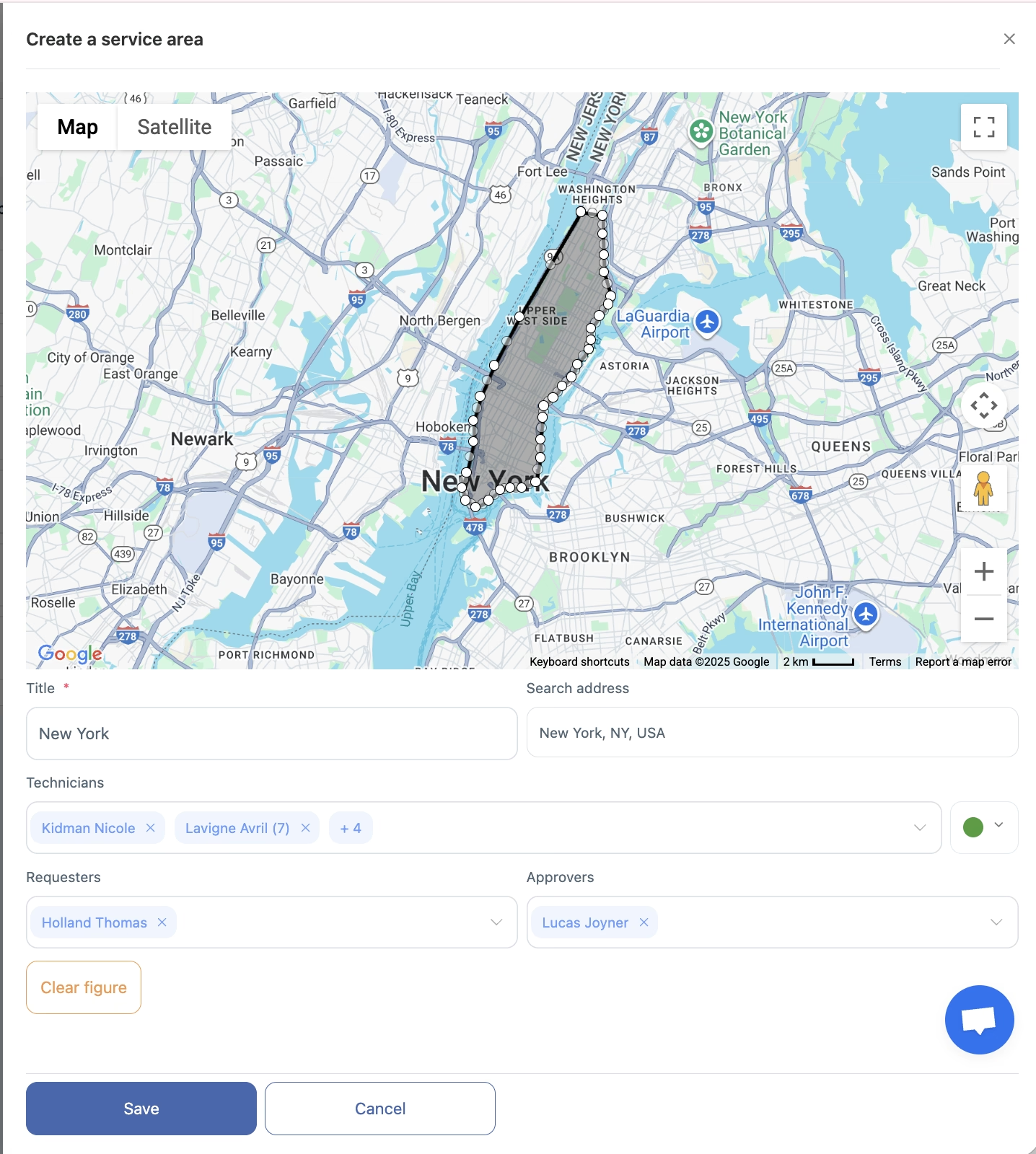
Once saved, the area is active and available for task assignment.
Assigning Employees to Service Areas
Employees can be assigned:
- to a single service area — if they work in a specific locality
- to multiple service areas — if they operate across several regions
We recommend reviewing and updating service area assignments when:
- staff changes occur
- your coverage area expands or shifts
- responsibilities or departments change
How Service Areas Affect Task Assignment
| Action | Result |
| Client address is inside a service area | Only assigned technicians are displayed for selection |
| Address does not belong to any area | Task assignment is not available |
| Technician is not added to the area | They do not see the task and cannot complete it |
If an address doesn’t match any existing area, the system will notify you.
Examples of Effective Configuration
| Scenario | Recommended Setup |
| Company operates in multiple cities or regions | Create separate service areas for each location |
| Company works in one city but manages by districts | Create areas by neighborhoods, postal zones, or admin boundaries |
| Technicians frequently relocate or travel | Assign employees to multiple service areas |
| Access to tasks must be restricted | Assign only authorized roles |
Common Issues & Solutions
| Issue | Possible Cause | Resolution |
| Technician cannot see assigned tasks | Employee not included in the service area | Add employee to the corresponding area |
| Task cannot be assigned by address | Address is outside mapped boundaries | Expand or adjust the map area |
| Task is stuck waiting for approval | No approver assigned | Add a user with the Approver role |
Recommendations
- Configure areas based on real operational territories
- Confirm that all client addresses fall inside mapped boundaries
- Keep employee lists and roles up to date
- Limit access only to staff who require it
FAQ
define the exact boundaries of where services are available on the map;
assign employees who can work within each area;
control who can create and approve task requests;
minimize assignment errors and optimize field logistics.
If the client address falls inside a service area, only technicians assigned to that area are shown for selection.
If an address is not inside any defined service area, task assignment is not available.
Technicians not assigned to an area will not see the task and cannot complete it.
Technician — responsible for task execution; sees and performs tasks inside the area.
Task Requester — creates task requests within the area.
Task Approver — approves or rejects new task requests.
Open Service Areas.
Click Create Service Area.
Draw or select the territory on the map.
Add employees who can work within the area.
Assign roles to those employees.
Save changes.
setting areas based on actual operational territory;
ensuring client addresses fall within mapped boundaries;
regularly updating employee lists and roles;
limiting area access to authorized staff only.