

Learn how the Manager role works in Shifton and how to assign it at the project level.
What Is This?
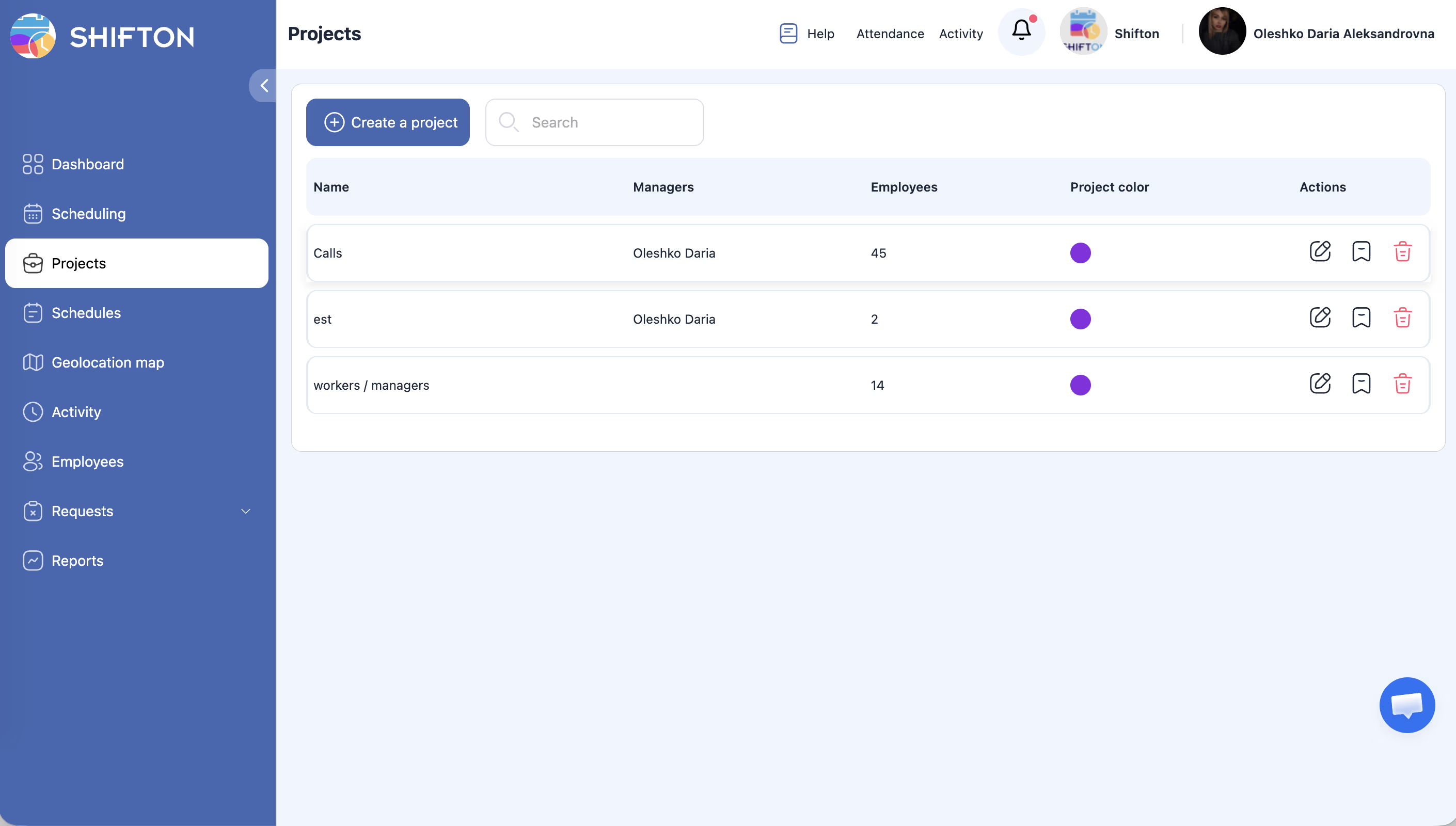
The Manager role in Shifton is a project-level role that gives an employee management capabilities within a specific project. Unlike the global Administrator and Employee authority levels, the Manager role is assigned per project through the employee’s profile.
A Manager can manage shifts, view team members, and make scheduling decisions — but only within the projects they are assigned to manage. This allows you to delegate day-to-day scheduling responsibilities without granting full Administrator access.
Prerequisites
Before assigning the Manager role, make sure:
- The employee has been added to Shifton
- At least one project exists
- The employee is already assigned to the project
- You have Administrator access
Step-by-Step Instructions
Step 1: Open the Employee’s Projects Tab
Navigate to the Employees page, click on the employee’s name, and select the Projects tab.
Step 2: Locate the Project
Find the project where you want to assign the Manager role. If the employee is not yet assigned to the project, click Add to project first.
Step 3: Change the Role to Administrator
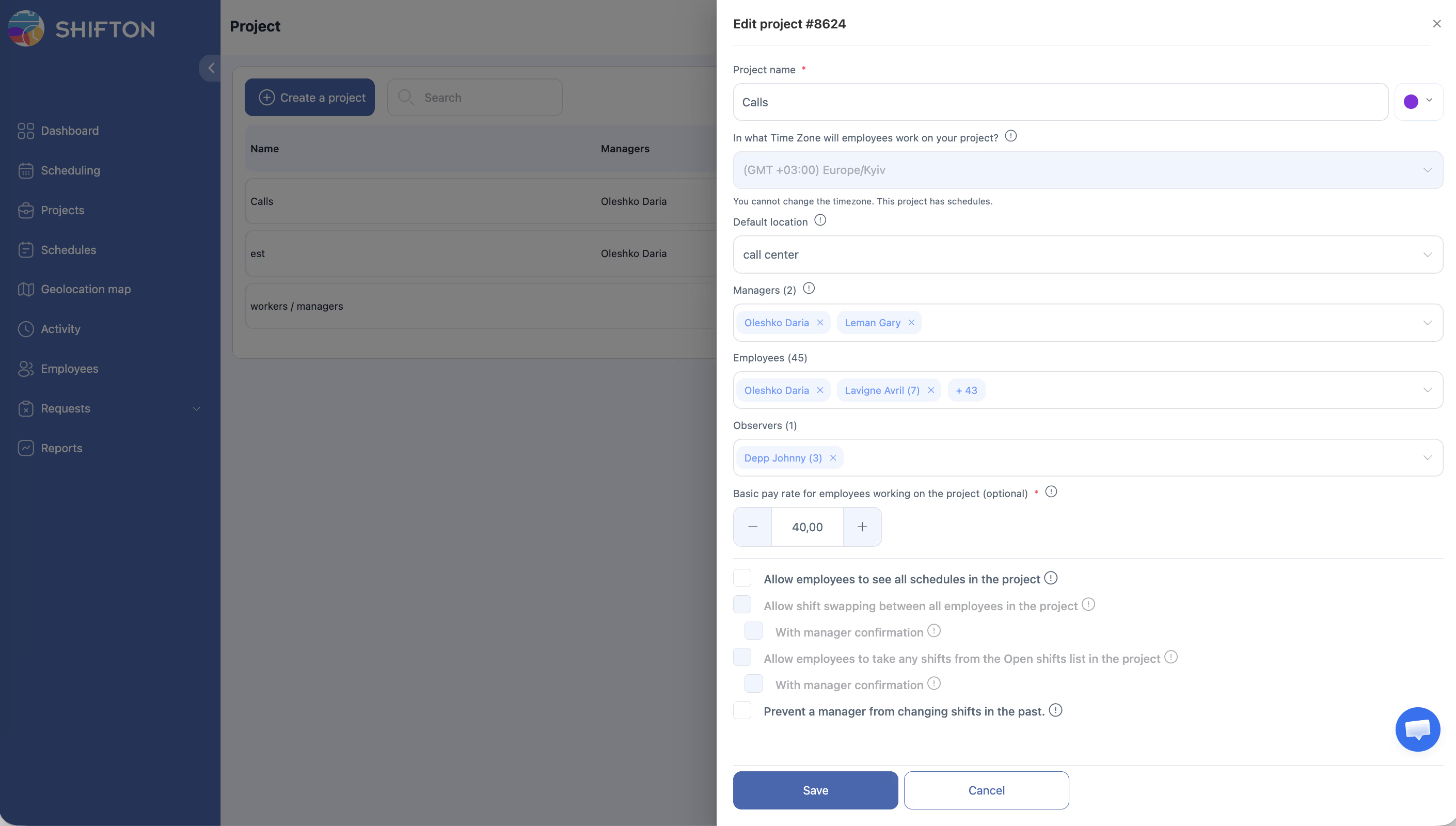
Within the project section, find the Role dropdown. It has two options:
| Role Option | Description |
|---|---|
| Employee | Standard team member within this project. Can view own shifts and availability |
| Administrator | Manager of this project. Can manage shifts, view all employees in the project, and make scheduling changes |
Select Administrator from the dropdown to assign the Manager role for this project.
Note: The dropdown label says “Administrator” at the project level, but this is functionally the Manager role. It does not grant the same access as the global Administrator authority level.
Step 4: Verify the Assignment
The role change takes effect immediately. The employee can now manage schedules and view team members within this project.
Step 5: Assign Multiple Projects (Optional)
If the employee should manage multiple projects, repeat Steps 2-3 for each project. The Manager role is independent per project, so you can make someone a Manager in one project while they remain a regular Employee in another.
Access Permissions
| Role | Can Assign Manager Role? |
|---|---|
| Administrator | Yes |
| Manager | No |
| Employee | No |
What Managers Can Do
| Capability | Within Assigned Projects | In Other Projects |
|---|---|---|
| View all employees | Yes | No |
| Create and edit shifts | Yes | No |
| Manage schedule | Yes | No |
| Approve swap/drop requests | Yes | No |
| View employee availability | Yes | No |
| Access company settings | No | No |
| Manage other projects | No | No |
FAQ
Q: Why does the dropdown say “Administrator” instead of “Manager”?
A: At the project level, the “Administrator” option in the role dropdown functions as the Manager role. It grants management capabilities only within that specific project, not across the entire Shifton account.
Q: Can someone be a Manager in one project and a regular Employee in another?
A: Yes. The role is set independently for each project. An employee can have different roles in different projects.
Q: Does assigning the Manager role change the employee’s global authority level?
A: No. The global authority level (Administrator or Employee) and the project-level role are separate. An employee with a global “Employee” level can be a Manager in specific projects without gaining full system access.
Q: How many Managers can a project have?
A: There is no limit. You can assign the Manager role to as many employees as needed within a project.
Q: Can a Manager assign other Managers?
A: No. Only global Administrators can change project roles. Managers cannot promote other employees.
Possible Issues and Solutions
| Issue | Cause | Solution |
|---|---|---|
| The Role dropdown is not editable | You do not have global Administrator access | Ask an Administrator to assign the Manager role |
| The employee is not listed in the project | They have not been added to the project yet | Click Add to project in the Projects tab first, then set the role |
| Manager cannot see employees from another project | The Manager role is limited to assigned projects only | Assign the Manager role for the additional project if cross-project visibility is needed |
| Manager cannot access company settings | The Manager role does not include settings access | Only the Owner can access Company Settings. Administrators have full access to other features except billing |
| After setting the role to Administrator, nothing seems to change | The employee may need to refresh or log in again | Ask the employee to reload the page or log out and log back in |