

Learn about the two main access levels in Shifton and how to change an employee’s authority level.
What Is This?
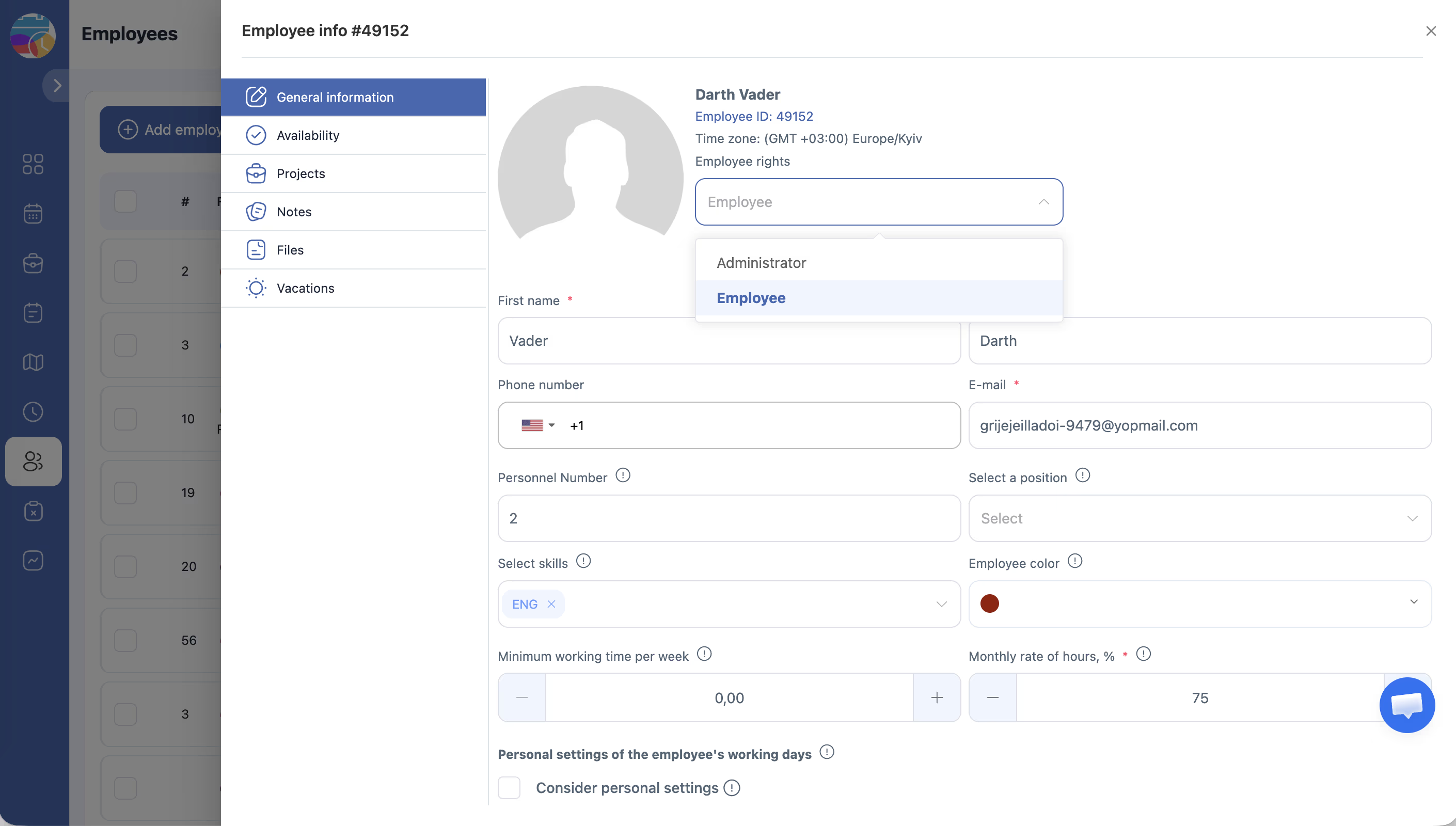
Shifton uses authority levels to control what each person can see and do within the system. Every user has one of three roles: Employee, Manager, or Administrator. The role determines what features are accessible and what actions the user can perform.
Two levels — Employee and Administrator — are set globally from the employee list. The Manager role is assigned at the project level rather than from the main employee list. See Manager Role for details.
Prerequisites
Before changing authority levels, make sure:
- You have Administrator access to Shifton
- The employee has been added to the system
Step-by-Step Instructions
Step 1: Open the Employees Page
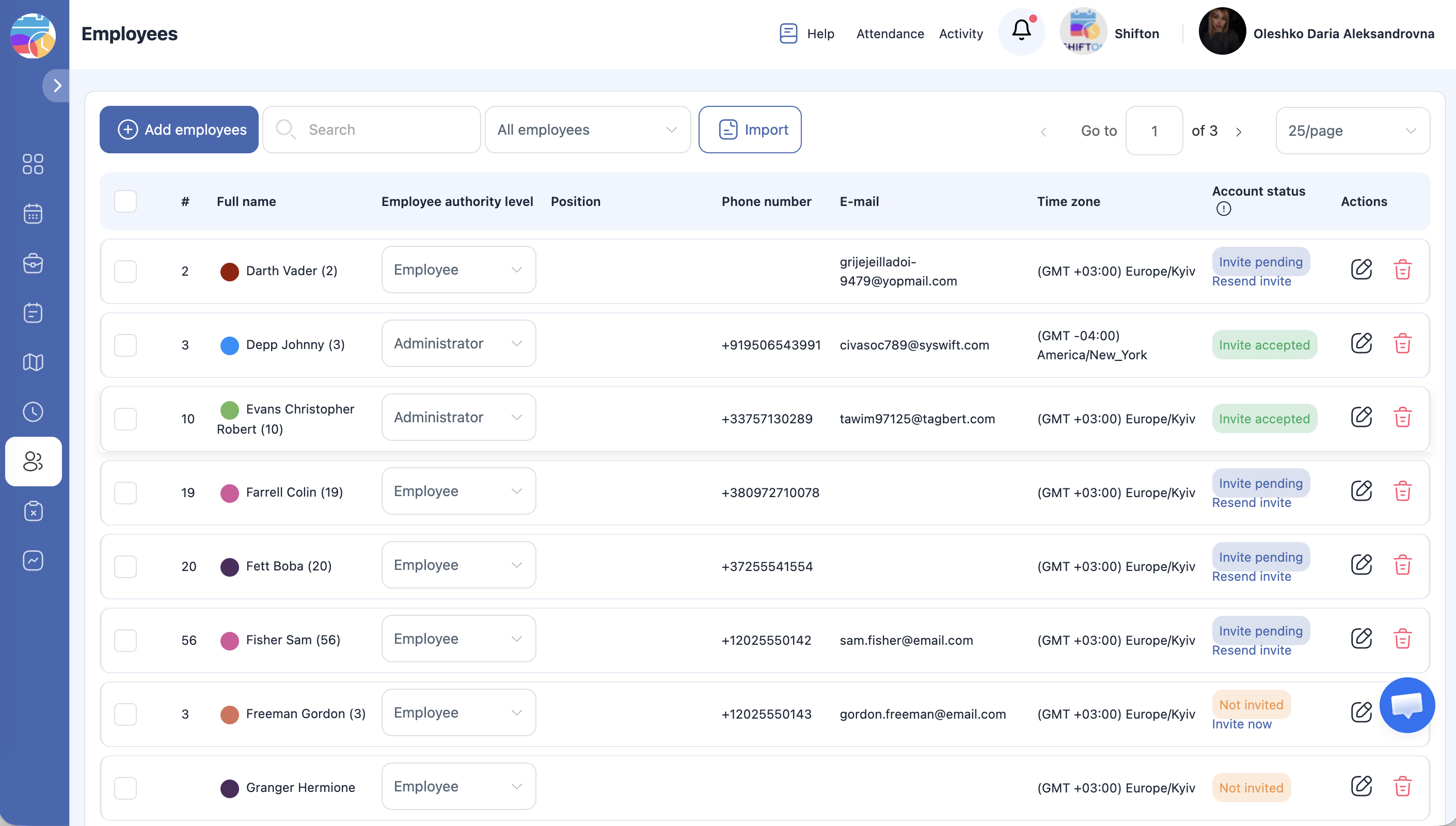
Navigate to the Employees page from the main menu. You will see a list of all employees with their current authority levels displayed.
Step 2: Understand the Authority Levels
| Level | Visible in Employee List? | Description |
|---|---|---|
| Administrator | Yes | Full access to all features, settings, projects, and employees. Can manage the entire Shifton account |
| Employee | Yes | Limited access. Can view own schedule, manage own availability, and update own profile. Cannot access admin features or other employees’ data |
| Manager | No (assigned per project) | A project-level role that grants management capabilities within specific projects. Not shown in the main authority dropdown |
Employee — the standard role for team members. Employees can:
– View their own schedule and assigned shifts
– View the open shifts list (if enabled in schedule settings)
– Submit requests: Shift Swap, Time Off, Drop Shift, Take from Open List, and others — depending on what is enabled in schedule settings
– Start and end shifts via the mobile app (with the Attendance module)
– Manage their own profile and set their availability
Employees cannot: view other employees’ schedules (unless “Allow employees to see all shifts” is enabled), create or edit schedules, manage other employees, or access financial settings and reports.
Manager — a project-level role for team leads. Managers can do everything an Employee can, plus:
– Create and edit schedules in their assigned projects
– Add and edit employees
– Manage open shifts
– Approve and reject employee requests
– View reports for their projects
Managers cannot: change Company Settings, manage modules, view company financial data (balance, payment methods), or assign the Administrator role.
Administrator — full access to the entire account. Administrators can do everything a Manager can, plus:
– Change Company Settings (General, Billing, Salary Settings)
– Activate and deactivate modules
– View and manage Company Balance
– Assign any role, including Administrator
– View all reports across all projects
– Pause or delete the company
Role Permissions Summary
| Feature | Employee | Manager | Administrator |
|---|---|---|---|
| View own schedule | Yes | Yes | Yes |
| Submit requests | Yes | Yes | Yes |
| View project schedule | — | Yes | Yes |
| Create/edit schedules | — | Yes | Yes |
| Manage employees | — | Yes | Yes |
| Approve/reject requests | — | Yes | Yes |
| View reports | — | Yes | Yes |
| Company Settings | — | — | Yes |
| Manage modules | — | — | Yes |
| Financial data (Balance, Payments) | — | — | Yes |
| Assign roles | — | — | Yes |
| Delete company | — | — | Yes |
Note: Whether Managers can see salary data depends on the Salary Settings configuration. If “Show employee salaries to the manager” is enabled, managers can see calculated salaries for employees in their projects.
Step 3: Change an Employee’s Authority Level
The change takes effect immediately.
Step 4: Verify the Change
After saving, the employee’s row in the employee list will show the updated authority level. The employee’s access changes the next time they load a page or log in.
Access Permissions
| Role | Can View Authority Levels? | Can Change Authority Levels? |
|---|---|---|
| Administrator | Yes | Yes |
| Manager | No | No |
| Employee | No | No |
FAQ
Q: What is the difference between Administrator and Employee?
A: Administrators have unrestricted access to the entire Shifton account, including all employees, projects, schedules, settings, and reports. Employees can only see their own schedule, profile, and availability.
Q: Where is the Manager role? I do not see it in the dropdown.
A: The Manager role is not a global authority level. It is assigned per project through the employee’s Projects tab. See Manager Role for instructions.
Q: Can I have multiple Administrators?
A: Yes. You can assign the Administrator level to as many employees as needed. However, it is recommended to limit the number of Administrators to maintain security and prevent accidental changes.
Q: What happens if I change an Administrator to an Employee?
A: They will immediately lose access to all admin features. Make sure at least one other person has Administrator access before downgrading someone.
Q: Can an Employee see other employees’ schedules?
A: By default, Employees can only see their own schedule. Managers and Administrators can see schedules for their assigned projects or the entire account, respectively. An Administrator can enable the “Allow employees to see all shifts” toggle in schedule settings to give Employees broader visibility.
Q: Can a Manager see employee salary data?
A: It depends on Salary Settings configuration. If “Show employee salaries to the manager” is enabled, Managers can see calculated salaries for employees in their projects. By default, this is not enabled.
Q: Does changing the authority level take effect immediately?
A: Yes. The change applies immediately — the employee’s access changes the next time they load a page or perform an action in Shifton.
Q: Can a Manager add employees to any project?
A: Managers can manage employees within projects they are assigned to as manager. They do not have access to other managers’ projects unless explicitly assigned.
Possible Issues and Solutions
| Issue | Cause | Solution |
|---|---|---|
| The authority level dropdown is not editable | You do not have Administrator access | Ask an existing Administrator to make the change |
| I accidentally removed my own Administrator access | You changed your own level to Employee | Ask another Administrator to restore your access. If no other Administrator exists, contact Shifton support |
| An employee has too much access | They are set to Administrator when they should be Employee | Change their authority level to Employee using the dropdown in the employee list |
| Cannot find the Manager option in the dropdown | Manager is a project-level role, not a global authority level | Assign the Manager role from the employee’s Projects tab instead (see Manager Role) |