

The Requests page is your central hub for managing all employee time-off requests. Here you can view active requests, filter by employee or status, and access the historical archive.
What Is This?
The Requests page provides a unified view of all time-off requests submitted by employees in your company. It is organized into two tabs — Requests (for active/pending items) and Archive (for completed or rejected items). From this page, managers can review incoming requests, approve or reject them, and employees can submit new time-off requests.
Prerequisites
| # | Prerequisite | Details |
|---|---|---|
| 1 | Active Shifton account | You must be logged in to your Shifton workspace |
| 2 | Appropriate role | You need Employee, Manager, or Admin access (the scope of visible requests depends on your role) |
| 3 | Time-Off module enabled | Your company administrator must have the Time-Off module activated in the workspace settings |
Step-by-Step Instructions
Navigating to the Requests Page
| Step | Action | Expected Result |
|---|---|---|
| 1 | In the left sidebar, click Requests | The Requests page opens with the Requests tab active by default |
Understanding the Page Layout
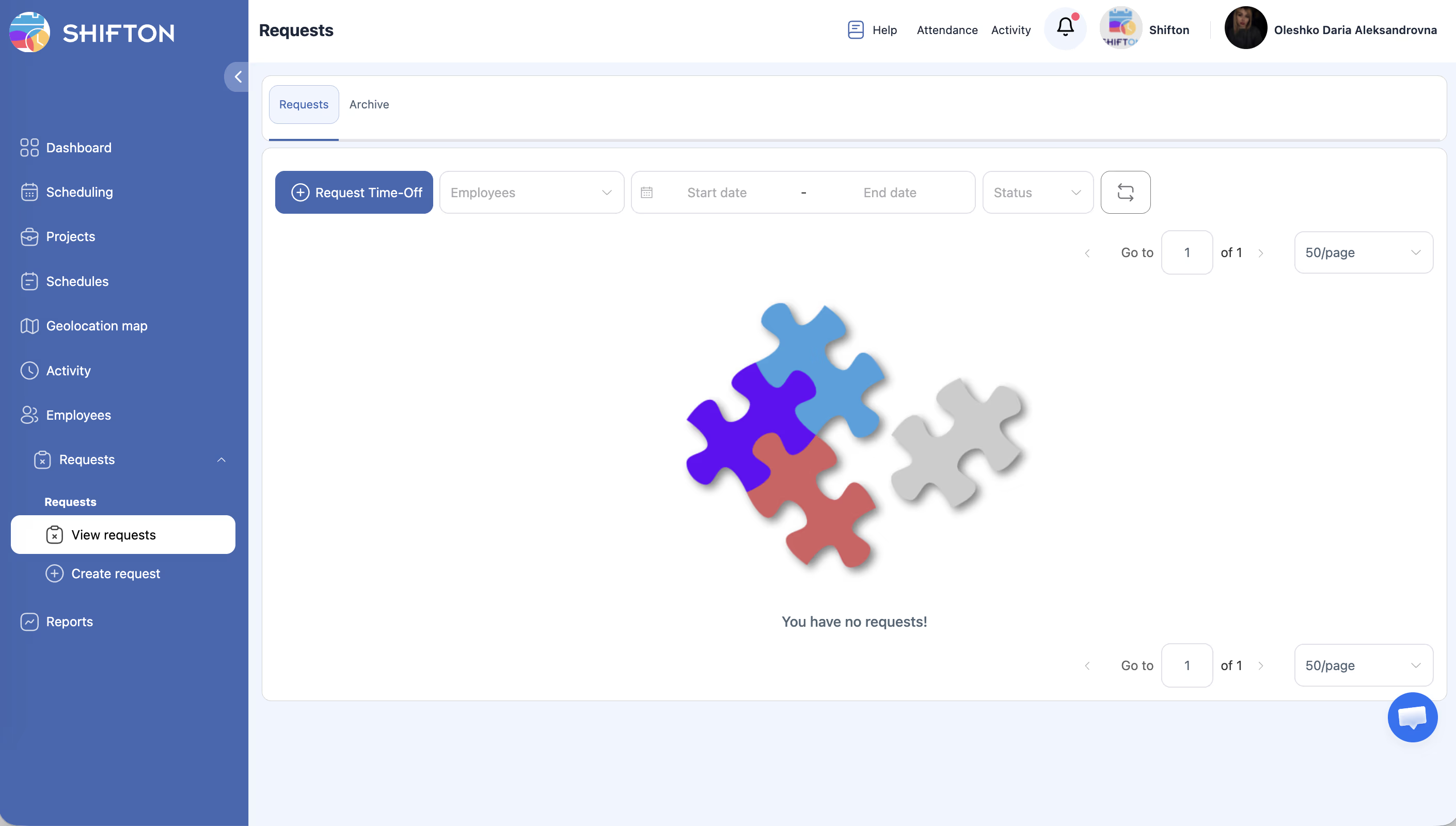
| Element | Location | Description |
|---|---|---|
| Requests tab | Top of the page | Displays all active (Pending, Approved) requests. This is the default view |
| Archive tab | Top of the page, next to Requests | Displays completed and rejected requests for historical reference |
| + Request Time-Off button | Upper-right area (blue button) | Opens the side panel form to create a new time-off request |
| Employees dropdown | Filter bar | Filter requests by one or more employees |
| Start date picker | Filter bar | Set the beginning of the date range you want to view |
| End date picker | Filter bar | Set the end of the date range you want to view |
| Status dropdown | Filter bar | Filter by request status: Pending, Approved, or Rejected |
| Refresh icon | Filter bar (right side) | Reload the request list to see the latest data |
| Pagination controls | Bottom of the page | Navigate between pages — includes “Go to page” input, total page count, and rows-per-page selector (default: 50/page) |
Filtering Requests
| Step | Action | Expected Result |
|---|---|---|
| 1 | Click the Employees dropdown | A list of employees appears |
| 2 | Select one or more employees | The request list updates to show only requests from the selected employees |
| 3 | Set the Start date and End date fields | The list filters to requests that fall within the chosen date range |
| 4 | Open the Status dropdown and choose a status | Only requests matching the selected status are displayed |
| 5 | Click the Refresh icon to reload data if needed | The list refreshes with the latest information from the server |
Empty State
If there are no requests matching your current filters (or no requests have been created yet), the page displays a puzzle-piece illustration with the message “You have no requests!”.
Access Permissions
| Role | View Own Requests | View Team Requests | View All Requests | Create Requests | Approve / Reject |
|---|---|---|---|---|---|
| Employee | Yes | No | No | Yes | No |
| Manager | Yes | Yes | No | Yes | Yes |
| Admin | Yes | Yes | Yes | Yes | Yes |
FAQ
Q1: How do I get to the Requests page?
Click Requests. The Requests tab opens by default.
Q2: What does the Refresh icon do?
It reloads the current request list so you can see any updates (for example, a newly submitted request or a status change) without refreshing the entire browser page.
Q3: Can I change how many requests are shown per page?
Yes. Use the pagination control at the bottom of the page to adjust the rows-per-page setting. The default is 50 per page.
Q4: Why do I see “You have no requests!”?
This means either no requests have been submitted yet, or your current filters are excluding all existing requests. Try clearing the filters or adjusting the date range.
Q5: What is the difference between the Requests tab and the Archive tab?
The Requests tab shows active requests (Pending and recently Approved). The Archive tab stores completed or rejected requests for historical reference.
Possible Issues and Solutions
| Issue | Possible Cause | Solution |
|---|---|---|
| “You have no requests!” appears even though requests exist | Filters are too narrow (wrong date range, specific employee, or status selected) | Clear all filters and click the Refresh icon |
| Cannot see requests from other employees | Your role does not have permission to view team requests | Ask your administrator to verify your role; Managers can see their team, Admins can see all |
| The + Request Time-Off button is not visible | The Time-Off module may not be enabled for your workspace | Contact your company administrator to enable the Time-Off module |
| Pagination shows 0 pages | No requests match the current filter criteria | Adjust or reset filters to broaden the search |
| Page loads slowly | Large number of requests combined with a wide date range | Narrow the date range or filter by a specific employee to reduce the dataset |