

Learn how to submit a full-day time-off request using the “All day” tab in the Request Time-Off form. This covers sick days, vacations, holidays, and custom time-off types.
What Is This?
When an employee needs one or more full days off, they use the All day tab in the Create Request side panel. This form lets you specify the type of time off, select the date range, choose what happens with overlapping shifts, and optionally attach supporting documents. Once submitted, the request goes to a manager for approval.
Prerequisites
| # | Prerequisite | Details |
|---|---|---|
| 1 | Active Shifton account | You must be logged in to your Shifton workspace |
| 2 | Time off requests module enabled | Your company administrator must have activated the Time off requests module |
| 3 | Access to the Requests page | Click Requests in the left sidebar |
Step-by-Step Instructions
Opening the Create Request Form
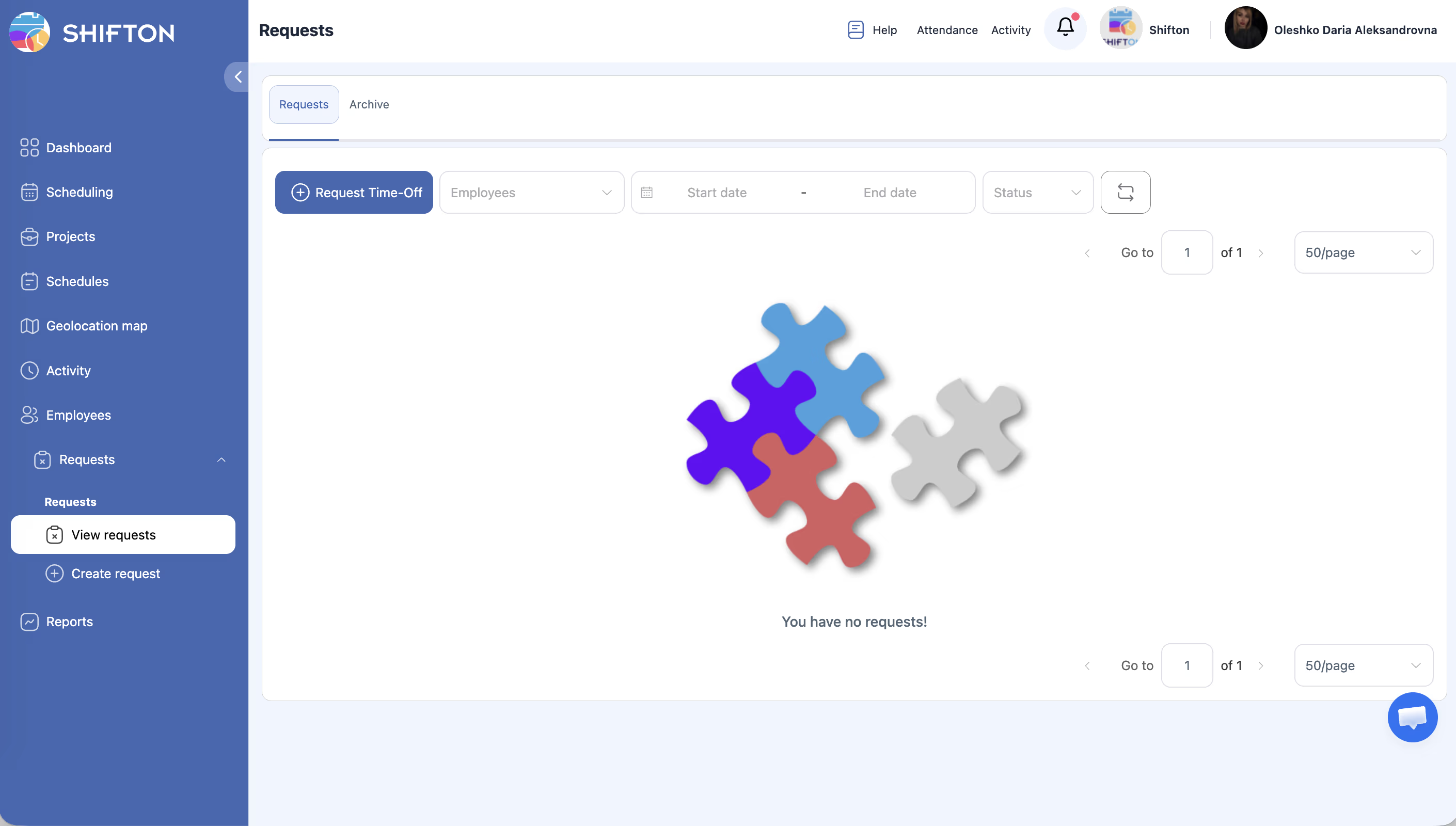
| Step | Action | Expected Result |
|---|---|---|
| 1 | Click the + Request Time-Off button (blue) | A side panel opens on the right with the Create Request form |
| 2 | Make sure the All day tab is selected at the top of the form | The form displays date-based fields (From date, To date) |
Filling Out the Form
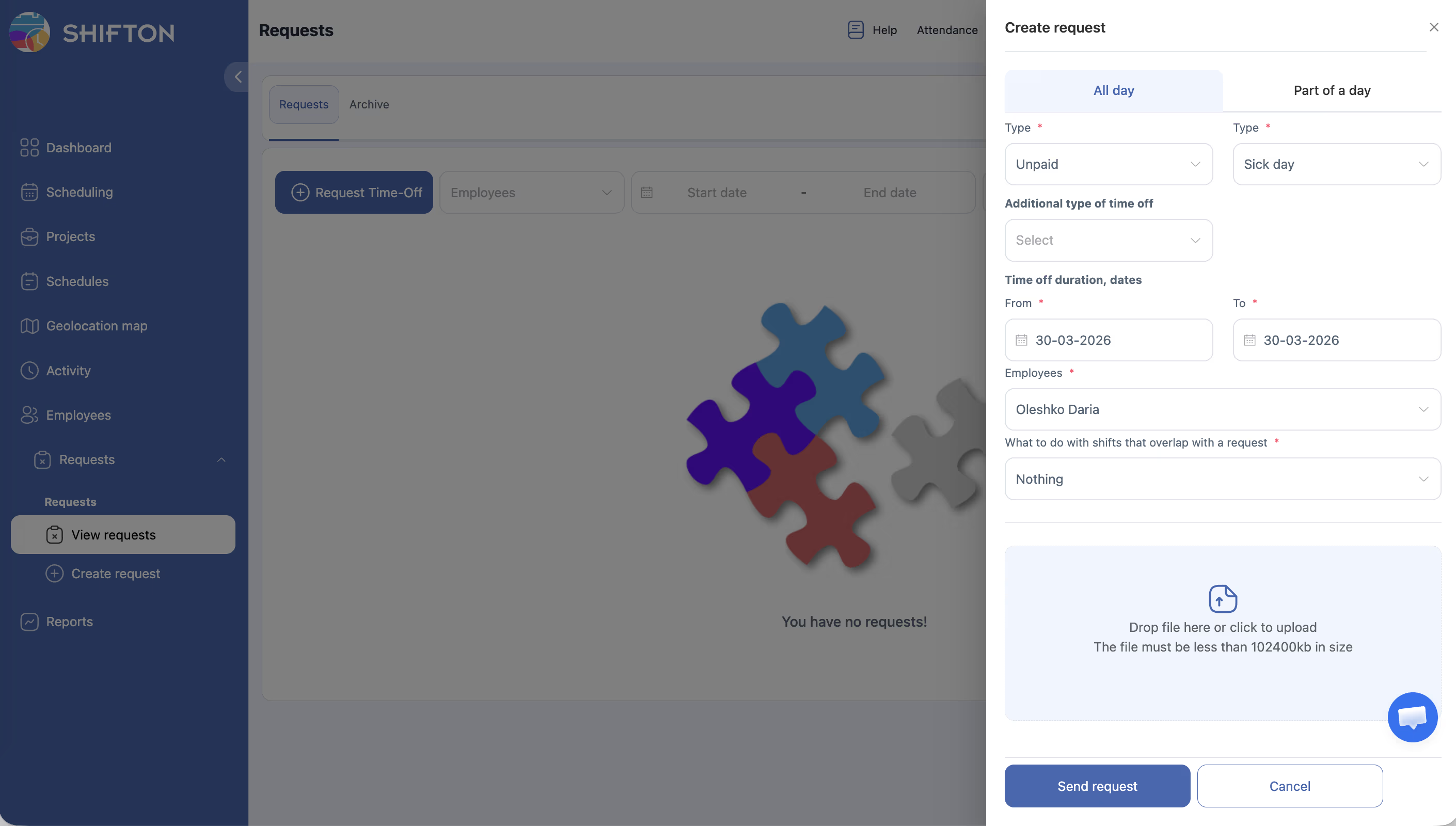
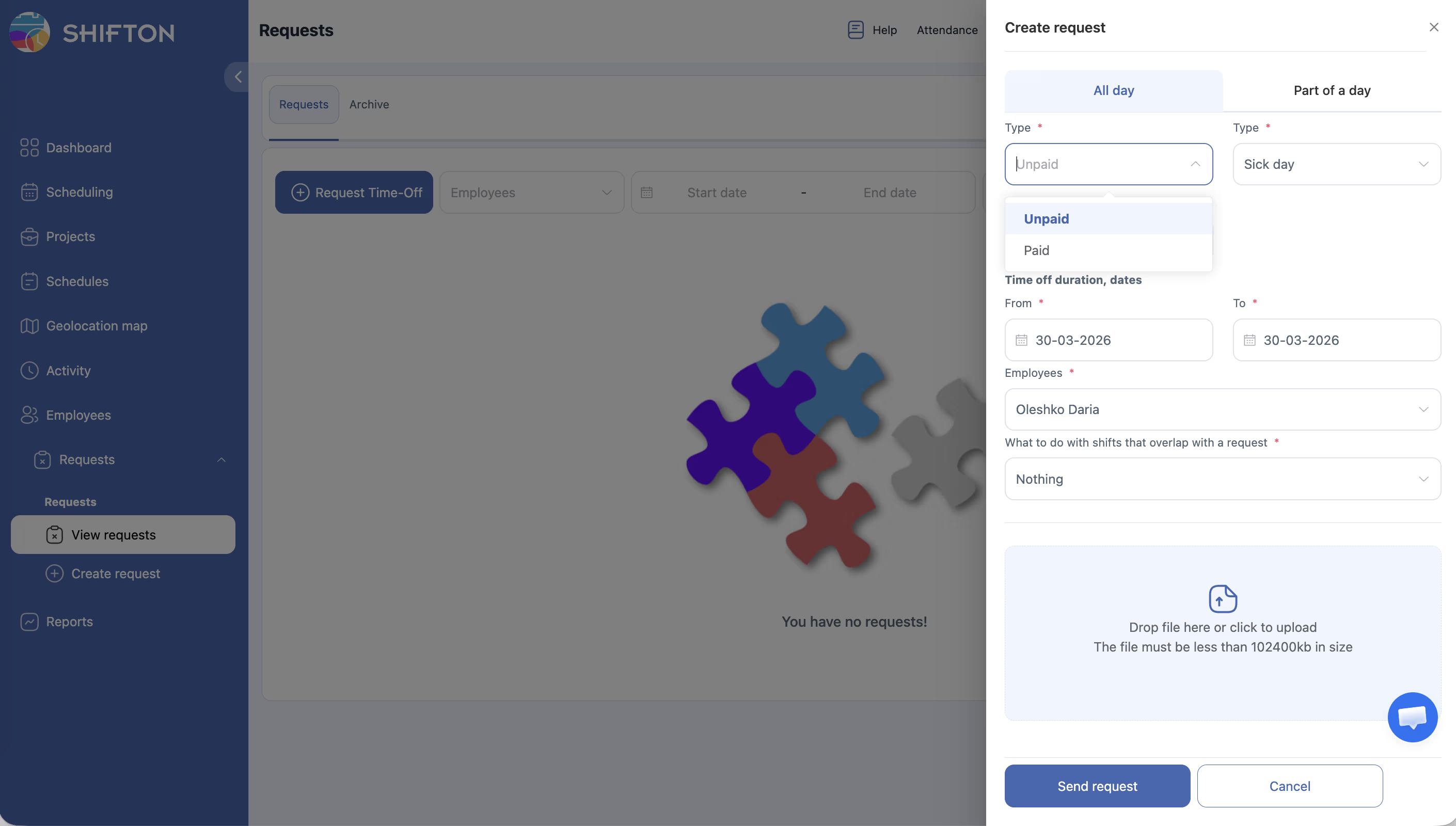
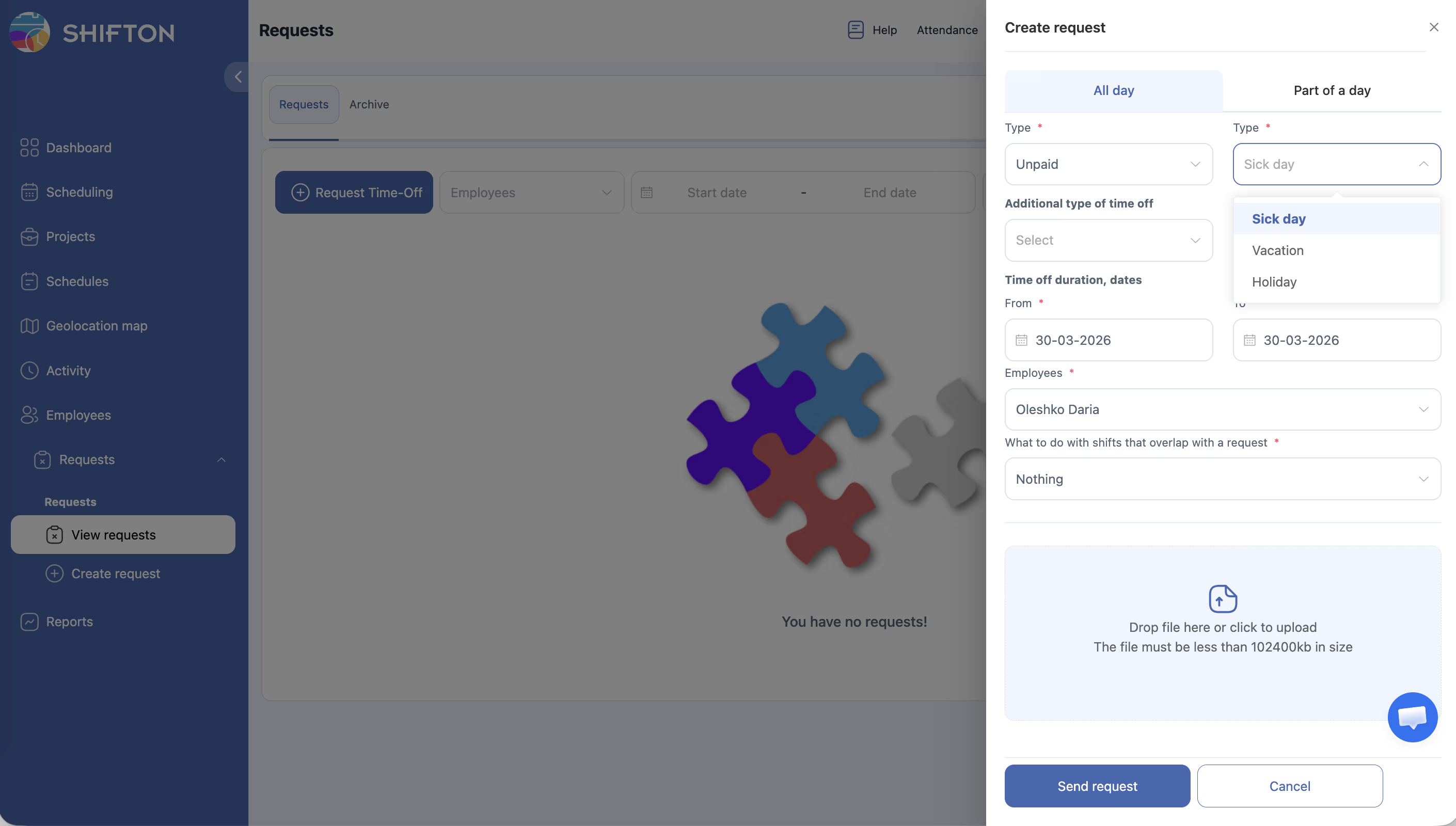
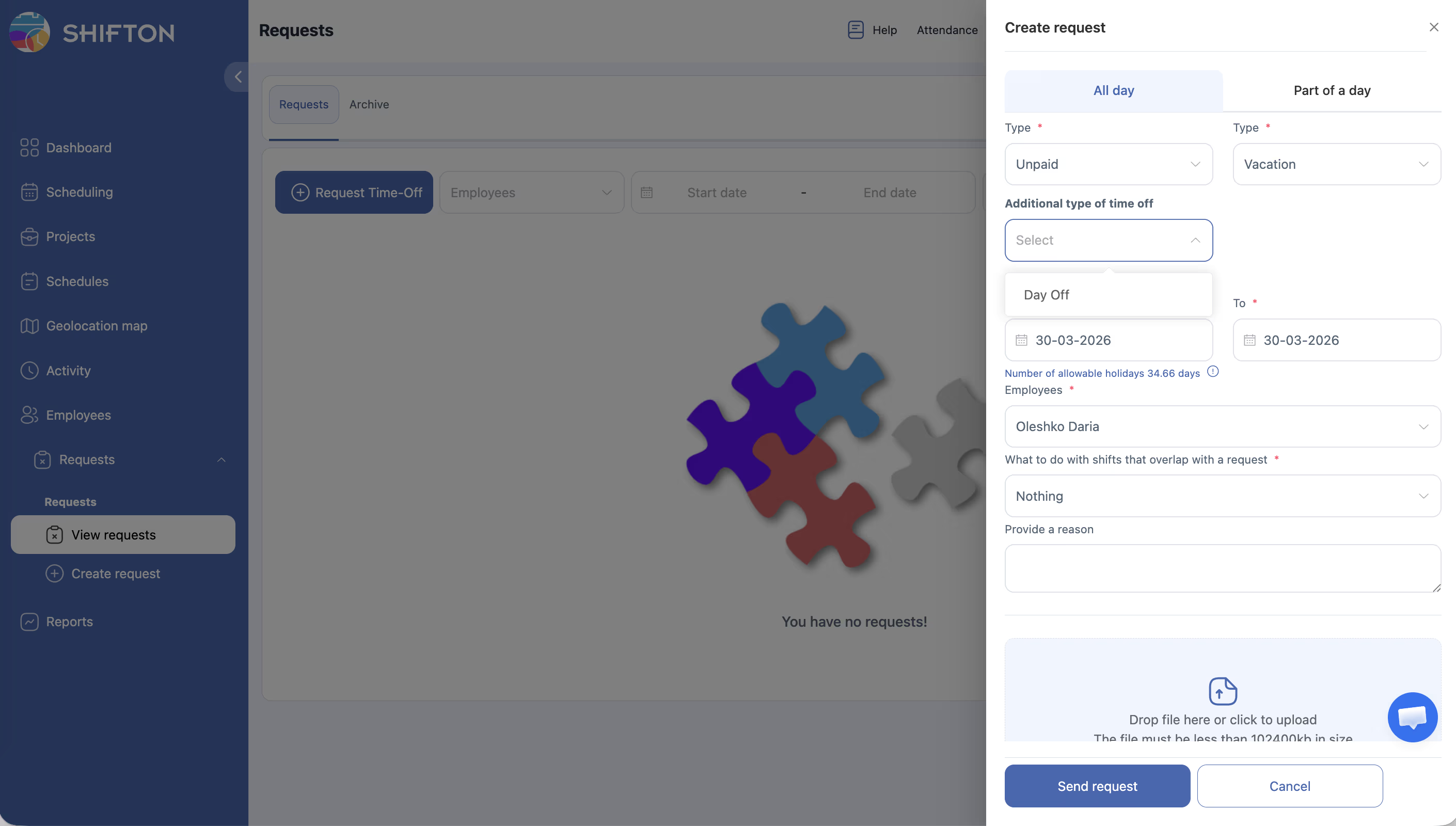
| Step | Action | Field Details |
|---|---|---|
| 1 | Select Type payment | Dropdown with options: Unpaid (default), Paid |
| 2 | Select Type time-off | Dropdown with options: Sick day (default), Vacation, Holiday |
| 3 | Select Additional type of time off (optional) | Dropdown listing custom time-off types configured in your module settings. Leave blank if not applicable |
| 4 | Set the From date | Date picker field. Defaults to today’s date. Click to open the calendar and select the start date of your time off |
| 5 | Set the To date | Date picker field. Defaults to today’s date. Click to open the calendar and select the end date of your time off |
| 6 | Select Employees | Dropdown pre-populated with your name. Managers and Admins may select additional employees when submitting on someone’s behalf |
| 7 | Choose What to do with shifts that overlap | Dropdown with options: Nothing (default) — leave shifts as-is; Delete shifts — remove overlapping shifts; Move to open shifts — reassign overlapping shifts to the open shifts pool |
| 8 | Attach a file (optional) | Drag and drop a file into the attachment zone, or click to browse. Use this for doctor’s notes, approval letters, etc. |
| 9 | Click Send request | The request is submitted and appears in the Requests list with a Pending status |
Form Field Reference
| Field | Required | Default Value | Options / Format |
|---|---|---|---|
| Type payment | Yes | Unpaid | Unpaid, Paid |
| Type time-off | Yes | Sick day | Sick day, Vacation, Holiday |
| Additional type of time off | No | — | Custom types from module settings |
| From (date) | Yes | Today | Date picker (e.g., 17-03-2026) |
| To (date) | Yes | Today | Date picker (e.g., 17-03-2026) |
| Employees | Yes | Current user | Employee dropdown |
| What to do with shifts that overlap | Yes | Nothing | Nothing, Delete shifts, Move to open shifts |
| File attachment | No | — | Drag-and-drop zone or file browser |
Canceling the Request
| Step | Action | Expected Result |
|---|---|---|
| 1 | Click the Cancel button at the bottom of the form | The side panel closes without submitting. No request is created |
Access Permissions
| Role | Create Own Request | Create Request for Others | View the Create Form |
|---|---|---|---|
| Employee | Yes | No | Yes |
| Manager | Yes | Yes (team members) | Yes |
| Admin | Yes | Yes (any employee) | Yes |
FAQ
Q1: What is the difference between “Unpaid” and “Paid” in the Type payment field?
Unpaid means the time off will not be compensated. Paid means the employee will receive their regular pay during the absence. Your company policy determines which types of leave are paid.
Q2: What are “Additional types of time off”?
These are custom categories your administrator has configured in the Time off requests module settings — for example, “Bereavement leave” or “Study leave.” If no custom types have been set up, this dropdown will be empty.
Q3: What happens if I choose “Nothing” for overlapping shifts?
The shifts remain on the schedule as-is. This means someone may need to manually reassign or cover those shifts. Choose “Delete shifts” or “Move to open shifts” if you want the system to handle conflicts automatically.
Q4: Can I attach multiple files?
This depends on your workspace configuration. Typically, you can attach one file per request. If you need to submit multiple documents, consider combining them into a single PDF before uploading.
Q5: Can I edit a request after submitting it?
Once submitted, a request enters the Pending state. If you need to make changes, you should ask your manager to reject the request so you can create a new one with the correct details.
Possible Issues and Solutions
| Issue | Possible Cause | Solution |
|---|---|---|
| The “Send request” button is grayed out | One or more required fields are not filled in | Verify that Type payment, Type time-off, From date, To date, and Employees are all completed |
| “To” date is before the “From” date | The date range is invalid | Ensure the To date is the same as or later than the From date |
| No options in the “Additional type of time off” dropdown | No custom time-off types have been configured | Ask your administrator to set up additional types in the Time off requests module settings |
| File attachment fails to upload | File is too large or in an unsupported format | Try a smaller file or convert it to a commonly supported format (PDF, JPG, PNG) |
| Cannot select other employees in the Employees field | Your role does not allow creating requests on behalf of others | Only Managers and Admins can submit requests for other employees |
| Shifts were not removed after choosing “Delete shifts” | The request has not been approved yet | Shift changes take effect only after the request is approved by a manager |