Learn how to submit a partial-day time-off request for situations like leaving early, arriving late, or taking a few hours off during the workday.
What Is This?
The Part of a day tab in the Create Request form allows employees to request time off for a portion of a single workday rather than entire days. Instead of selecting a date range, you specify exact start and end date-times, making it ideal for medical appointments, personal errands, or any situation where you need a few hours away from work.
Prerequisites
#
Prerequisite
Details
1
Active Shifton account
You must be logged in to your Shifton workspace
2
Time off requests module enabled
Your company administrator must have activated the Time off requests module
3
Access to the Requests page
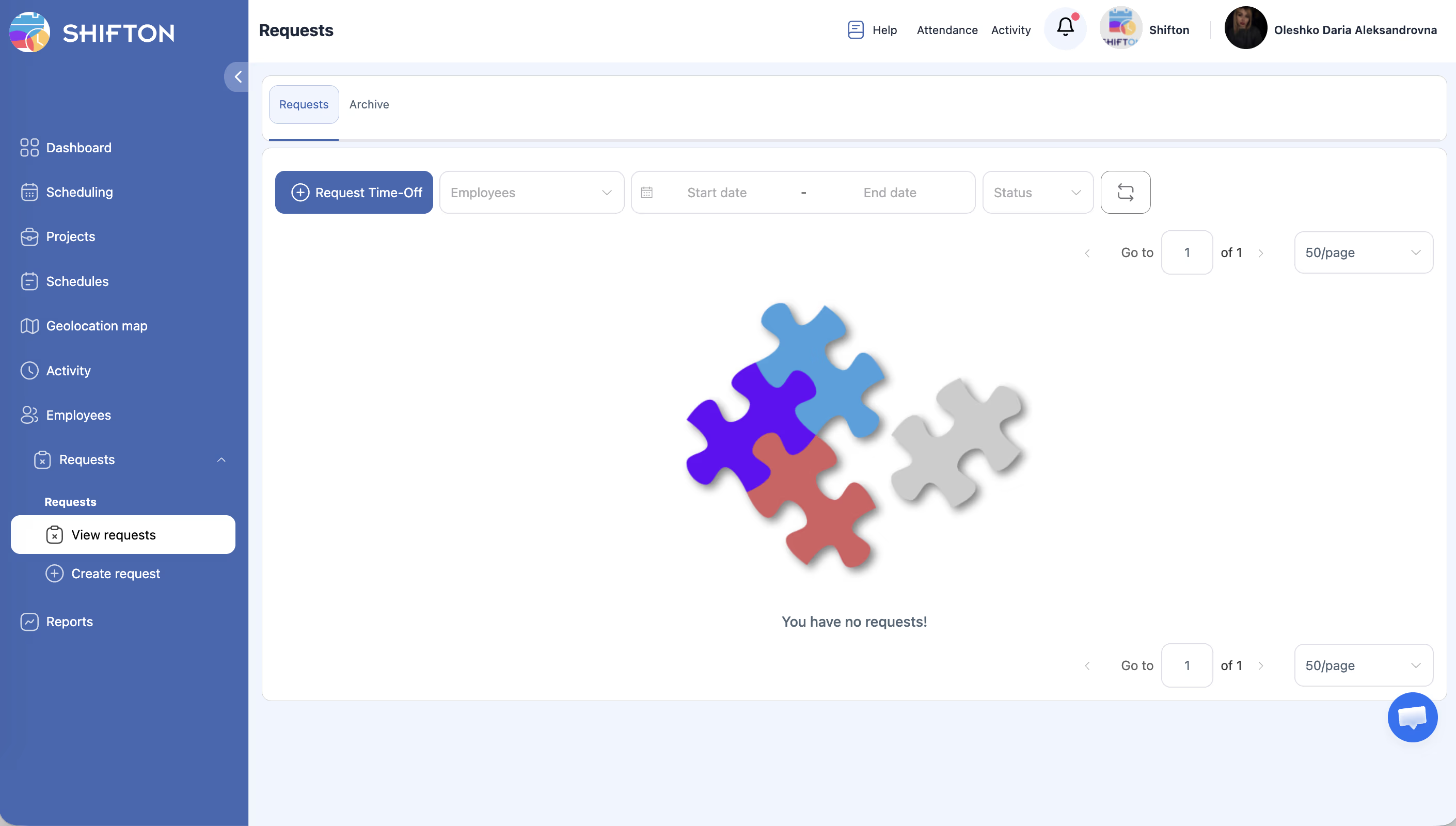
Click Requests in the left sidebar
Step-by-Step Instructions
Opening the Create Request Form
Step
Action
Expected Result
1
Click the + Request Time-Off button (blue)
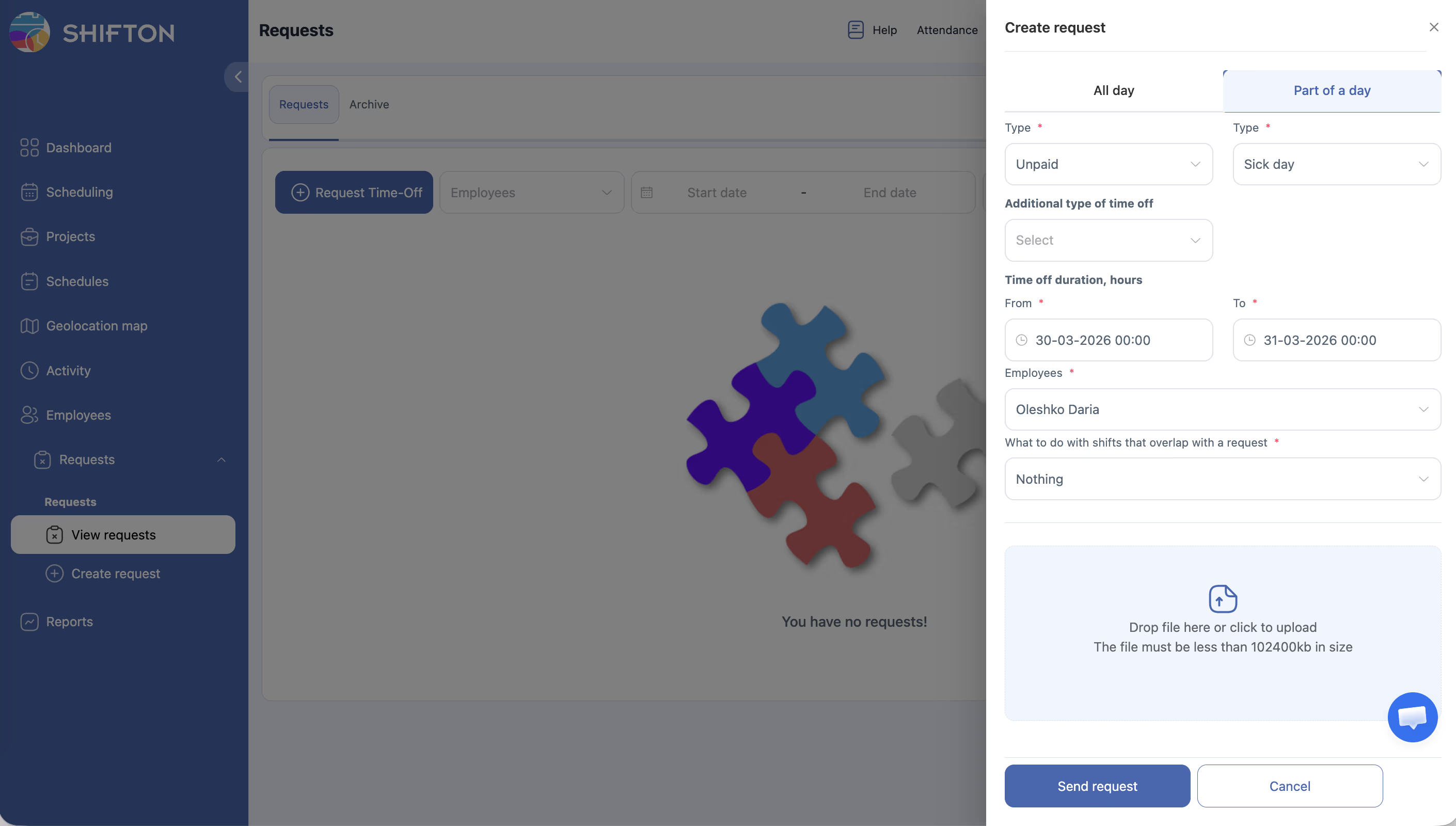
A side panel opens on the right with the Create Request form
2
Click the Part of a day tab at the top of the form
The form switches to display datetime fields (From datetime, To datetime) instead of date-only fields
Filling Out the Form
Step
Action
Field Details
1
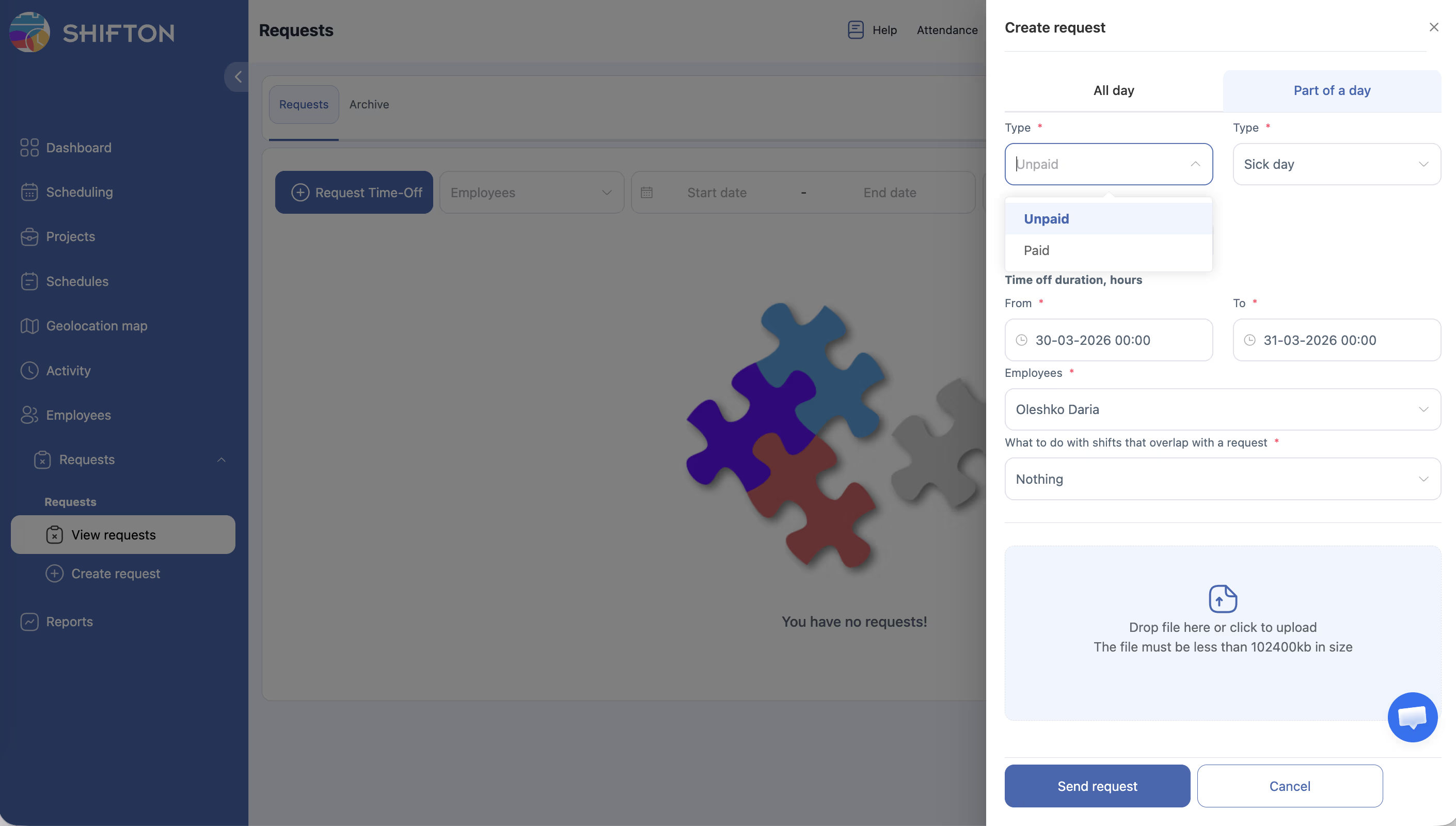
Select Type payment
Dropdown with options: Unpaid (default), Paid
2
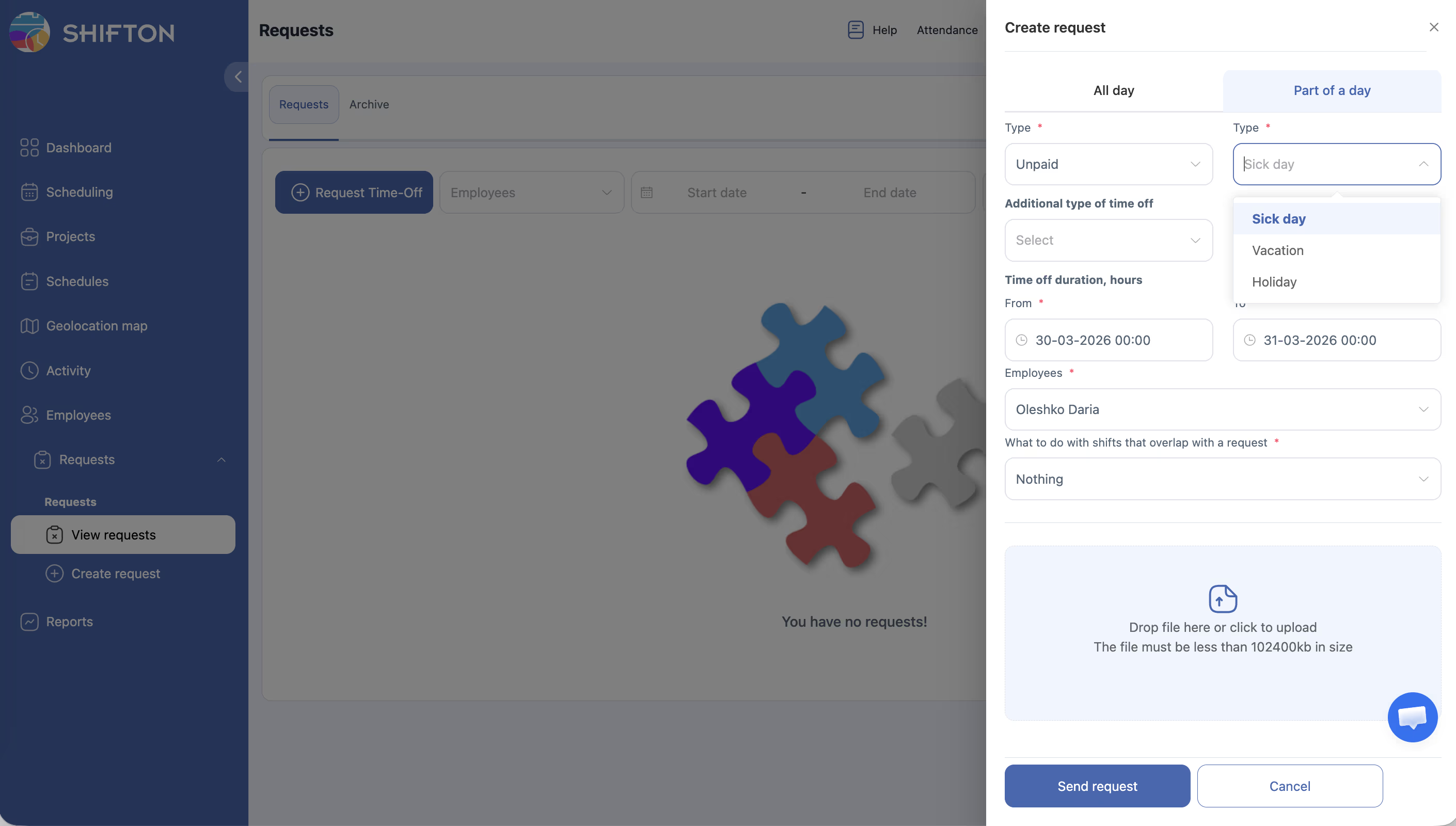
Select Type time-off
Dropdown with options: Sick day (default), Vacation, Holiday
3
Select Additional type of time off (optional)
Dropdown listing custom time-off types configured in your module settings. Leave blank if not applicable
4
Set the From datetime
Datetime picker. Select a date and time (e.g., “17-03-2026 13:00”). Defaults to today at 00:00
5
Set the To datetime
Datetime picker. Select a date and time (e.g., “17-03-2026 17:00”). Defaults to today at 00:00
6
Select Employees
Dropdown pre-populated with your name. Managers and Admins may select additional employees
7
Choose What to do with shifts that overlap
Dropdown with options: Nothing (default), Delete shifts, Move to open shifts
8
Attach a file (optional)
Drag and drop a file into the attachment zone, or click to browse
9
Click Send request
The request is submitted and appears in the Requests list with a Pending status
Form Field Reference
Field
Required
Default Value
Options / Format
Type payment
Yes
Unpaid
Unpaid, Paid
Type time-off
Yes
Sick day
Sick day, Vacation, Holiday
Additional type of time off
No
—
Custom types from module settings
From (datetime)
Yes
Today at 00:00
Datetime picker (e.g., 17-03-2026 13:00)
To (datetime)
Yes
Today at 00:00
Datetime picker (e.g., 17-03-2026 17:00)
Employees
Yes
Current user
Employee dropdown
What to do with shifts that overlap
Yes
Nothing
Nothing, Delete shifts, Move to open shifts
File attachment
No
—
Drag-and-drop zone or file browser
Key Difference from “All Day” Requests
Aspect
All Day
Part of a Day
Time-off duration
Entire calendar days
Specific hours within a day
Date fields
From date, To date (date only)
From datetime, To datetime (date + time)
Typical use case
Vacation, multi-day sick leave
Doctor’s appointment, leaving early, arriving late
Minimum duration
One full day
As short as needed (e.g., one hour)
Canceling the Request
Step
Action
Expected Result
1
Click the Cancel button at the bottom of the form
The side panel closes without submitting. No request is created
Access Permissions
Role
Create Own Request
Create Request for Others
View the Create Form
Employee
Yes
No
Yes
Manager
Yes
Yes (team members)
Yes
Admin
Yes
Yes (any employee)
Yes
FAQ
Q1: When should I use “Part of a day” instead of “All day”? Use “Part of a day” whenever you need time off for less than a full workday — for example, a morning medical appointment, leaving two hours early, or starting your shift late.
Q2: Can the From and To datetimes span across two different dates? The feature is designed for partial-day absences within a single day. If you need time off across multiple days, consider using the “All day” tab instead, or submit separate partial-day requests for each day.
Q3: What time format does the datetime picker use? The picker uses the format DD-MM-YYYY HH:MM (e.g., 17-03-2026 13:00). The time is displayed in 24-hour format based on your workspace settings.
Q4: How does a partial-day request affect my shift? That depends on the option you choose under “What to do with shifts that overlap.” If you select Nothing, your shift stays as-is. If you choose Delete shifts or Move to open shifts, the system adjusts the affected shift once the request is approved.
Q5: Is partial-day time off deducted from my time-off balance? Yes, the system calculates the number of hours requested and deducts them proportionally from your time-off balance, if your company tracks balances.
Possible Issues and Solutions
Issue
Possible Cause
Solution
The “Send request” button is grayed out
Required fields are incomplete
Ensure Type payment, Type time-off, From datetime, To datetime, and Employees are all filled in
“To” time is earlier than “From” time
The time range is invalid
Make sure the To datetime is later than the From datetime
Datetime picker defaults to 00:00
No time was manually entered
Click on the time portion of the datetime picker and set the correct hour and minutes
Request shows as full day instead of partial
The “All day” tab was used by mistake
Cancel the request and resubmit using the “Part of a day” tab
Cannot find the “Part of a day” tab
The tab may not be visible on small screens
Scroll horizontally within the form header or widen your browser window
Overlapping shift was not adjusted
The request is still in Pending status
Shift adjustments only take effect after a manager approves the request