Learn how managers and administrators review, approve, or reject employee time-off requests from the Requests page.
What Is This?
When an employee submits a time-off request, it enters a Pending status and waits for a manager or administrator to review it. From the Requests page, authorized users can examine the request details and either approve it (granting the time off) or reject it (denying the request). This article walks you through the review process and explains the status flow.
Prerequisites
#
Prerequisite
Details
1
Pending requests exist
At least one employee must have submitted a time-off request
2
Access to the Requests page
Click Requests in the left sidebar
Step-by-Step Instructions
Understanding the Status Flow
Status
Meaning
What Happens Next
Pending
The request has been submitted and is awaiting review
A Manager or Admin approves or rejects it
Approved
The request has been granted
The time off is confirmed; shift overlap rules take effect
Rejected
The request has been denied
The employee is notified; no time off is applied
Filtering for Pending Requests
Step
Action
Expected Result
1
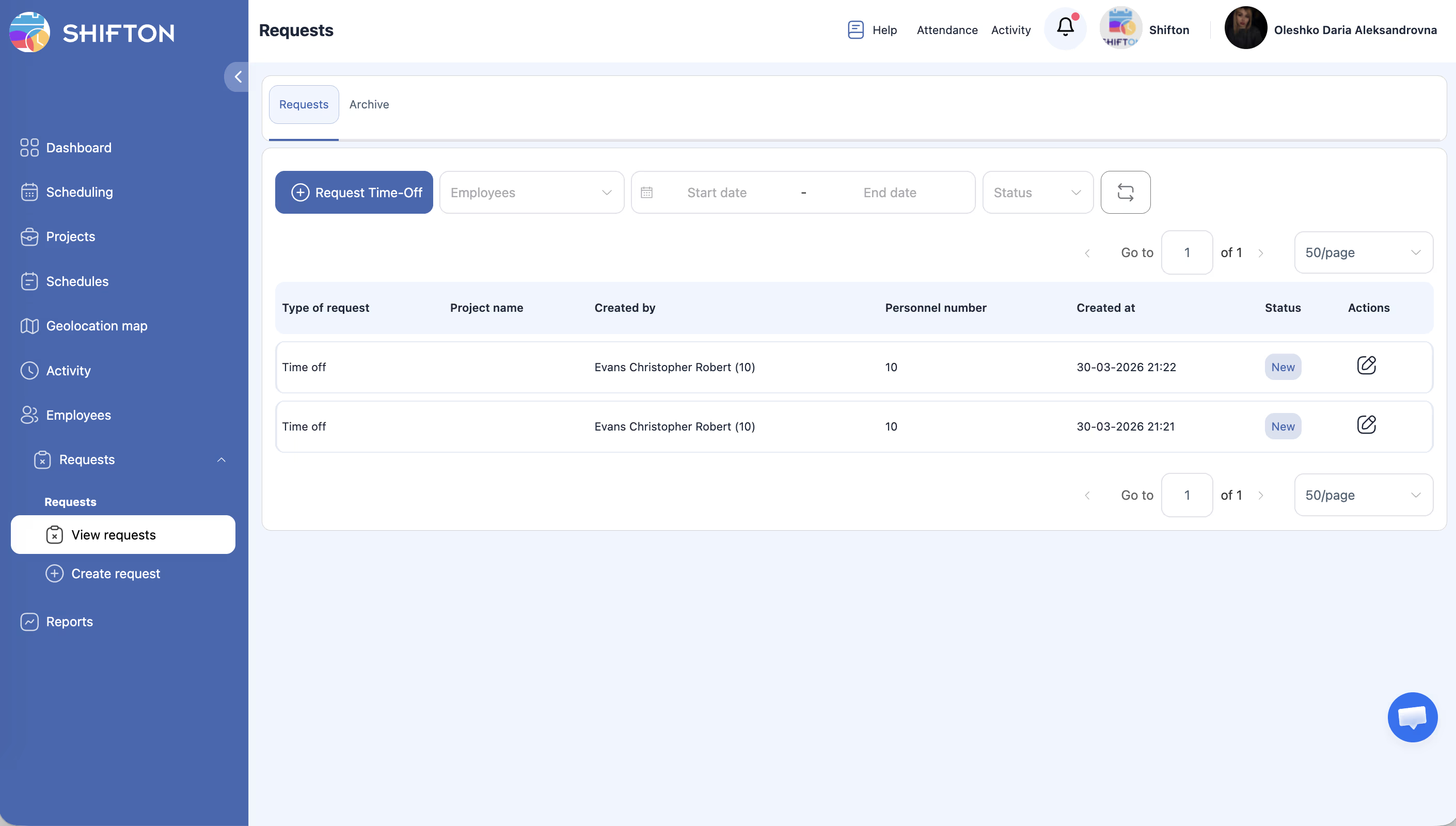
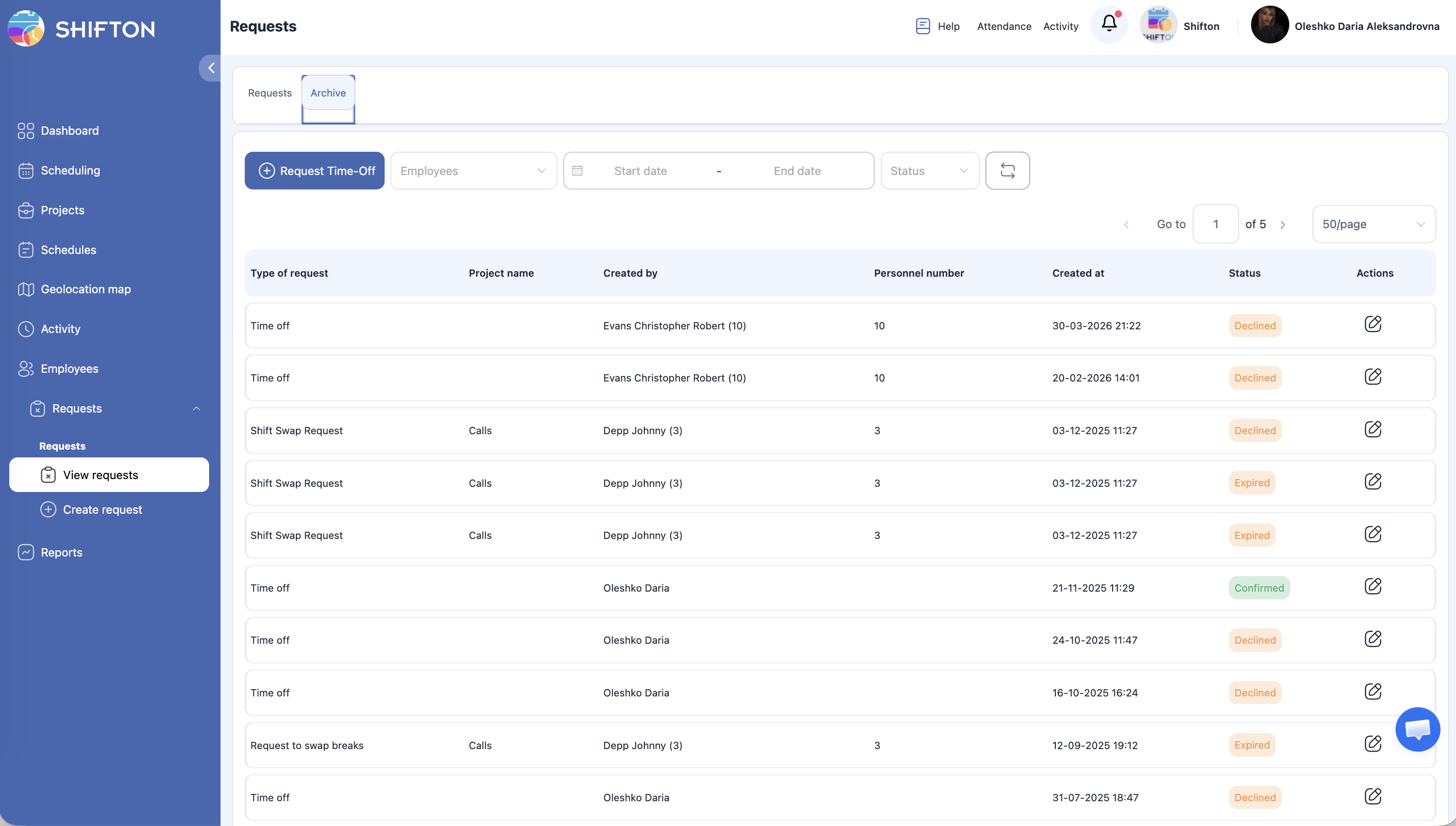
Click Requests
The Requests page opens
2
Open the Status dropdown in the filter bar
Status options appear: Pending, Approved, Rejected
3
Select Pending
The list updates to show only requests awaiting review
4
(Optional) Use the Employees dropdown to filter by a specific team member
The list narrows to requests from the selected employee
Reviewing a Request
Step
Action
Expected Result
1
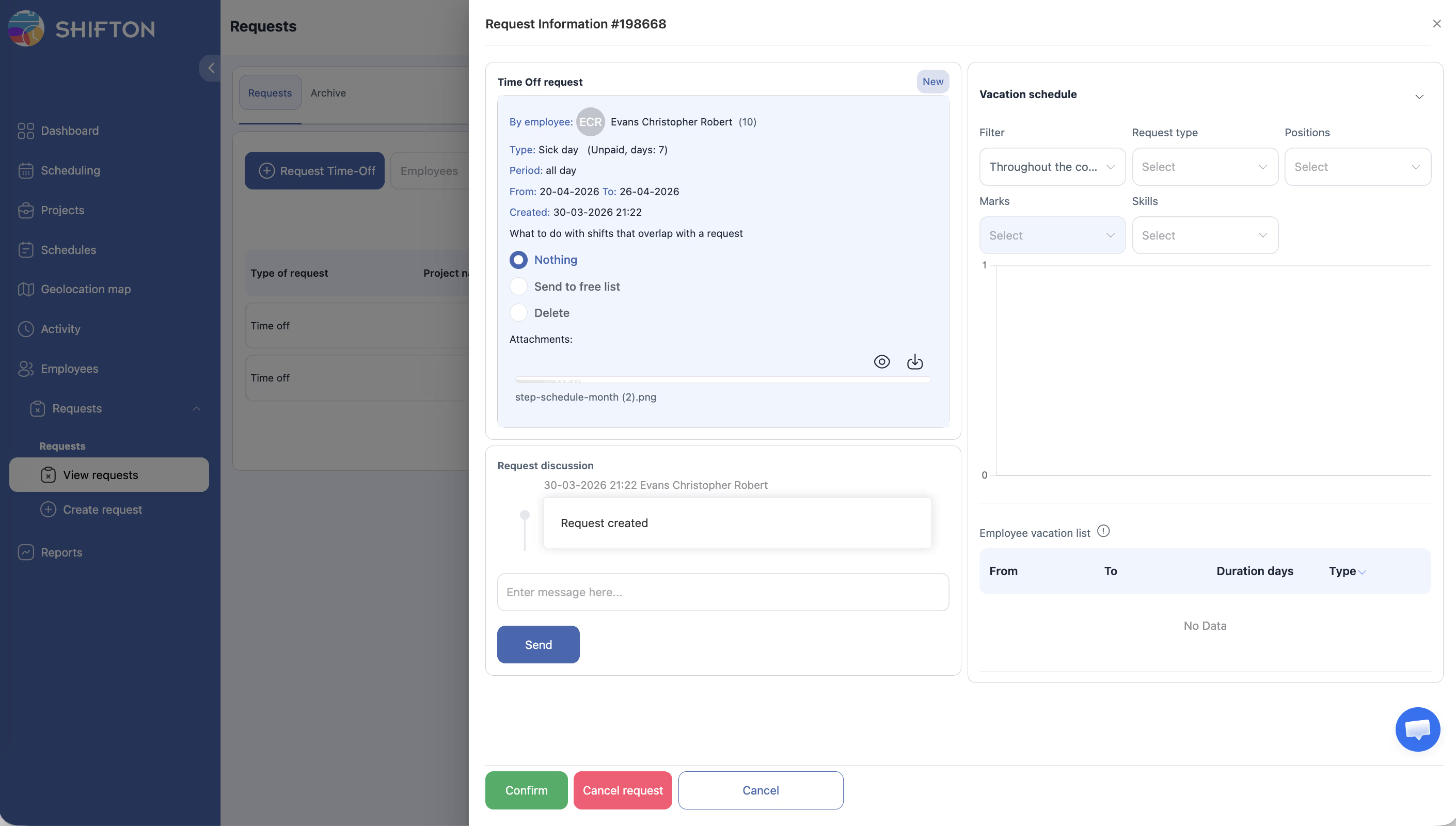
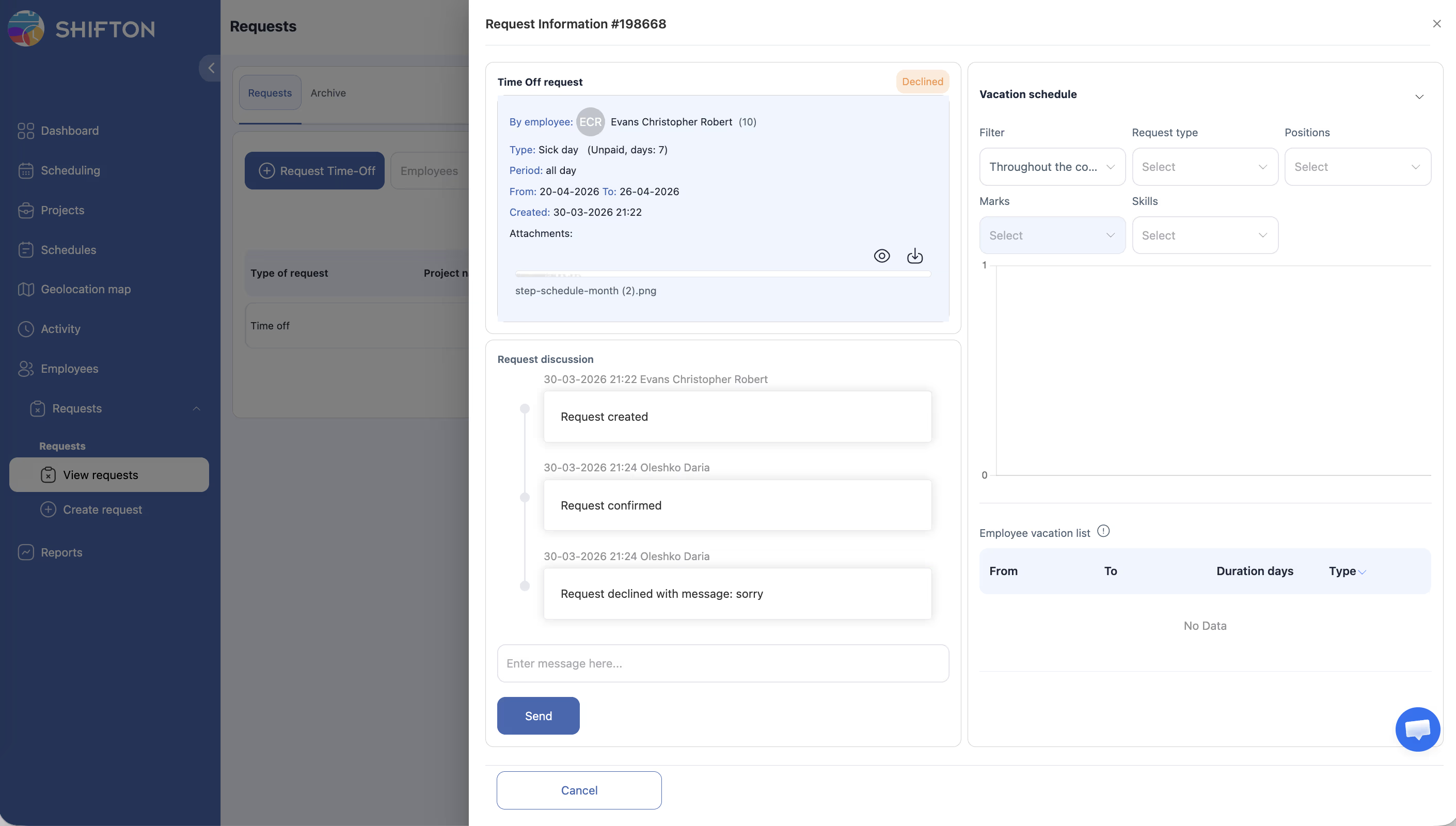
Click on the request row to view its details
A detail view or side panel opens showing the full request information: type, dates/times, payment type, attached files, and any notes
2
Review the details — check dates, type of leave, and whether it conflicts with team schedules
You have enough context to make a decision
Approving a Request
Step
Action
Expected Result
1
Open the request detail view
The request details are displayed
2
Click the Approve button
A confirmation may appear depending on your workspace settings
3
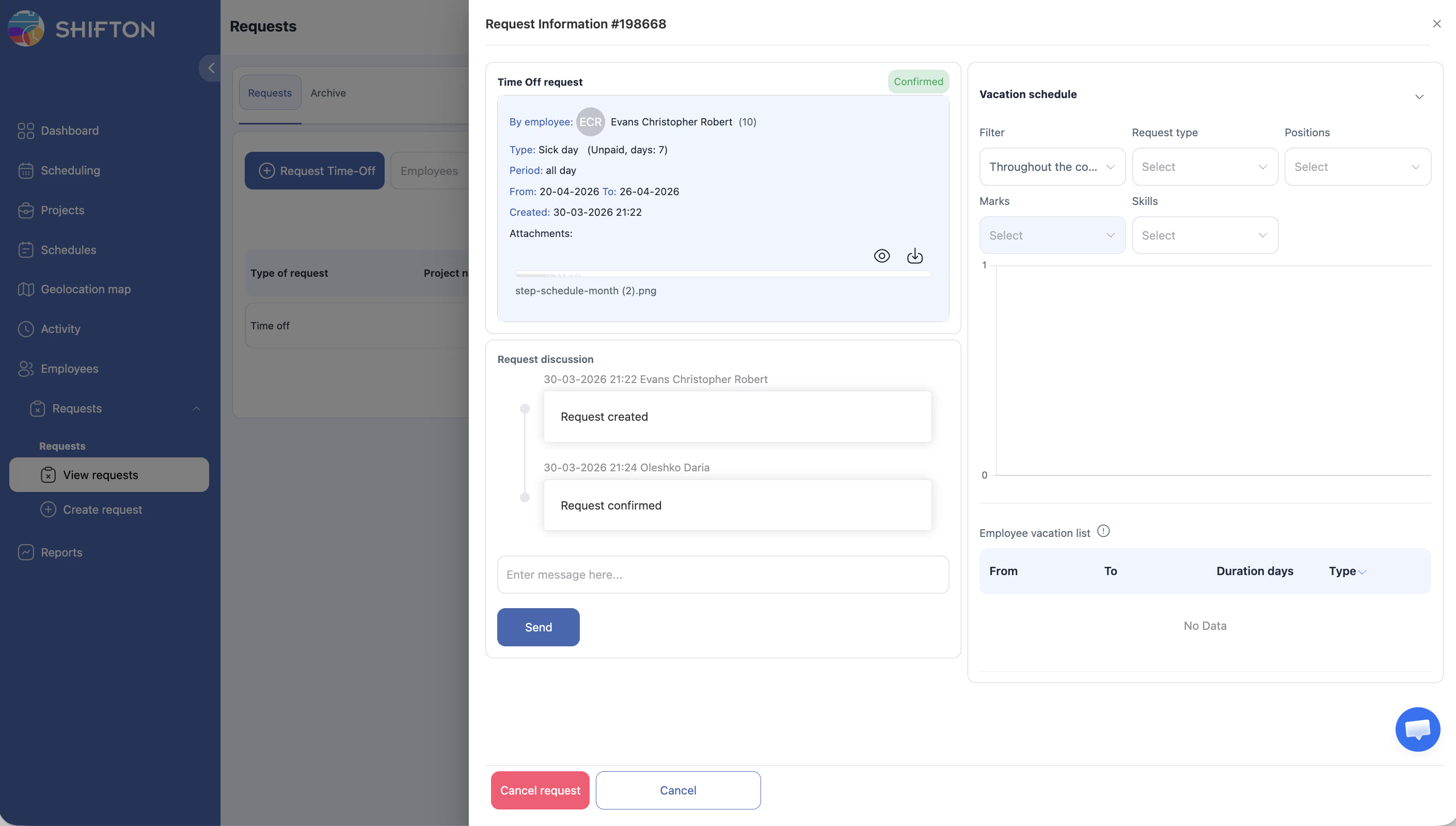
Confirm the approval if prompted
The request status changes to Approved. The employee is notified. If the employee chose “Delete shifts” or “Move to open shifts,” those shift changes are now applied
Rejecting a Request
Step
Action
Expected Result
1
Open the request detail view
The request details are displayed
2
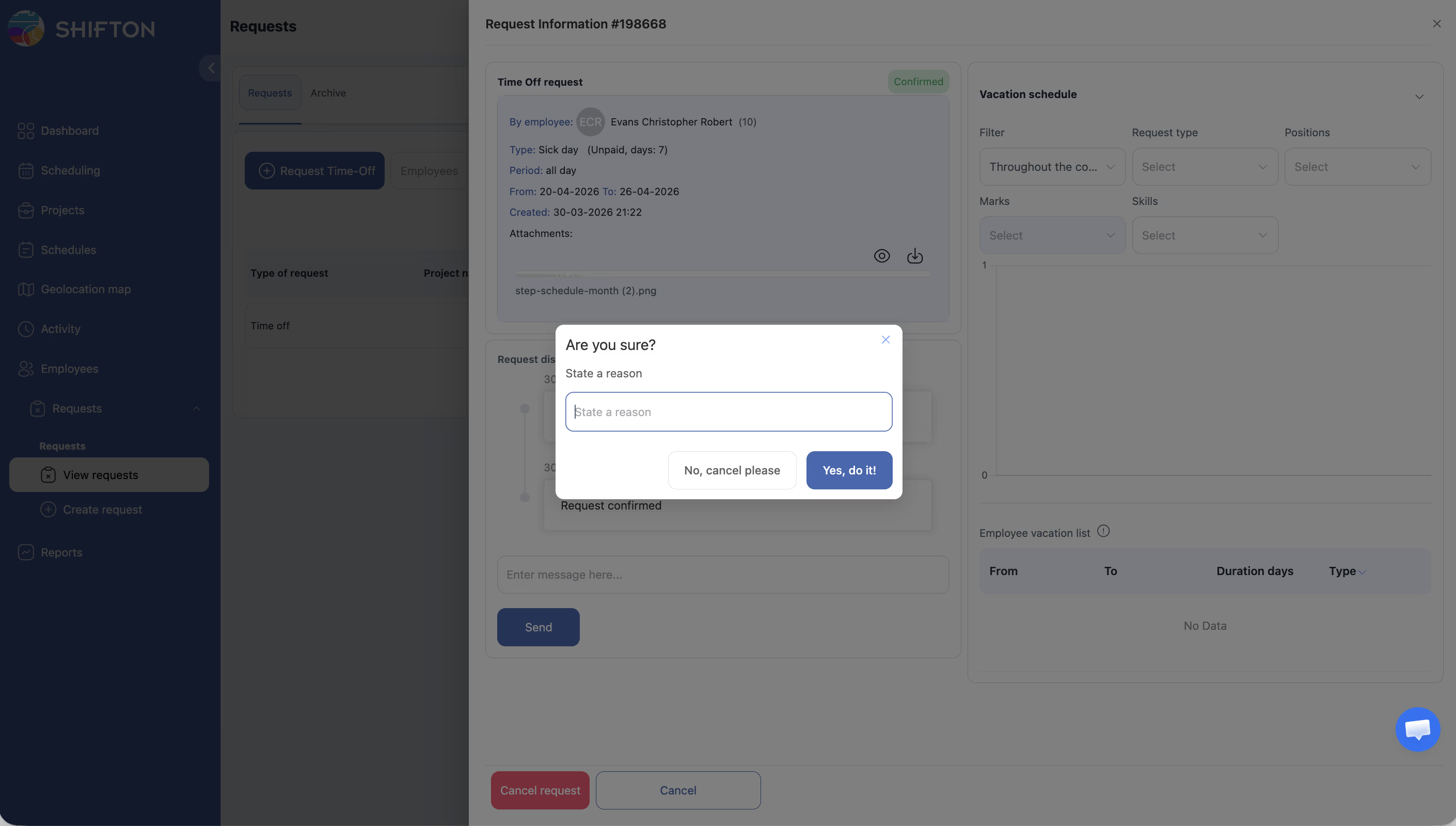
Click the Reject button
A confirmation or reason dialog may appear
3
(Optional) Enter a reason for rejection if the dialog prompts for one
The reason is stored and visible to the employee
4
Confirm the rejection
The request status changes to Rejected. The employee is notified. No changes are made to shifts
Reviewing Multiple Requests
Step
Action
Expected Result
1
Work through the list, opening each request
Review details one by one
2
Approve or reject each request as appropriate
Each request’s status updates immediately after your action
3
Click the Refresh icon if new requests arrive while you are reviewing
The list reloads with the latest submissions
Access Permissions
Role
View Pending Requests
Approve Requests
Reject Requests
Receive Notifications
Employee
Own only
No
No
Yes (on status change)
Manager
Own + team
Yes (team members)
Yes (team members)
Yes
Admin
All
Yes (all)
Yes (all)
Yes
FAQ
Q1: Can I undo an approval or rejection? Typically, once a request is approved or rejected, the status is final. If you need to reverse a decision, consult your administrator — they may be able to manually adjust the request or ask the employee to submit a new one.
Q2: Does the employee get notified when I approve or reject their request? Yes. The employee receives a notification (in-app and/or via email, depending on workspace notification settings) whenever their request status changes.
Q3: What happens to shifts when I approve a request? It depends on what the employee selected in the “What to do with shifts that overlap” field. If they chose Delete shifts, overlapping shifts are removed. If they chose Move to open shifts, those shifts go to the open shifts pool. If they chose Nothing, shifts remain unchanged.
Q4: Can I approve a request retroactively (for dates that have already passed)? Yes. The system allows you to approve or reject requests regardless of whether the dates have passed. This is useful for recording unplanned absences after the fact.
Q5: Who can I contact if I do not have permission to approve requests? Reach out to your company administrator. They can adjust your role to Manager or Admin level if appropriate for your responsibilities.
Possible Issues and Solutions
Issue
Possible Cause
Solution
Cannot see the Approve/Reject buttons
Your role is Employee, not Manager or Admin
Contact your administrator to upgrade your role if you are responsible for approvals
Approved a request by mistake
The action was confirmed before reviewing carefully
Contact your administrator to discuss reversal options; the employee may need to resubmit
Employee says they were not notified
Notification settings may be disabled
Check the workspace notification settings under admin configuration; ensure email/in-app notifications are turned on
Shifts were not updated after approval
The employee selected “Nothing” for shift overlaps
Manually adjust the schedule, or ask the employee to resubmit with “Delete shifts” or “Move to open shifts” selected
Pending filter shows no results but employees say they submitted requests
The date range filter may be excluding the requests
Clear the date filters or widen the range, then click the Refresh icon