

The Archive tab stores all completed and rejected time-off requests, giving you a historical record of past absences for reference and reporting.
What Is This?
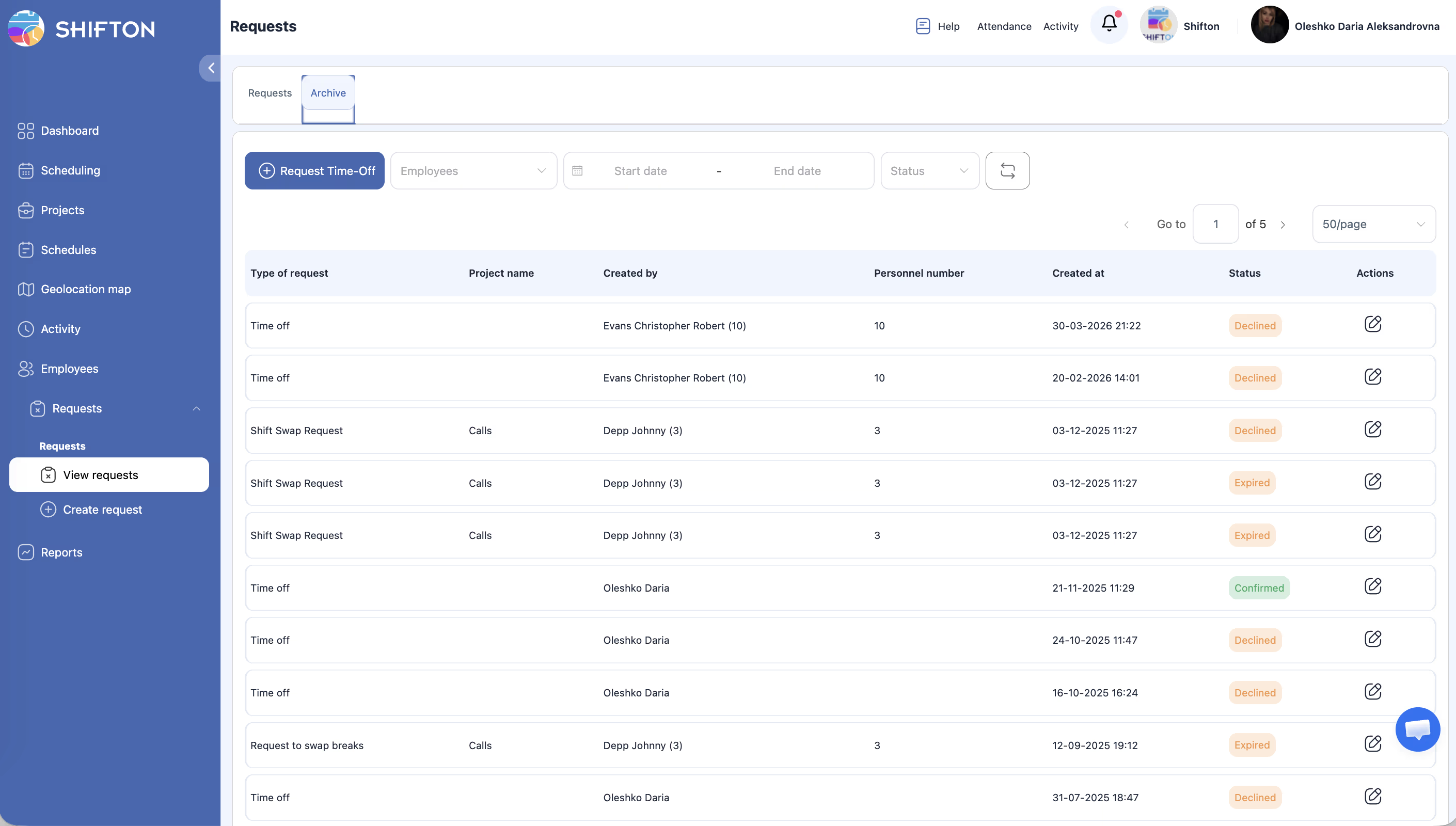
The Archive tab on the Requests page contains time-off requests that have reached a final state — either Approved (and completed) or Rejected. Unlike the active Requests tab, the Archive serves as a read-only historical log. Use it to look up past absences, verify leave records, or audit time-off patterns over time.
Prerequisites
| # | Prerequisite | Details |
|---|---|---|
| 1 | Active Shifton account | You must be logged in to your Shifton workspace |
| 2 | Appropriate role | Employees can view their own archived requests; Managers and Admins can view team or company-wide archives |
| 3 | Existing archived requests | At least one request must have been approved or rejected to appear in the Archive |
Step-by-Step Instructions
Navigating to the Archive
| Step | Action | Expected Result |
|---|---|---|
| 1 | Click Requests | The Requests page opens with the Requests tab active |
| 2 | Click the Archive tab | The view switches to display historical (completed and rejected) requests |
Browsing Archived Requests
| Step | Action | Expected Result |
|---|---|---|
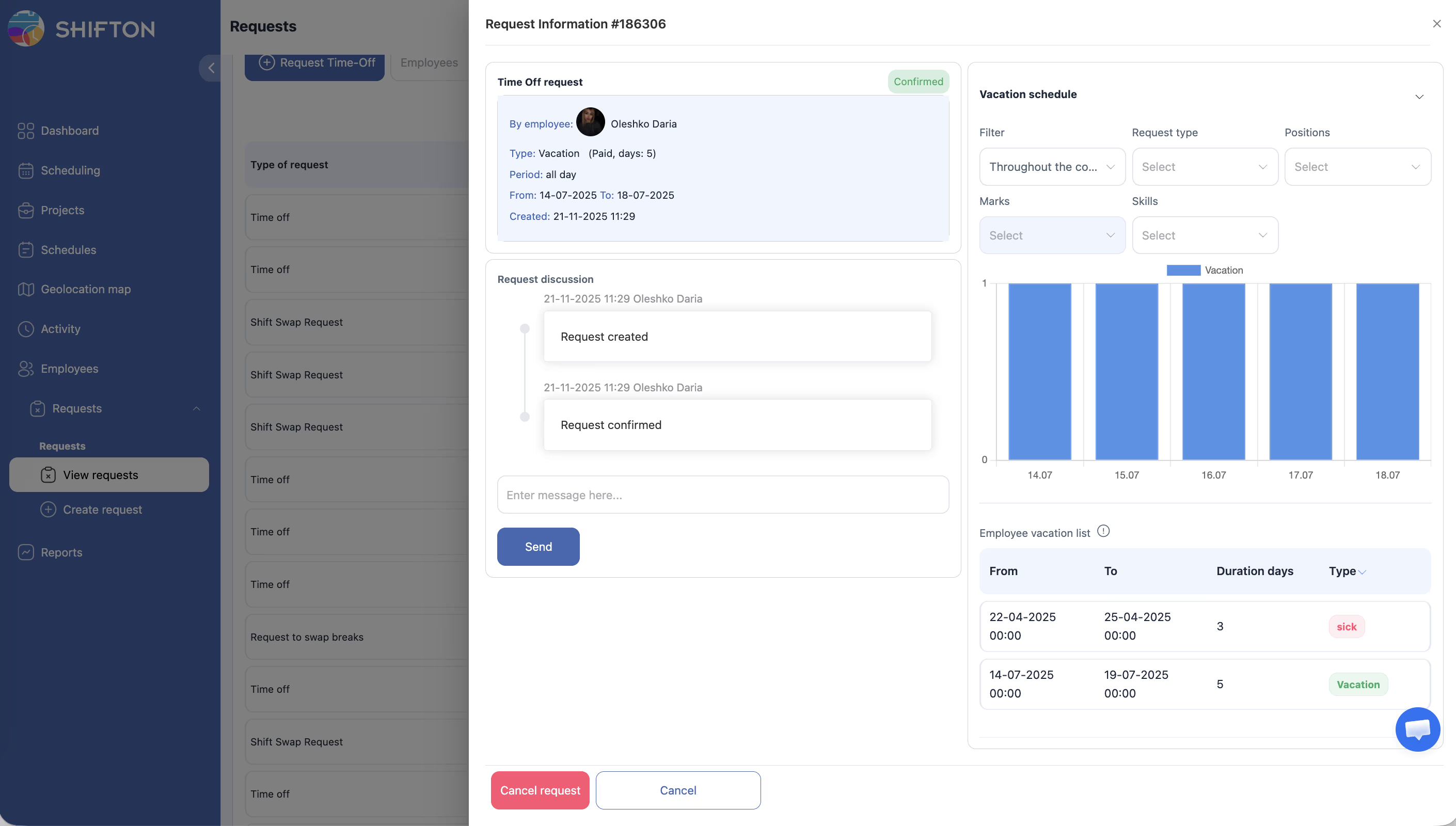
| 1 | Click on a request row to view its full details | A detail view opens showing all original request fields, the final status, and any attached files |
| 2 | Use the pagination controls at the bottom to navigate through pages | The archive may contain many records; navigate using “Go to page,” page numbers, and the rows-per-page selector |
Filtering the Archive
| Step | Action | Expected Result |
|---|---|---|
| 1 | Use the Employees dropdown to filter by a specific employee | Only that employee’s archived requests are shown |
| 2 | Set the Start date and End date to define a date range | Only requests within the chosen period are displayed |
| 3 | Use the Status dropdown to filter by Approved or Rejected | The list narrows to show only requests with the selected final status |
| 4 | Click the Refresh icon to reload the archive data | The list updates with the most current archived records |
Understanding Archived Request Details
| Field | Description |
|---|---|
| Employee | The name of the employee who submitted the request |
| Type payment | Whether the time off was Paid or Unpaid |
| Type time-off | The category: Sick day, Vacation, Holiday, or a custom type |
| Date / Time range | The From and To dates (or datetimes for partial-day requests) |
| Status | Final status — Approved or Rejected |
| Shift action | What was done with overlapping shifts (Nothing, Deleted, Moved to open shifts) |
| Attachment | Any file that was uploaded with the original request |
Access Permissions
| Role | View Own Archive | View Team Archive | View All Archives |
|---|---|---|---|
| Employee | Yes | No | No |
| Manager | Yes | Yes | No |
| Admin | Yes | Yes | Yes |
FAQ
Q1: What is the difference between the Requests tab and the Archive tab?
The Requests tab shows active requests that are still pending or recently approved. The Archive tab holds requests that have reached a final state and are kept for historical reference.
Q2: Can I edit or delete an archived request?
No. Archived requests are read-only. They serve as a permanent record. If a correction is needed, a new request should be submitted and processed through the normal workflow.
Q3: How far back does the Archive go?
The Archive retains all historical requests with no automatic expiration. You can filter by date range to find records from any time period since your workspace began using the Time off requests module.
Q4: Can I export archived requests for reporting?
Export functionality depends on your workspace plan and configuration. Check with your administrator whether CSV or report export options are available for time-off data.
Q5: Why is an approved request still on the Requests tab instead of the Archive?
Recently approved requests may remain on the Requests tab until the time-off period has passed. Once the leave dates are completed, the request moves to the Archive automatically.
Possible Issues and Solutions
| Issue | Possible Cause | Solution |
|---|---|---|
| Archive tab shows no records | No requests have been approved or rejected yet, or filters are too restrictive | Clear all filters and check again; if no requests have been processed, the archive will be empty |
| Cannot find a specific past request | The date range filter is too narrow | Widen the Start and End date fields to cover a broader period |
| Only own requests are visible | Your role is Employee | Managers can view team archives and Admins can view all; contact your administrator if you need broader access |
| Archive loads slowly | A very large number of historical records exists | Apply filters (employee name, date range, status) to reduce the number of results being loaded |
| A rejected request does not appear in the Archive | The request may still be on the Requests tab | Check the Requests tab; it may take a moment for recently rejected requests to move to the Archive |