

The Vacation Management Module automatically accrues vacation days, tracks the balance of each Employee, and ensures that requests do not exceed the available limit.
What Is This?
Enabling the Module
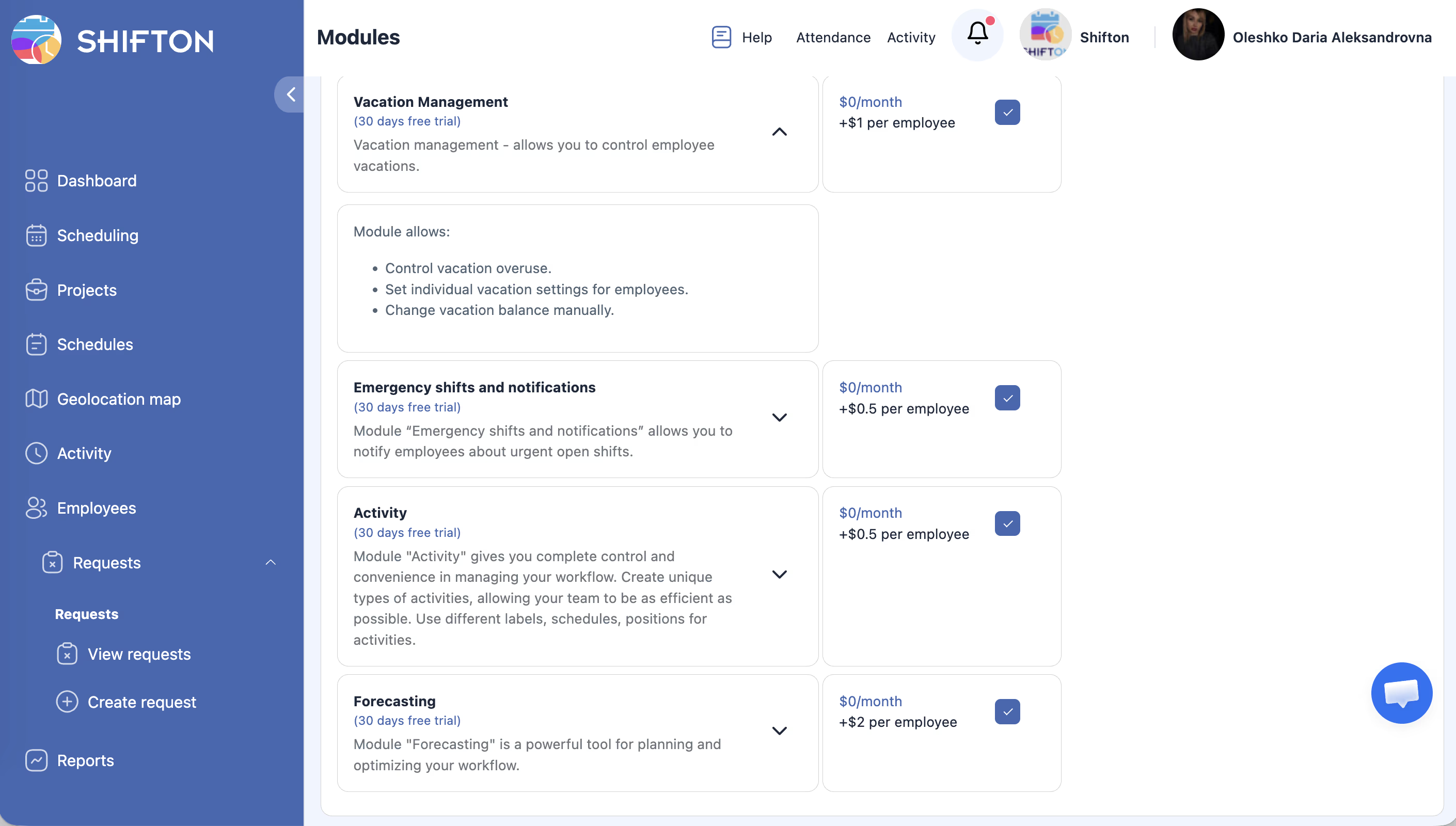
Note: $1 per Employee per month. A trial period of up to 60 days is available.
For proper operation, it is also recommended to enable the Time Off Requests Module.
Setting Up Accrual Rules
Accrual rules are configured individually in the Employee profile.
How to Set Up Automatic Accrual
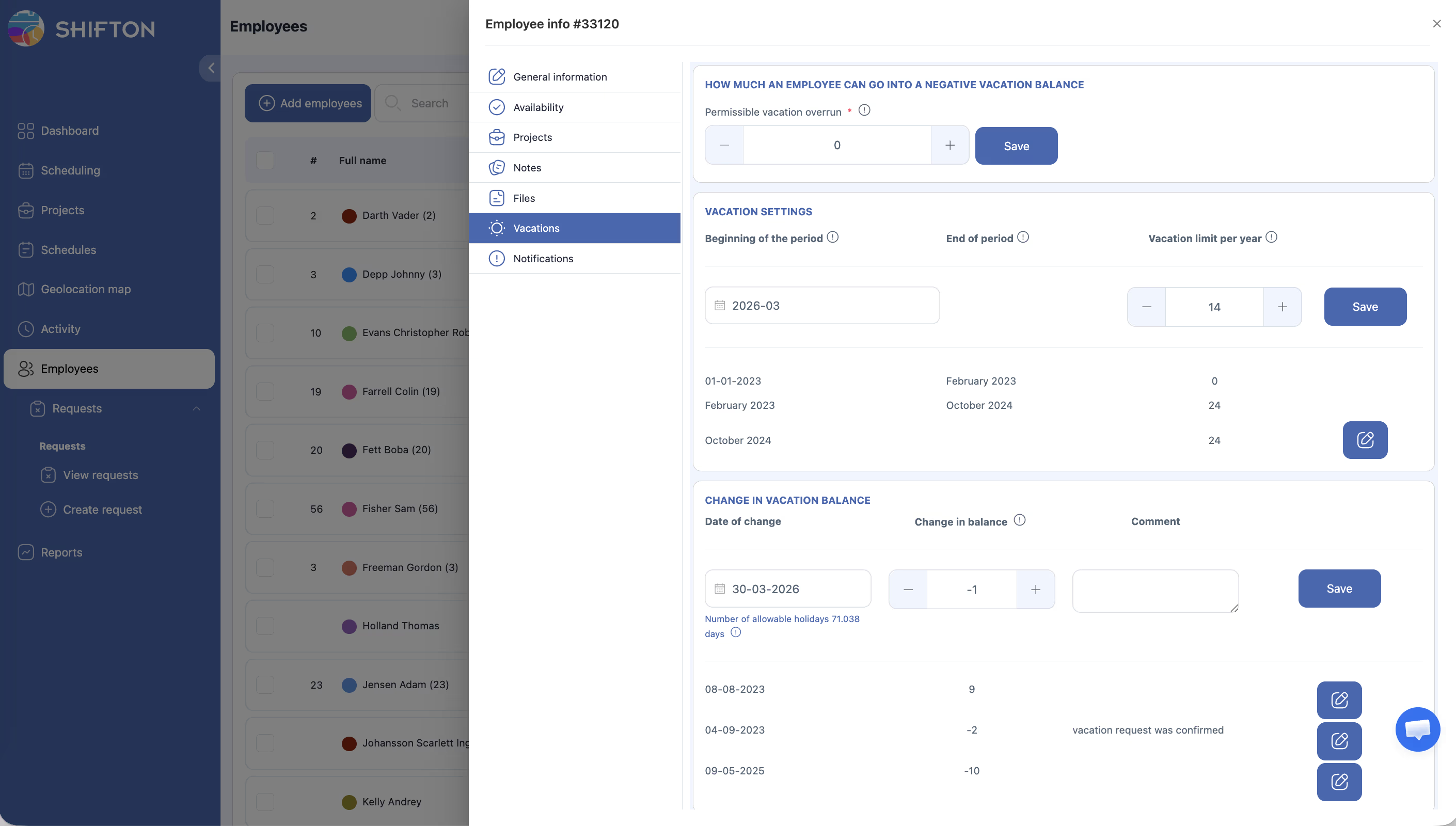
How accrual works: the system divides the annual limit by 12 and accrues that amount every month.
Example: a quota of 24 days per year → +2 days are accrued each month.
Multiple Periods
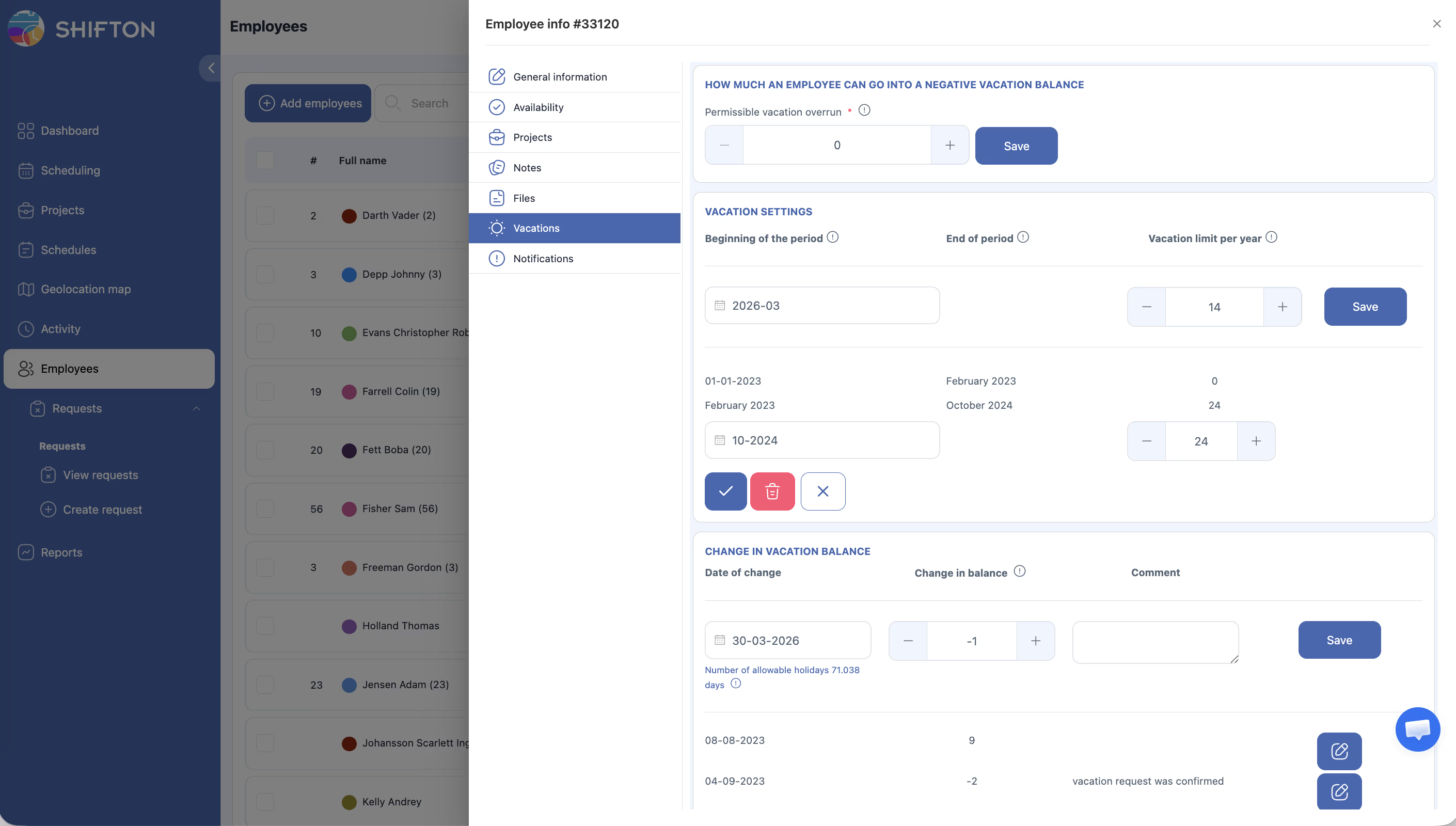
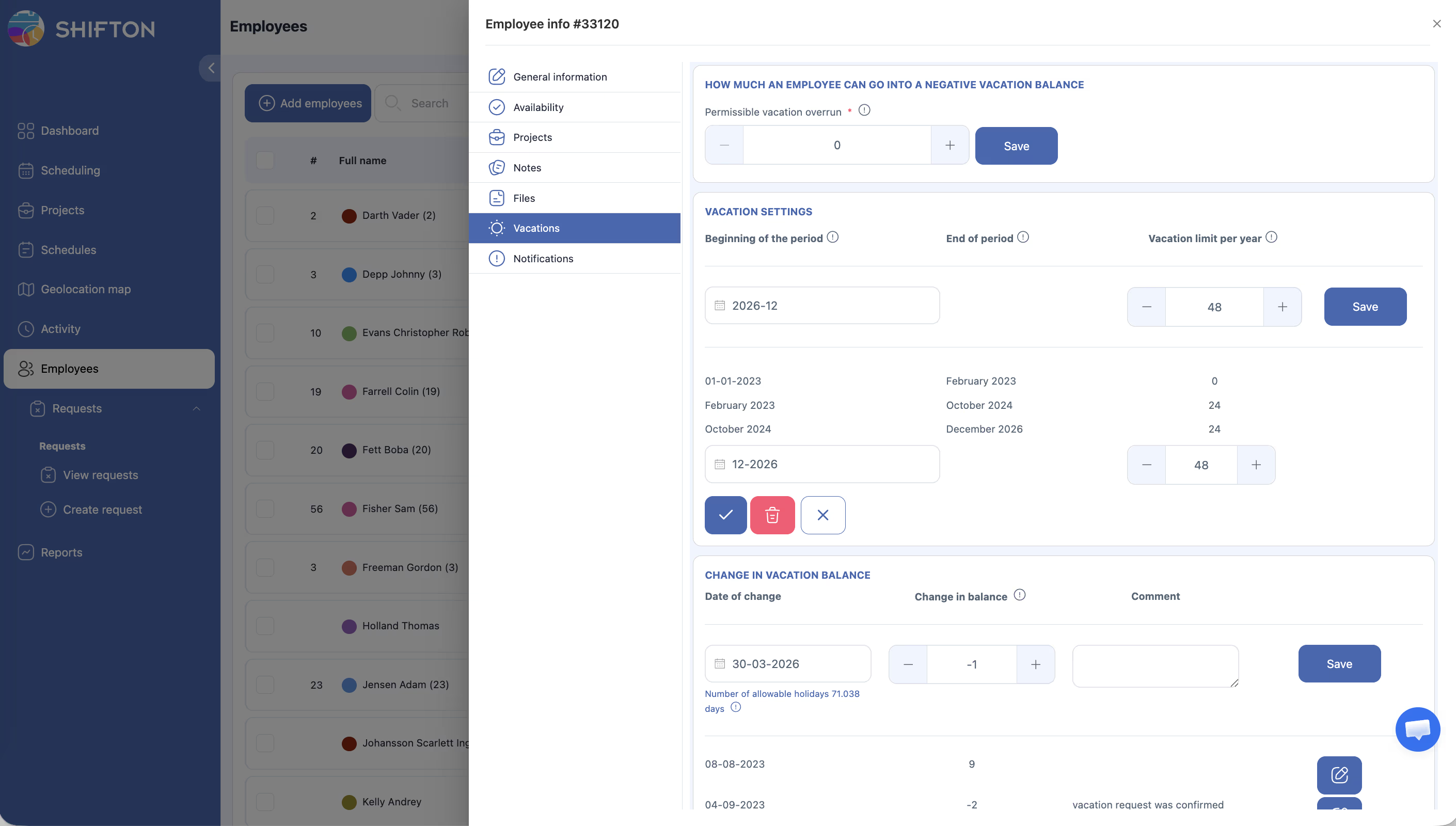
If the quota has changed, you can add multiple entries:
| Period | Limit/year | Accrual/month |
|---|---|---|
| 2023–2024 | 24 days | +2 days |
| 2024–2025 | 48 days | +4 days |
Manual Balance Setup
If automatic accrual is not needed:
Balance Carryover
Accumulated balance carries over automatically — the remaining balance does not expire when the year changes or a new period is added.
Configuring Overspend Behavior
In Module Settings → Vacation Management:
What to do about vacation overuse:
– Block requests — the system will not allow the Employee to submit a request when the balance is exhausted.
– Show warning to manager — the request is submitted, but the Manager receives a warning.
Employee Vacation Balance
Where to View
Open the Employee profile → Vacations tab. This displays:
– Current balance (accrued minus used).
– Transaction history: + accruals, − used days.
– A comment can be added to each entry.
Permissible Vacation Overrun
The number of days by which an Employee can go into the negative. Set in the Employee profile on the Vacations tab.
Example: balance = 5 days, overrun = 5 → the Employee can request up to 10 days.
Manual Balance Adjustment
A Manager, Admin, or Owner can add or subtract days via Change in Vacation Balance. Useful for entering days prior to Module activation, correcting errors, or accruing additional days.
Connection with Time-Off Requests
How the Balance Is Deducted
When a vacation request is approved, days are automatically deducted from the balance. A transaction with a “−” sign appears in the Employee profile.
If the request exceeds the available balance (including the permissible overrun), the system either blocks submission or shows a warning — depending on the Module setting.
Manual Vacation Creation by Manager
A Manager can create a vacation manually directly in the Schedule — in this case, balance limits are not checked.
Which Request Types Affect the Balance
| Type | Deducted from vacation balance |
|---|---|
| Vacation | Yes |
| Sick day | No (separate category) |
| Holiday | No |
You can create additional custom types and assign them to the Vacation or Sick day group.
How Vacation Days Are Calculated
The system counts only working days:
Formula: Vacation days = Calendar days − Employee’s days off − Holidays
Example: vacation from January 5 to 10, January 7 is a holiday → the vacation will be 5 days, not 6.
Recommended Setup Order
Related Articles
- Vacation Management Module
- Time-Off Requests — Overview
- Employee Profile — Vacations
- Vacation Balance Report
- Time-Off Requests Module
- Time Off Report
FAQ
Q: Can I use Vacation Management without the Time Off Requests Module?
A: Technically yes, but vacation requests cannot be created through the standard interface. It is recommended to enable both Modules together.
Q: An Employee gets an error when creating a request — why?
A: Most likely the balance (including the permissible overrun) is exhausted and Block requests is selected in the Settings. Check the balance on the Vacations tab and adjust manually if needed.
Q: A Manager created a vacation in the Schedule, but the balance did not change — is this normal?
A: Yes. When created manually, the balance is not updated automatically. Adjust manually via Change in Vacation Balance.
Q: How do I account for days used before the Module was enabled?
A: Add a transaction with a negative value in Change in Vacation Balance with a comment.
Q: Are holidays automatically excluded from vacation days?
A: Yes, but only if holidays are added to the Holidays row on the Schedule page.
Q: Can I set a different quota for different Employees?
A: Yes. Vacation Settings are configured individually in each Employee’s profile.
Q: How can I view the vacation balance for all Employees at once?
A: Reports → Vacation Balance Report — shows the remaining balance for each Employee for the selected period.
Q: Do unused vacation days expire at the end of the year?
A: No. The accumulated balance carries over automatically when a new period is added.
Q: How do I set up request blocking when the balance is zero?
A: Module Settings → Vacation Management → What to do about vacation overuse field → select Block requests.
Q: An Employee submitted a “Vacation” request, but the balance did not change.
A: The balance changes only when the request is approved by the Manager. While the status is Pending, the balance does not change.
Q: How are vacation days accrued for a partial month of work?
A: Accrual occurs monthly. If the Employee worked a partial month, set the initial balance manually via Change in Vacation Balance.
Q: Can additional vacation days be accrued for overtime?
A: There is no direct automatic connection. Add days manually via Change in Vacation Balance with a comment.
Q: What is “Permissible vacation overrun” and how do I set it?
A: It is the number of days by which the balance can go negative. It is set in the Employee profile → Vacations tab → Permissible vacation overrun field.
Q: Can the Vacation Management Module be used without Time-Off Requests?
A: Technically yes, but without Time-Off Requests, Employees will not be able to submit requests on their own. It is recommended to enable both Modules.
Q: How much does the Vacation Management Module cost?
A: $1 per active Employee per month. Trial period: up to 60 days.
Q: If Vacation Settings are not configured, will accrual work?
A: No. Without an added period in Vacation Settings, automatic accrual will not work.