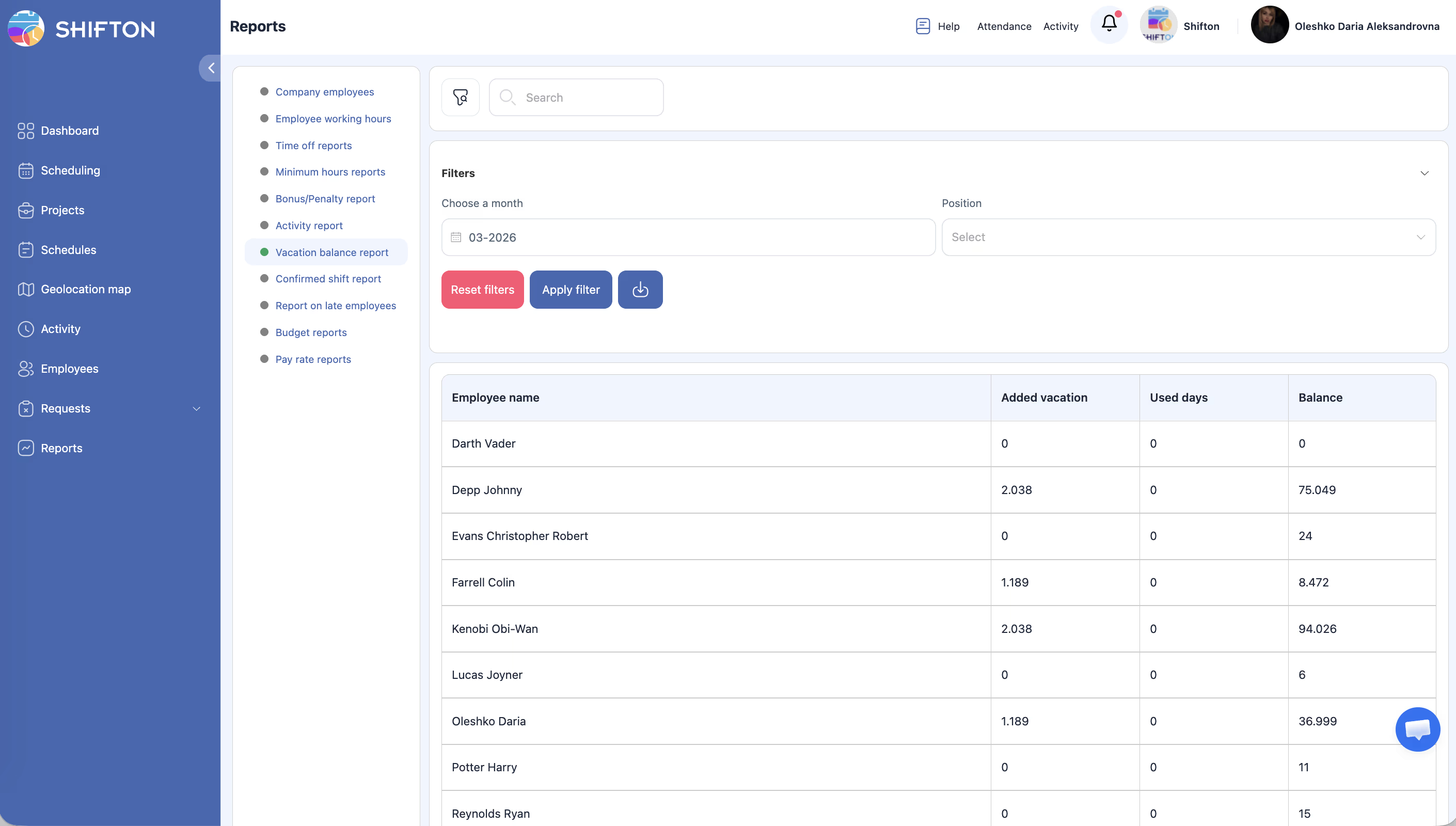
Track vacation accrual, usage, and remaining balance for each employee on a monthly basis.
What Is This?
The Vacation Balance report provides a monthly snapshot of each employee’s vacation status. It shows how many vacation days have been added (accrued), how many have been used, and the remaining balance. This helps HR and managers ensure employees are taking their entitled leave and that balances are accurate for planning purposes.
Prerequisites
#
Prerequisite
Details
1
Vacation/time-off feature configured
Vacation accrual rules must be set up in company settings.
2
Employees with vacation entitlements
At least one employee must have a vacation balance.
3
Manager, Admin, or Owner role
Full access requires elevated permissions.
Step-by-Step Instructions
Accessing the Report
Step
Action
Expected Result
1
Navigate to Reports from the left sidebar.
The Reports page opens.
2
Select Vacation Balance from the report list.
The report loads with filters and data table.
Applying Filters
Filter
Type
Description
Month
Month picker
Select the specific month to view vacation balances.
Position
Dropdown
Filter by employee position.
Step
Action
Expected Result
1
Select the desired month and optionally a position.
Filters are configured.
2
Click Apply Filter.
The table updates to show vacation balances for the selected month.
Reading the Report Table
Column
Description
Employee name
The employee’s full name.
Added vacation
Number of vacation days accrued or added during the selected month.
Used days
Number of vacation days used during the selected month.
Balance
Remaining vacation days available (cumulative balance as of the selected month).
Access Permissions
Role
View Report
Export Report
See All Employees
Employee
Own data only
No
No
Manager
All
Yes
Yes
Admin
All
Yes
Yes
Owner
All
Yes
Yes
FAQ
Q1: Is the balance cumulative or just for the selected month? The Balance column shows the cumulative remaining balance as of the end of the selected month, accounting for all accruals and usage up to that point.
Q2: Where do I configure vacation accrual rules? Vacation accrual settings are managed in Settings > Time Off Types or the vacation policy configuration area.
Q3: Can I adjust an employee’s vacation balance manually? Yes. Manual adjustments can typically be made through the employee’s profile or the time-off management interface. The changes will be reflected in this report.
Q4: Does this report include other types of time off? No. This report focuses specifically on vacation balances. For other time-off types, use the Time Off Reports.
Possible Issues and Solutions
Issue
Possible Cause
Solution
All balances show 0
Vacation accrual rules are not configured.
Set up vacation accrual in Settings > Time Off Types.
“Added vacation” is blank for an employee
The employee may not have an accrual policy assigned.
Assign a vacation policy to the employee’s profile.
Balance does not match expected value
Manual adjustments or corrections may not have been entered.
Review the employee’s vacation history and make any needed manual adjustments.
Employee is missing from the report
The employee may not have a vacation entitlement or may be filtered out.
Reset filters and verify the employee has a vacation policy assigned.
Month picker does not show the desired month
The picker may have a limited range.
Ensure the month falls within your company’s active period in Shifton.