

Learn how to configure vacation limits, manage vacation periods, and adjust vacation balances for employees.
What Is This?
The Vacations tab in an employee’s profile is where you manage everything related to that employee’s paid time off. It is divided into three sections:
Together, these settings give you full control over how vacation time is tracked, accrued, and used for each employee.
Prerequisites
Before configuring vacations, make sure:
- The employee has been added to Shifton
- You have Administrator access
- Your company’s general vacation policies have been established
Step-by-Step Instructions
Section 1: Permissible Vacation Overrun
This section controls how far into negative balance an employee is allowed to go when requesting vacation.
| Field | Description |
|---|---|
| Permissible vacation overrun | The maximum number of days the employee can go negative on their vacation balance. For example, setting this to 3 means the employee can request up to 3 more days than they have available |
Q1: Enter the number of days the employee is allowed to exceed their balance.
Step 2: Click Save to apply the setting.
Section 2: Vacation Settings
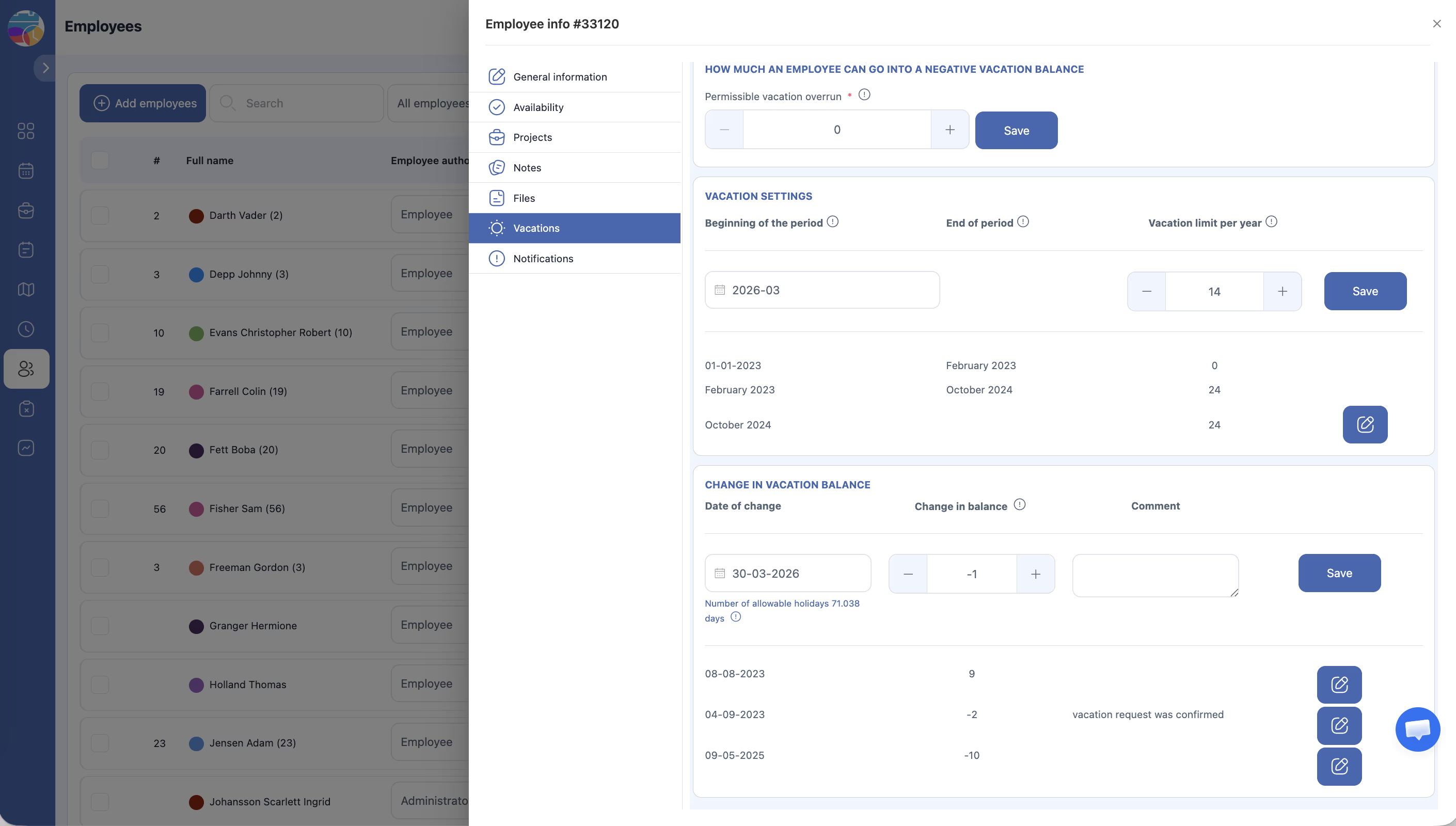
This section defines the vacation periods and how many days the employee is entitled to per year.
| Field | Description |
|---|---|
| Beginning of period | The start date of the vacation accrual period (e.g., January 1) |
| End of period | The end date of the vacation accrual period (e.g., December 31) |
| Vacation limit per year | The total number of vacation days the employee is entitled to during this period |
Step 1: Set the Beginning of period and End of period dates to define the vacation year.
Step 2: Enter the Vacation limit per year (e.g., 20 days).
Step 3: Click Save to create the vacation period.
Step 4: Review existing vacation periods in the table below the form. Each period is listed with its date range and limit. Use the Edit button to modify an existing period.
Section 3: Change in Vacation Balance
This section allows you to manually adjust the employee’s vacation balance — for example, to add carry-over days from the previous year or to correct a mistake.
| Field | Description |
|---|---|
| Date | The date of the balance adjustment |
| Change amount | The number of days to add (positive number) or subtract (negative number) |
| Comment | A note explaining the reason for the adjustment (e.g., “Carry-over from 2025” or “Correction for unpaid leave”) |
Step 1: Select the Date for the adjustment.
Step 2: Enter the Change amount. Use a positive number to add days or a negative number to subtract days.
Step 3: Enter a Comment explaining the reason for the change.
Step 4: Submit the adjustment. The system will display the current allowable holidays information so you can verify the updated balance.
Access Permissions
| Role | Can View Vacations Tab? | Can Edit Vacation Settings? |
|---|---|---|
| Administrator | Yes | Yes |
| Manager | Yes (employees in their projects) | No |
| Employee | Own vacation balance only | No |
FAQ
Q: What does “permissible vacation overrun” mean in practice?
A: If an employee has 2 vacation days remaining and the overrun is set to 3, they can request up to 5 days of vacation. The extra 3 days will result in a negative balance that needs to be recovered as new vacation days accrue.
Q: Can I set different vacation limits for different employees?
A: Yes. Vacation settings are configured per employee in their individual profile, so each person can have a different limit based on their contract or seniority.
Q: How do carry-over days work?
A: Use the “Change in vacation balance” section to manually add carry-over days at the beginning of a new period. Enter a positive number and add a comment like “Carry-over from previous year.”
Q: What happens if an employee exceeds both their balance and the overrun limit?
A: The system will prevent the employee from requesting more vacation days than their balance plus the permissible overrun allows.
Q: Can I set up multiple vacation periods in a year?
A: Yes. You can create multiple periods with different start and end dates if your organization tracks vacation time in segments (e.g., probation period vs. regular employment).
Possible Issues and Solutions
| Issue | Cause | Solution |
|---|---|---|
| Employee’s vacation balance shows an incorrect number | A manual adjustment may be missing, or the period limits are incorrect | Review the vacation settings and balance change history. Add a correction using the “Change in vacation balance” section |
| Cannot save vacation settings | Required fields are empty or contain invalid dates | Ensure both the beginning and end of period dates are filled in and that the end date is after the start date |
| Employee was able to request more vacation than expected | The permissible vacation overrun is set too high | Lower the overrun value and click Save |
| Vacation limit does not reset at the start of a new year | A new vacation period has not been created | Create a new vacation period with the correct date range and limit for the new year |
| Carry-over days are not reflected in the balance | The adjustment was not submitted in the “Change in vacation balance” section | Add a manual balance adjustment with the appropriate number of carry-over days |