

Learn how to upload, manage, and share files on an employee’s profile.
What Is This?
The Files tab in an employee’s profile provides a simple document storage area where you can upload files related to that employee. This is useful for storing contracts, certifications, ID copies, training materials, or any other documents you need to keep on file.
Files can be uploaded by dragging and dropping them into the upload area. You can control whether each file is visible to the employee or only to administrators.
Prerequisites
Before managing files, make sure:
- The employee has been added to Shifton
- You have Administrator access
- Your files are ready to upload (maximum 100 MB per file)
Step-by-Step Instructions
Step 1: Open the Files Tab
Navigate to the Employees page, click on the employee’s name, and select the Files tab.
Step 2: Upload a File
Drag and drop one or more files into the upload area, or click the upload area to browse for files on your computer. The maximum file size is 100 MB.
Step 3: Review Uploaded Files
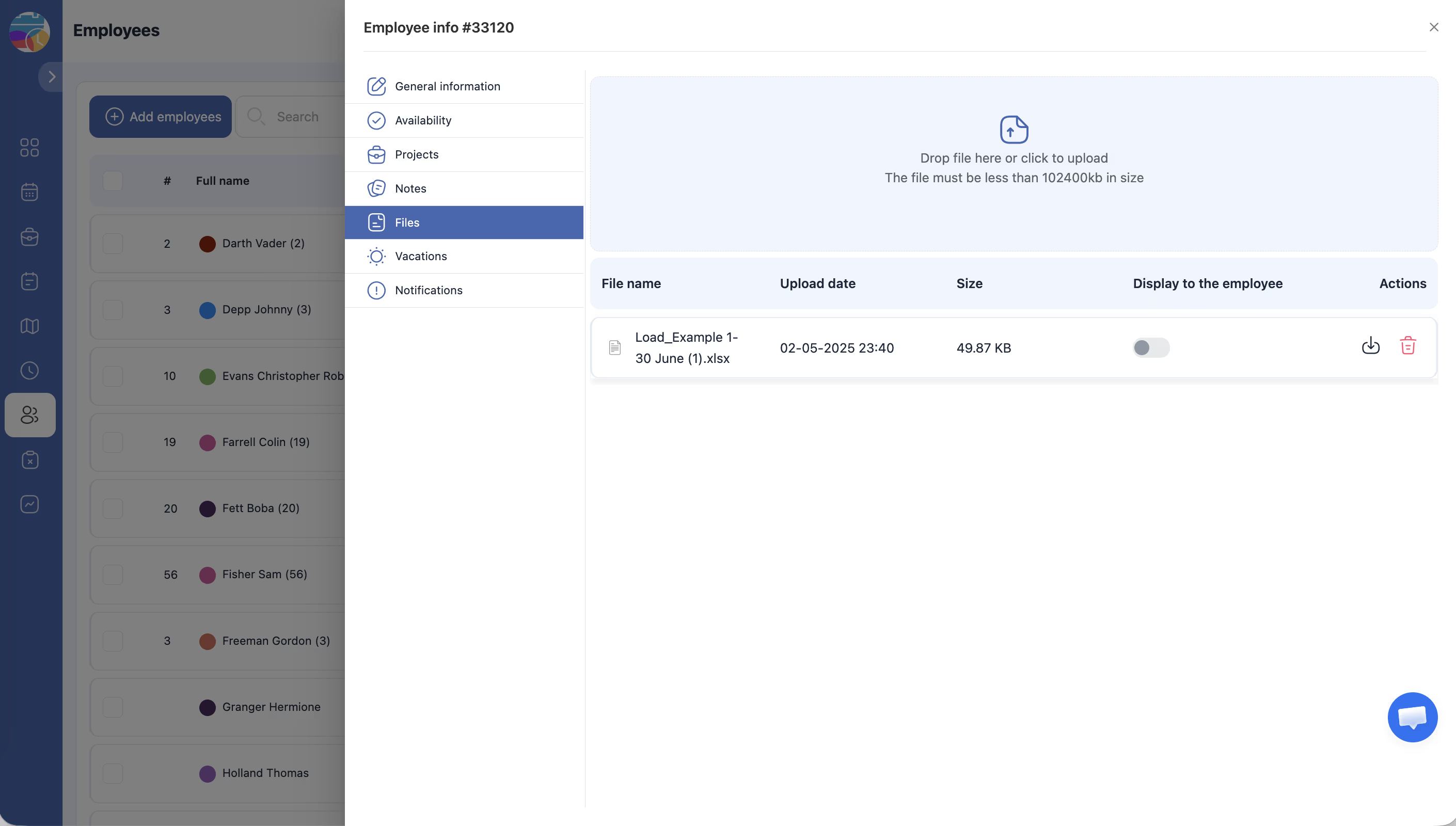
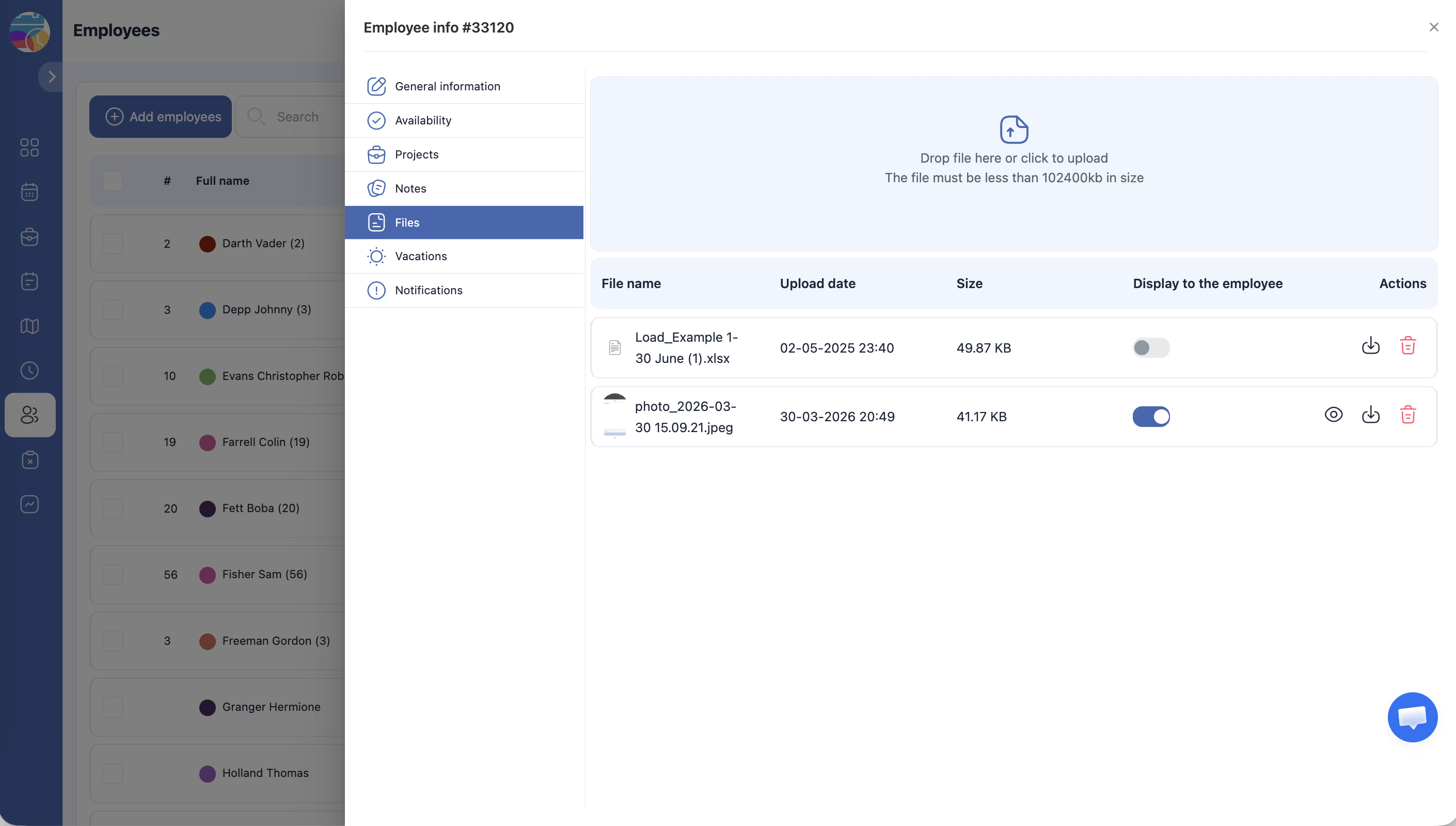
Uploaded files appear in a table with the following columns:
| Column | Description |
|---|---|
| File name | The name of the uploaded file, displayed with a file type icon |
| Upload date | The date the file was uploaded to the system |
| Size (KB) | The file size in kilobytes |
| Display to employee | A toggle switch that controls whether the employee can see this file on their own profile |
| Actions | Options to view, download, or delete the file |
Step 4: Control File Visibility
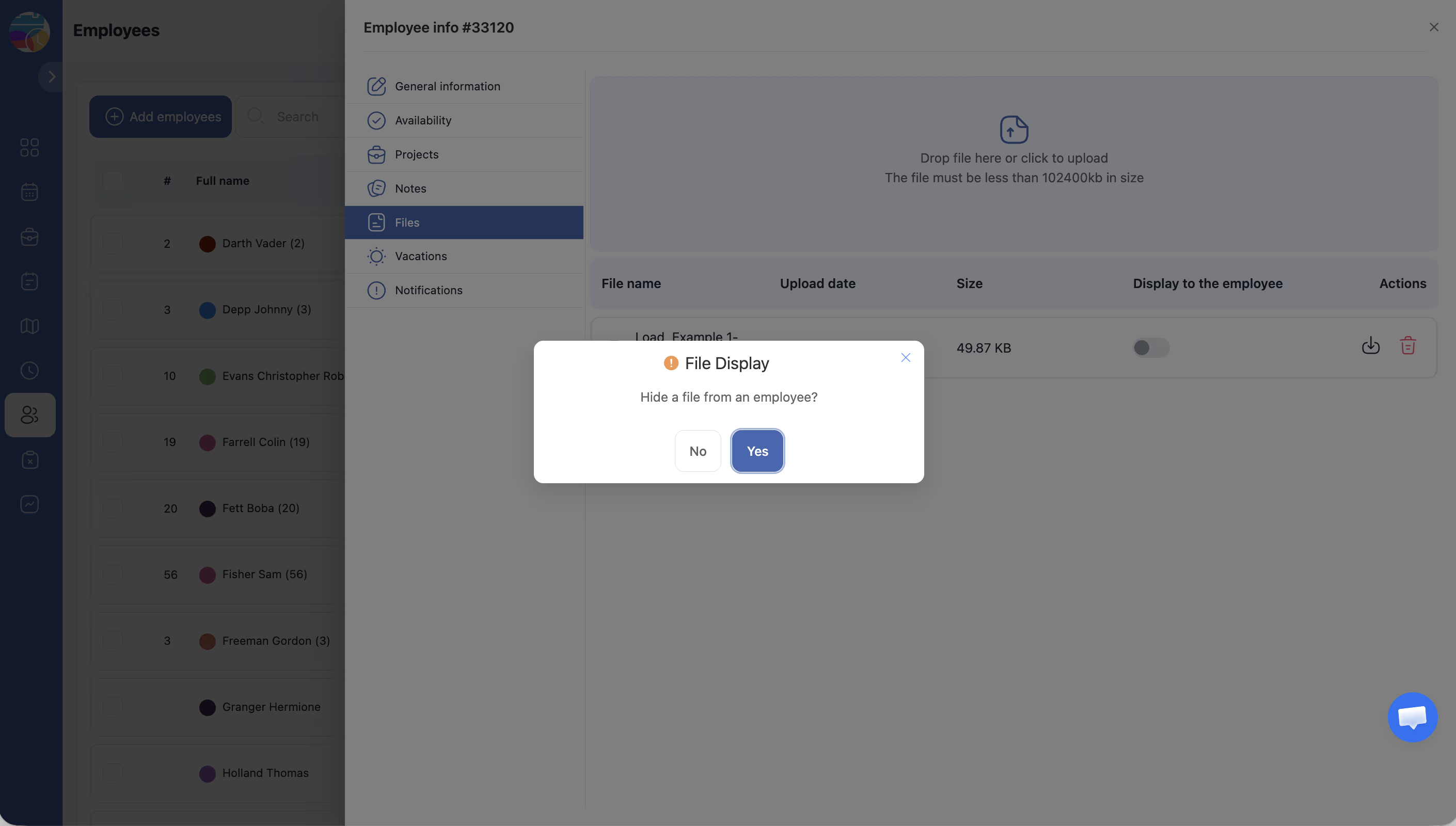
Use the Display to employee toggle for each file to decide whether the employee can see it:
| Toggle State | Meaning |
|---|---|
| On | The employee can see and download this file from their own profile |
| Off | Only administrators can see this file. It is hidden from the employee |
Step 5: View, Download, or Delete a File
Use the buttons in the Actions column to manage each file:
| Action | Description |
|---|---|
| View | Opens the file for preview in the browser (if supported) |
| Download | Downloads the file to your computer |
| Delete | Permanently removes the file from the employee’s profile |
Access Permissions
| Role | Can View Files? | Can Upload/Delete Files? |
|---|---|---|
| Administrator | Yes (all files) | Yes |
| Manager | Limited (based on project assignment) | No |
| Employee | Only files with “Display to employee” enabled | No |
FAQ
Q: What file types can I upload?
A: You can upload most common file types including PDF, Word documents, Excel spreadsheets, images, and more. There is no restriction on file type, but the maximum size per file is 100 MB.
Q: Can employees upload files to their own profile?
A: No. Only administrators can upload files to an employee’s profile. Employees can only view and download files that have been shared with them.
Q: Is there a limit to how many files I can upload?
A: There is no strict limit on the number of files per employee profile. However, keep in mind the 100 MB per file size limit.
Q: What happens if I delete a file?
A: The file is permanently removed from the employee’s profile and cannot be recovered. Make sure you have a backup if you may need the file again.
Possible Issues and Solutions
| Issue | Cause | Solution |
|---|---|---|
| File upload fails | The file exceeds the 100 MB size limit | Compress the file or split it into smaller parts before uploading |
| Employee says they cannot see a file | The Display to employee toggle is turned off | Open the Files tab and toggle the “Display to employee” switch to On for that file |
| Cannot delete a file | You do not have Administrator access | Ask an Administrator to delete the file |
| File preview does not work | The file type is not supported for in-browser preview | Download the file instead and open it with the appropriate application on your computer |
| Upload area does not respond to drag-and-drop | Browser compatibility issue | Try clicking the upload area to use the file browser instead, or switch to a different web browser |