

Learn how to create and manage internal notes on an employee’s profile.
What Is This?
The Notes tab in an employee’s profile is a place to store internal notes related to that employee. Notes can be used for HR records, performance observations, onboarding checklists, or any other information you want to keep on file. Each note includes a date range, visibility settings to control who can see it, and free-text content.
Notes are visible only to the people you specify, making them a secure way to document important information.
Prerequisites
Before creating notes, make sure:
- The employee has been added to Shifton
- You have Administrator access
Step-by-Step Instructions
Step 1: Open the Notes Tab
Navigate to the Employees page, click on the employee’s name, and select the Notes tab.
Step 2: Create a New Note
Click the + Create a note button to add a new note.
Step 3: Fill In the Note Details
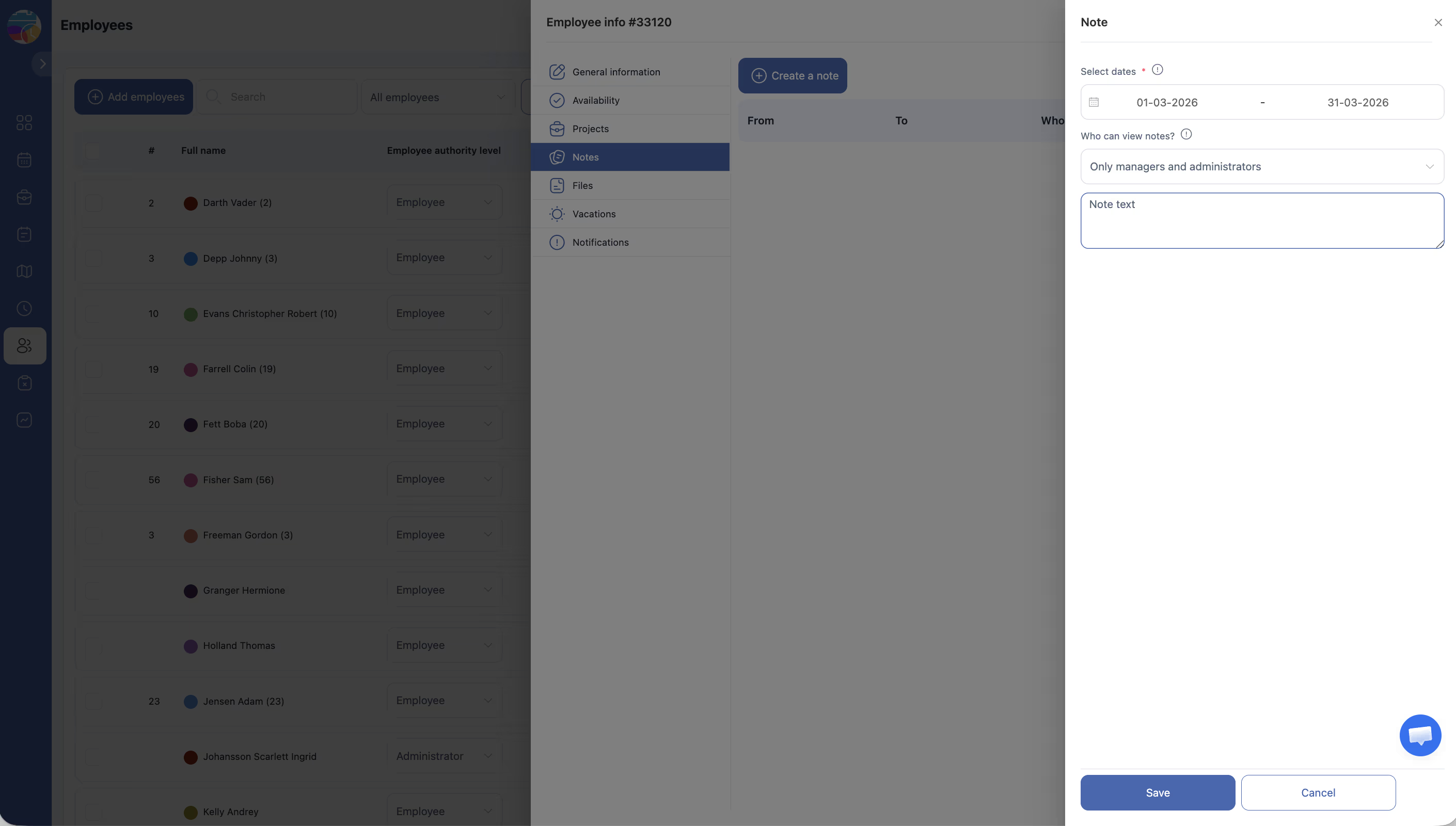
Complete the note form with the following fields:
| Field | Description |
|---|---|
| From | The start date for the note’s relevance period |
| To | The end date for the note’s relevance period |
| Who can view notes? | Controls who has permission to see this note (e.g., Administrators only, the employee, etc.) |
| Content | The text of the note itself. Enter any information you want to record |
Step 4: Save the Note
After filling in the fields, save the note. It will appear in the notes table on the employee’s profile.
Step 5: Review Existing Notes
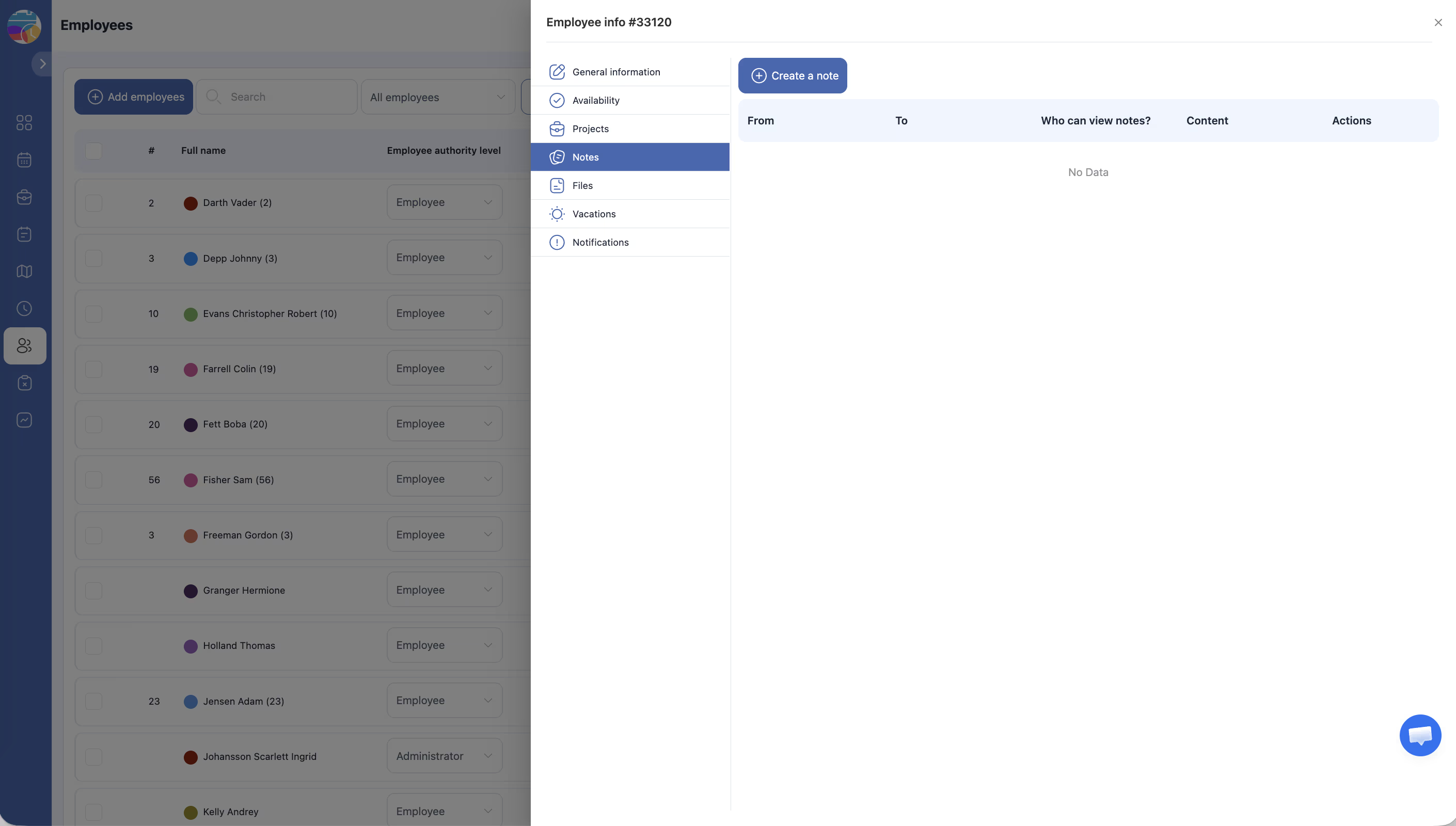
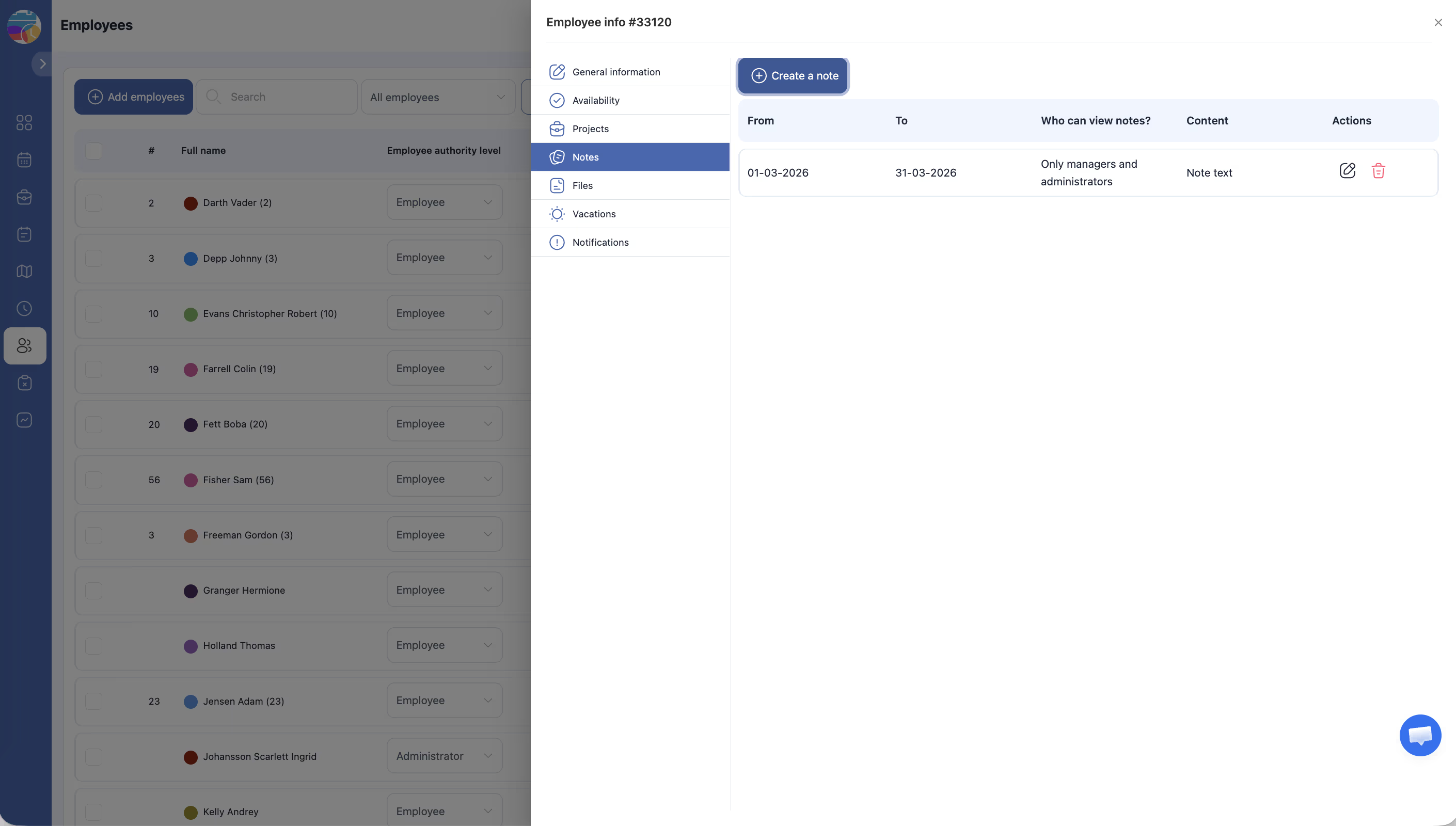
The Notes tab displays all notes in a table format:
| Column | Description |
|---|---|
| From | Start date of the note’s relevance period |
| To | End date of the note’s relevance period |
| Who can view notes? | The visibility setting for this note |
| Content | The text content of the note |
| Actions | Options to edit or delete the note |
Step 6: Edit or Delete a Note
Use the Actions column to modify or remove an existing note as needed.
Access Permissions
| Role | Can View Notes? | Can Create/Edit Notes? |
|---|---|---|
| Administrator | Yes (all notes) | Yes |
| Manager | Only if granted visibility | No |
| Employee | Only if granted visibility | No |
FAQ
Q: Can the employee see notes on their own profile?
A: Only if the “Who can view notes?” setting includes them. You control visibility when creating each note.
Q: Are notes permanent?
A: Notes remain on the profile until deleted. You can edit or remove them at any time from the Actions column.
Q: Can I use notes for performance reviews?
A: Yes. Notes are a convenient way to record performance observations, feedback, and review summaries directly on the employee’s profile.
Q: Is there a limit to how many notes I can create?
A: There is no practical limit. You can create as many notes as needed for each employee.
Possible Issues and Solutions
| Issue | Cause | Solution |
|---|---|---|
| The + Create a note button is not visible | You do not have Administrator access | Ask an Administrator to create the note or grant you the appropriate permissions |
| A note is not visible to someone who should see it | The “Who can view notes?” setting does not include them | Edit the note and adjust the visibility setting to include the intended viewers |
| Cannot delete a note | You do not have Administrator access | Ask an Administrator to delete the note |
| Note content appears truncated in the table | The content is too long to display in full in the table view | Click on the note or use the edit action to view the full content |