

Learn how to assign employees to projects and manage their project roles.
What Is This?
The Projects tab in an employee’s profile shows which projects the employee belongs to and what role they have in each one. From here, you can add an employee to new projects, change their role between Employee, Manager, and Observer, assign them to a project schedule, or remove them from a project.
Projects in Shifton represent distinct teams, departments, or locations. Assigning employees to the correct projects ensures they appear in the right schedules and are managed by the right people.
Note: Manager and Observer are project-level roles. They are different from the global Administrator role. An employee can be an Employee globally but a Manager within a specific project.
Prerequisites
Before managing project assignments, make sure:
- At least one project has been created in Shifton
- The employee has been added to the system
- You have Administrator access
Step-by-Step Instructions
Step 1: Open the Projects Tab
Navigate to the Employees page, click on the employee’s name, and select the Projects tab.
Step 2: Add the Employee to a Project
Click the Add to project button. Select the desired project from the list that appears.
Step 3: Review the Project Table
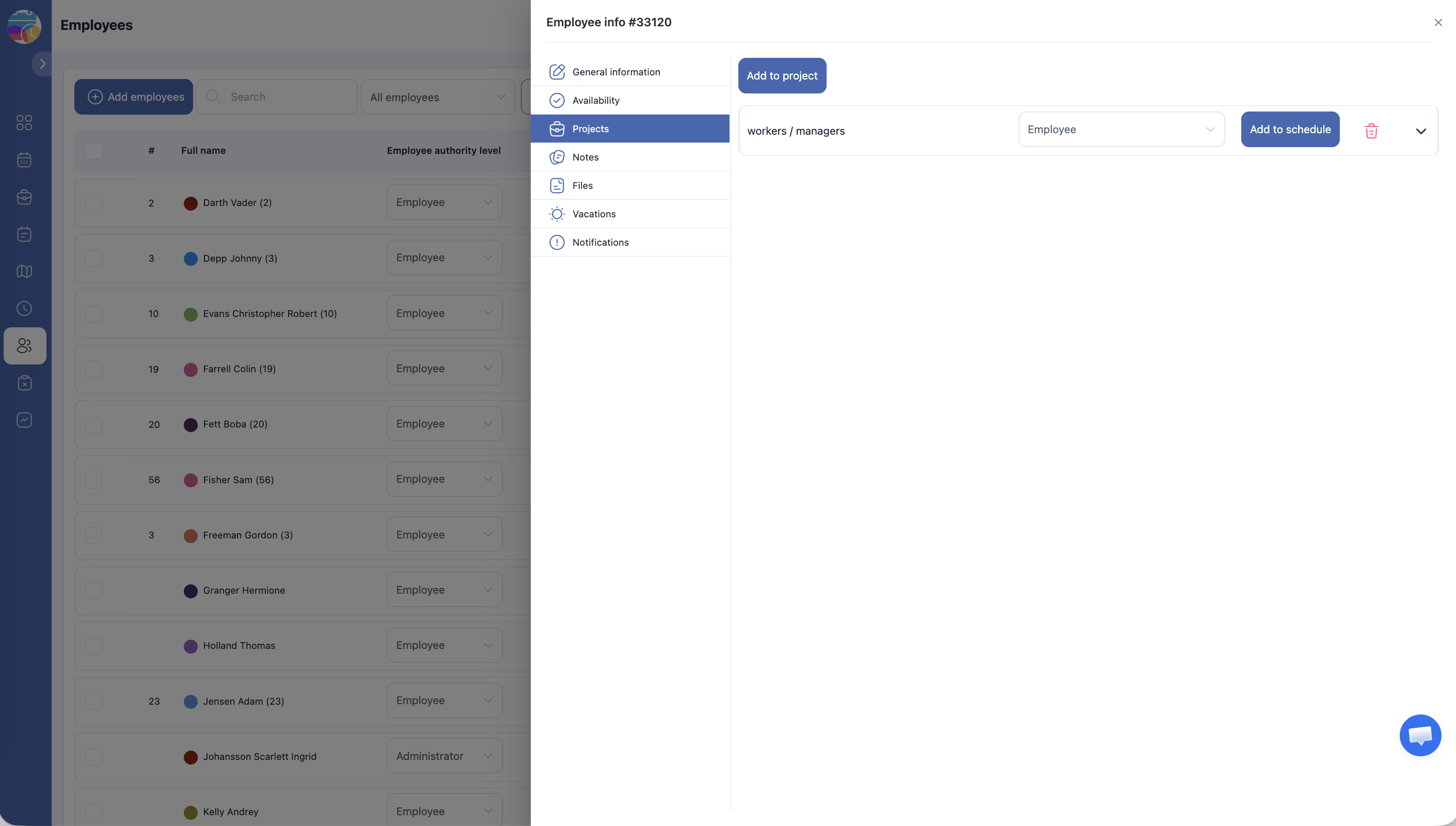
Each project the employee belongs to is displayed as a section that can be expanded or collapsed. The project section shows:
| Column | Description |
|---|---|
| Project name | The name of the project the employee is assigned to |
| Role | A dropdown to select the employee’s role in this project: Employee, Manager, or Observer |
| Add to schedule | A button to assign the employee to the project’s schedule |
| Delete | A button to remove the employee from this project |
Step 4: Set the Employee’s Role
Use the Role dropdown within the project section to set the employee’s role within that project:
| Role | Description |
|---|---|
| Employee | Standard team member. Can view their own shifts, request time off, and manage their availability within this project |
| Manager | Can manage shifts and schedules within this project, approve/reject requests, and view team member details. Does not have access to company-wide settings |
| Observer | Read-only access. Can view project information but cannot make changes |
Step 5: Add to a Schedule
Click the Add to schedule button within the project section to assign the employee to the project’s schedule. This makes the employee available for shift assignments in that project.
Step 6: Remove from a Project (If Needed)
To remove an employee from a project, click the Delete button in that project’s section. The employee will no longer appear in that project’s schedule or team list.
Step 7: Expand and Collapse Projects
If an employee belongs to multiple projects, you can expand or collapse each project section to keep the view organized. Click on the project name or the expand/collapse control to toggle visibility.
Access Permissions
| Role | Can View Projects Tab? | Can Modify Project Assignments? |
|---|---|---|
| Administrator | Yes | Yes |
| Manager | Yes (employees in their projects) | No |
| Employee | Own profile only | No |
FAQ
Q: Can an employee belong to multiple projects?
A: Yes. An employee can be assigned to as many projects as needed. Each project assignment is independent and can have its own role.
Q: What are the project-level roles?
A: There are three roles at the project level: Employee (can view their own shifts and manage availability), Manager (can manage shifts, approve requests, and view team information), and Observer (read-only access). These are separate from the global Administrator role.
Q: What happens when I remove an employee from a project?
A: The employee will no longer appear in that project’s schedule or team list. Any future shifts assigned to them in that project may need to be reassigned.
Q: Does changing the role here affect the employee’s global access level?
A: No. The role set in the Projects tab applies only to that specific project. The employee’s global access level (Administrator or Employee) is managed separately from the main employee list.
Possible Issues and Solutions
| Issue | Cause | Solution |
|---|---|---|
| The Add to project button is not visible | You do not have Administrator access | Ask an Administrator to assign the employee to the project |
| The project I need is not in the list | The project has not been created yet | Create the project in the Projects section first, then return to add the employee |
| Cannot change the employee’s role | You do not have Administrator access | Ask an Administrator to update the role |
| Employee does not appear on the project schedule after being added | The employee was added to the project but not to the schedule | Click the Add to schedule button within the project section |
| Removing an employee from a project leaves orphaned shifts | Shifts were already assigned to the employee in that project | Manually reassign or delete the affected shifts in the schedule |