

Learn how to set and manage an employee’s availability using the monthly calendar view.
What Is This?
The Availability tab in an employee’s profile lets you define which days and times the employee is available to work. It displays a monthly calendar where you can click on individual days to set availability windows. Managers and administrators use this information when building schedules to ensure employees are only assigned to shifts during their available times.
Employees can also update their own availability, giving them a say in when they are scheduled.
Prerequisites
Before setting availability, make sure:
- The employee has been added to Shifton
- You have Administrator access, or you are editing your own availability as an Employee
Step-by-Step Instructions
Step 1: Open the Availability Tab
Navigate to the Employees page, click on the employee’s name, and then select the Availability tab.
Step 2: Navigate to the Correct Month
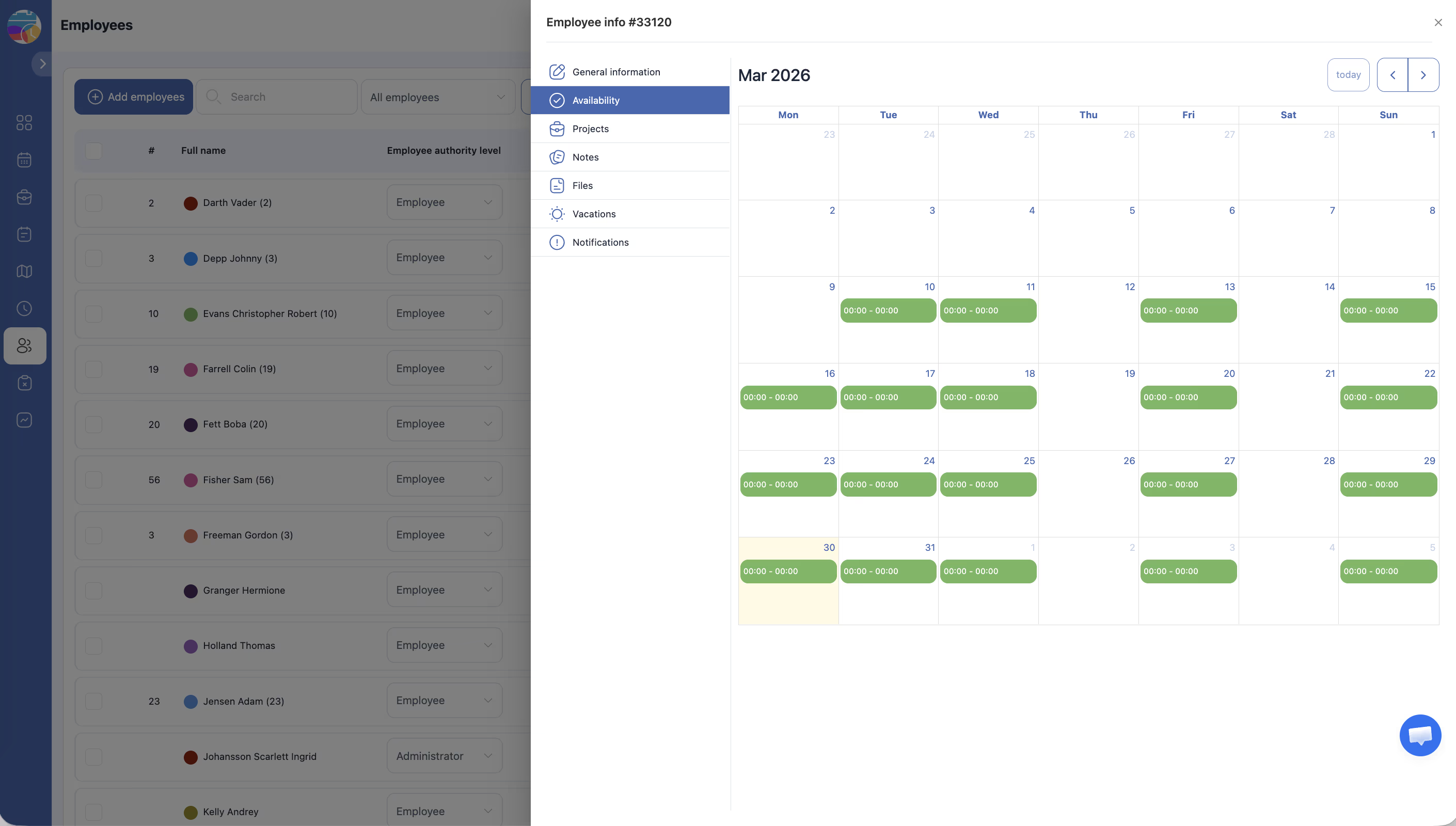
The calendar displays one month at a time with columns for each day of the week (Monday through Sunday).
| Control | Description |
|---|---|
| Left arrow | Navigate to the previous month |
| Right arrow | Navigate to the next month |
| Today button | Jump back to the current month and highlight today’s date |
Step 3: Set Availability for a Day
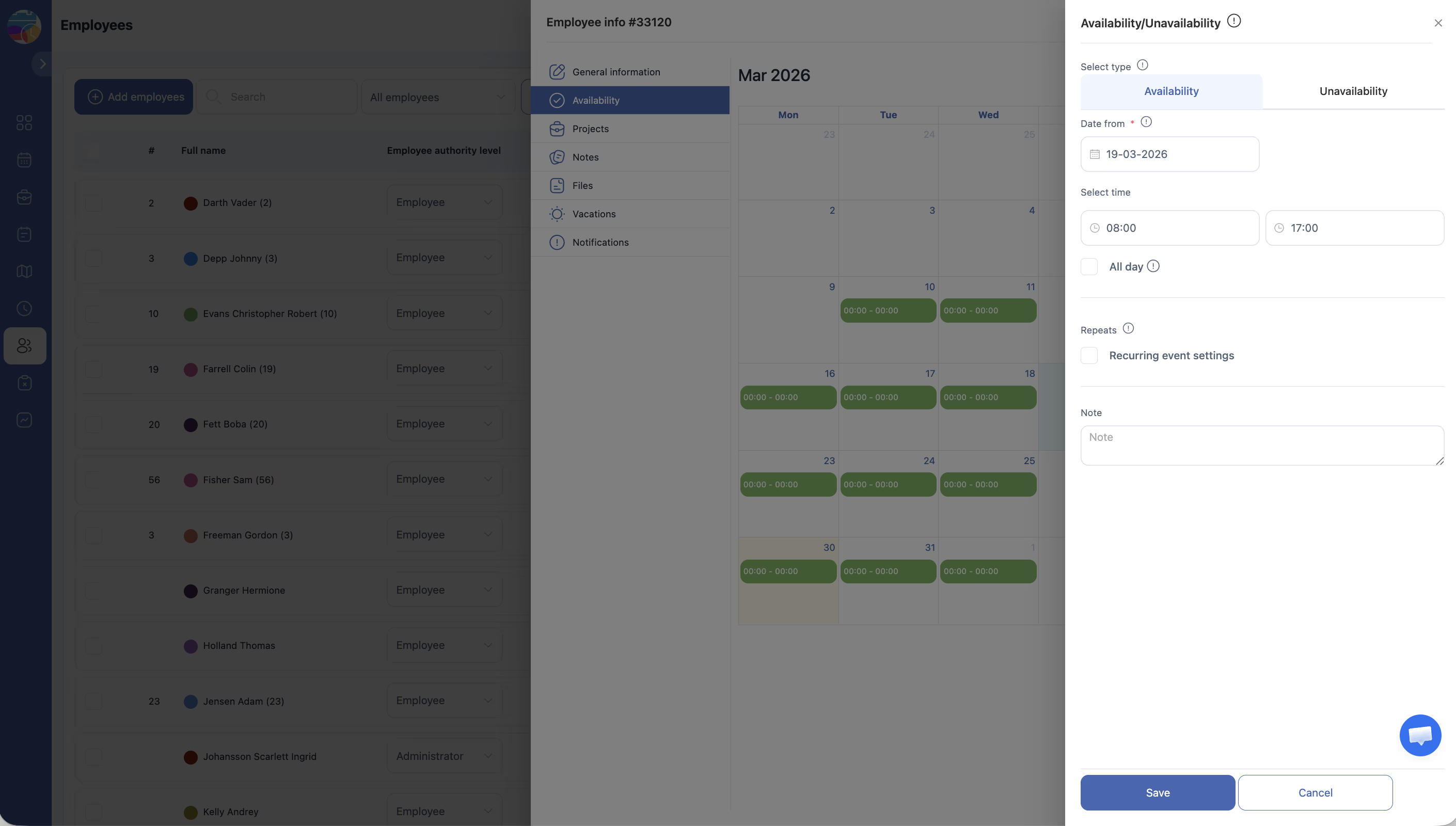
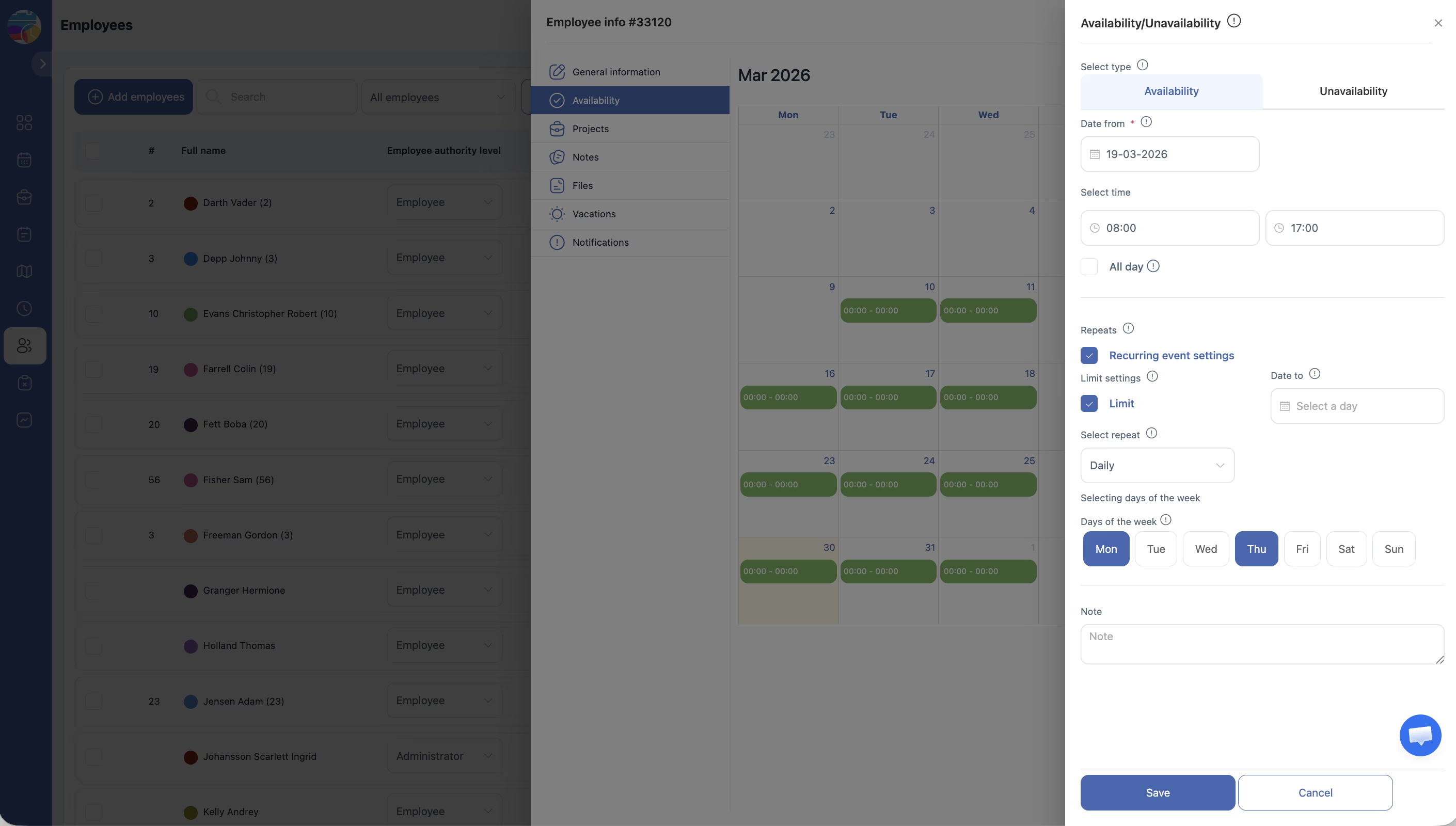
Click on any day in the calendar to set an availability window for that date. A dialog or inline editor will appear where you can specify the time range during which the employee is available.
Step 4: Review the Calendar
Days with availability set will be visually marked on the calendar. Review the month to ensure all desired days and time ranges are correctly configured.
Step 5: Repeat for Additional Months
Use the navigation arrows to move to other months and set availability as needed. Availability is set on a per-month basis, so you may need to update it regularly.
Access Permissions
| Role | Can View Availability? | Can Edit Availability? |
|---|---|---|
| Administrator | Yes (all employees) | Yes (all employees) |
| Manager | Yes (employees in their projects) | Yes (employees in their projects) |
| Employee | Own availability only | Own availability only |
FAQ
Q: Can employees set their own availability?
A: Yes. Employees can log in and update their own Availability tab to indicate when they are able to work.
Q: How far in advance should availability be set?
A: It is best to set availability at least one scheduling period ahead. For example, if schedules are published weekly, employees should set their availability at least one to two weeks in advance.
Q: Does setting availability guarantee the employee will be scheduled on those days?
A: No. Availability indicates when the employee can work, but actual shift assignments depend on the schedule created by the manager or administrator.
Q: Can I set different time ranges for different days?
A: Yes. Each day can have its own availability window. For example, an employee might be available 8 AM to 6 PM on Monday but only 10 AM to 3 PM on Wednesday.
Possible Issues and Solutions
| Issue | Cause | Solution |
|---|---|---|
| Cannot click on days in the calendar | You do not have permission to edit this employee’s availability | Verify your role. Only Administrators, Managers (for their project’s employees), or the employee themselves can edit availability |
| Availability changes are not reflected in the schedule | The schedule was built before the availability was updated | Ask the scheduler to regenerate or update the schedule to include the latest availability data |
| Calendar shows the wrong month | The view has not been navigated to the desired month | Use the left and right arrow buttons to navigate to the correct month, or click Today to return to the current month |
| Previously set availability has disappeared | Availability may have been overwritten or cleared | Re-enter the availability for the affected days and confirm the changes were saved |