

Learn how to view and edit an employee’s personal details, work settings, and identification information.
What Is This?
The General Information tab is the main section of an employee’s profile. It contains all personal and work-related details, from contact information and address to scheduling preferences and access settings. This is where you go to update an employee’s name, phone number, position, skills, and other core information.
Any changes you make here take effect once you click the Save button.
Prerequisites
Before editing an employee’s general information, make sure you have:
- An active Shifton account with Administrator access
- The employee has already been added to the system
Step-by-Step Instructions
Step 1: Open the Employee Profile
Navigate to the Employees page and click on the employee’s name to open their profile. You will land on the General Information tab by default.
Step 2: Review and Edit Personal Details
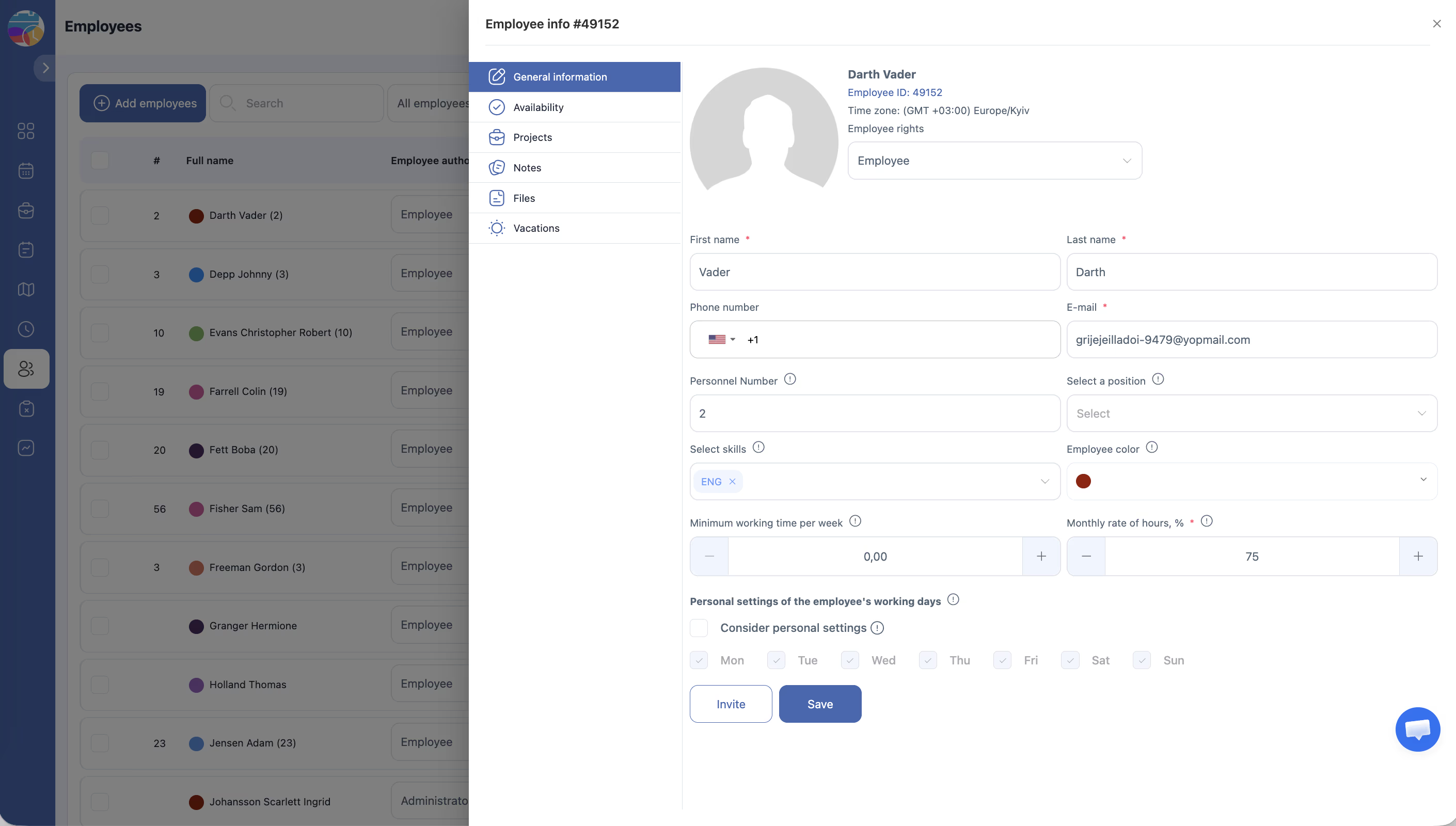
The top section contains the employee’s personal information:
| Field | Description |
|---|---|
| First name | Employee’s first name |
| Last name | Employee’s last name |
| Phone | Phone number with country code |
| Email address used for login and notifications | |
| Date of birth | Employee’s date of birth |
| Gender | Male or Female |
| Identification number | National ID, passport number, or other government-issued identifier |
Step 3: Review and Edit Address Information
The address section stores the employee’s location details:
| Field | Description |
|---|---|
| Country/Region | Country or region of residence |
| State | State or province |
| City | City of residence |
| Zip code | Postal or zip code |
| Address | Street address |
Step 4: Review and Edit Work Settings
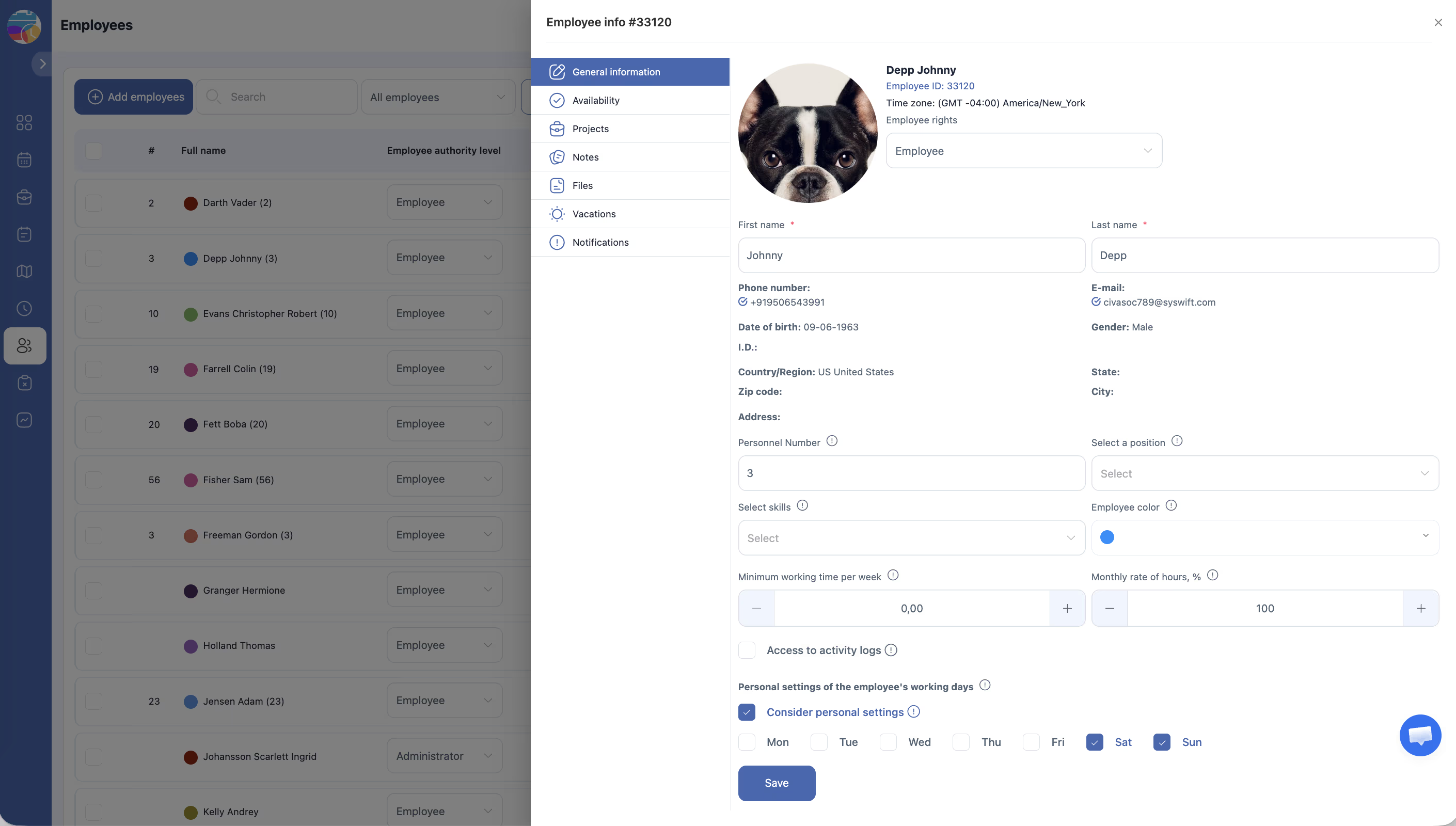
The work settings section controls how the employee fits into your scheduling and organizational structure:
| Field | Description |
|---|---|
| Personnel Number | Internal employee ID or payroll number |
| Position | Job title or role, selected from a dropdown list |
| Skills | One or more skill tags selected from a multi-select list. Skills can be used when assigning shifts that require specific qualifications |
| Employee color | A color used to visually identify this employee on the schedule. Click the color picker to choose a color |
| Minimum work time per week | The minimum number of hours this employee should be scheduled per week |
| Monthly rate of hours % | Percentage of full-time hours. 100% = full-time, 50% = half-time, etc. |
Step 5: Configure Access and Working Days
The bottom section contains access controls and personal working day preferences:
| Field | Description |
|---|---|
| Access to activity logs | When checked, this employee can view activity logs |
| Personal working days | Checkboxes for each day of the week (Monday through Sunday). Check the days this employee is available to work |
Step 6: Save Your Changes
After making your edits, click the Save button at the bottom of the page to apply all changes.
Access Permissions
| Role | Can View Profile? | Can Edit Profile? |
|---|---|---|
| Administrator | Yes | Yes |
| Manager | Yes (employees in their projects) | Limited |
| Employee | Own profile only | Limited to own profile |
FAQ
Q: Can employees edit their own general information?
A: Employees can view and update some of their own profile fields. However, certain fields such as Position, Personnel Number, and access settings can only be changed by an Administrator.
Q: What are Skills used for?
A: Skills are tags that describe an employee’s qualifications (e.g., “Cashier,” “Forklift License,” “First Aid”). When creating shifts, you can require specific skills, and Shifton will help match qualified employees to those shifts.
Q: What does the Employee color do?
A: The color you pick will be used to represent this employee on schedule views, making it easier to visually identify who is assigned to which shift.
Q: What happens if I set Monthly rate of hours % to less than 100?
A: This tells Shifton that the employee works part-time. For example, setting it to 50% means the employee should be scheduled for roughly half the hours of a full-time employee. This is used in workload calculations and scheduling.
Q: What does “Access to activity logs” enable?
A: When checked, the employee can see a log of actions taken in the system, such as schedule changes and shift assignments. This is typically enabled for managers or senior staff.
Possible Issues and Solutions
| Issue | Cause | Solution |
|---|---|---|
| Cannot find the Position I need in the dropdown | The position has not been created yet | Go to your company settings to add new positions, then return to the employee profile |
| Skills tags are not available | No skills have been defined in the system | Configure skills in your company settings first |
| Changes are not saved after clicking Save | A required field is missing or contains invalid data | Check for error messages highlighted on the form, correct the issues, and save again |
| Employee color does not appear on the schedule | The color picker was not used, or the default color was left | Open the profile, click the color picker to select a distinct color, and save |
| Cannot edit another employee’s profile | You do not have Administrator access | Ask your account administrator to make the changes or to grant you the appropriate permissions |