

Learn how account invitation statuses work and how to send or resend invitations to your employees.
What Is This?
After adding employees to Shifton, you need to invite them so they can log in and access their schedules, request time off, and manage their availability. Shifton uses an invitation system with three statuses that let you track which employees have been invited and whether they have accepted.
You can send invitations at the time of adding an employee or at any point afterward from the employee list.
Prerequisites
Before inviting employees, make sure:
- The employee has been added to Shifton (see Adding Employees)
- The employee has a valid email address on file
- You have Administrator access
Step-by-Step Instructions
Step 1: Understand Invitation Statuses
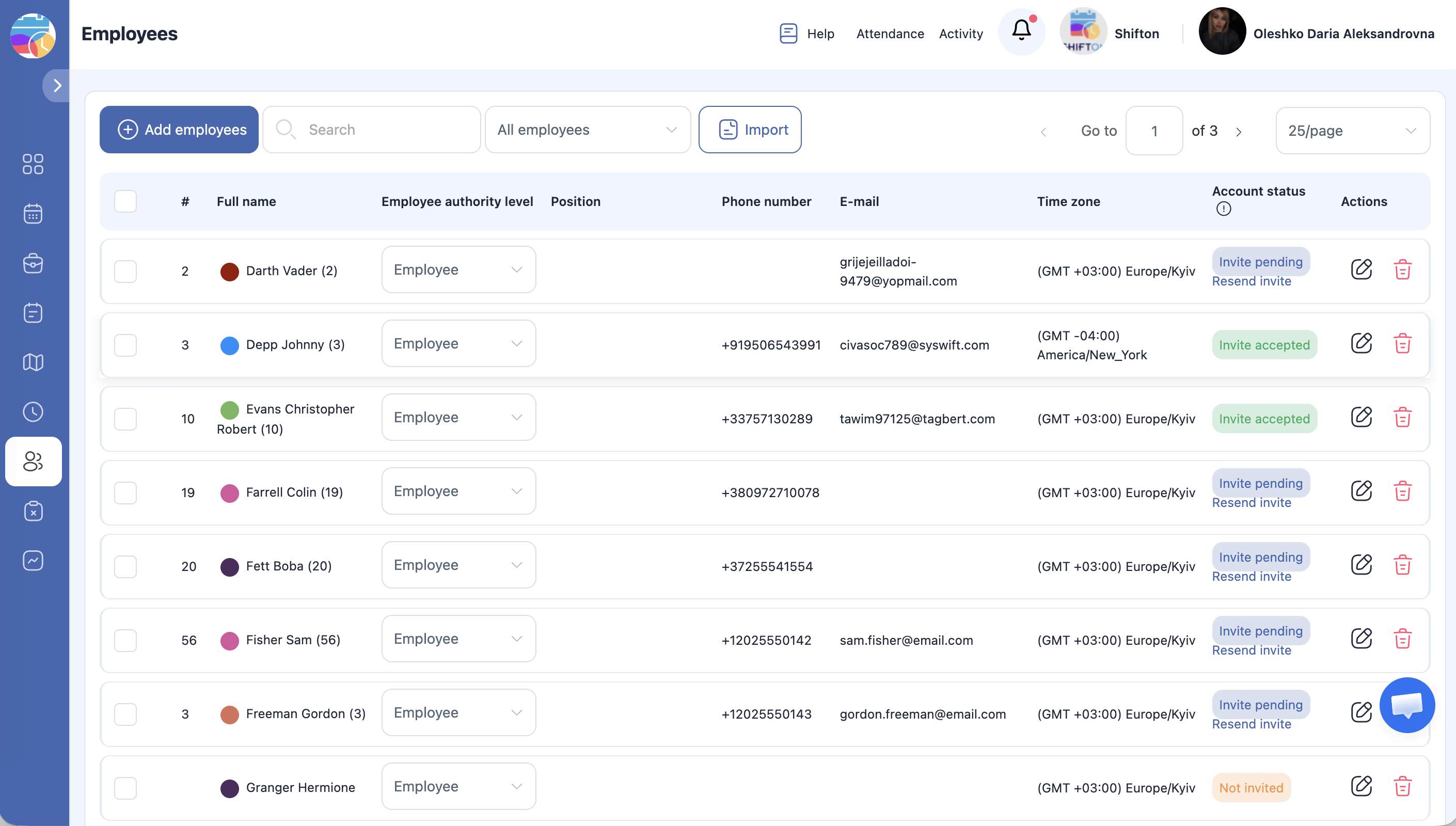
Each employee in your list has one of three invitation statuses, shown as a colored label:
| Status | Color | Meaning |
|---|---|---|
| Not invited | Red | The employee exists in the system but has never been sent an invitation |
| Invite pending | Blue | An invitation has been sent but the employee has not yet accepted it |
| Invite accepted | Green | The employee has accepted the invitation and can log in |
Step 2: Send an Invitation During Employee Creation
When adding a new employee, check the Send invite checkbox at the bottom of the Add Employee form before saving. The invitation will be sent to the email address you provided as soon as the employee is created.
Step 3: Invite an Existing Employee
If an employee was added without an invitation (status shows “Not invited” in red), you can send one at any time:
Step 4: Resend an Invitation
If an employee has not accepted their invitation (status shows “Invite pending” in blue), you can send it again:
Step 5: Verify Acceptance
Once the employee opens the invitation email and completes the registration process, their status will automatically change to Invite accepted (green). No action is required from you.
Access Permissions
| Role | Can Send / Resend Invitations? |
|---|---|
| Administrator | Yes |
| Manager | No |
| Employee | No |
FAQ
Q: What does the invitation email contain?
A: The invitation email includes a link for the employee to create their Shifton password and log in for the first time. Once they complete this process, their status changes to “Invite accepted.”
Q: Can I invite multiple employees at the same time?
A: Currently, invitations are sent individually from the employee list. For bulk additions, consider checking the “Send invite” box when adding each employee.
Q: What if the employee says they did not receive the invitation?
A: Ask them to check their spam or junk folder first. If the email is not there, verify that the correct email address is on file and use the Resend invite link to send it again.
Q: Can an employee use the system without accepting an invitation?
A: No. Employees must accept the invitation and set up their password before they can log in to Shifton.
Q: Does the invitation expire?
A: If an invitation is not accepted after an extended period, you can resend it to generate a fresh invitation link.
Possible Issues and Solutions
| Issue | Cause | Solution |
|---|---|---|
| “Not invited” status but no Invite now link | The employee does not have an email address on file | Open the employee’s profile, add their email address, then return to the list to send the invitation |
| Employee did not receive the invitation email | Email went to spam, or the address is incorrect | Ask the employee to check spam/junk folders. Verify the email in their profile and resend the invitation |
| Status remains “Invite pending” for a long time | The employee has not completed the registration process | Contact the employee directly and ask them to check their email and follow the registration link. Resend if needed |
| Cannot resend invitation | You do not have Administrator access | Ask an Administrator to resend the invitation on your behalf |
| Employee accidentally deleted the invitation email | The original email is no longer available | Use the Resend invite link to send a new invitation email |