

Learn how to add multiple employees at once by uploading a spreadsheet file.
What Is This?
The Import Employees feature lets you add many employees to Shifton in a single operation. Instead of entering each employee manually, you prepare a spreadsheet file with all their information and upload it. Shifton will read the file and create employee records for everyone listed in it.
This is especially useful when onboarding a large team, migrating from another system, or setting up a new company account.
Prerequisites
Before importing employees, make sure you have:
- An active Shifton account with Administrator access
- A spreadsheet application (Microsoft Excel, Google Sheets, or similar) to prepare your import file
- Employee data ready: at minimum, each employee’s first name, last name, phone number, and email address
Step-by-Step Instructions
Step 1: Open the Import Dialog
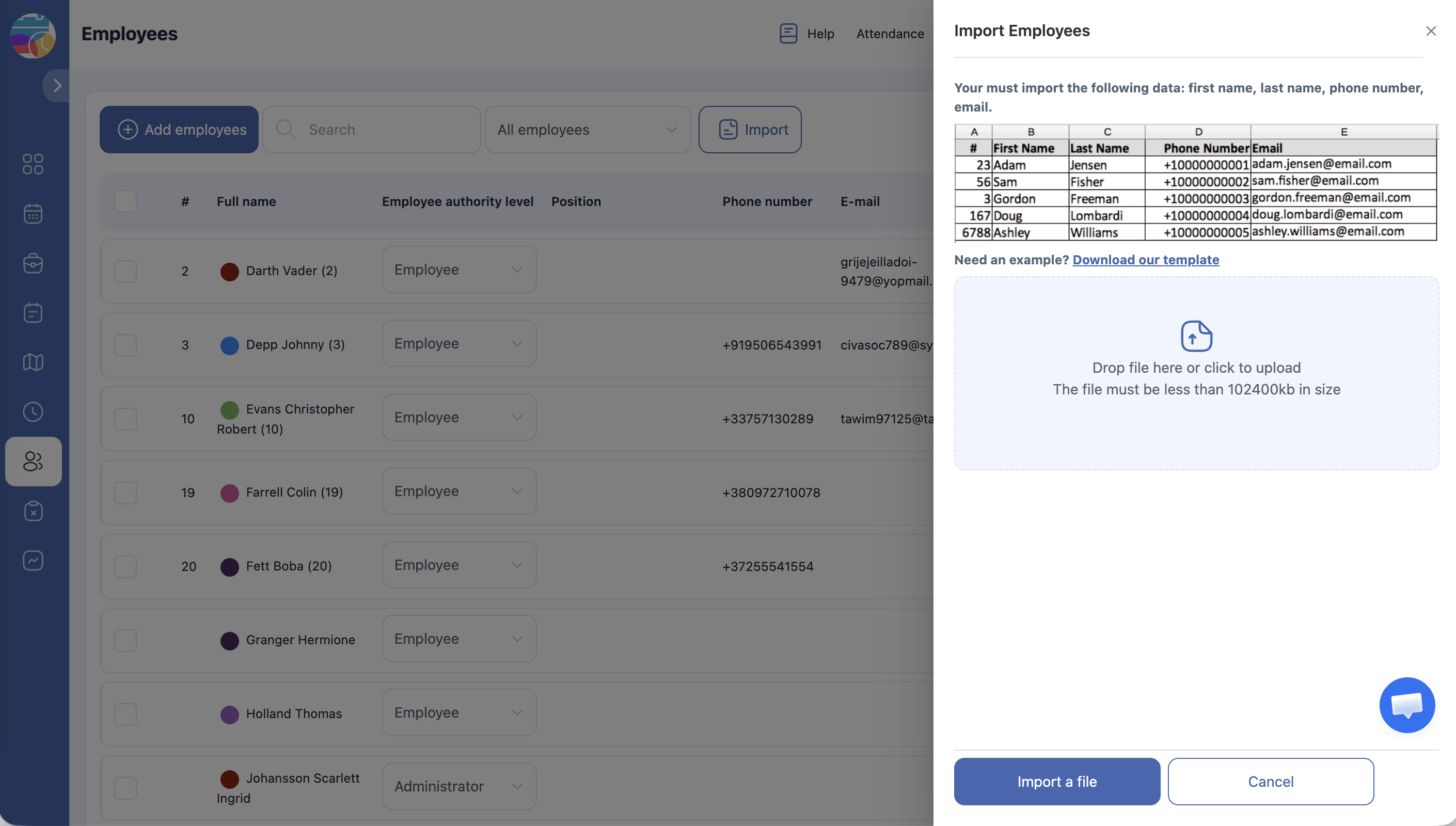
Navigate to the Employees page and click the Import Employees option. The import dialog will appear.
Step 2: Download the Template
Click the Download template link to download the file import_example.xlsx. This template contains the correct column headers and formatting that Shifton expects.
Step 3: Prepare Your Import File
Open the downloaded template and fill in your employee data. The required fields are:
| Column | Required | Description |
|---|---|---|
| First name | Yes | Employee’s first name |
| Last name | Yes | Employee’s last name |
| Phone | Yes | Phone number including country code (e.g., +15551234567) |
| Yes | Employee’s email address |
Follow these guidelines when filling in the template:
- Do not rename, remove, or reorder the column headers
- Enter one employee per row
- Make sure phone numbers include the country code
- Make sure email addresses are valid and unique
- Save the file in
.xlsxformat
Step 4: Upload the File
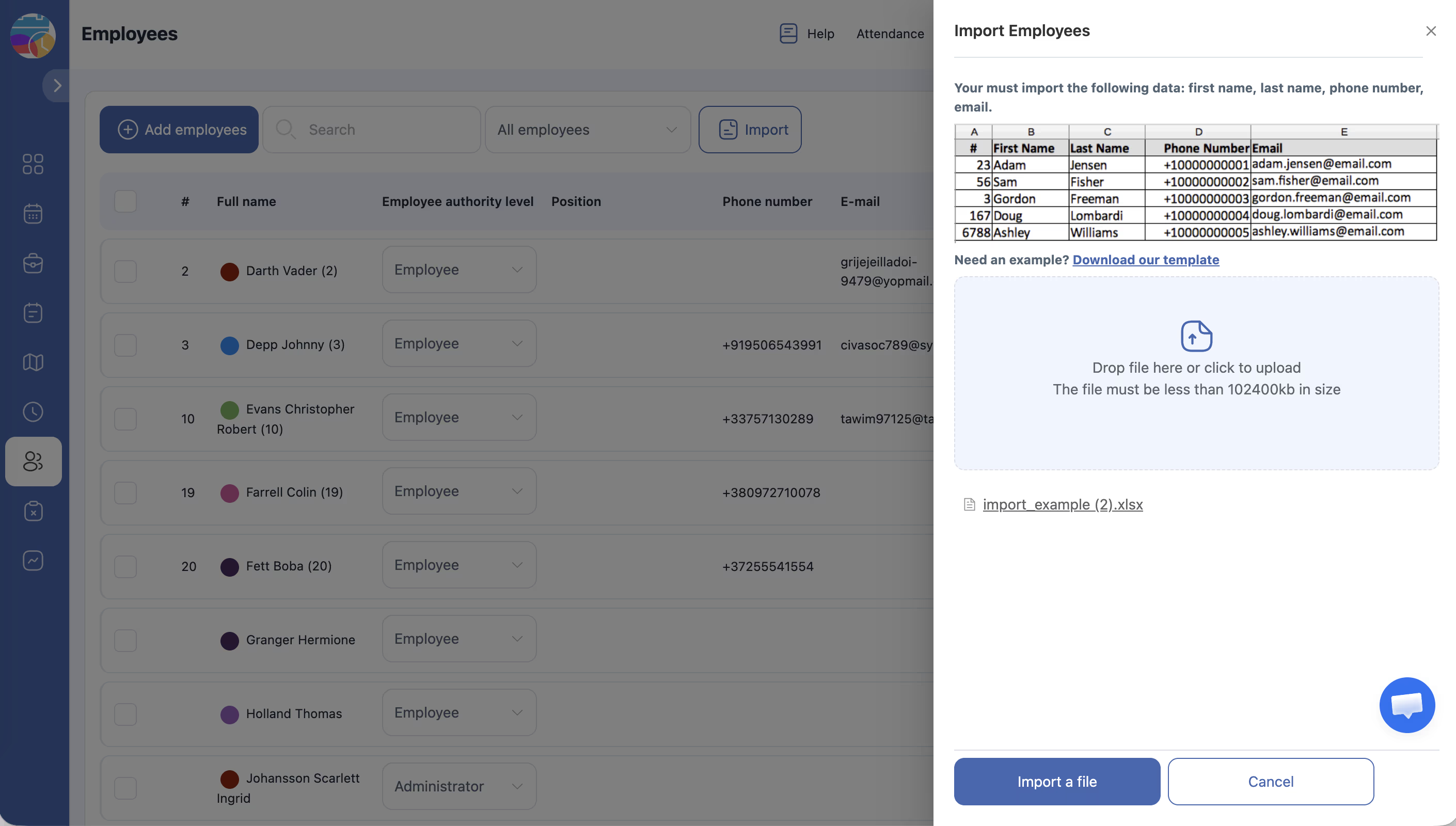
Back in the Import Employees dialog, click the file upload area or drag and drop your prepared file into it. The maximum file size is 100 MB.
Step 5: Map Columns and Configure Options
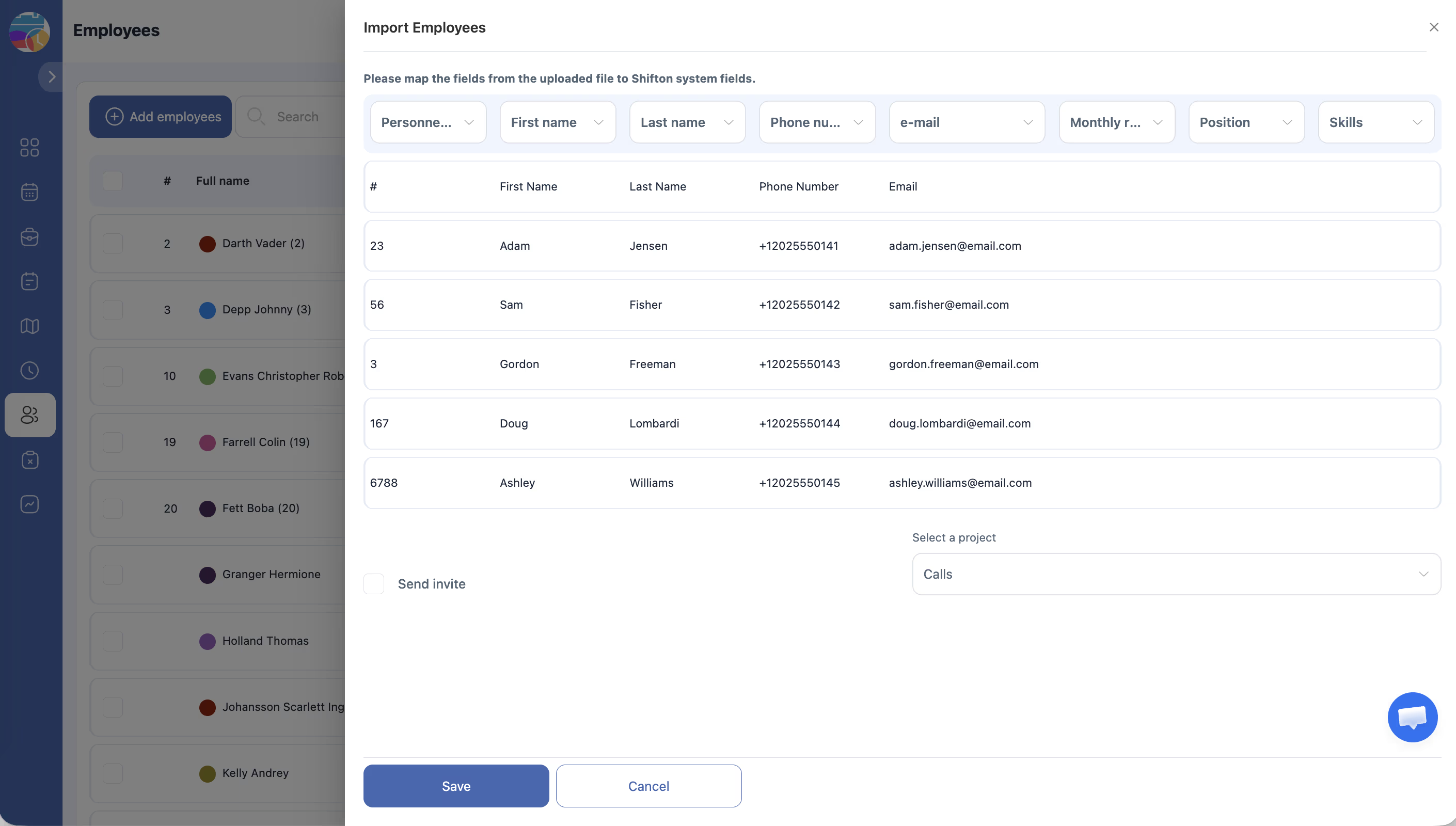
After uploading, Shifton shows a column-mapping screen:
Step 6: Review the Results
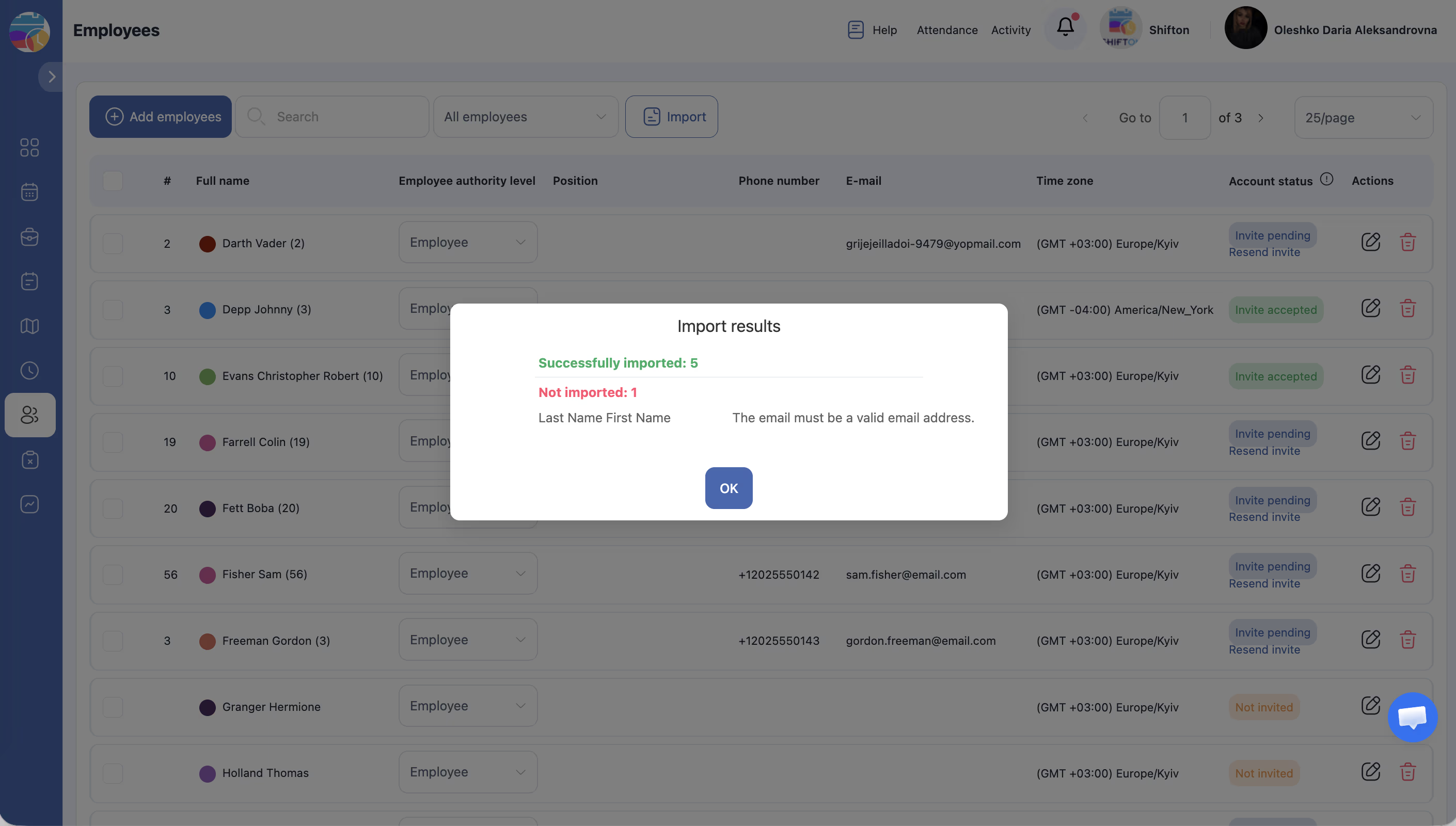
After the import completes, check the Employees page to verify that all employees were added correctly. Review their names, phone numbers, and email addresses. Employees who received invitations will have an Invited status; others will show as Not invited.
Access Permissions
| Role | Can Import Employees? |
|---|---|
| Administrator | Yes |
| Manager | No |
| Employee | No |
FAQ
Q: What file formats are supported for import?
A: The import accepts .xlsx (Excel) files. Use the provided template to ensure the correct format.
Q: What happens if some rows in my file have errors?
A: Rows with missing required fields or invalid data may be skipped. Shifton will notify you of any issues so you can correct them and re-import the affected employees.
Q: Is there a limit on how many employees I can import at once?
A: The file size limit is 100 MB, which can accommodate a very large number of employees. For practical purposes, there is no strict row limit.
Q: Can I update existing employees using the import feature?
A: The import feature is designed for adding new employees. To update existing employee information, edit their profiles individually on the Employees page.
Q: Will imported employees automatically receive an invitation?
A: Only if you check the Send invitations box during the import process. If you leave it unchecked, employees are created with a “Not invited” status and will not be notified until you send invitations separately.
Possible Issues and Solutions
| Issue | Cause | Solution |
|---|---|---|
| Import fails with a format error | The file is not in .xlsx format or the column headers were modified | Download a fresh template, re-enter your data, and save as .xlsx |
| Some employees are missing after import | Rows had missing required fields (first name, last name, phone, or email) | Check the import results for error messages, correct the data, and re-import the missing employees |
| File upload fails | File exceeds the 100 MB size limit | Split your data into multiple smaller files and import them separately |
| Duplicate employees appear | The same employees were imported more than once | Delete the duplicates from the Employees page and ensure each employee appears only once in your import file |
| Phone numbers are not formatted correctly | Country codes are missing or the format is incorrect | Add country codes to all phone numbers (e.g., +1 for US, +44 for UK) and re-import |