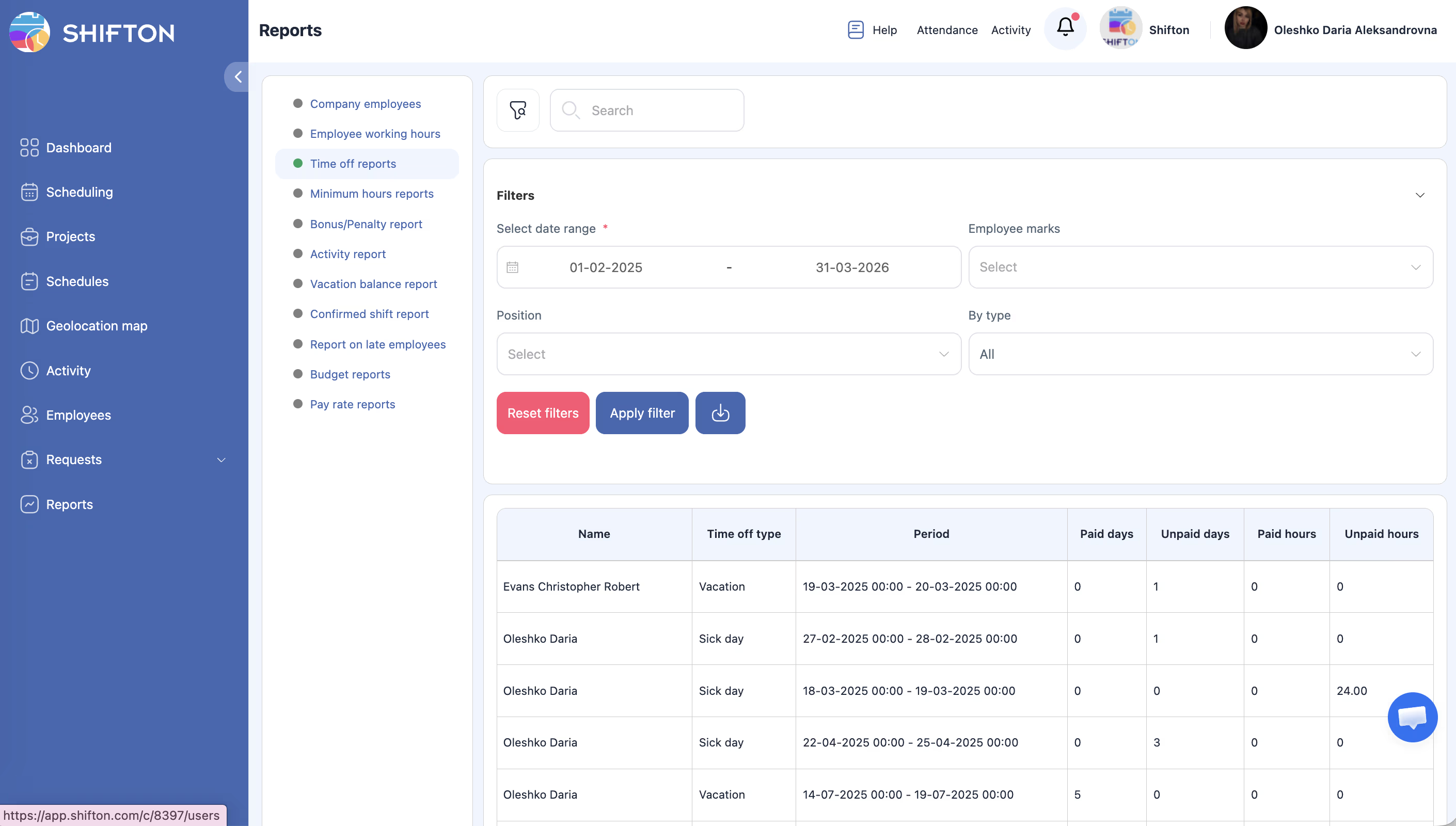
Review time-off records across your organization, broken down by type, with paid and unpaid day and hour totals.
What Is This?
The Time Off Reports provide a summary of all time-off requests that have been approved (or are pending) within a given period. The report breaks down each employee’s time off by type (vacation, sick leave, personal day, etc.) and shows the split between paid and unpaid days and hours. This is essential for tracking leave balances, auditing compliance with leave policies, and preparing payroll adjustments.
Prerequisites
#
Prerequisite
Details
1
Time-off feature active
Time-off types must be configured in your company settings.
2
Time-off requests exist
Employees must have submitted and had time-off requests approved.
3
Manager, Admin, or Owner role
Full access to the report requires elevated permissions.
Step-by-Step Instructions
Accessing the Report
Step
Action
Expected Result
1
Navigate to Reports from the left sidebar.
The Reports page opens.
2
Select Time Off Reports from the report list.
The report loads with filters and the data table.
Applying Filters
Filter
Type
Description
Date range
Date picker
Select the period to analyze time-off records.
Marks
Multi-select
Filter by custom marks/tags assigned to employees.
Position
Dropdown
Filter by employee position.
By type
Dropdown
Filter by specific time-off type (vacation, sick leave, etc.).
Step
Action
Expected Result
1
Set the desired date range and any additional filters.
Filters are configured.
2
Click Apply Filter.
The table updates to show matching time-off records.
Reading the Report Table
Column
Description
Name
Employee’s full name.
Time off type
The category of time off (e.g., Vacation, Sick leave, Personal day).
Period
The start and end dates of the time-off period.
Paid days
Number of paid leave days within this record.
Unpaid days
Number of unpaid leave days within this record.
Paid hours
Total paid leave hours.
Unpaid hours
Total unpaid leave hours.
Access Permissions
Role
View Report
Export Report
See All Employees
Employee
Own data only
No
No
Manager
All
Yes
Yes
Admin
All
Yes
Yes
Owner
All
Yes
Yes
FAQ
Q1: Does this report include pending (unapproved) time-off requests? The report primarily shows approved time off. Pending requests may appear depending on your company’s configuration. Check with your administrator.
Q2: How do I see only vacation records? Use the By type filter and select Vacation. Click Apply Filter to display only vacation-related records.
Q3: What is the difference between paid days and paid hours? Paid days represent the count of full or partial leave days marked as paid. Paid hours show the actual number of hours those days translate to, which can vary based on the employee’s standard workday length.
Q4: Can I export this report for payroll processing? Yes. Click the Export button to download the data. The exported file includes all visible columns and can be used for payroll calculations.
Possible Issues and Solutions
Issue
Possible Cause
Solution
Report shows no data
No time-off requests exist for the selected period, or filters are too restrictive.
Broaden the date range or reset filters.
A time-off type is missing from the “By type” filter
That type has not been configured in company settings.
Add the time-off type in Settings > Time Off Types.
Paid/unpaid split seems incorrect
The time-off type may be configured differently than expected.
Review the paid/unpaid settings for each time-off type in company settings.
Employee’s time off is not showing
The request may not have been approved yet.
Check the employee’s pending requests and approve if appropriate.
Hours do not match expected values
The employee’s standard workday length may differ from assumptions.
Verify the employee’s work schedule and how hours are calculated for partial days.