

Learn the difference between dismissing and deleting an employee in Shifton, and how to find and manage employees in the employee list.
What Is This?
When an employee leaves your company, Shifton gives you two distinct options: Dismiss and Delete. These are not the same action and have very different consequences for your historical records.
In most cases, you should use Dismiss rather than Delete.
Prerequisites
- You have Administrator access to Shifton
- The employee has been previously added to the system
Dismiss / Delete: Key Differences
| Dismiss | Delete | |
|---|---|---|
| When it takes effect | From the date you choose — can be set in the future | Immediately, on confirmation |
| Historical data | Preserved | Permanently removed |
| Past shifts in reports | Remain visible | Disappear from all reports |
| System access | Blocked immediately | Blocked immediately |
| Can be restored | Yes | No |
| When to use | Employee is leaving the company | Employee was added by mistake and never worked |
Step-by-Step: Dismiss an Employee
Use this when an employee is leaving the company and you want to keep their work history.
Step 1: Open the Employee’s Profile
Navigate to the Employees page and click the Edit (pencil icon) in the employee’s row to open their profile.
Step 2: Find the Dismiss Option
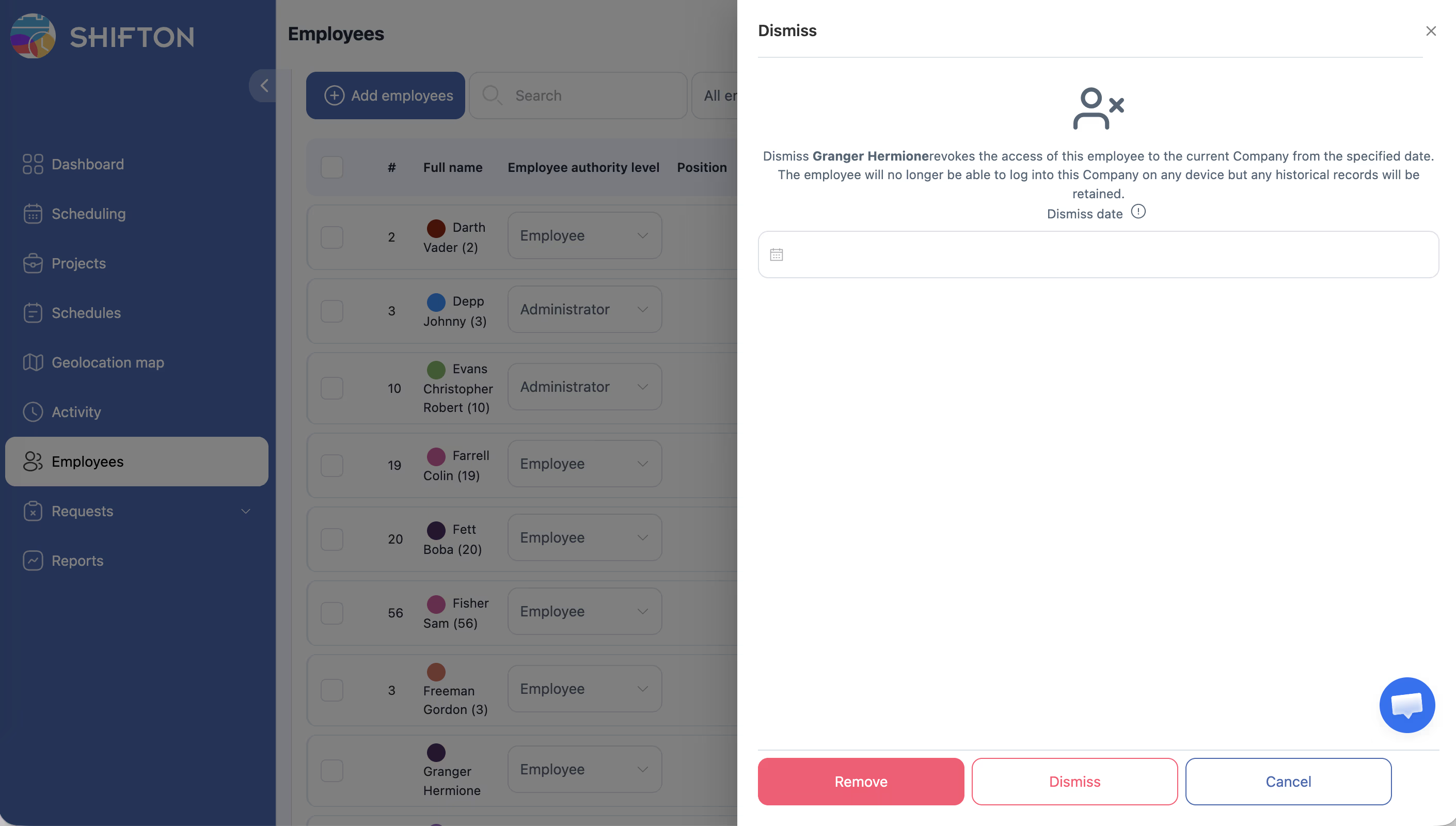
In the employee’s profile panel, locate the Dismiss button. It is typically found at the bottom of the profile or in the Actions menu.
Step 3: Enter the Dismissal Date
The system will ask you to specify a dismissal date. Enter the employee’s last working day.
Step 4: Confirm
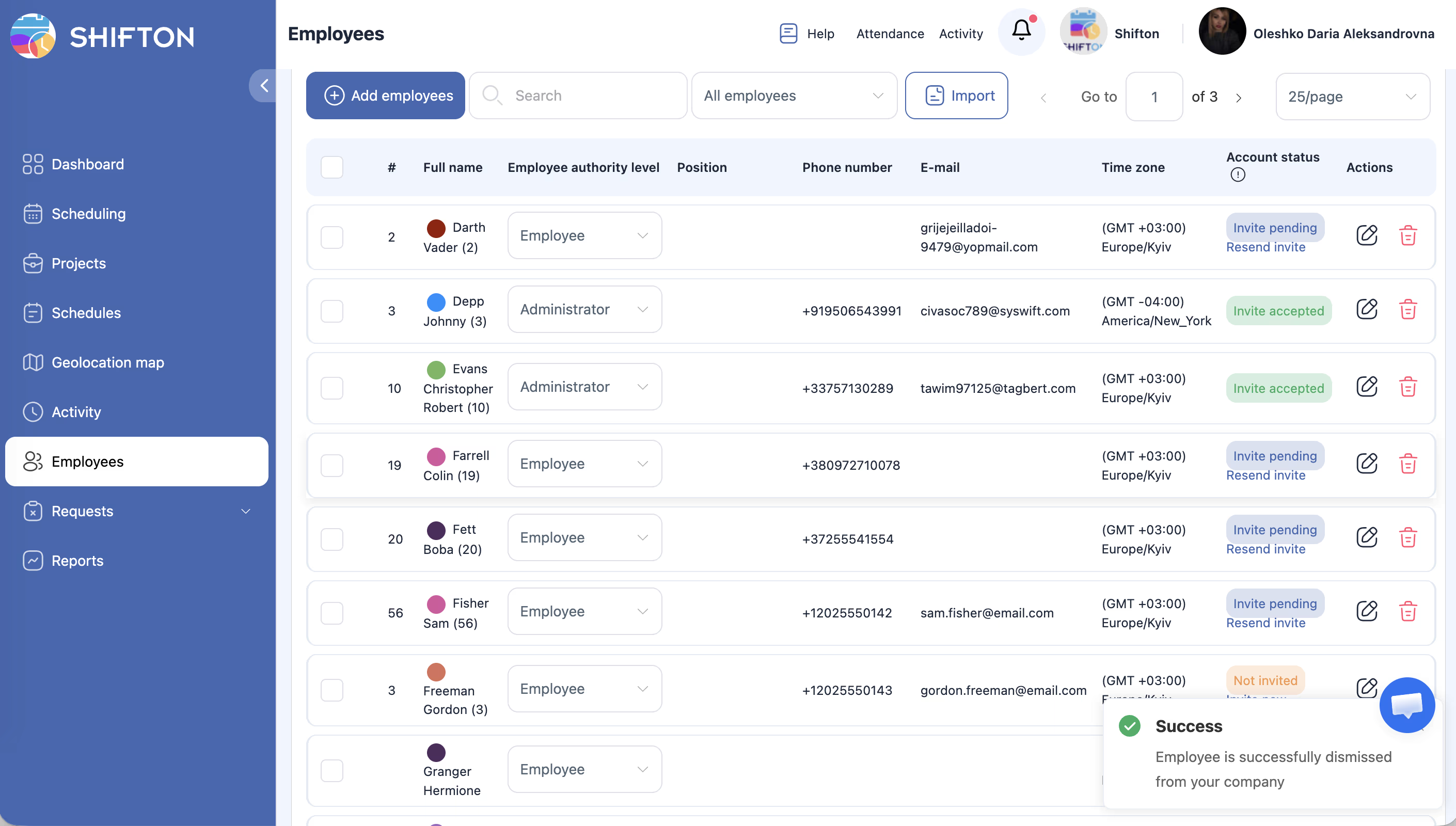
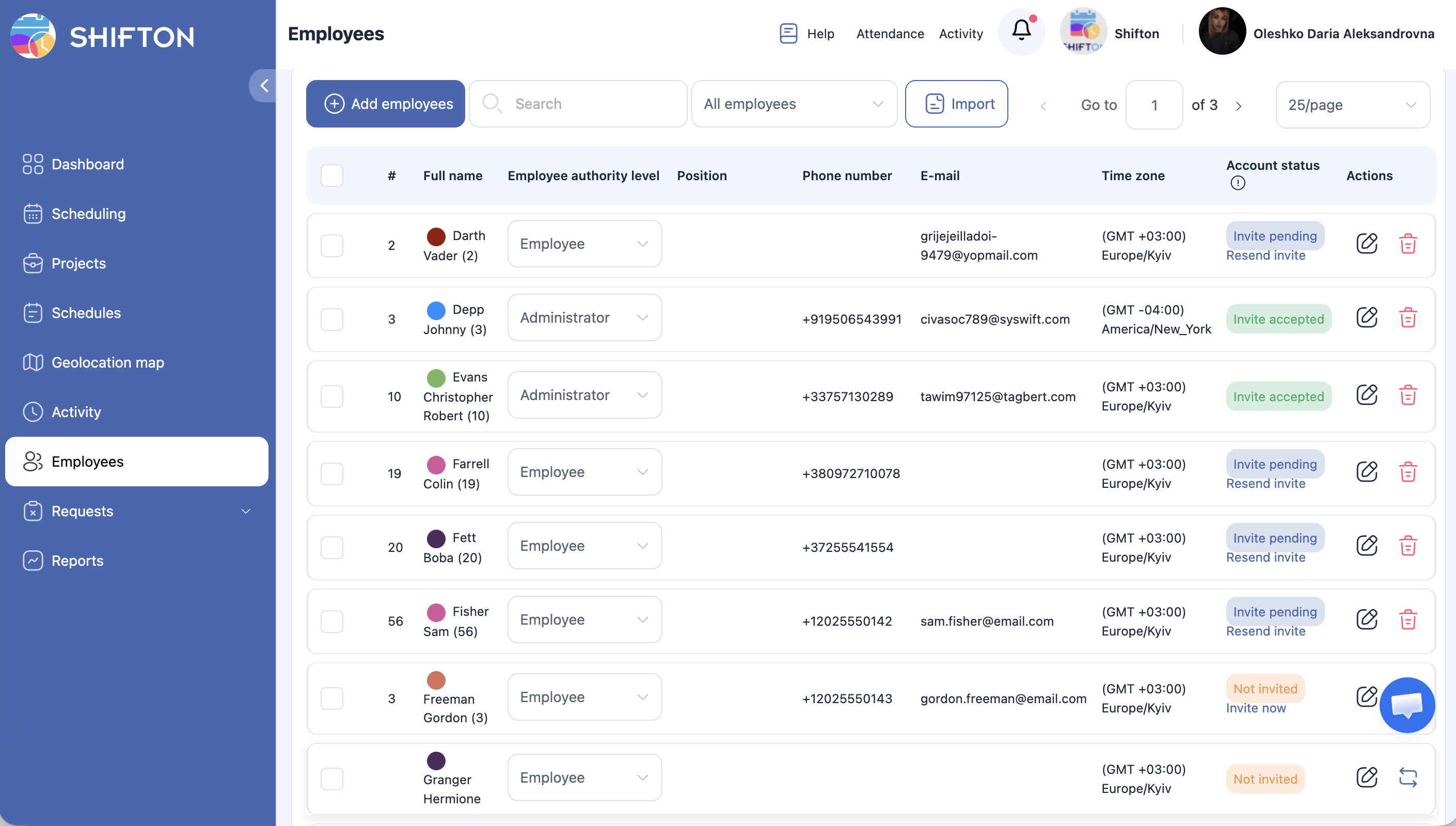
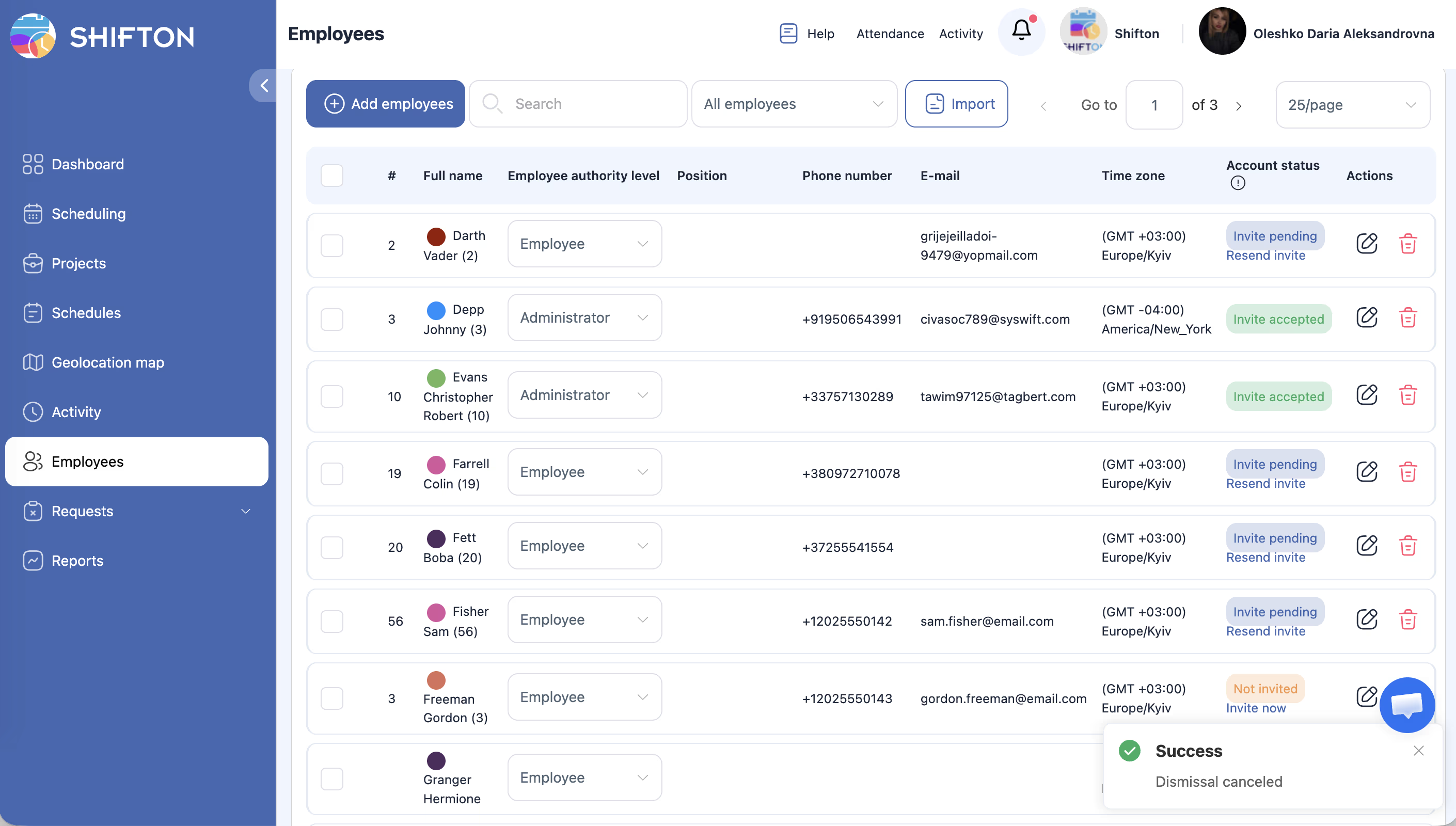
Click the confirmation button. The employee’s access is blocked immediately. Their status in the employee list changes to Dismissed.
What happens after dismissal:
– The employee cannot log in to Shifton
– All past shifts and salary records remain in reports, including the dismissal date in the Company Employees report
– Future scheduled shifts for this employee are automatically removed from the schedule
– The employee is excluded from billing at the next billing cycle
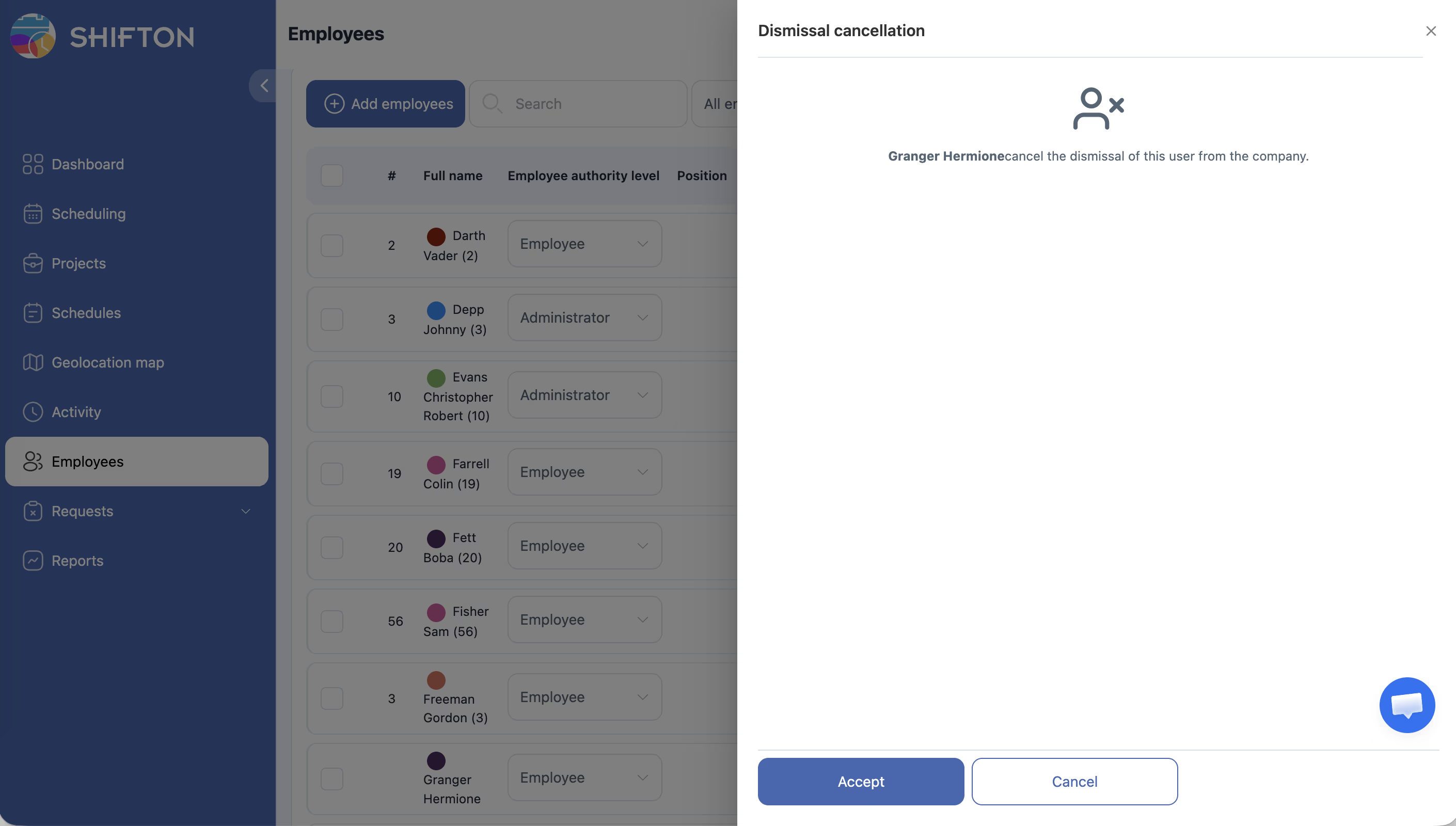
Restoring a dismissed employee:
To restore a dismissed employee, filter the employee list to show dismissed employees, open their profile, and use the restore option.
Step-by-Step: Delete an Employee
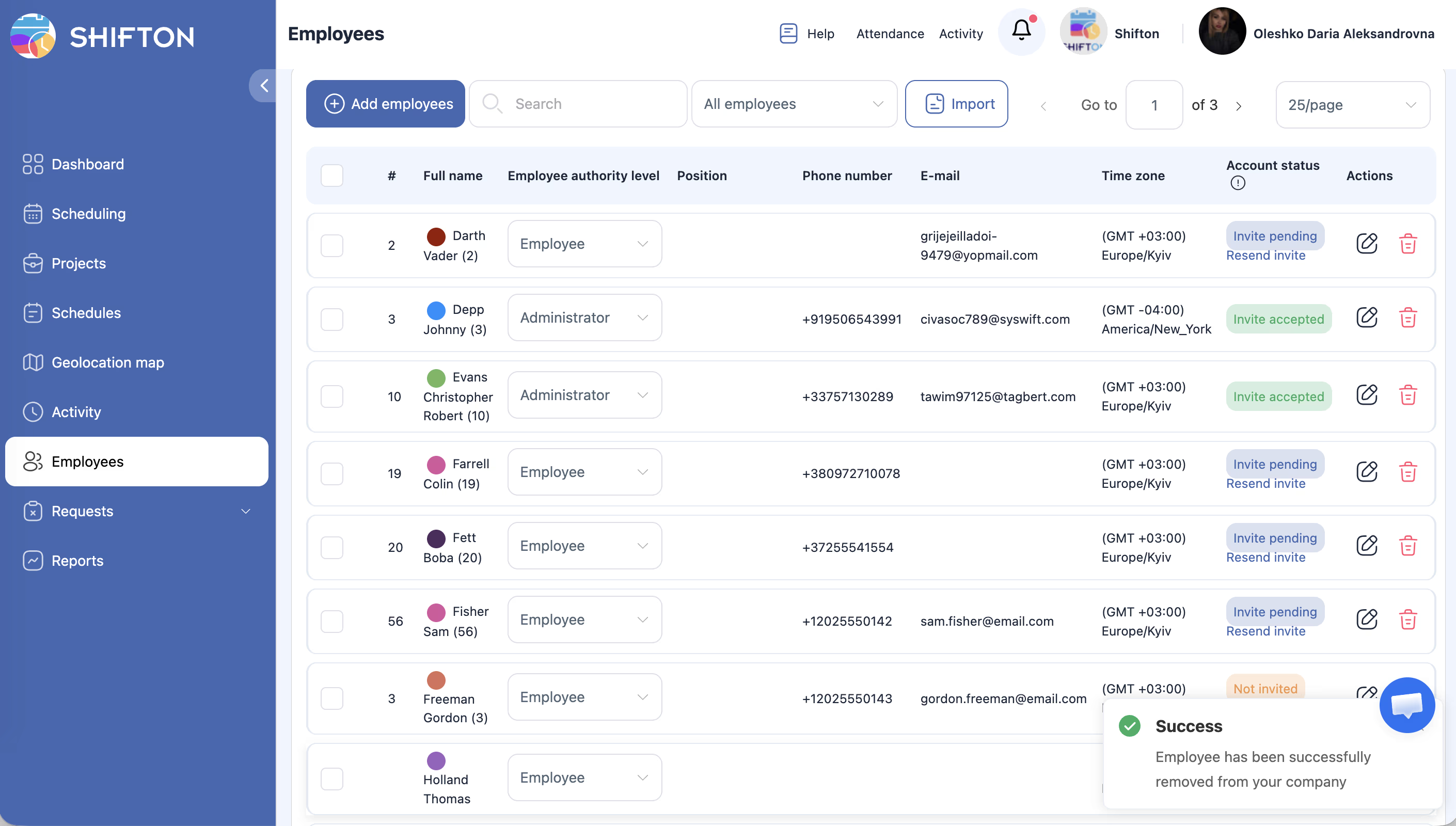
Note: Deletion is permanent and cannot be undone. All data including shift history and salary records will be permanently removed.
Use this only when an employee was added by mistake or never actually worked at the company.
Step 1: Open the Employees Page
Navigate to the Employees page.
Step 2: Click the Trash Icon
Go to the Employees page. Each employee row shows TWO ICONS: a pencil (Edit) and a trash (Delete). Click the trash icon to delete the employee.
Step 3: Confirm Deletion
Confirm the deletion when prompted. Once confirmed, all data is permanently removed.
What happens after deletion:
– All historical shifts for this employee are removed from reports
– The deletion cannot be reversed
Finding Employees in the List
Search
Use the Search field at the top of the employee list to find a specific employee by name. The list filters in real time.
Filter by Project
| Filter Option | Description |
|---|---|
| All | Shows all employees across all projects |
| Without a project | Shows only employees not assigned to any project |
| Specific project name | Shows only employees assigned to that project |
Pagination
Control how many employees are shown per page (25 / 50 / 100) using the pagination setting at the bottom of the list.
Access Permissions
| Role | Can Dismiss Employees? | Can Delete Employees? |
|---|---|---|
| Administrator | Yes | Yes |
| Manager | No | No |
| Employee | No | No |
FAQ
Q: What is the difference between Dismiss and Delete?
A: Dismiss deactivates the employee while keeping all their historical data intact — past shifts, salary records, and reports remain accessible. Delete permanently removes everything. In almost all cases, use Dismiss.
Q: Can I restore a dismissed employee?
A: Yes. Find them in the employee list (filter to show dismissed employees) and restore them through their profile.
Q: Does a dismissed employee still count toward billing?
A: No. After dismissal, the employee is excluded from billing calculations at the next billing cycle.
Q: What happens to future shifts of a dismissed employee?
A: Future shifts are automatically removed from the schedule when an employee is dismissed.
Q: Can I undo a deletion?
A: No. Deletion is permanent. You would need to re-add the employee manually, and historical data cannot be recovered.
Q: What is better — Dismiss or Delete?
A: Use Dismiss in the vast majority of cases. It is the safe option that preserves history and allows restoration. Use Delete only for accounts created by mistake that have no shift history.
Possible Issues and Solutions
| Issue | Cause | Solution |
|---|---|---|
| Cannot find an employee in the list | Search term does not match, or project filter is hiding them | Clear the search field, set the project filter to All, and try again |
| Dismissed employee does not appear in the list | The list filter is not showing dismissed employees | Adjust the employee list filter to include dismissed employees |
| The Delete button is not visible | You do not have Administrator access | Ask an Administrator to perform the deletion |
| Accidentally deleted the wrong employee | Deletion was confirmed in error | Re-add the employee manually. Historical data is not recoverable |
| Dismissed employee still appears in future schedule | Schedule was not updated after dismissal | Refresh the schedule; future shifts should have been automatically removed |