

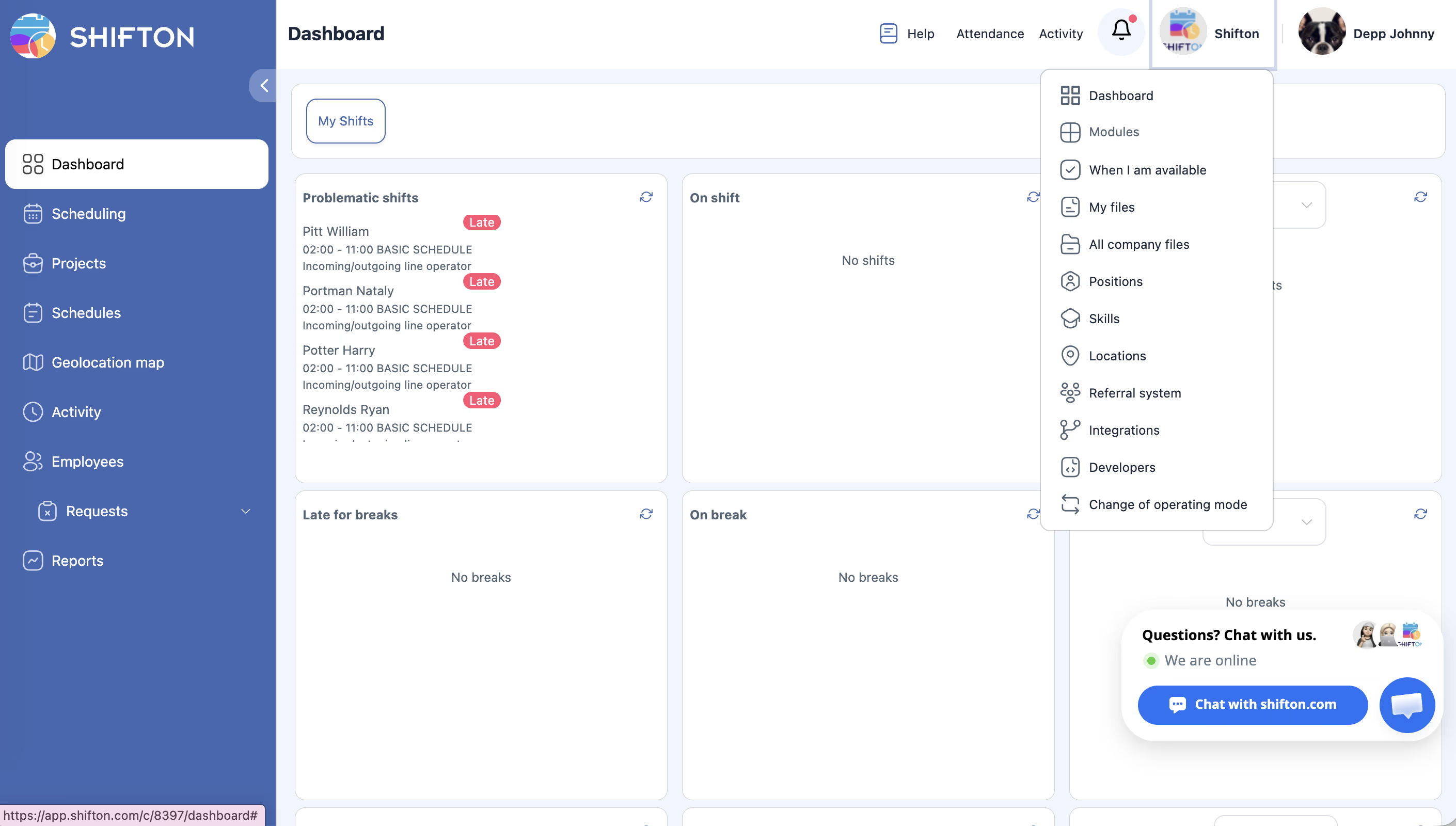
In Shifton, the same interface looks different depending on the role. An Admin sees the full set of Settings and manages the entire company. An Employee sees only their own Schedule and can perform a limited set of actions.
What the Admin Sees
What the Employee Sees
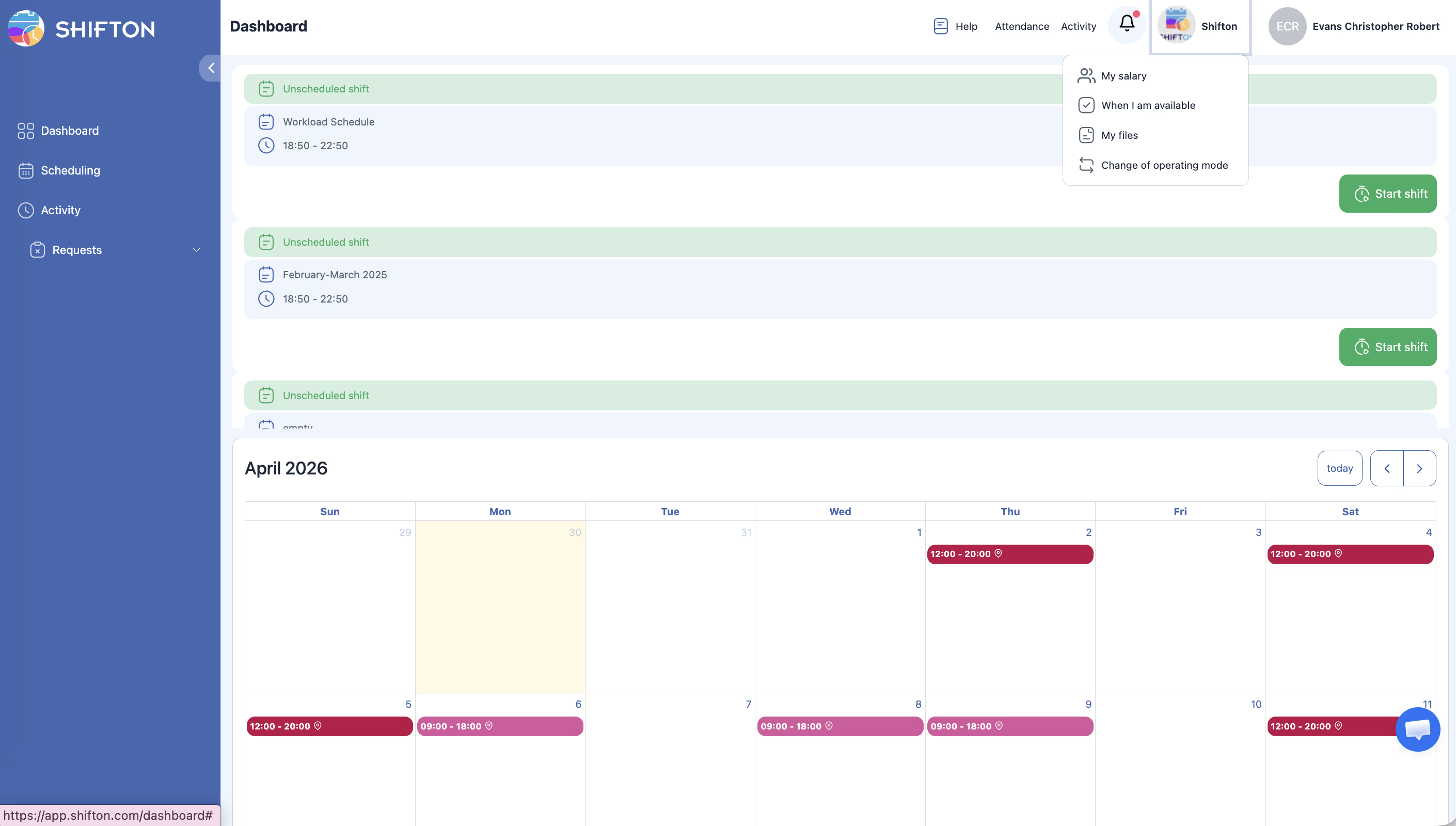
Note:
– Dashboard — list of unconfirmed Shifts (if confirmation is required).
– Scheduling — viewing their own Shifts (and colleagues’ Shifts, if allowed).
– Activities — only their own activities.
– Requests — creating and viewing their own requests.
– Attendance buttons (Start/End shift) and Activity.
Not available:
– Projects, Schedules list, Geolocation map, Employees, Reports sections.
– Publish & notify button, Actions menu, import/export.
– Editing other Employees’ Shifts.
– Company Settings, Modules, Company balance.
Comparison Table
| Feature | Admin | Employee |
|---|---|---|
| Dashboard | Yes | Yes |
| Schedule page | Full control | View only |
| Sees all Shifts | Always | If allowed |
| Sees all Employees | Always | If allowed |
| Creates/edits Shifts | Any | Only own (if allowed) |
| Publish & notify | Yes | No |
| Actions / Bulk actions | Yes | No |
| Import / Export | Yes | No |
| Employees section | Yes | No |
| Reports (11 types) | Yes | No |
| Projects / Schedules list | Yes | No |
| Geolocation map | Yes | No |
| Company Settings / Modules | Yes | No |
| Attendance (Start/End shift) | Yes | Yes |
| Activities (own) | Yes | Yes |
| Requests (own) | Yes | Yes |
| Shift confirmation dialog | No | Yes (if enabled) |
Self-Service Settings
An Admin can expand Employee capabilities through Edit Schedule → Main information.
Visibility
Request Actions
| # | Toggle | What It Allows the Employee to Do |
|---|---|---|
| 1 | Allow shift swapping | Propose a Shift swap with a colleague |
| 2 | Allow employees to send shifts to the open shift list | Return their Shift to the open Shifts list |
| 3 | Allow employees to create their own shifts | Create a request for a new Shift |
| 4 | Allow employees to create breaks | Add a Break (requires the Breaks Module) |
| 5 | Allow employees to drop shifts | Drop a Shift |
| 6 | Allow employees to take shifts from the Open Shifts list | Pick up an open Shift |
| 7 | Allow employees to swap breaks between different shift templates | Swap Breaks between templates |
| 8 | Allow employees to split shifts | Split their Shift into parts |
If a toggle is enabled with With manager confirmation — a request is created and the Manager makes the decision. Without confirmation — the action is performed immediately.
Shift Confirmation
If a Schedule has the Allow with confirmation type, after Shifts are published, the Employee sees a blocking dialog “Confirm changes.” They must click Confirm or Remind later.
Related Articles
FAQ
Q: An Employee cannot see colleagues’ Shifts.
A: In the Schedule settings (Edit Schedule → Main information), enable Allow employees to see all shifts.
Q: How do I set up Shift swapping?
A: Enable Allow shift swapping in the Schedule settings. If needed, activate With manager confirmation.
Q: Can Employees see their estimated salary?
A: Yes, if the Payroll Module is enabled and the checkbox Show the employee his estimated salary is turned on in Company Settings → Salary Settings.
Q: Why does the Employee see the interface in a different language?
A: The language is determined automatically based on the user’s locale.
Q: Can an Employee independently pick up an open Shift?
A: Yes, if the toggle Allow employees to take shifts from the Open Shifts list is enabled in the Schedule settings.
Q: An Employee sees a Start shift button — what is it?
A: A button for starting a Shift via the Attendance Module. It appears for all roles when the Module is active.
Q: Can a Manager use the Publish & notify button?
A: Yes. A Manager can see and use Publish & notify in the Schedules of their assigned projects.
Q: Is the mobile Employee interface different from the web version?
A: The functionality is identical. The mobile app is adapted for smartphones, but the available sections are the same.
Q: Can an Employee change the start time of their Shift?
A: No, unless the toggle Allow employees to create their own shifts is enabled — it allows creating a request for a new Shift.
Q: Does the Employee see the Reports tab?
A: No. The Reports section is available only to Managers and Administrators.
Q: What does the Employee see on the Dashboard?
A: A list of unconfirmed Shifts (if the Allow with confirmation type is enabled) and activity/Break widgets.
Q: Can an Employee see other Employees in the Schedule?
A: Yes, if the parameter Allow employees to see all shifts is enabled in Edit Schedule → Main information.
Q: Can an Employee edit their own profile?
A: Yes — name, contacts, notification settings. They cannot change their role or salary.
Q: Does a Manager see the Geolocation map section?
A: No. The Geolocation map is available only to global Administrators.
Q: Can an Employee create their own Break?
A: Yes, if the toggle Allow employees to create breaks is enabled in the Schedule settings and the Breaks Module is active.
Q: What does the Employee see when logging into the mobile app?
A: Their Shifts, availability, activities, and requests. The feature set is identical to the web version for the Employee role.
Q: How do I configure it so Employees only see colleagues with the same position?
A: Edit Schedule → Main information → enable Show employees with the same position instead of Show all employees.
Q: Can an Employee split their Shift into two parts?
A: Yes, if the toggle Allow employees to split shifts is enabled in the Schedule settings. A split request is created.
Q: An Employee sees a “Confirm” button — what is it?
A: If the Schedule uses the Allow with confirmation type, the Employee must confirm their Shifts after the Schedule is published.