

Control which data layers are visible on the schedule grid using six toggleable overlays. Show or hide shifts, time off, availability, breaks, and more.
What Is This?
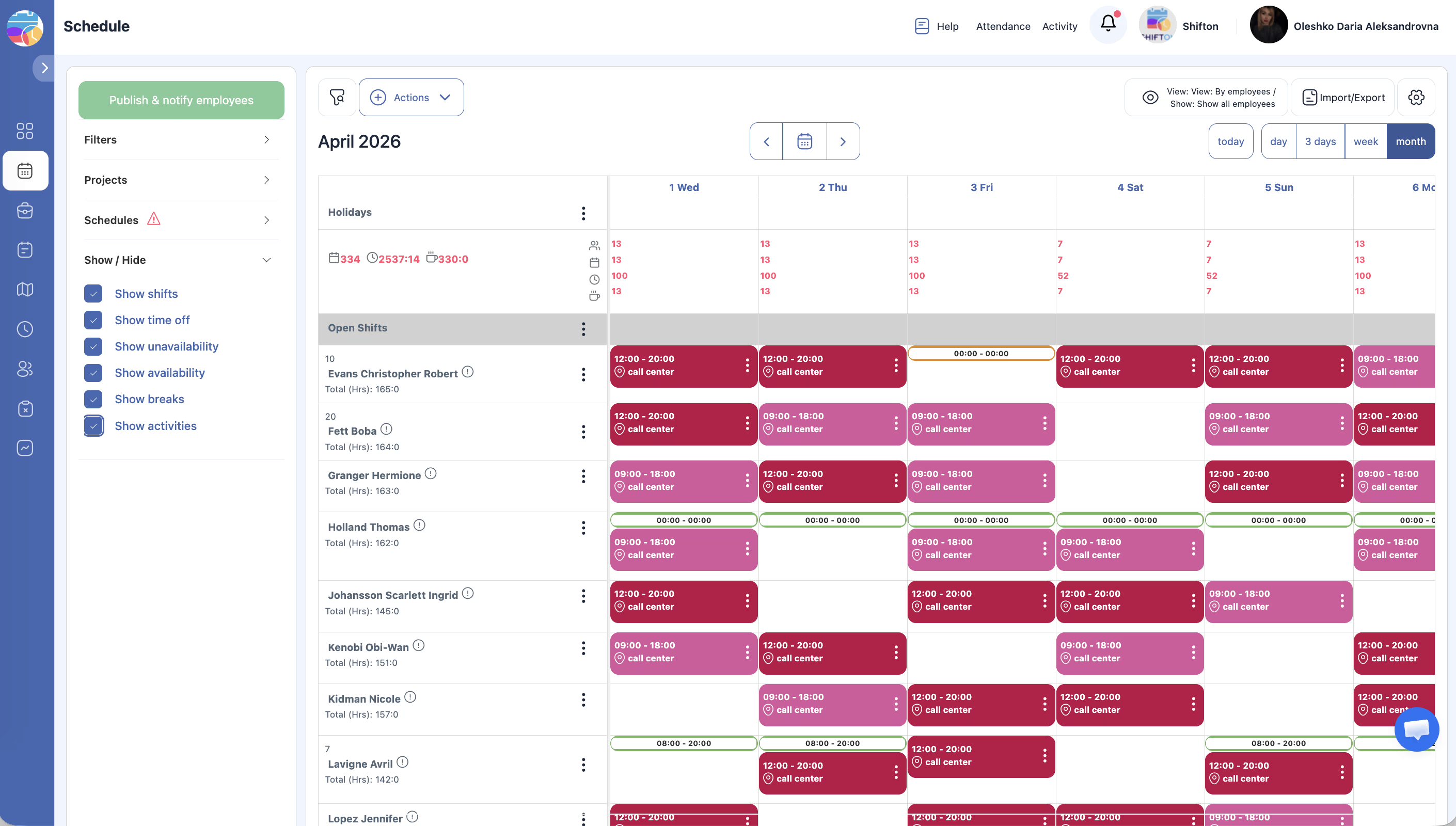
The Show/Hide section in the left panel lets you toggle six different data overlays on and off. These overlays determine what types of information appear on the calendar grid alongside employee rows. By default, some overlays are turned on and others are off, but you can customize the view to suit your needs.
Prerequisites
| # | Prerequisite | Details |
|---|---|---|
| 1 | Access to the Schedule page | You must have at least one project with a schedule |
| 2 | Manager, Admin, or Owner role | Full overlay access requires management permissions |
Step-by-Step Instructions
Accessing the Show/Hide Section
The Six Overlays
| # | Overlay | Default State | Description |
|---|---|---|---|
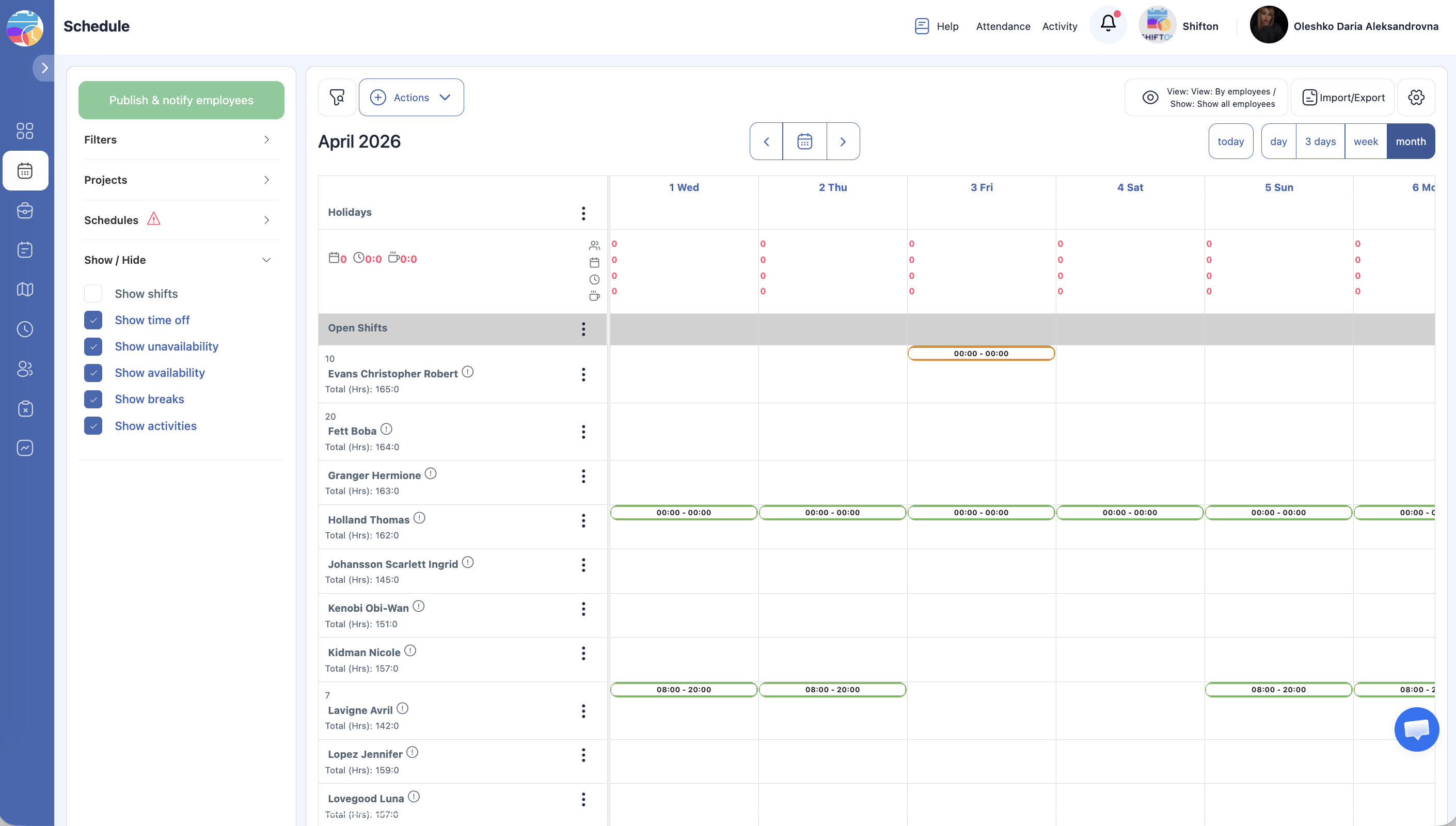
| 1 | Show shifts | On | Displays all assigned shifts as colored blocks on the grid. Turn off to hide shift blocks and see other data layers more clearly. |
| 2 | Show time off | On | Displays approved time-off entries (vacation, sick leave, etc.) on the grid. Time off typically appears as a distinct colored block or icon. |
| 3 | Show unavailability | On | Displays periods when employees have marked themselves as unavailable. Helps you see at a glance when someone cannot work. |
| 4 | Show availability | Off | Displays periods when employees have indicated they are available to work. Useful when building schedules around employee preferences. |
| 5 | Show breaks | On | Displays break periods within shifts. Breaks appear as a different color or pattern within the shift block. |
| 6 | Show activities | Off | Displays activity entries (tasks, activities, or assignments) on the grid. Turn on when you need to see what activities are planned during shifts. |
Toggling Overlays
How Overlays Interact with the Grid
If the grid feels too cluttered, turn off overlays you do not need at the moment.
Access Permissions
| Role | View Show/Hide Section | Toggle Overlays |
|---|---|---|
| Owner | Yes | Yes |
| Admin | Yes | Yes |
| Manager | Yes | Yes |
| Employee | Limited | Limited |
FAQ
Q: Why are some overlays turned off by default?
A: The default settings prioritize the most commonly needed information — shifts, time off, unavailability, and breaks. Availability and activities are off by default to reduce visual clutter, but you can turn them on whenever you need them.
Q: Do overlay settings affect other users?
A: No. Overlay toggles are personal preferences that only change your own view of the schedule.
Q: Can I see availability and shifts at the same time?
A: Yes. Turn on both “Show shifts” and “Show availability” to see assigned shifts alongside employee availability. This is helpful when looking for gaps in coverage or identifying employees who could take additional shifts.
Q: What does unavailability look like on the grid?
A: Unavailability is typically displayed as a shaded or hatched block on the employee’s row, indicating the times they cannot work. The exact appearance may vary depending on your view mode and zoom level.
Possible Issues and Solutions
| Issue | Possible Cause | Solution |
|---|---|---|
| Grid appears empty even though shifts exist | “Show shifts” is toggled off | Turn on the “Show shifts” overlay |
| Too much information on the grid | Multiple overlays are active simultaneously | Turn off overlays you do not need at the moment |
| Time off not visible even though it was approved | “Show time off” is toggled off | Turn on the “Show time off” overlay |
| Breaks are not showing within shift blocks | “Show breaks” is toggled off | Turn on the “Show breaks” overlay |
| Availability shading is confusing alongside shifts | Both overlays are active, making the grid cluttered | Turn off “Show availability” when you do not need it, or turn off “Show shifts” temporarily to view availability alone |