

Learn how to add individual shifts to employees using the Add Shift form, including the Period and Specific Days tabs, shift templates, and all available fields.
What Is This?
Adding shifts is one of the most common actions on the Schedule page. Whether you are filling in an Empty schedule from scratch or making adjustments to an automatically generated schedule, the Add Shift form lets you assign a shift to a specific employee with full control over dates, times, breaks, locations, and notes.
Prerequisites
| # | Prerequisite | Details |
|---|---|---|
| 1 | Access to the Schedule page | You must have at least one project with a schedule |
| 2 | Admin, Owner, or Manager role | You need permissions to add shifts |
| 3 | Employees assigned to the project | You can only add shifts to employees in the project |
| 4 | At least one schedule created | Shifts must belong to a schedule |
Step-by-Step Instructions
Opening the Add Shift Form
Understanding the Two Tabs
The Add Shift form has two tabs at the top:
| Tab | Description |
|---|---|
| Period (default) | Add shifts over a date range with specific days of the week selected |
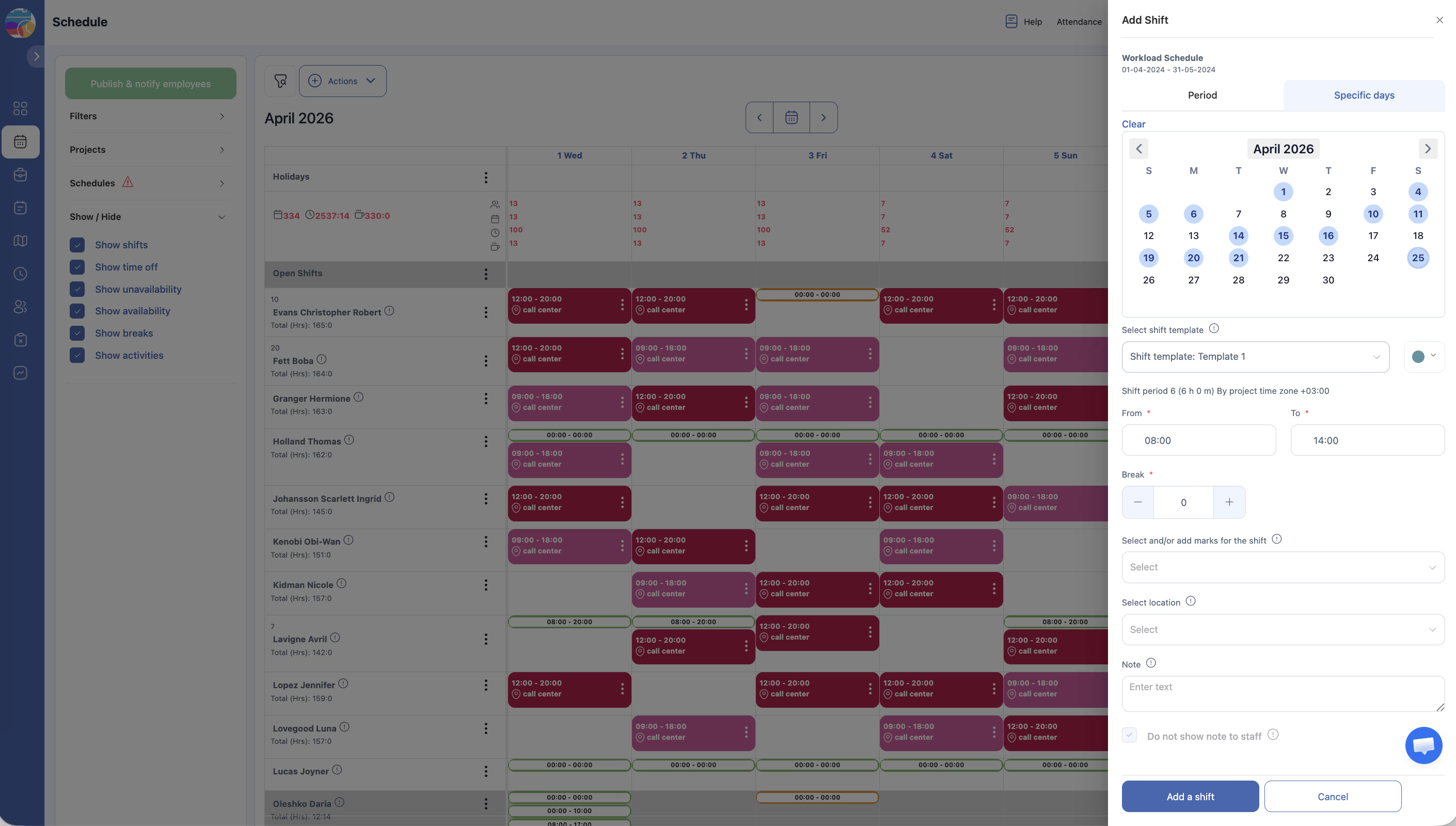
| Specific days | Add shifts on individually selected dates |
Adding a Shift Using the Period Tab
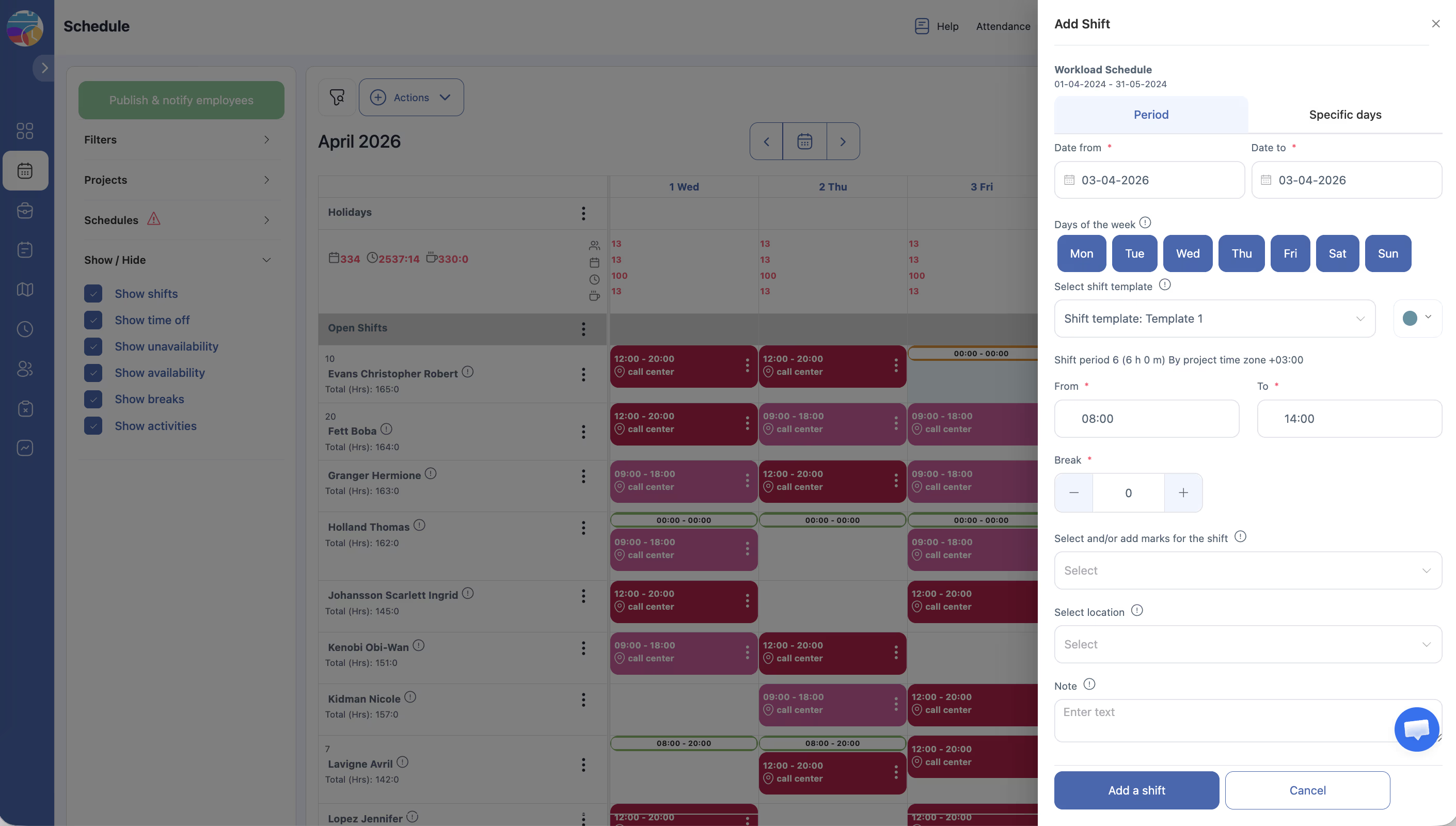
| Field | Description |
|---|---|
| Date from | The start date of the period |
| Date to | The end date of the period |
| Days of week toggles | Click to select which days of the week the shift should apply to (e.g., Mon, Tue, Wed) |
| Shift template | Select a pre-defined shift template from the dropdown to auto-fill time and break fields. The template’s color is also applied. |
| Shift period | Auto-calculated based on the From/To times — shows the total shift duration |
| From (time) | The shift start time |
| To (time) | The shift end time |
| Break (minutes) | The break duration in minutes |
| Marks | Add any custom marks or tags to this shift |
| Location | Assign a work location to the shift |
| Note | Add a text note with additional information |
| Hide note | Check this box to make the note visible only to managers (not employees) |
Adding a Shift Using the Specific Days Tab
Using Shift Templates
Access Permissions
| Role | Add Shifts | Edit Shift Details | Use Shift Templates | Add Notes |
|---|---|---|---|---|
| Owner | Yes | Yes | Yes | Yes |
| Admin | Yes | Yes | Yes | Yes |
| Manager | Yes (assigned projects) | Yes (assigned projects) | Yes | Yes |
| Employee | Only if “Create own shifts” permission is enabled | No | No | No |
FAQ
Q: What is the difference between the Period and Specific Days tabs?
A: The Period tab lets you add shifts over a date range with selected days of the week (e.g., every Monday and Wednesday from March 1-31). The Specific Days tab lets you pick individual dates on a calendar, which is useful for irregular schedules.
Q: Can I add multiple shifts to the same employee on the same day?
A: Yes, you can add more than one shift per day for the same employee, such as a split shift (morning and evening).
Q: What does the “Hide note” checkbox do?
A: When checked, the note is only visible to managers and administrators. Employees will not see it on their schedule view. Use this for internal comments or reminders.
Q: Do I have to use a shift template?
A: No. Shift templates are optional. You can manually enter all the time and break values without selecting a template.
Q: Can I add shifts to the Open Shifts row instead of a specific employee?
A: Yes. You can add open shifts using the context menu on the Open Shifts row. See the Open Shifts article for more details.
Possible Issues and Solutions
| Issue | Possible Cause | Solution |
|---|---|---|
| “Add shift to employee” option is not available | Insufficient permissions or the employee is not in the project | Confirm your role and that the employee is assigned to the project |
| Shift template dropdown is empty | No shift templates have been created | Create templates on the Shift Templates tab of the Schedules page |
| Shift period shows incorrect duration | The From/To times are set incorrectly | Adjust the start and end times — the period recalculates automatically |
| Cannot select certain days of the week | The schedule’s date range does not include those days | Check the schedule’s start and end dates |
| Shift note is visible to employees | The “Hide note” checkbox was not checked | Edit the shift and enable the “Hide note” option |