

Modify shift details such as times, breaks, and locations, reassign shifts to different employees, or remove shifts from the schedule entirely.
What Is This?
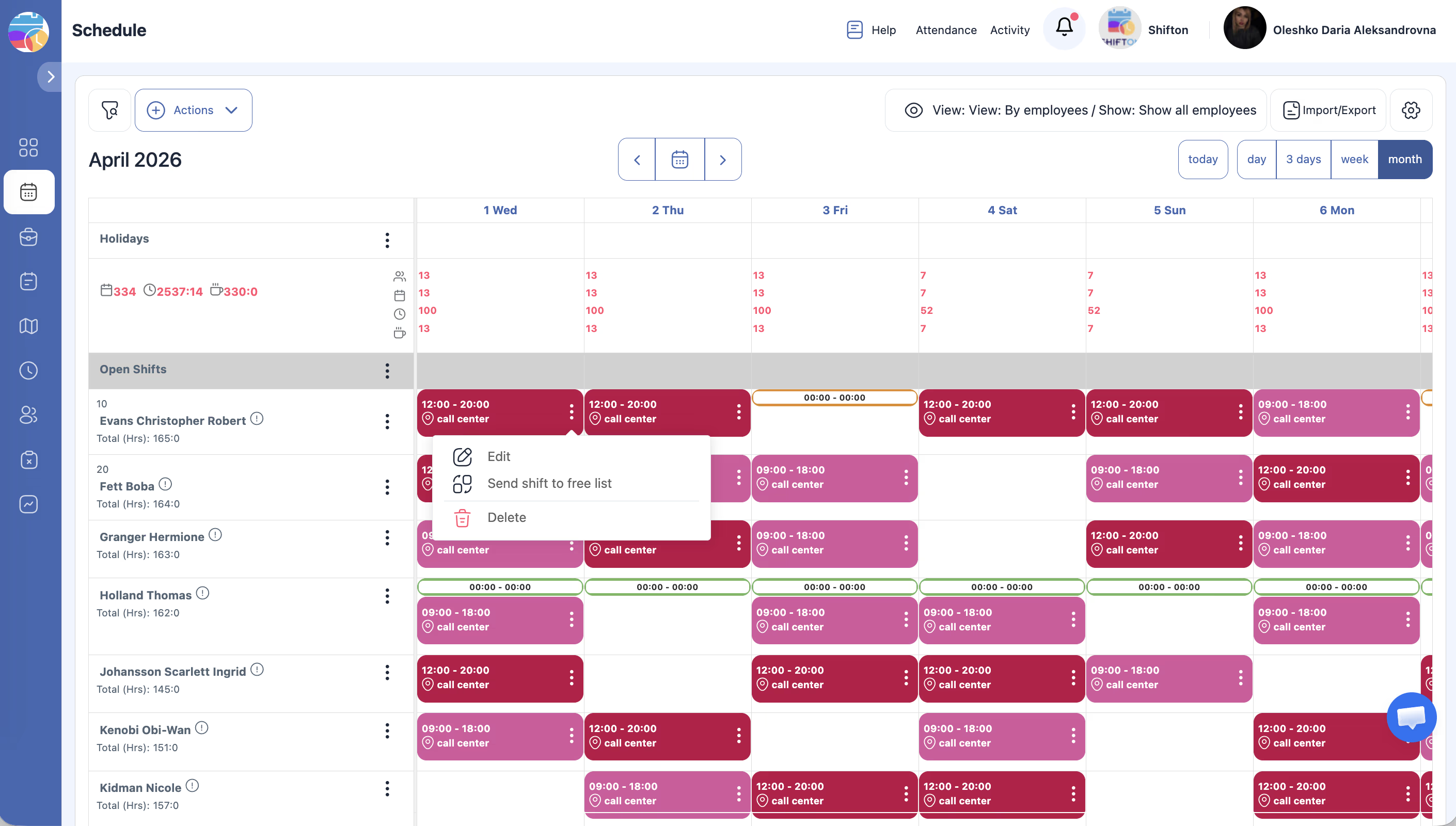
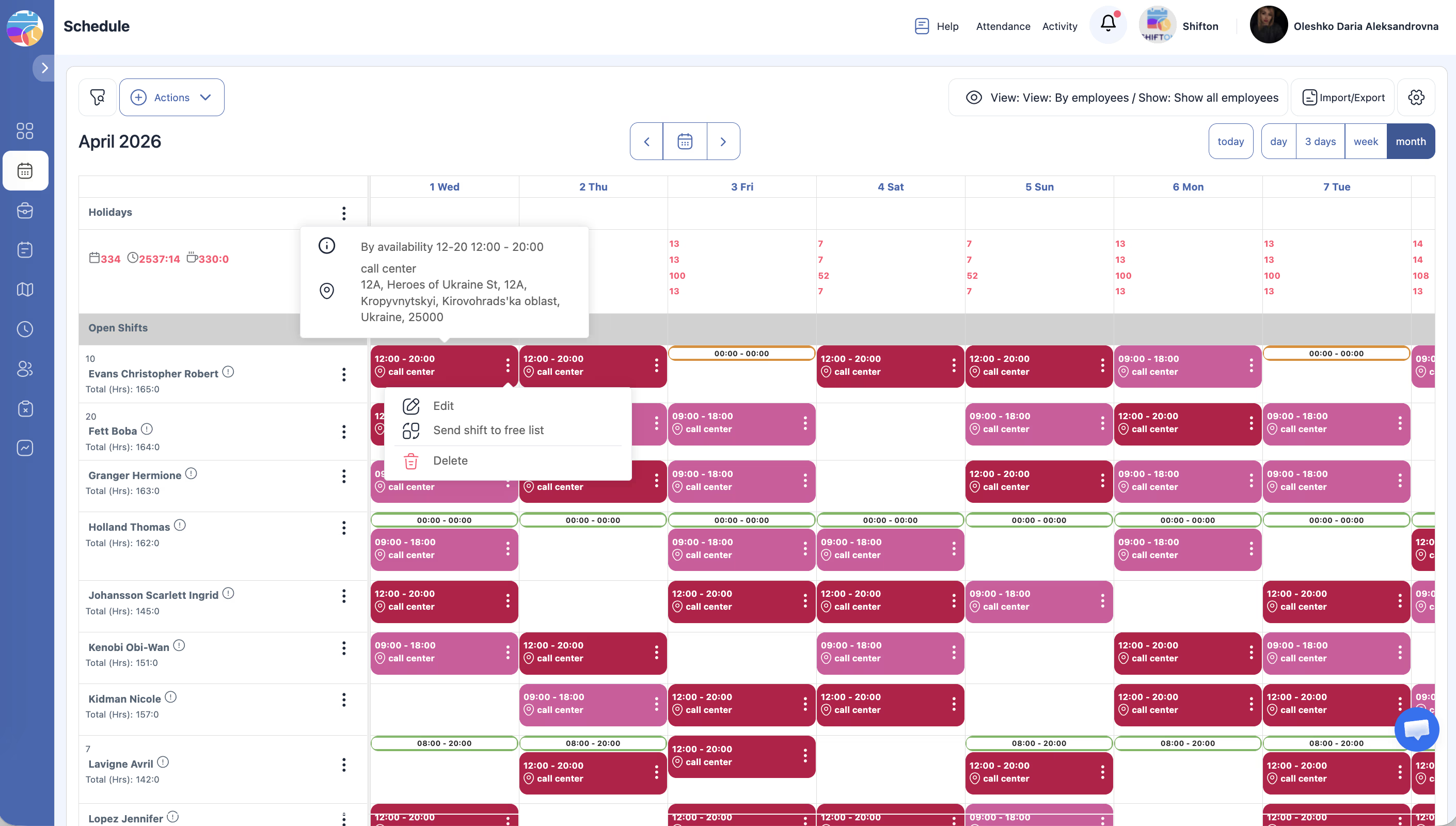
After shifts have been added to the schedule — whether automatically generated or manually created — you may need to make changes. Shifton allows you to edit any shift’s details, reassign it to a different employee, or delete it completely. These actions help you keep the schedule accurate and up to date as circumstances change.
Prerequisites
| # | Prerequisite | Details |
|---|---|---|
| 1 | Access to the Schedule page | You must have a project with existing shifts |
| 2 | Admin, Owner, or Manager role | You need permissions to edit and delete shifts |
Step-by-Step Instructions
Editing a Shift
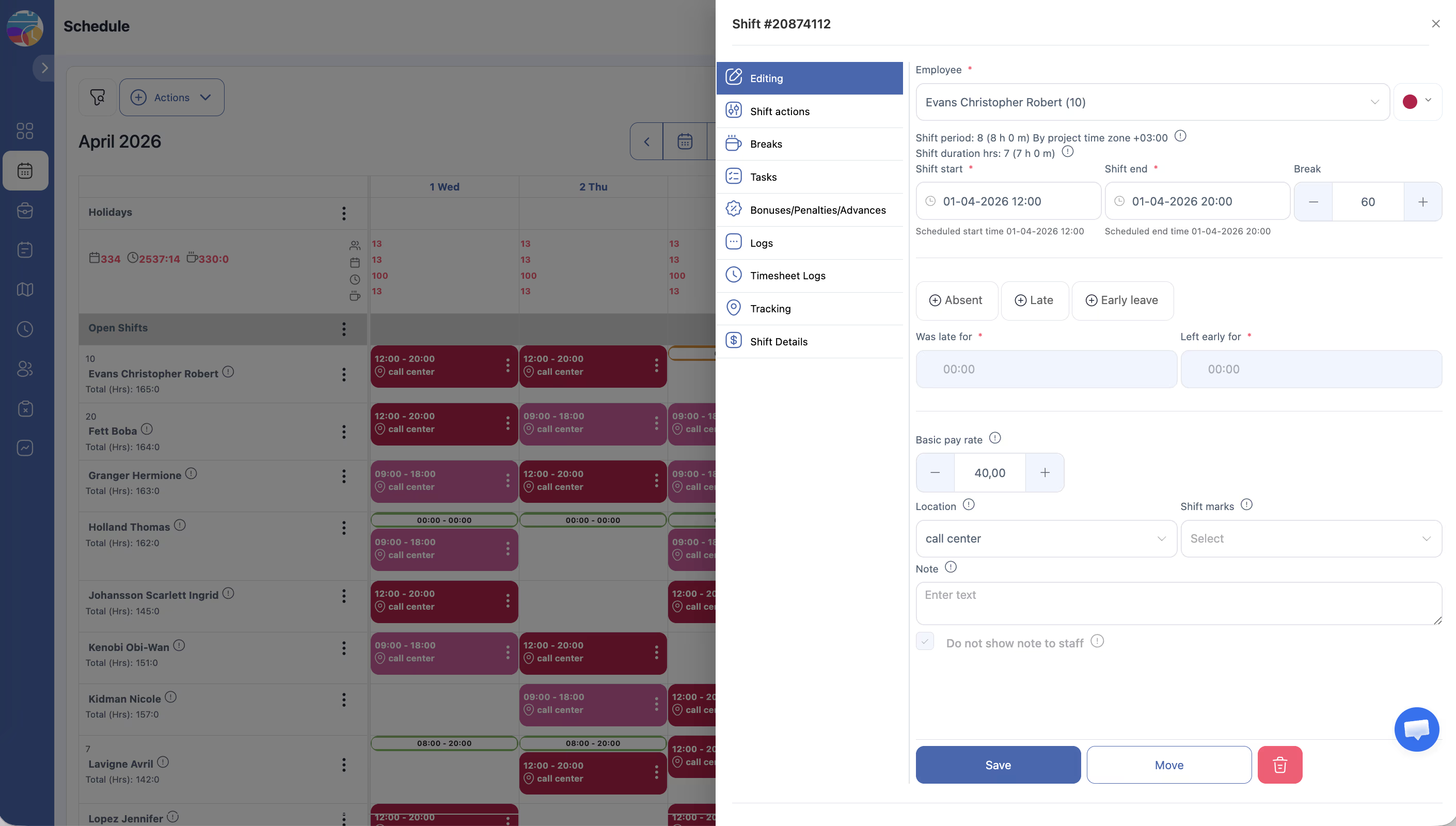
| Field | Description |
|---|---|
| Date | Change the date of the shift |
| From / To (time) | Adjust the start and end times |
| Break (minutes) | Change the break duration |
| Shift template | Switch to a different shift template |
| Location | Change the assigned work location |
| Marks | Add or remove shift marks |
| Note | Update or add a text note |
| Hide note | Toggle visibility of the note to employees |
Reassigning a Shift to a Different Employee
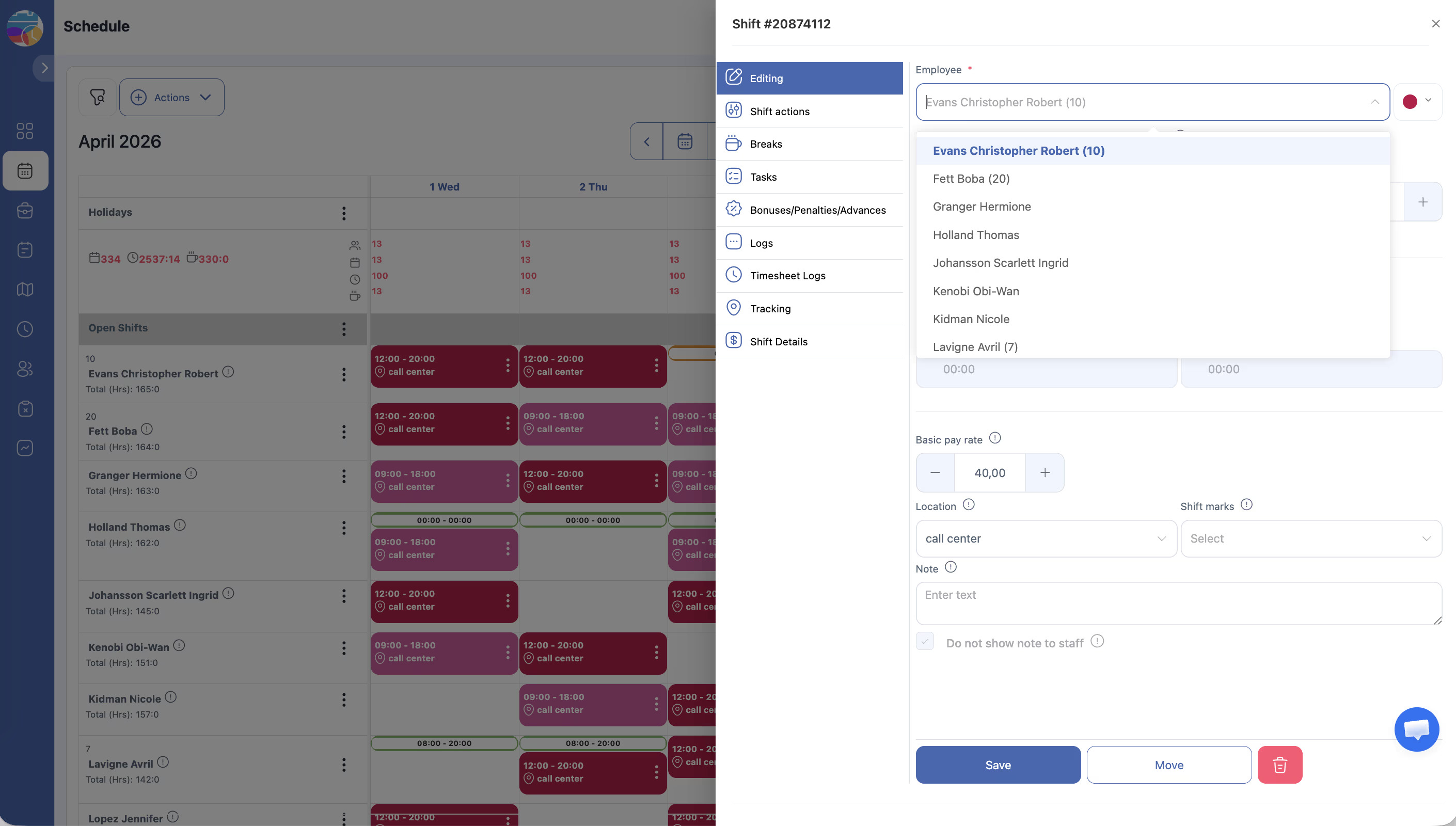
Deleting a Shift
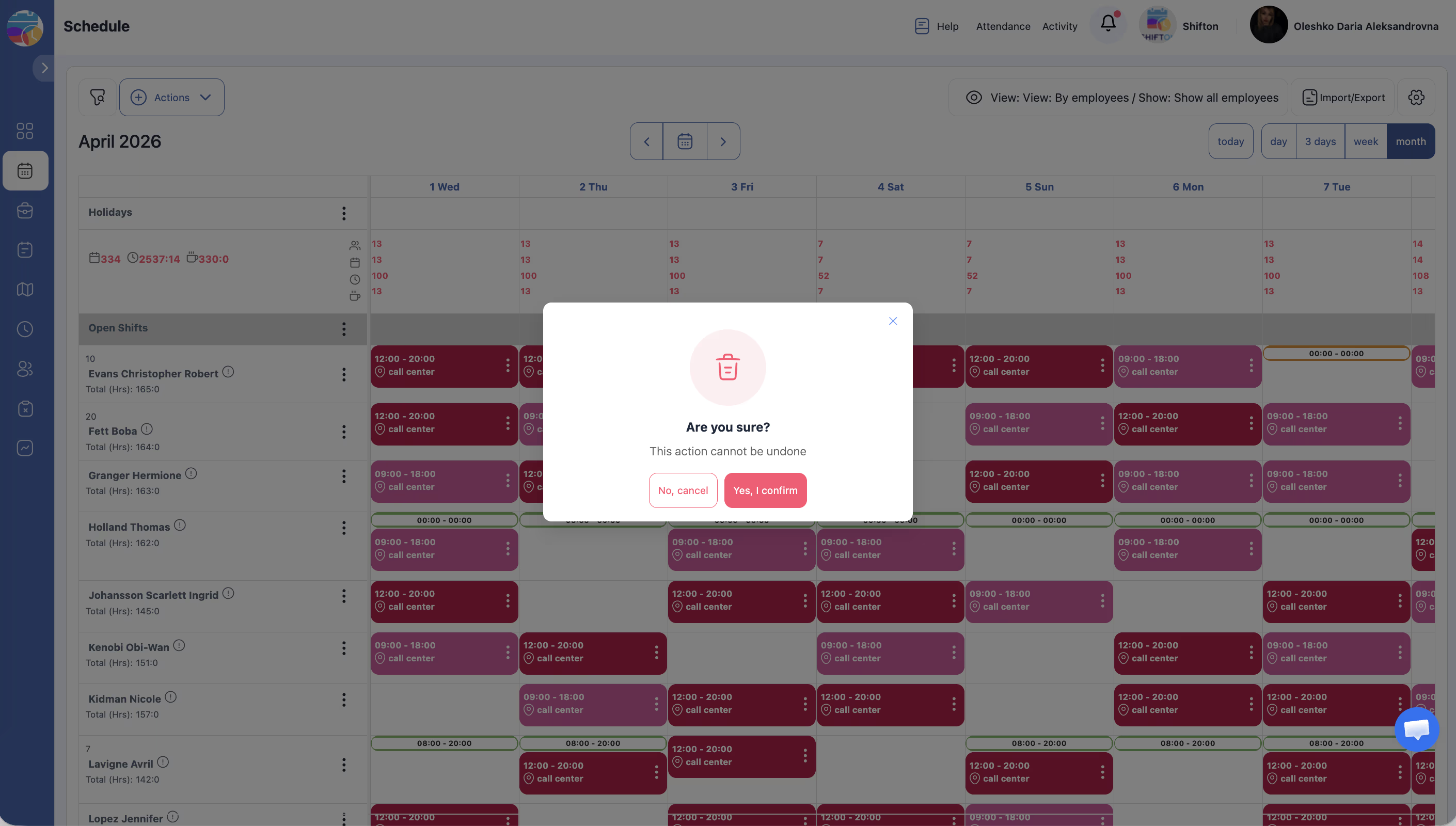
Note: Deleting a shift cannot be undone. If the schedule has already been published, you may want to republish and notify employees about the change.
Access Permissions
| Role | View Shift Details | Edit Shift | Reassign Shift | Delete Shift |
|---|---|---|---|---|
| Owner | Yes | Yes | Yes | Yes |
| Admin | Yes | Yes | Yes | Yes |
| Manager | Yes (assigned projects) | Yes (assigned projects) | Yes (assigned projects) | Yes (assigned projects) |
| Employee | Yes (own shifts only) | No | No | No |
FAQ
Q: Can I undo a shift deletion?
A: No. Deleted shifts are permanently removed. If you accidentally delete a shift, you will need to create a new one manually.
Q: Will employees be notified when I edit their shift?
A: Not automatically. Changes take effect immediately in the system, but to notify employees you should click “Publish & notify employees” after making your edits.
Q: Can I edit multiple shifts at once?
A: For bulk changes, use the Bulk Shift Actions feature from the Actions dropdown in the top bar. See the Bulk Shift Actions article for details.
Q: What happens if I reassign a shift to an employee who already has a shift at that time?
A: The employee will have overlapping shifts. Shifton may display a warning, but it will allow the assignment. Review the schedule to resolve any conflicts.
Possible Issues and Solutions
| Issue | Possible Cause | Solution |
|---|---|---|
| Cannot click on a shift to edit it | The shift belongs to a hidden schedule or project | Check the left panel and ensure the schedule is checked/visible |
| Edit option is not available | Insufficient permissions | Confirm you have Manager, Admin, or Owner access |
| Reassignment dropdown shows no employees | No other employees are assigned to the project | Assign additional employees to the project first |
| Deleted shift still appears on the grid | Browser cache is showing stale data | Refresh the page |
| Employee was not notified of the shift change | The schedule was not republished after editing | Click “Publish & notify employees” to send updated notifications |