

Copy shifts from one period to another using the Duplicate Shifts feature. Choose specific employees, set how many times to repeat, control conflict handling, and decide which shift properties to include.
What Is This?
Duplicate Shifts copies all (or selected) shifts from a source date range and pastes them starting from a target date. This is especially useful when your schedule repeats weekly — instead of manually adding every shift, duplicate the previous week’s pattern.
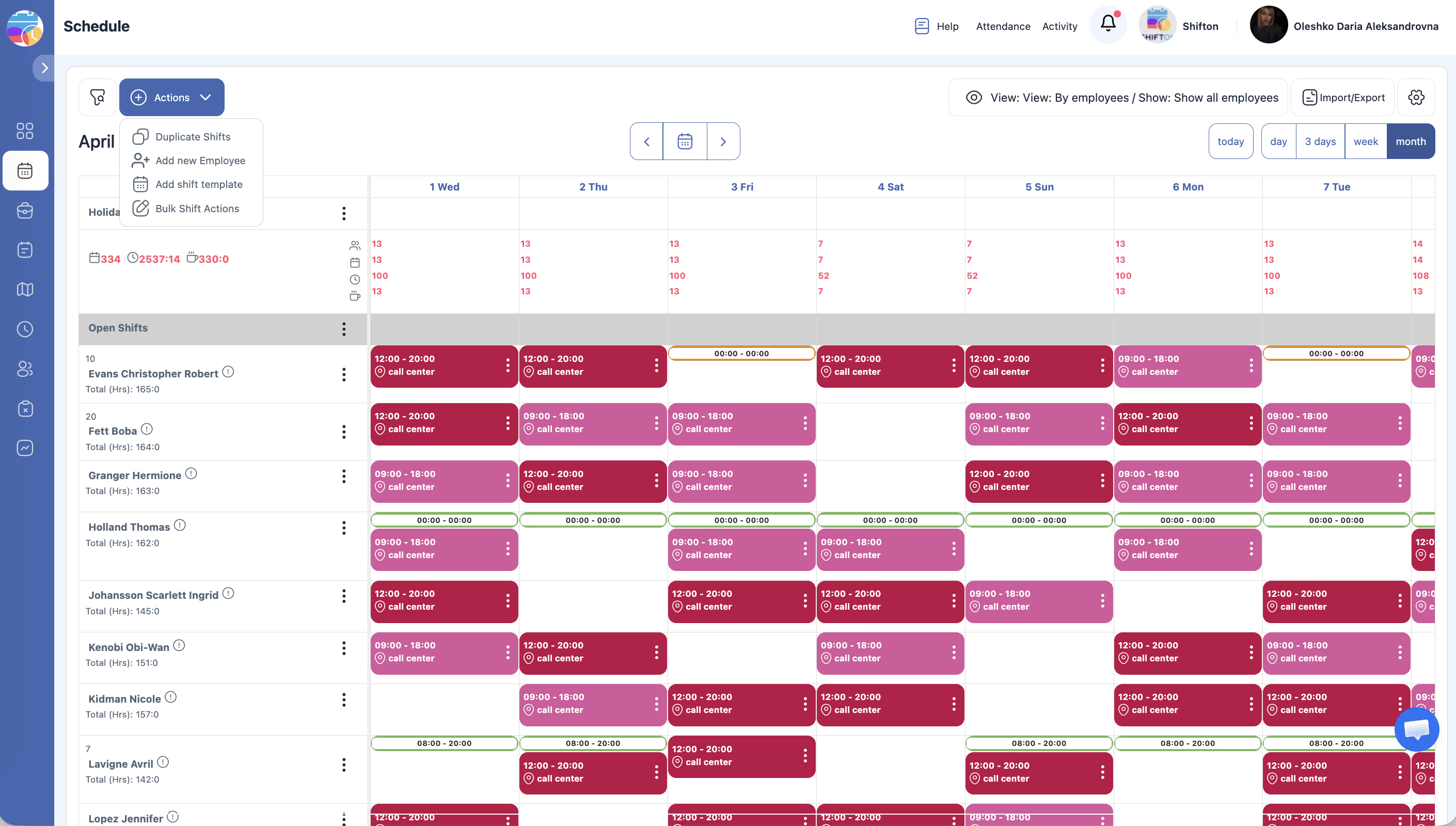
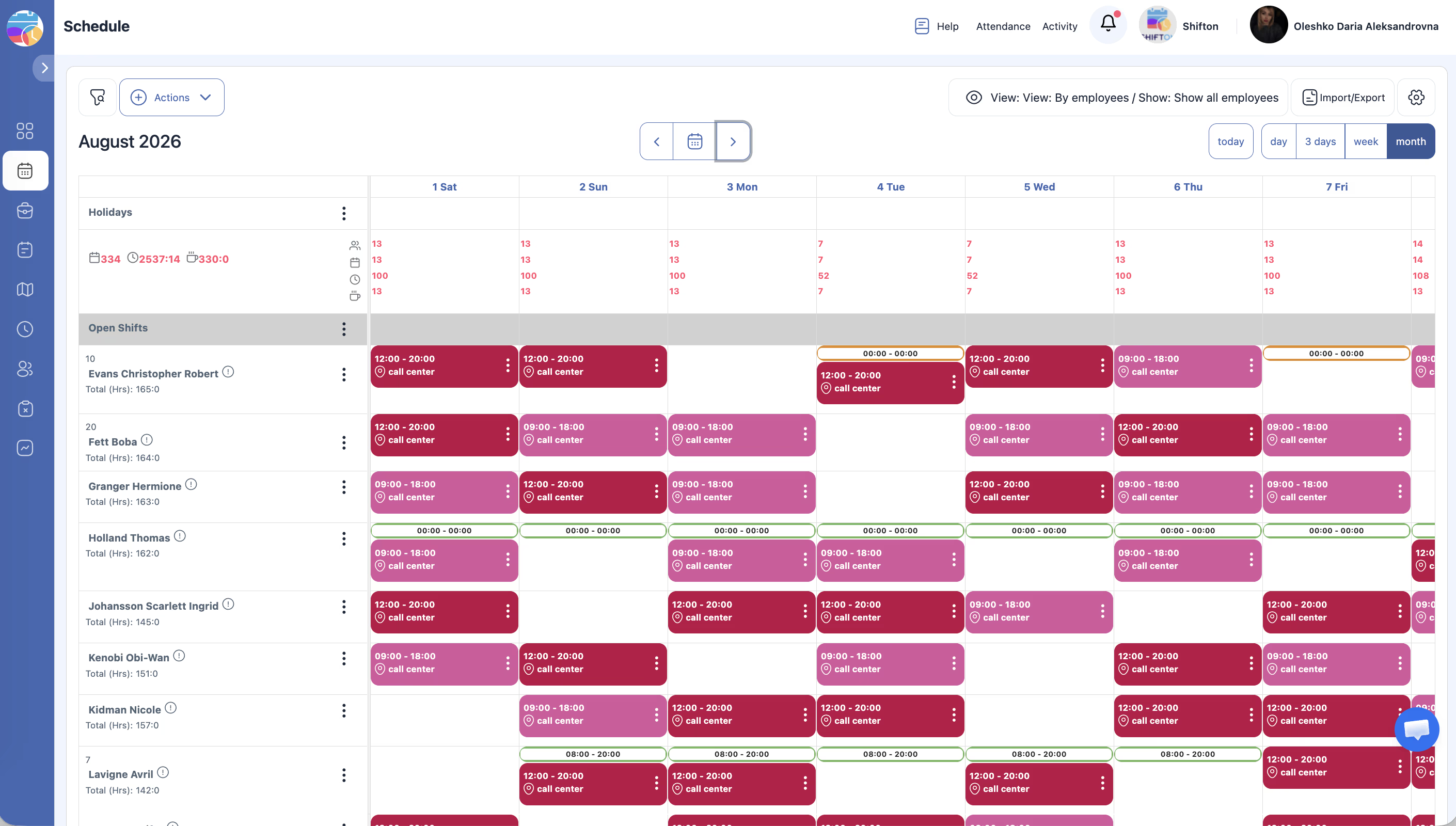
You access Duplicate Shifts from the Actions dropdown on the Schedule page.
Prerequisites
| # | Prerequisite | Details |
|---|---|---|
| 1 | Access to the Schedule page | At least one project with a schedule |
| 2 | Admin, Owner, or Manager role | Employees cannot duplicate shifts |
| 3 | Existing shifts in the source period | There must be shifts to copy |
Step-by-Step Instructions
Opening the Duplicate Shifts Panel
Configuring the Duplication
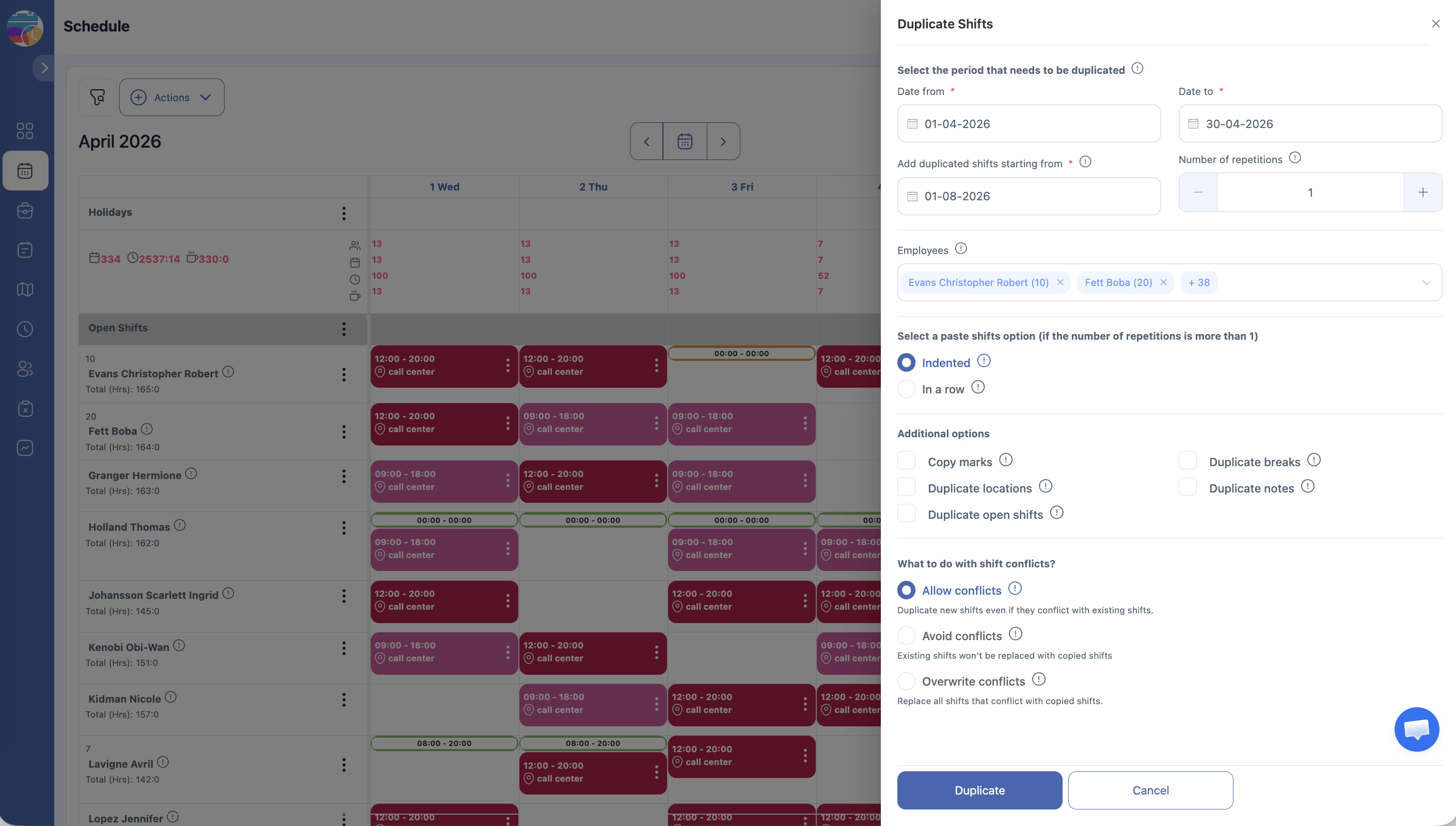
1. Source Period
| Field | Description |
|---|---|
| Date from | Start date of the period to copy from |
| Date to | End date of the source period |
The system pre-fills these with the currently displayed week.
2. Target Start Date
| Field | Description |
|---|---|
| Add duplicated shifts starting from | The date where copied shifts will be placed. The target period length equals the source period length automatically. |
3. Number of Repetitions
| Field | Description |
|---|---|
| Number of repetitions | How many times to paste the copied shifts (default: 1). Use +/- buttons or type a number. When set to more than 1, shifts are pasted multiple consecutive times. |
4. Employees
| Field | Description |
|---|---|
| Employees | Multi-select of employees whose shifts to duplicate. By default, all employees in the schedule are selected. Remove employees from the list to exclude their shifts from duplication. |
5. Paste Option (for Multiple Repetitions)
When the number of repetitions is more than 1:
| Option | Description |
|---|---|
| Indented | Each repetition starts right after the previous one ends (sequential) |
| In a row | Each repetition is placed at the same starting date (overlapping) |
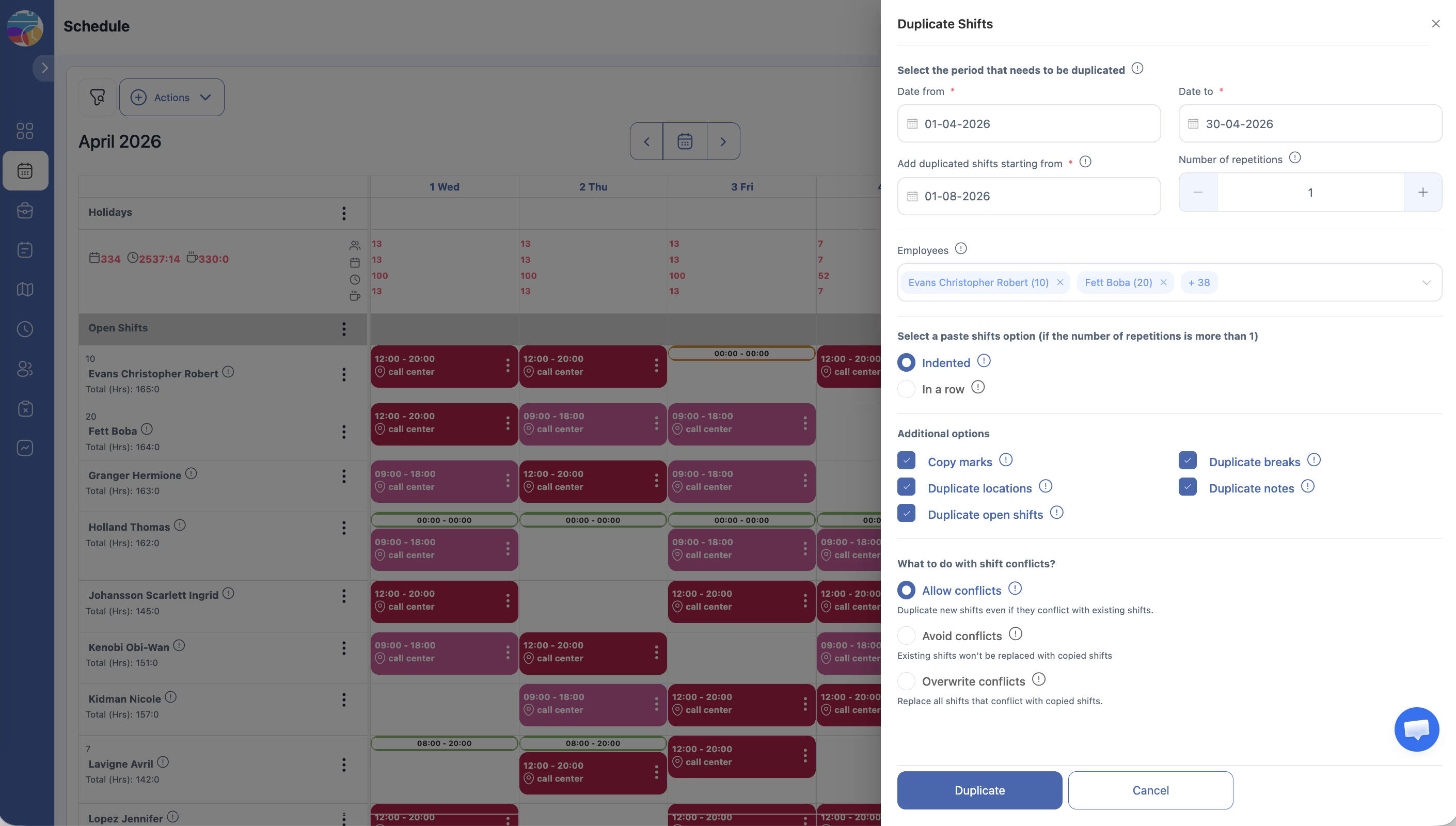
6. Additional Options
| Checkbox | Description |
|---|---|
| Copy marks | Include shift marks/tags in the duplicated shifts |
| Duplicate breaks | Copy break assignments to the new shifts |
| Duplicate locations | Preserve location assignments on duplicated shifts |
| Duplicate notes | Copy notes attached to shifts |
| Duplicate open shifts | Also duplicate unassigned (open) shifts |
7. Conflict Handling
| Option | Description |
|---|---|
| Allow conflicts | Create duplicated shifts even if they overlap with existing shifts in the target period |
| Avoid conflicts | Skip duplicated shifts that would conflict — existing shifts are kept |
| Overwrite conflicts | Replace existing shifts in the target period with the duplicated ones |
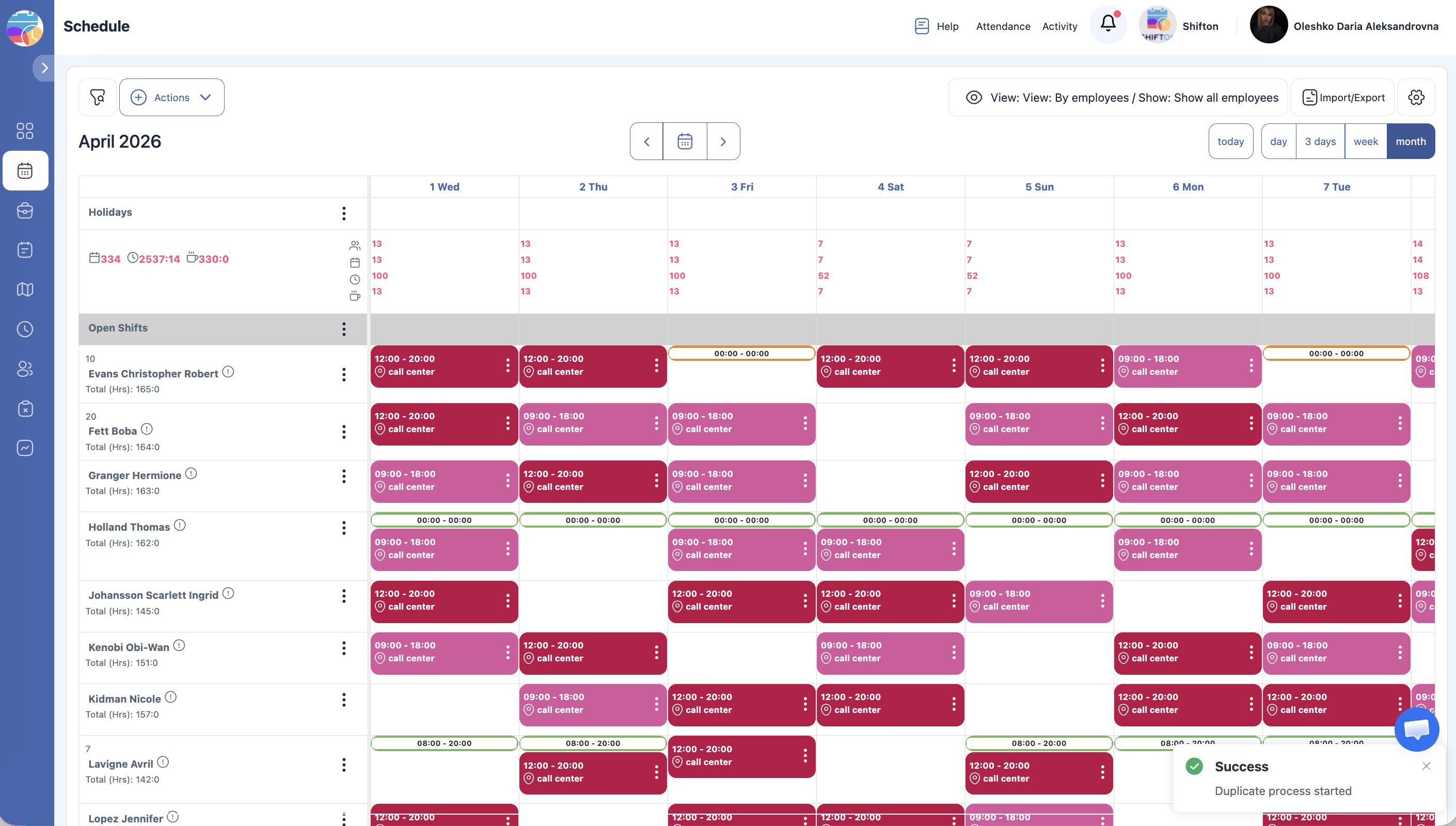
Executing the Duplication
Access Permissions
| Role | Duplicate Shifts |
|---|---|
| Owner | Yes |
| Admin | Yes |
| Manager | Yes (assigned projects) |
| Employee | No |
FAQ
Q: Can I duplicate shifts for specific employees only?
A: Yes. In the Employees field, remove employees whose shifts you don’t want to duplicate. Only shifts for the remaining selected employees will be copied.
Q: Does duplicating preserve employee assignments?
A: Yes. Each duplicated shift retains the same employee assignment. If an employee has been removed from the project since the original shifts, those shifts may need reassignment.
Q: What does “Indented” vs “In a row” mean for repetitions?
A: With 2 repetitions of a 7-day period starting March 24:
– Indented: First copy covers Mar 24–30, second copy covers Mar 31–Apr 6 (sequential)
– In a row: Both copies start from Mar 24 (overlapping)
Q: Will open shifts be duplicated too?
A: Only if you check the Duplicate open shifts option. By default, open shifts are not included.
Q: What if I choose “Avoid conflicts”?
A: Shifts that would overlap with existing shifts in the target period are silently skipped. All non-conflicting shifts are still created normally.
Q: Can I duplicate shifts across different projects?
A: No. Duplicate Shifts works within the current project only.
Q: Are breaks and locations copied by default?
A: The Additional options checkboxes control this. Check each option you want to carry over — by default you should verify they are enabled if you need them.
Possible Issues and Solutions
| Issue | Cause | Solution |
|---|---|---|
| Duplicate Shifts not in the Actions dropdown | Insufficient permissions | Confirm Manager, Admin, or Owner role |
| Duplicated shifts overlap with existing ones | Conflict handling set to “Allow conflicts” | Use “Avoid conflicts” or “Overwrite conflicts” |
| Some shifts missing after duplication | Employee was deselected, or “Avoid conflicts” skipped them | Check the Employees selection and conflict handling option |
| Marks/locations/breaks not copied | Additional options checkboxes were unchecked | Re-duplicate with the relevant checkboxes enabled |
| Too many copies of the same shifts | Number of repetitions was set higher than intended | Set repetitions to 1 for a single copy |
| Wrong target dates | Source period dates were incorrect | Adjust Date from / Date to before duplicating |