

Switch between five different view modes to see your schedule at the level of detail you need — from a single day to an entire month.
What Is This?
The Schedule page offers five view modes that control how much of the calendar is displayed at once. You can toggle between them using the view mode buttons in the top bar. The default view is Week, but you can switch at any time depending on what you are working on.
Prerequisites
| # | Prerequisite | Details |
|---|---|---|
| 1 | Access to the Schedule page | You must have at least one project with a schedule |
| 2 | Any user role | All users with schedule access can switch view modes |
Step-by-Step Instructions
Switching View Modes
| View Mode | Description |
|---|---|
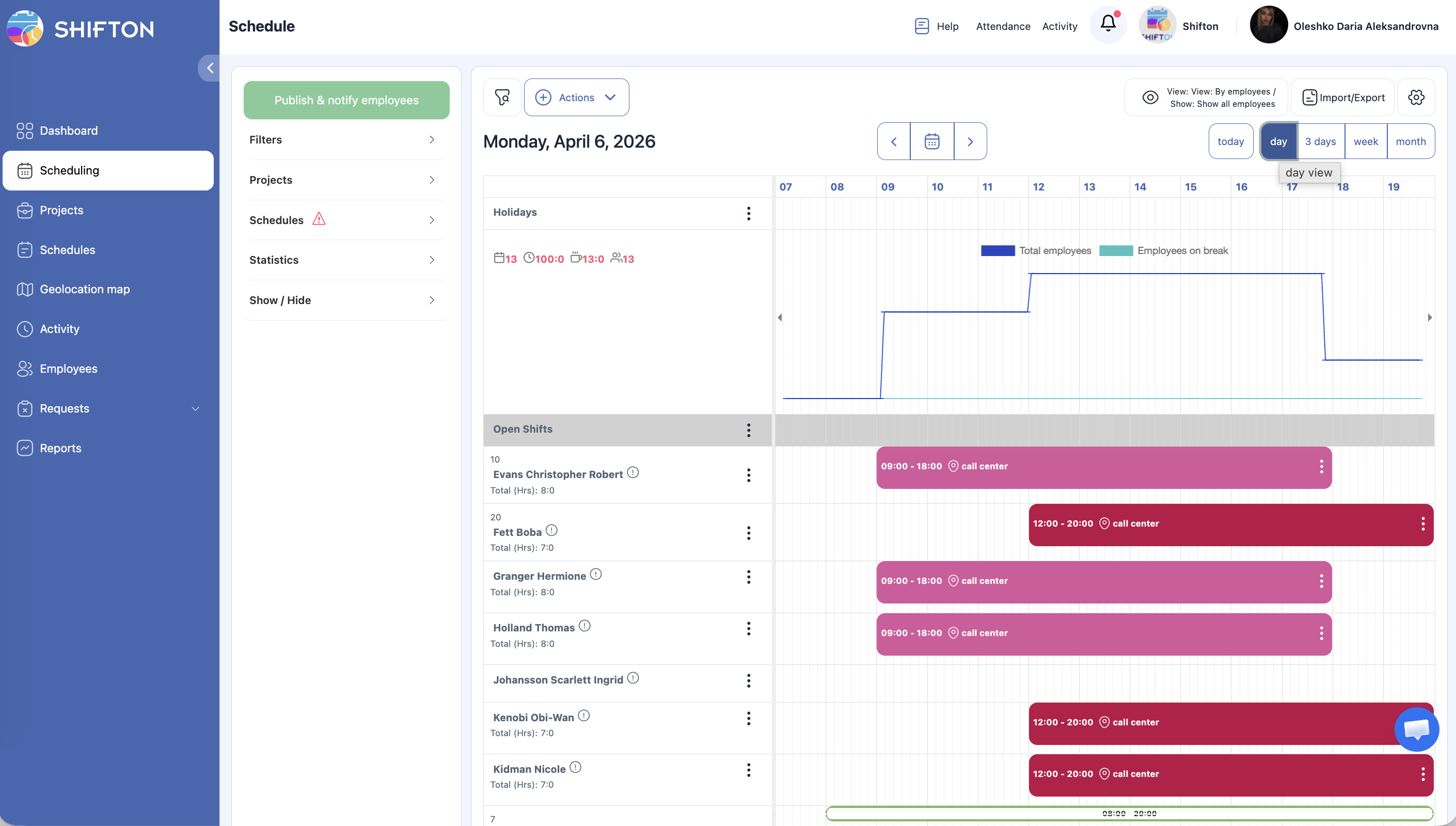
| Today | Shows only the current day with a detailed 24-hour timeline |
| Day | Shows a single selected day with a 24-hour timeline and current time indicator |
| 3 Days | Shows three consecutive days side by side |
| Week (default) | Shows seven days in day columns — the most commonly used view |
| Month | Shows a full calendar month grid with compact shift representations |
Today and Day Views
3 Days View
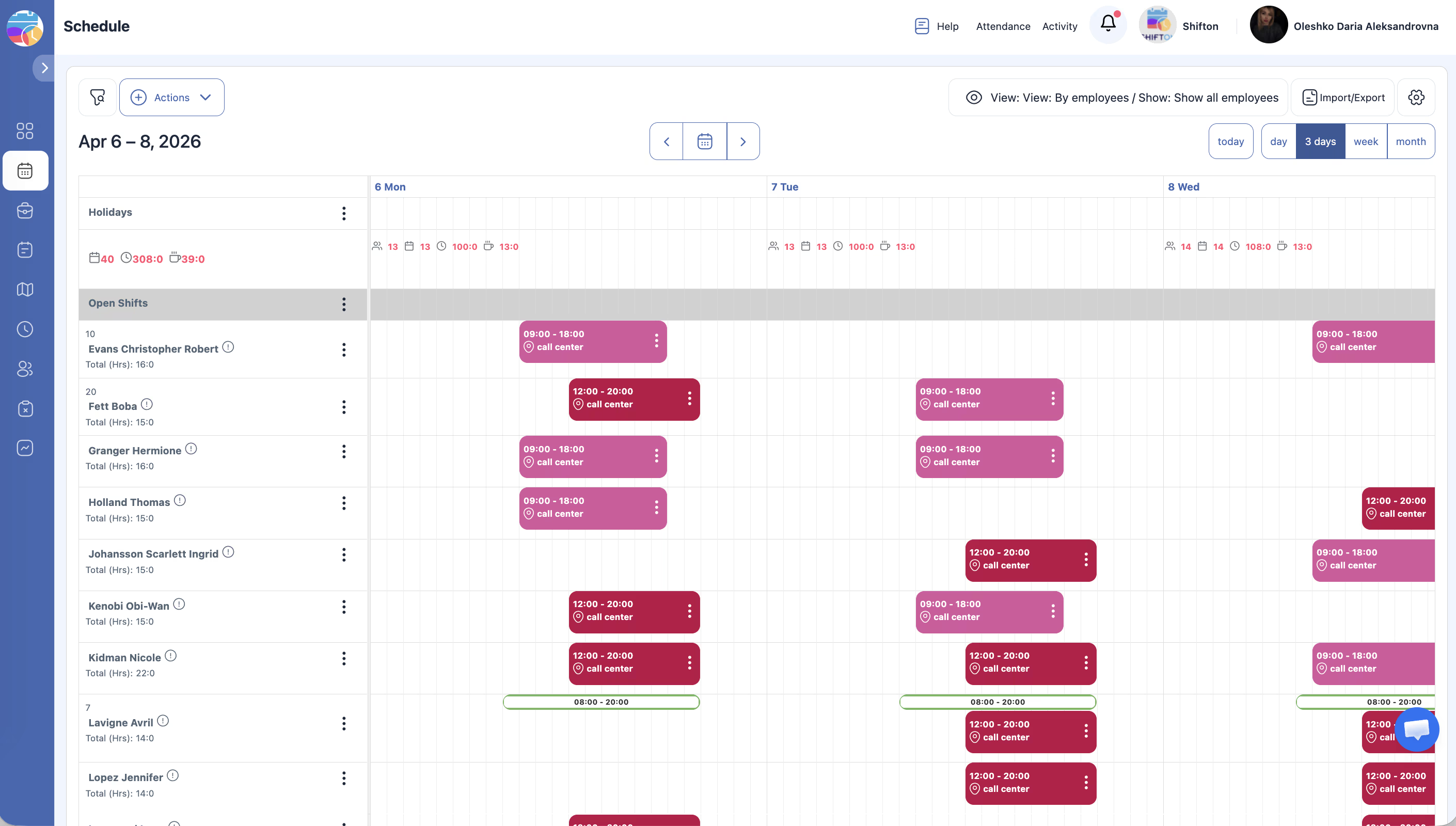
- Shows three consecutive days side by side.
- Useful for short-term planning and reviewing upcoming shifts.
- Navigate forward and backward using the date navigation arrows.
Week View (Default)
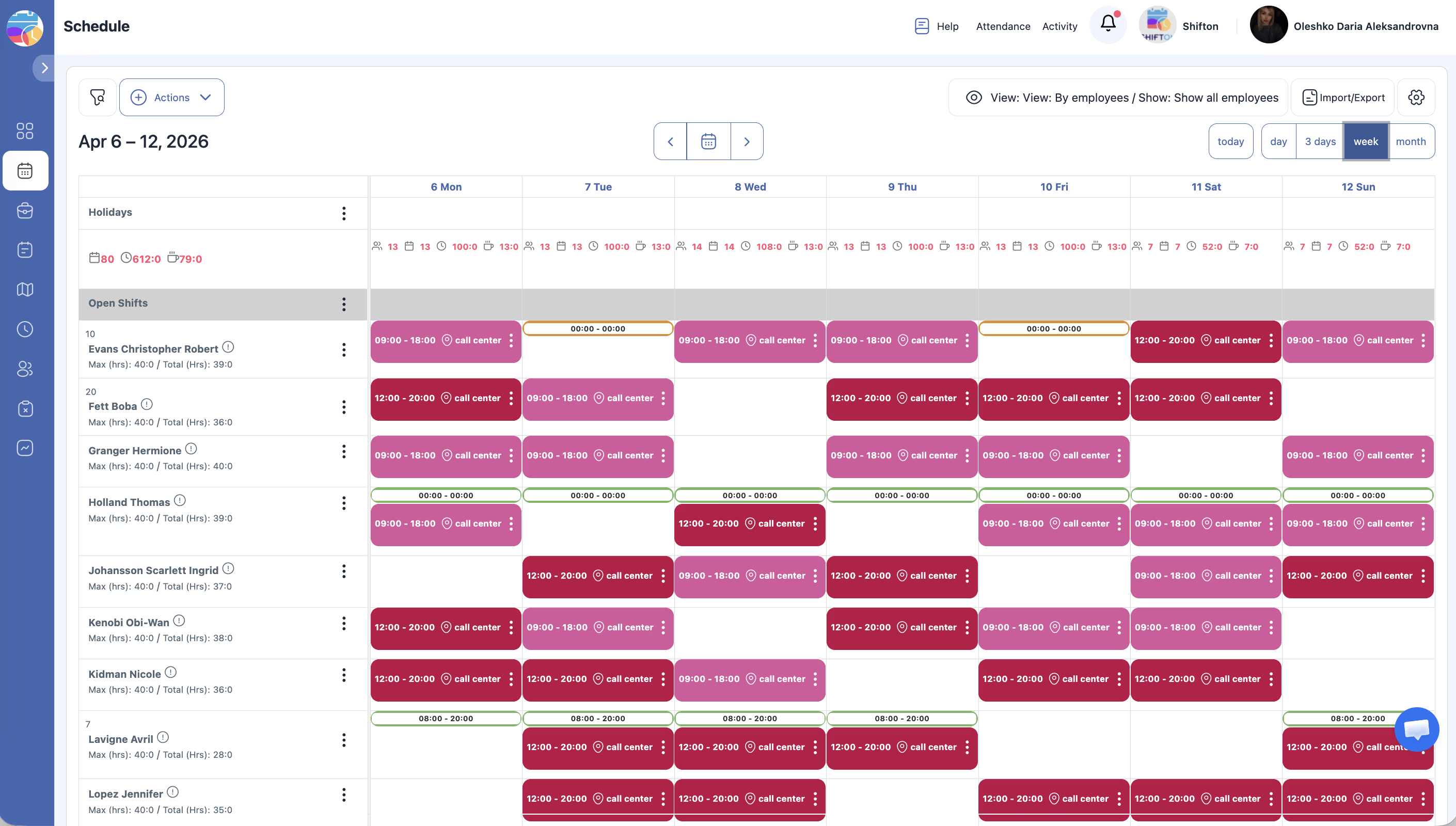
- Shows seven day columns (Monday through Sunday by default).
- The most commonly used view for weekly planning and management.
- Each column represents one day, and shifts appear as colored blocks in each employee’s row.
- Navigate between weeks using the date navigation arrows.
Month View
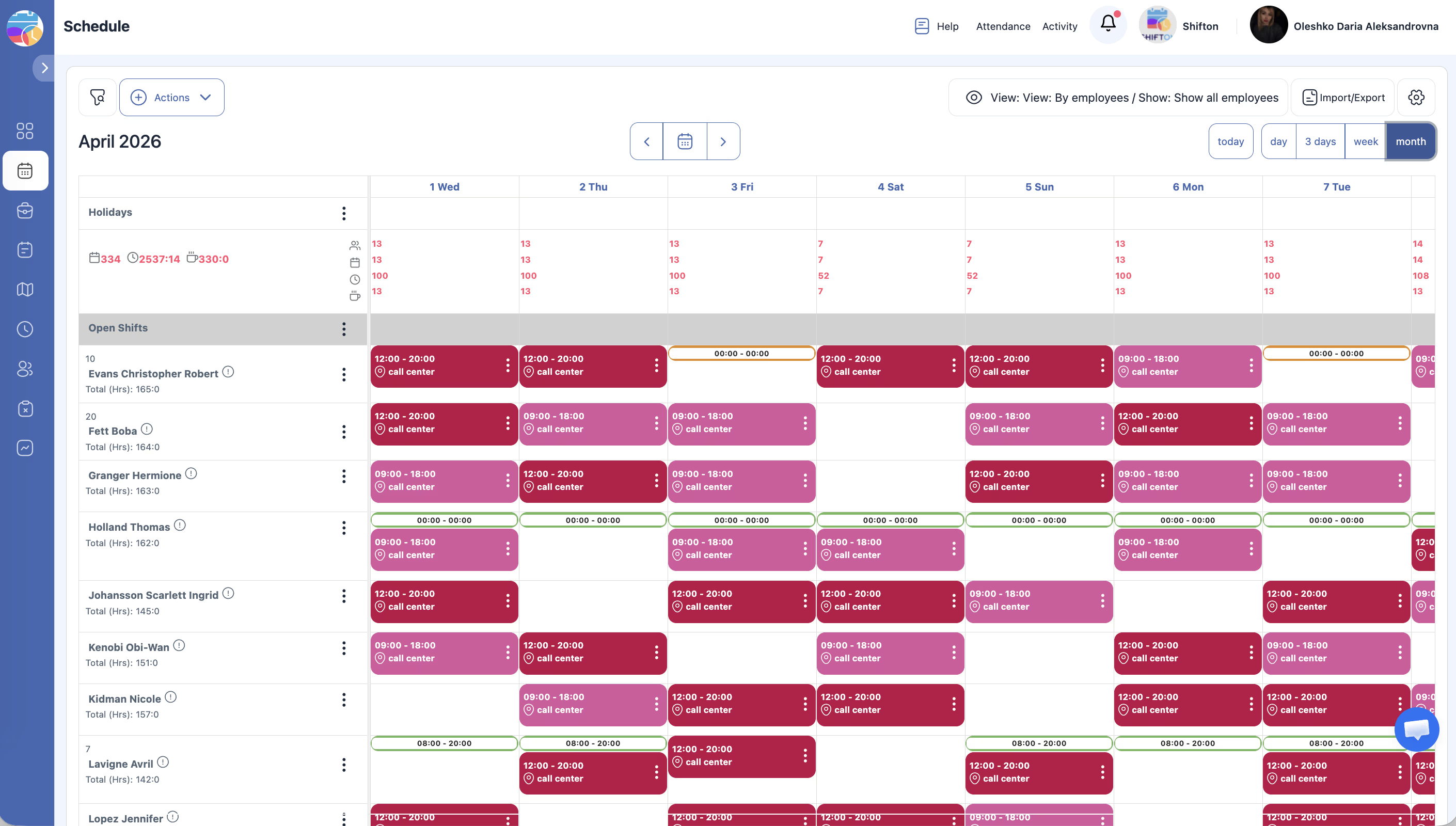
- Shows the full calendar month as a grid.
- Shifts are displayed in a compact format due to the limited space.
- Useful for getting a high-level overview of the month’s coverage.
- Click on any day to drill down into a more detailed view.
Access Permissions
| Role | Switch View Modes | View Today/Day | View 3 Days | View Week | View Month |
|---|---|---|---|---|---|
| Owner | Yes | Yes | Yes | Yes | Yes |
| Admin | Yes | Yes | Yes | Yes | Yes |
| Manager | Yes | Yes | Yes | Yes | Yes |
| Employee | Yes | Yes (own shifts) | Yes (own shifts) | Yes (own shifts) | Yes (own shifts) |
FAQ
Q: Which view mode is best for daily operations?
A: The Day or Today view is best for real-time monitoring and same-day adjustments. The 24-hour timeline makes it easy to see who is currently working and who is coming up next.
Q: Can I set a default view mode for my account?
A: The default view is Week. Your last-used view mode may be remembered during your session, but it resets to Week when you log in again.
Q: Why do shifts look different in the Month view?
A: The Month view uses a compact representation to fit all days on screen. Shifts are shown as small color blocks or abbreviated labels. Click on a specific day to see full details.
Q: Does changing the view mode affect other users?
A: No. View mode is a personal display preference. Changing your view does not affect how other users see the schedule.
Possible Issues and Solutions
| Issue | Possible Cause | Solution |
|---|---|---|
| Cannot see shift details in Month view | The compact layout does not display full shift information | Switch to Week or Day view for detailed shift information |
| Current time indicator is not showing | You are not using Today or Day view | The time indicator only appears in Today and Day views |
| Grid appears too crowded in Week view | Many employees and schedules are active | Use filters in the left panel to narrow the display, or switch to Day or 3 Days view |
| Navigation arrows skip dates | The view mode jumps by its interval (1 day, 3 days, 1 week, or 1 month) | Use the date picker to jump to a specific date if needed |
| View mode resets after logging out | View preference is session-based | Reselect your preferred view mode after logging in |