

Get familiar with the Schedule page layout — the top bar controls, left panel, and calendar grid that make up the core scheduling interface in Shifton.
What Is This?
The Schedule page is where you view, manage, and interact with your team’s shifts on a day-by-day or week-by-week basis. It combines a powerful top toolbar, a left sidebar with filters and schedule lists, and a main calendar grid showing all shifts for your employees.
Prerequisites
| # | Prerequisite | Details |
|---|---|---|
| 1 | Active Shifton account | You must have a registered company account |
| 2 | At least one project and schedule created | The Schedule page displays data from existing schedules |
| 3 | Employees assigned to the project | Employees appear as rows on the grid |
Step-by-Step Instructions
Understanding the Top Bar
The top bar runs across the top of the Schedule page and contains the main controls:
| Control | Description |
|---|---|
| Publish & notify | A coral/red button that publishes the schedule and sends notifications to employees |
| Actions dropdown | A menu with bulk operations: Duplicate Shifts, Bulk Shift Actions, and more |
| View settings | Configure how the schedule grid is displayed |
| Import/Export | Export the schedule to Excel or PDF, or import bonuses and deductions |
| Settings | Access schedule-specific settings and permissions |
| View mode toggle | Switch between Today, Day, 3 Days, Week, and Month views |
| Date navigation | Arrows and a date picker to move forward and backward through the calendar |
Understanding the Left Panel
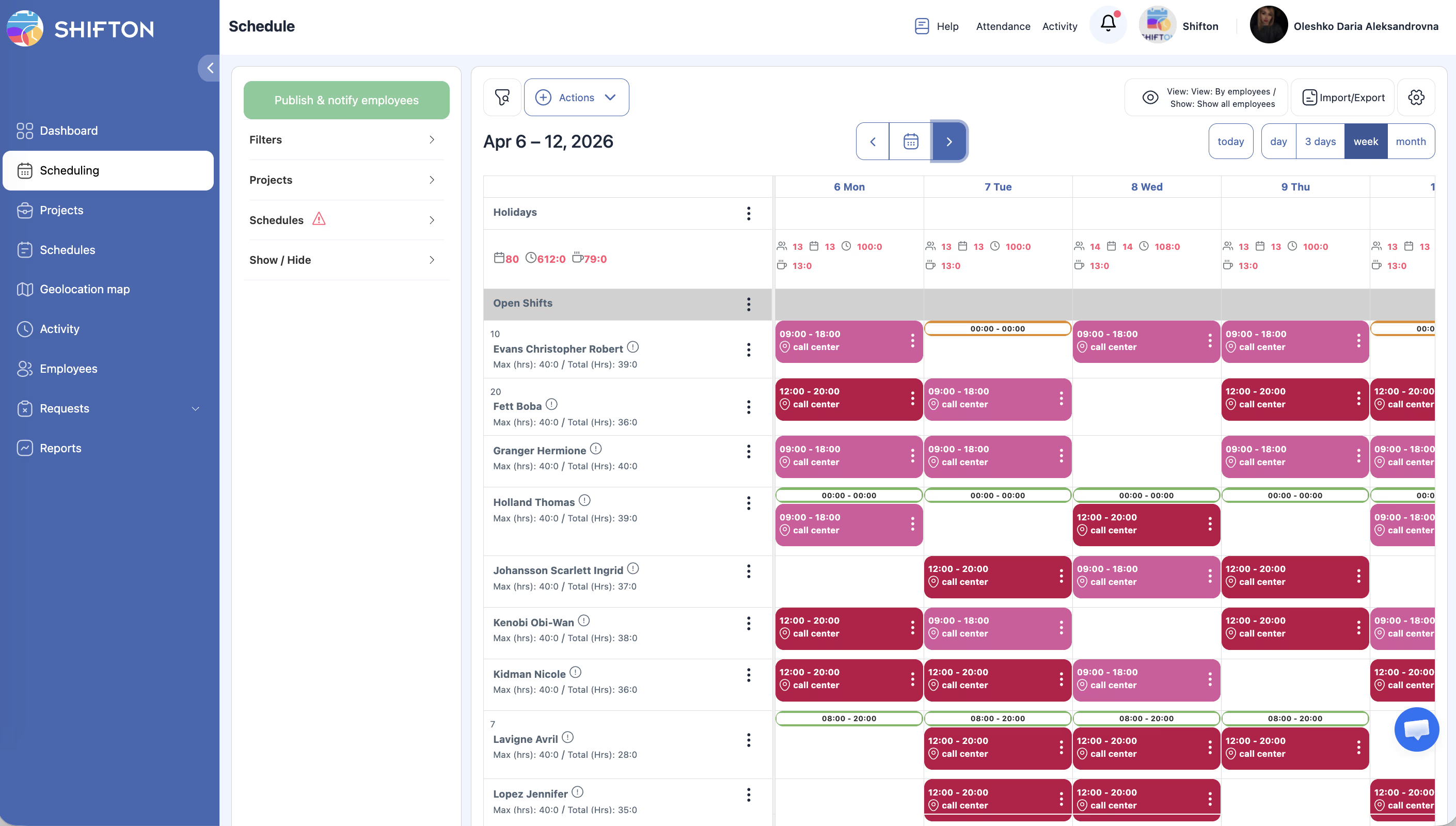
The left panel sits on the left side of the page and contains:
| Section | Description |
|---|---|
| Filters | A collapsible section with multiple filter options for narrowing what is displayed on the grid |
| Projects | A list of projects with checkboxes to show or hide each project’s data |
| Schedules list | All schedules for the selected project, each with its assigned color, a checkbox to show/hide, a warning icon if expired, and an add button to create new schedules |
| Show/Hide toggles | Six overlay options that control what types of data appear on the grid |
Understanding the Calendar Grid
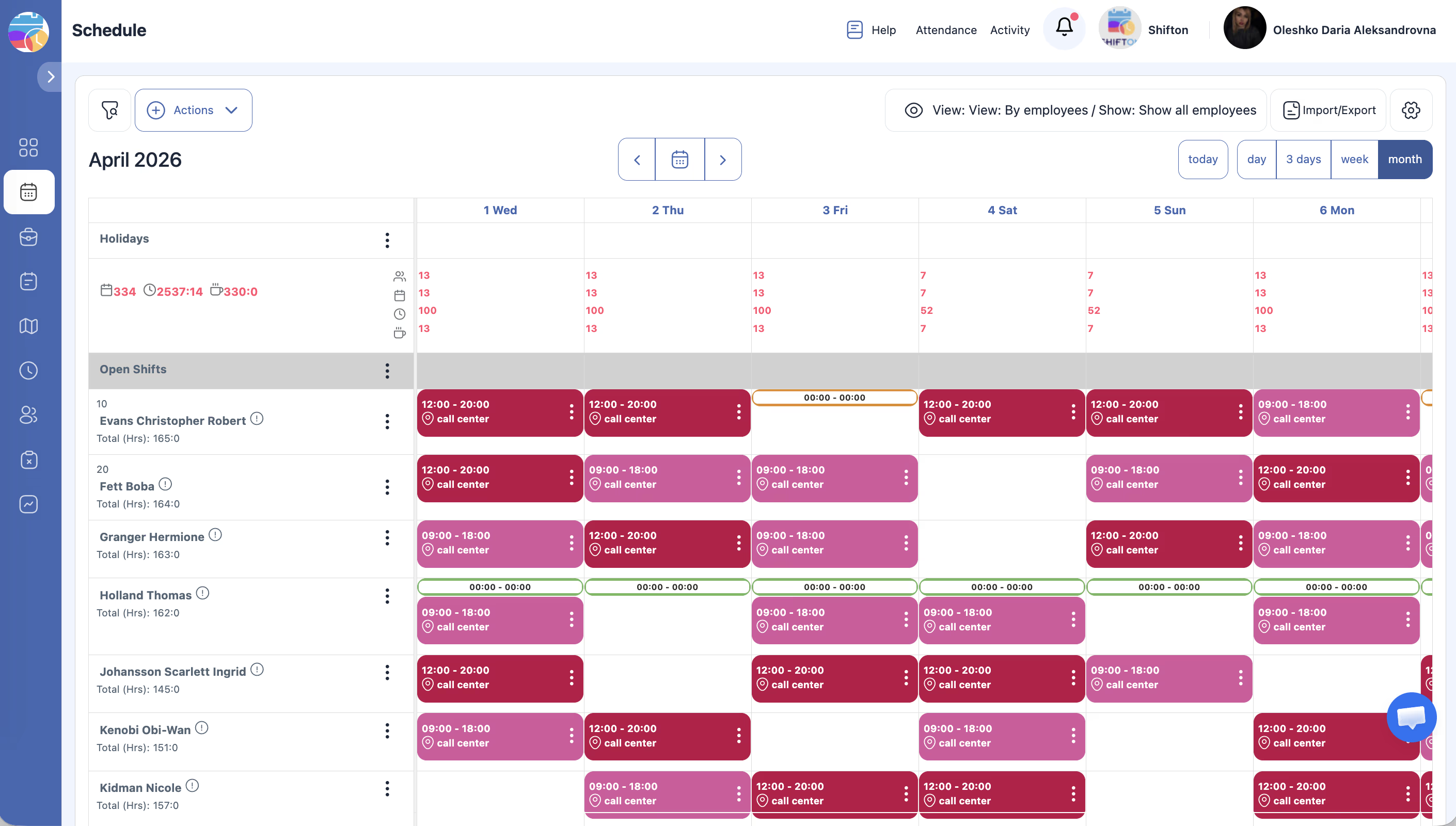
The main area of the page is the calendar grid. It is organized as follows:
| Row / Section | Description |
|---|---|
| Holidays row | The top row of the grid, showing marked holidays for each day |
| Summary row | Displays aggregated data such as total scheduled hours or employee counts per day |
| Open Shifts row | Shows unassigned shifts (grey background) that employees can claim |
| Employee rows | One row per employee, displaying their assigned shifts across the date columns |
Each cell in the grid represents a specific day for a specific employee (or the open shifts / summary / holidays row). Shifts appear as colored blocks within the cells.
Access Permissions
| Role | View Schedule Page | Use Top Bar Controls | Manage Filters | View All Employees |
|---|---|---|---|---|
| Owner | Yes | Yes | Yes | Yes |
| Admin | Yes | Yes | Yes | Yes |
| Manager | Yes (assigned projects) | Yes (limited) | Yes | Yes (assigned employees) |
| Employee | Yes (own shifts only) | No | Limited | No |
FAQ
Q: How do I navigate to a specific week or date?
A: Use the date navigation arrows in the top bar to move forward or backward. You can also click the date picker to jump to a specific date.
Q: Can I see multiple projects on the same grid?
A: Yes. Use the Projects section in the left panel to check the boxes for all projects you want to display simultaneously.
Q: What does the coral/red “Publish & notify” button do?
A: It publishes the current schedule state and sends notifications to all affected employees, informing them of their assigned shifts. See the Publishing and Notifying article for details.
Q: Why are some schedules showing a warning icon?
A: The warning icon indicates that the schedule has expired (its end date has passed). You can extend it or create a new schedule for the upcoming period.
Possible Issues and Solutions
| Issue | Possible Cause | Solution |
|---|---|---|
| Schedule page is blank with no employees | No employees assigned to the project or no schedules created | Assign employees to the project and create at least one schedule |
| Cannot see the top bar controls | Your role does not have sufficient permissions | Confirm you have Manager, Admin, or Owner access |
| Filters are not narrowing the view | Filters may be conflicting or not applied | Click Reset in the Filters section to clear all filters, then reapply |
| Open Shifts row is not visible | No open shifts exist in the current view | Open shifts appear only when unassigned shifts have been created |
| Grid loads slowly | Large number of employees or long date range | Switch to a shorter view mode (Day or 3 Days) to improve performance |