

Shifton Field Service lets you change your account password at any time, right in your profile settings. Changing your password regularly helps keep your account secure and protects access to your work data.
How to open the password change settings
- Click the icon with your initials at the top of the interface (the rightmost icon).
- Select “Change password”.
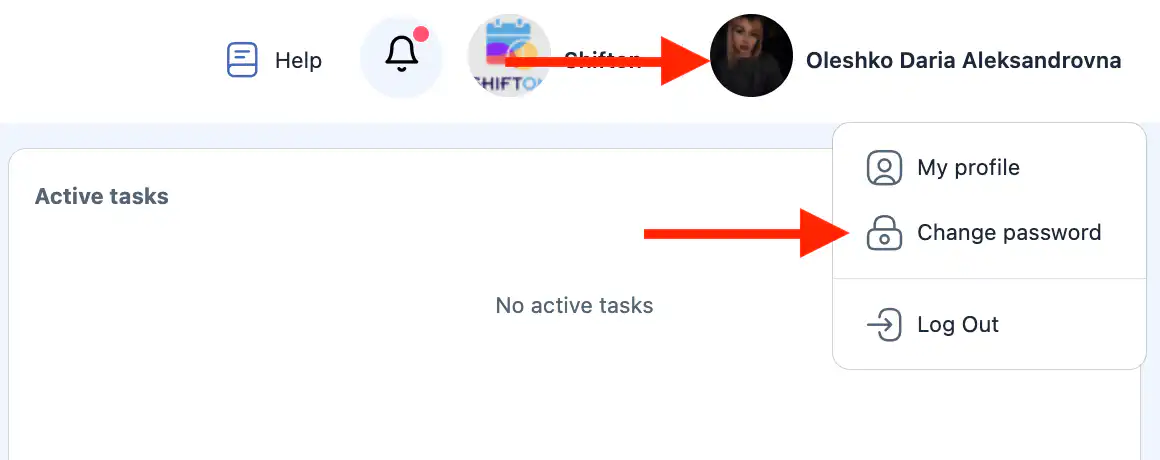
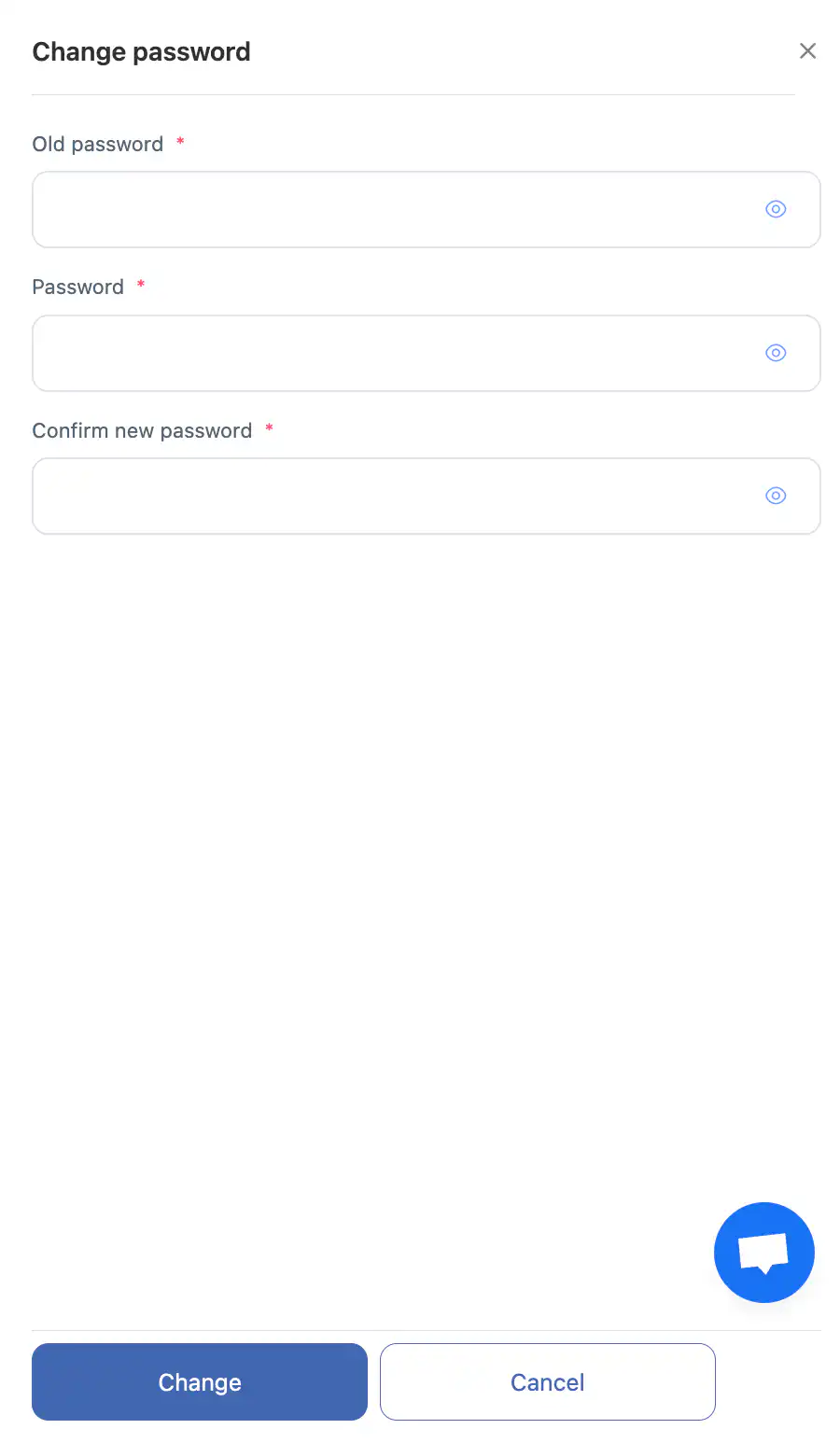
- The side panel for changing the password opens.
How to change your password
Fill in three fields in the side panel:
- “Current password” — the password you use now.
- “New password” — the password you want to replace it with.
- “Repeat new password” — the same new password once again.
You can use the eye icon to show or hide the password characters.
Once the fields are filled in, click:
- “Change” — to save the new password;
- “Cancel” — to close the panel without saving the changes.
Password requirements
Your new password must:
- contain at least 8 characters;
- include at least one digit;
- include at least one lowercase and one uppercase letter;
- consist of Latin letters only (A–Z, a–z) and digits.
Special characters (for example: ! @ # $ % ^ & * _ + - =) may be used, but are not required.
If the requirements are not met, Shifton shows a hint right in the form — for example, “Password must be alphanumeric, have at least one digit, one capital letter and one lowercase letter”.
Important
- The new password takes effect immediately after saving.
- Use a strong password that is hard to guess.
- Do not share your password with third parties.
FAQ
Question: Can I change my password without knowing the current one? Answer: No. To change the password, you must enter the current one. If you are not signed in and do not remember your password, use the “Forgot password?” option on the login page. You can request a password reset using the phone number or the email address you used to sign in to your account.
Question: What should I do if I have forgotten my current password? Answer: Use the password recovery option on the login page.
Question: Why is my new password not accepted? Answer: Check all the requirements at once: at least 8 characters, at least one digit, at least one lowercase and one uppercase Latin letter. Most often it is the uppercase letter or the digit that is missing.
Question: Are uppercase letters required? Answer: Yes. The password must contain both lowercase and uppercase Latin letters — without them it will not be accepted.
Question: What happens if the new password and the confirmation do not match? Answer: The system shows an error and does not save the changes — make sure that both fields contain the same text.
Question: Will the changes be saved if I close the panel without clicking “Change”? Answer: No. The changes are applied only after you click “Change”.
Question: Can I change the password in the mobile app? Answer: Yes. In the mobile app the password is changed in the profile section — the “General info” block, the “Password” item. For more details, see the article “Mobile app menu”.
Question: Is a notification sent about a password change? Answer: Yes, a separate notification category is responsible for this — “Password change”. You can enable or disable it in the profile notification settings in the mobile app.
Question: Is a password change shown in the company Action log? Answer: No. The action log records operations with tasks, checklists, inventory, employees, statuses, clients, the To Do list and service areas. Changing your own password is a personal action, and it is not recorded in the company log.
Question: Will changing the password affect connected integrations? Answer: No. Authorization in the Shifton API is performed with an API key, not with the account password, so the integrations will keep working.
Question: Where else can I read about account protection? Answer: General recommendations are collected in the article “Security”.