

Shifton Field Service lets every user manage the data of their personal account in the My profile section. Here you edit your personal information, set up how the time and the interface language are displayed, and also manage notifications and the security settings of the account.
In this section you can:
- view and edit the data of your profile;
- upload and update your profile photo;
- download the profile data in JSON format;
- set the time zone, the time format, the date format and the interface language.
How to open the “My profile” section
- Click your name or profile icon at the top of the interface. It is the rightmost icon in the top right corner.
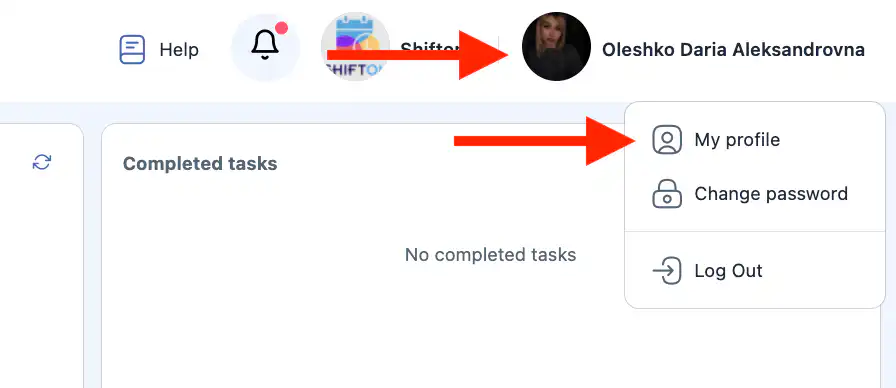
- Select “My profile”.
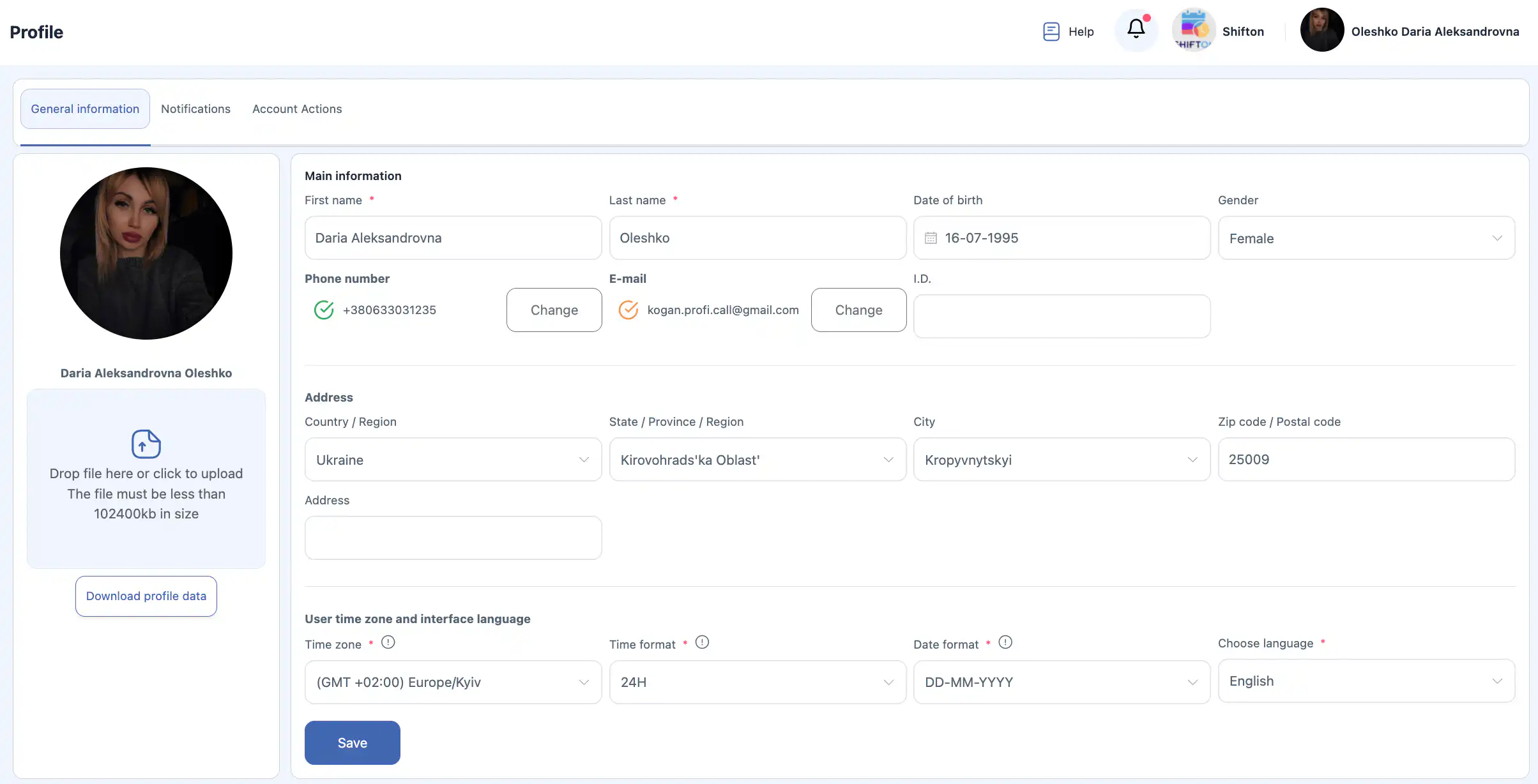
Basic information
The Basic information block contains the main data of the user.
Fields:
- First name * — the user’s first name.
- Last name * — the user’s last name.
Note: the company settings may have the option of showing the name entered when the employee was invited turned on. If this option is on, changes to the first name and the last name in your profile will be visible only to you and will not be shown to other users.
- Date of birth — the date of birth.
- Gender — the gender.
- Phone number — the phone number.
- Email — the email address.
- Identifier — the internal identifier of the user.
The fields marked with * are mandatory.
After making the changes, click “Save”.
Important: if you do not click “Save”, the changes will not be applied.

Address
The Address block is used for entering your address information.
Fields:
- Country / Region — the country or the region.
- State / Province / Region — the state or the region.
- City — the city.
- Zip / Postal code — the postal code.
- Address — the full address.

After editing, click “Save”.
User time zone and interface language
The User time zone and interface language block is used to set how the time, the date and the language are displayed in the system.
Description of the fields
- Time zone * — your time zone. It is used for the correct display of the time of tasks, notifications and reports.
- Time format * — the format the time is displayed in:
12-hour — the 12-hour format (for example, 02:30 PM);
24-hour — the 24-hour format (for example, 14:30).
- Date format * — the format the date is displayed in:
DD.MM.YYYY — day.month.year (for example, 16.07.1995);
MM.DD.YYYY — month.day.year (for example, 07.16.1995).
- Language selection * — the interface language of the system.
Available interface languages
The following languages are available in the system:
- English
- Russian
- Hebrew
- Ukrainian
- German
- Polish
- Spanish
- Greek
- Arabic
- Azerbaijani
- Bengali
- Bulgarian
- Hungarian
- Vietnamese
- Danish
- Indonesian
- Italian
- Kazakh
- Korean
- Latvian
- Lithuanian
- Macedonian
- Chinese (Mandarin)
- Dutch
- Norwegian
- Portuguese
- Romanian
- Slovak
- Slovenian
- Turkish
- Finnish
- Hindi
- Croatian
- Czech
- Swedish
- Estonian
- Japanese
- French
- Thai
- Filipino (Tagalog)
- Afrikaans

After changing the settings, click “Save”.
Profile photo
This section shows your current profile photo.
Uploading a new photo
- Click the upload area or drag a file into this area.
- Select an image on your device.
Below the upload area there is a hint: “Drag a file here or click to upload. The file size must not exceed 102400 KB”.
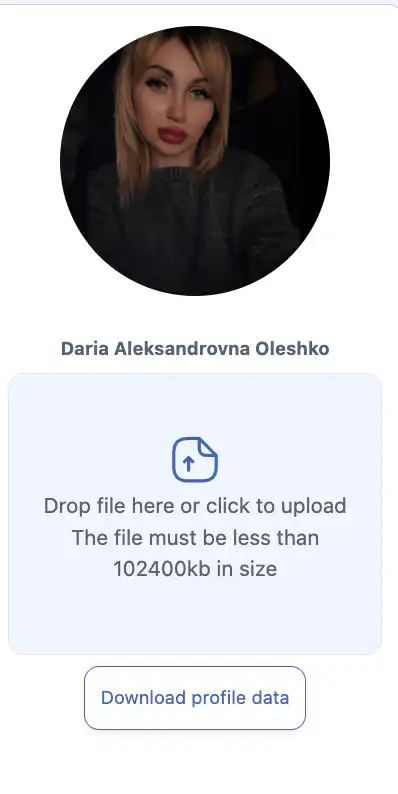
- Once the file is selected, click “Save”.
Important: if you do not click “Save”, the new photo will not be applied.
Downloading the profile data
There is a button for downloading the data of your account.
To download the data:
- Click the profile data download button.
- The file will be downloaded in JSON format.
Saving the changes
When you change any profile data, including:
- the basic information;
- the address;
- the time and date formats;
- the interface language;
- the profile photo, —
you must click “Save”.
If the button is not clicked, the changes will not be saved.
Notifications
The Notifications section is used to set up the receipt of system messages and reminders.
For each notification type you can select one or several delivery channels:
- Push (notifications in the browser or the mobile app)
- SMS
- Telegram
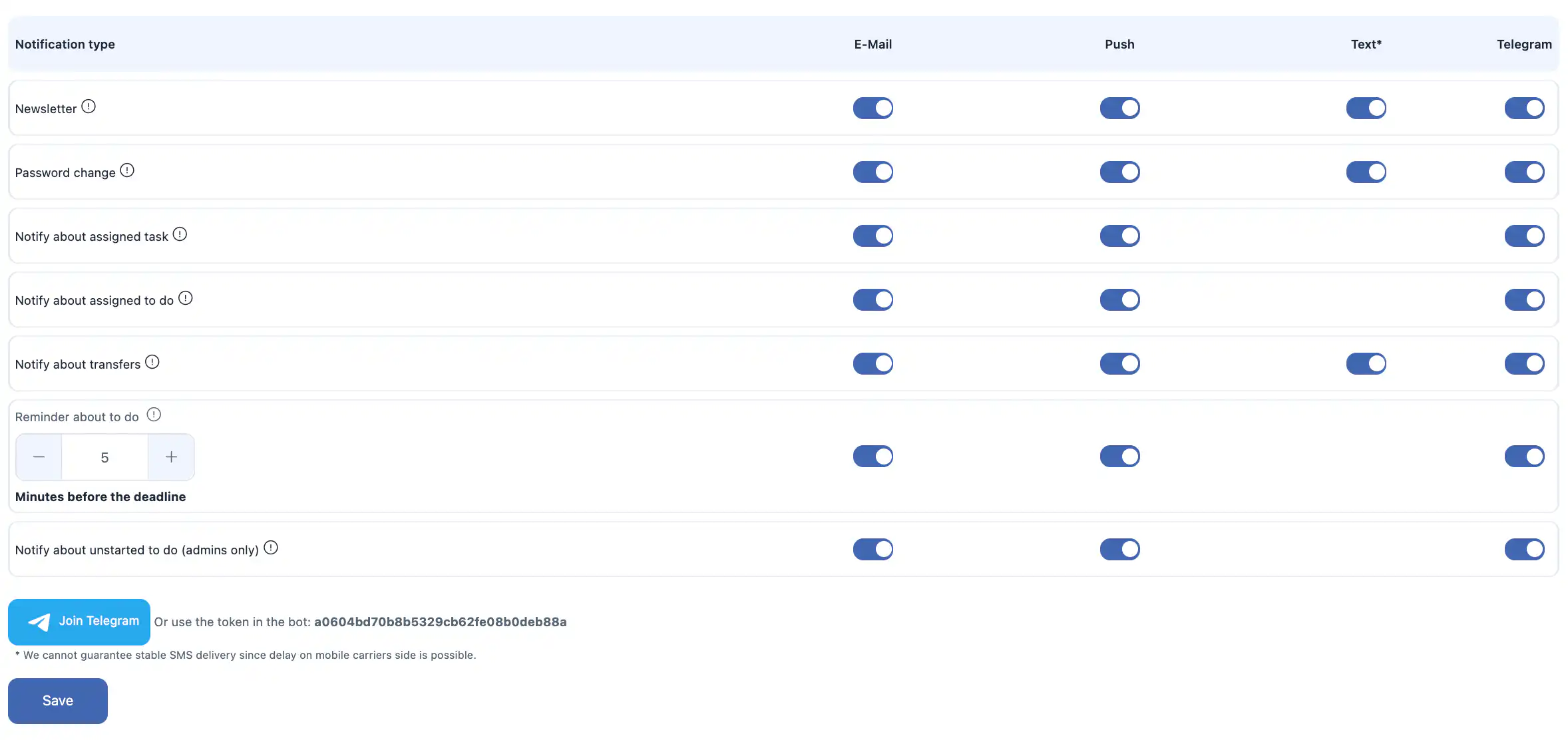
Available notification types
You can enable or disable notifications for the following events:
- Newsletter — product updates and system news.
- Password change — notifications about a change of the password of your account.
- Assigned task notification — when a task is assigned to you.
- Assigned “To Do” task notification — when a to-do list item is assigned to you.
- Movement notification — notifications about movements of goods between warehouses / locations.
- “To Do” task reminder — a reminder before the due time. The reminder time can be set, for example “5 minutes before the due time”.
- Not started “To Do” task notification (for administrators only) — notifications for administrators about to-do list items that have not been started.
Telegram notifications
To receive notifications through Telegram, you can:
- connect Telegram through the interface of the system;
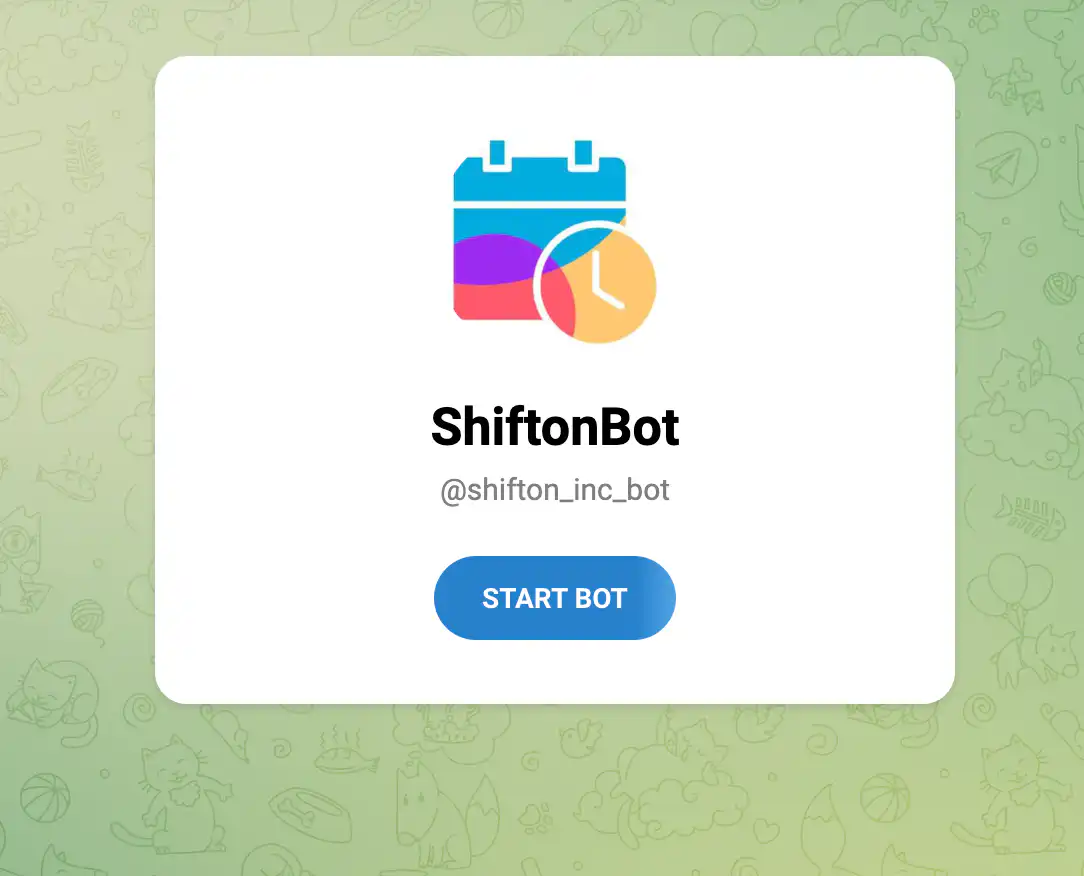
- or use the bot token (the
Or use the token in the botfield).
SMS notifications
The following conditions apply to SMS notifications:
- SMS notifications are a paid feature.
- To use delivery by SMS, the company balance must be topped up.
- The cost of one SMS depends on the country and the operator and is usually from $0.20 to $0.70 USD per message.
Important: we cannot guarantee stable delivery of SMS, because delays on the side of the mobile operator are possible.
Saving the notification settings
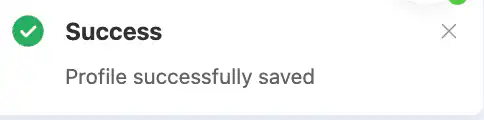
After changing any notification settings, click “Save”.
If you do not click “Save”, the changes will not be applied.
Account Actions
The Account Actions section contains the security and account management settings.

Log out from all devices
This option lets you log out of your account on all the devices where you are currently logged in.
Use this feature if:
- you suspect unauthorised access;
- you have logged in on a shared or public device;
- you want to reset all the active sessions.
To apply the action, confirm your decision in the dialogue box.
Important: this action cannot be undone.
Delete account
You can delete your own account if you are not the owner of the company.
After the deletion:
- your account will be deleted permanently;
- you will lose access to the system;
- it is impossible to undo this action.
If you are the owner of the company
If you are the owner of the company, deleting your account is impossible.
To delete the account as the owner, you first have to transfer the owner rights to another employee in the Company settings.
If you need to delete the whole company, this can be done on the “Company settings management” page.
FAQ
Question: Why are the changes in my profile not visible to other users? Answer: Your company may have the option of showing the name entered at the invitation turned on. In this case the changes to your first name or last name are visible only to you.
Question: What happens if I do not click “Save” after making the changes? Answer: The changes will not be applied. To save the updates, you have to click “Save”.
Question: Can I change the email address in the profile? Answer: Yes. Update the email field and click “Save” to apply the change.
Question: Why is my new profile photo not shown? Answer: Make sure you clicked “Save” after uploading the image.
Question: Is there a file size limit for the profile photo? Answer: Yes. The file size must be less than 102400 KB.
Question: In what format is the profile data downloaded? Answer: The data is downloaded in JSON format.
Question: Can I change the time zone without changing the country? Answer: Yes. The time zone is set separately in the profile settings.
Question: Which time formats are supported? Answer: The 12-hour and the 24-hour formats.
Question: Which date formats are supported? Answer: DD.MM.YYYY and MM.DD.YYYY.
Question: Why am I not receiving notifications by email? Answer: Make sure notifications by email are enabled in the Notifications section, and check the address entered as well as the spam folder.
Question: Why am I not receiving SMS notifications? Answer: SMS require a positive company balance and enabled SMS notifications. Delivery also depends on the mobile operators.
Question: Are SMS notifications free? Answer: No. This is a paid feature, the cost is approximately $0.20–$0.70 USD per message depending on the country.
Question: How do I enable notifications through Telegram? Answer: Connect Telegram in the Notifications section or use the bot token provided.
Question: What does the “Log out from all devices” feature do? Answer: It ends all the active sessions on every device where your account is logged in.
Question: Can I delete my account? Answer: Yes, if you are not the owner of the company. Owners have to transfer the owner rights first.