

Shifton Field Service lets you keep the key information about every employee in a single profile. The employee profile contains contact details, access rights, skills and the settings used when assigning tasks, building routes and showing the employee on the map.
How to open an employee profile
- Go to the “Employees” section.
- Click the pencil icon next to the employee you need.
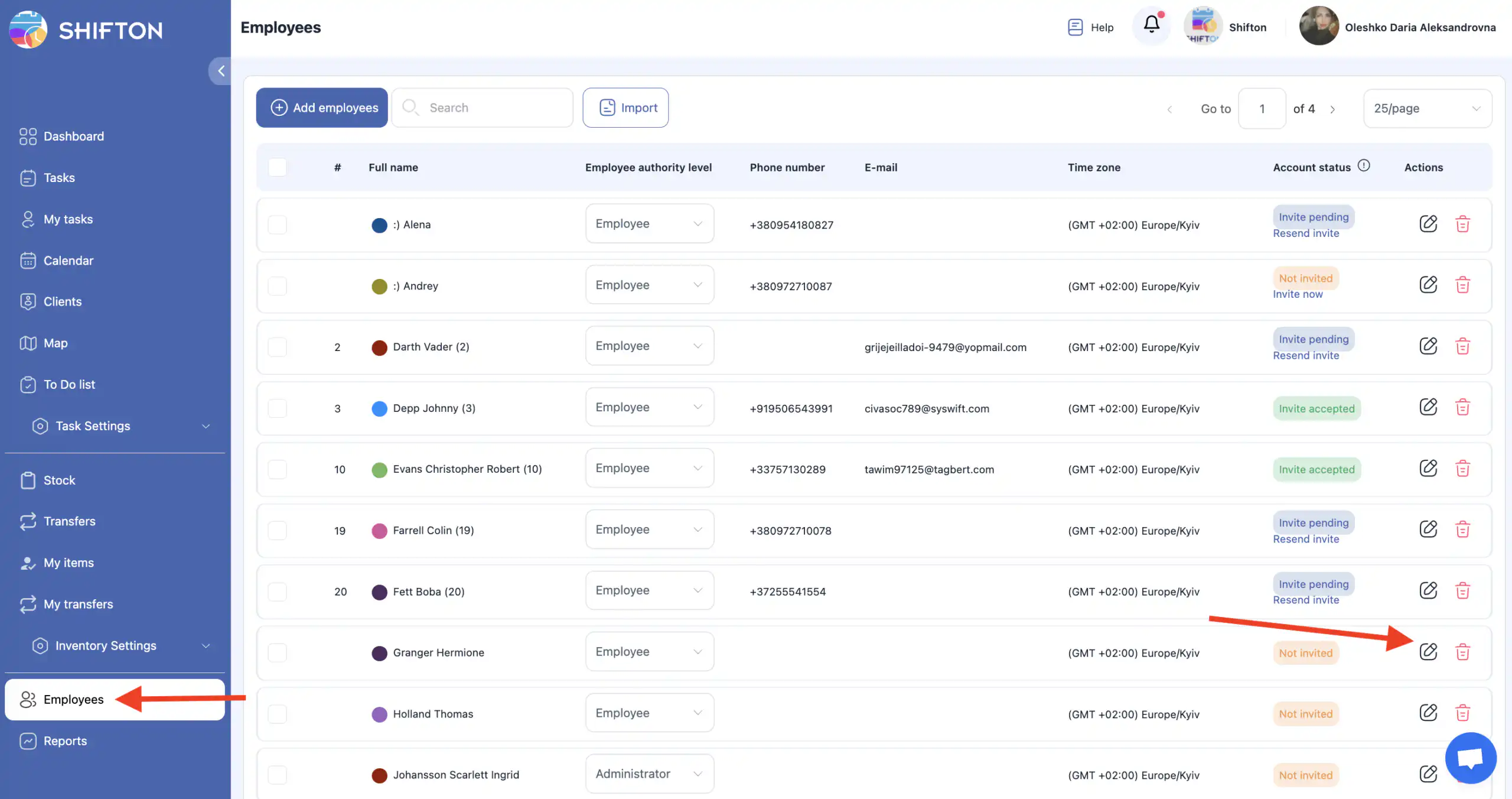
A side panel with the employee profile data opens.
Employee profile fields
The following fields are available in the profile:
- Employee ID — the employee’s internal identifier in the system;
- Time zone — the employee’s time zone (for example, GMT +02:00 Europe/Kyiv);
- Employee rights — the employee’s access rights;
- First name — the employee’s first name;
- Last name — the employee’s last name;
- Phone number — the employee’s phone number;
- E-mail — the email address;
- Personnel number — the employee’s personnel (staff) number;
- Skills selection — the employee’s skills (for details, see the article “Skills”);
- Employee color — the employee’s colour on the map.
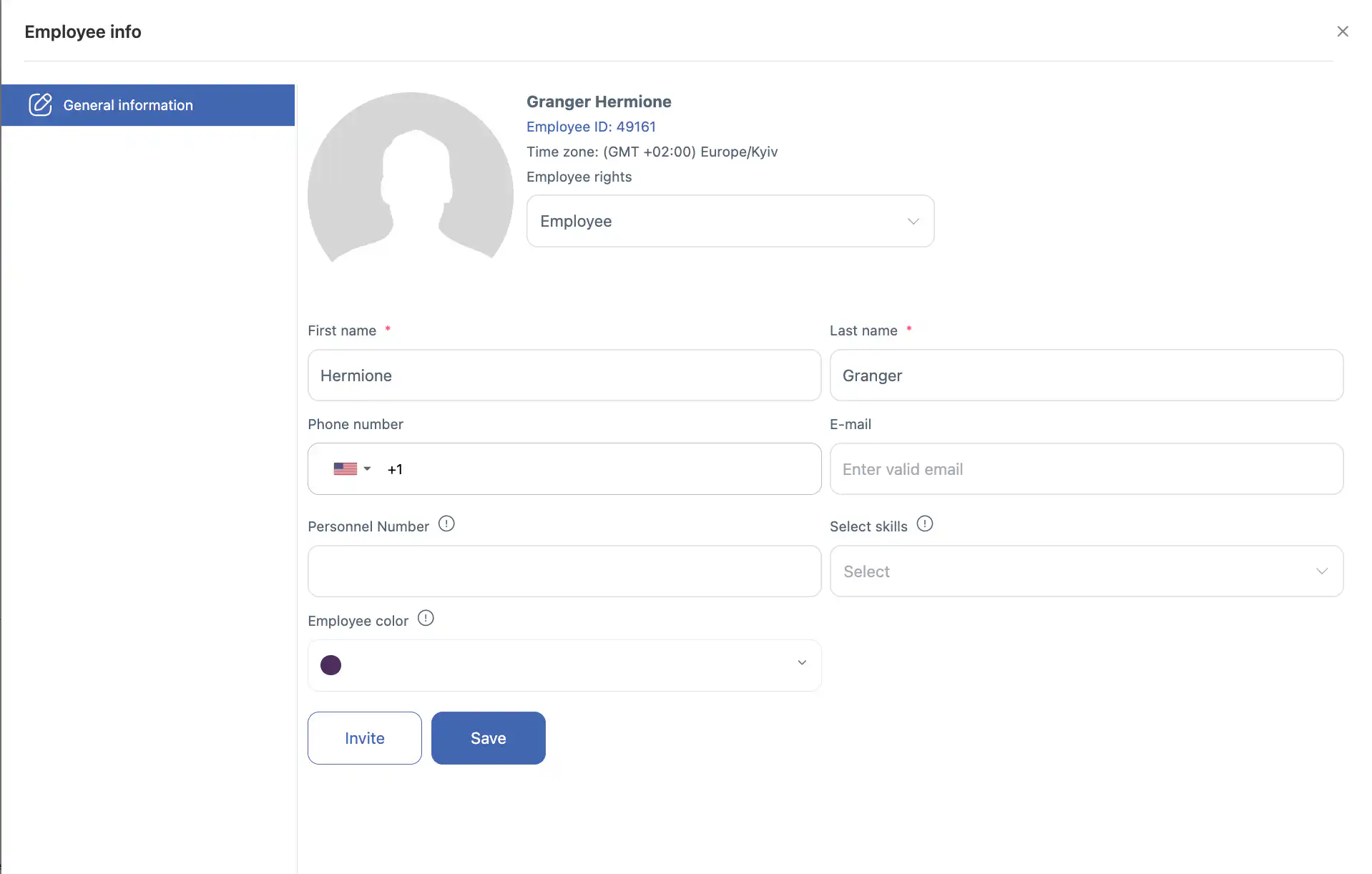
The employee colour is used to show their route on the map when the “Work location control” module is enabled.
Editing an employee profile
Employee data can be edited only before the employee is invited to the system.
If the employee has already been invited, they can edit the following fields in their own profile:
- first name;
- phone number;
- email address;
- profile photo.
FAQ
Question: What is the employee profile used for? Answer: The employee profile contains the user’s key information and settings in the system. It lets administrators view — and in some cases edit — the employee’s key data.
Question: How do I open an employee profile? Answer: Go to the “Employees” section and click the pencil icon next to the employee whose profile you want to view. A side panel with the employee profile opens.
Question: Which fields are shown in the employee profile? Answer: The profile shows the employee ID, time zone, employee rights, first name, last name, phone number, email, personnel number, selected skills and employee colour.
Question: What does “Employee color” mean? Answer: The employee colour is used on the map when the “Work location control” module is enabled — it helps to tell employees’ routes apart visually.
Question: Which fields can be edited after the employee has been invited? Answer: Once invited, the employee can change their first name, phone number, email address and profile photo in their own profile.
Question: Can an administrator edit other fields, for example the employee ID or the time zone? Answer: No — only the fields listed above can be changed (first name, phone, email, photo). The remaining fields, such as the employee ID or the time zone, stay as set by the company.
Question: Why can’t I change some fields in the profile? Answer: Some fields can be edited only before the employee is invited, and others are governed by the company settings and access rights. If a field is locked, this is due to system restrictions.
Question: Do the skills specified in the profile affect how tasks are distributed? Answer: Yes — the “Skills selection” field is linked to the employee’s skills, which are used when creating tasks and in schedules. How to assign skills is described in the article “Skills”.
Question: Where do the employee rights come from? Answer: The employee rights reflect the access level assigned to the employee. In Shifton Field Service these are Owner, Administrator and Employee. In addition, an employee can be given functional roles in service areas — Technician (performs tasks), Task Requester (creates tasks) and Task Approver (approves or rejects tasks). For details, see the article “Roles in Field Service (not published yet)”.
Question: Are changes in an employee profile reflected in schedules and on maps straight away? Answer: Yes — changes to the name, skills or colour appear in schedules and on maps immediately after the profile is saved.