

Shifton Field Service lets you add new employees to the company, send them invitations, import employee lists, and also dismiss and delete employees. All these actions are performed in the “Employees” section.
To open the section, click “Employees” in the side menu.
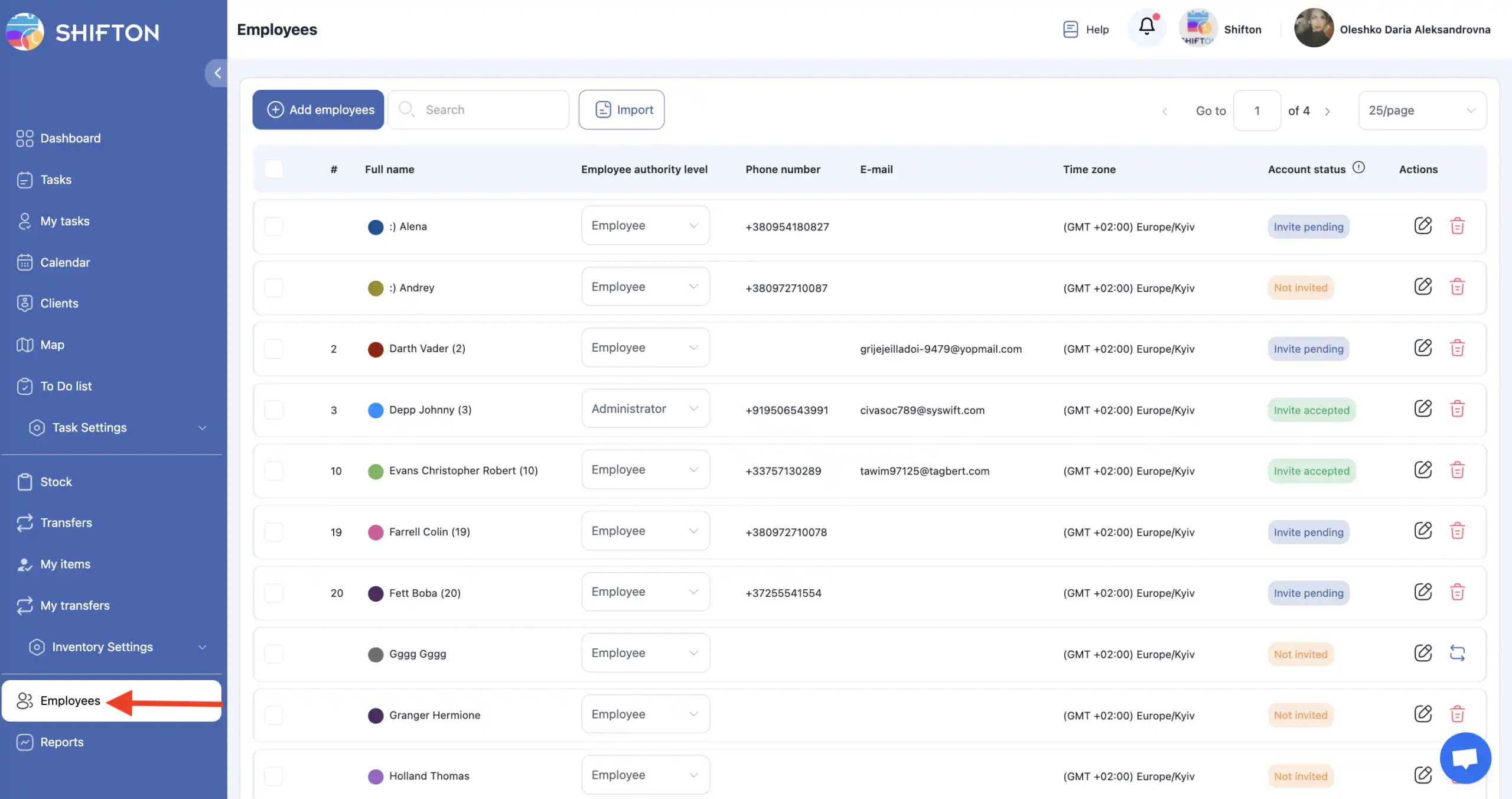
The page shows employees with the following statuses:
- Invited — the employee has access to their account.
- Invite pending — the invitation has been sent but not accepted yet.
- Not invited — the invitation has not been sent; a phone number or an email must be specified.
Adding an employee manually
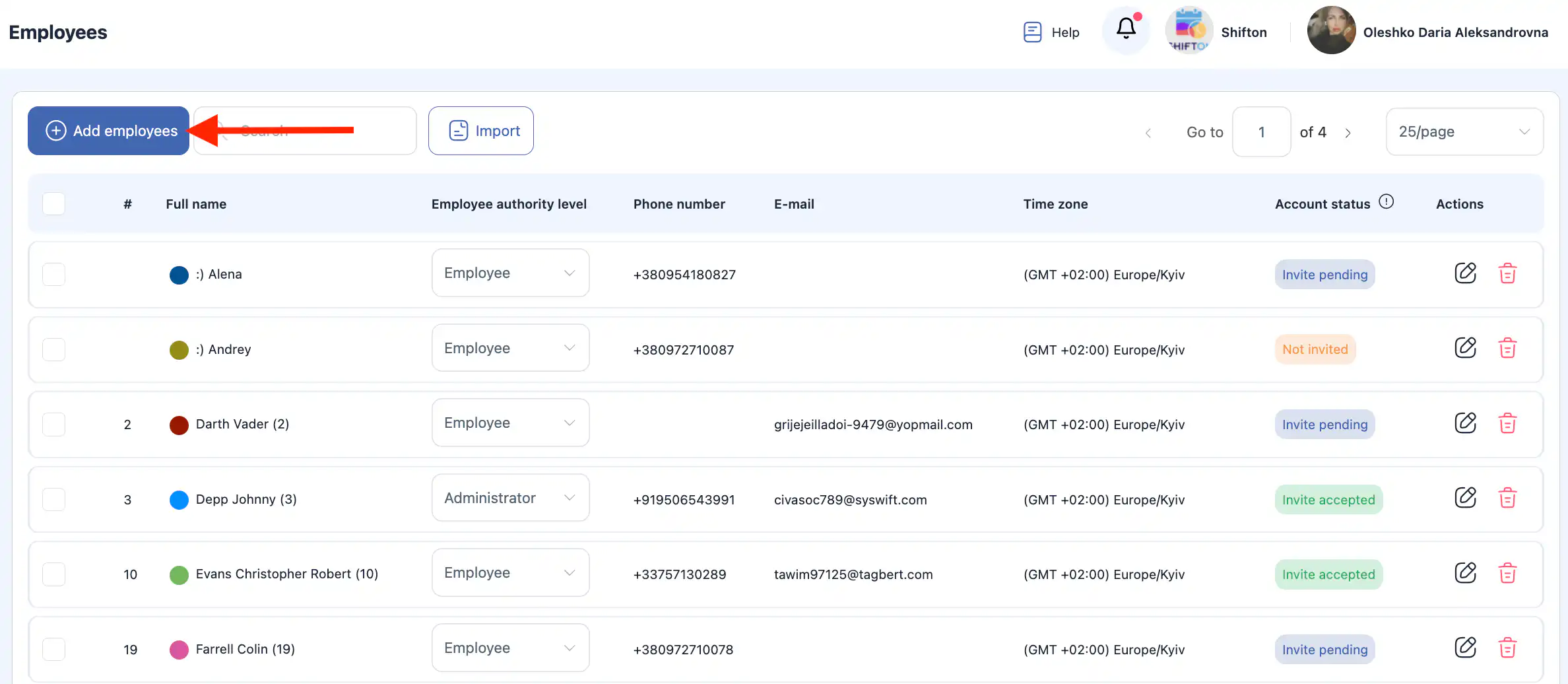
- Click “Add employee”.
- In the side panel, fill in the fields: first and last name, mobile phone number, email address and the employee’s start date.
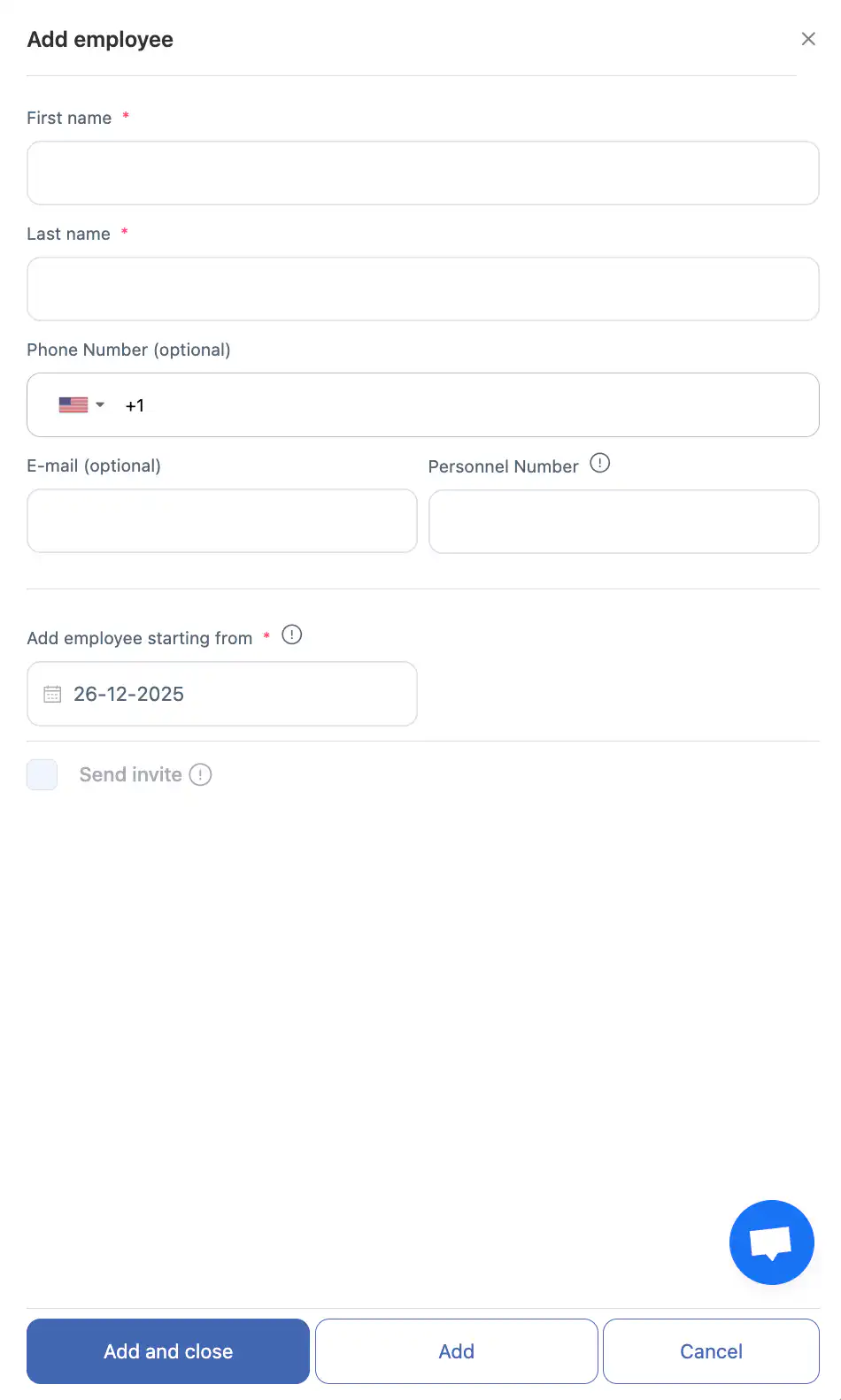
- Click “Send invite”.
Rules for sending invitations:
- If the employee is already registered, the invitation will be sent to their email.
- If the employee is not registered yet, they will receive a registration link by SMS or email.
- No more than 3 SMS per day can be sent to one phone number.
- To send invitations, your phone number must be verified, and the account must have a payment card with an active monthly subscription linked to it.
After you click “Add”, the employee profiles will be created. The employees will get access to their accounts once they complete registration.
Adding employees by importing a file
- Open the “Employees” section.
- Click “Import”.
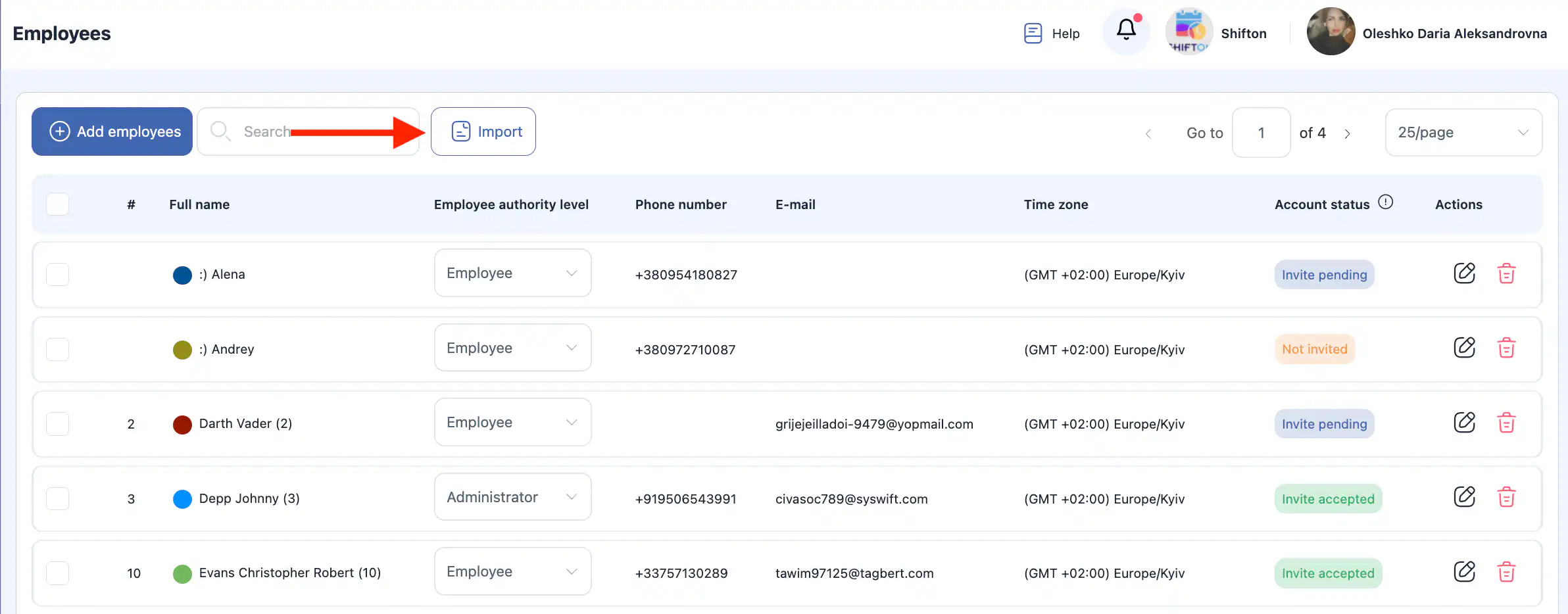
- In the side panel you will see an example of the required data format.
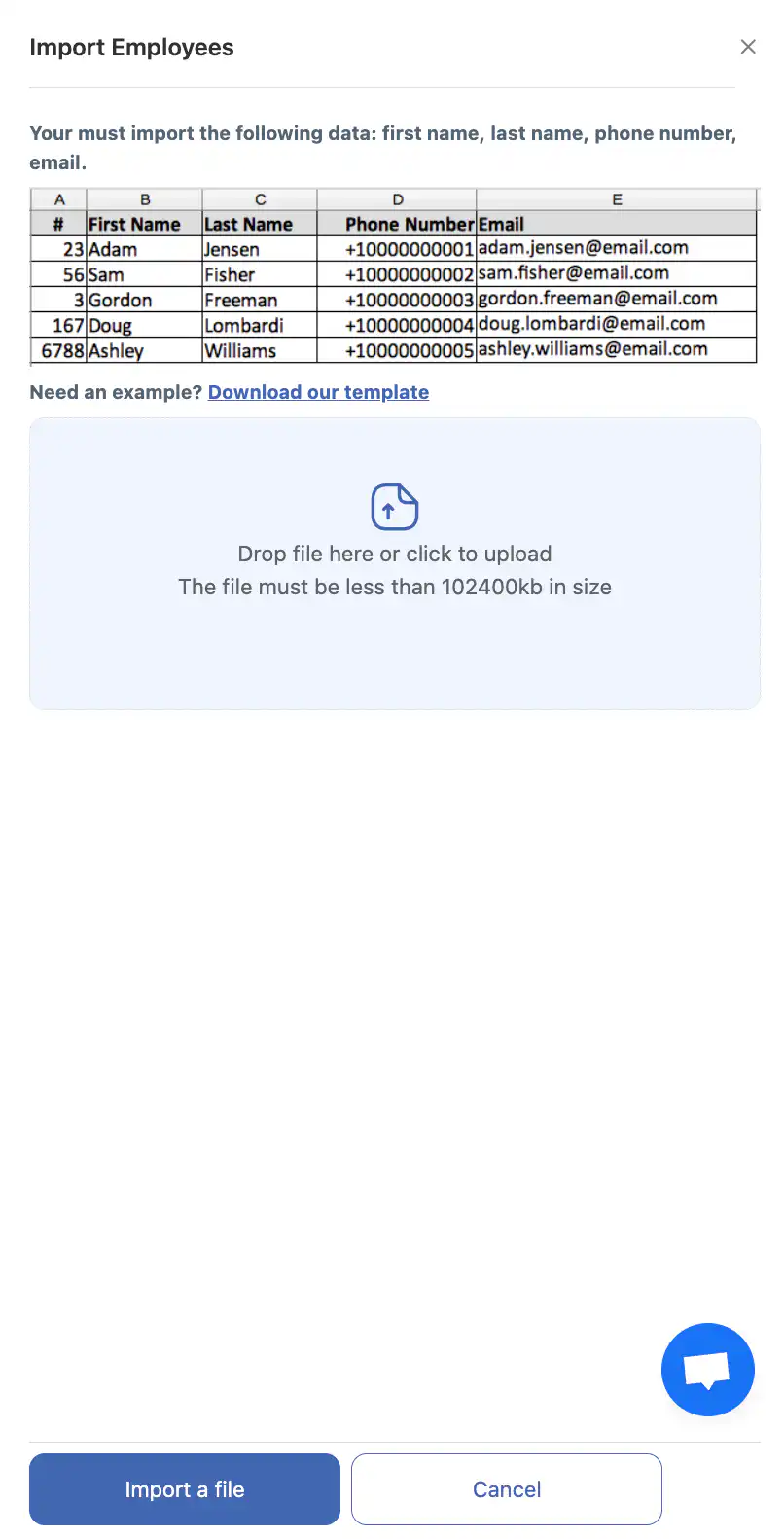
- Download the template using “Download template” and fill it in.
- Click “Choose file” and upload a file in .CSV or .XLSX format.
- Click “Import a file”.
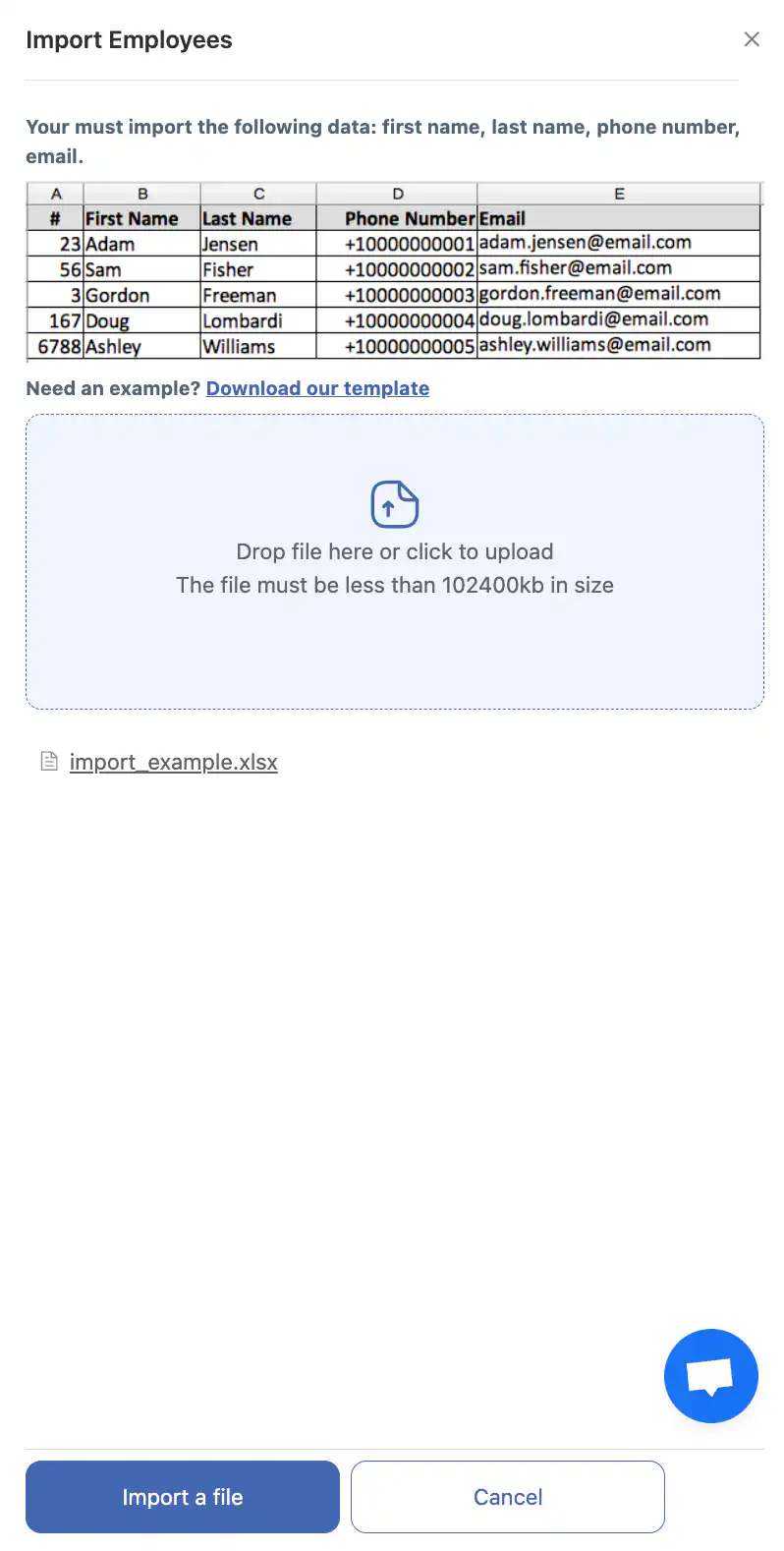
- Match the columns of your file with the system fields in Shifton.
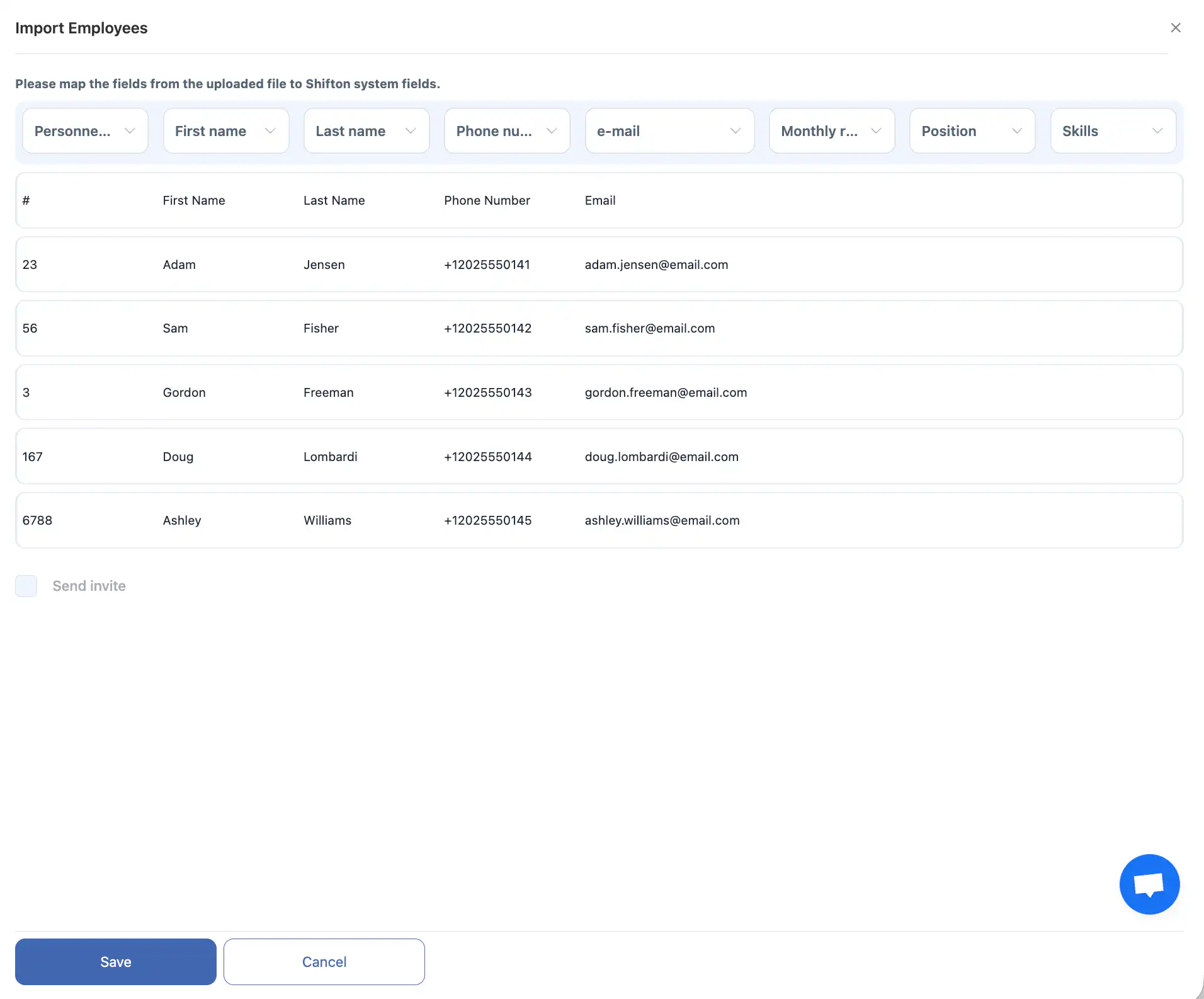
- Tick the box if you want to send the invitations right away.
- Click “Save”.
After saving, the employee profiles will be created. They will be able to sign in as soon as they complete registration.
Dismissing an employee
Only the company owner or an administrator can dismiss an employee.
- Click the bin icon next to the employee.
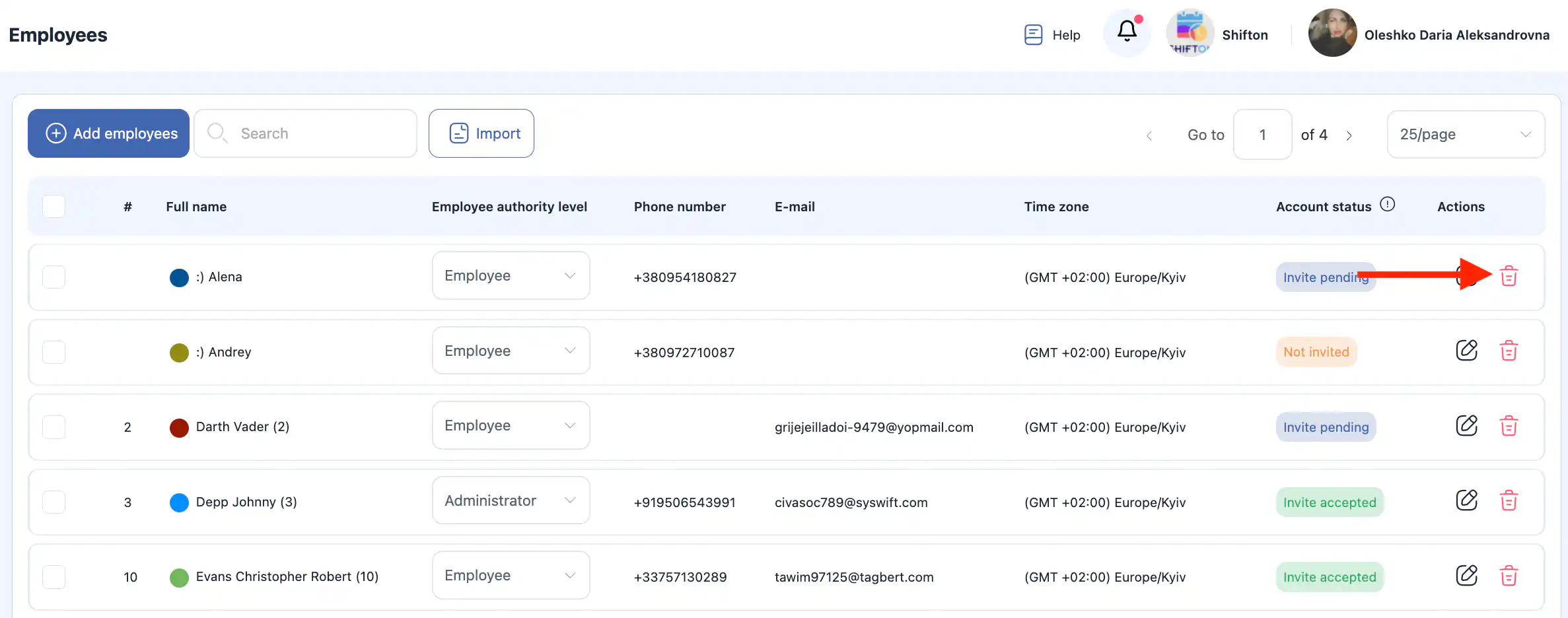
- Choose the dismissal date.
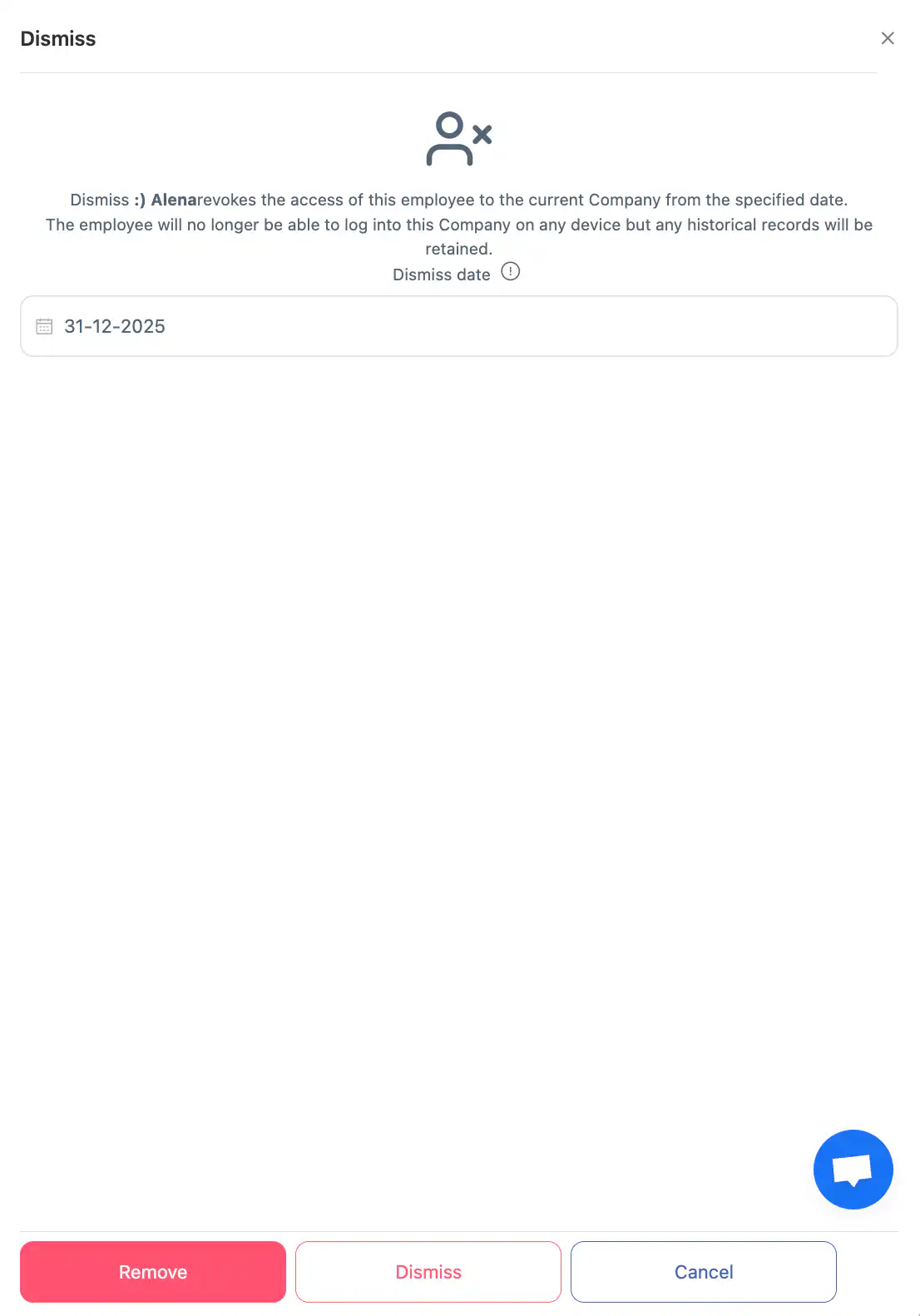
- Click “Dismiss”.
After the dismissal:
- The employee’s access to the company account will be revoked.
- They will not be able to sign in from any device.
Deleting an employee from the company
Only the company owner or an administrator can delete an employee.
- Click the bin icon next to the employee.
- Click “Delete”.
Important: deleting an employee permanently removes their profile from the company’s employee list.
FAQ
Question: Where is the section for adding employees? Answer: Go to the “Employees” section in the side menu of your Shifton account.
Question: How do I add a new employee manually? Answer: Click “Add employee”, enter the first and last name, the mobile phone number and the email address, then click “Send invite”.
Question: What happens after an employee is added? Answer: Once the invitation is sent, Shifton creates a profile. The employee will be able to sign in as soon as they complete registration.
Question: Which statuses can employees have in the list? Answer: Employees can be shown with the following statuses:
- Invited — the invitation has been accepted;
- Invite pending — the invitation has been sent but not accepted;
- Not invited — the invitation has not been sent yet.
Question: How does the invitation work if the employee already has an account? Answer: If the employee is already registered in Shifton, the invitation is sent to their email.
Question: How are invitations sent to unregistered users? Answer: If they are not registered, they receive a registration link by SMS or email.
Question: Is there a limit on the number of SMS invitations per number? Answer: Yes — no more than 3 SMS invitations per day can be sent to one phone number.
Question: What requirements must be met to send invitations through Shifton? Answer: Your phone number must be verified, and the account must have a payment card with an active subscription linked to it.
Question: How do I add several employees at once? Answer: Use the “Import” feature: download the template, fill in the employee data, upload the CSV or XLSX file, match the columns and click “Save”.
Question: Can the invitations be sent right away during the import? Answer: Yes — during the import you can tick a box to send the invitations immediately.
Question: How do I dismiss an employee? Answer: Click the bin icon next to the employee, choose the dismissal date and click “Dismiss”. This revokes their access.
Question: How do I delete an employee from the company? Answer: Click the bin icon next to the employee and choose “Delete”. This permanently removes their profile from the company list.
Question: Who can dismiss or delete employees? Answer: Only the company owner or an administrator can dismiss or delete employees.
Question: What is the difference between dismissal and deletion? Answer: Dismissal revokes access but keeps the employee profile; deletion irreversibly removes the employee from the company list.