

The mobile app menu depends on the user role and assigned permissions. The available sections differ for Owners, Administrators, and Employees.
Owner and Administrator Menu
Includes:
My Profile
Company — switch between active companies
Company Employees
Tasks
Clients
My Inventory
My Transfers
Help Center
Log Out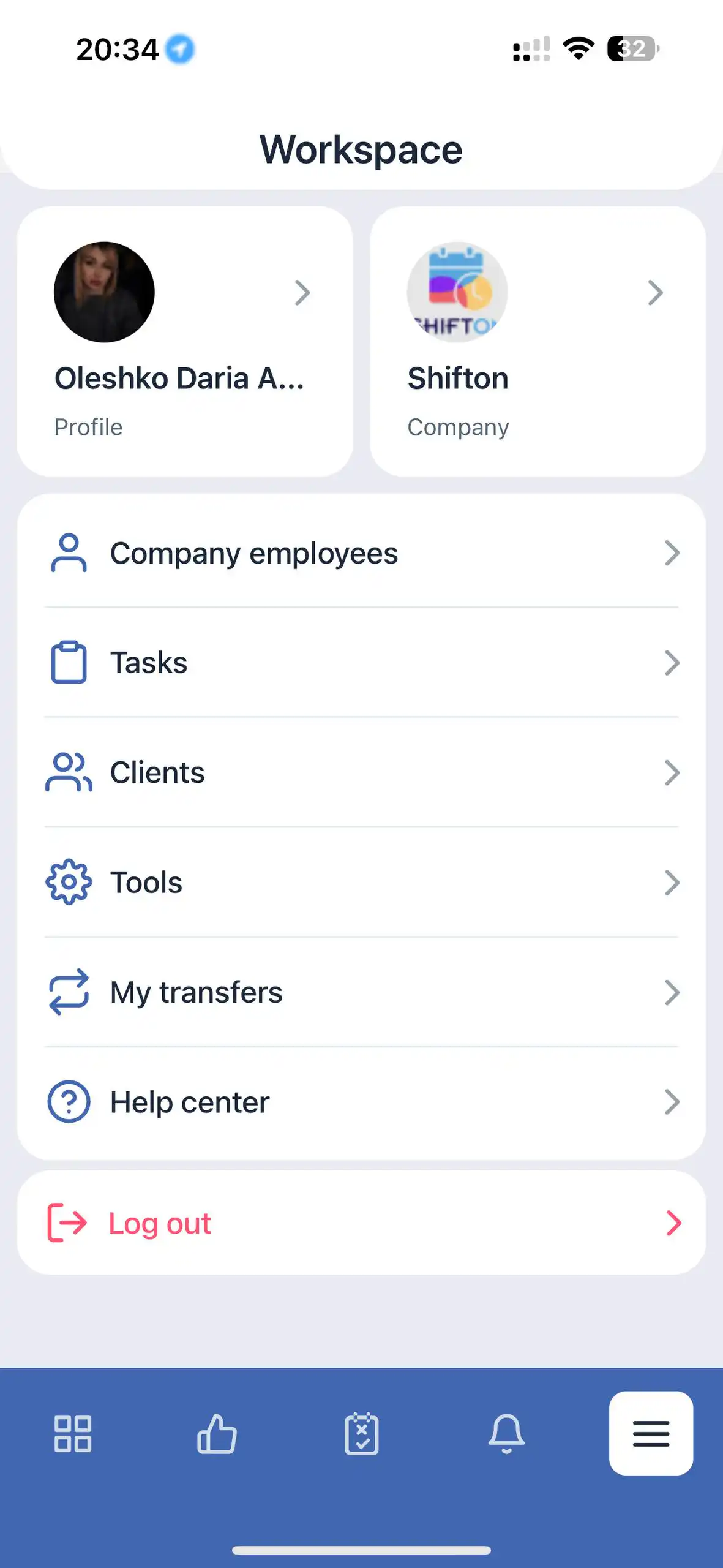
Employee Menu
Includes:
My Profile
Company
My Inventory
My Transfers
Help Center
Log Out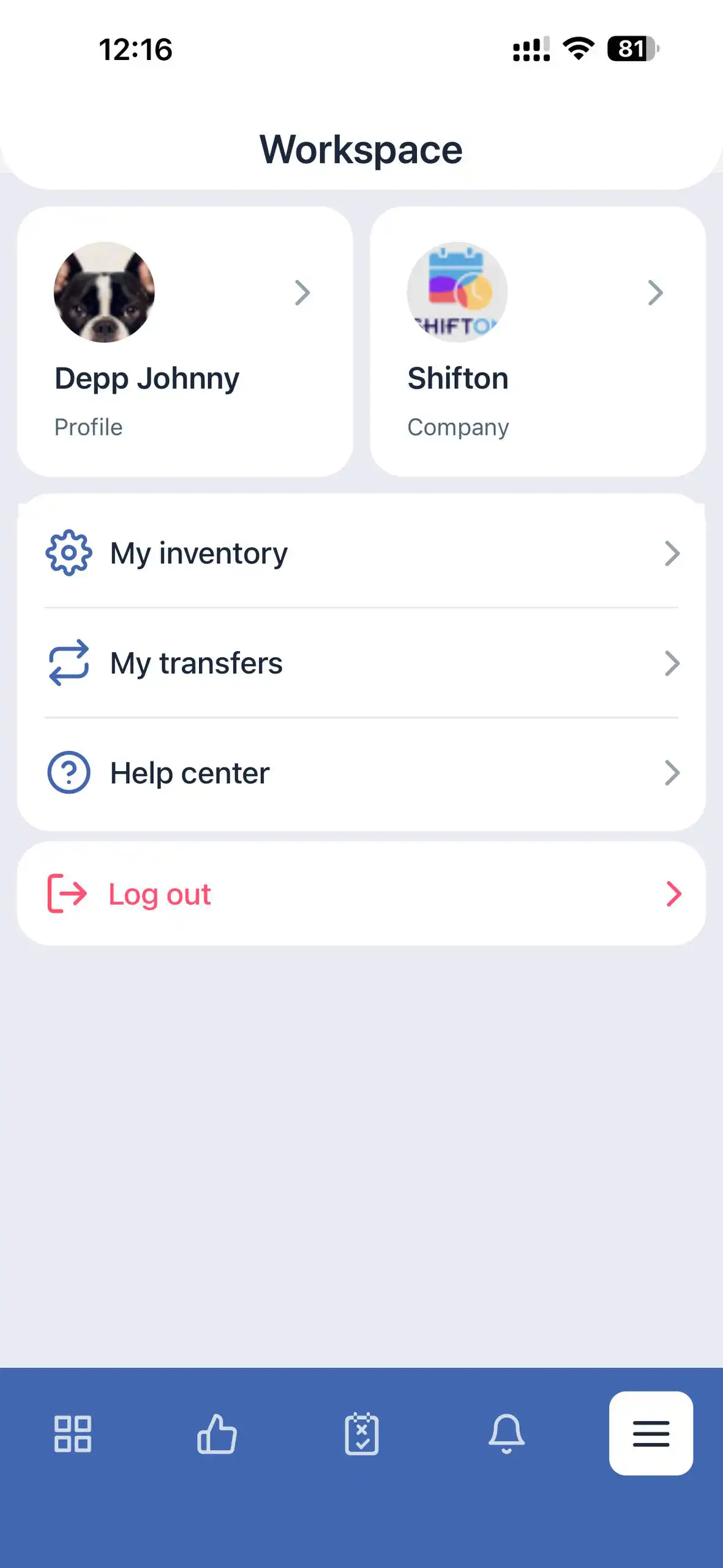
Section Overview
My Profile
Provides access to the user’s personal information.
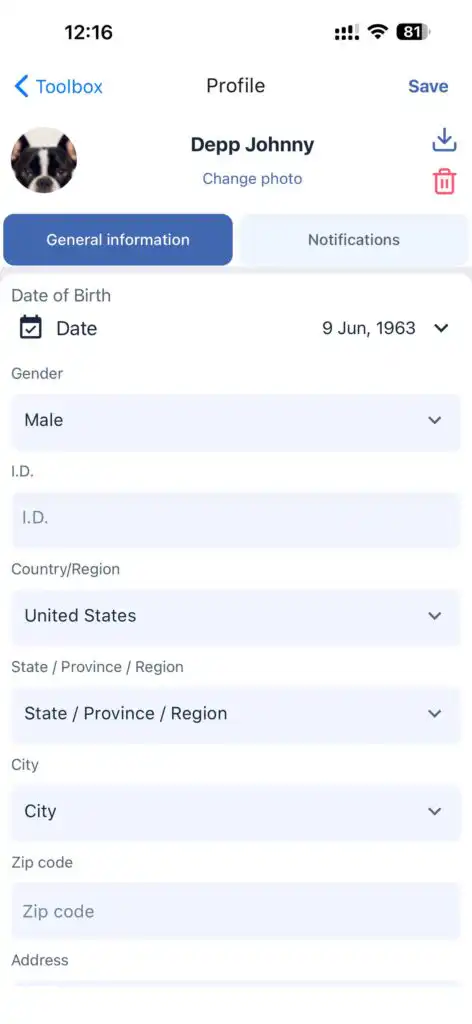
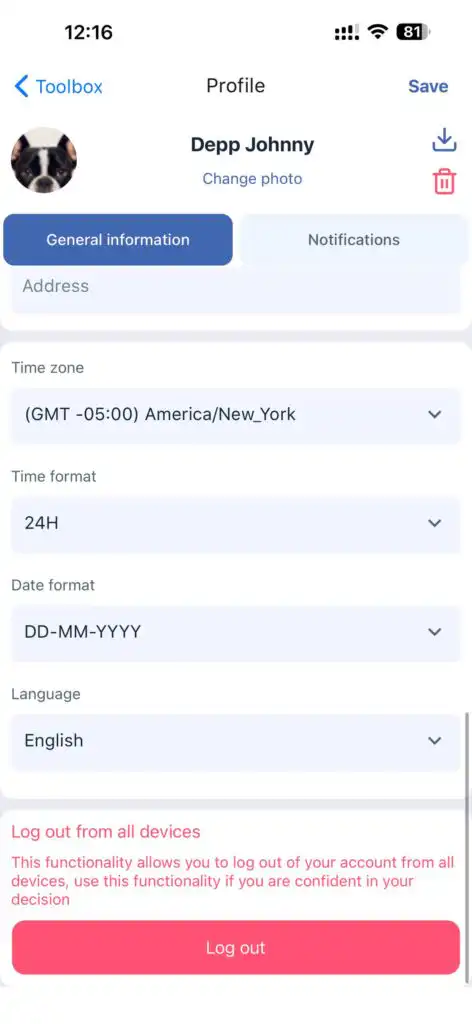
General Information:
Name
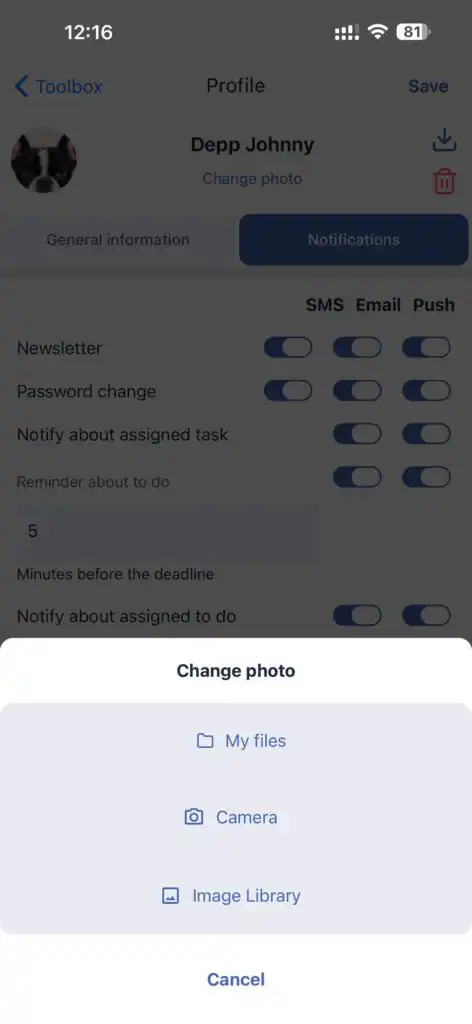
Profile photo (editable)
Address
Contact information
Password
Time zone
Time format
App language
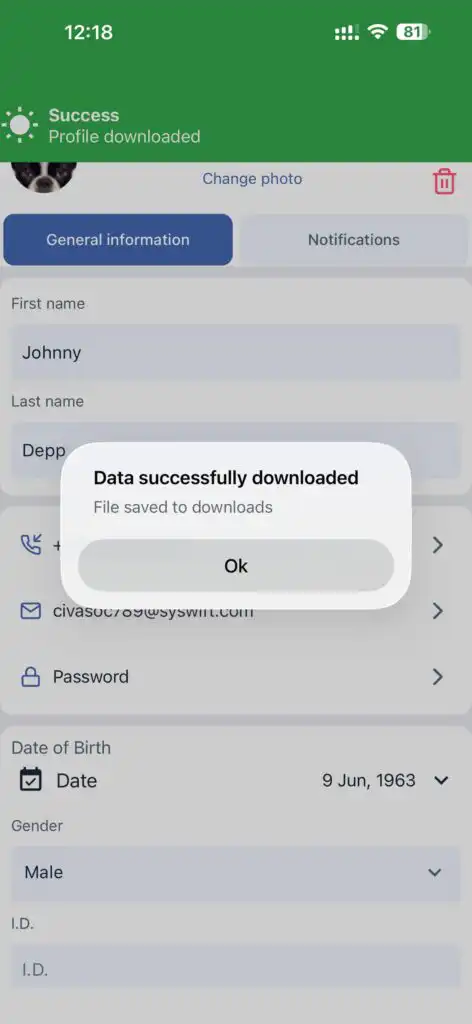
Users can also download their profile data.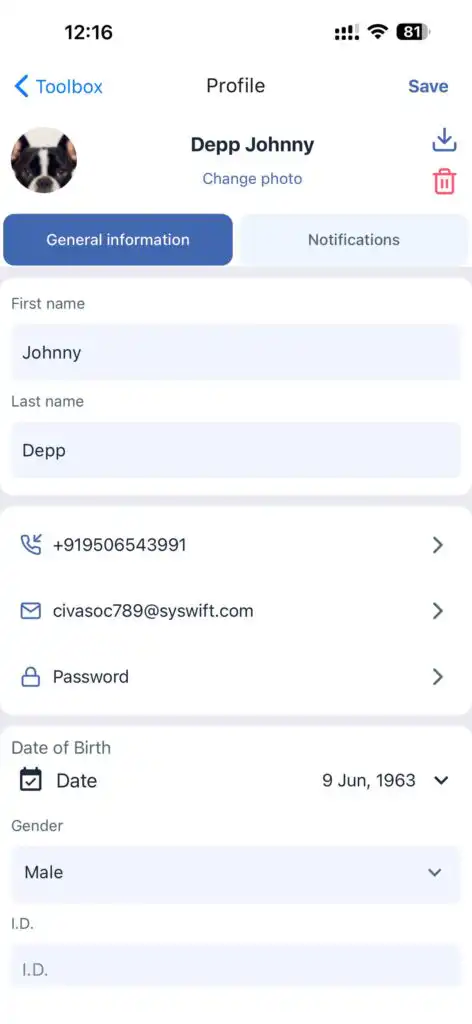
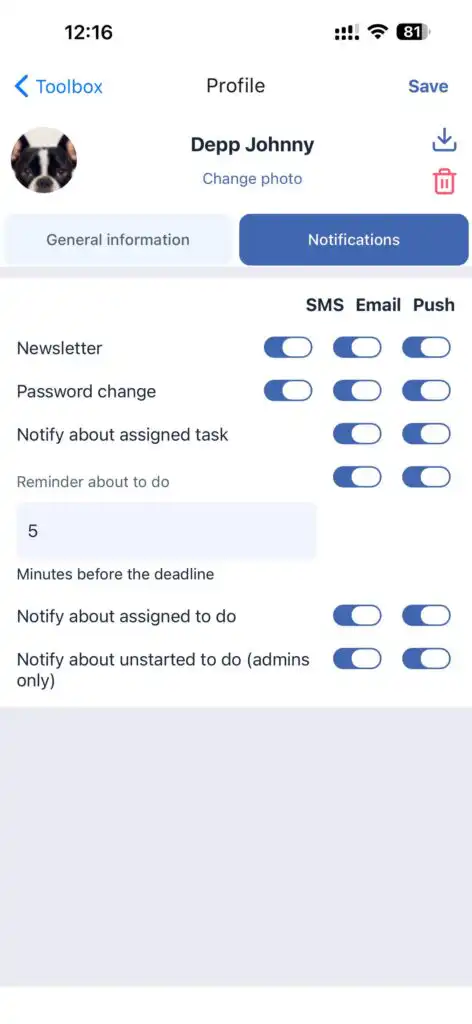
Notifications:
Settings for notifications regarding:
Tasks
To-Do items
Password changes
Company
Allows switching between companies if the user belongs to multiple companies.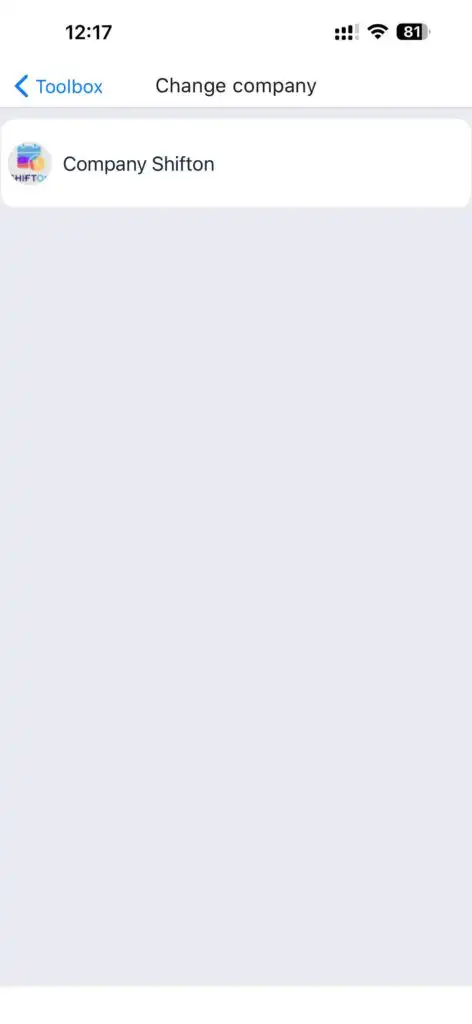
Company Employees
This section allows you to:
View all employees
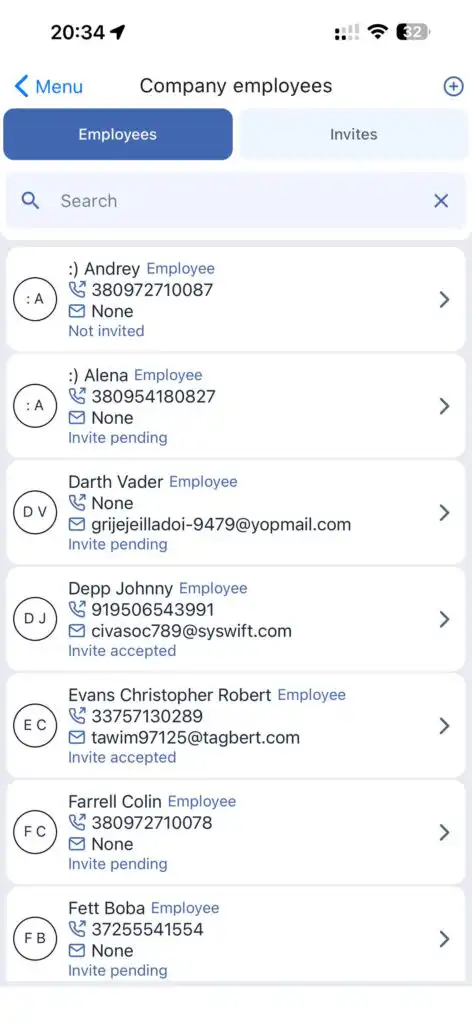
Create new employees
Send invitations
Edit profiles
Terminate or delete employees
Creating a New Employee
Tap the “+” icon at the top of the screen.
Enter employee information.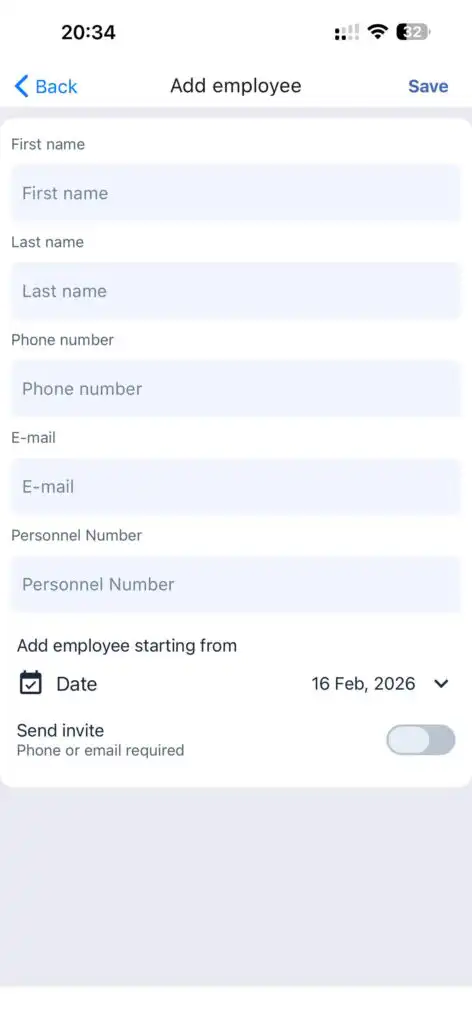
Tap Save.
To send an invitation, activate the Send Invitation toggle.
Inviting an Existing Employee
Go to the Invites section and tap Invite Employee.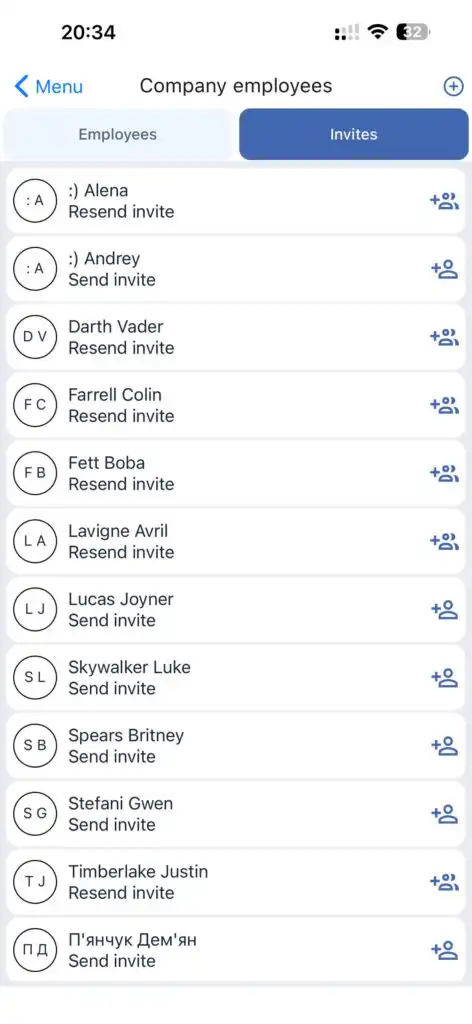
Editing / Deleting a Profile
Open the employee’s profile, make changes, and tap Save.
To remove or terminate an employee, use the corresponding button.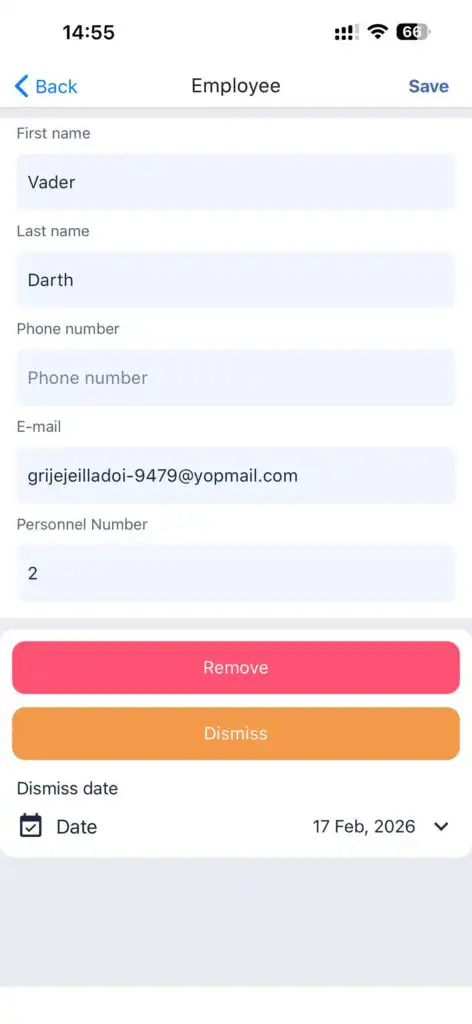
Tasks
Provides access to all tasks for all employees.
Features:
View tasks
Filter tasks
Select time period
Create new tasks
Edit existing tasks
Selecting a Time Period
You can choose the period for which you want to display tasks.
Task Types:
Active
Completed
Cancelled
No Date
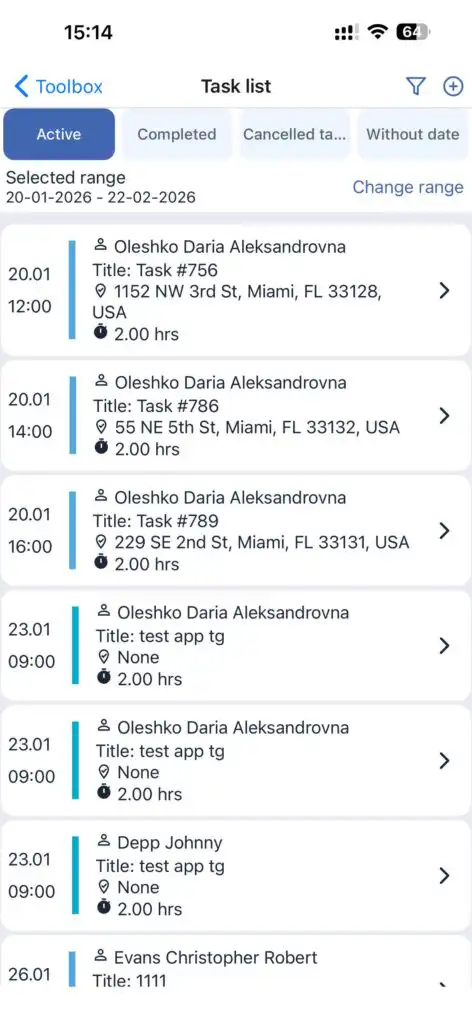
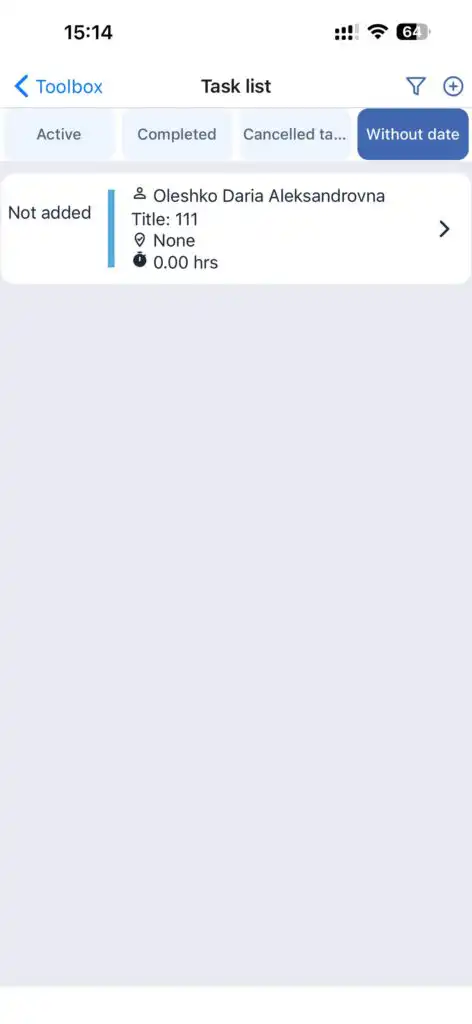
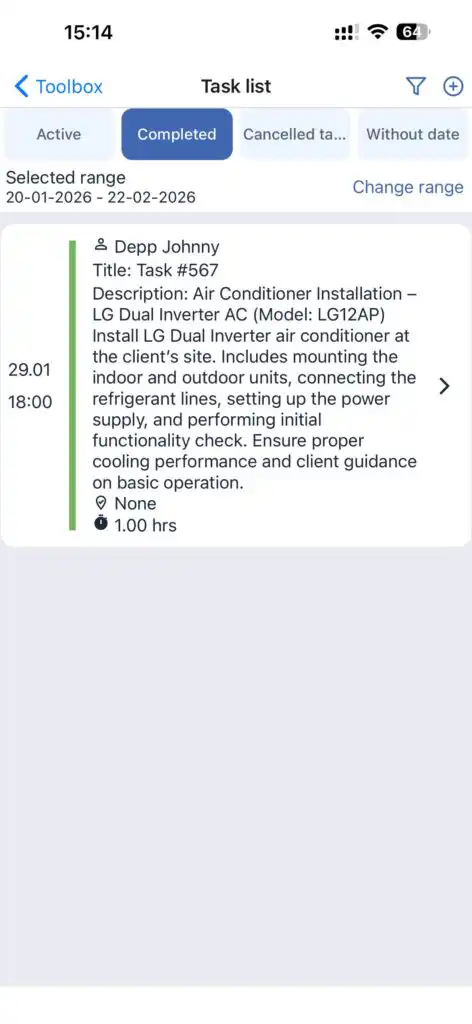
Task colors correspond to their status.
A circular arrows icon indicates a recurring task.
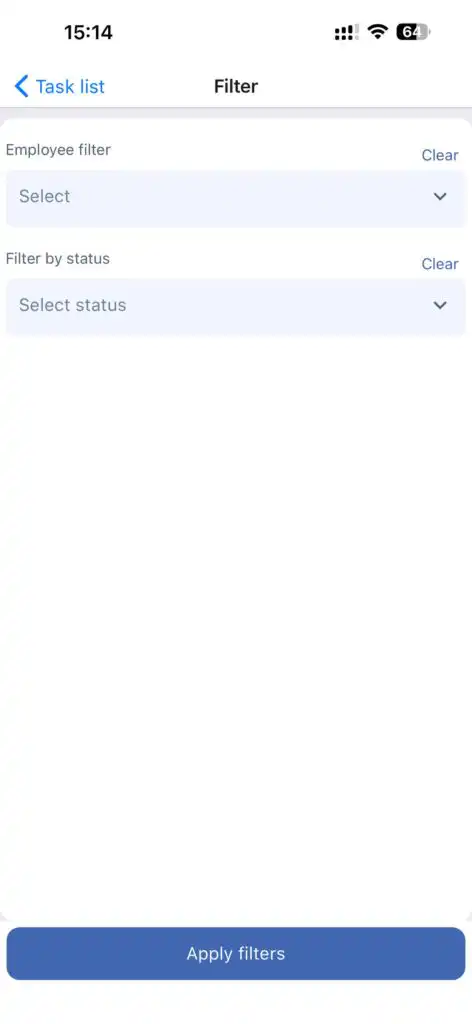
Filters:
By employee(s)
By status(es)
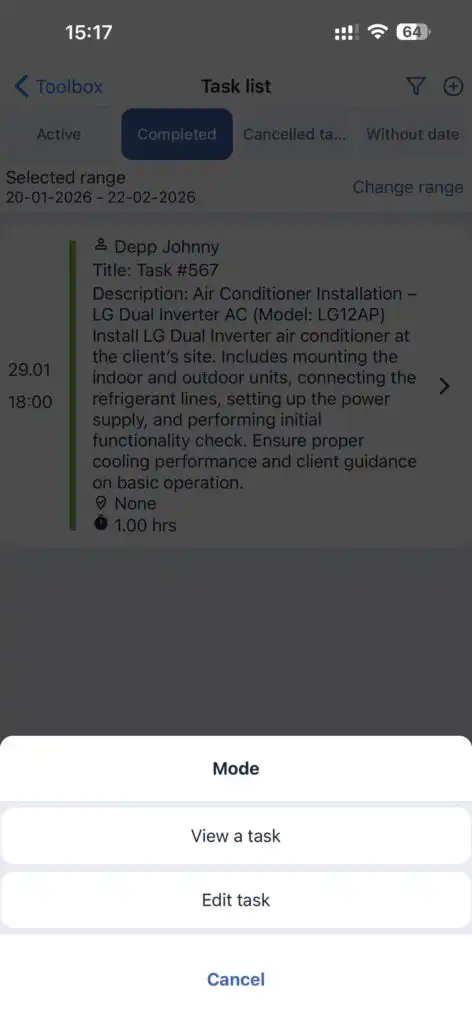
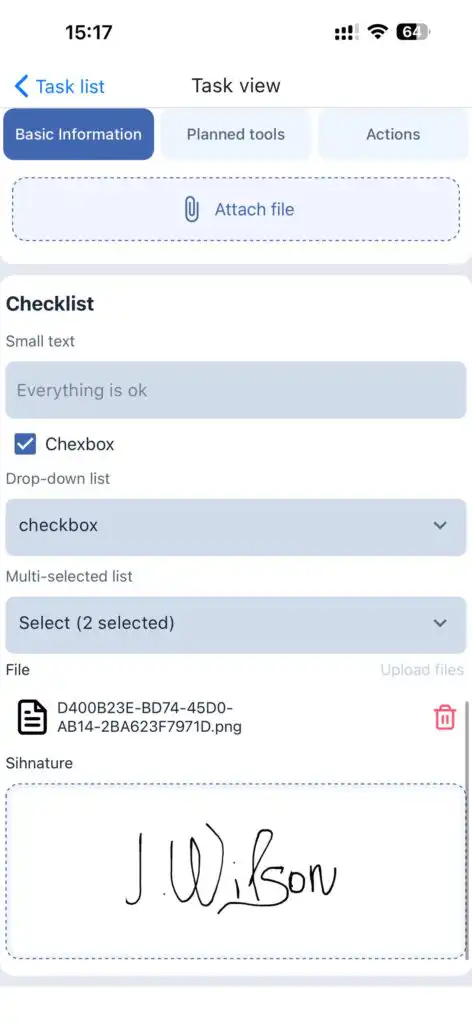
Viewing a Task
Displays:
Full task information
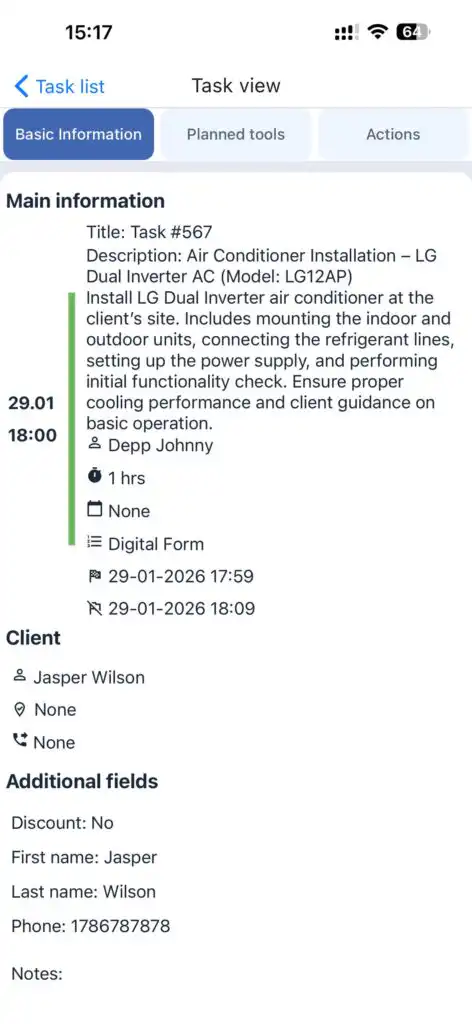
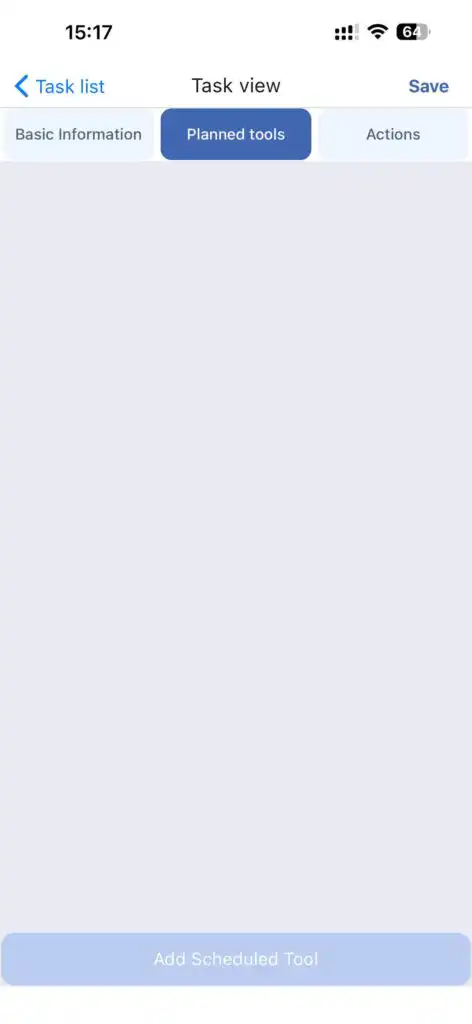
Planned tools
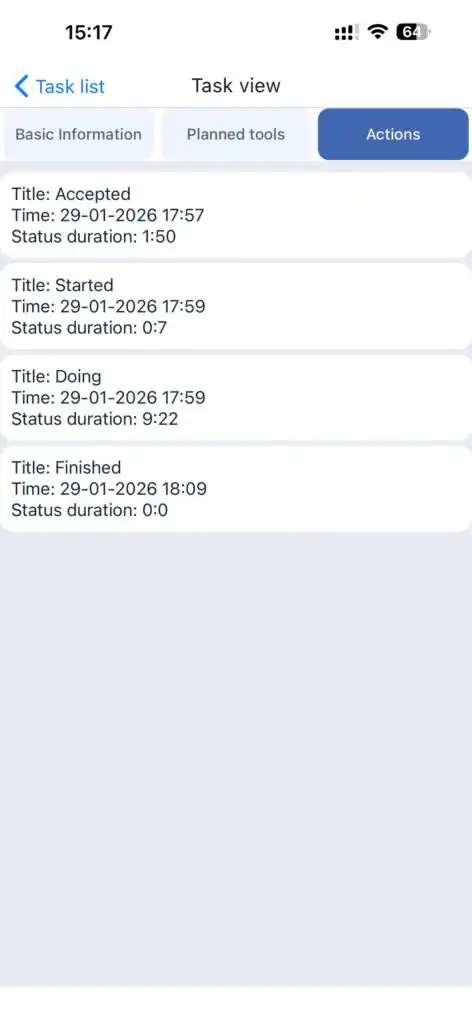
History of actions
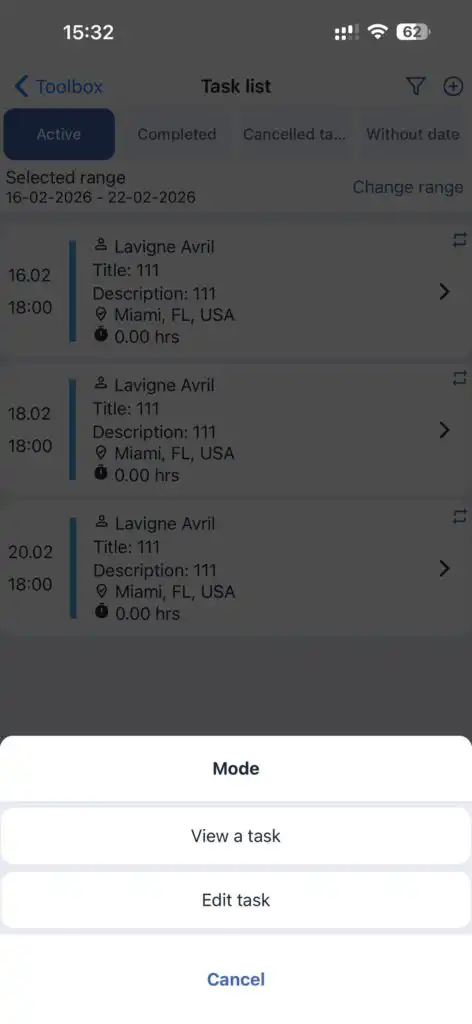
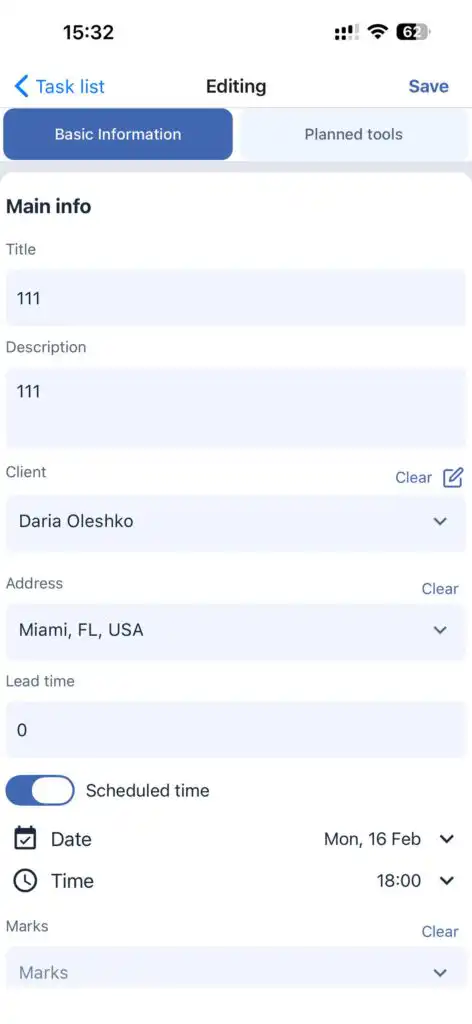
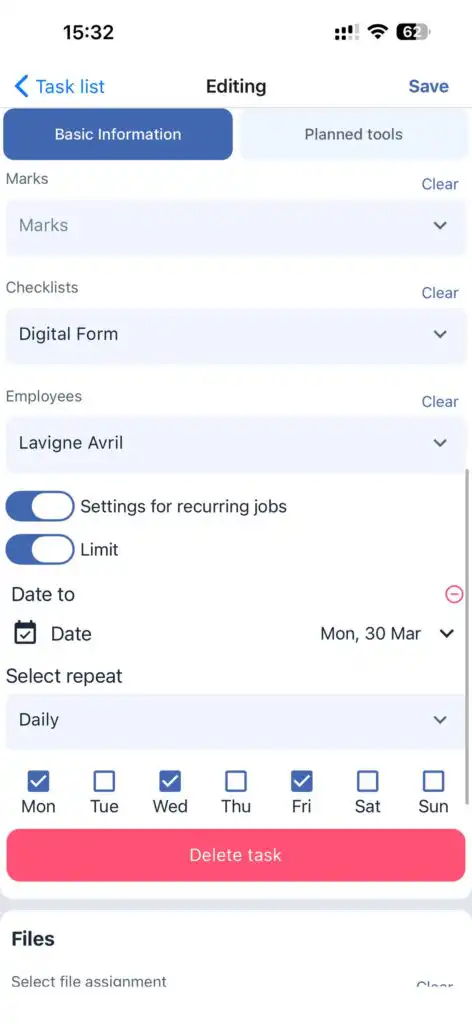
Editing a Task
Editing is allowed only if the performer has not started the task.
In edit mode you can:
Modify the current task
Save the task as a new one with changes
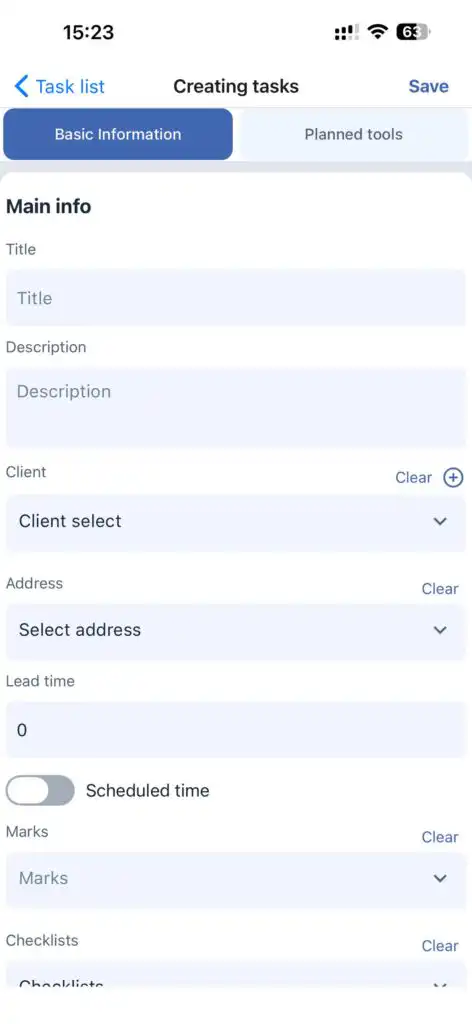
Creating a New Task
Tap “+” at the top of the screen.
Fill in task fields according to your company settings.
Client
You can:
Select an existing client
Create a new client (tap “+” next to the client field)
Client Address
After selecting the client, choose the address.
Duration
Set the expected duration of the task.
Date and Time
Drag the slider on the scheduled time bar to select the exact start date and time.
Additional Options
Add:
Tags
Checklist
Assign an employee
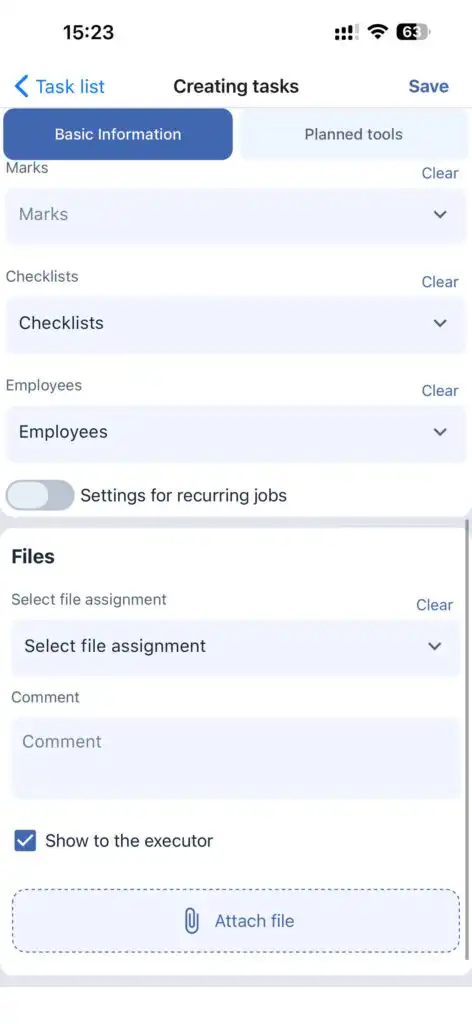
Recurring Tasks
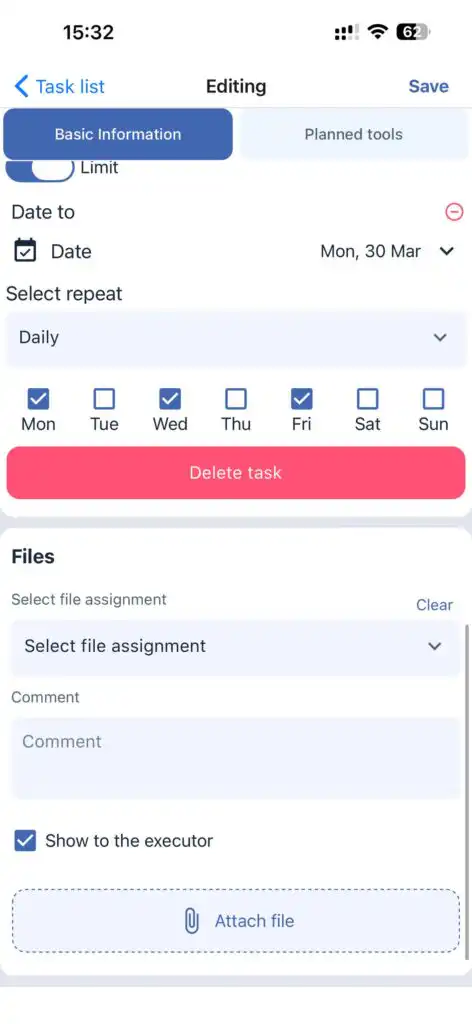
Enable the Repeat Task toggle and specify:
Frequency (day, week, 2 weeks)
End date for task creation
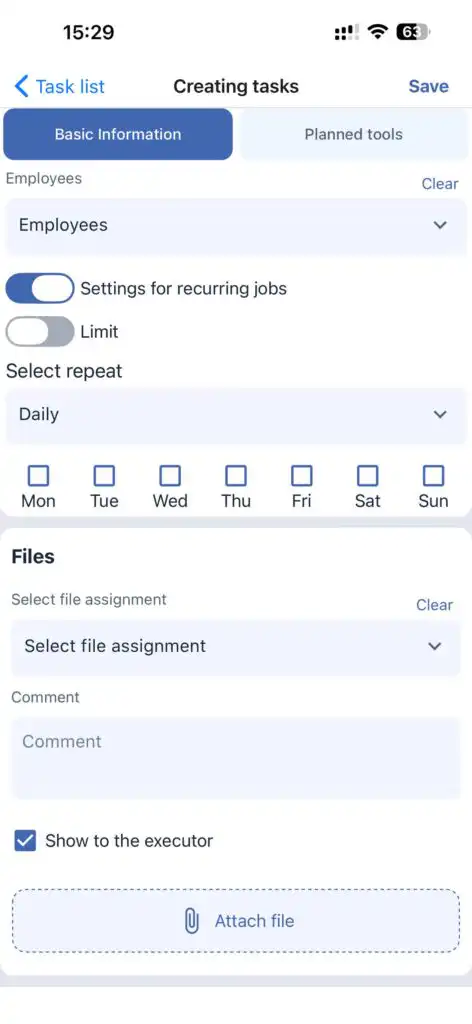
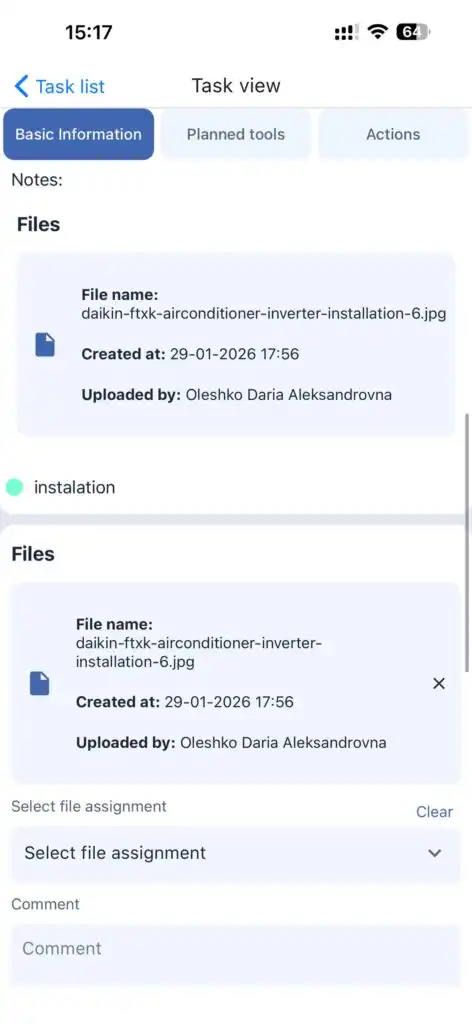
Files
Files can be attached to a task and optionally hidden from the performer.
Planned Tools
This section allows you to add tools required for the task.
Tap Add Tool to select tools manually or scan them.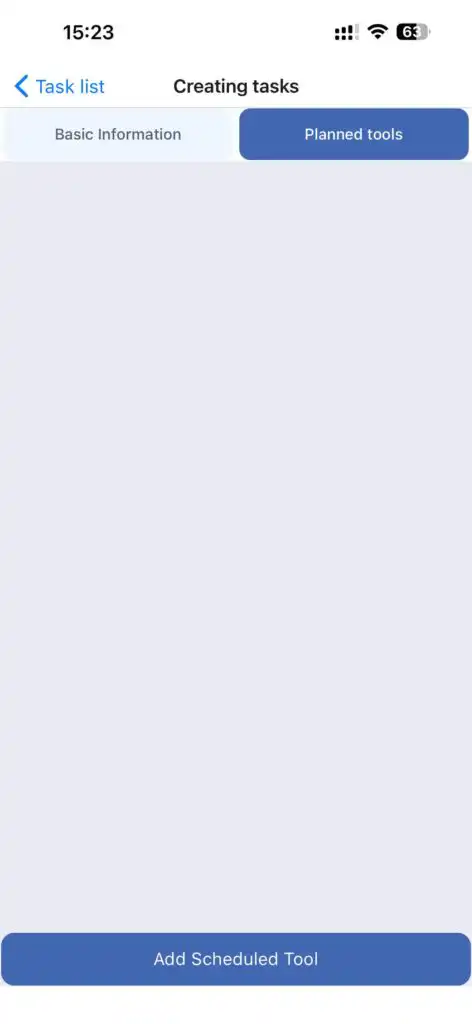
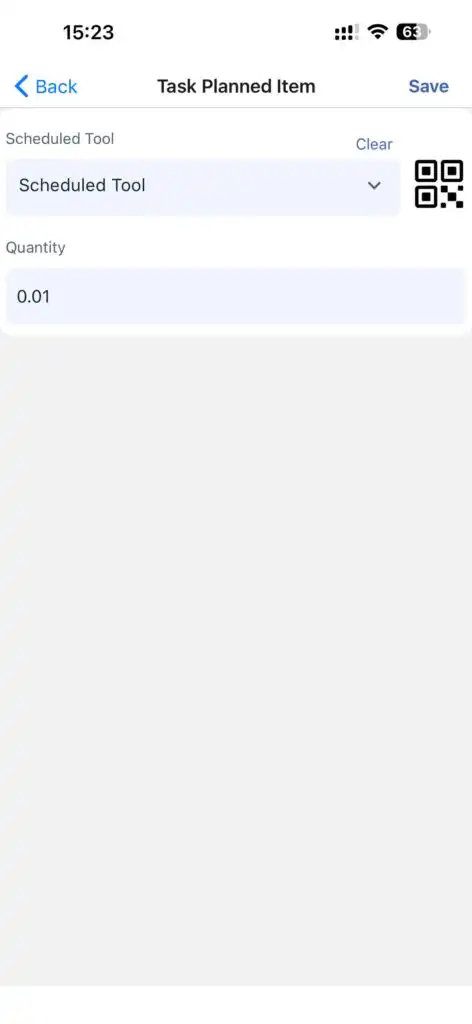
QR / Barcode Scanning
Tools are matched by scanning QR or barcodes according to:
batch_number on the warehouse record
or
external_id of the tool
If no match is found, the tool cannot be added.
After adding tools, tap Save in the tools section, then save the task.
Clients
Allows you to:
View a list of clients
Search clients by name, surname, address, or other available data
Edit client details
View tasks related to a client
Delete a client
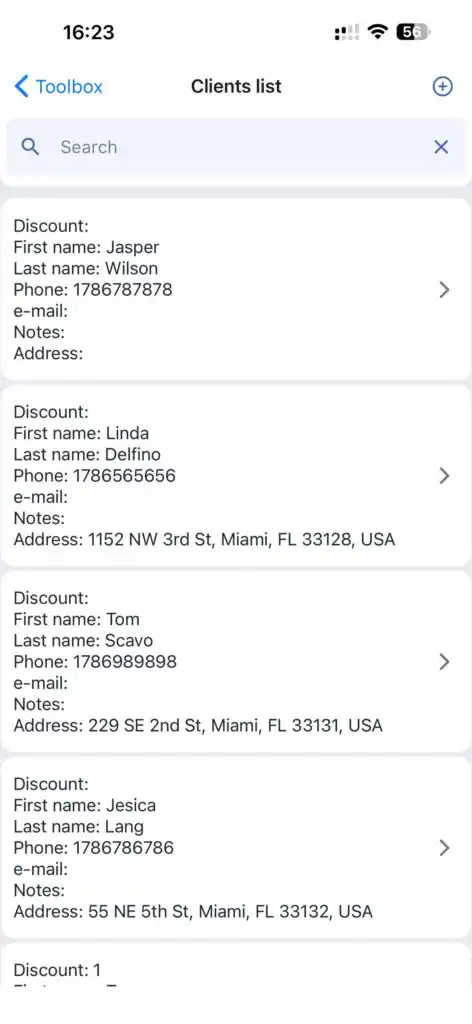
Creating a Client
Tap “+”, fill in the client fields, and tap Save.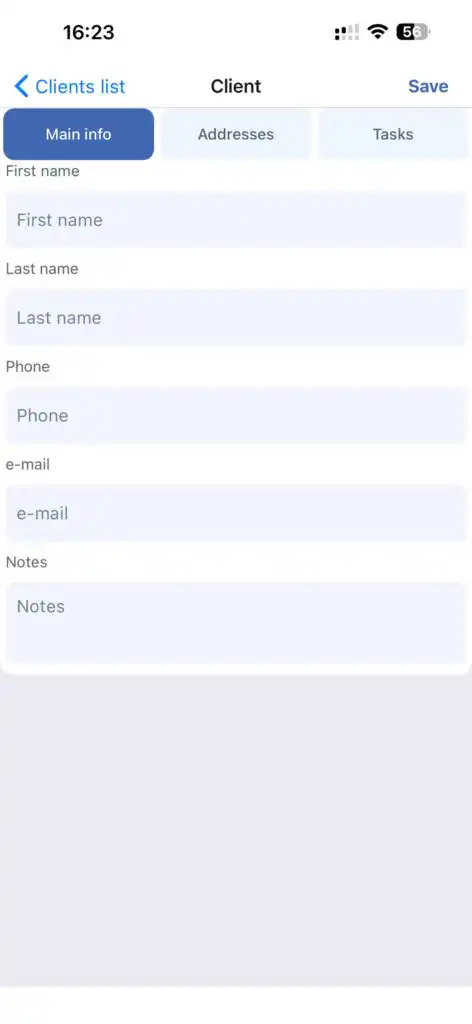
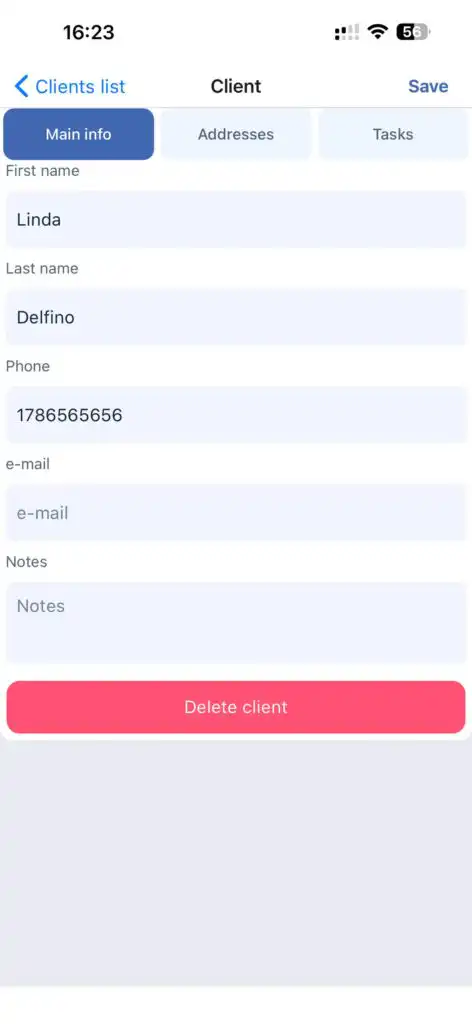
Editing a Client
Open the client profile, make changes, and tap Save.
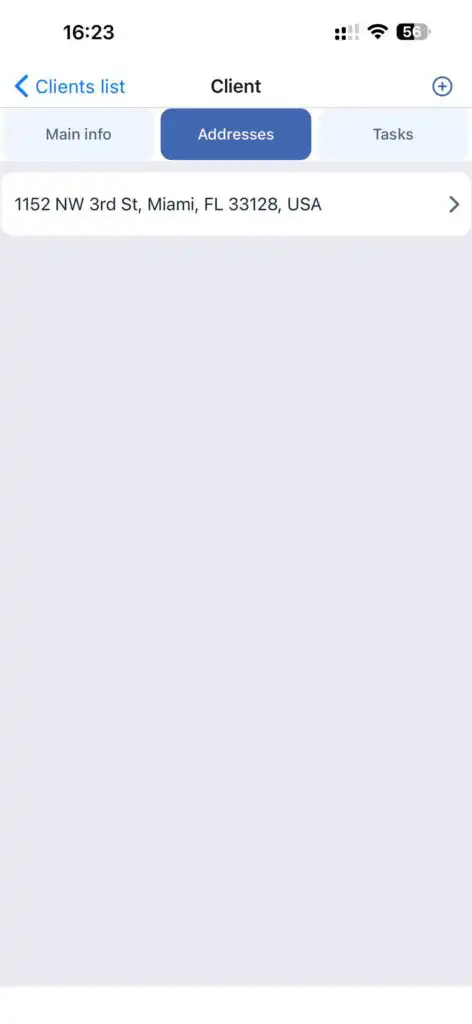
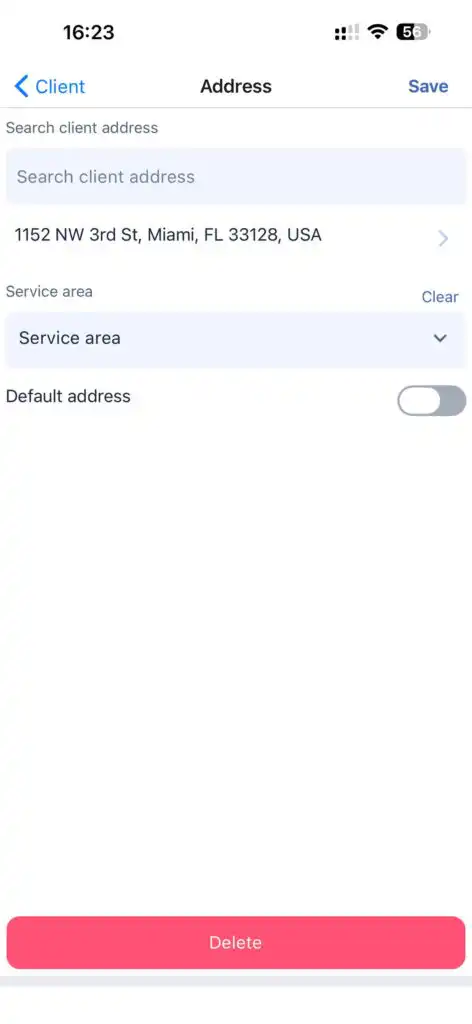
Client Addresses
In the Address tab, you can:
Add new addresses
Edit existing addresses
Select the service zone
Viewing Client Tasks
Go to the Tasks tab in the client profile.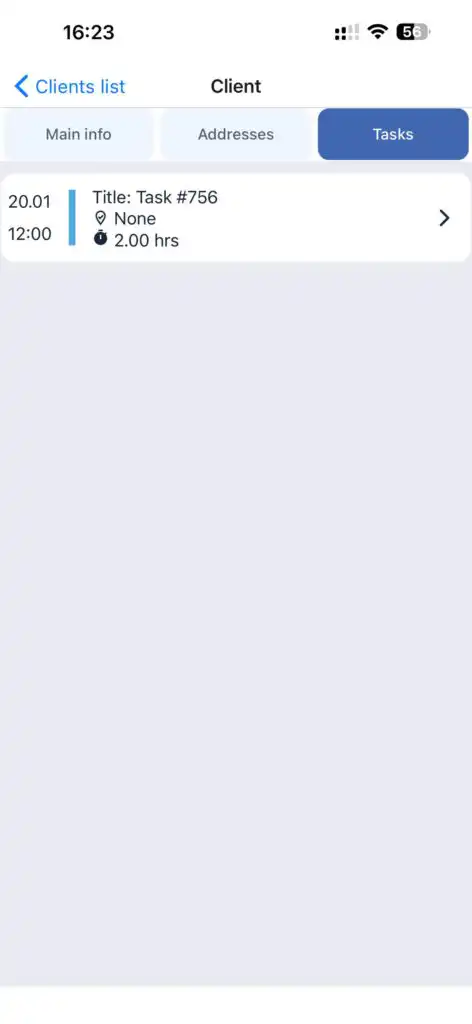
Deleting a Client
Tap the Delete button.
Tools (My Inventory)
Allows you to:
View tools
Filter tools
Return tools to the warehouse
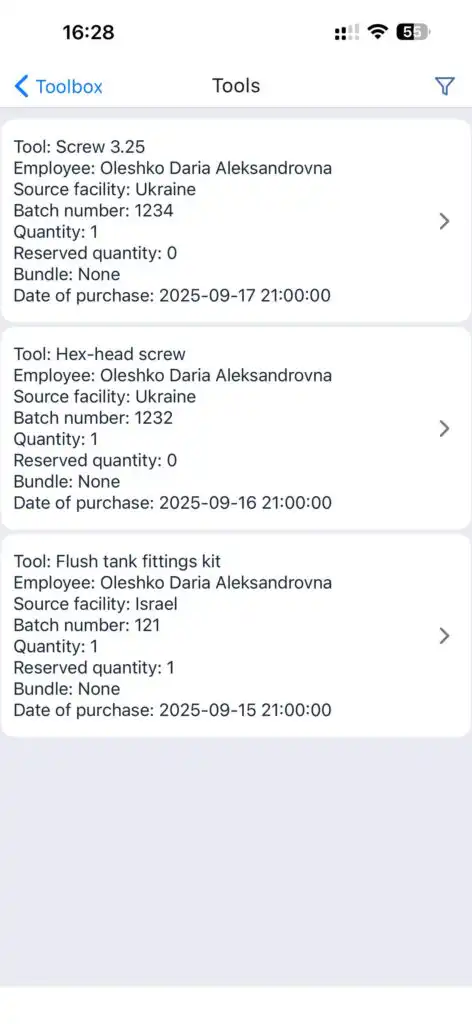
Filtering
Tap the filter icon at the top of the screen.
Available filters:
By employee(s)
By warehouse(s)
Zero-balance tools (previously assigned to employees)
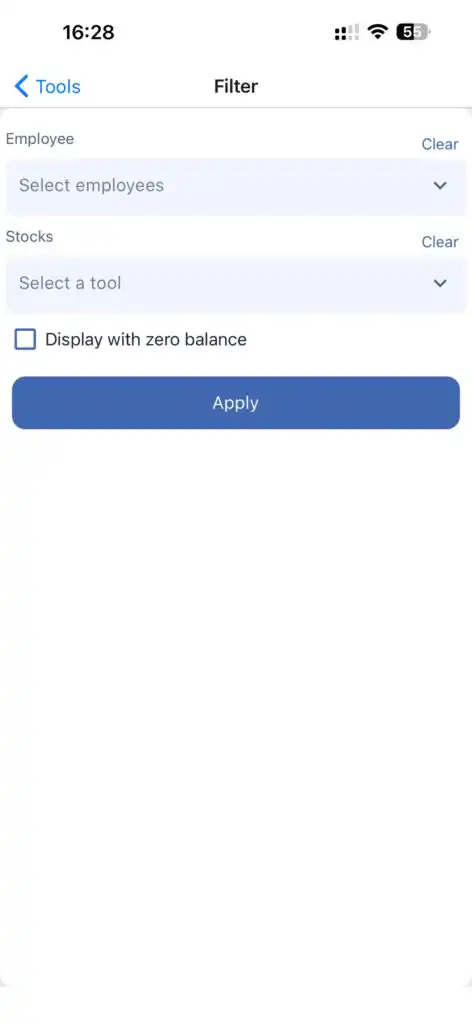
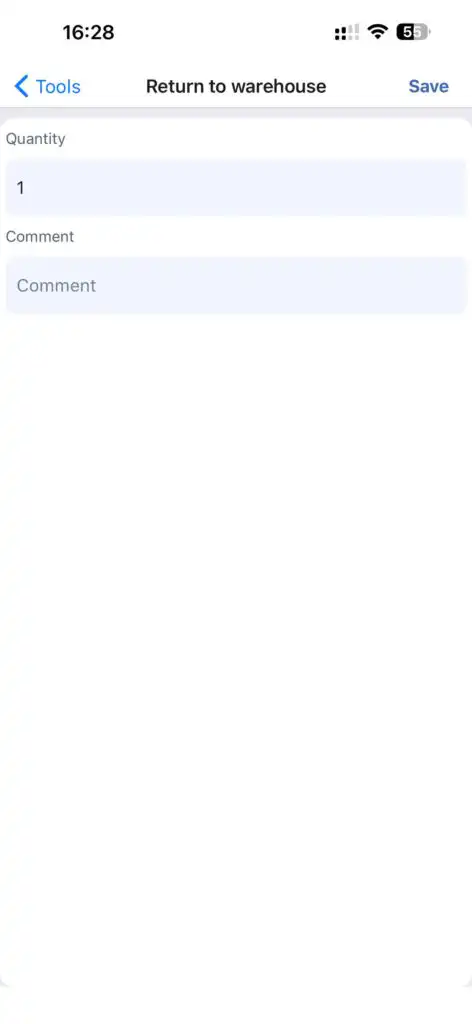
Returning a Tool
Open the tool.
Tap Return to Warehouse.
Enter quantity.
Optionally add a comment.
Tap Save.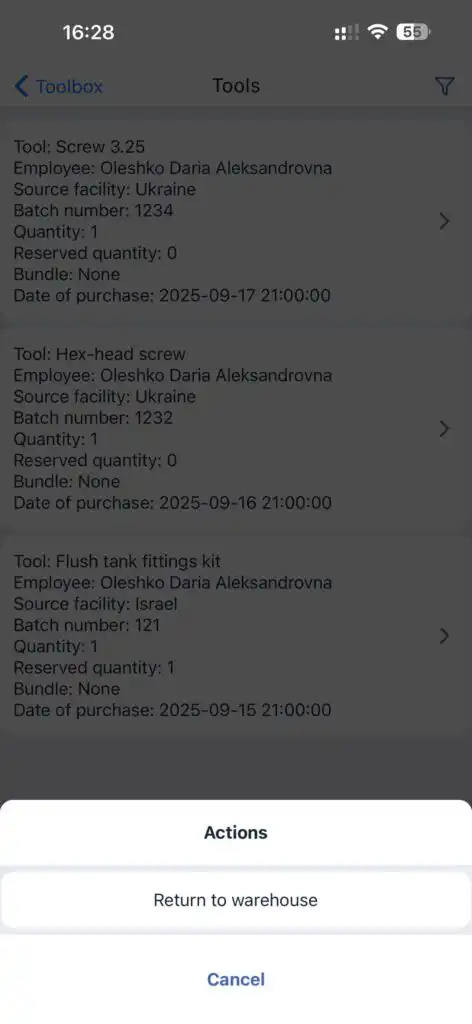
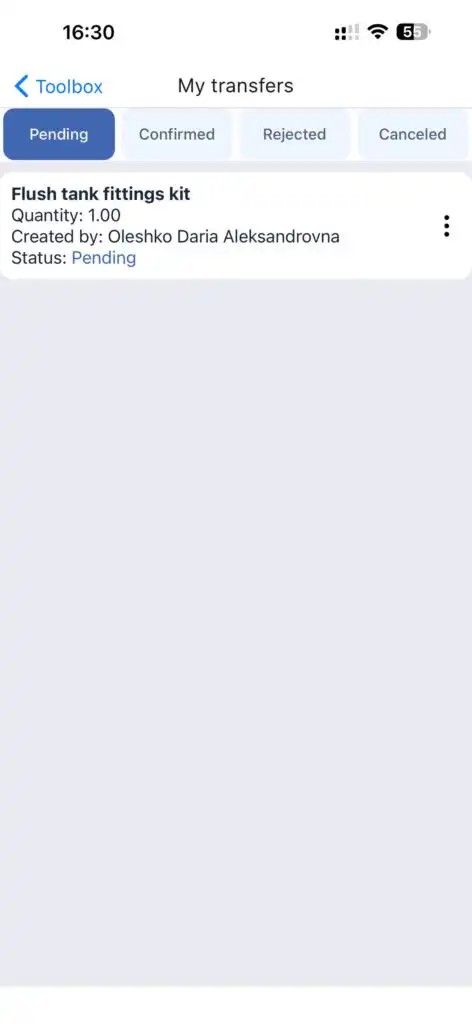
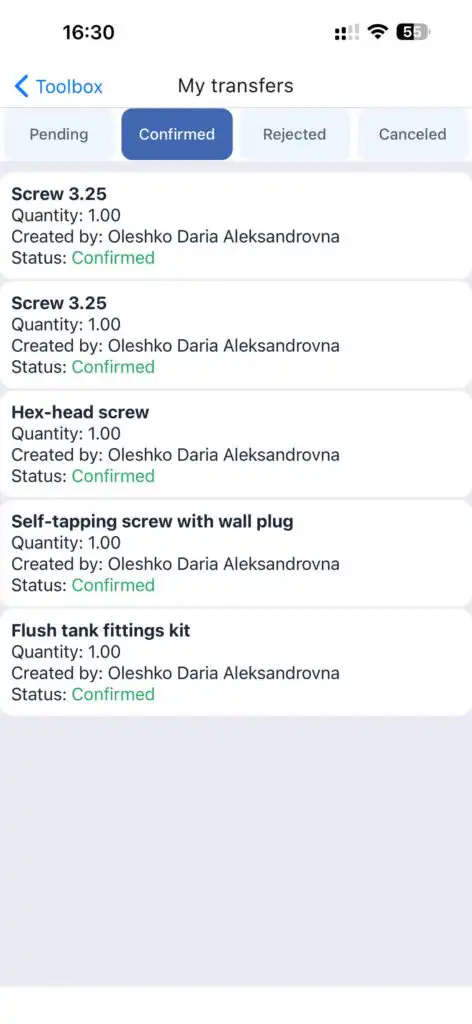
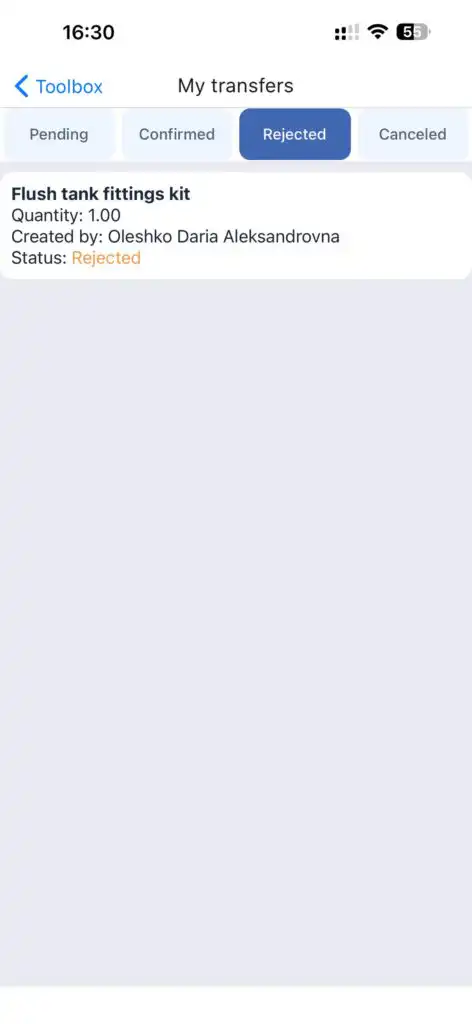
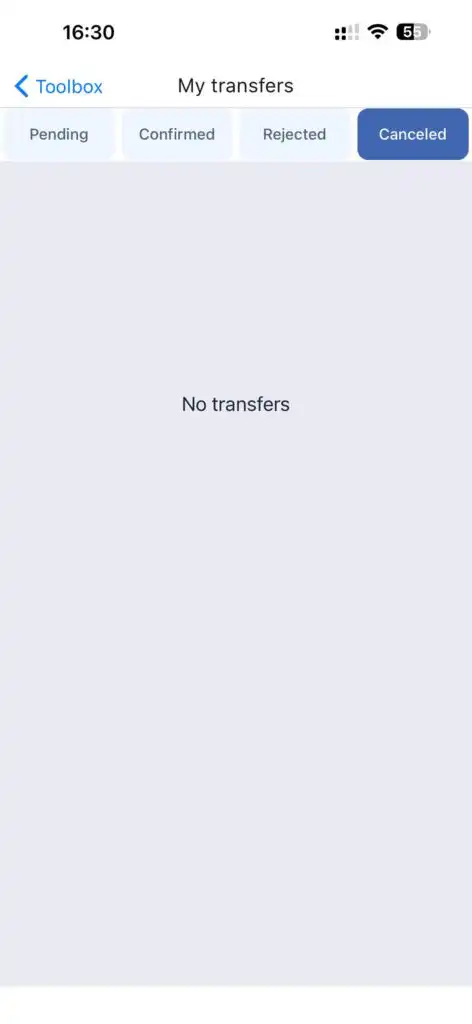
My Transfers
Displays all tool transactions.
Statuses:
Pending
Confirmed
Rejected
Cancelled
Help Center
Allows you to:
Access guides and instructions
Open social media links
Grant support access
Activate the Support Access toggle to allow temporary support access.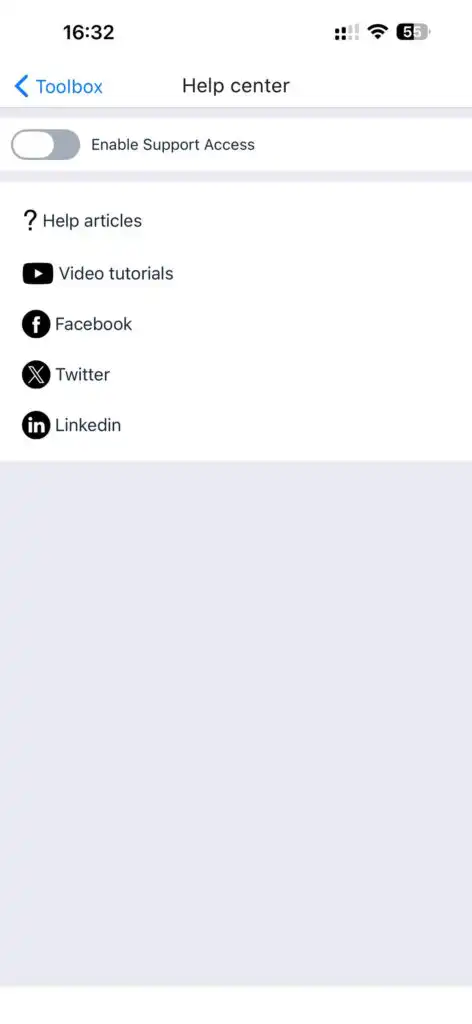
Log Out
Ends the current session and logs the user out.
FAQ
batch_number or external_id.