

The Activity Log provides a detailed audit trail of every change made in your Shifton account, so you can track who changed what and when.
What Is This?
The Activity Log page records all actions taken within your Shifton company. Every time someone creates, edits, or deletes a record — whether it is a shift, an employee profile, a schedule setting, or anything else — the change is logged with a timestamp, the person who made it, and the before-and-after data. This is essential for accountability, troubleshooting, and compliance.
Prerequisites
| Requirement | Details |
|---|---|
| Role | Owner or Administrator |
| Data | Activity logs are generated automatically — no setup required |
Step-by-Step Instructions
Accessing the Activity Log
Understanding the Log Table
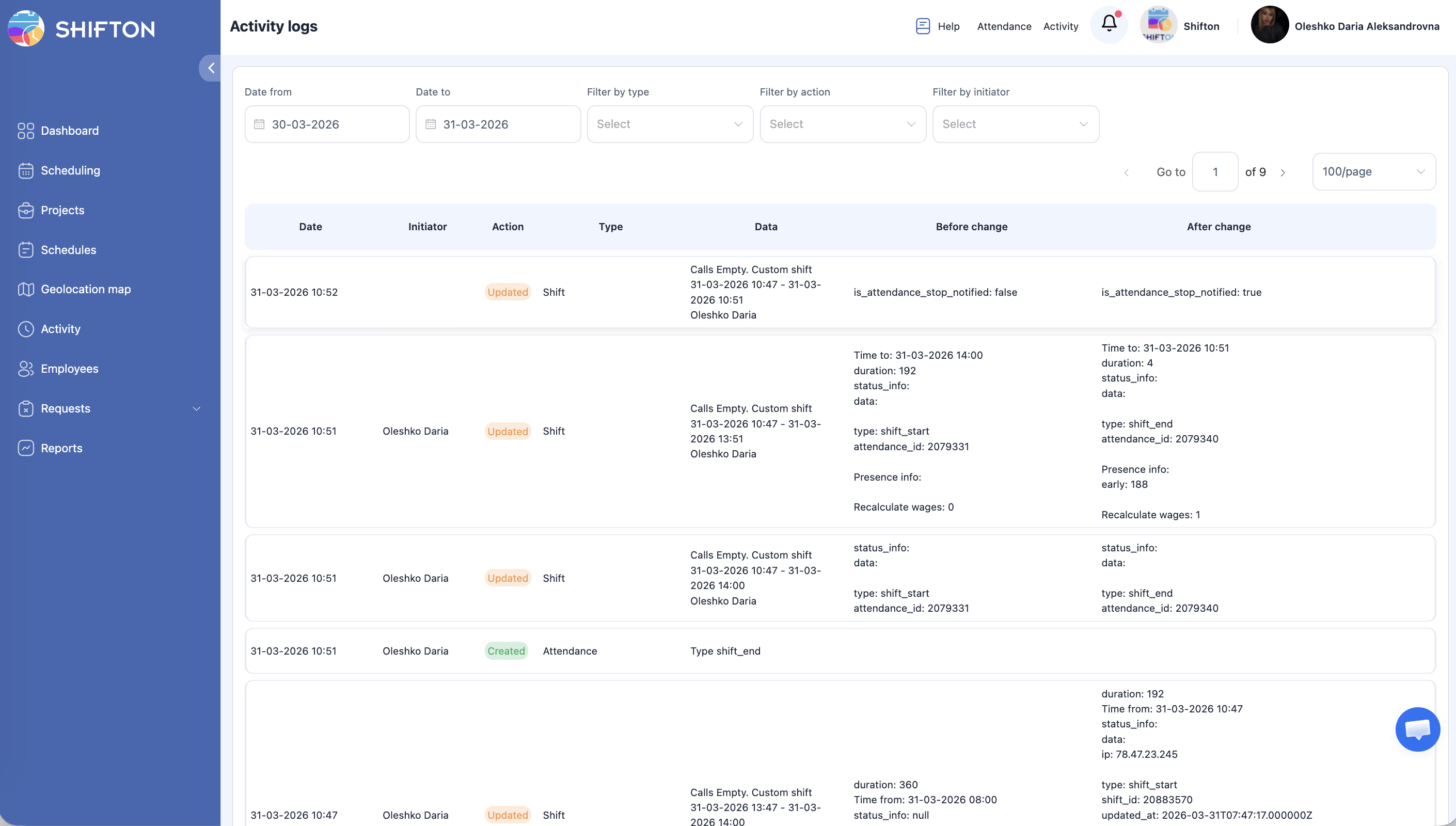
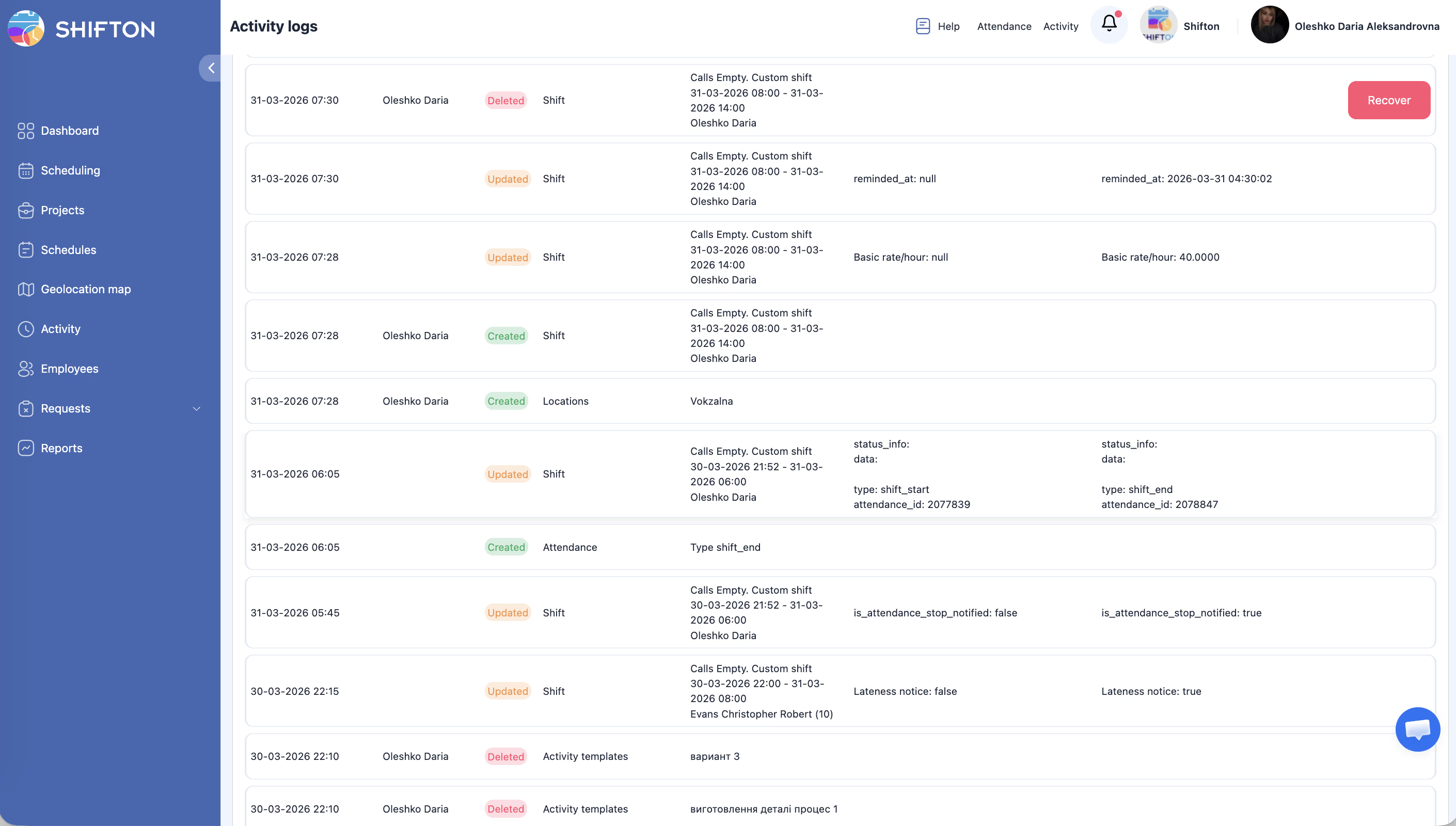
Each row in the log represents one change. The table contains the following columns:
| Column | Description |
|---|---|
| Date | When the change occurred |
| Initiator | The user who performed the action |
| Action | What was done (created, updated, deleted, etc.) |
| Type | The category of the item that was changed |
| Data | Key details about the change |
| Before change | The state of the record before the action |
| After change | The state of the record after the action |
Filtering the Activity Log
Use the filter bar at the top of the page to narrow down results:
| Filter | Description |
|---|---|
| Date from | Show only entries from this date forward |
| Date to | Show only entries up to this date |
| Filter by type | Narrow results to a specific category of changes (see full list below) |
| Filter by action | Filter by the type of action performed (create, update, delete) |
| Filter by initiator | Show only changes made by a specific user |
Available Type Filters
The Filter by type dropdown includes 32 categories:
| Category | Category | Category |
|---|---|---|
| Activities | Activity statuses | Activity statuses |
| Activity templates | Attendance | Bonuses/Penalties/Advances |
| Break | Bulk Shift Actions | Company files |
| Dismiss | Duplicate shifts | Employee |
| Employee in schedule | Employee notes | Employee profile updates |
| Employee’s position | Holiday | Invitation |
| Locations | Marks | Mass actions |
| Message in request | Module | Position |
| Project | Project employee | Schedule |
| Shift | Shifts templates | Vacation balance |
| Vacation settings | Vacation statistics |
Reading a Log Entry
Access Permissions
| Role | View Activity Log | Filter Logs | Export Logs |
|---|---|---|---|
| Owner | Yes | Yes | Yes (if available) |
| Administrator | Yes | Yes | Yes (if available) |
| Manager | No | No | No |
| Employee | No | No | No |
FAQ
Q: How far back does the Activity Log go?
A: The Activity Log retains data according to your plan’s retention policy. Contact Shifton support for details on log retention periods.
Q: Can I export the Activity Log?
A: If export functionality is available for your plan, you can download log entries for record-keeping or compliance purposes. Check the page for an export button or contact support.
Q: Why do I see two “Activity statuses” entries in the type filter?
A: These may correspond to different status-related actions (for example, status assignment versus status changes). Both are available to help you filter precisely.
Q: Can I undo a change I see in the log?
A: The Activity Log is read-only and does not provide an undo function. To reverse a change, you need to manually update the affected record.
Q: Who counts as an “Initiator”?
A: The Initiator is the logged-in user who performed the action. System-triggered changes (such as automated schedule publishing) may show the system as the initiator.
Possible Issues and Solutions
| Issue | Possible Cause | Solution |
|---|---|---|
| No log entries displayed | Filters are too restrictive | Clear all filters and try again with broader criteria |
| Cannot find a specific change | Wrong type or date range selected | Try different type filters or expand the date range |
| Activity Log page not accessible | Insufficient permissions | Only Owner and Administrator roles can access the Activity Log |
| Page loads slowly | Large number of log entries in the selected range | Narrow your date range or use type/action filters to reduce results |
| “Before change” or “After change” is empty | Record was created (no “before”) or deleted (no “after”) | This is expected behavior for creation and deletion actions |
| Pagination not working | Browser caching issue | Refresh the page or clear your browser cache |