

What Is This?
The All Company Files page is a centralized file storage area for your organization. Upload documents, images, spreadsheets, and other files that need to be shared across your company. Managers and administrators can upload files, and employees can access them based on their permissions. This is useful for distributing policy documents, training materials, templates, and other resources.
Prerequisites
| Requirement | Details |
|---|---|
| Module | Company files module must be activated ($1/month) |
| Role | Owner, Administrator, or Manager (for uploading and managing) |
| Files | Supported types include TXT, JPG, PDF, PNG, XLSX, and others |
Step-by-Step Instructions
Accessing Company Files
Understanding the File Table
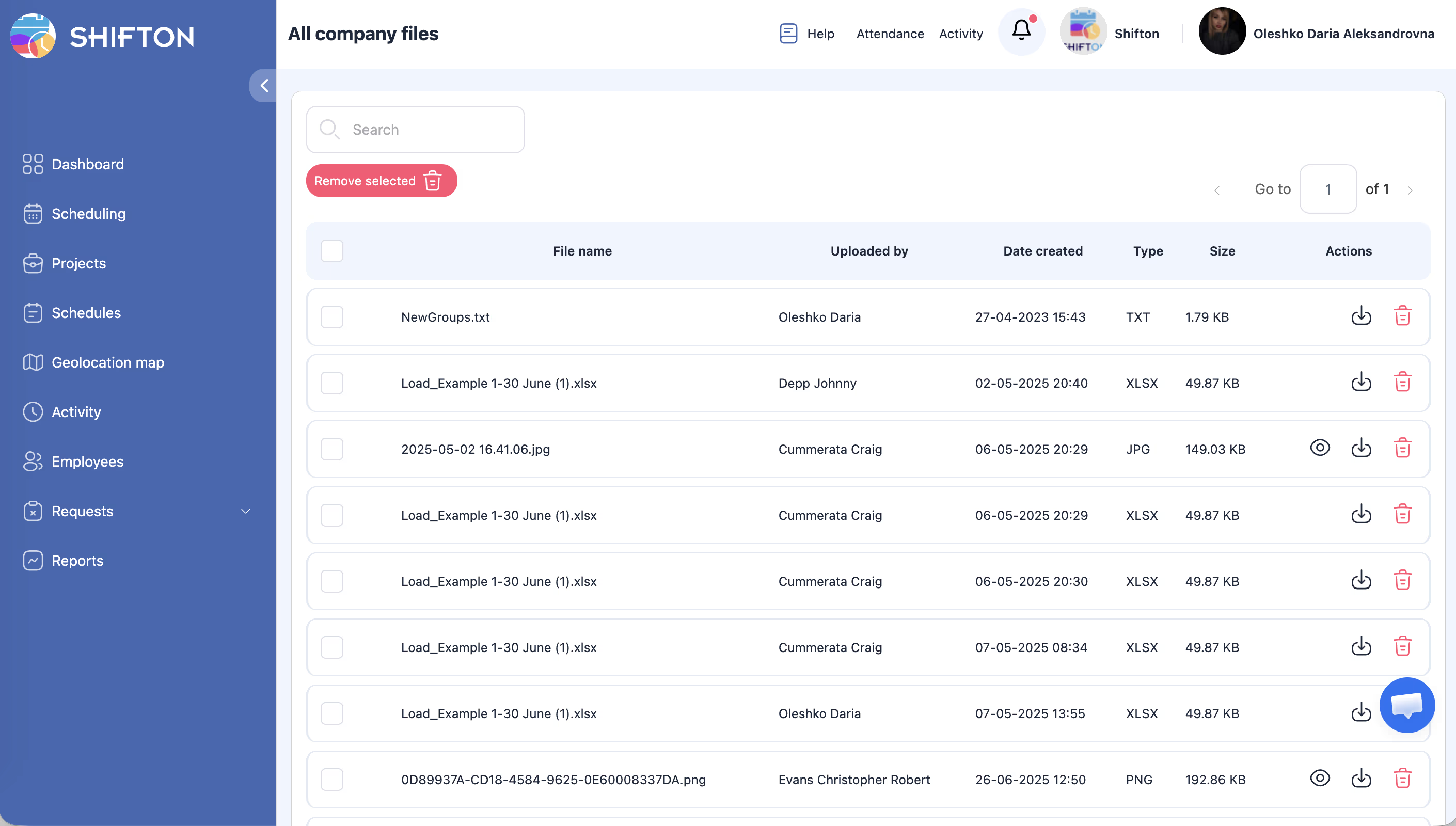
| Column | Description |
|---|---|
| Checkbox | Select files for batch operations |
| File name | The name of the uploaded file (clickable to preview/download) |
| Uploaded by | The user who uploaded the file |
| Date created | When the file was uploaded |
| Type | File format (TXT, JPG, PDF, PNG, XLSX, etc.) |
| Size | File size in kilobytes (KB) |
| Actions | View, download, or delete the file |
Uploading Files
The All Files page is view-only — you cannot upload files here. To upload files:
Searching for Files
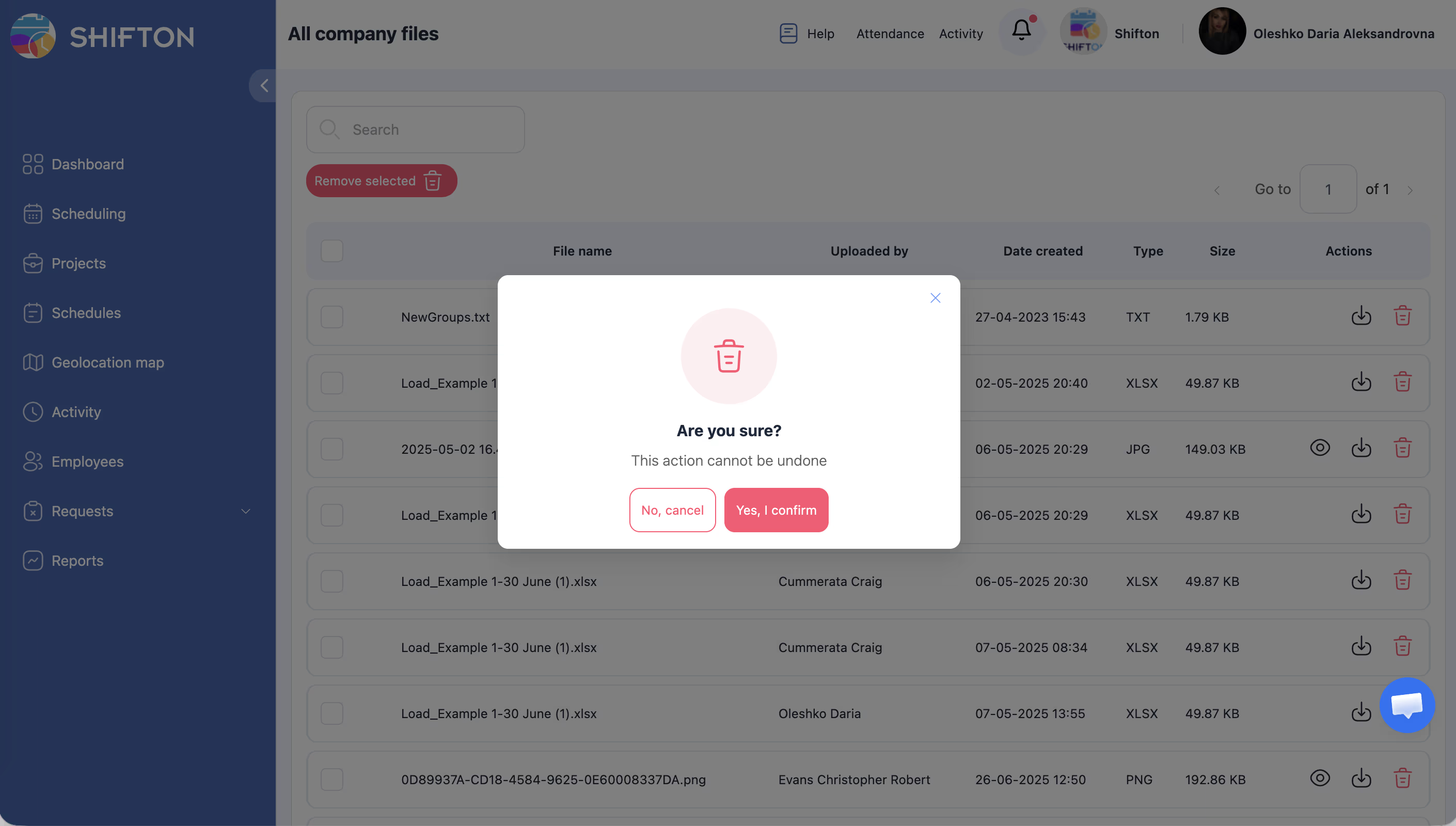
Deleting Files
Note:
1. Find the file in the table.
2. Click the Delete action in the Actions column for that file.
3. Confirm the deletion.
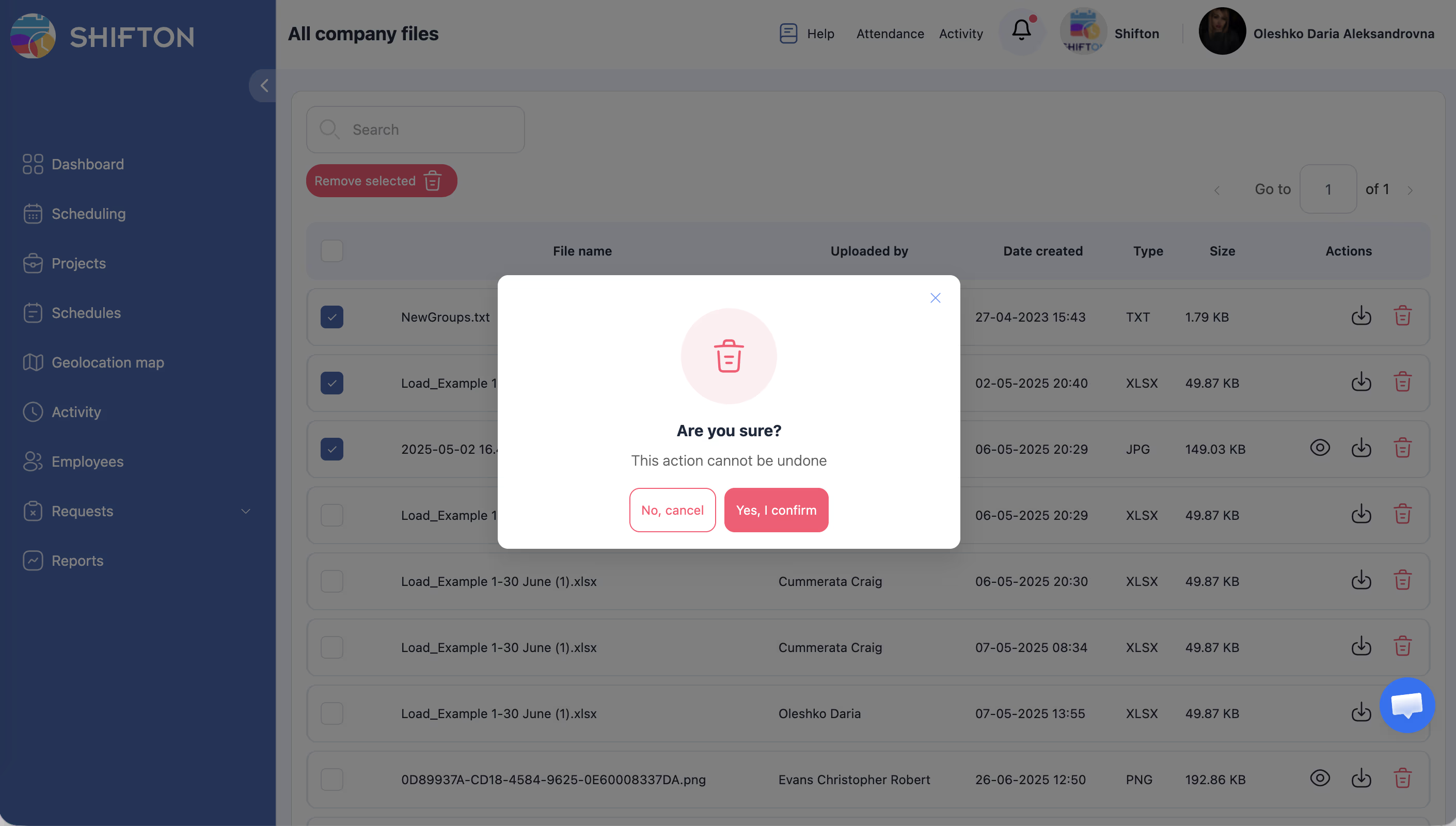
Batch delete:
1. Select multiple files using the checkboxes in the first column.
2. Click the “Remove selected” button (red) at the top of the table.
3. Confirm the batch deletion.
Navigating Large File Lists
- The file table supports pagination for large numbers of files.
- Use the page controls at the bottom of the table to navigate between pages.
Access Permissions
The All Files page is view-only for all users. Files are visible to everyone.
| Action | Where |
|---|---|
| View/download files | All Files page (company name → All Files) |
| Upload files | My Files page (company name → My Files) |
| Upload files to employee | Employee profile → Files tab |
| Delete files | My Files page (own files only) |
FAQ
Q: How much does the Company files module cost?
A: The Company files module is available for $1 per month. You can activate it from the Modules section in your company settings.
Q: Is there a file size limit?
A: File size limits depend on your plan. Check your account settings or contact Shifton support for specific limits.
Q: What file types can I upload?
A: The system supports common file formats including TXT, JPG, PNG, PDF, XLSX, and more. If a file type is not accepted, try converting it to a supported format.
Q: Can employees upload files?
A: Files can only be uploaded on the My Files page or in an employee’s profile → Files tab. The All Files page is view-only.
Q: Are deleted files recoverable?
A: No, deleted files are permanently removed. Make sure you have backups before deleting important documents.
Possible Issues and Solutions
| Issue | Possible Cause | Solution |
|---|---|---|
| Files page not available | Company files module is not activated | Activate the module from Company Settings > Modules ($1/month) |
| Upload not available on All Files | All Files is view-only | Upload files on My Files page or employee profile → Files tab |
| Cannot find a file | File name does not match search query | Clear the search bar or try a different search term |
| “Remove selected” button not working | No files selected | Select at least one file using the checkboxes |
| Employee cannot see files | Company files module not activated | Activate the module — all files are visible to all users |
| Pagination not showing | Fewer files than one page | Pagination only appears when there are more files than fit on one page |