

Enable the Forecasting module to unlock the Load Demand feature — a staffing prediction tool built into the schedule creation wizard.
What Is This?
The Forecasting module activates demand-based staffing planning in Shifton. When enabled, it adds a Load Demand tab to the schedule wizard (Step 3 – Shift Data) for Advanced and By Availability schedule types.
Load Demand lets you define how many employees are needed for each hour of the day, upload historical demand data as a CSV, and let the system use those numbers when auto-generating shifts.
Note: The Forecasting module does not add a separate page or dashboard to Shifton. Its interface is the Load Demand tab, available in two places: (1) inside the schedule creation wizard (Step 3), and (2) in the Edit schedule panel (Schedules list → Edit icon → Load demand tab).
Prerequisites
- Owner or Admin role
- Advanced or By Availability schedule type (Load Demand is not available for Basic, Preset/Pattern, or Empty schedules)
How to Enable/Disable
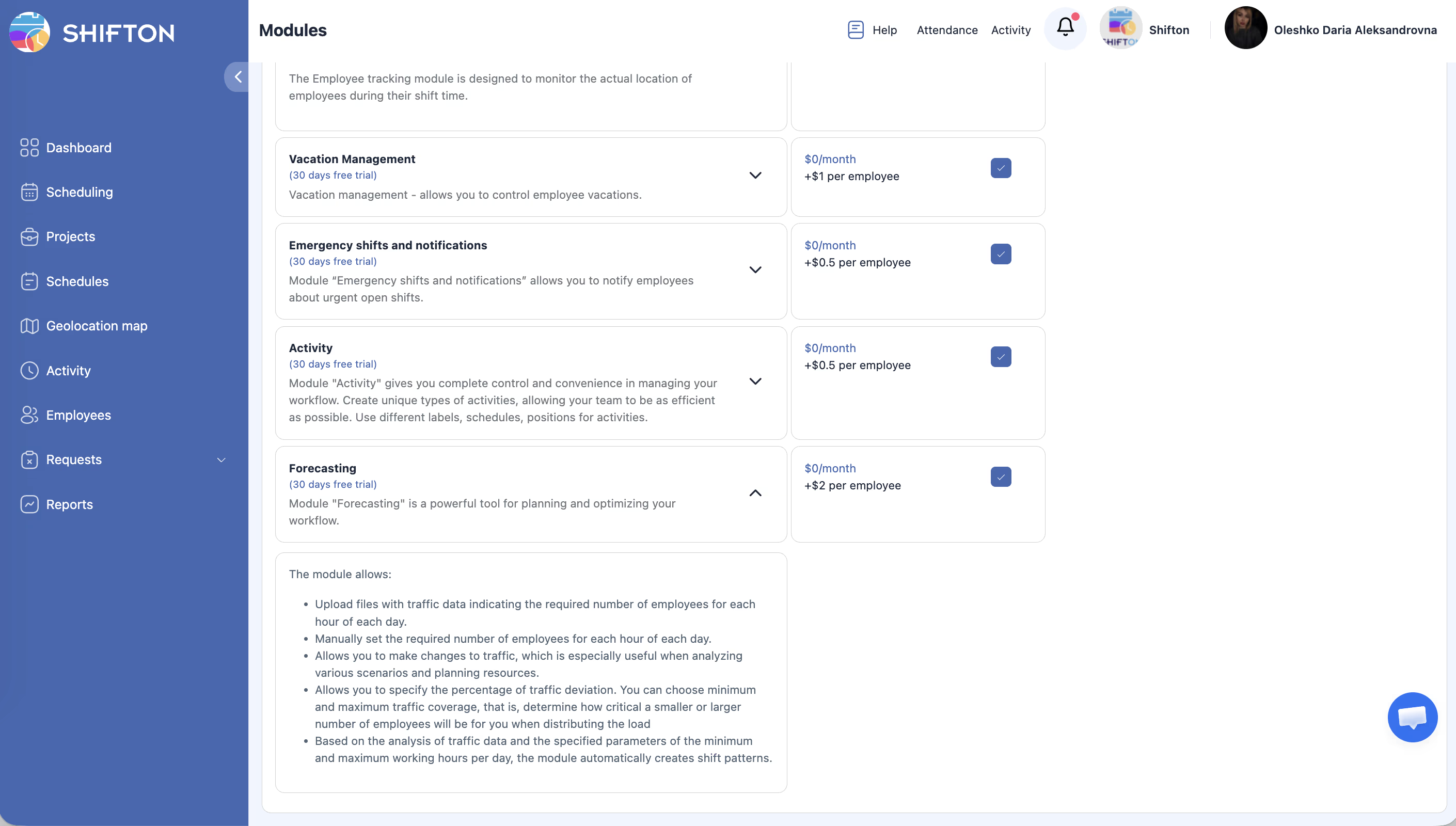
Pricing
| Component | Cost |
|---|---|
| Monthly module fee | $0/month |
| Per-employee fee | $2/employee/month |
| Trial period | up to 60 days |
Example: a company with 20 employees pays $0 + (20 × $2) = $40/month.
Using Load Demand (Step-by-Step)
Load Demand is accessed while creating or editing an Advanced or By Availability schedule.
Opening Load Demand
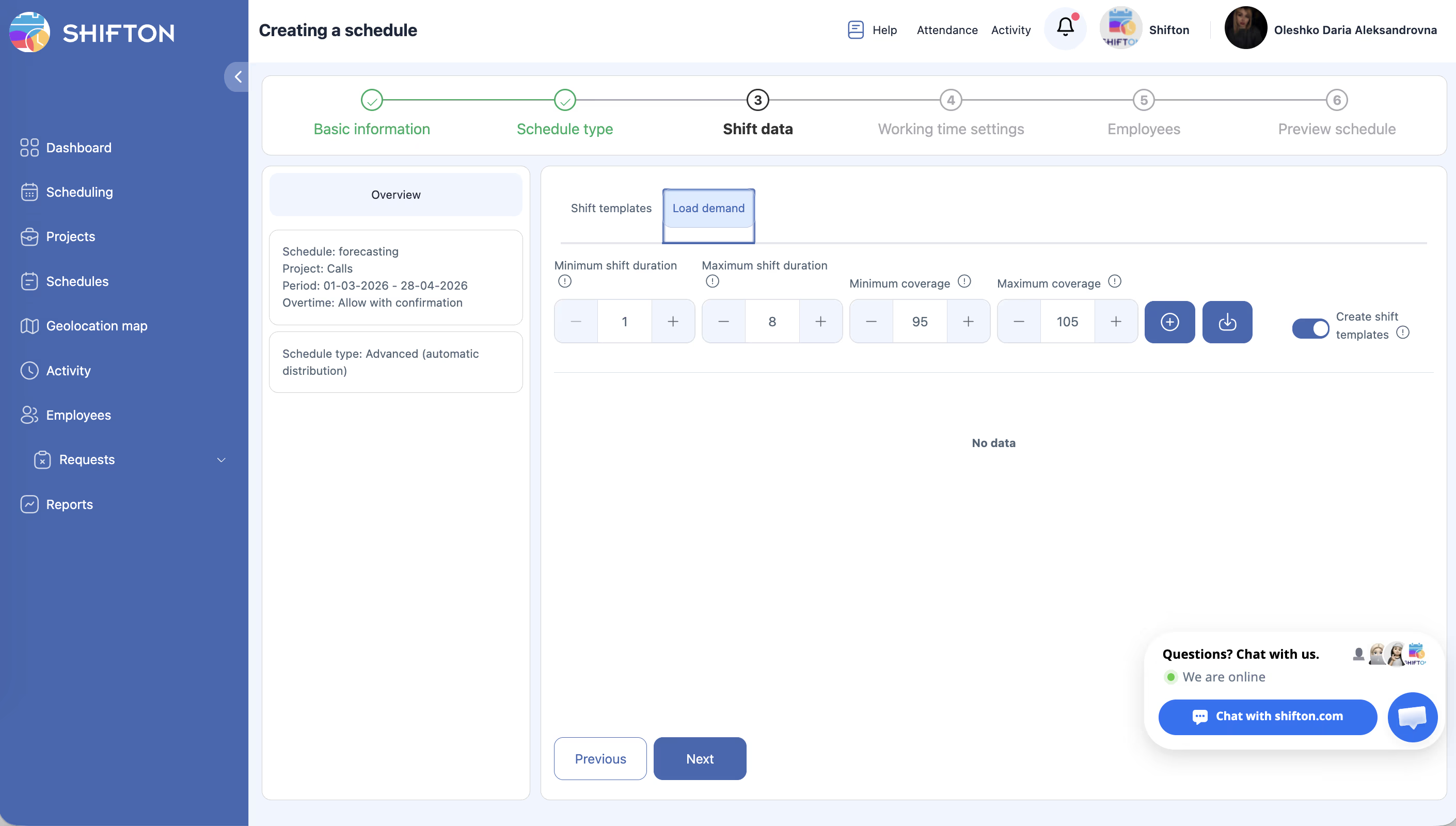
Configuring Demand Parameters
| Field | Description |
|---|---|
| Minimum shift duration | Shortest allowed shift (e.g., 1 hour) |
| Maximum shift duration | Longest allowed shift (e.g., 8 hours) |
| Minimum coverage | Minimum acceptable staffing level as a percentage (e.g., 95%) |
| Maximum coverage | Maximum staffing level before the system considers a period overstaffed (e.g., 105%) |
Entering Demand Manually
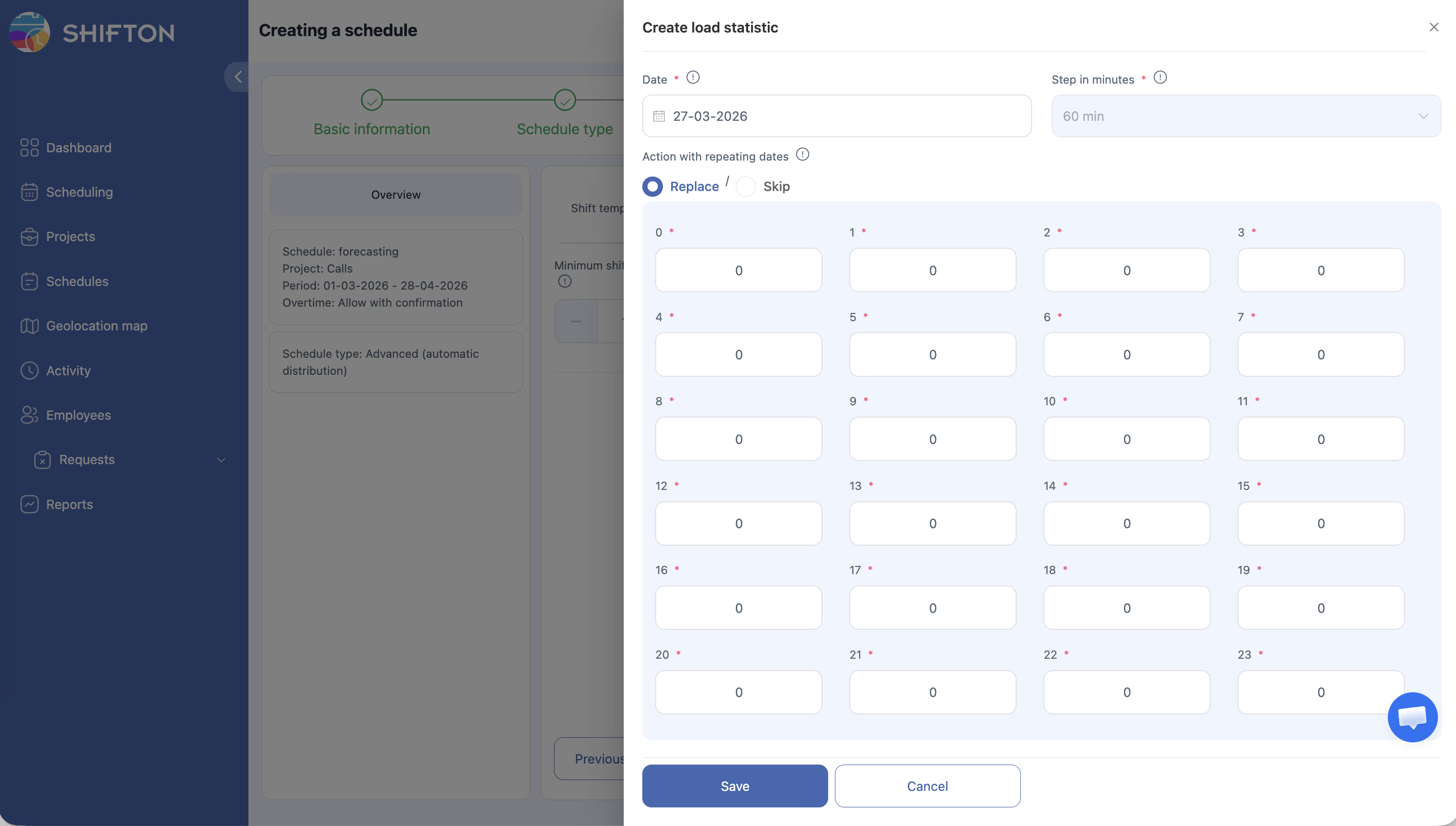
After setting parameters, click Upload to open the Import Load Statistic panel:
| Field | Description |
|---|---|
| Step (minutes) | Time resolution of demand data — e.g., 60 means one value per hour |
| Demand grid (0–23) | Enter the required number of employees for each hour of the day |
| Action with repeating dates | Replace — overwrite existing data for that date; Skip — keep existing data |
You can fill this grid manually for each date you want to plan.
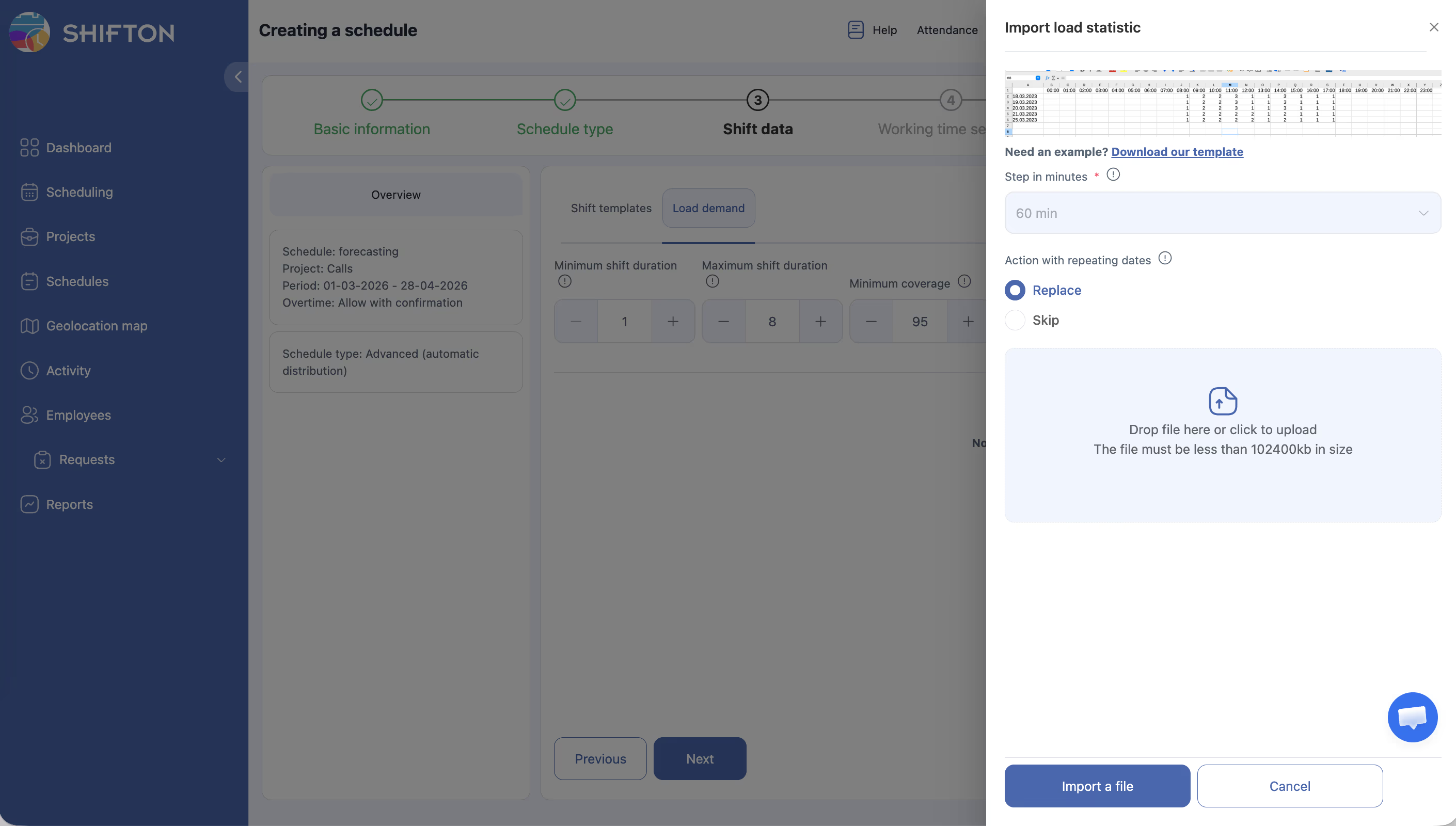
Uploading Demand from a CSV File
Create Shift Templates Toggle
At the bottom of the Load demand tab, toggle Create shift templates on if you want the system to automatically generate shift template suggestions based on your demand data when the schedule is built.
How Demand Data Affects Schedule Generation
Once demand is configured, the schedule auto-generation engine uses it to:
- Calculate how many employees are needed per time slot
- Compare that against available employees and their constraints
- Generate shifts that aim to keep actual coverage within the Min–Max coverage range
Periods where coverage would fall below the minimum are flagged for review.
Access Permissions
| Role | Enable/Disable Module | Use Load Demand | View Schedule with Demand Data |
|---|---|---|---|
| Owner | Yes | Yes | Yes |
| Admin | Yes | Yes | Yes |
| Manager | No | Yes (assigned projects) | Yes (assigned projects) |
| Employee | No | No | No |
FAQ
Q: I enabled Forecasting but I don’t see a new page or dashboard — is something wrong?
A: No. Forecasting doesn’t add a separate page. The feature lives entirely inside the schedule wizard as the “Load Demand” tab on Step 3. Open or edit an Advanced or By Availability schedule to access it.
Q: Does Load Demand work with Basic schedules?
A: No. Load Demand is only available for Advanced and By Availability schedule types, as these are the types that auto-generate shifts based on variable staffing requirements.
Q: How much historical data do I need for accurate forecasting?
A: You can start with any data. The system uses whatever demand numbers you provide — whether based on historical records, your own estimates, or seasonal patterns. The more accurately you populate the demand grid, the better the generated schedule will match your real needs.
Q: Does Forecasting automatically create shifts?
A: No. It provides the demand targets for the schedule generation engine. Actual shift creation happens when you run the schedule auto-generation — the demand data guides how many shifts to create per time slot.
Q: Can I use the same demand template for multiple weeks?
A: Yes. When uploading demand data, use the Skip option for dates that already have data, so you don’t overwrite past entries. You can upload a weekly repeating pattern by populating all 7 days in the CSV template.
Possible Issues and Solutions
| Issue | Cause | Solution |
|---|---|---|
| Load Demand tab not visible in schedule wizard | Forecasting module not enabled, or schedule type is Basic/Preset/Empty | Enable Forecasting in Modules; use Advanced or By Availability schedule type |
| Generated schedule doesn’t match demand | Min/Max coverage thresholds too wide, or demand grid not populated | Tighten the coverage range and ensure demand grid has data for all relevant hours |
| CSV upload fails | File format doesn’t match the template | Download the template fresh from the Load demand tab and use it as the base |
| Import replaces data I wanted to keep | Action set to Replace instead of Skip | Re-upload with Action = Skip for dates that should not be overwritten |