

Generate detailed salary reports for your employees based on their shifts, rates, bonuses, and deductions.
What Is This?
The Payroll module gives you the tools to track and calculate employee compensation. Once enabled, you gain access to the Pay Rate Reports section which shows detailed salary breakdowns based on worked hours, hourly or shift rates, overtime, night shift rates, holiday rates, bonuses, and retentions. You can also configure pay rates and salary rules through the Salary Settings page.
This module is designed for managers and accountants who need clear, exportable salary data without relying on external spreadsheets.
Note: All calculations in Shifton Payroll are estimates intended for forecasting and internal reporting. They are not a substitute for your accounting or payroll software. Final salary figures must be calculated and processed through your own payroll system.
Prerequisites
How to Enable/Disable
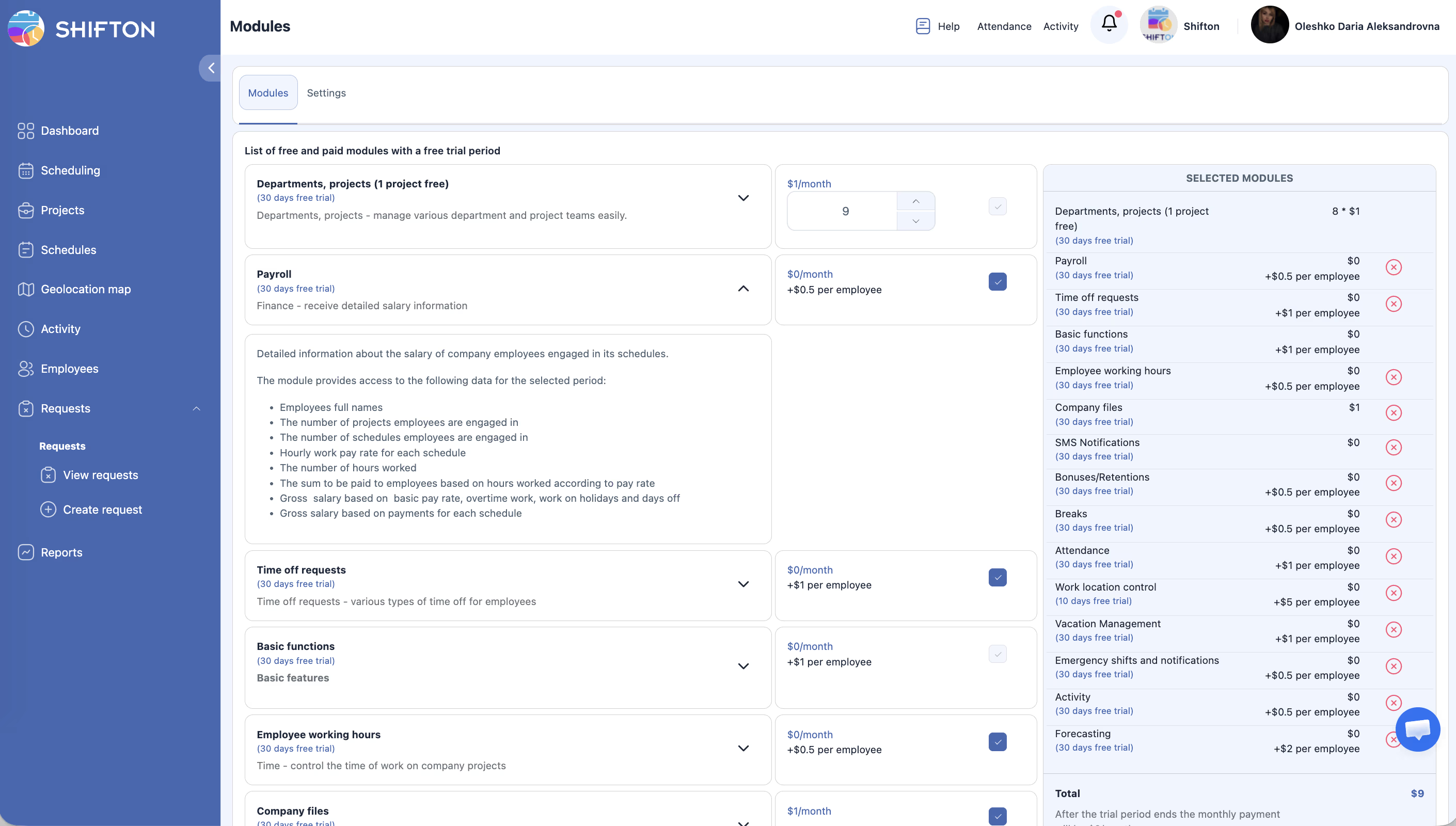
Module Settings
Payroll settings are configured through the Salary Settings page rather than the Module Settings tab. Here you can:
Step-by-Step Usage Guide
Setting Up Pay Rates
Base rate per schedule:
1. When creating or editing a schedule, go to Step 1 — General Information.
2. Set the base pay rate in the selected currency. This rate applies to all employees in that schedule by default.
Individual rates per employee:
1. Click Scheduling → Schedules, then click the pencil icon next to the schedule.
2. Go to the Scheduled team members tab.
3. Set individual hourly rates for each employee on that schedule.
Date-effective rate changes (raises):
1. In the Scheduled team members tab, click the + button next to the employee.
2. Enter the new rate and set the effective date (e.g. the 1st of next month).
3. The system automatically applies the old rate to shifts before that date and the new rate from that date onward.
From Salary Settings:
1. Navigate to Salary Settings from the left sidebar (or company name → Company Settings → Salary Settings).
2. Select an employee or position.
3. Enter the base rate (hourly or per shift).
4. Configure overtime rules if applicable.
5. Click Save.
Generating a Pay Rate Report
Reviewing Individual Employee Pay
Pricing Info
| Component | Cost |
|---|---|
| Monthly module fee | $0/month |
| Per-employee fee | $0.50/employee/month |
For example, a company with 20 employees would pay: $0 + (20 x $0.50) = $10/month.
Access Permissions
| Role | View Pay Reports | Configure Salary Settings | Export Reports |
|---|---|---|---|
| Owner | Yes | Yes | Yes |
| Admin | Yes | No | Yes |
| Manager | Assigned projects only | No | Assigned projects only |
| Employee | Own data only | No | No |
FAQ
Q: Can employees see their own salary information?
A: Employees can view their own pay data but cannot see other employees’ salaries or modify any settings.
Q: Does the Payroll module handle tax calculations?
A: No. The Payroll module calculates estimated gross pay based on hours, rates, bonuses, and deductions. Tax withholding and net pay calculations should be handled by your accounting software or payroll provider. Shifton payroll figures are estimates for planning and reporting purposes only.
Q: Is the Payroll module required for basic Shifton use?
A: No. The module is optional and only needed if you want detailed pay rate reports with breakdowns. Basic scheduling and attendance tracking work without it.
Q: Can I set different rates for different projects?
A: Yes. Pay rates can be configured per employee and per project in the Salary Settings page.
Q: How does overtime get calculated?
A: Overtime multipliers are configured in Salary Settings. The system automatically applies the multiplier when an employee’s hours exceed the defined threshold.
Q: Do bonuses from the Bonuses/Deductions module appear in the Pay Rate report?
A: Yes, if the Bonuses/Deductions module is enabled. Bonuses and retentions are included as separate line items in the payroll report.
Possible Issues and Solutions
| Issue | Cause | Solution |
|---|---|---|
| Pay Rate report shows $0 for all employees | Pay rates have not been configured | Go to Salary Settings and set up rates for each employee or position. |
| Overtime not being calculated | Overtime rules not configured | Set up overtime multipliers and thresholds in Salary Settings. |
| Bonuses not appearing in the report | Bonuses/Deductions module is not enabled | Enable the Bonuses/Deductions module from the Modules page. |
| Report shows fewer hours than expected | Shifts were not confirmed or attendance not recorded | Verify shift confirmations and attendance records for the period. |
| Cannot export the report | Browser pop-up blocker is preventing the download | Allow pop-ups for the Shifton domain in your browser settings. |