

Configure your company’s billing address for accurate invoicing. This information appears on all invoices generated by Shifton and is required for paid subscription plans.
What Is This?
The Billing Address tab stores the legal and postal details of your organization that Shifton uses when generating invoices. Keeping this information accurate ensures your accounting department receives properly formatted invoices and helps avoid delays during tax filing or expense reconciliation.
You can access this tab by navigating to Company Settings > Billing Address.
Prerequisites
- You must have an Owner role in Shifton.
- Your company must be on a paid subscription plan (or preparing to upgrade from a free trial).
Step-by-Step Instructions
Step 1: Open the Billing Address Tab
Step 2: Fill In Your Billing Details
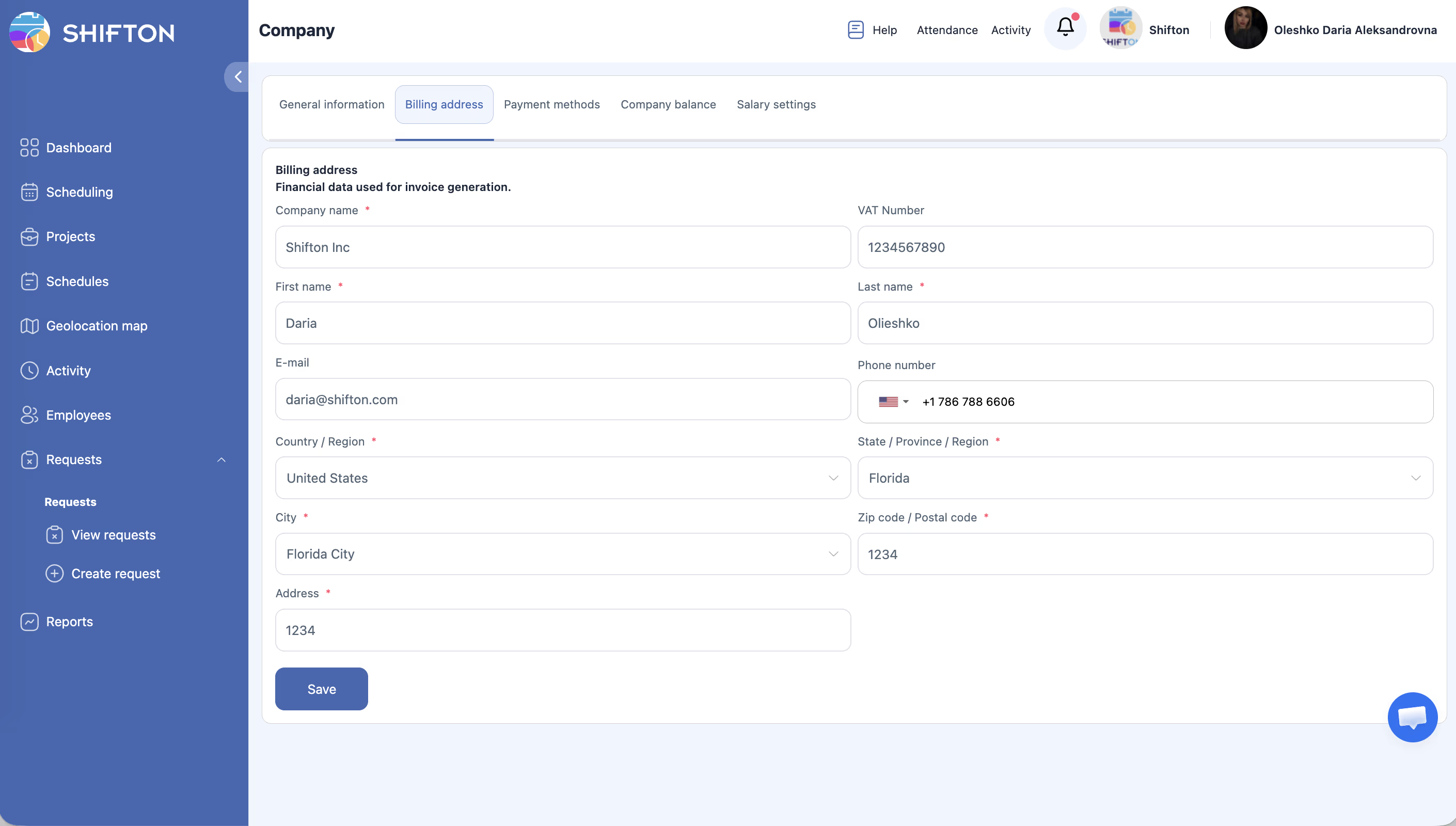
Complete each field in the form. The table below describes every available field.
| Field | Description | Example |
|---|---|---|
| Company Name | The legal entity name as it should appear on invoices. This may differ from your display name in General Information. | Acme Logistics Ltd. |
| Address | Street address of the billing entity (line 1). | 42 Commerce Street, Suite 300 |
| City | City or municipality. | London |
| ZIP / Postal Code | Postal or ZIP code for the billing address. | EC2A 4NE |
| Country | Country of the billing entity. Select from the dropdown list. | United Kingdom |
| Tax ID / VAT Number | Your company’s tax identification or VAT registration number. Used for tax-compliant invoicing. | GB123456789 |
Step 3: Save Changes
Step 4: Verify on Your Next Invoice
After saving, the updated billing address will appear on all future invoices. You can verify this by navigating to Company Settings > Company Balance & Invoices and downloading the most recent invoice.
Access Permissions
| Role | View | Edit |
|---|---|---|
| Owner | Yes | Yes |
| Administrator | No | No |
| Manager | No | No |
| Employee | No | No |
FAQ
Q1: Is the Billing Address the same as the company address in General Information?
A: Not necessarily. The General Information tab contains the company’s display name and operational settings. The Billing Address tab contains your organization’s legal details used specifically for invoicing. They may differ if, for example, a parent company issues the invoices.
Q2: Can I add a second address line?
A: The current form provides one address field. If you need to specify an office number or building name, add it to the same address field (for example: “42 Commerce Street, Suite 300”).
Q3: When should I provide a Tax ID / VAT Number?
A: If your company is registered for VAT or your accounting department requires a tax number on invoices, fill in this field. It is optional but recommended for companies in the EU and other regions requiring tax-compliant invoicing.
Q4: Will changing the Billing Address affect previous invoices?
A: No. Previous invoices retain the billing address that was active when they were created. Only future invoices will use the updated address.
Q5: My country is not in the dropdown list. What should I do?
A: Contact Shifton support. The country list covers most regions, but if yours is missing, the support team can add it or suggest an alternative.
Possible Issues and Solutions
| Issue | Cause | Solution |
|---|---|---|
| Cannot edit billing fields | You do not have the Owner role. | Ask the company owner to update the billing address. |
| Tax ID format is rejected | The system expects a specific format for certain countries. | Check your country’s correct tax ID format (for example, the “GB” prefix for UK VAT numbers) and re-enter. |
| Invoice still shows old address | The invoice was created before the address was updated. | Only invoices created after the change display the new address. Previous invoices are not retroactively updated. |
| Billing Address tab is not visible | Your account may be on a free plan that doesn’t require invoicing. | Upgrade to a paid plan or contact support if you believe this is an error. |
| Save button does not respond | A required field may be empty or contain invalid characters. | Ensure all required fields are filled and contain valid text. Remove special characters from the postal code if needed. |