

View real-time employee locations on a map during active shifts to monitor field teams and remote workers.
What Is This?
The Geolocation map page displays an interactive map showing where your employees are located while they are on active shifts. This is especially useful for companies with field workers, delivery teams, or multiple work sites where knowing employee positions in real time is essential. When employees have active shifts and the required modules are enabled, their positions appear as markers on the map. When no employees are currently on shift, the map appears empty.
Prerequisites
| # | Prerequisite | Details |
|---|---|---|
| 1 | Attendance module enabled | Location tracking works during active shifts, so the Attendance module must be active. |
| 2 | Work location control module enabled | Activate this module in Settings > Modules. Cost: $5 per employee per month. |
| 3 | Employees on active shifts | The map only shows employees who have currently started a shift. It is empty when no one is clocked in. |
| 4 | Location services enabled | Employees must have GPS enabled on their mobile devices (or be on a recognized IP) for their position to appear. |
Step-by-Step Instructions
Enabling the Work Location Control Module
| Step | Action | Expected Result |
|---|---|---|
| 1 | Click your company name → Modules. | The Modules page opens. |
| 2 | Locate the Work location control module. | You see the module card with pricing ($5/employee per month, 10-day trial). |
| 3 | Click Enable and confirm. | The module is activated. The Geolocation map page becomes accessible. |
Creating Work Locations
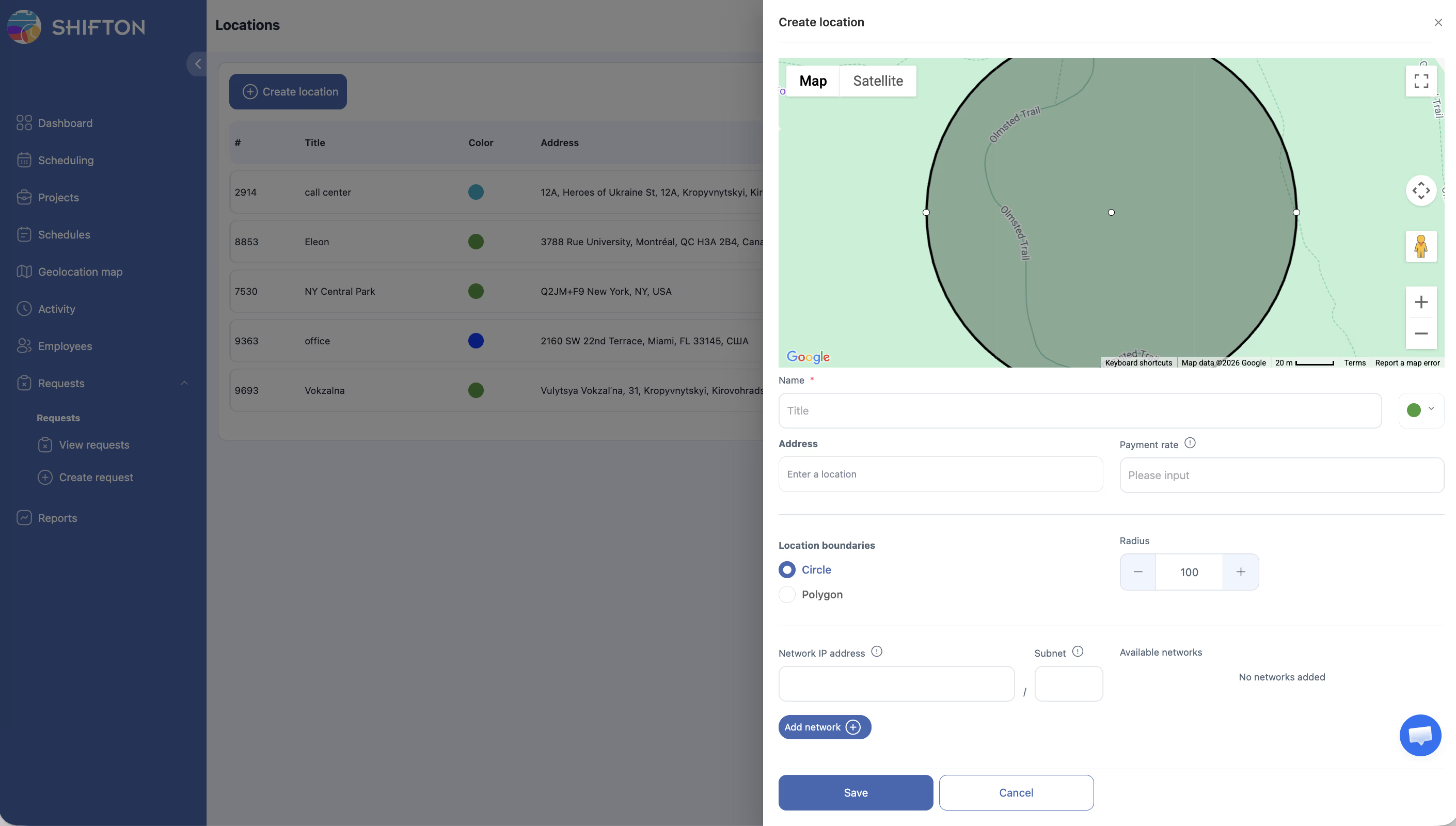
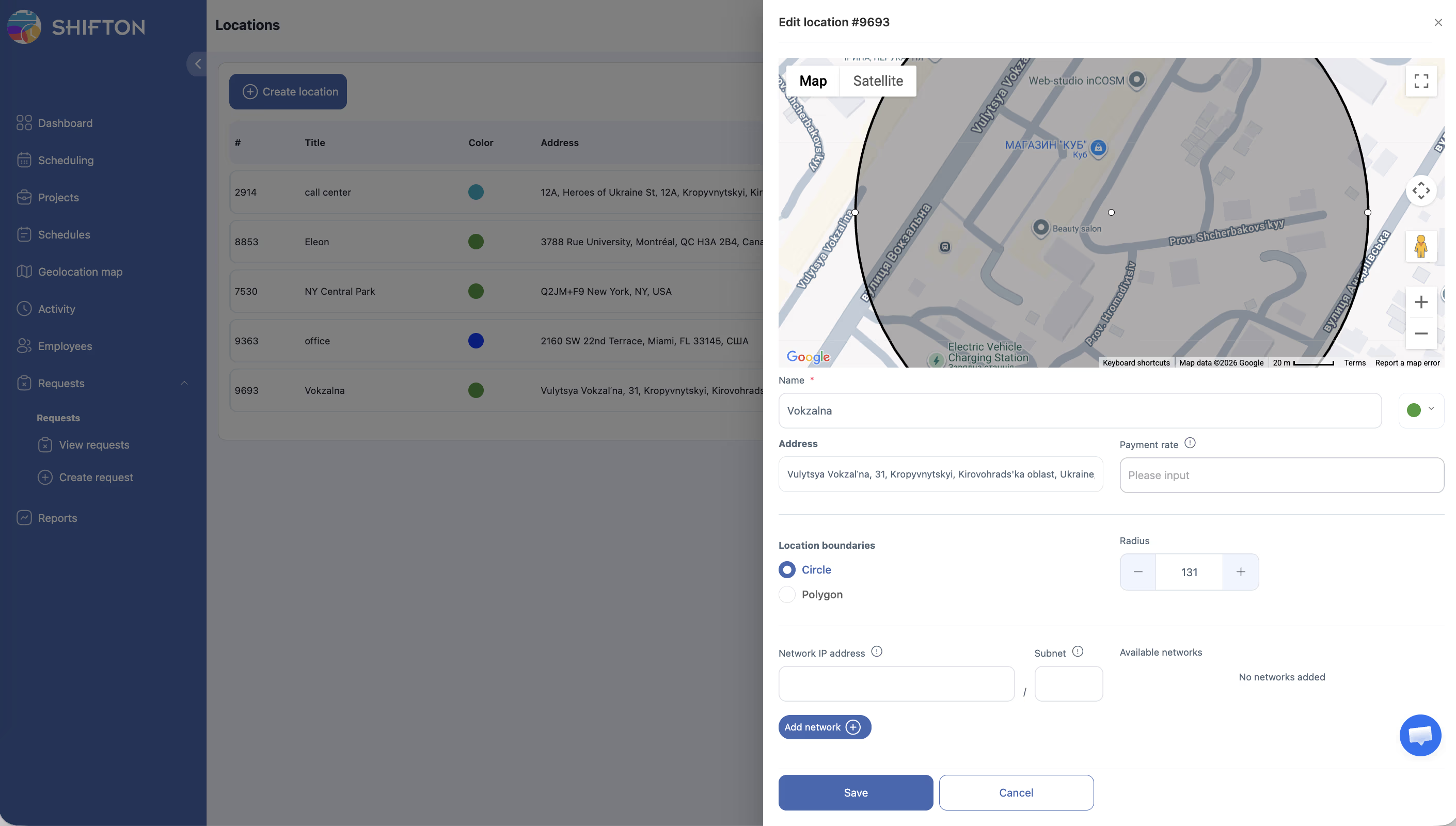
Before employees can be checked against a geofence, you must create at least one location.
| Field | Required | Description |
|---|---|---|
| Title | Yes | Name of the location (e.g., “Main Office”, “Warehouse 2”) |
| Address | Yes | Physical address; the map pin is placed automatically |
| Geofence type | Yes | Circle — a radius around the center point; Polygon — a custom-shaped zone drawn on the map |
| Radius | If Circle | Distance in meters from the center; minimum 50 m recommended for reliable GPS checks |
| Network | No | Name or identifier of the office Wi-Fi network |
| Subnet | No | IP range (e.g., 192.168.1.0/24); employees on this subnet are considered on-site even without GPS |
Geofence types:
– Circle — best for offices, shops, and warehouses with a clear center point.
– Polygon — best for irregular areas such as construction sites, parks, or large campuses; mark boundary points on the map.
Linking a Location to a Shift
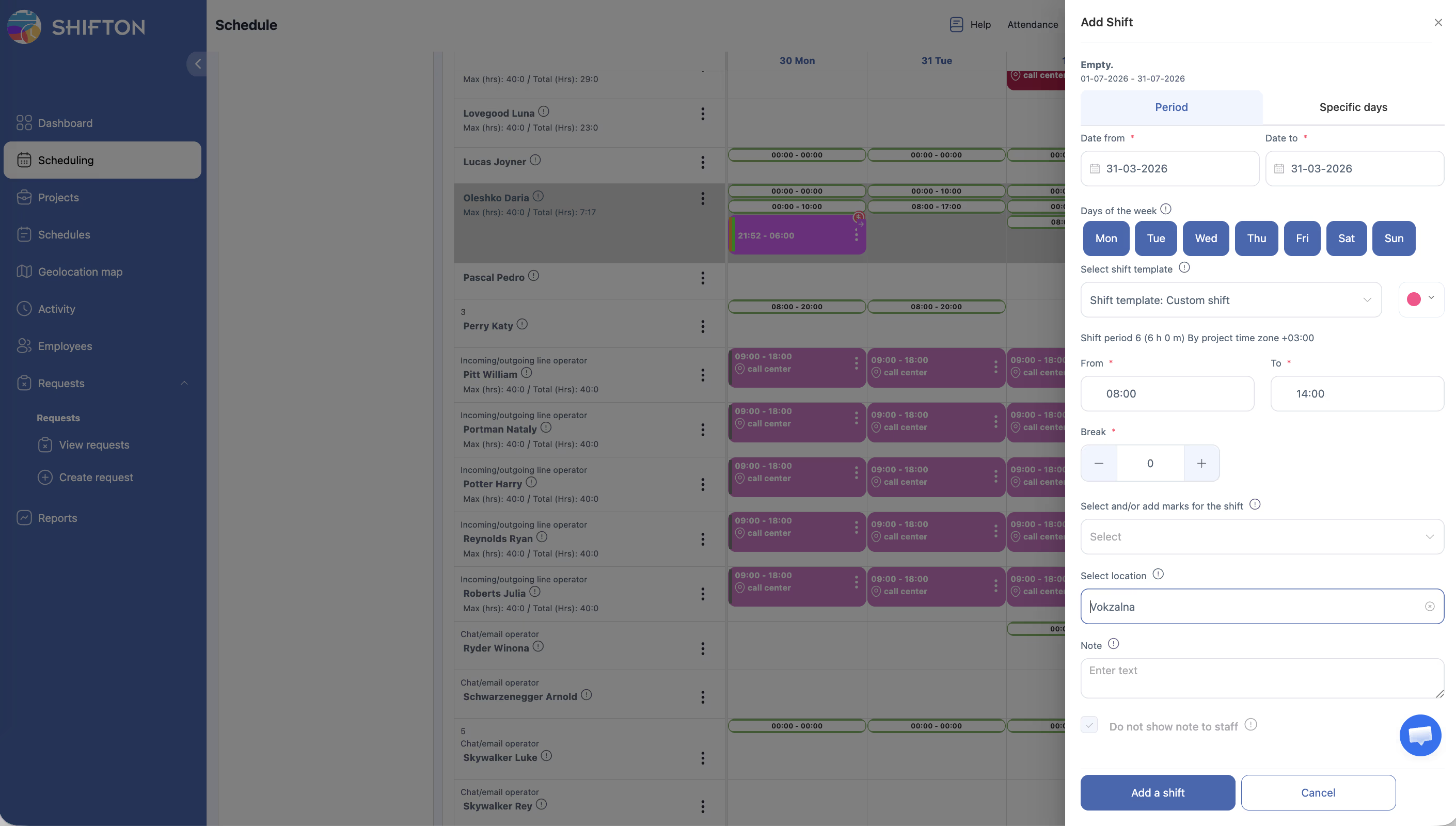
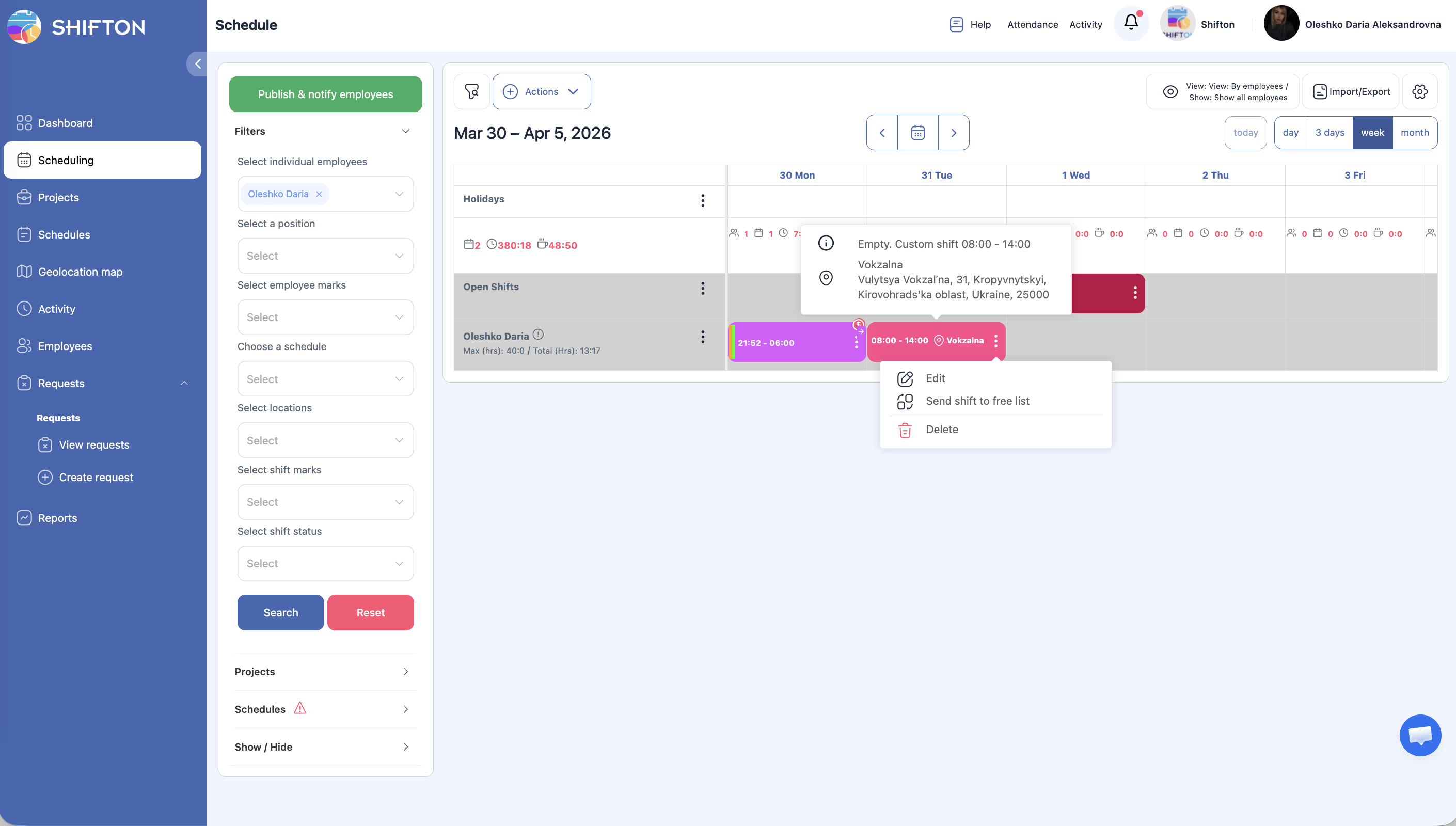
Locations are assigned per shift, not per schedule. This lets different shifts in the same schedule have different work sites.
When adding a shift manually:
1. Open Company Schedule.
2. Add a shift (click + in the cell or use Actions → Add shift).
3. In the shift dialog, select a Location from the dropdown.
4. Save.
Via a shift template:
1. Go to Schedules → Shift Templates.
2. Open a template for editing.
3. Set the default Location for that template.
4. Save. All shifts created from this template will automatically have that location assigned.
Attaching a location to a shift shows the address to the employee in the mobile app. GPS geofencing is only enforced when the Work location control module is active.
Accessing the Geolocation Map
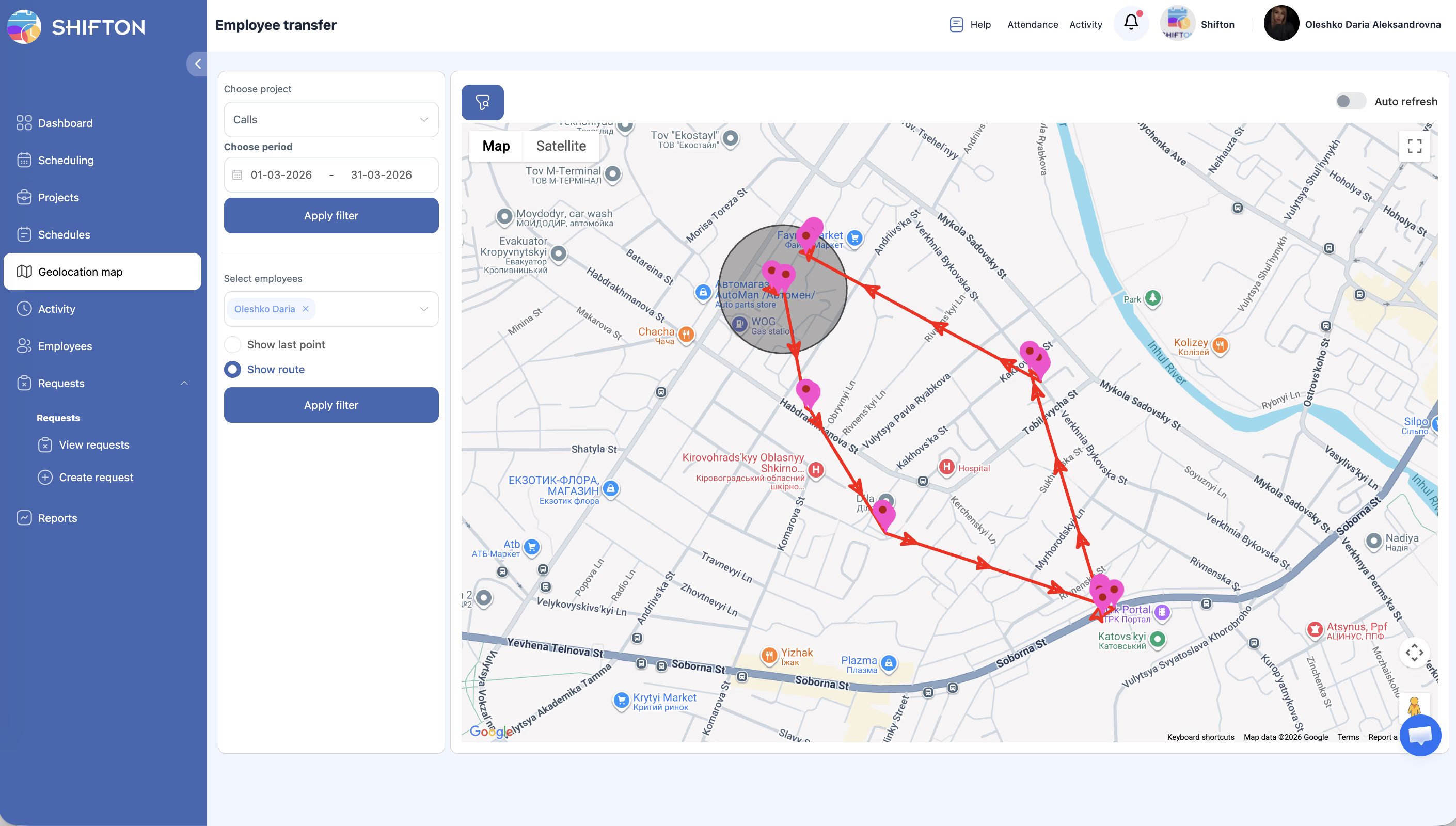
| Step | Action | Expected Result |
|---|---|---|
| 1 | Click Geolocation map in the left sidebar. | The Geolocation map page opens showing the map. |
| 2 | The map loads showing your company’s configured work locations and any active employee markers. | Employee positions appear as markers on the map. |
| 3 | If no employees are currently on shift, the map appears empty with no markers. | An empty map is displayed — this is normal outside of shift hours. |
Reading the Map
| Map Element | Description |
|---|---|
| Employee markers | Each marker represents an employee currently on an active shift. Click a marker to see the employee’s name and shift details. |
| Work location areas | Configured work locations may appear as circles or zones on the map, showing the expected work area. |
| Map controls | Use zoom and pan controls to navigate the map. |
What the Map Shows
| Scenario | Map Display |
|---|---|
| Employees on active shifts with GPS enabled | Markers appear at their current GPS positions, updating periodically. |
| Employees on active shifts without GPS | Markers may appear at the IP-based location or not appear at all. |
| No employees on shift | The map is empty. |
| Employees on break | Markers may still appear depending on break location settings. |
Access Permissions
| Role | View Geolocation Map | View Individual Employee Location | Configure Location Control Settings |
|---|---|---|---|
| Employee | No | No | No |
| Manager | No | No | No |
| Admin | Yes | Yes | Yes |
| Owner | Yes | Yes | Yes |
FAQ
Q1: Why is the map empty?
The map only shows employees who currently have an active shift (clocked in via Attendance). If no one is working right now, the map will be empty. This is normal.
Q2: How often does the employee’s position update?
Position updates depend on the mobile app’s GPS reporting interval. Typically, positions refresh every few minutes during an active shift.
Q3: Can I see historical employee locations?
The Location Control map shows real-time positions only. For historical data, check the attendance and working hours reports.
Q4: Does this work on desktop/browser shifts?
For browser-based shifts, the system uses IP-based location rather than GPS. IP geolocation is less precise than GPS and may show approximate locations.
Q5: What is the cost of the Work location control module?
The module costs $5 per employee per month (10-day trial), in addition to the Attendance module cost ($1/employee/month). Both modules must be active for geofencing to work.
Q6: Do I need the Work location control module to create locations?
No. Locations can be created without any additional modules. However, GPS geofencing (checking whether an employee is within the zone at shift start) requires both Attendance and Work Location Control to be active.
Q7: What are the Network and Subnet fields for?
These allow Wi-Fi-based presence verification as an alternative to GPS. Enter the office Wi-Fi network name in Network and the IP range (e.g., 192.168.1.0/24) in Subnet. Employees connected to that network are considered on-site, even if GPS is unavailable (for example, inside a building).
Q8: Can different shifts in the same schedule use different locations?
Yes. Locations are attached to individual shifts, not to the schedule as a whole. Multiple shifts in the same schedule can each have a different location assigned.
Possible Issues and Solutions
| Issue | Possible Cause | Solution |
|---|---|---|
| Map is empty during work hours | No employees have started their shifts, or the Attendance module is not active. | Verify that employees are clocked in and that both the Attendance and Work location control modules are enabled. |
| Employee marker is in the wrong location | GPS signal is inaccurate, or the app is using IP-based location. | The employee should ensure GPS is enabled with good signal. Outdoors provides better accuracy than indoors. |
| Geolocation map is not in the sidebar | The Work location control module is not enabled. | Enable it in Settings > Modules. |
| Employee position is not updating | The mobile app may not be reporting GPS data. | The employee should check that the Shifton app has location permissions and that GPS is turned on. |
| Map loads slowly | Large number of active employees or slow network connection. | Allow the page to fully load. If the issue persists, try refreshing or using a faster network connection. |