

Shifton requires phone number verification to send employee invitations and receive SMS notifications. If your number is not verified, you will see: “Please confirm your phone number to be able to send invitations.”
Who Needs This?
Step-by-Step Instructions
Step 1: Open Your Profile
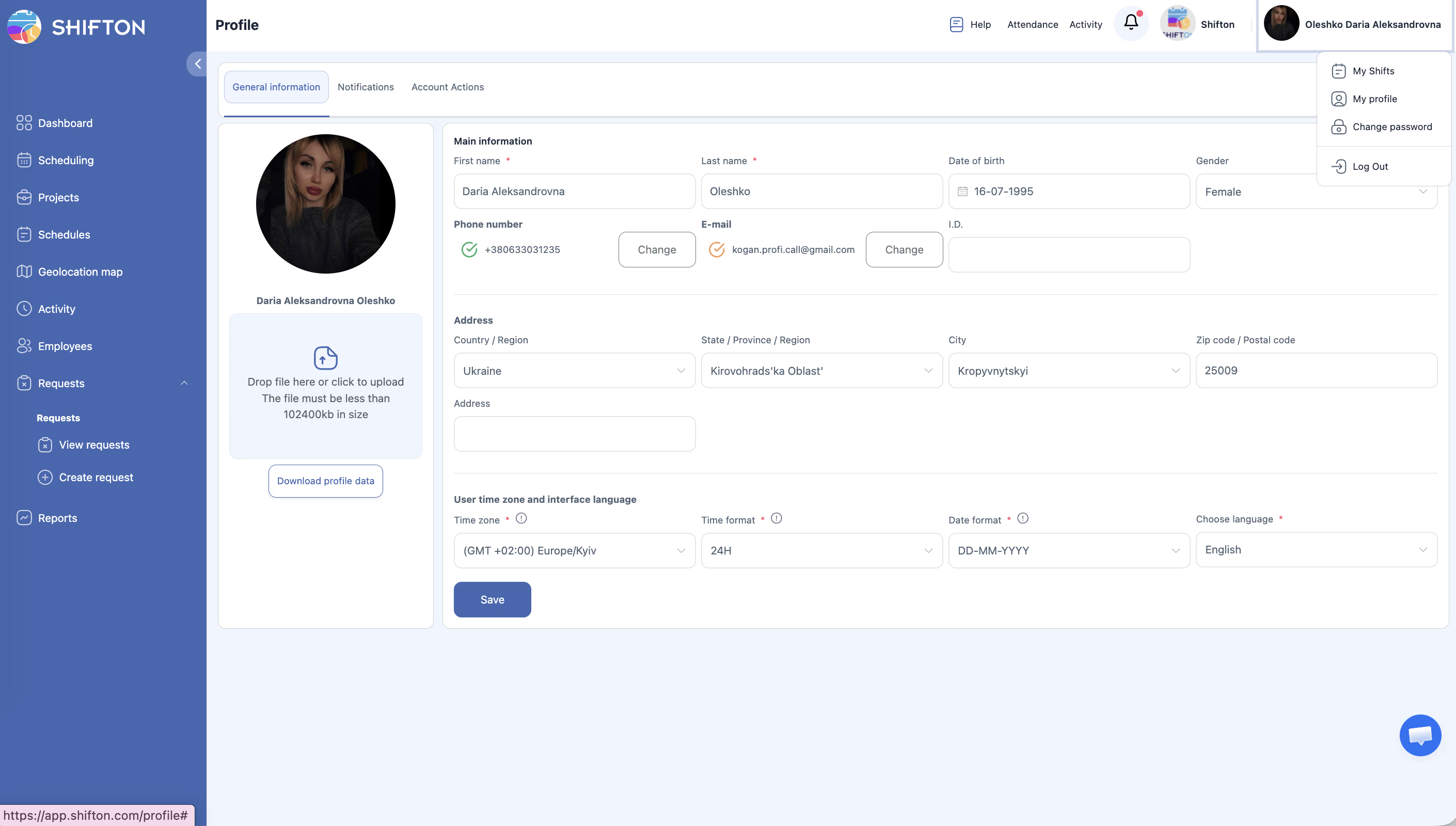
Click your name in the upper right corner → My profile.
Step 2: Verify Your Phone Number
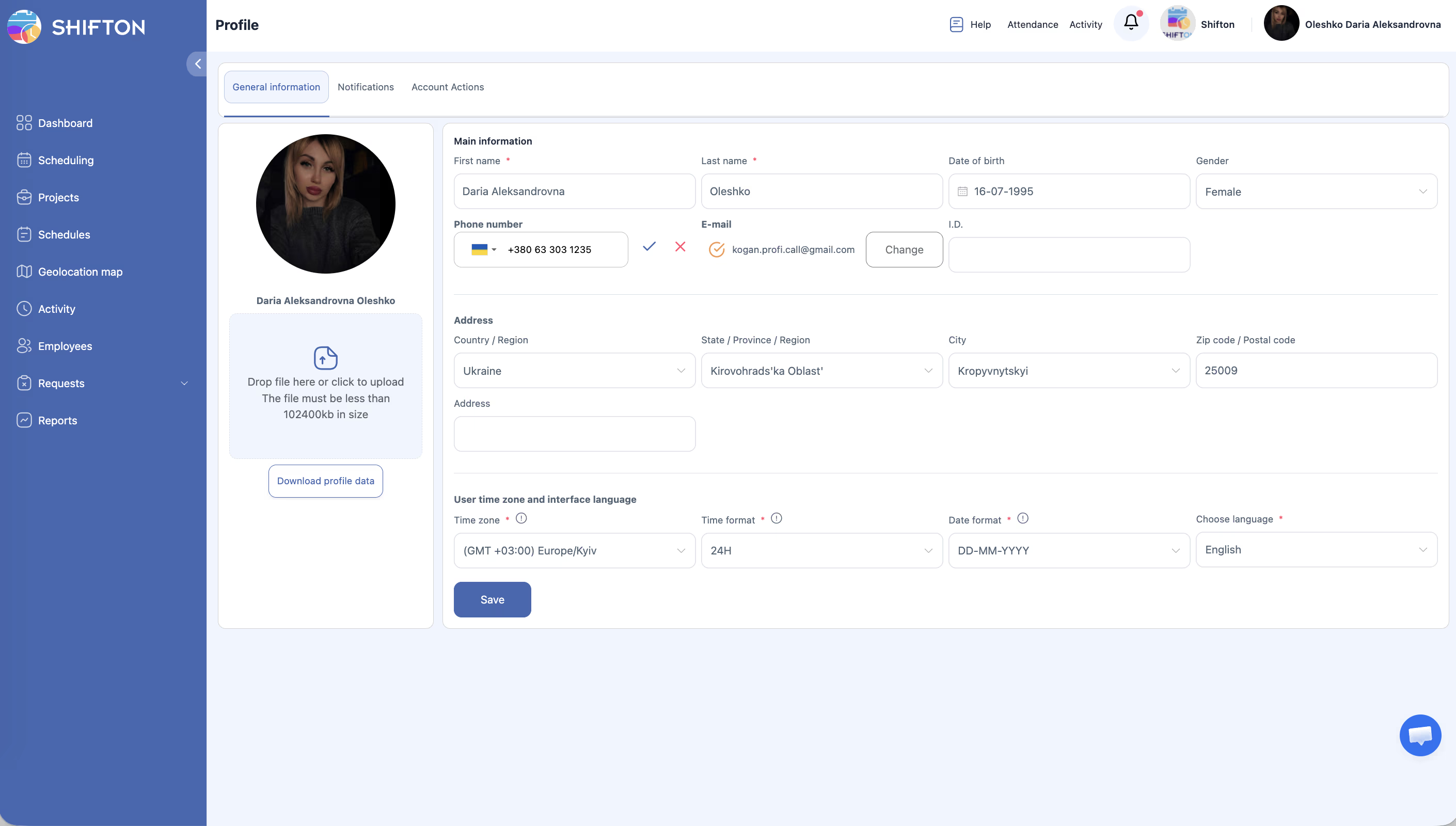
Step 3: Enter the Code
Enter the code in the corresponding field and click Confirm.
Resending the Code
If the SMS did not arrive, wait at least 30 seconds (there is a delay between requests) and check that the number and country code are correct.
Note: No more than 5 SMS codes can be requested for one number. If the limit is reached, contact support — the number can be verified manually.
Changing Your Phone Number
Each number must be unique — the same number cannot be used for two accounts.
Related Articles
- Step-by-Step Setup Guide
- Company Registration
- Adding Your First Employees
- Payment Methods
- SMS Notifications
FAQ
Q: I see “Please confirm your phone number” — what should I do?
A: Click the profile icon → My profile → verify the number via SMS code.
Q: I’m not receiving the SMS code.
A: Check the number and country code. Wait a few minutes. If the code doesn’t arrive, contact support.
Q: Can I use the same number for a manager and an employee?
A: No. Each user must have a unique number.
Q: I’ve exhausted the SMS limit.
A: Contact support — the number will be verified manually without SMS.
Q: Why is phone verification needed?
A: Without a verified number, you cannot send employee invitations or receive SMS notifications.
Q: Can I add a phone number later, not during registration?
A: The number is required during registration. You can change it in My profile → edit icon next to the phone field.
Q: How long do I need to wait between code requests?
A: At least 30 seconds between repeated SMS code requests.
Q: The code arrived but the system won’t accept it.
A: Make sure you enter the code without spaces. Codes are valid for a limited time — request a new one if more than 5 minutes have passed.
Q: I’m getting an error “Phone number already in use”.
A: This number is already registered to another account. Each number must be unique. Use a different number or contact support.
Q: Is phone verification mandatory for employees?
A: Not mandatory, but recommended. Without a verified number, the employee will not receive SMS notifications about shifts.
Q: How can a manager check if their number is verified?
A: In My profile, a verified number is displayed without a warning. An unverified one shows a “Please confirm” prompt.
Q: Can I use a company work number instead of a personal one?
A: Technically possible if that number receives SMS. But one number = one account; shared use is not supported.
Q: Do I need to re-verify the phone when changing the number?
A: Yes. After changing the number, a new SMS verification will be required.
Q: What if my number has changed and the old one is no longer available?
A: Contact support — specialists will update the number manually.
Q: Does phone verification affect schedule functionality?
A: No. The schedule works independently. However, without the owner’s verified number, employee invitations cannot be sent.
Q: Can two employees use the same phone for SMS notifications?
A: No. Each account requires a unique phone number.