

Define the physical work sites where your employees operate. Locations help you organize shifts by workplace and maintain accurate records of where work is being performed.
What Is This?
The Locations page lets you create and manage all of the physical sites, branches, or work areas your company uses. Each location has an ID, a name, an address, and a color for easy identification. Locations can be assigned to shifts, giving managers a clear picture of where each employee is expected to work and enabling location-based reporting and filtering.
Prerequisites
| # | Prerequisite | Details |
|---|---|---|
| 1 | Active Shifton account | You must have a registered company account |
| 2 | Admin or Owner role | Only Admins and Owners can create and manage locations |
Step-by-Step Instructions
Viewing Locations
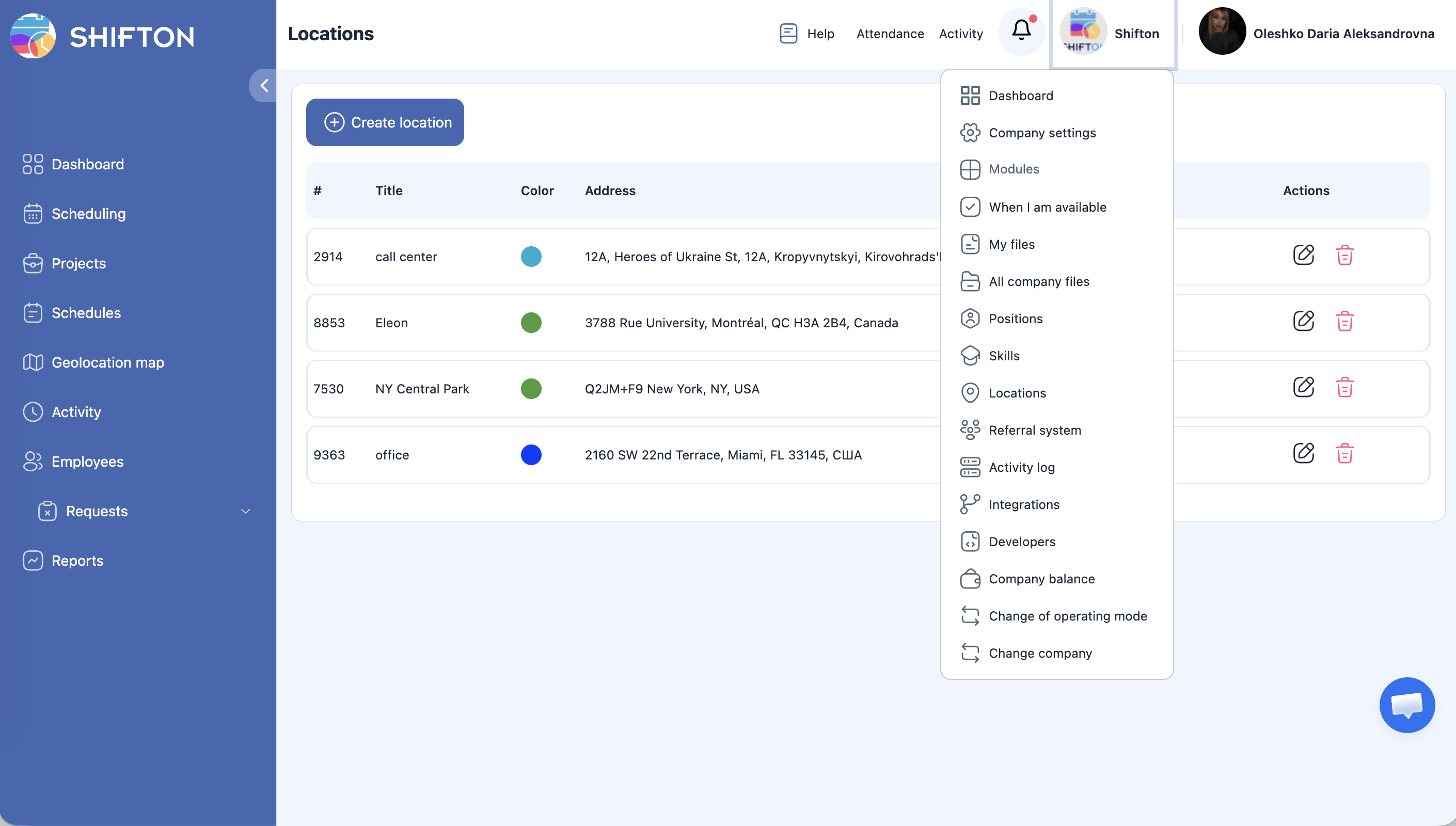
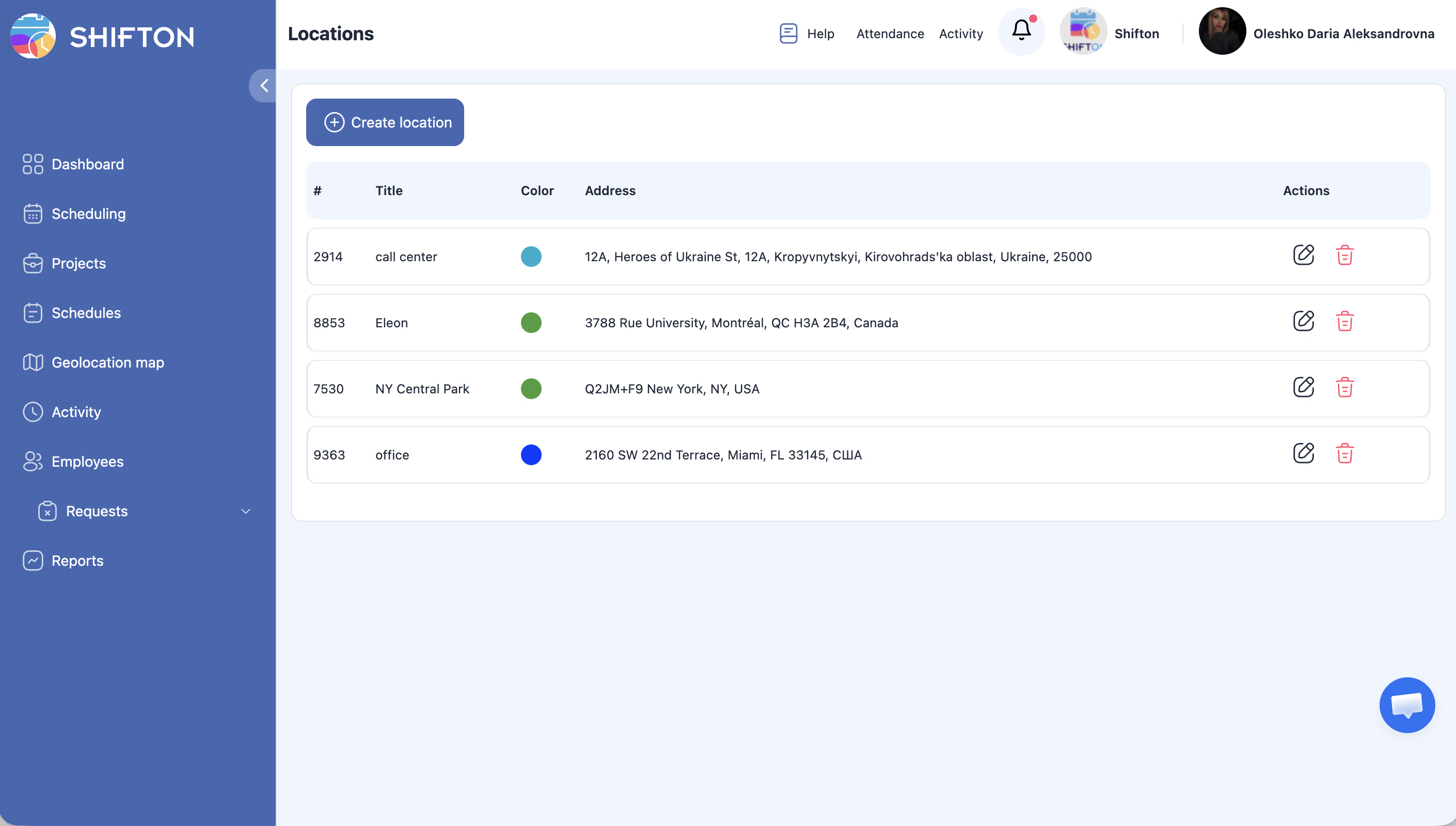
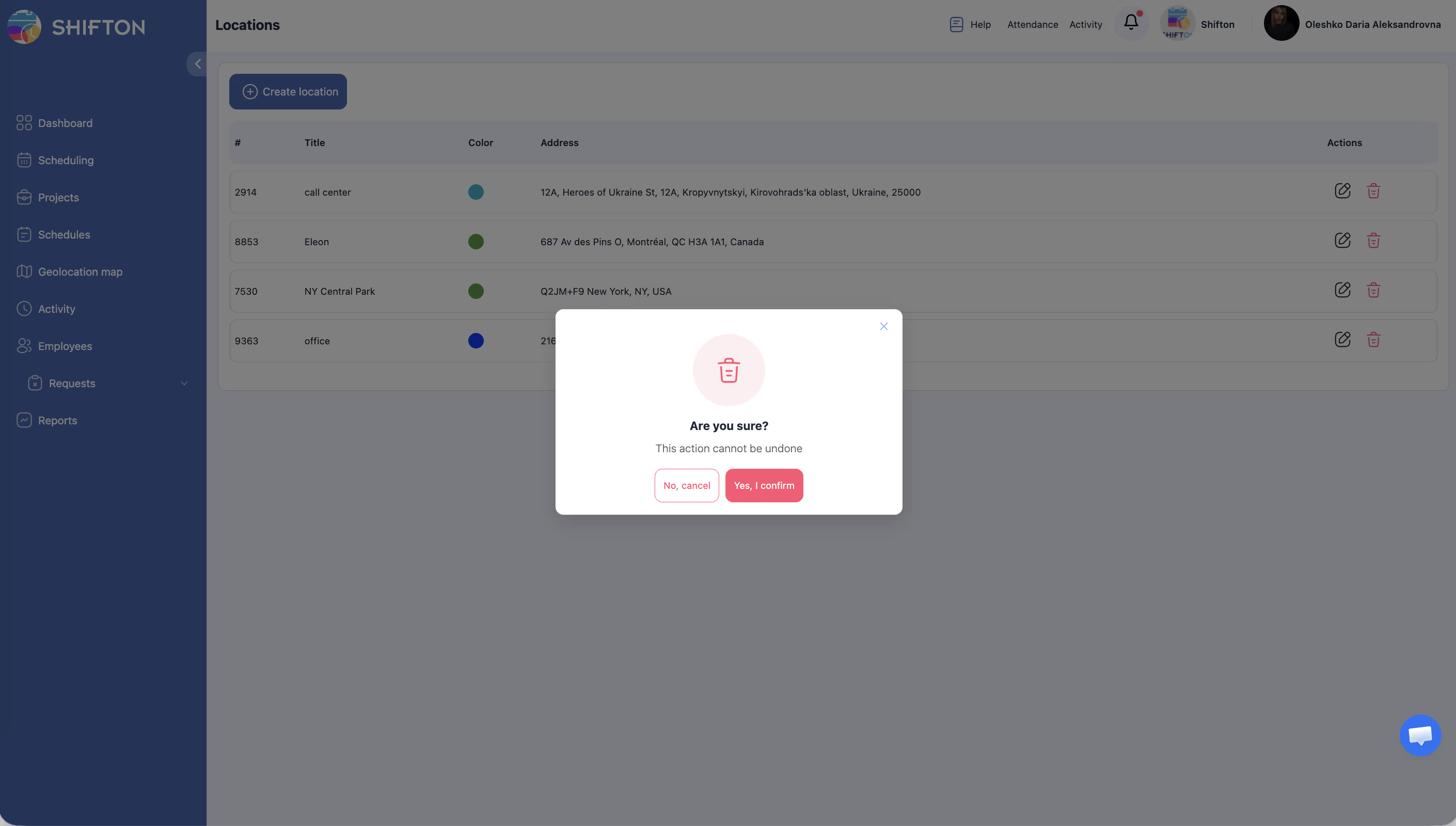
The locations table displays the following columns:
| Column | Description |
|---|---|
| # (ID) | A unique numeric identifier assigned automatically to each location |
| Title | The name of the location (e.g., “Main Office,” “Warehouse B”) |
| Color | A color label used to visually distinguish the location on schedules |
| Address | The physical street address of the location |
| Actions | Available operations: Edit, Delete |
Creating a New Location
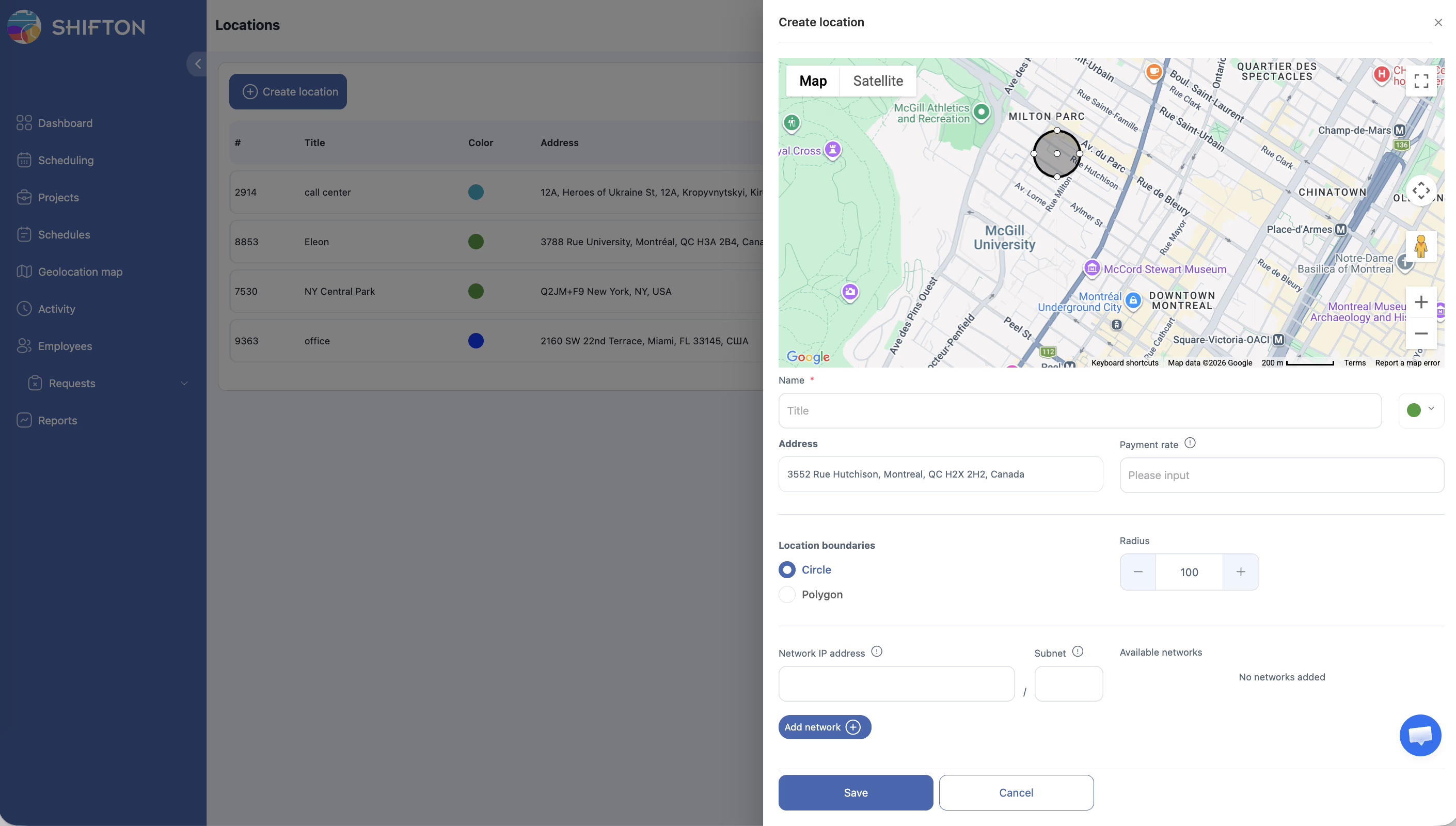
Editing a Location
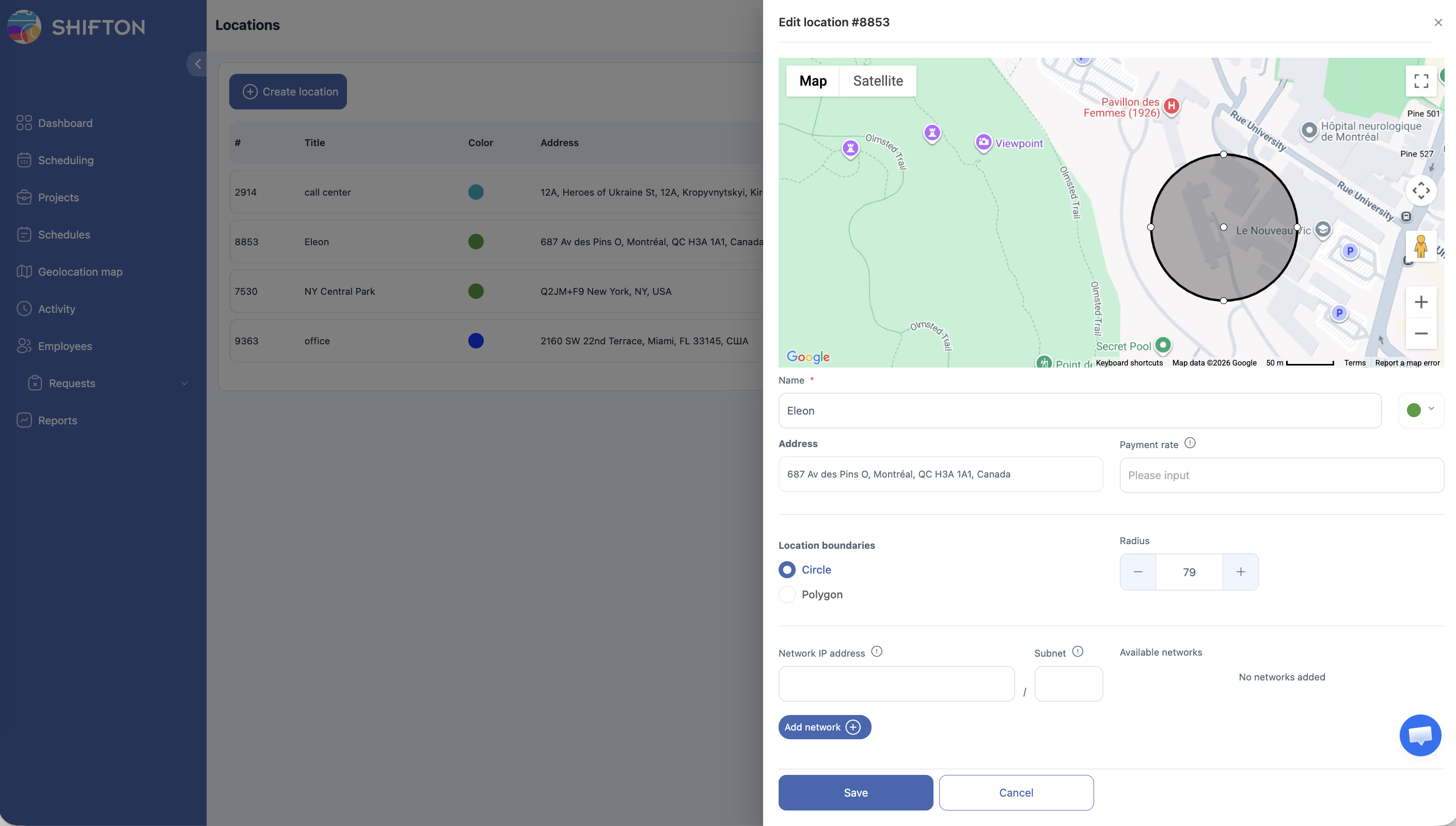
Deleting a Location
How Locations Are Used
| Area | How Locations Are Used |
|---|---|
| Shift assignment | When creating or editing a shift, you can assign it to a specific location |
| Schedule filtering | Filter the schedule view by location to see only shifts at a particular site |
| Reports | Generate location-based reports for attendance, hours worked, and payroll |
| Employee oversight | Managers can see at a glance which employees are assigned to which locations |
Access Permissions
| Role | View Locations | Create Location | Edit Location | Delete Location |
|---|---|---|---|---|
| Owner | Yes | Yes | Yes | Yes |
| Admin | Yes | Yes | Yes | Yes |
| Manager | Yes | No | No | No |
| Employee | Yes (assigned locations only) | No | No | No |
FAQ
Q: Is there a limit to the number of locations I can create?
A: There is no hard limit. You can create as many locations as your organization requires.
Q: Can a single shift be assigned to multiple locations?
A: No, each shift is assigned to one location at a time. If an employee works at multiple locations in one day, create separate shifts for each location.
Q: What is the location ID used for?
A: The ID is an automatically generated unique number that identifies each location in the system. It can be helpful for support requests or when referencing locations in integrations.
Q: Can I use locations to track remote workers?
A: You can create a location called “Remote” or “Work from Home” to represent non-physical work sites. This helps you categorize and filter shifts for remote employees.
Q: What happens to existing shifts if I delete a location?
A: Existing shifts that were assigned to the deleted location will no longer display a location. It is recommended to reassign those shifts to another location before deleting.
Possible Issues and Solutions
| Issue | Possible Cause | Solution |
|---|---|---|
| Cannot create a new location | Insufficient permissions | Confirm you have an Admin or Owner role |
| Location does not appear in the shift assignment dropdown | The location was just created and the page has not refreshed | Refresh the schedule page |
| Location color not visible on the schedule | No shifts are assigned to that location in the current view | Assign shifts to the location and check your filter settings |
| Address field does not validate | Special characters or formatting issues | Enter the address in a simple format without special characters |
| Deleted location still appears in historical reports | Historical records preserve the original location data | This is expected behavior — past records retain the location that was assigned at the time |