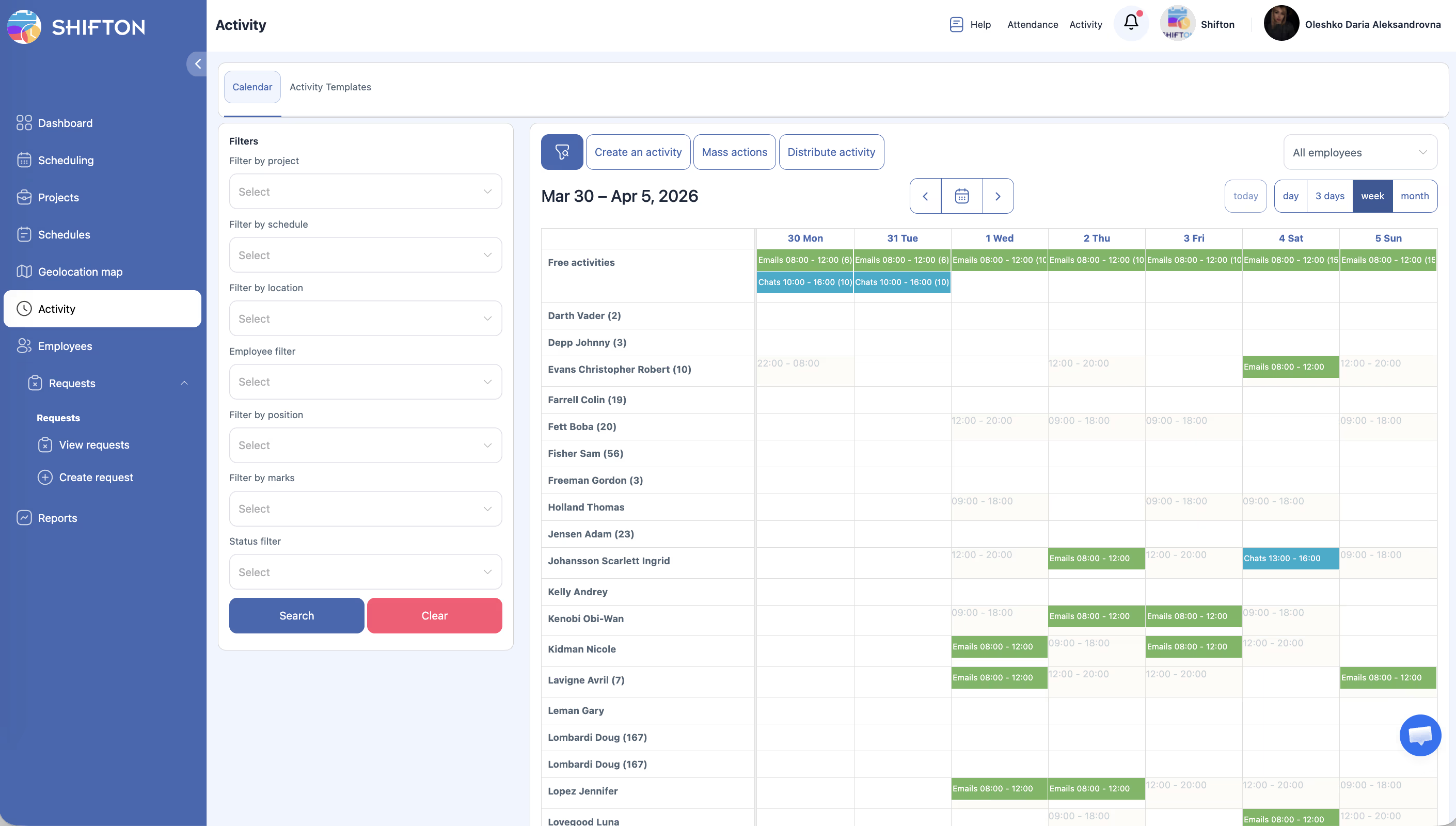
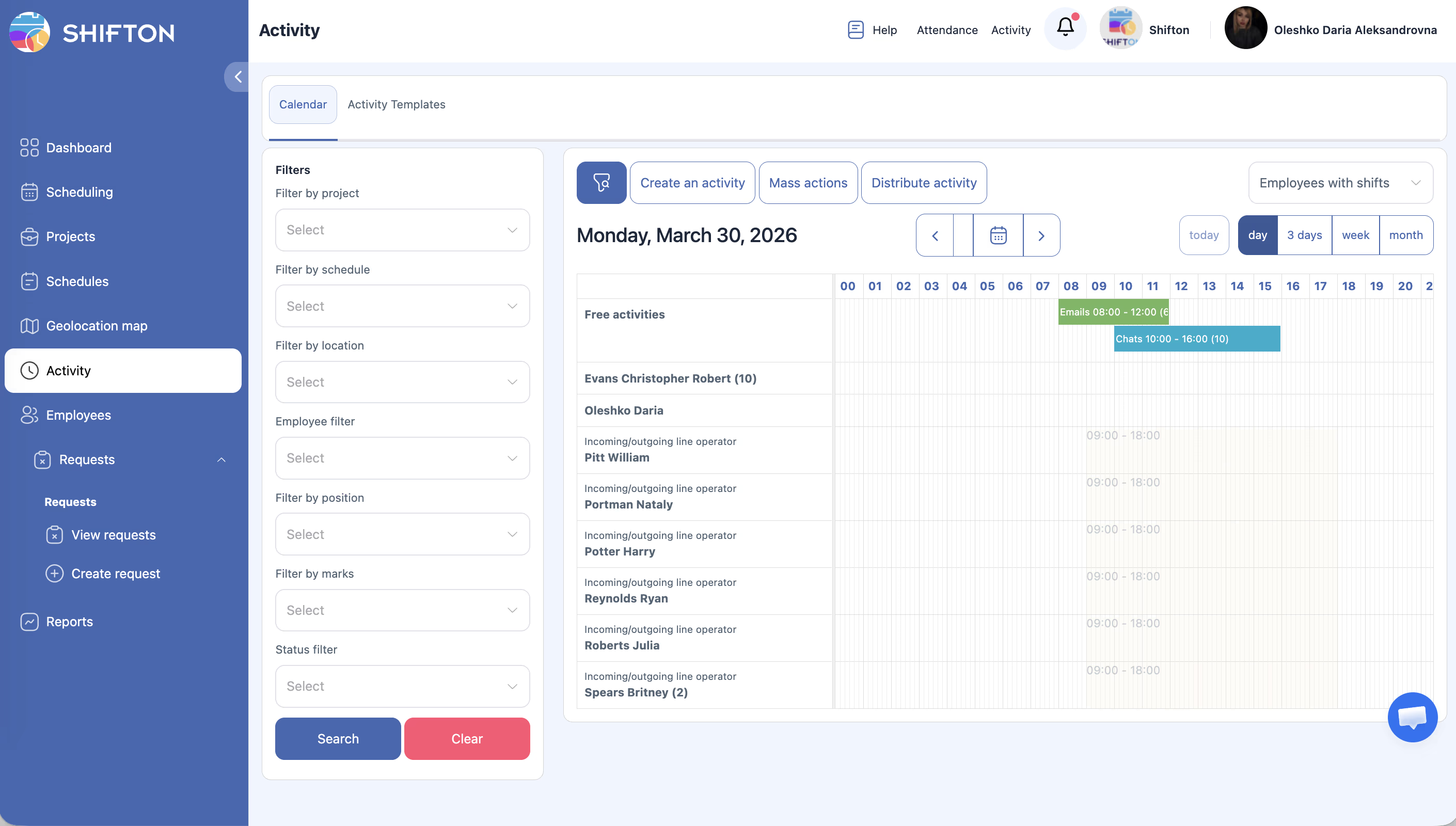
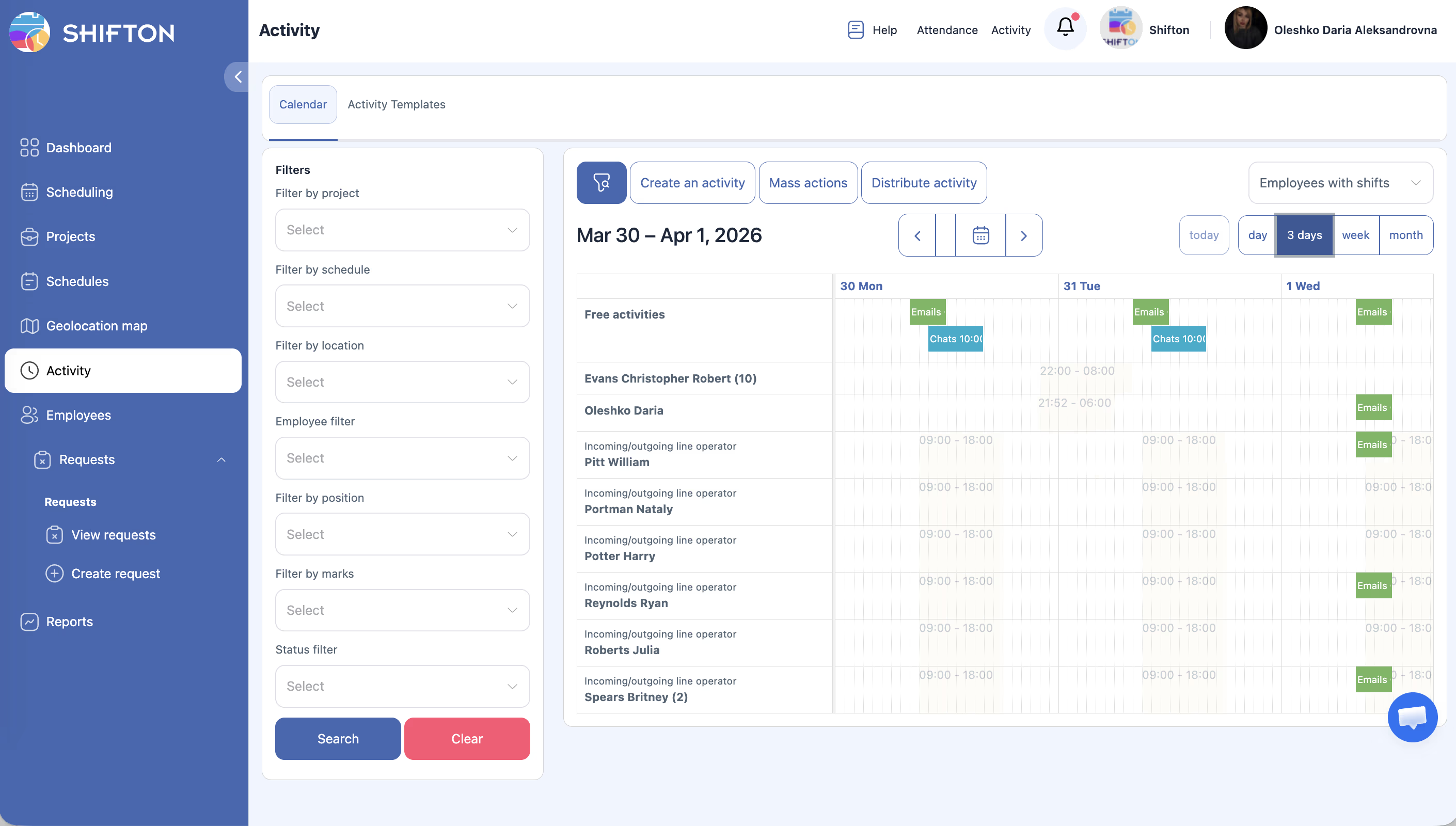
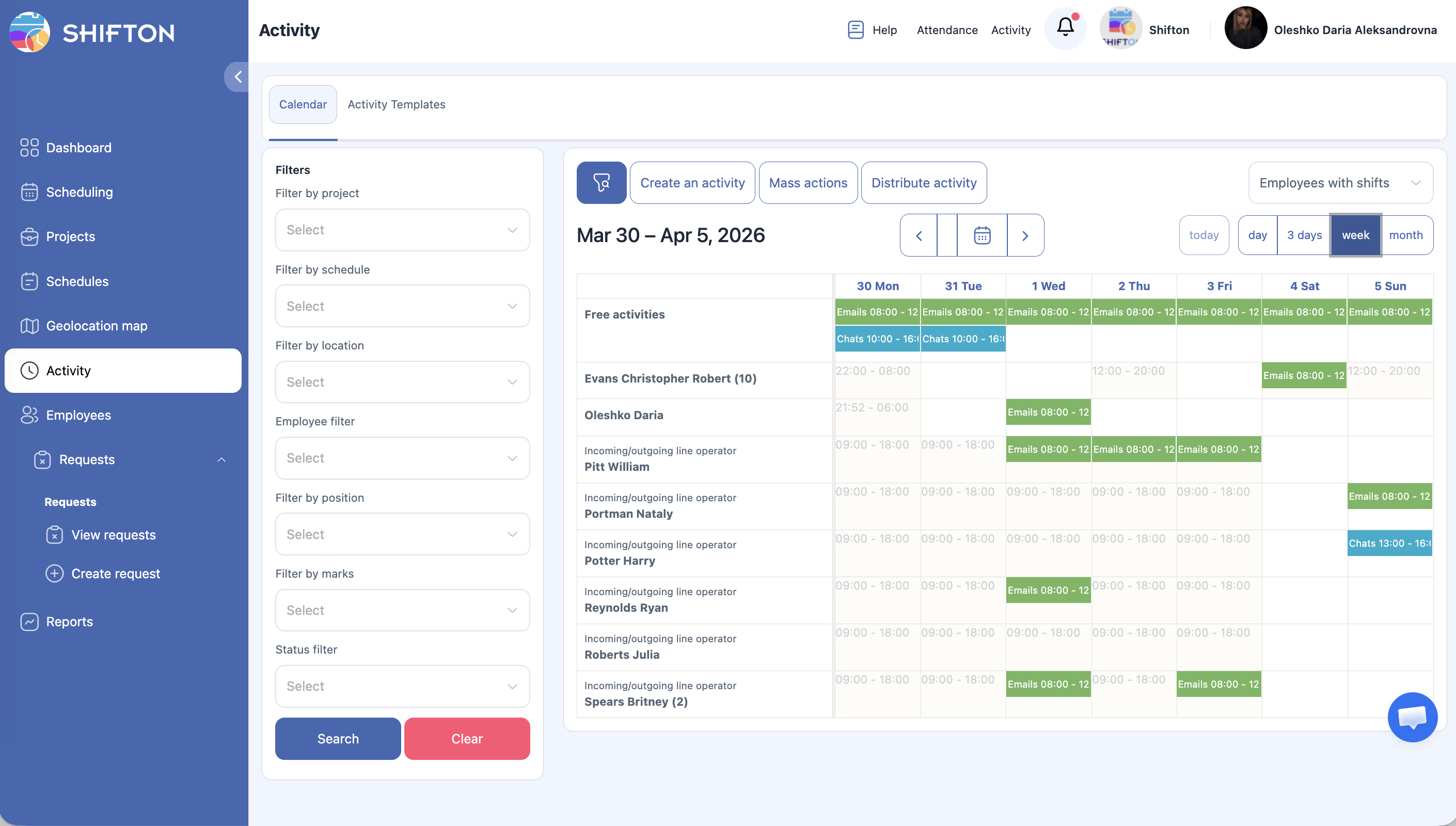
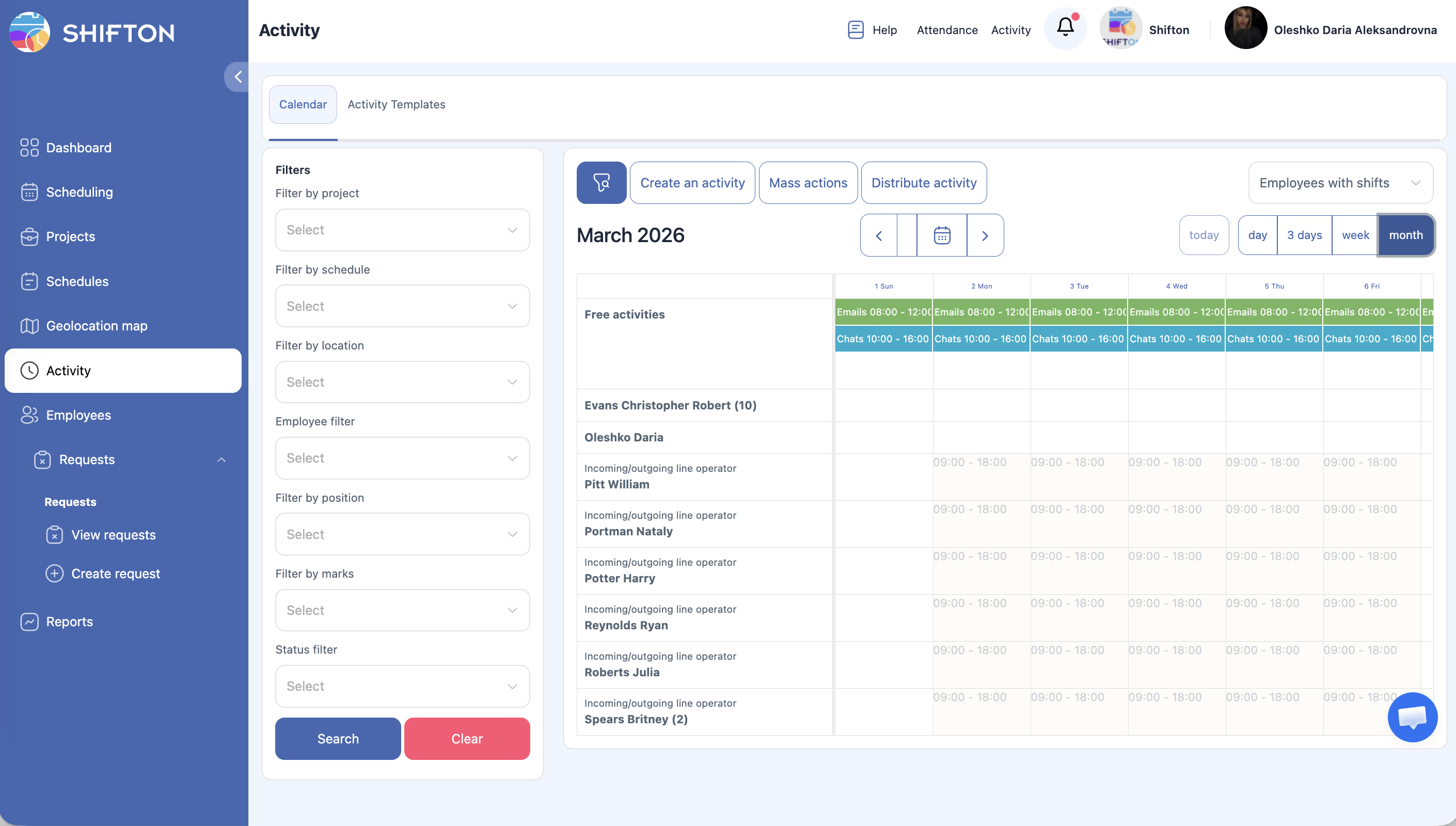
The Activity Calendar provides a visual overview of all employee activities across your company, with flexible views, filtering, and management tools.
What Is This?
The Activity page is a dedicated workspace for planning and tracking employee activities — tasks, assignments, or jobs that go beyond regular shift scheduling. Accessed at and use a powerful set of filters in the left panel to narrow down what you see. A Free activities row shows unassigned activities that are available for distribution.
Key controls at the top of the calendar include:
1
Create an activity
— add a new activity manually.
2
Mass actions
— select multiple activities and delete them in bulk.
3
Distribute activity
— automatically assign activities to employees based on rules.
Prerequisites
#
Prerequisite
Details
1
Shifton account
An active company account with the Activity feature available.
2
Employees created
At least one employee must exist and be assigned to a project.
3
Positions configured
Employees should have positions assigned for proper grouping in the calendar.
4
Activities or templates created
You need activities or templates to see content on the calendar.
Step-by-Step Instructions
Navigating to the Activity Calendar
Step
Action
Expected Result
1
Log in to Shifton and open your company.
The main dashboard loads.
2
Click Activities in the left sidebar .
The Activity page opens with the Calendar tab active by default.
Understanding the Calendar Layout
Element
Description
Employee rows
Each row represents one employee. Rows are grouped by position.
Free activities row
A special row at the top or bottom showing unassigned activities available for distribution.
Timeline columns
Time slots spanning the selected view (hours for day view, days for week/month view).
Activity blocks
Colored blocks on the timeline representing individual activities with their duration.
Switching View Modes
Step
Action
Expected Result
1
Look at the view mode selector at the top of the calendar.
Options include: Today, Day, 3 Days, Week, Month.
2
Click the desired view mode.
The calendar updates to show the selected time range.
View Mode
What It Shows
Today
Activities for the current day only.
Day
Activities for a single selected day.
3 Days
A three-day window starting from the selected date.
Week
A full seven-day week view.
Month
A monthly overview with condensed activity blocks.
Using Left Panel Filters
Step
Action
Expected Result
1
Look at the left panel on the Activity Calendar page.
You see a list of filter categories.
2
Expand or select the desired filter category.
Filter options appear.
3
Set your filter criteria.
The calendar updates to show only matching activities.
Filter
Description
Project
Show activities for a specific project.
Schedule
Filter by schedule.
Location
Show activities for a specific work location.
Employee
Search and select specific employees.
Position
Filter by employee position.
Marks
Filter by custom marks/tags applied to activities.
Status
Filter by activity status (e.g., planned, in progress, completed).
Using the Top Action Buttons
Button
Purpose
Create an activity
Opens a form to manually create a new activity with details like employee, time, duration, and type.
Mass actions
Enables bulk operations — select multiple activities and apply Delete to them.
Distribute activity
Automatically assigns unassigned (free) activities to employees based on availability and rules.
Access Permissions
Role
View Calendar
Create Activities
Edit Activities
Delete Activities
Distribute Activities
Employee
Own only
No
No
No
No
Manager
All
Yes
Yes
Yes
Yes
Admin
All
Yes
Yes
Yes
Yes
Owner
All
Yes
Yes
Yes
Yes
FAQ
Q1: What is the “Free activities” row? The Free activities row displays activities that have not been assigned to any employee yet. These are available for manual assignment or automatic distribution.
Q2: Can I drag and drop activities between employees? Depending on your Shifton plan and configuration, drag-and-drop may be available for reassigning activities directly on the calendar. Check your current feature set or contact support.
Q3: How do I see activities for a specific employee only? Use the Employee filter in the left panel. Type the employee’s name and select them to filter the calendar to their activities only.
Q4: What is the difference between the Calendar and Activity Templates tabs? The Calendar tab shows actual scheduled activities on a timeline. The Activity Templates tab manages reusable templates that can be used to quickly create new activities. See the Activity Templates article for details.
Q5: Can I export the activity calendar data? Activity data is available through the Activity Report in the Reports section. Navigate to Reports and select the Activity Report to export data by date range.
Possible Issues and Solutions
Issue
Possible Cause
Solution
Calendar is empty
No activities have been created, or filters are too restrictive.
Create an activity or reset all filters by clicking the Reset button in the left panel.
Employees are not grouped by position
Positions have not been assigned to employees.
Assign positions to employees in Employees > Edit Employee > Position.
Free activities row is missing
There are no unassigned activities.
The row appears only when at least one unassigned activity exists.
View mode does not change
Browser caching issue.
Refresh the page and try selecting the view mode again.
Cannot see activities for another team
Your role does not have access to that team’s data.
Contact your Admin to adjust your permissions or role.