

The Company Dashboard is your real-time command center for monitoring shifts, breaks, activities, and employee requests across your entire organization.
What Is This?
The Company Dashboard provides a bird’s-eye view of everything happening in your company right now. It displays a 3×3 grid of live widgets tracking shifts, breaks, and activities, along with a summary of pending employee requests and per-project overviews. Use it to quickly spot issues like late arrivals, missed breaks, or staffing gaps without digging through individual schedules.
Prerequisites
| Requirement | Details |
|---|---|
| Role | Owner, Administrator, or Manager with dashboard access |
| Schedule | At least one active schedule with assigned shifts |
| Employees | Employees must be added to the company and assigned to projects |
Step-by-Step Instructions
Accessing the Dashboard
Understanding the Widget Grid
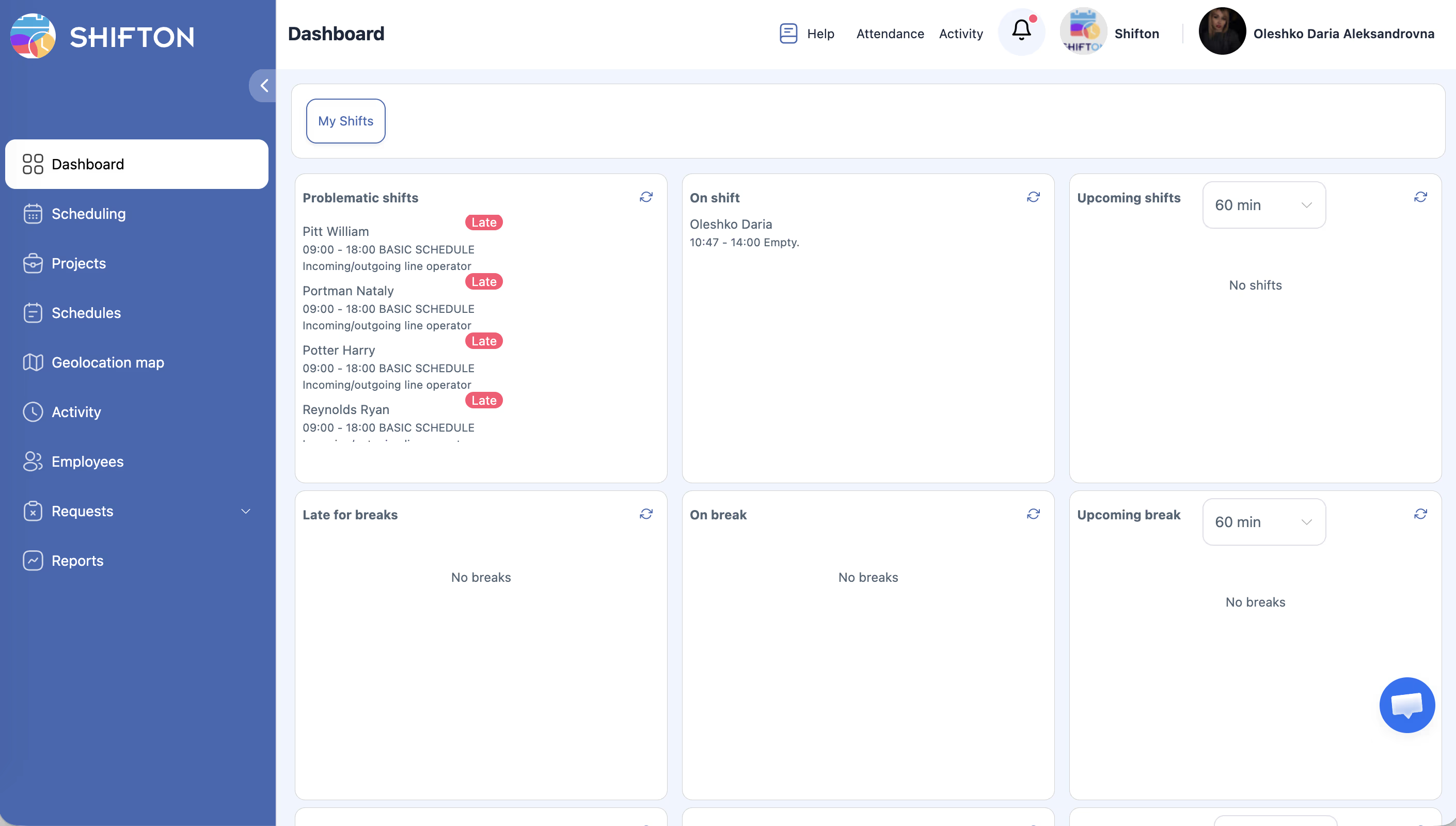
The dashboard displays a 3×3 grid of real-time widgets organized in three rows:
Row 1 — Shifts
| Widget | What It Shows |
|---|---|
| Problematic Shifts | Shifts with issues such as no-shows or late arrivals |
| On Shift | Employees currently working their shift right now |
| Upcoming Shifts | Shifts starting within the selected time window |
Row 2 — Breaks
| Widget | What It Shows |
|---|---|
| Late for Breaks | Employees who should have started their break but have not |
| On Break | Employees currently on a break |
| Upcoming Break | Breaks scheduled to start within the selected time window |
Row 3 — Activities
| Widget | What It Shows |
|---|---|
| Late Activity | Employees who have not started a scheduled activity on time |
| On Activity | Employees currently performing an activity |
| Upcoming Activity | Activities scheduled to begin within the selected time window |
Using the Time Window Dropdown
Reviewing Employee Requests
Below the widget grid, the Employee Requests section displays pending requests organized into three tabs:
| Tab | Description |
|---|---|
| Shifts Swapping | Requests from employees who want to swap shifts with a colleague |
| Time-off | Vacation, sick day, and other time-off requests awaiting approval |
| Open Shifts | Requests related to posting or taking open shifts |
Viewing Project Summary Cards
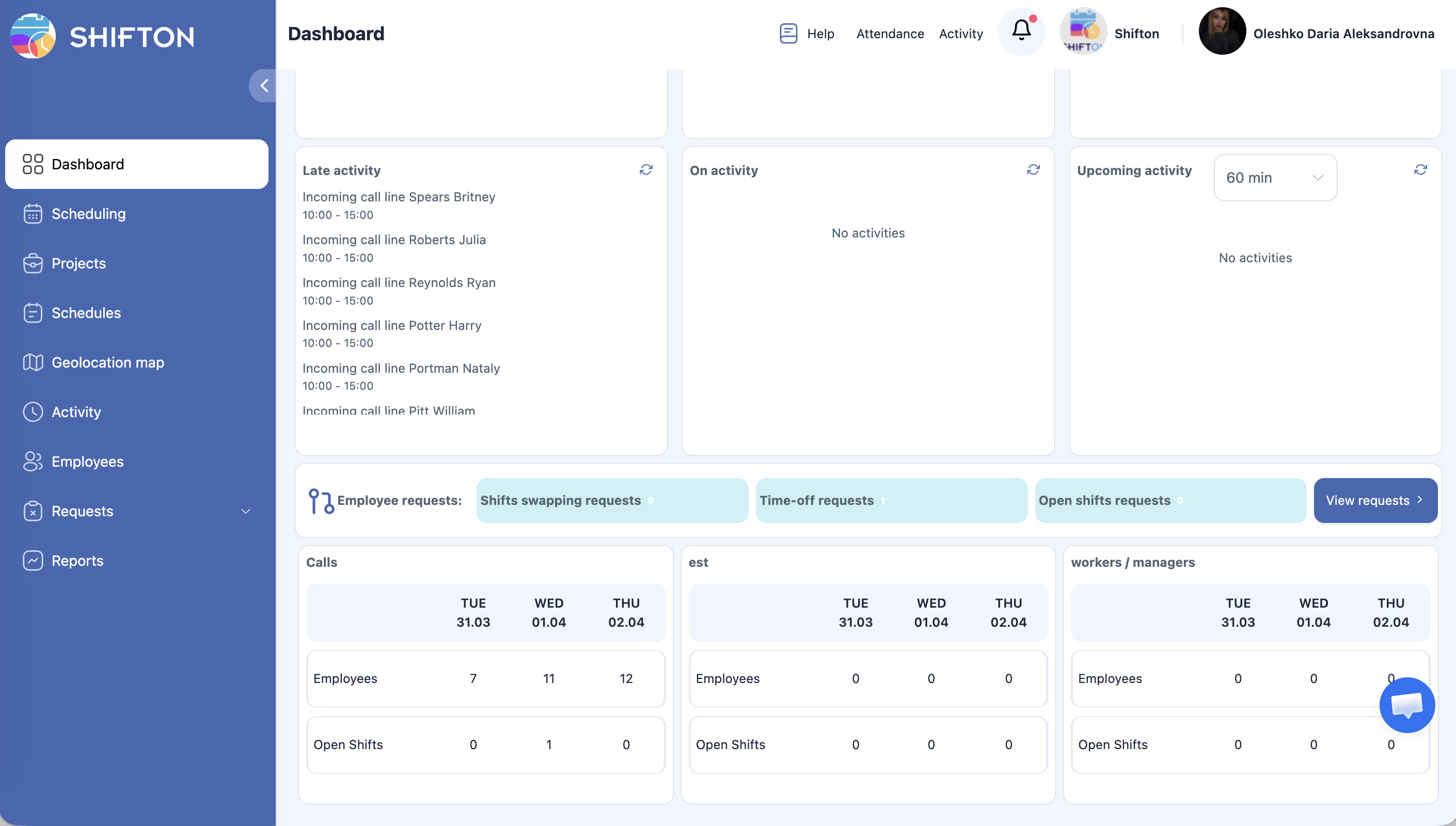
At the bottom of the dashboard, you will find Project Summary Cards — one card per project in your company. Each card shows a 3-day mini-grid with the following information:
| Data Point | Description |
|---|---|
| Employees | Number of employees assigned for each of the three days |
| Open Shifts | Number of unfilled shifts for each of the three days |
Use these cards to quickly identify projects that may be understaffed in the coming days.
Switching to My Shifts
Access Permissions
| Role | View Dashboard | See All Projects | See Employee Requests |
|---|---|---|---|
| Owner | Yes | Yes | Yes |
| Administrator | Yes | Yes | Yes |
| Manager | Yes | Assigned projects only | Assigned projects only |
| Employee | No (sees My Shifts only) | No | No |
FAQ
Q: How often does the dashboard data refresh?
A: The dashboard shows real-time data as of the last refresh. Click the Refresh button next to the time window dropdown to pull the latest information at any time.
Q: Why do I see “0” in all widgets?
A: This usually means there are no active shifts, breaks, or activities at the current time. Check that your schedules are published and that shifts are assigned to employees for today.
Q: Can I customize which widgets appear on the dashboard?
A: The 3×3 widget layout is fixed and cannot be rearranged. However, the time window dropdown lets you control how far ahead the “Upcoming” widgets look.
Q: Why can I only see some projects in the summary cards?
A: Managers can only see projects they are assigned to. If you need access to additional projects, ask your Owner or Administrator to assign you.
Q: What does “Problematic Shifts” include?
A: Problematic shifts are those where something has gone wrong, such as an employee being late, a no-show, or other attendance-related issues that require attention.
Possible Issues and Solutions
| Issue | Possible Cause | Solution |
|---|---|---|
| Dashboard shows no data | No published schedules for today | Publish a schedule that covers the current date |
| “Upcoming Shifts” is empty | Time window too short or no shifts in range | Increase the time window using the dropdown, or verify shift assignments |
| Project summary cards missing | No projects created yet | Create at least one project under Company settings |
| Employee requests tab shows zero | No pending requests | This is normal — it means all requests have been handled |
| Cannot access the dashboard | Insufficient permissions | Contact your Owner or Administrator to grant dashboard access |
| Data looks outdated | Dashboard not refreshed | Click the Refresh button to load the latest data |