

Two personal sections of an employee that the company owner does not have: how much has been paid to you and which documents are attached to you. Both open from the menu, from the Personal (PERSONAL) group.
Step-by-step instructions
My salary
☰ → the Personal (PERSONAL) group → My salary.
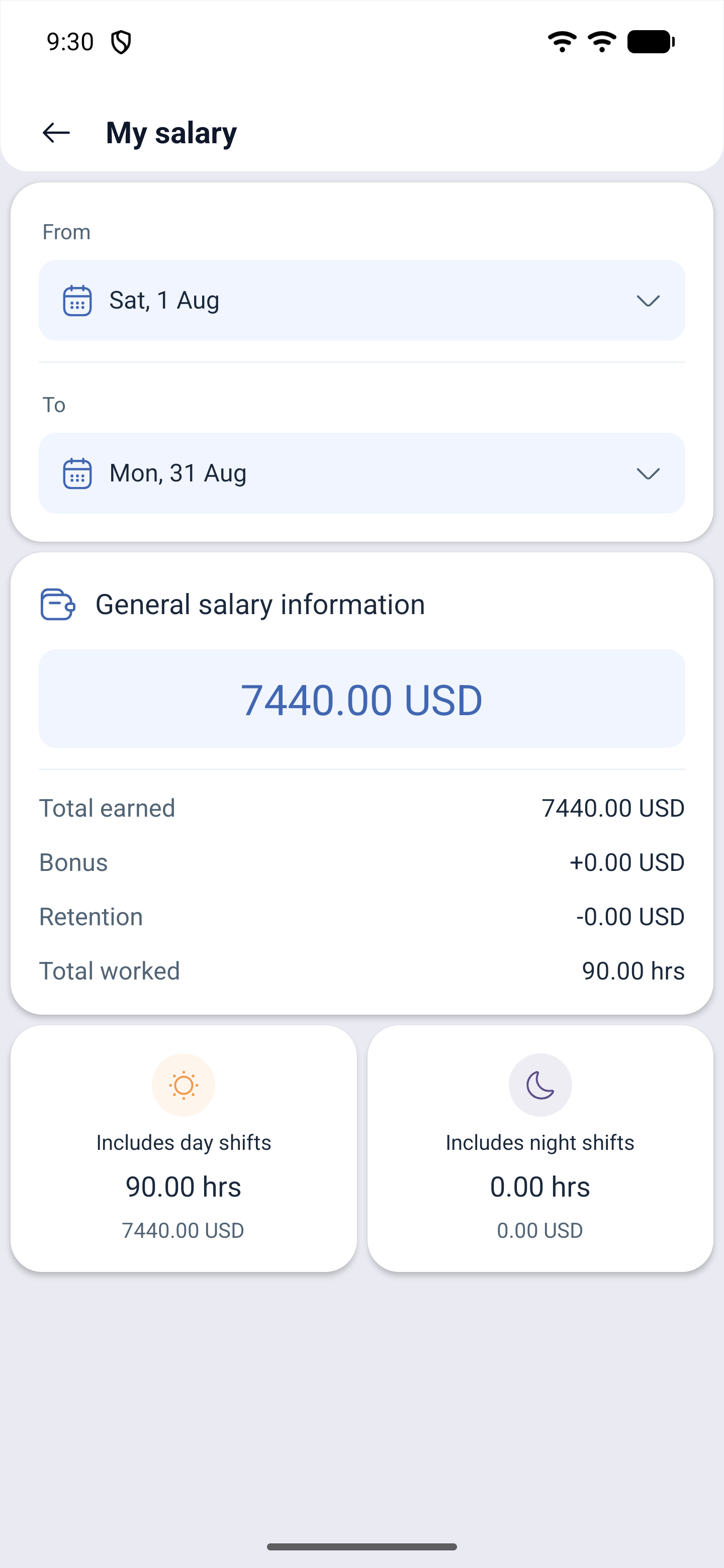
The period is selected at the top, and below it is the summary for that period:
| Row | What it shows |
|---|---|
| Total earned | Everything added for the whole period |
| Bonus | Bonuses that were added |
| Retention | Deductions |
| Total worked | Hours worked |
| Includes day shifts | How many day hours there are and how much was paid for them |
| Includes night shifts | The same for night shifts |
The breakdown into day and night shifts is not decoration: night hours are often counted at a higher rate, and here you can see exactly how much came in for them.
Where bonuses and deductions come from
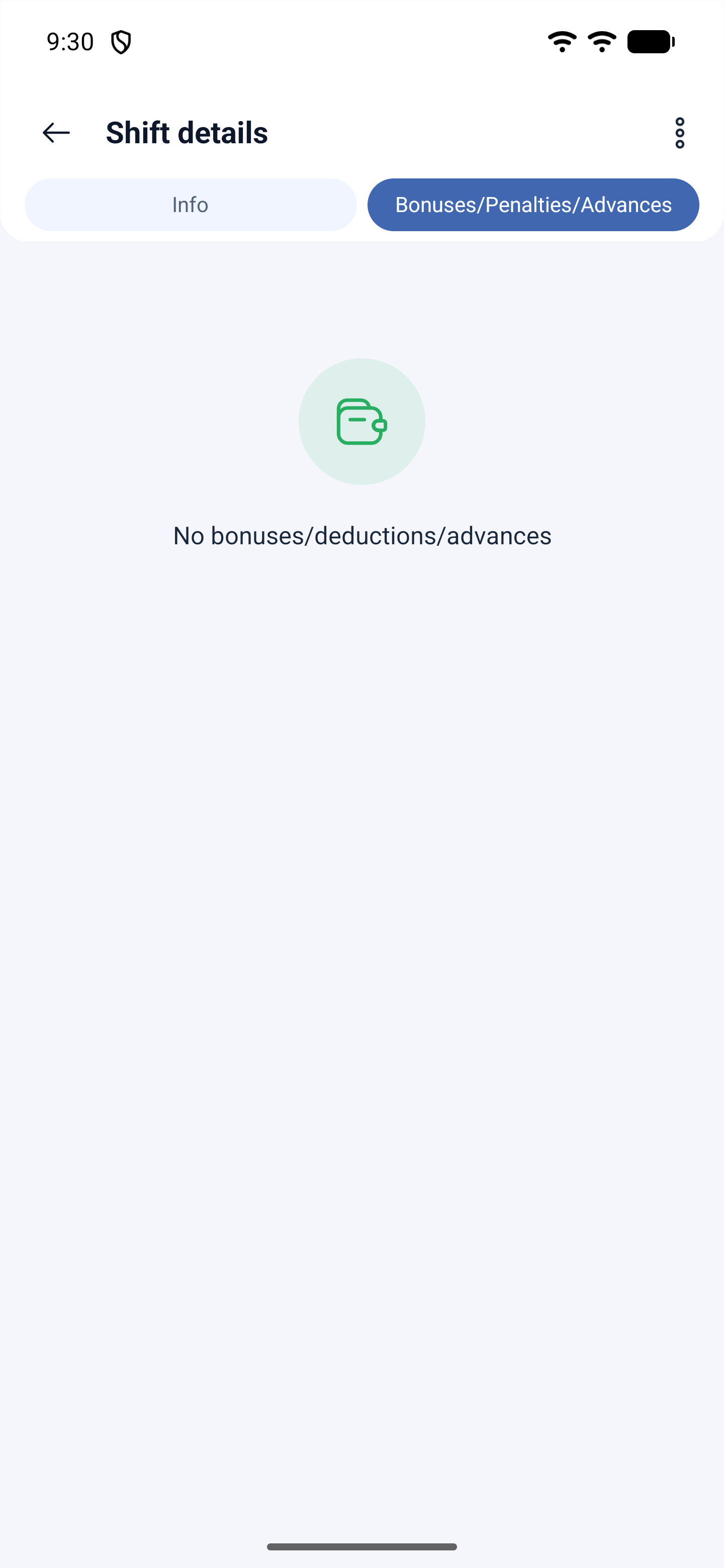
The summary is built up from individual shifts. What has been added and deducted for a particular shift is visible in the shift itself: open it on the schedule screen and go to the second tab of the card — Bonuses/Penalties/Advances. If there is nothing for the shift, it says so.
This is how a discrepancy is checked: if the amount for the period looks wrong, look for the shift where the calculation did not add up.
My files
☰ → the Personal (PERSONAL) group → My files.
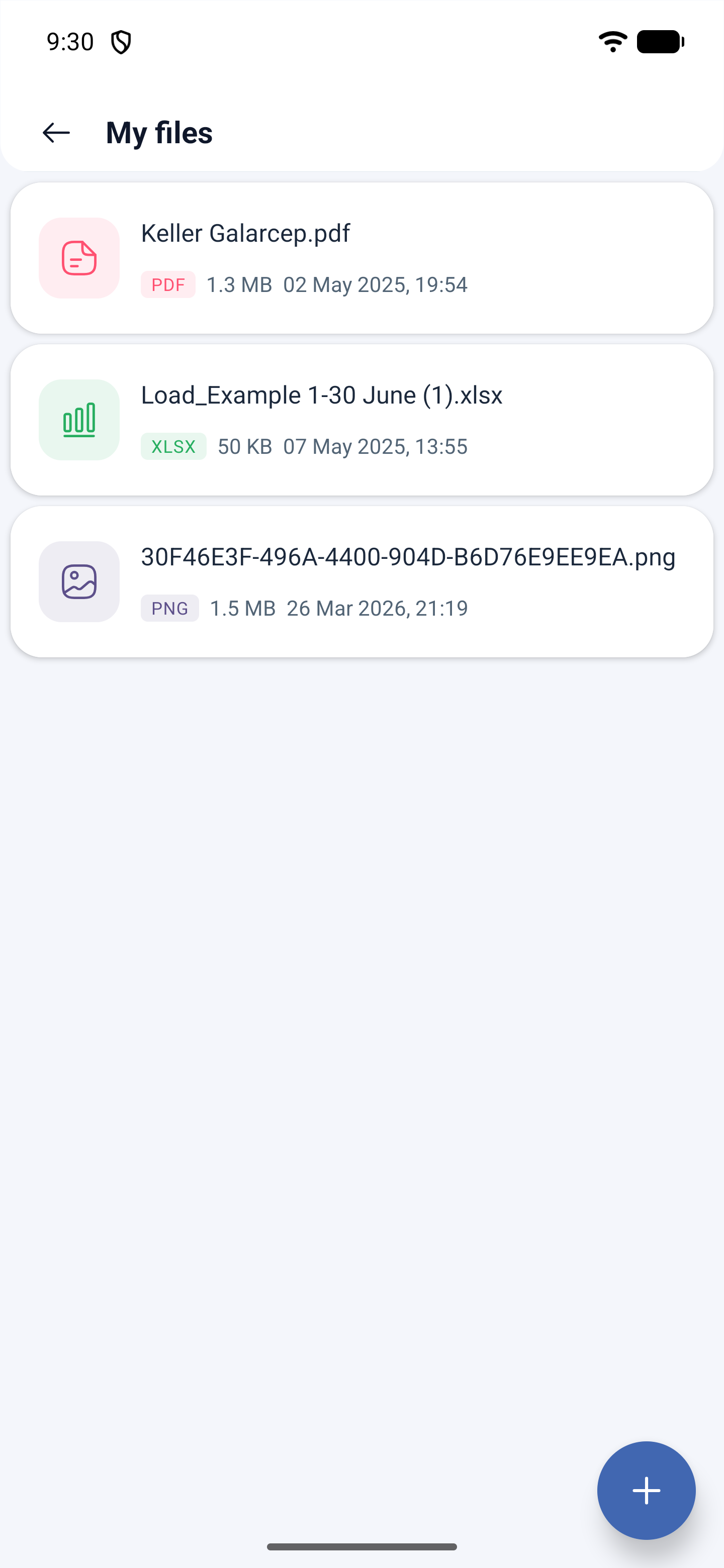
These are your personal documents: a contract, certificates, scans. At the top there is a counter — how many files there are and how much space they take. Below is the list, where each row has the name, type, size and upload date.
How to upload a document
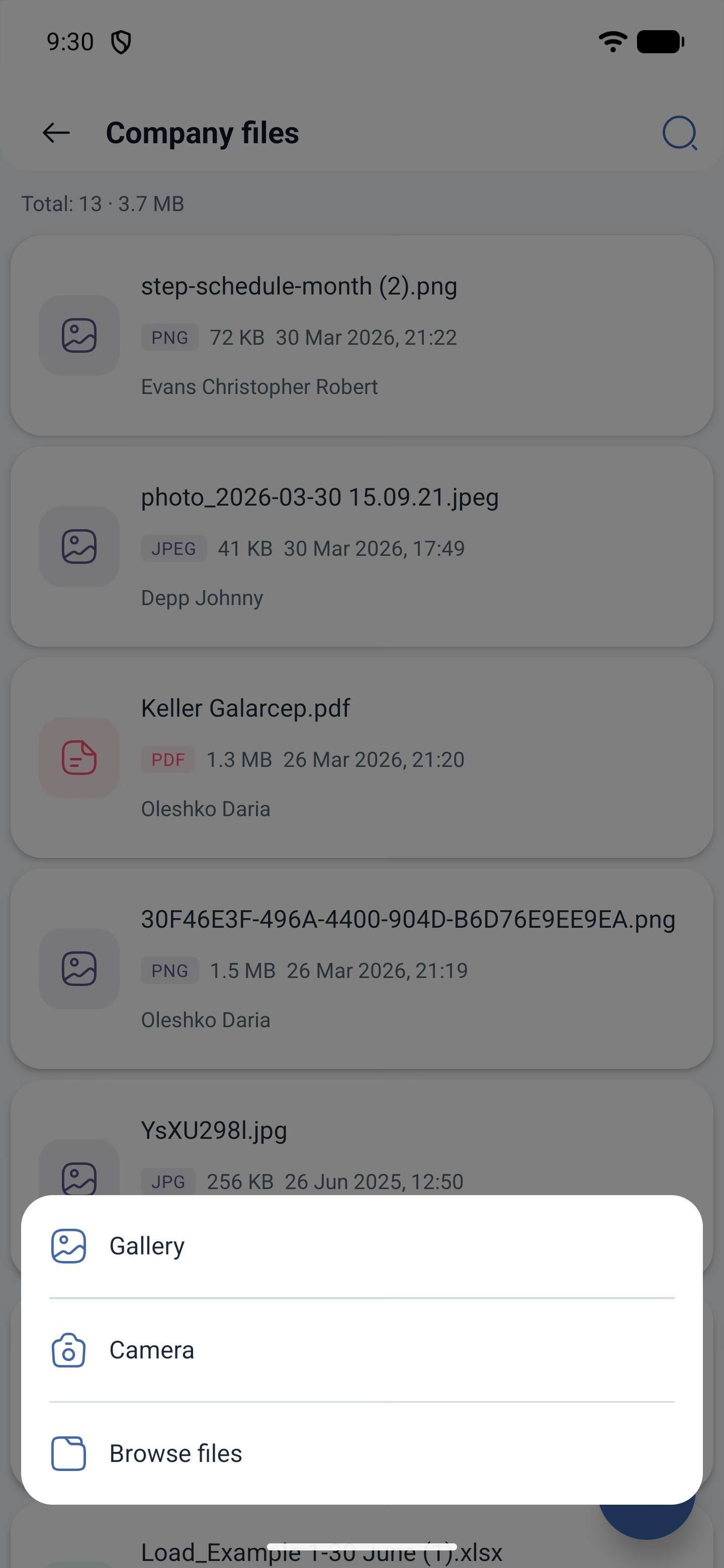
The plus button is at the bottom right. It offers three sources:
| Source | What it takes |
|---|---|
| Gallery | An image from the phone gallery |
| Camera | Take a photo right now — handy for a certificate or a paper document |
| Browse files | Any file from the device storage |
Shooting with the camera is the main convenience of a phone: a certificate from the clinic does not have to be scanned, it is enough to photograph it in the app.
How “My files” differ from company files
My files are documents attached to you personally. They are visible to you and to an administrator in your profile.
Company files are the shared archive: instructions, orders, document templates. This is a separate section, and it is present in the employee menu only when the files module is connected in the company.
Possible problems and solutions
| Problem | Cause | Solution |
|---|---|---|
| There is no My salary item | The payroll module is not connected | The module is connected by the company owner in the settings |
| The salary shows zeros | The right period is not selected, or there were no shifts in the period | Check the period at the top of the screen |
| The amount does not match the expected one | Payments are counted per shift, with bonuses and deductions | Open the shifts of the period and look at the Bonuses/Penalties/Advances tab |
| Night hours are not highlighted | No night shift rate is set in the company | Rates are configured by the manager |
| A file does not open | There is no app for this type on the phone | Download the file and open it with a suitable program |
| A large file cannot be uploaded | A size limit | Reduce the file or upload it from the web version |
| I do not see other people’s documents in My files | This is by design | It is a personal section. Shared documents are in Company files |
| There is no Company files section | The files module is not connected | The manager connects it |
| I uploaded the wrong file | Deleting your own files is possible | Delete the file in the list; shared files are deleted by an administrator |
Frequently asked questions (FAQ)
Question: Does anyone else see my salary? Answer: The section is personal. An employee’s payments are visible to managers with payroll rights, but not to colleagues.
Question: Why does the owner not have the “My salary” item? Answer: It is an employee section — personal payments. The owner looks at company-wide calculations in the reports.
Question: Where can I see what money was taken from me for? Answer: Open the shift for the day you need and the Bonuses/Penalties/Advances tab — deductions are attached to a shift.
Question: How do I attach a sickness certificate? Answer: In two ways: in My files with the upload button, or directly to the time-off request with the Attach file button.
Question: Can I photograph a document right in the app? Answer: Yes, the upload button → Camera.
Question: Who sees my files? Answer: You and the administrator who has your profile open.
Question: Are night hours counted separately? Answer: Yes, the summary has rows for day and for night shifts with hours and amounts.
Question: What period is the salary shown for? Answer: For the one selected at the top of the screen. The period can be changed.